DocsShaping data
Write a file
Saves the rows it gets as a file: a CSV, or invoices that QuickBooks Desktop imports (an IIF file). It is usually the last step. It used to be called Write a CSV.
File type
- CSV: one row per line, with a header line. A step saved before this setting existed is a CSV, with the settings below.
- QuickBooks Desktop (IIF): invoices in the file format QuickBooks Desktop imports. See QuickBooks Desktop invoices below.
Switching the type changes the end of the file name to match, for example orders_{date}.csv becomes orders_{date}.iif.
Settings
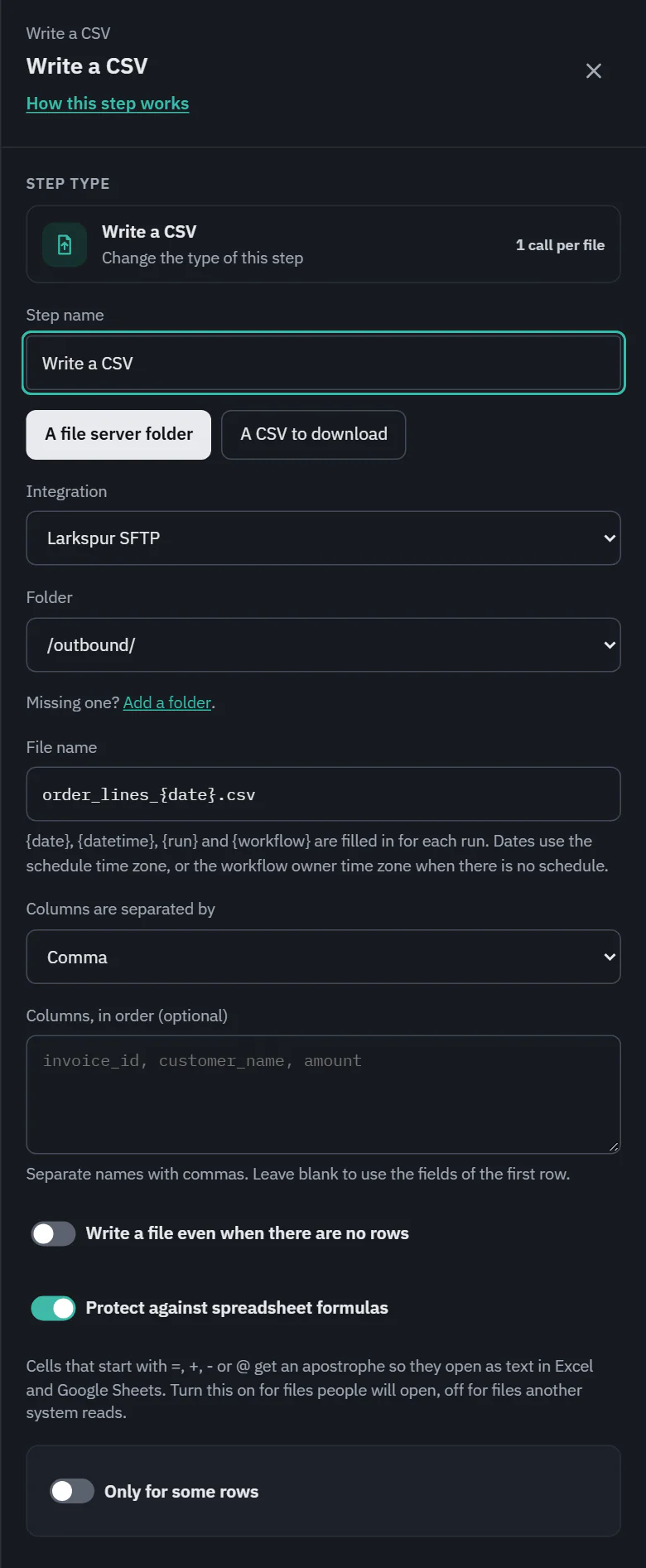 (opens the full size image in a new tab)
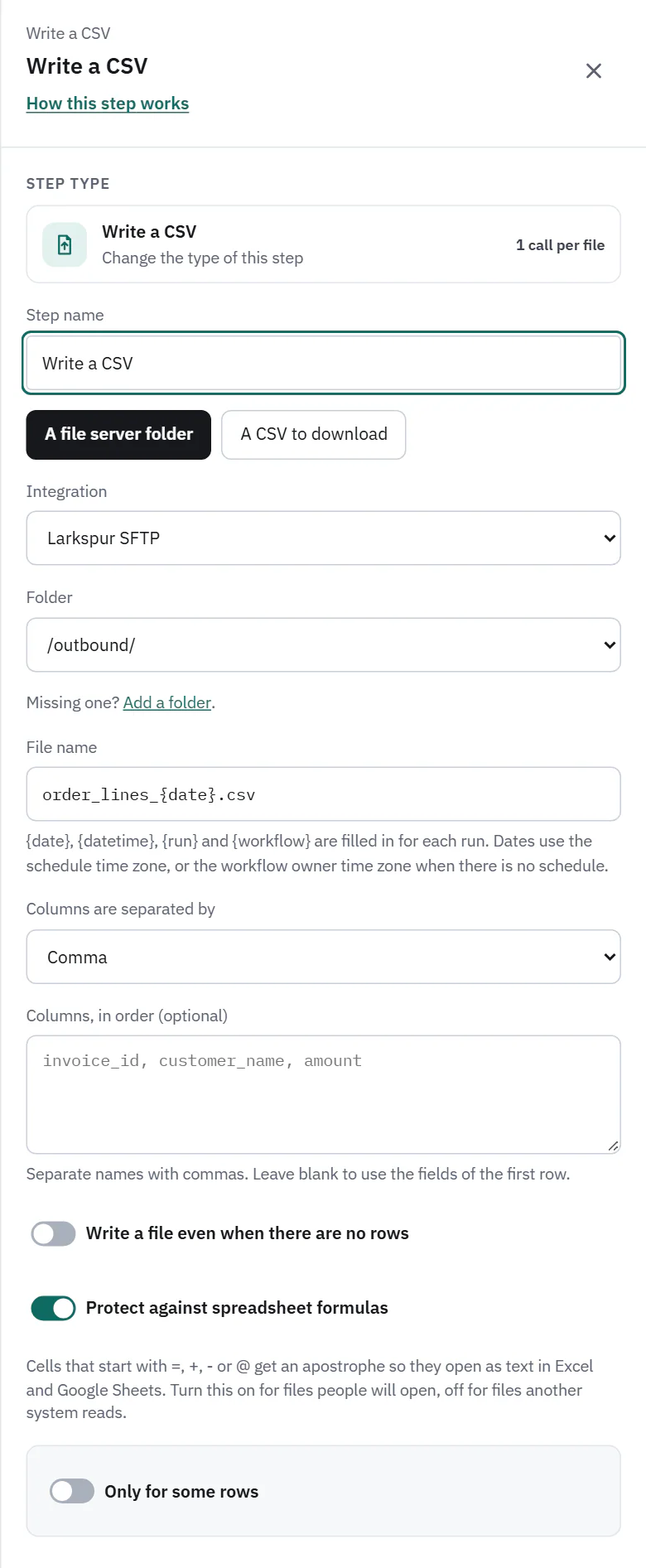 (opens the full size image in a new tab)
- Where the file goes: A file server folder or A file to download. On Starter, Pro and Business.
- File name: a template. {date}, {datetime}, {run} and {workflow} are filled in for each run. Dates use the schedule's time zone, or the workflow owner's when there is no schedule. A bad name (a slash, a control character, a trailing dot or space, or more than 255 bytes once filled in) is refused when you save and again when the run starts.
- The next four settings are under More settings for a CSV.
- Columns are separated by (CSV): comma, semicolon, tab or pipe.
- Columns, in order (optional) (CSV): names separated by commas. Blank uses the fields of the first row. A Map fields step before it sets the names and the order, mapped columns first.
- Write a file even when there are no rows: off by default, so a run with nothing to write makes no file and costs nothing. When on, a CSV has the header line when only a filter, duplicate removal, End run if or an empty Map step lie between the Read a file step and this one, and an IIF file has its three header lines.
- Protect against spreadsheet formulas (CSV): off by default. When on, a cell that starts with =, +, - or @ (or a tab or carriage return) gets an apostrophe in front, so Excel and Google Sheets open it as text. Plain numbers such as -5 are left alone. Turn it on for files people will open, off for files another system reads. An IIF file never gets it, so its negative amounts stay as QuickBooks expects them.
- Only for some rows: writes only the rows that match a condition. On Pro and Business.
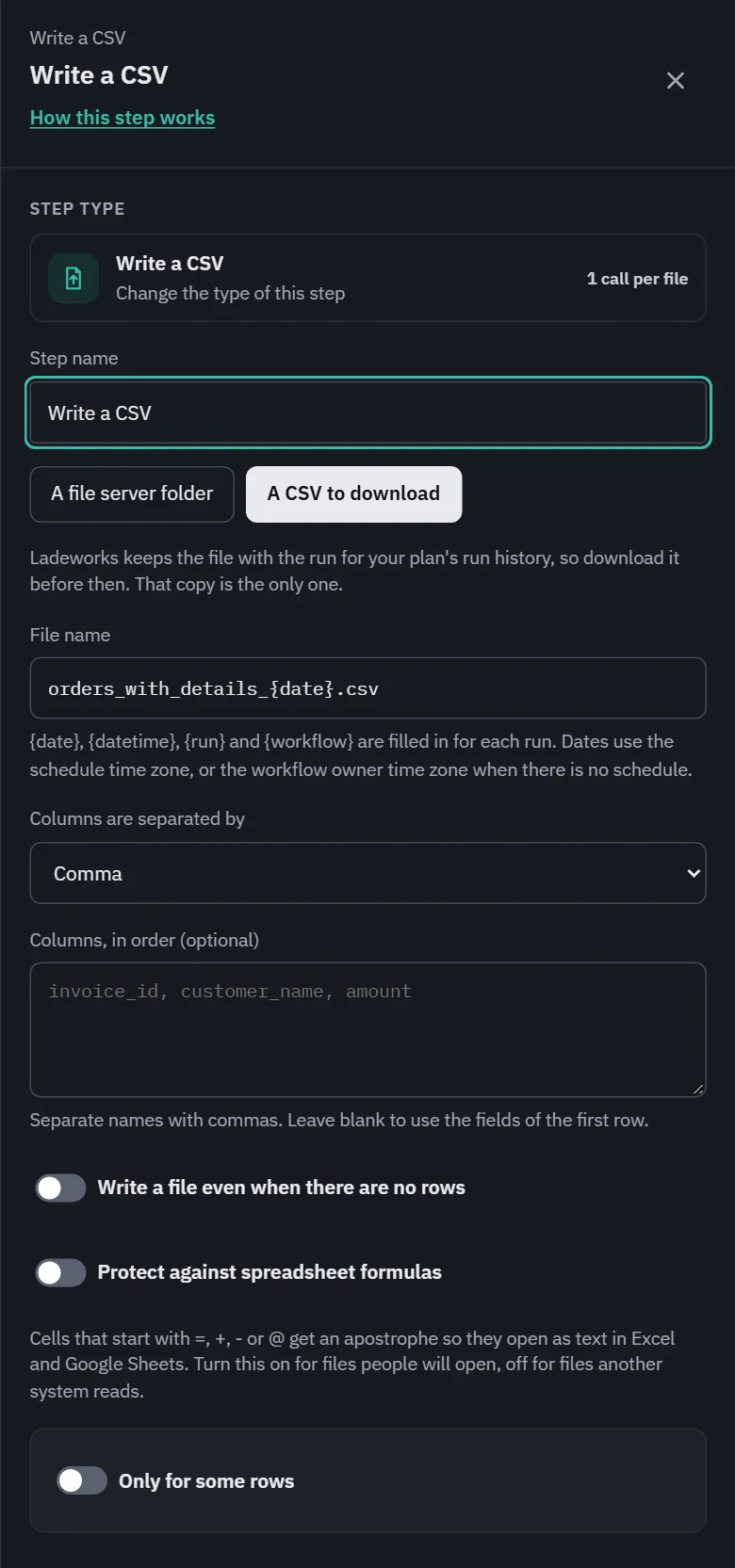 (opens the full size image in a new tab)
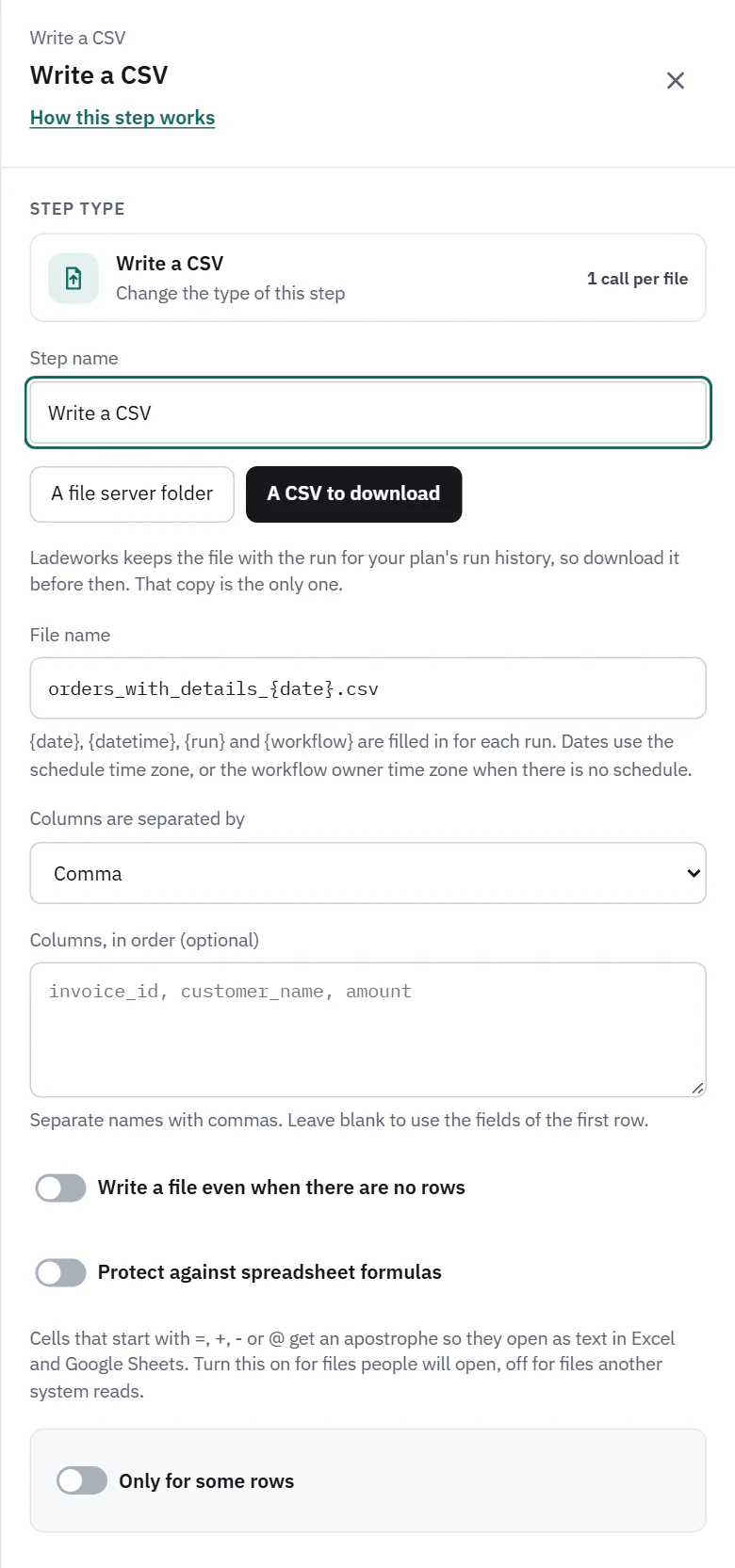 (opens the full size image in a new tab)
QuickBooks Desktop invoices
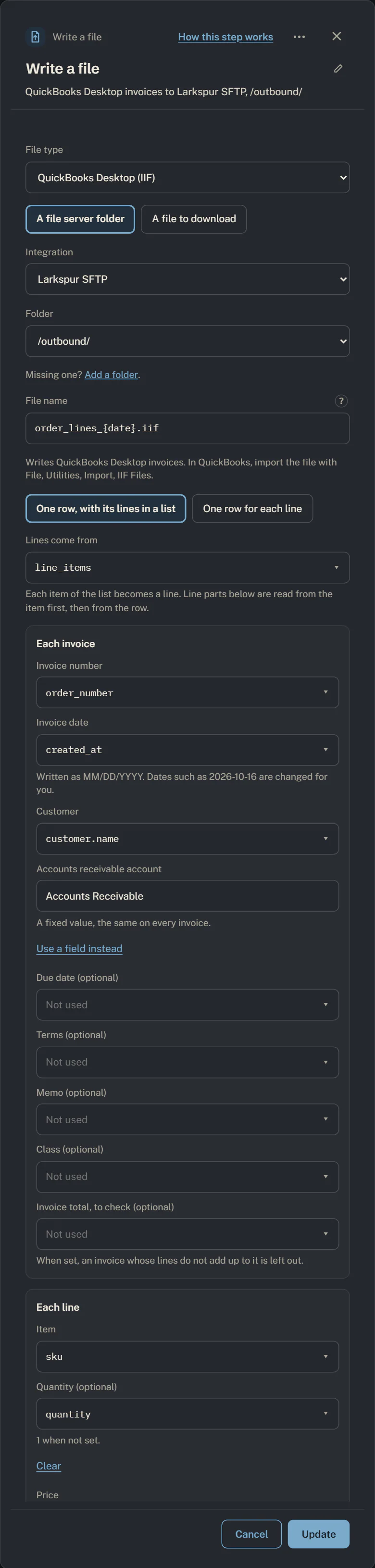
QuickBooks Desktop takes invoices from a file as IIF (Intuit Interchange Format): tab-separated text, one invoice after another. With QuickBooks Desktop (IIF) as the file type, you say where each part of an invoice comes from and Ladeworks writes a file QuickBooks imports with File, Utilities, Import, IIF Files.
 (opens the full size image in a new tab)
 (opens the full size image in a new tab)
- Each invoice is: One row, with its lines in a list (an order with its items, as most APIs send it), or One row for each line (as many exports and CSVs have it). With one row for each line, the rows that share an invoice number make one invoice, so keep them next to each other.
- Lines come from: the list field that holds the lines, such as items. The line parts are read from each item of the list first, then from the row.
- Each invoice: Invoice number, Invoice date, Customer and Accounts receivable account are needed. Due date, Terms, Memo and Class are optional. Invoice total, to check is optional too: when set, an invoice whose lines don't add up to it is left out.
- Each line: Item, Price and Income account are needed. Quantity is 1 when not set. Description, Line class and Taxable are optional.
- Each part comes from a field or is a fixed value, the same on every invoice, such as Accounts Receivable or Sales. Choose + Type a fixed value in its list.
- Add a sales tax line: turn this on when the company file has sales tax turned on. Every invoice then gets a sales tax line, with 0 when there is no tax. It needs Sales tax item, Sales tax account and either Tax rate (%), applied to the taxable lines, or Tax amount. Tax agency is optional.
Ladeworks works out the amounts: each line is the quantity times the price, rounded to the cent, and the invoice total is the sum of the lines and the tax. Dates are written as MM/DD/YYYY, so 2026-10-16 becomes 10/16/2026.
Each invoice is checked on its own. One that can't be written, for example with a negative price or quantity, no item, no customer, a date that can't be read or a value over a length limit, is left out of the file and listed under Skipped rows with the reason, such as "Line 2 of invoice 1001 has a negative price (-5), so the invoice was left out. Prices on an invoice must be 0 or more." The other invoices are written. When none can be written, no file is made.
Length limits
QuickBooks Desktop caps how long some values can be. An invoice with a value over its limit is left out and listed under Skipped rows; Ladeworks never cuts a value short, since a shortened name would point at the wrong customer or item, or at none.
| Part | At most |
|---|---|
| Invoice number | 11 characters |
| Customer, Tax agency | 41 characters |
| Item, Sales tax item | 31 characters |
| Accounts receivable account, Income account, Sales tax account | 31 characters |
| Class, Line class | 31 characters |
| Terms | 31 characters |
A customer's job, a subaccount, a subitem or a subclass is written with a colon, such as Harbor Supply:Dock 4, and the limit is on each part. The reason names the value, its length and the limit, for example "Invoice number ACC-SINV-2026-00002 is 19 characters; QuickBooks Desktop takes at most 11, so the invoice was left out. Shorten it with a formula in a Map fields step." ERPNext invoice names such as ACC-SINV-2026-00002 are too long as they are: the ERPNext to QuickBooks Desktop guide shows a formula that keeps 2026-00002.
Customers, items, accounts, classes and terms must match the names in QuickBooks exactly. QuickBooks 2019 and later check the file when it is imported and list the invoices they could not import, with a file of them to fix and import again. Older versions created missing names on their own, so check the names before the first import. An IIF file has no way to keep a tab or a line break inside a value, so those become spaces.
The header lines Ladeworks writes are:
!TRNS  TRNSID  TRNSTYPE  DATE  ACCNT  NAME  CLASS  AMOUNT  DOCNUM  MEMO  CLEAR  TOPRINT  NAMEISTAXABLE  DUEDATE  TERMS
!SPL   SPLID   TRNSTYPE  DATE  ACCNT  NAME  CLASS  AMOUNT  DOCNUM  MEMO  CLEAR  QNTY  PRICE  INVITEM  TAXABLE  EXTRA
!ENDTRNS
Each invoice is a TRNS line with the total as a positive amount on the accounts receivable account, an SPL line for each line with a negative amount and quantity on its income account, and an ENDTRNS line. The columns are separated by tabs, and lines end the Windows way.
Where the file ends up
On a file server the file is written to the folder. If the server refuses the write, the run says what happened and what to do. It also appears in the run: the Output card shows its name, rows, columns and size, with a copy to download and a preview. For an IIF file it counts invoices, and the preview has one row per invoice.
For A file to download that copy is the only one. Ladeworks keeps it for the plan's run history, 14 days on the plan these pages describe, then deletes it.
Cost and the run line
1 record for each row written, whether the file goes to a file server or is kept for download. A write that makes no file costs nothing. The run line reads "214 rows written to Larkspur SFTP, /outbound/", "3 invoices written to an IIF file to download", or "No rows, so no file was written". A run that fails before the file is complete has sent nothing: the failed-run count and the alert count only rows that reached the destination.