DocsGetting started
A tour of the app
Ladeworks has two main pages, Workflows and Integrations, and a Settings area. Everything else hangs off those.
These screenshots are from a Pro workspace. A Free workspace has the same layout with fewer features.
The top bar
The logo and Workflows take you home. Integrations lists your connections. On the right are the Help menu and your workspace name with your avatar, which opens the account menu.
 (opens the full size image in a new tab)
 (opens the full size image in a new tab)
Workflows
The home page is a summary and a list of every workflow. Three cards sit at the top.
- Active workflows. How many are on.
- Needs attention. How many have a problem, such as an integration to reconnect or a failed last run. Click the card to show only those workflows, and use Show all to clear it.
- API calls this month. Calls used out of what your plan includes, when they reset, how you are pacing, and your spending cap. Each request Ladeworks makes to one of your integrations is a call.
The table lists each workflow with where its data comes from and goes (From → To), its Trigger, the calls it used this month and its share of all calls, a link to its Last run, and its Status. Status is a dot and a word, such as Active or Paused. When something is wrong, a line under the name says what and links to the fix. Run now starts a run by hand. + New workflow is at the top right.
Under the table, a line shows how many workflows you have against your plan, for example 20 workflows on Pro.
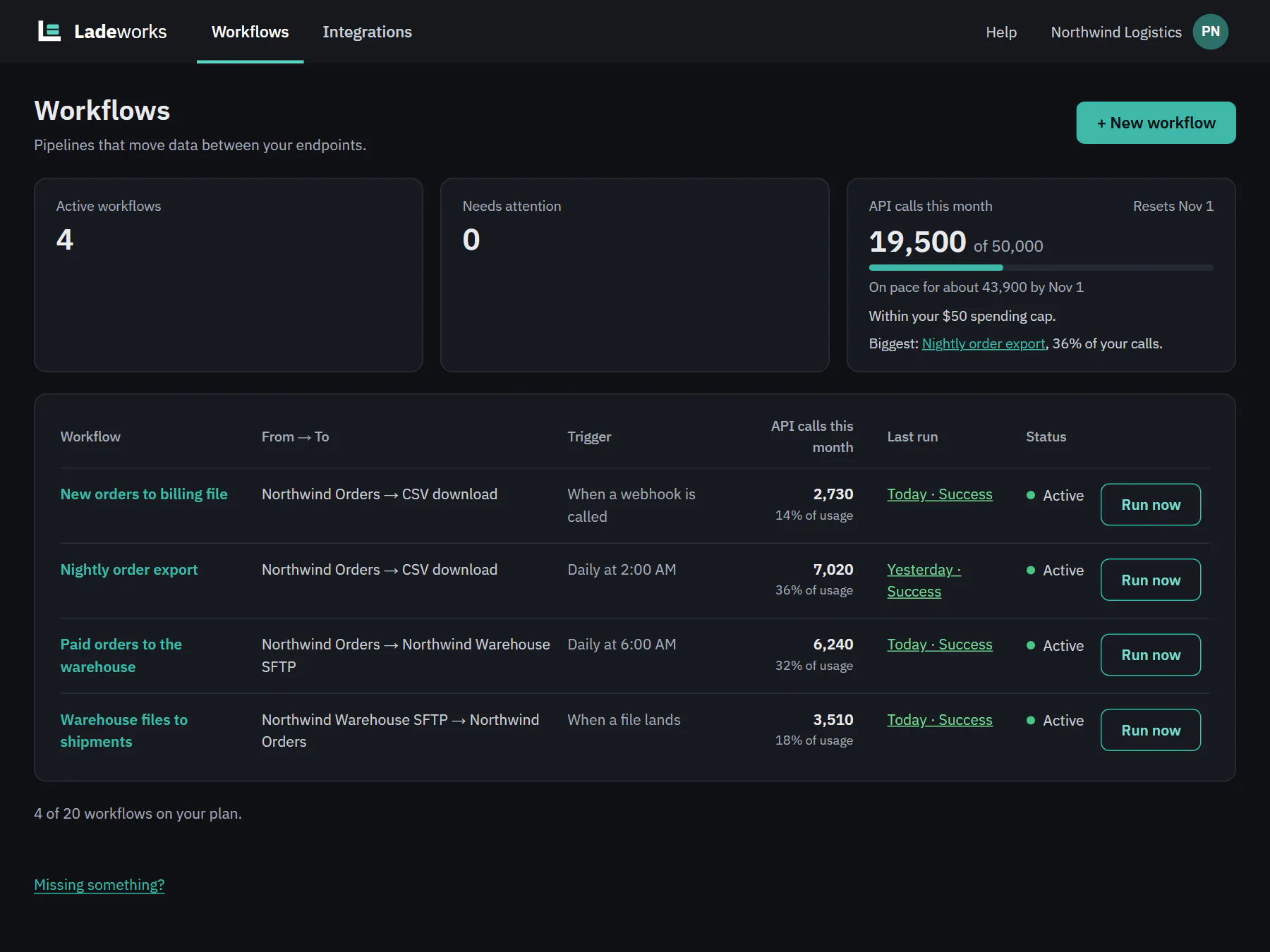 (opens the full size image in a new tab)
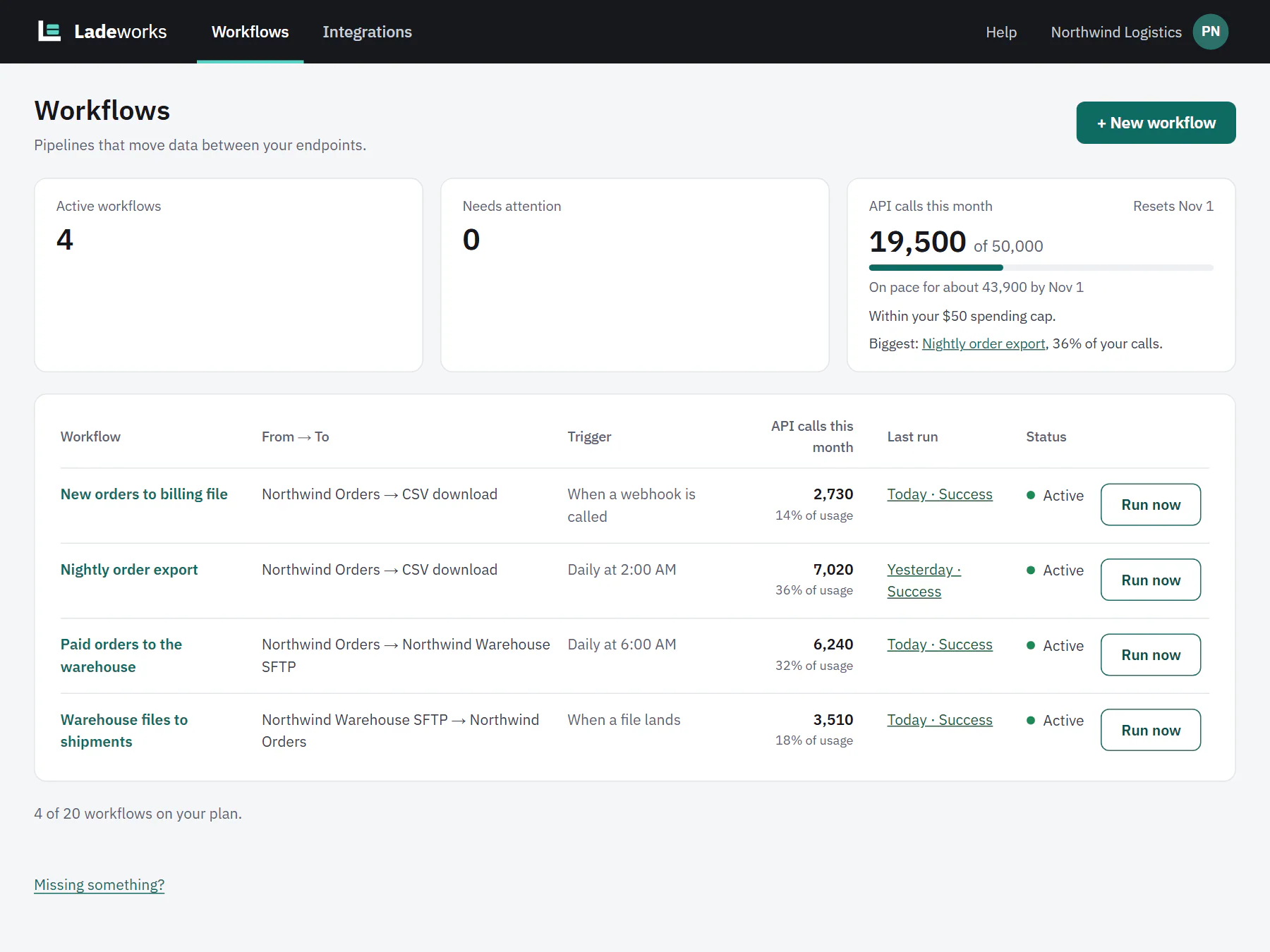 (opens the full size image in a new tab)
Integrations
Each connection is a card with its name, its address, what kind it is, how it logs in, how many endpoints or folders it has, how many workflows use it, and its status. The status reads Connected, or says when an integration needs attention. + New integration starts the setup. The subtitle shows how many integrations you have against your plan, such as 2 of 5 on Pro.
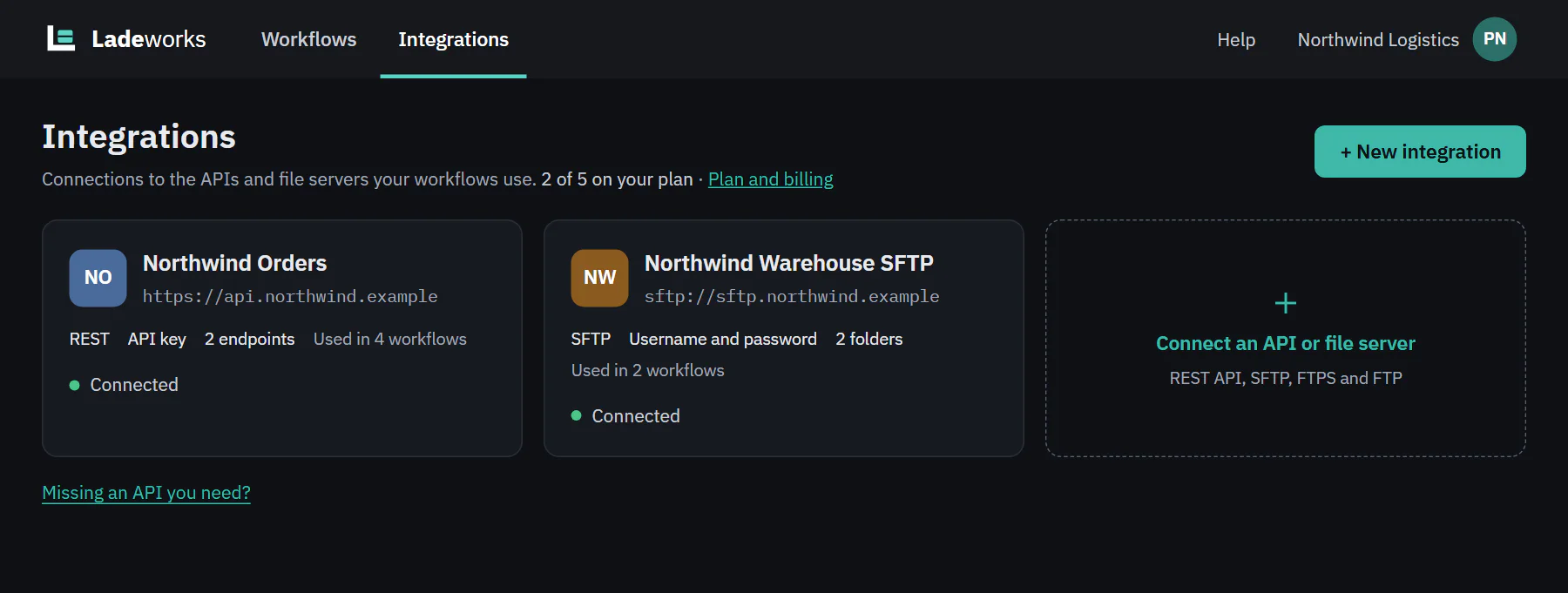 (opens the full size image in a new tab)
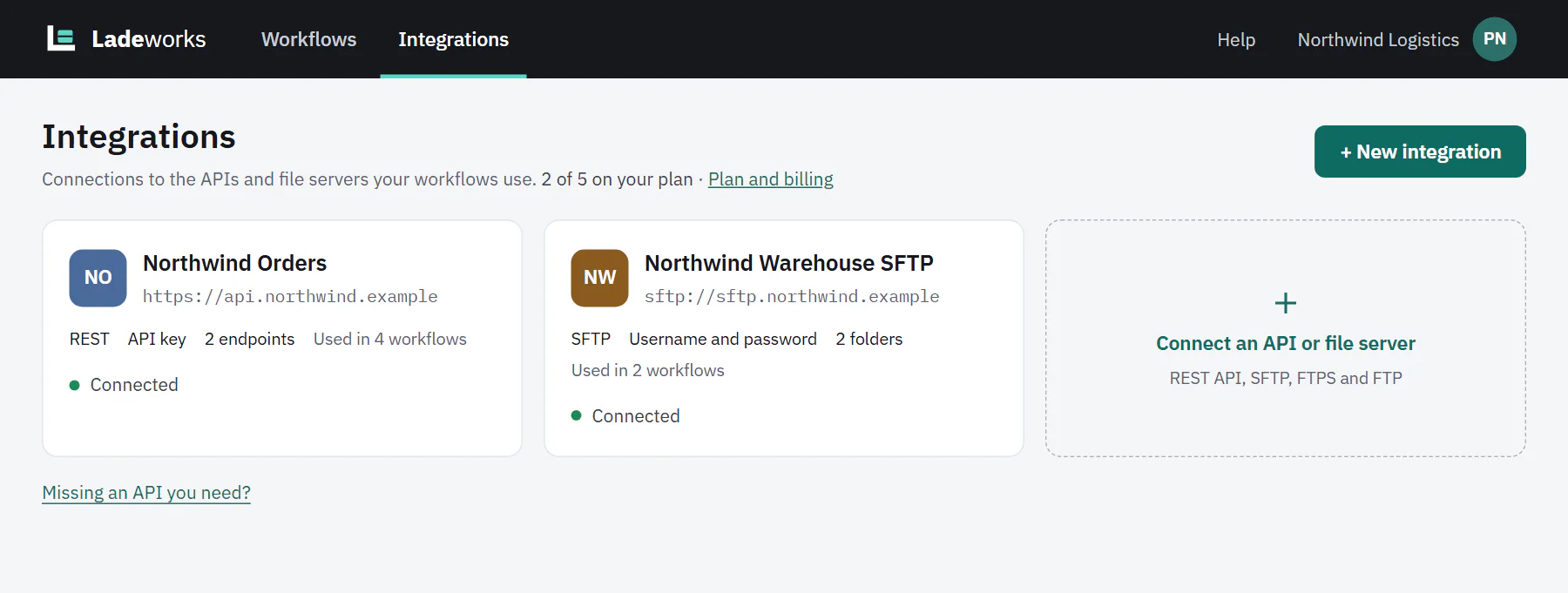 (opens the full size image in a new tab)
Settings
Open Settings from the account menu. The left side has two groups.
- You. Profile (your name, email, time zone, theme, password and two-factor sign-in) and Notifications (which events you hear about, and how).
- Workspace. General (the workspace name, team alerts and deleting the workspace), Members (who is in the workspace, their roles, and invitations), Plan and billing (Owners and Admins only) and Connected apps.
Team alerts and connected apps for Slack and Discord are on Pro and Business.
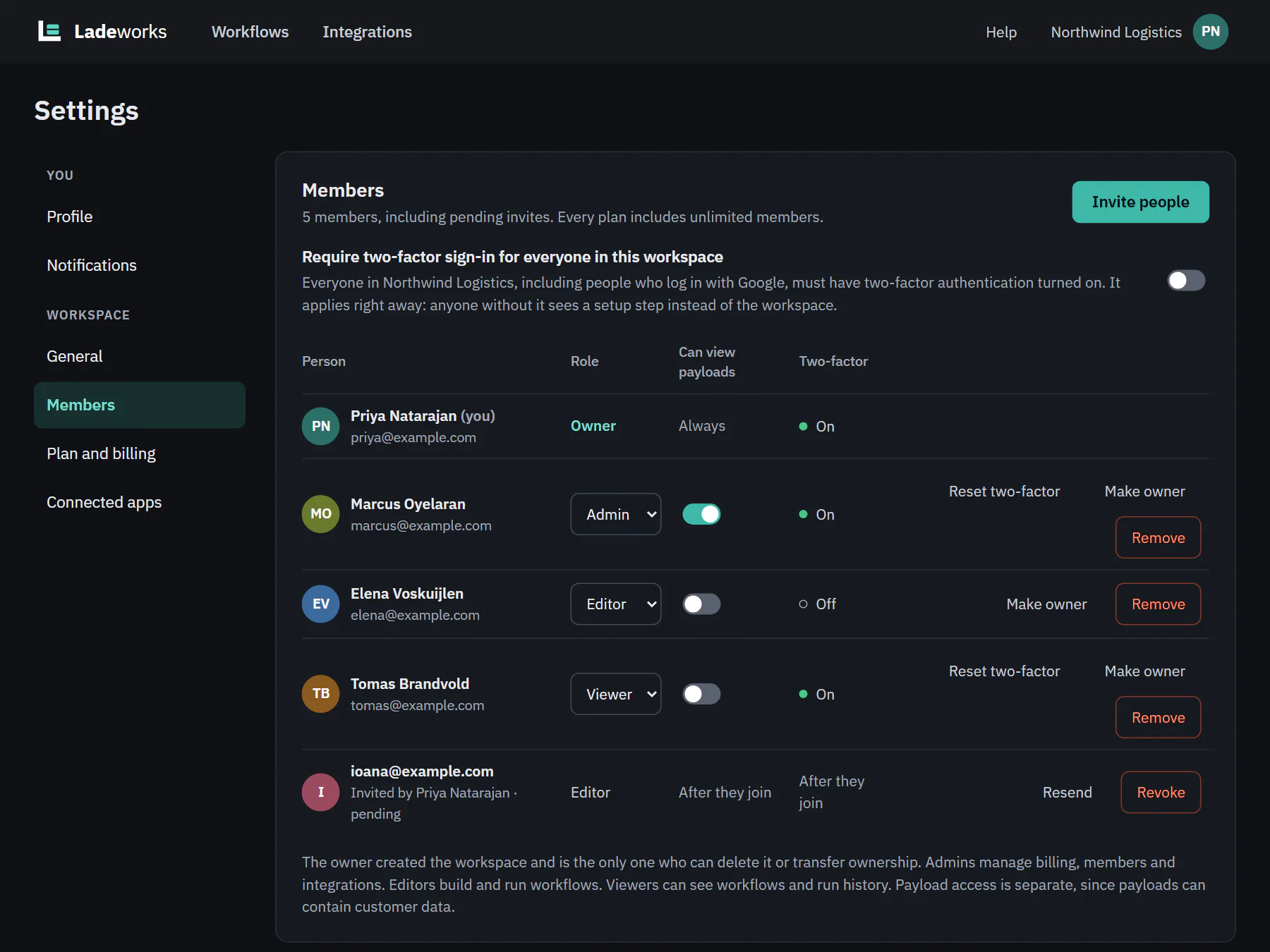 (opens the full size image in a new tab)
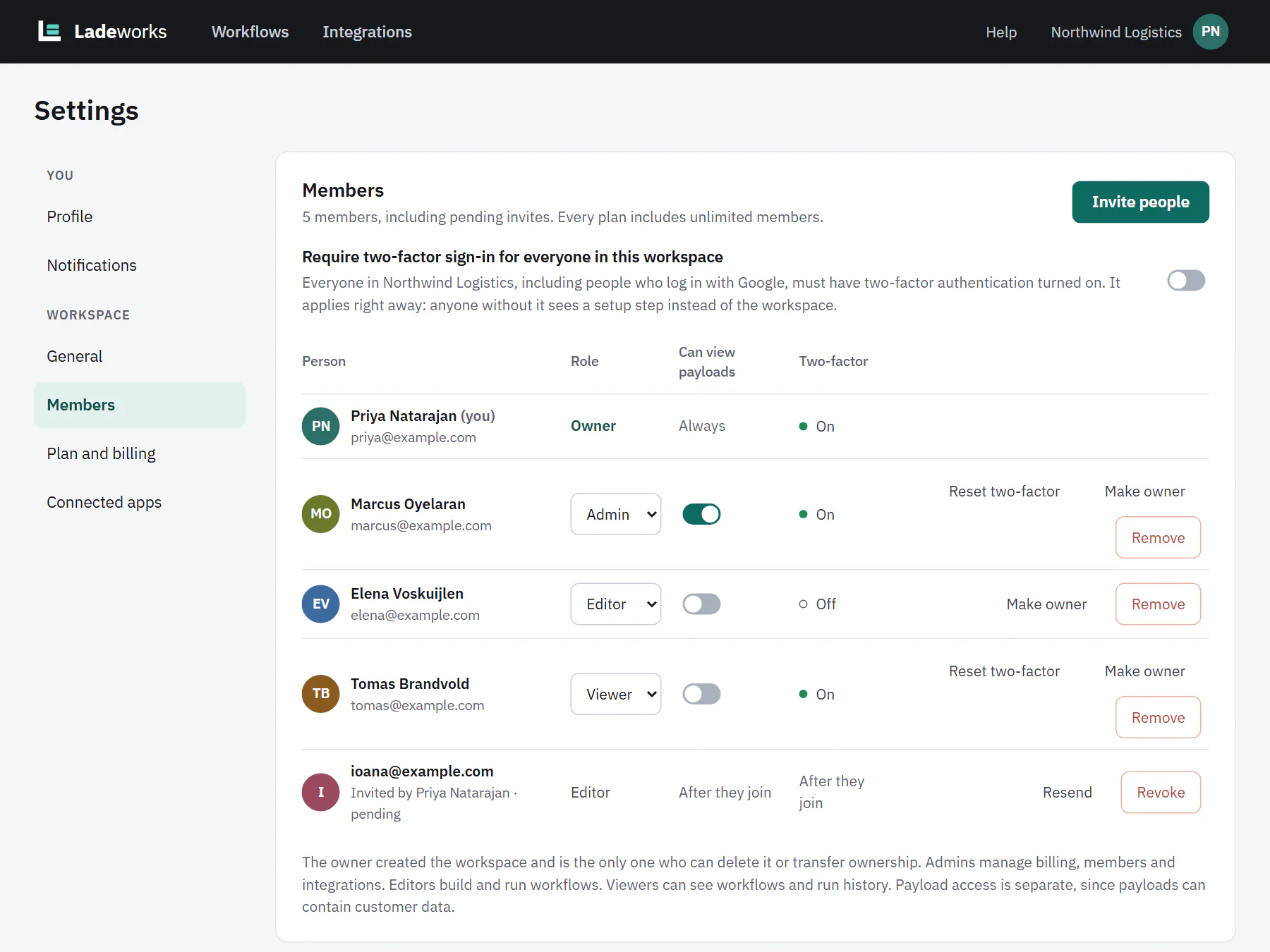 (opens the full size image in a new tab)
The Help menu
Help always starts with Help docs, which opens these pages in a new tab. On Starter, Pro and Business it also has Contact support, which opens a message form. Your message goes with your workspace, your plan and the page you are on. On Free, it has Send feedback and Talk to us about a paid plan after Help docs. Most pages also end with a "Missing something?" link where you can tell us what you need.
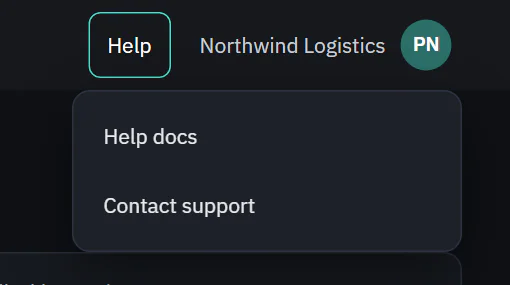 (opens the full size image in a new tab)
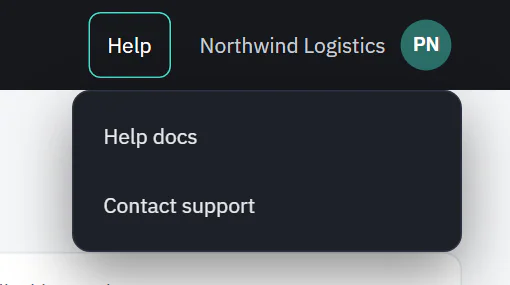 (opens the full size image in a new tab)
The account menu
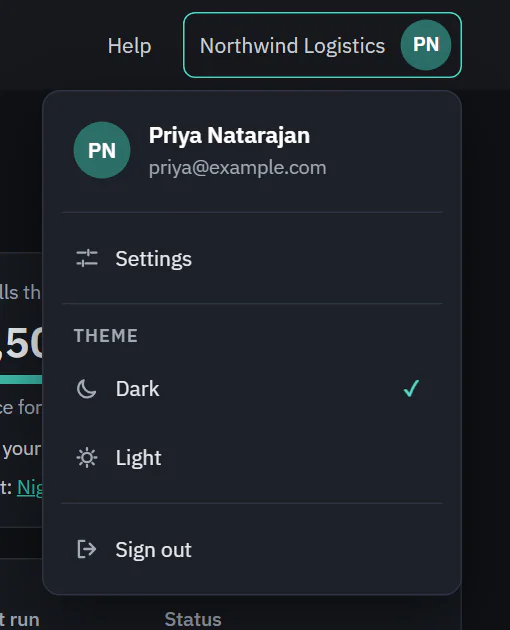
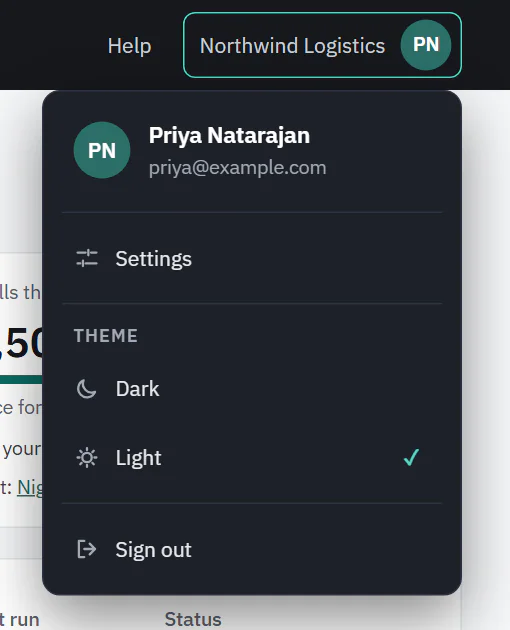
Click your workspace name or avatar. You see your name and email, Settings, a Theme choice of Dark or Light, and Sign out. If you belong to more than one workspace, a Switch workspace list appears too. Your theme choice is saved to your profile, so it follows you to other devices.
 (opens the full size image in a new tab)
 (opens the full size image in a new tab)