DocsTeam and security
Roles and payload access
Everyone in a workspace has one of four roles. The role decides what a person can change. Payload access is a separate switch that decides whether they can see your data.
The four roles
- Owner. Created the workspace. There is exactly one. The Owner can do everything an Admin can, and is the only person who can delete the workspace, transfer ownership, require two-factor sign-in for everyone and reset a member's two-factor. The Owner always has payload access, and cannot leave the workspace without handing it over first.
- Admin. Manages billing, members and integrations. An Admin can invite people, change roles and payload access, remove people, open Plan and billing, connect and change integrations, rename the workspace, set up team alerts and connected apps, and build and run workflows.
- Editor. Builds and runs workflows. An Editor can create and change workflows, run them, turn them on and off, and read runs. An Editor can look at integrations but not connect or change them, and cannot manage members or see billing.
- Viewer. Can look but not change anything. A Viewer can open workflows, runs and integrations. A Viewer cannot edit, run, turn on or delete anything, and cannot see billing.
Every plan includes unlimited members, so a role never costs extra. Roles are checked on the server for every request, not only hidden in the screen.
The view-only builder
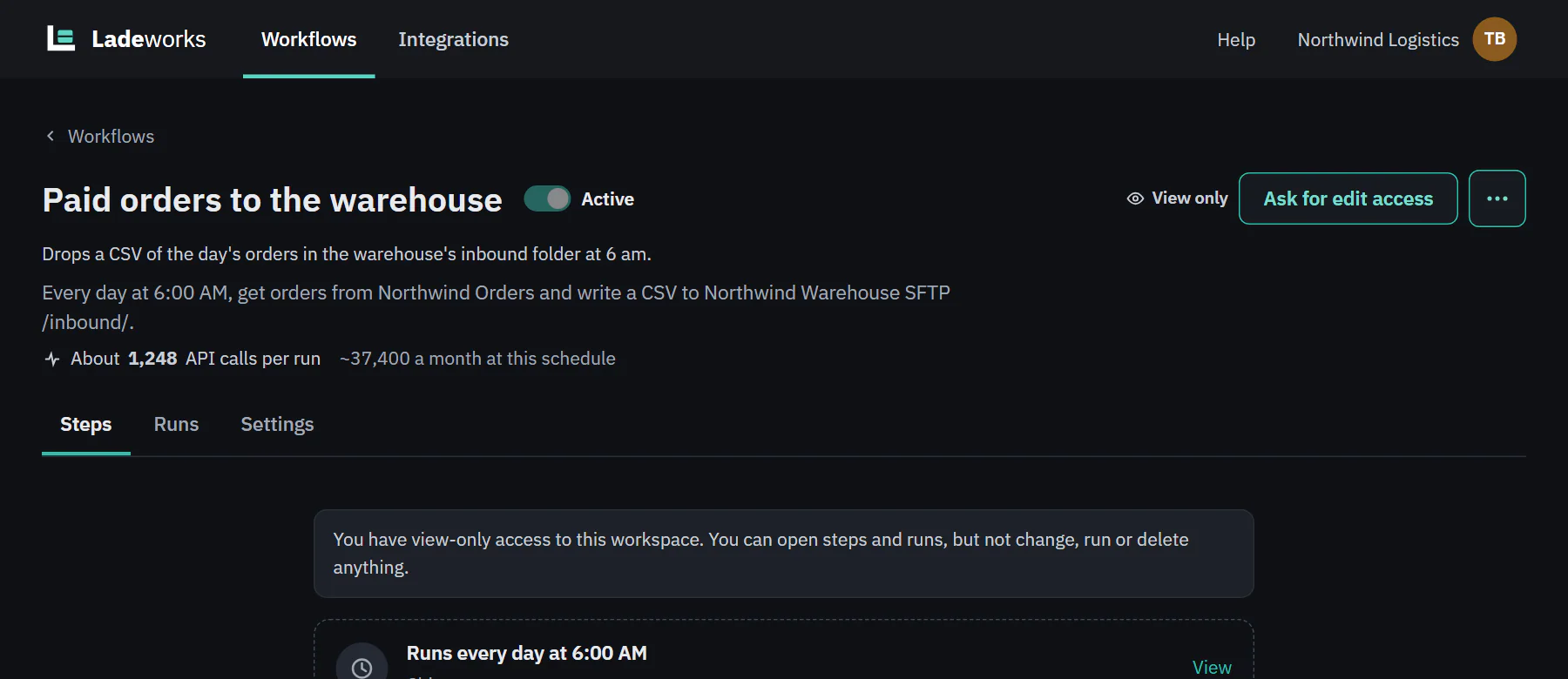
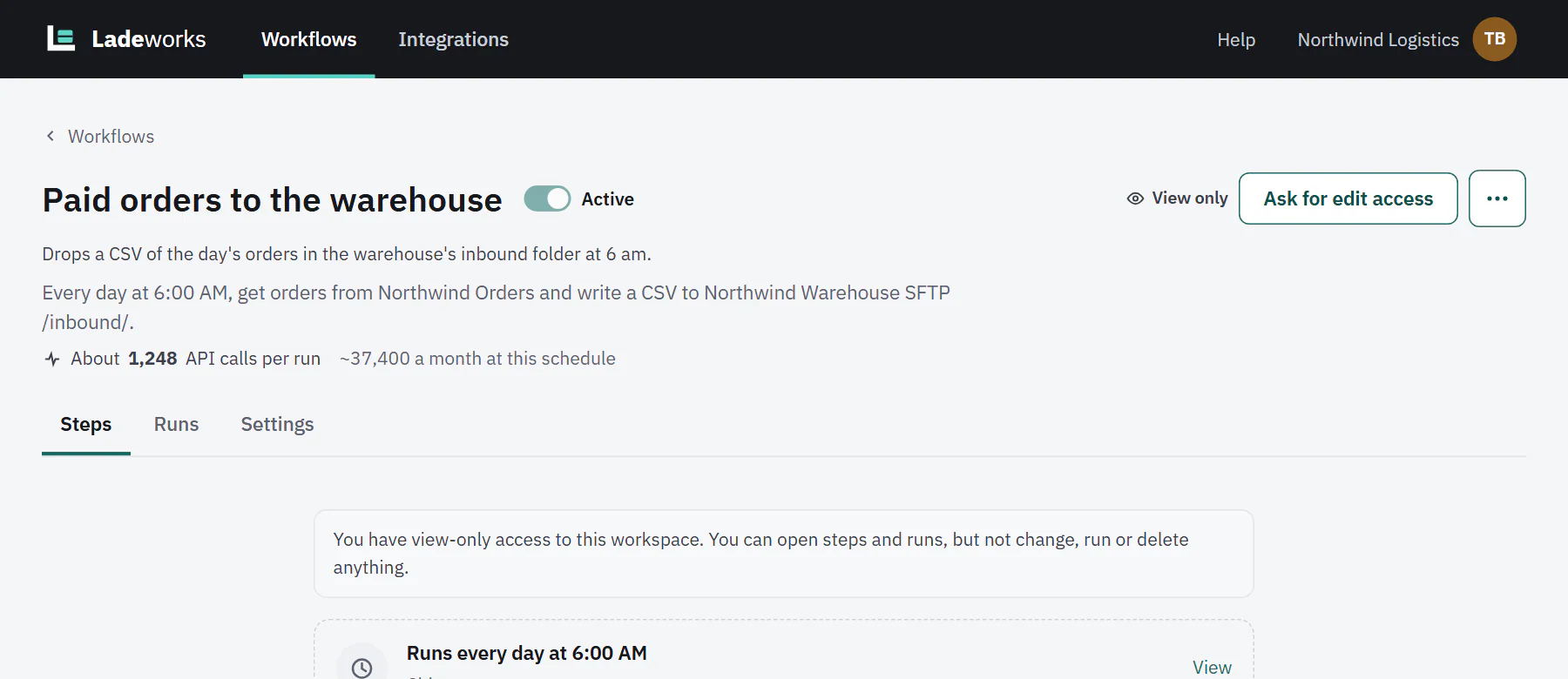
A Viewer who opens a workflow sees the same builder as everyone else, but read-only. The header says View only and offers Ask for edit access, which sends a request to the workspace's Admins and then shows "Request sent to admins". The Steps tab starts with "You have view-only access to this workspace. You can open steps and runs, but not change, run or delete anything." Steps open so the Viewer can read their settings, with the line "View only. Settings are shown but can't be changed."
 (opens the full size image in a new tab)
 (opens the full size image in a new tab)
Payload access
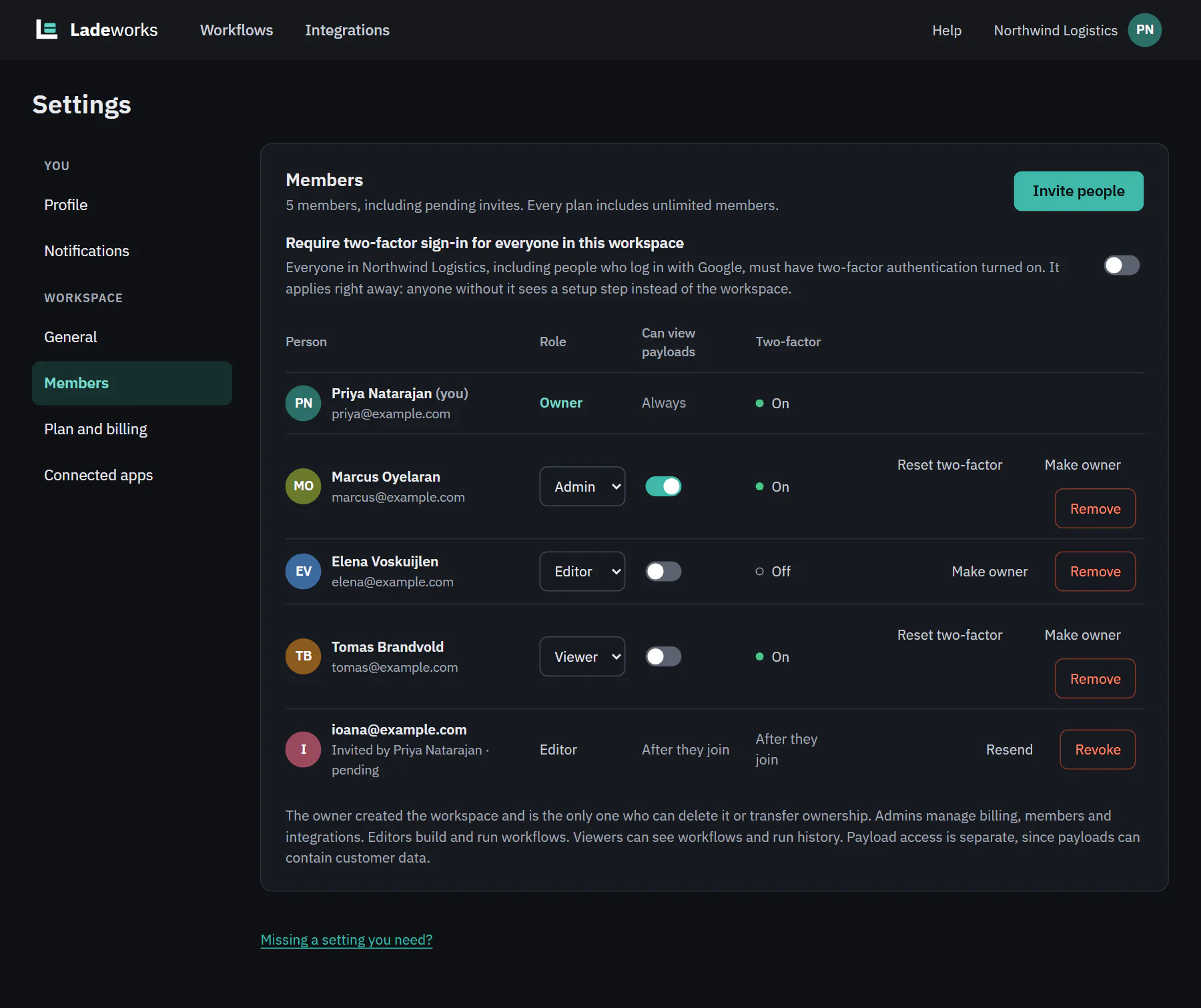
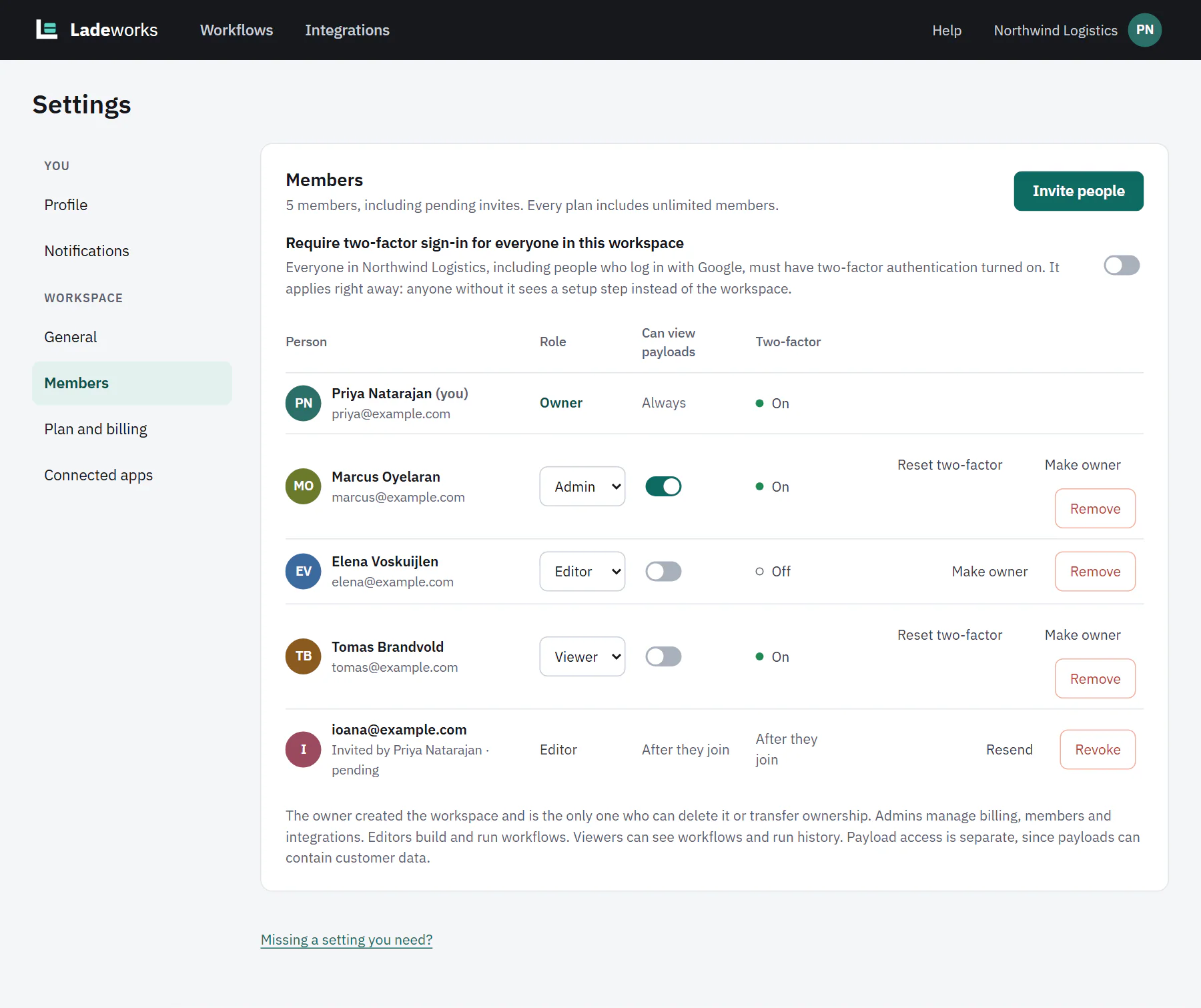
A payload is the data that moves through a workflow: the rows in a run, the requests and responses, and the files a run writes. It can hold customer data, so seeing it is a separate permission from your role. On the Members page it is the Can view payloads column, with a switch for each person. The Owner shows Always. People who join through an invite start with it off.
Without payload access a person can still use Ladeworks for everything their role allows. What they cannot see is:
- the rows, requests and responses inside a run, and the sample values in the builder and on endpoints (they show as hidden);
- the preview and the download of a file a run wrote;
- the downloads of a run's requests and responses.
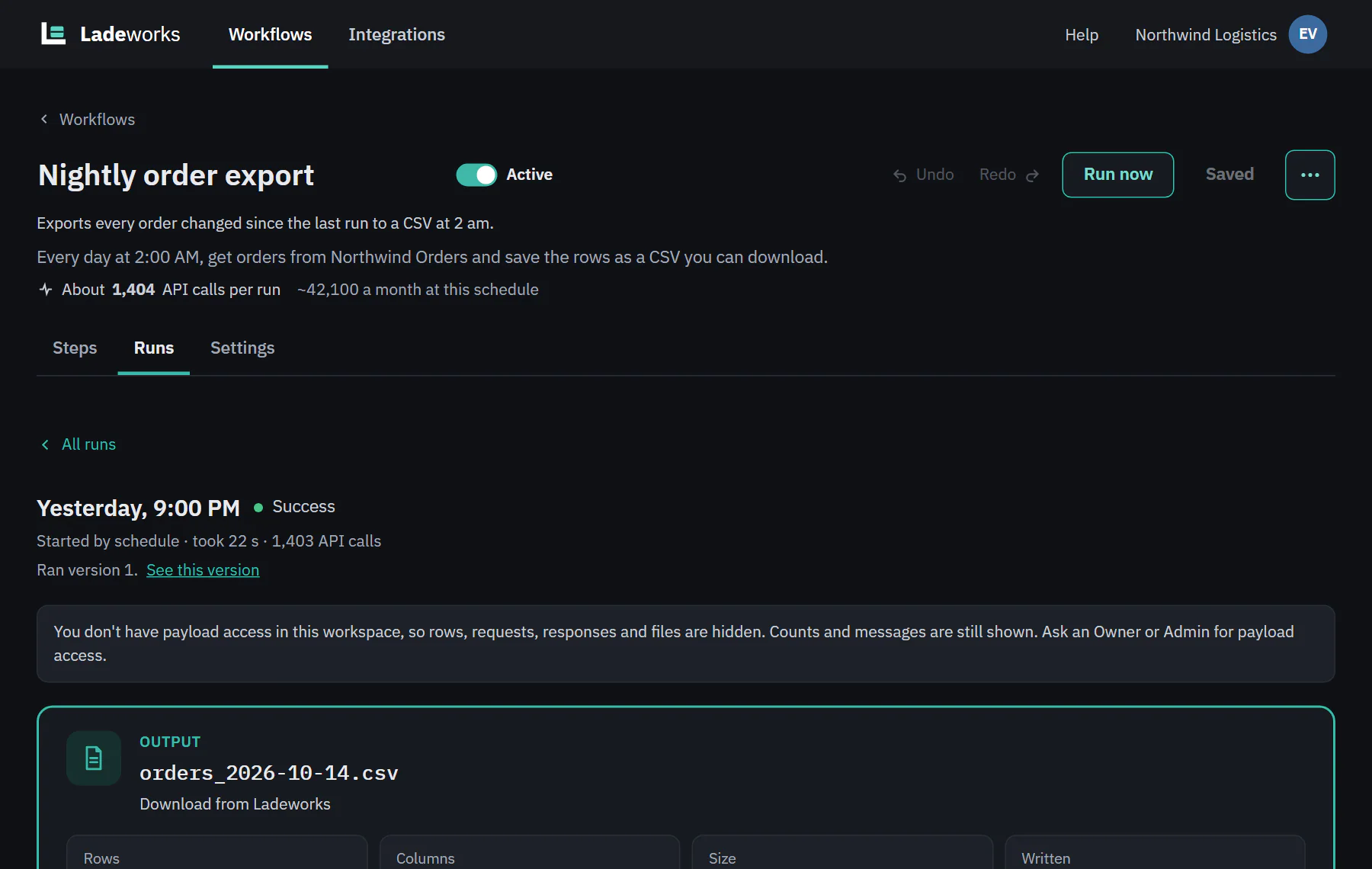
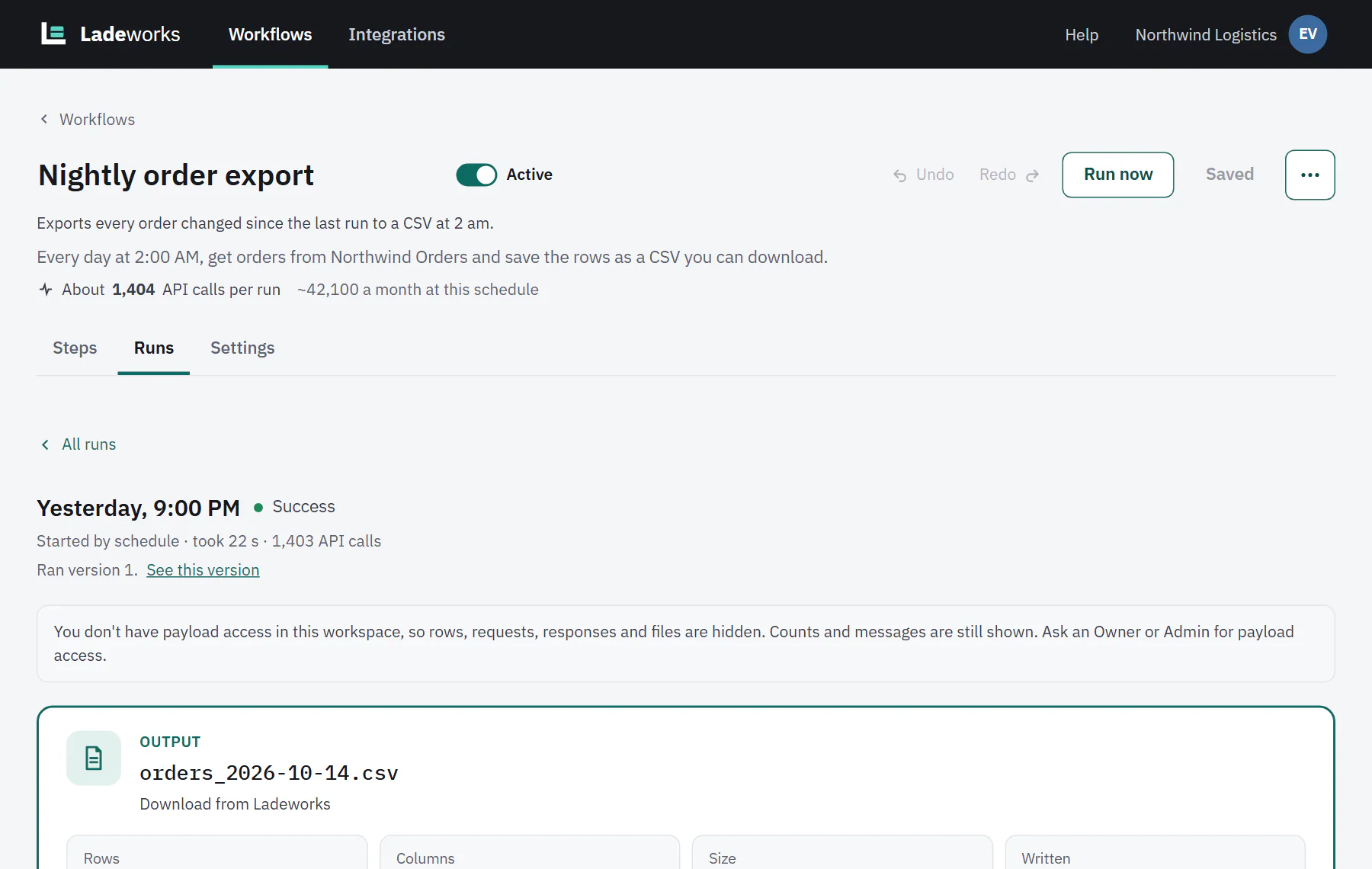
Counts, messages and statuses are still shown. A run page says "You don't have payload access in this workspace, so rows, requests, responses and files are hidden. Counts and messages are still shown. Ask an Owner or Admin for payload access."
 (opens the full size image in a new tab)
 (opens the full size image in a new tab)
Owners and Admins turn payload access on or off for a person in Settings, then Members. It does not depend on the role: an Editor or a Viewer can have it, and so can an Admin.
Where to see who has what
Open Settings, then Members. Everyone can read the list. Owners and Admins also see a Two-factor column and the buttons to change people. A person who is not an Owner or Admin sees Yes or No under Can view payloads.
 (opens the full size image in a new tab)
 (opens the full size image in a new tab)
Next: invite people.