DocsTeam and security
Invite people
Owners and Admins invite people by email and choose a role for them. The invite is a link that works for 7 days.
Send an invite
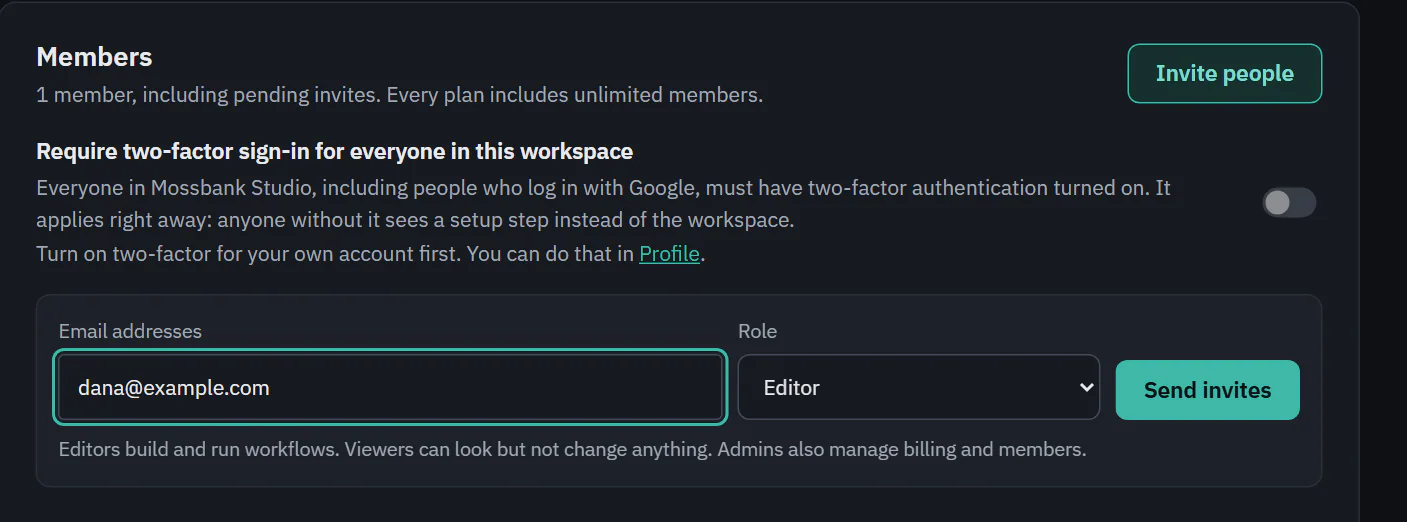
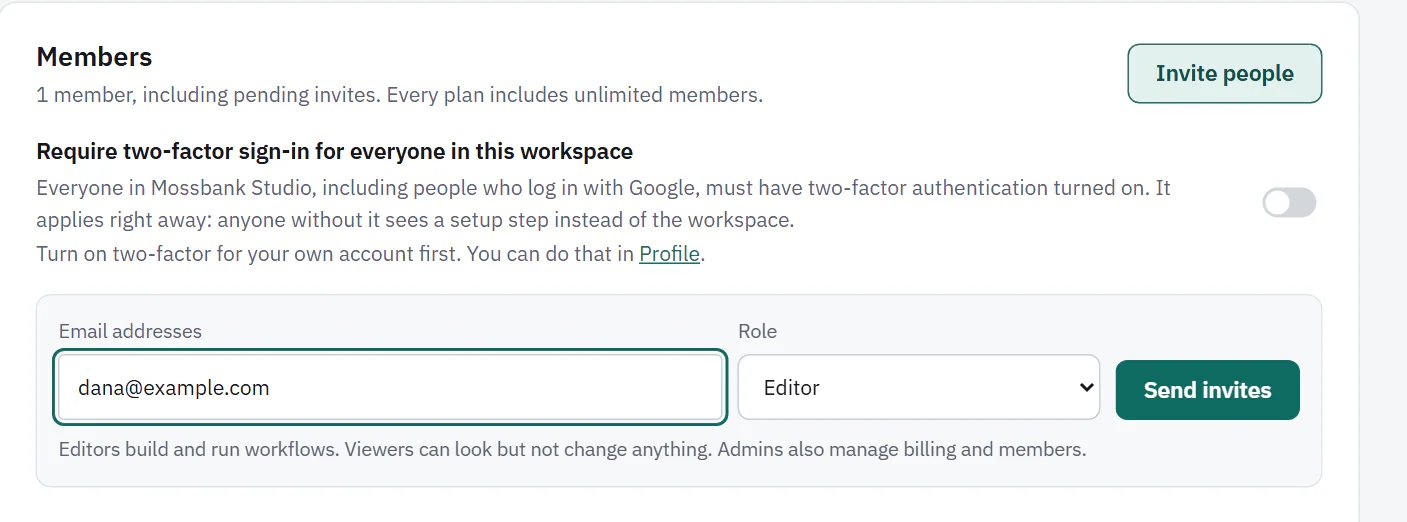
- Open Settings, then Members, and choose Invite people.
- Type one or more addresses under Email addresses, separated by commas or spaces. You can invite up to 20 people at a time.
- Choose a Role: Editor (the default), Viewer or Admin. Everyone in one batch gets the same role. Nobody is invited as Owner: ownership moves only by transfer.
- Choose Send invites.
 (opens the full size image in a new tab)
 (opens the full size image in a new tab)
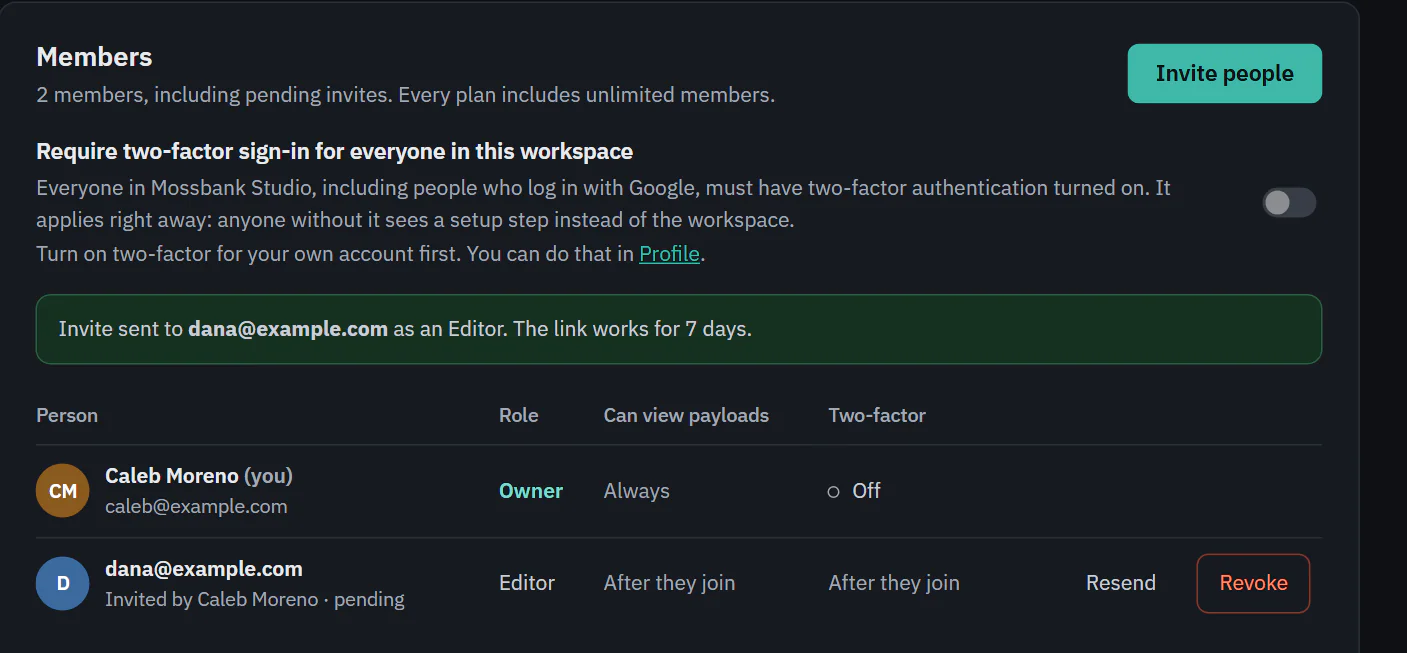
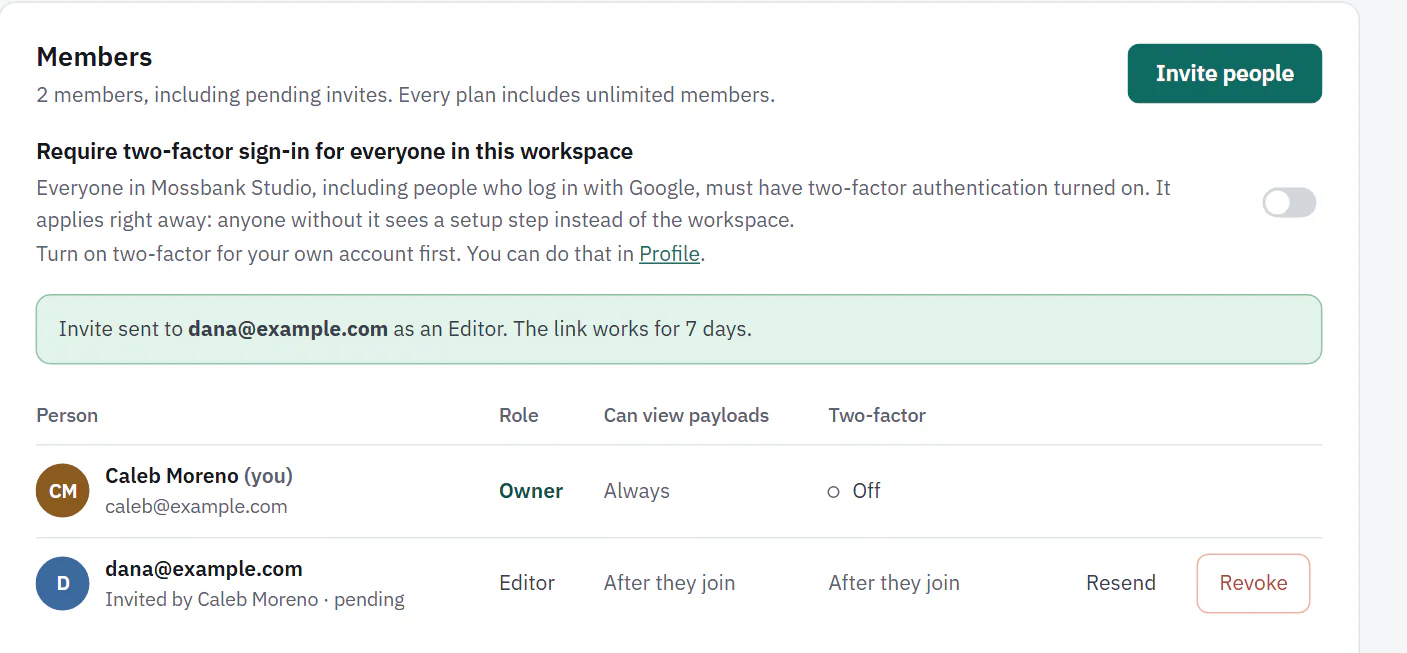
The page confirms with "Invite sent to" the address, the role and "The link works for 7 days." Pending invites sit in the list under everyone else with Resend and Revoke. Resend sends a new link, and the old one stops working. Revoke cancels the invite. Addresses that were not invited are listed under the confirmation with the reason: an address that is not valid, someone who is already a member, or someone who already has a pending invite.
 (opens the full size image in a new tab)
 (opens the full size image in a new tab)
The Members page marks a pending person with "After they join" under payload access and two-factor. They start without payload access.
Your email must be confirmed
Inviting people needs a confirmed email address on your own account. Until you confirm, Invite people is off and the page says "Confirm your email to invite teammates." Resend on a pending invite waits for it too. See Confirm your email. The person you invite does not need to confirm anything: opening the invite link proves their inbox.
What the person sees
The invite email links to a page that shows who invited them, the workspace and the role, in words: an Editor can "build and run workflows and see their runs", for example. It also shows the day the invite expires. What happens next depends on whether they already have an account.
- No account yet. They choose Continue with Google, or set a name and a password of at least 10 characters. The invited address is locked in, and Google must be the Google account for that address.
- Already has an account. The page says there is already a Ladeworks account for that address. They choose Log in to join, and the workspace is added to the account they already have.
- Signed in as someone else. The page says "This invite is for" the invited address and asks them to Sign out and continue.
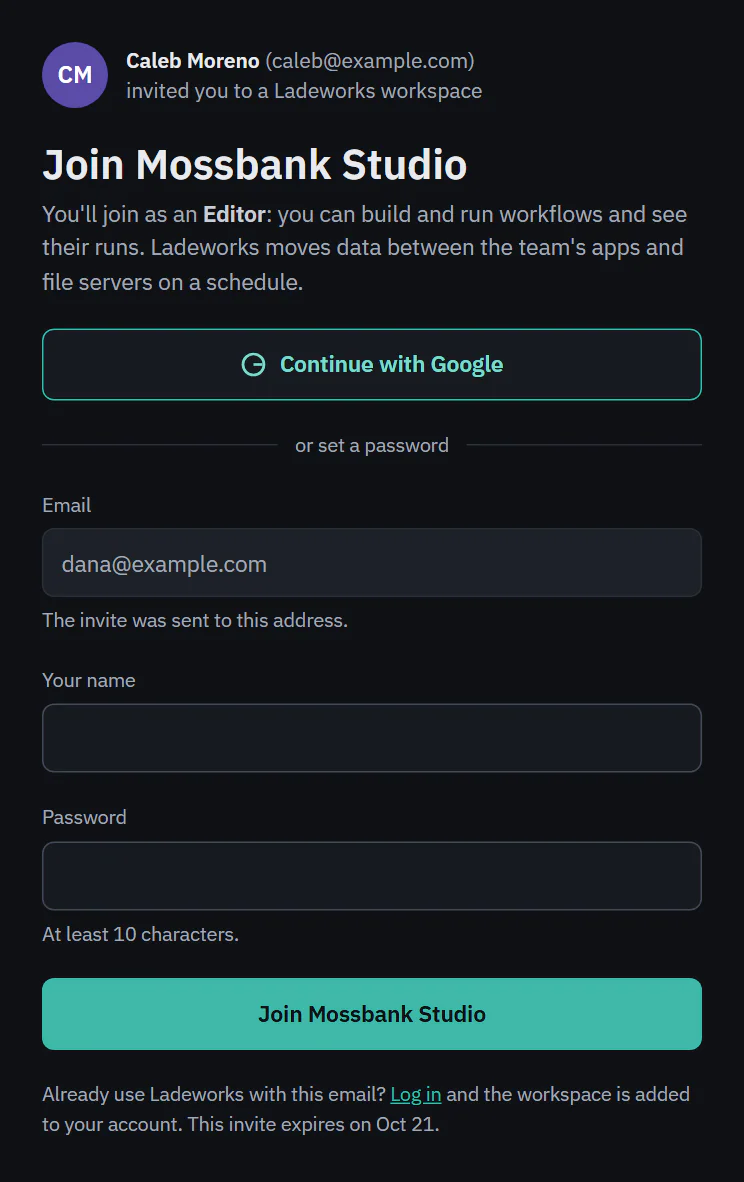 (opens the full size image in a new tab)
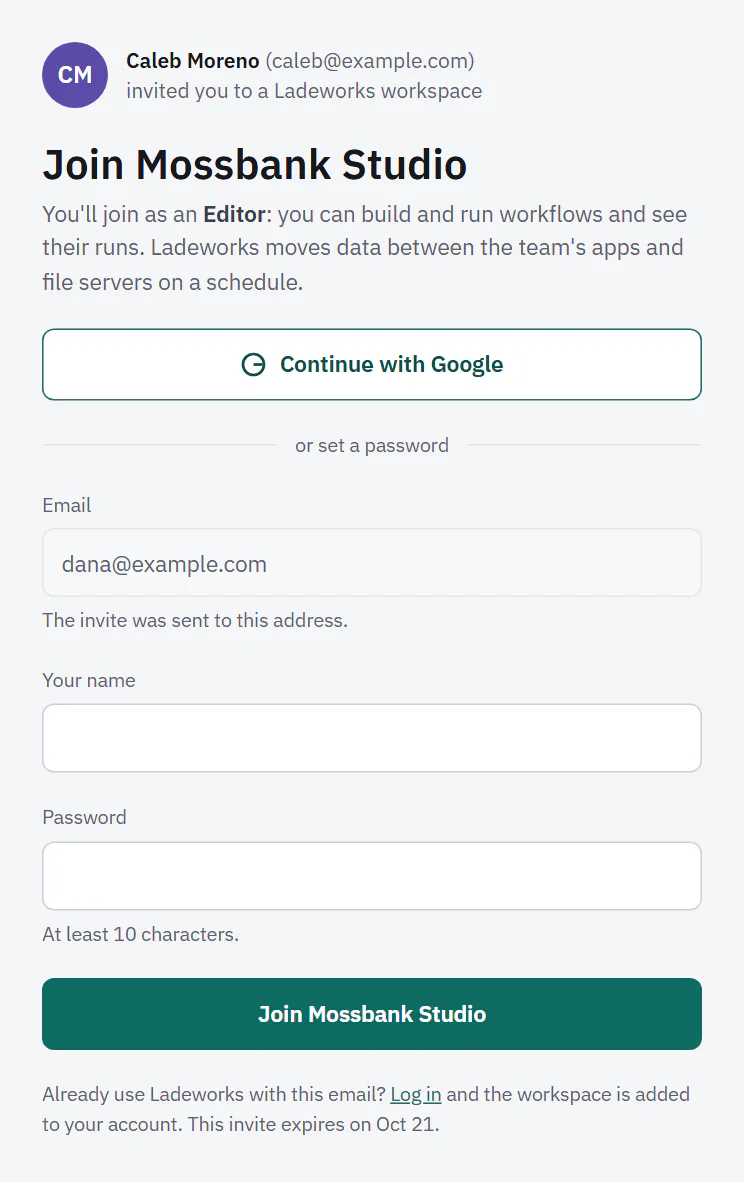 (opens the full size image in a new tab)
After joining, a short welcome shows what the workspace already holds: its integrations, workflows and teammates, with Go to Workflows and Choose alerts. If the workspace requires two-factor sign-in, they set that up before the workspace opens: see Require two-factor for the workspace.
If the link is used up or wrong, the page says "This invite link isn't valid". If it has passed 7 days, it says "This invite has expired" and names who to ask for a new one.