DocsGetting started
The welcome checklist
Your first run takes three steps. Ladeworks shows them right after you name your workspace, and again on the Workflows page until something has run.
The three steps
- Connect an integration. For an API, choose Connect an API and paste a link to its docs. Ladeworks looks for the spec, the login method and the endpoints. For a file server, choose Connect a file server and enter the SFTP, FTPS or FTP details. Ladeworks tests the login and shows you the folders.
- Build a workflow. Pick where the data comes from and where it goes. Ladeworks sets up the steps, and you fine-tune the mapping between fields.
- Turn it on, run it once and check the results. New workflows start off. Use the switch next to the workflow's name to turn it on, then choose Run now. Open the run to see what was pulled, what was sent, and why any row was skipped.
Turning a workflow on needs a confirmed email. See Confirm your email.
The welcome screen
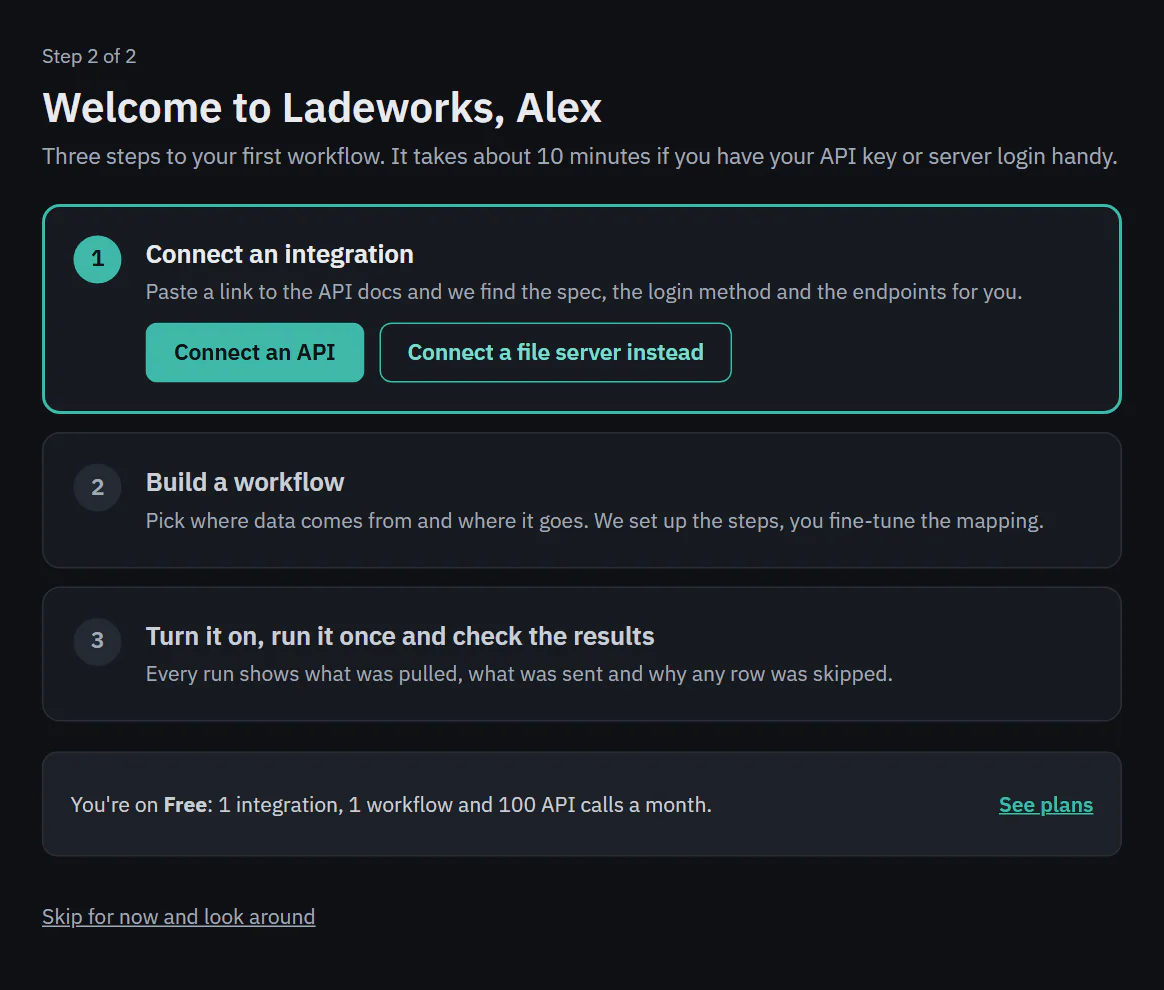
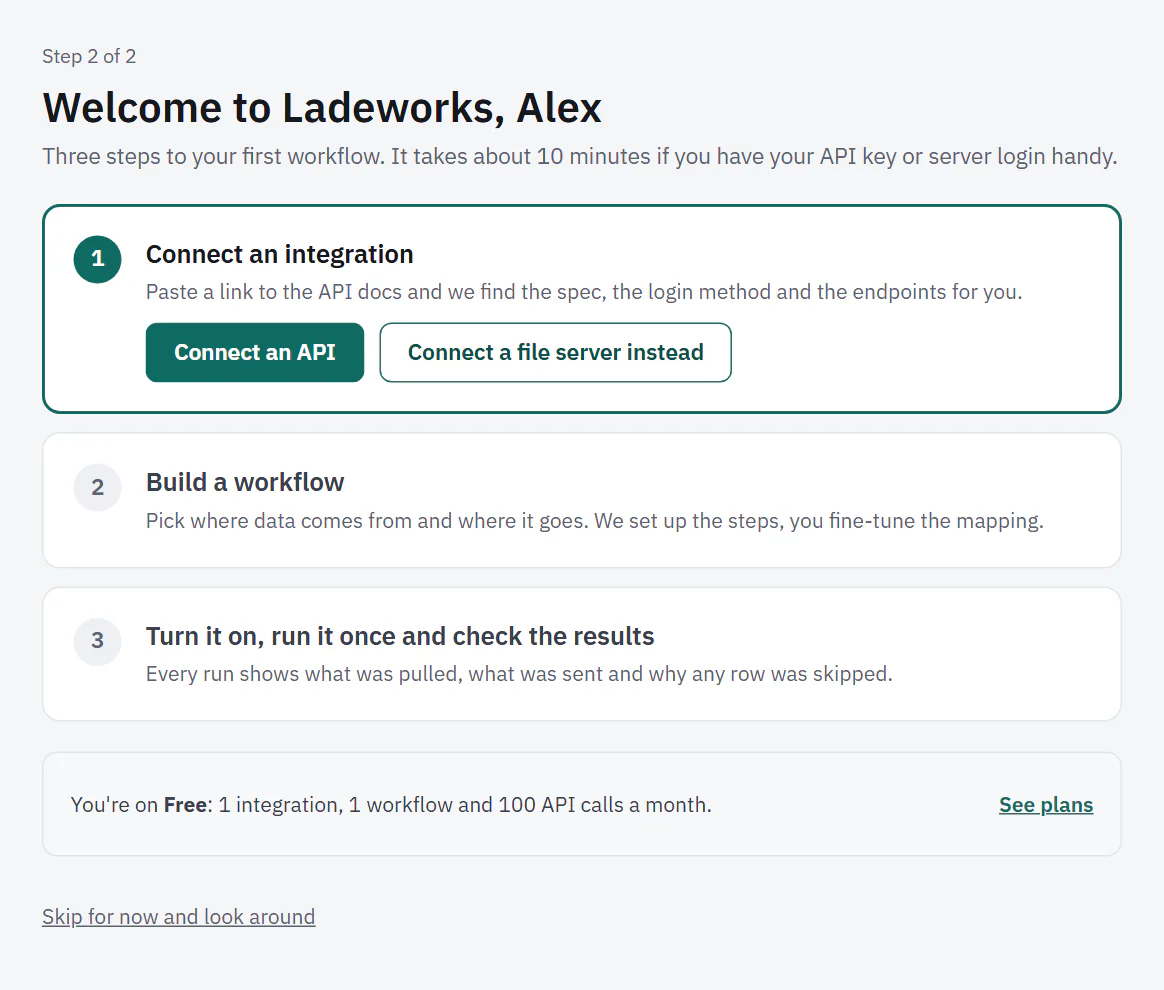
After Continue on the workspace step, you land on "Welcome to Ladeworks" with your first name. It lists the three steps, with the first one open and its buttons ready. If you chose a file server earlier, Connect a file server comes first. Otherwise Connect an API does, and the other kind is one click away.
A line near the bottom tells you what you have: on Free, 1 integration, 1 workflow and 100 API calls a month, with a link to the plans. Choose Skip for now and look around if you want to explore first.
 (opens the full size image in a new tab)
 (opens the full size image in a new tab)
On the Workflows page
Until you create a workflow, the Workflows page says "No workflows yet" and shows two steps: Connect an integration and Create a workflow.
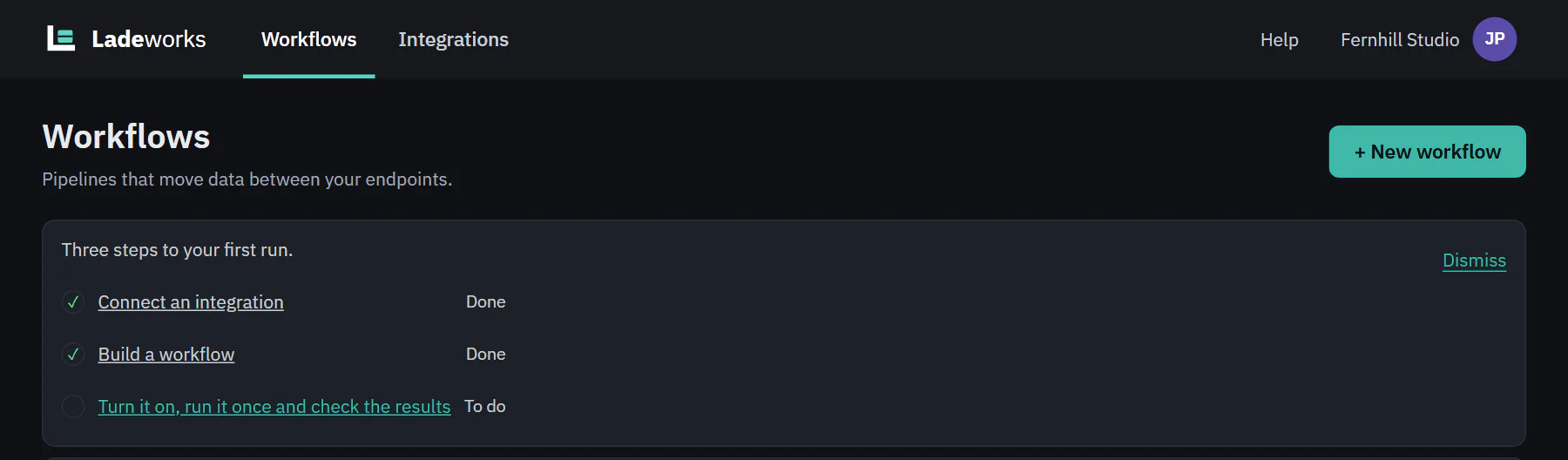
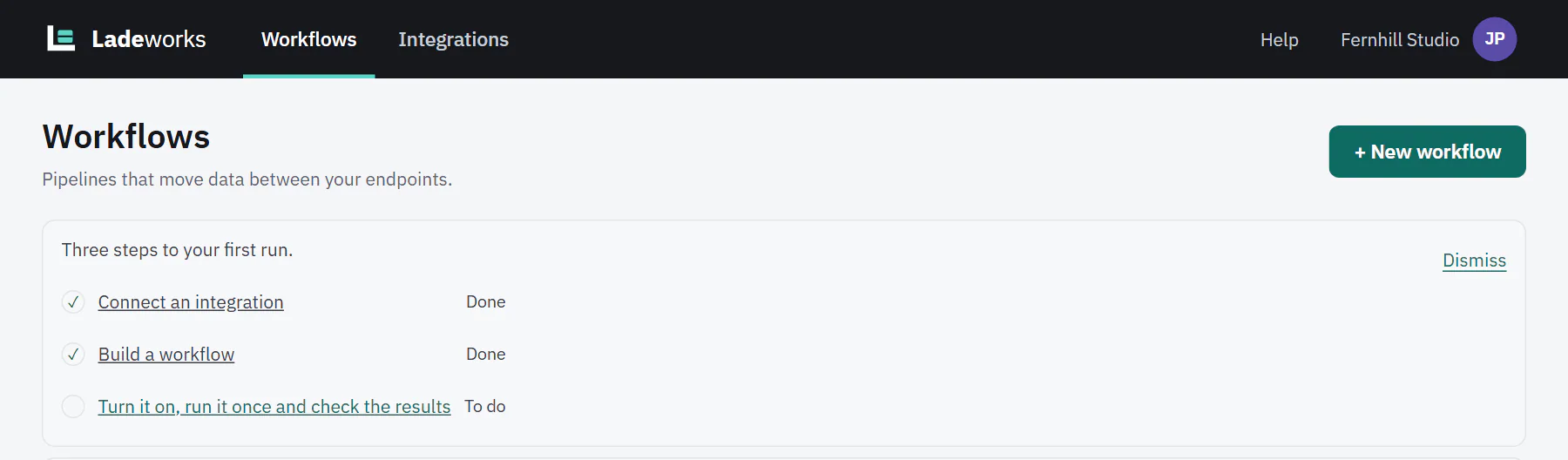
Once a workspace is at least 2 days old and nothing has ever run, the page shows the checklist again as a note that says "Three steps to your first run." Each step is ticked from what you have actually done, and shows Done or To do. Click a step to go there. Dismiss hides it for you, in this workspace, on every device.
 (opens the full size image in a new tab)
 (opens the full size image in a new tab)
If nothing has run after 2 days, the workspace owner also gets one reminder email. It has a link to stop tips.
Next: a tour of the app.