DocsYour first workflow
Add, move and change steps
The Steps tab is the whole pipeline in one column. The trigger is on top. Each step is a card, and a line joins them in the order they run.
Step cards
A card has an icon (teal moves data, violet shapes it, amber controls the run), the step's name, one line saying what it is set to do, and on the right the calls it is expected to use: "~2 calls", or "No API calls" for steps that run inside Ladeworks. A step that skips records already sent says so under its summary. A coral line on a card means the step cannot run until something is filled in. An amber line means it reads a field the rows may not have, which never blocks anything.
Click a card to open its settings in a drawer on the right. Click the trigger card, Edit, to change when the workflow runs.
Add a step
There is no Add step tile. Steps are added with the round + buttons on the line between cards: one between every pair of steps and one after the last, where the line ends. Each is named for what it does for people who use a screen reader, such as "Add a step after Map fields" or "Add a step at the end". A workflow with no steps shows one + under the trigger and the line "Add the first step".
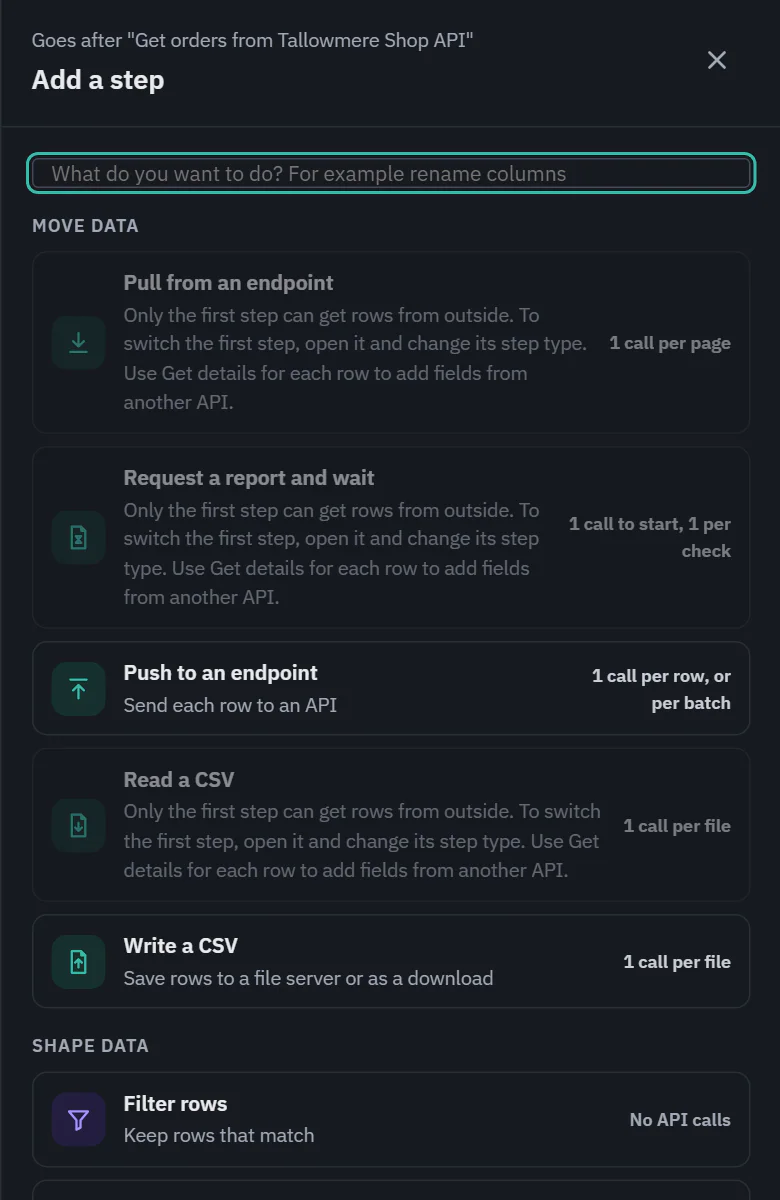
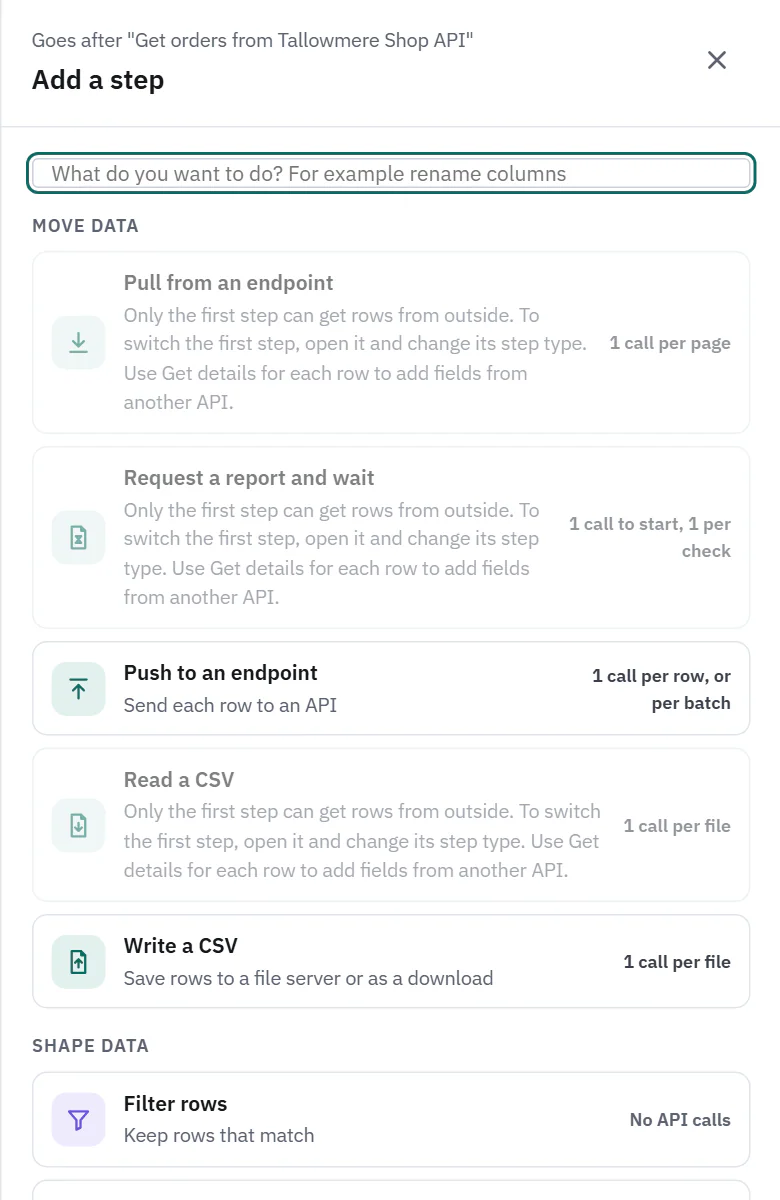
The button opens Add a step, headed "Goes after" and the step before it. The step you choose is inserted at that place and its settings open.
 (opens the full size image in a new tab)
 (opens the full size image in a new tab)
- Grouped and priced. Steps are grouped as Move data, Shape data and Control. Each shows its cost: "1 call per page", "1 call per row, or per batch", or "No API calls".
- Unavailable steps stay visible. Only the first step can get rows from outside, so Pull from an endpoint, Read a CSV and Request a report and wait are greyed out anywhere else, and nothing but those can go first. The reason is written on the step. A step that the plan does not include has a lock, the plan that has it, and an Upgrade button. Remove duplicates is one of them. On Starter, Pro and Business.
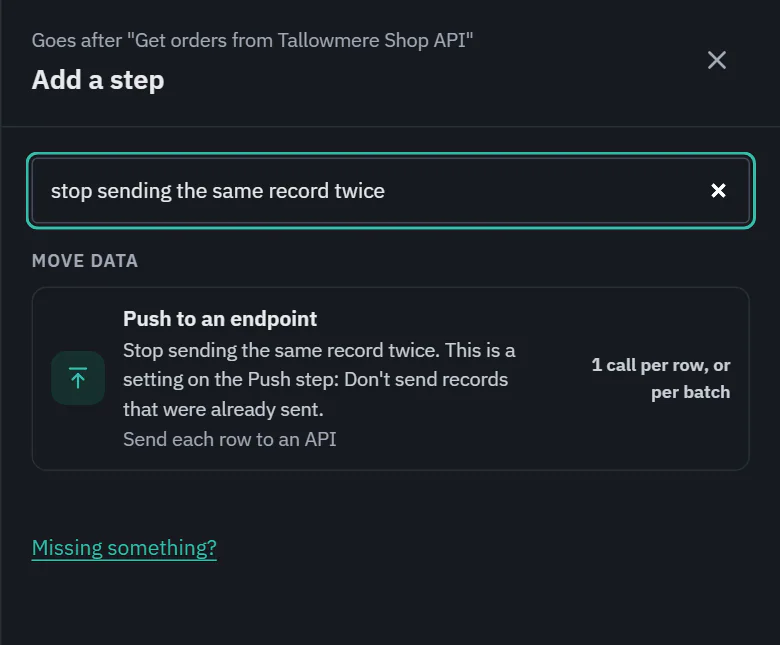
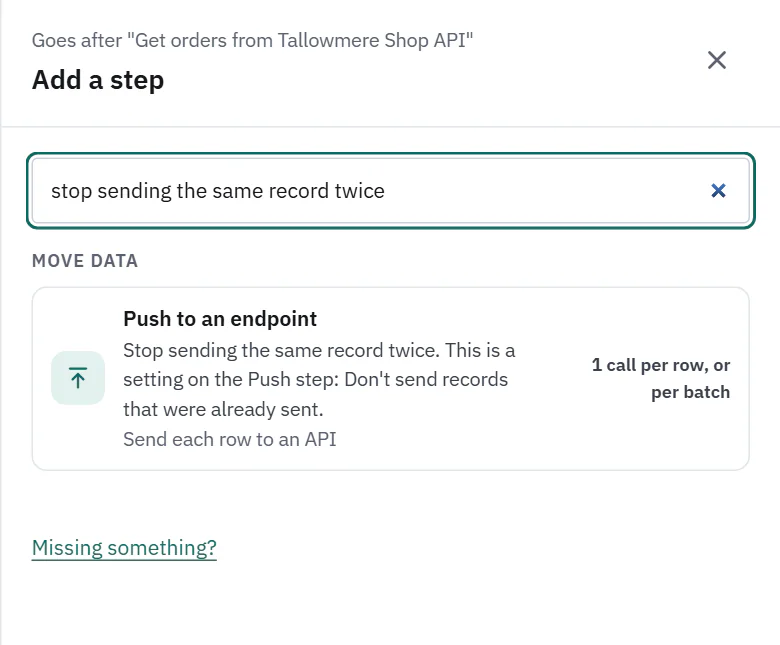
- Search by what you want to do. Type "rename columns", "drop repeated rows" or "tell someone when it is done". Steps match on their name and on everyday words, and when a step comes up by a phrase and not by its name, the phrase shows under the name.
 (opens the full size image in a new tab)
 (opens the full size image in a new tab)
Some things people look for are settings, not steps. "Stop sending the same record twice" finds Push to an endpoint with the line "This is a setting on the Push step: Don't send records that were already sent." "Only get new or changed records" finds Pull from an endpoint. When nothing matches, the panel says so and the Missing something? link is right under it.
Step settings
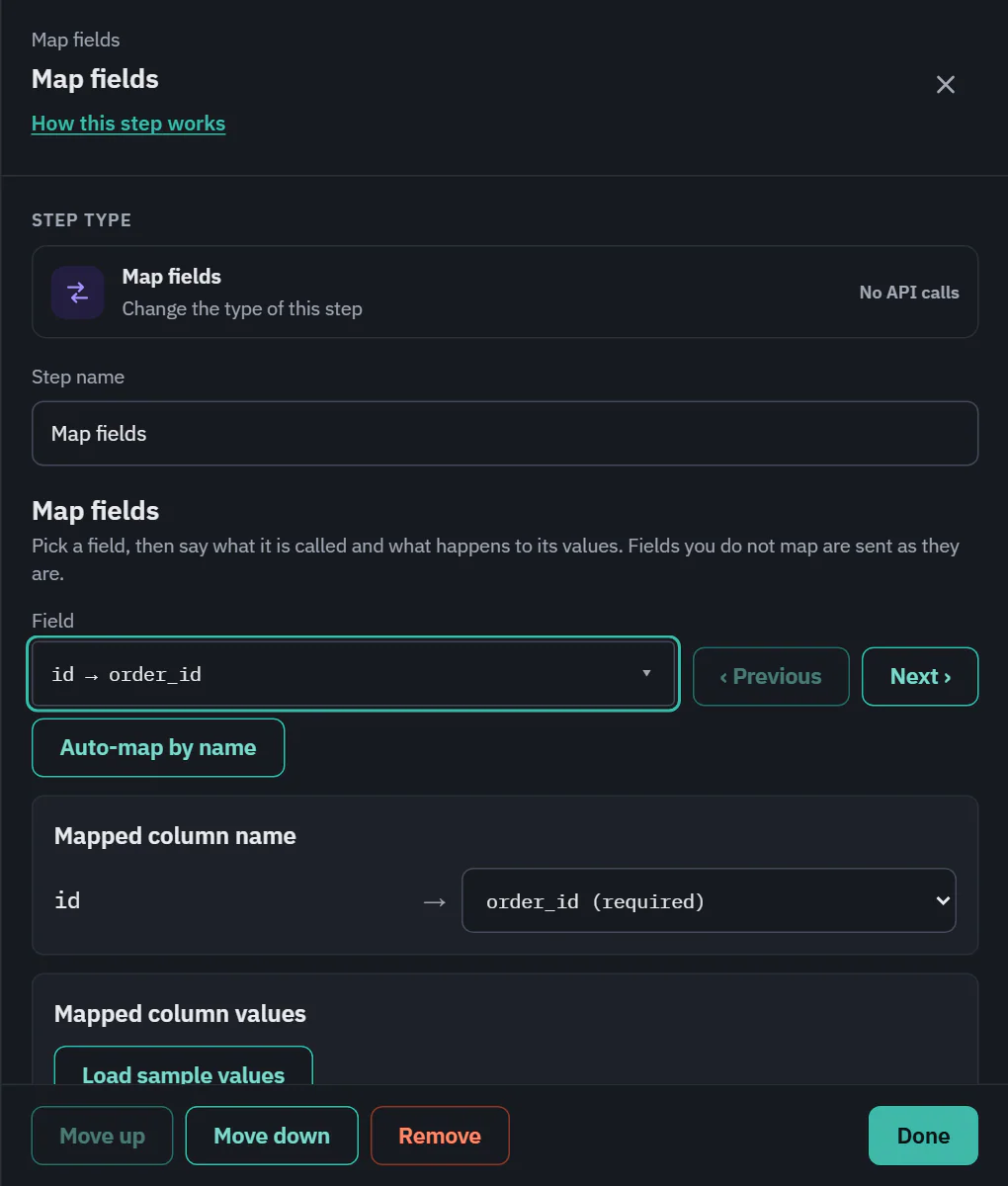
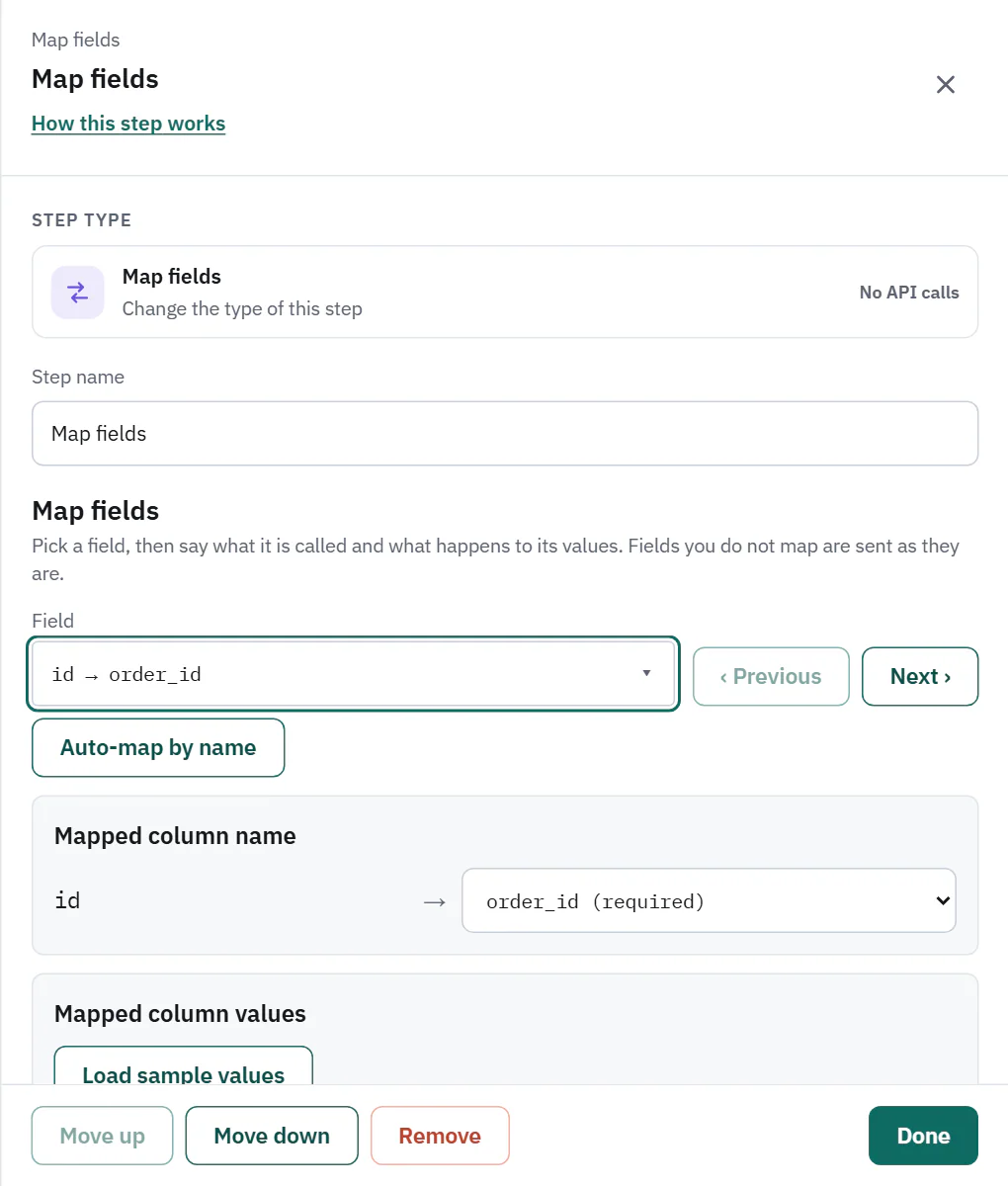
A drawer opens from the right with the step's settings. At the top, Step type shows the current type. Open it to switch the same step to another type in place; it keeps its place, and Ladeworks offers Change back. Step name comes next, then the settings of that step type. Shaping data goes through every one.
At the bottom, Move up and Move down reorder the step, Remove deletes it and Done closes the drawer. Steps that can run for only some rows (Push, Write a CSV, Map fields, Get details for each row, Send a message and Remove duplicates) also have an Only for some rows switch. Rows that do not match skip the step and move on. On Pro and Business.
A step that still needs something says what: "Still to fill in: Choose the integration and the endpoint to pull from." Settings are saved with the workflow, so use Save or let Run now do it.
 (opens the full size image in a new tab)
 (opens the full size image in a new tab)
Drag to reorder
Drag a card by the dotted handle on its left edge, or tab to the handle, press space, move with the arrow keys and press space again. The same rules apply as for the + buttons: a step that gets rows must stay first, and a workflow must start with one. If a move is not allowed, a gray line under the cards says why and the order does not change. Move up and Move down in the drawer do the same.
The step counter
Some plans limit how many steps a workflow can have, not counting the trigger: Free allows up to 4, Starter allows up to 10. Pro and Business have no limit, so no counter is shown there.
On a plan with a limit, a line under the cards counts them, for example "2 of 4 steps on Free". At the limit every + is disabled, and the line adds why: "Free workflows can have up to 4 steps. Remove one, or upgrade to ..." with an Upgrade link. A workflow that breaks a plan rule gets a coral line on each step that breaks it and a banner above the steps with Open that step links, and it cannot be turned on until it fits.
Suggestions
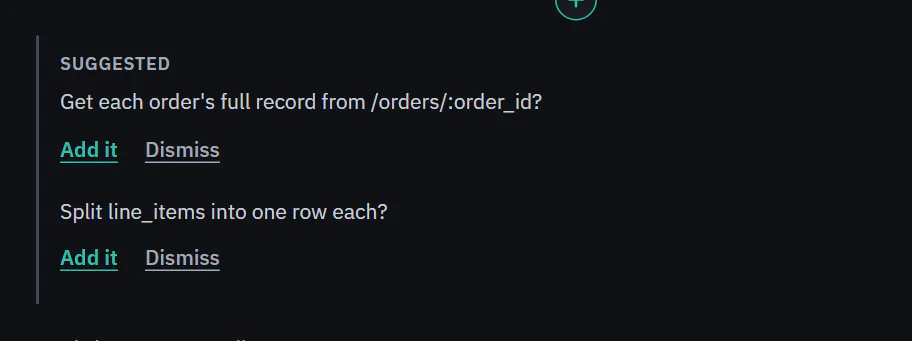
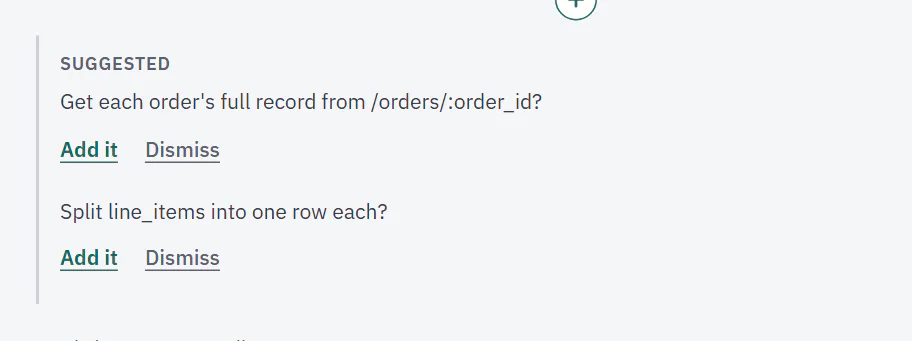
Below the last step, a gray Suggested list points at the step you probably want next. It looks at the shape of your data, with no guessing by a model, so each suggestion can be explained. At most two show at once.
Each has two text buttons. Add it inserts the step with its settings filled in, at the place named, and opens it. Dismiss hides that suggestion for you on this workflow, on every device. Suggestions never use the teal button and never show to people who can only view.
 (opens the full size image in a new tab)
 (opens the full size image in a new tab)
- Get each order's full record from /orders/:order_id? The rows have a field for every value another endpoint of the same integration needs in its address, and no Get details for each row step uses it yet.
- Split line_items into one row each? A field is a list of records and no Split step uses it.
- Add a Map fields step? The destination needs fields that no pulled field matches by name, and there is no Map fields step.
- The pull returned no rows. The latest run pulled nothing from a list endpoint. This one has an Open the endpoint link and adds no step.
A suggestion for a step the plan does not include still shows, with the lock and the plan that has it. People who manage billing get Upgrade in place of Add it, and everyone else is told an owner or admin can upgrade.
Next: test and run.