DocsConnect an integration
Connect an API from a docs link
The quickest way to connect an API is to paste a link to its docs. Ladeworks looks for an OpenAPI spec and fills in the address, the sign-in method and the endpoints for you. You check everything in the next steps.
Step 1: tell us about the API
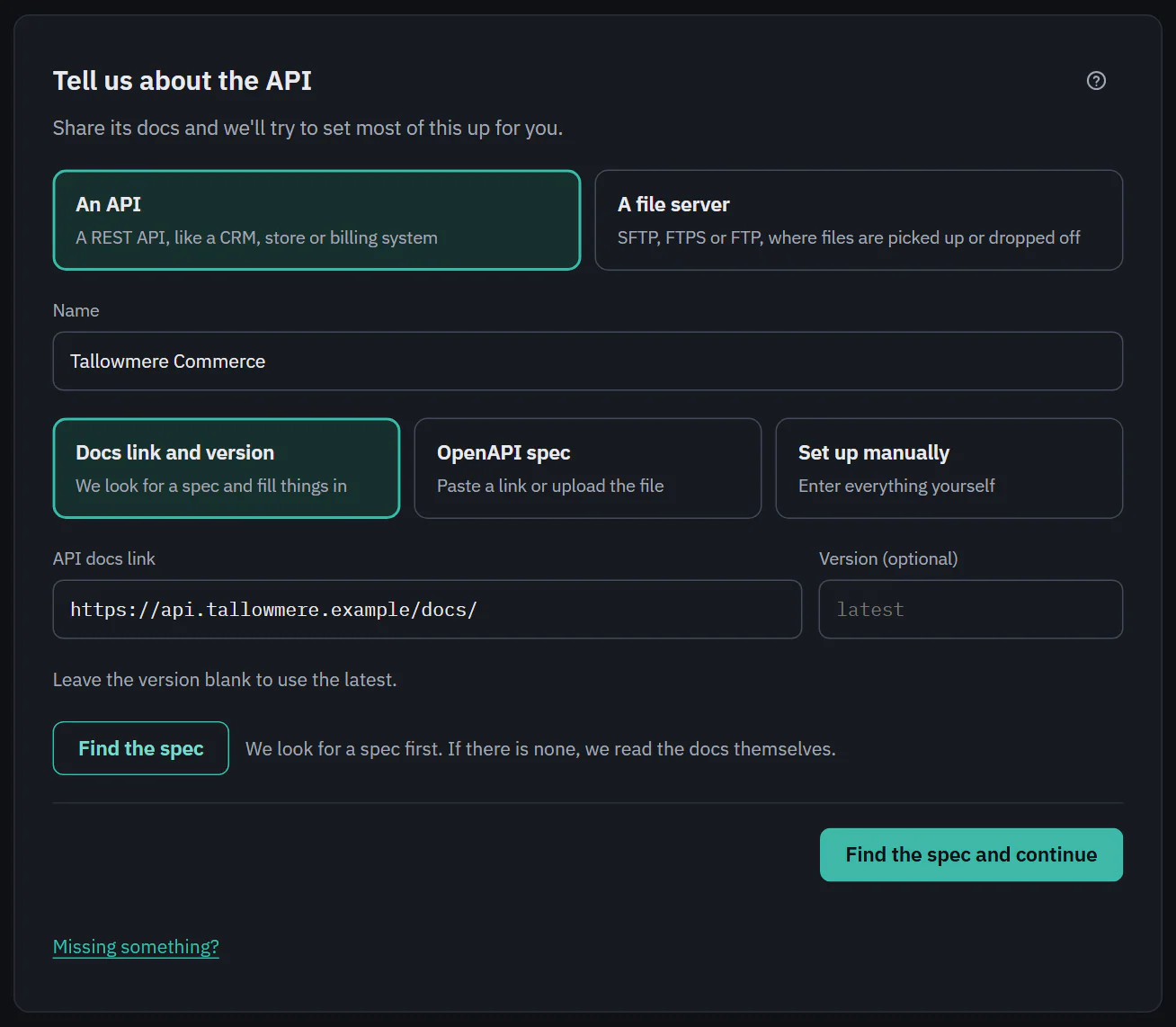
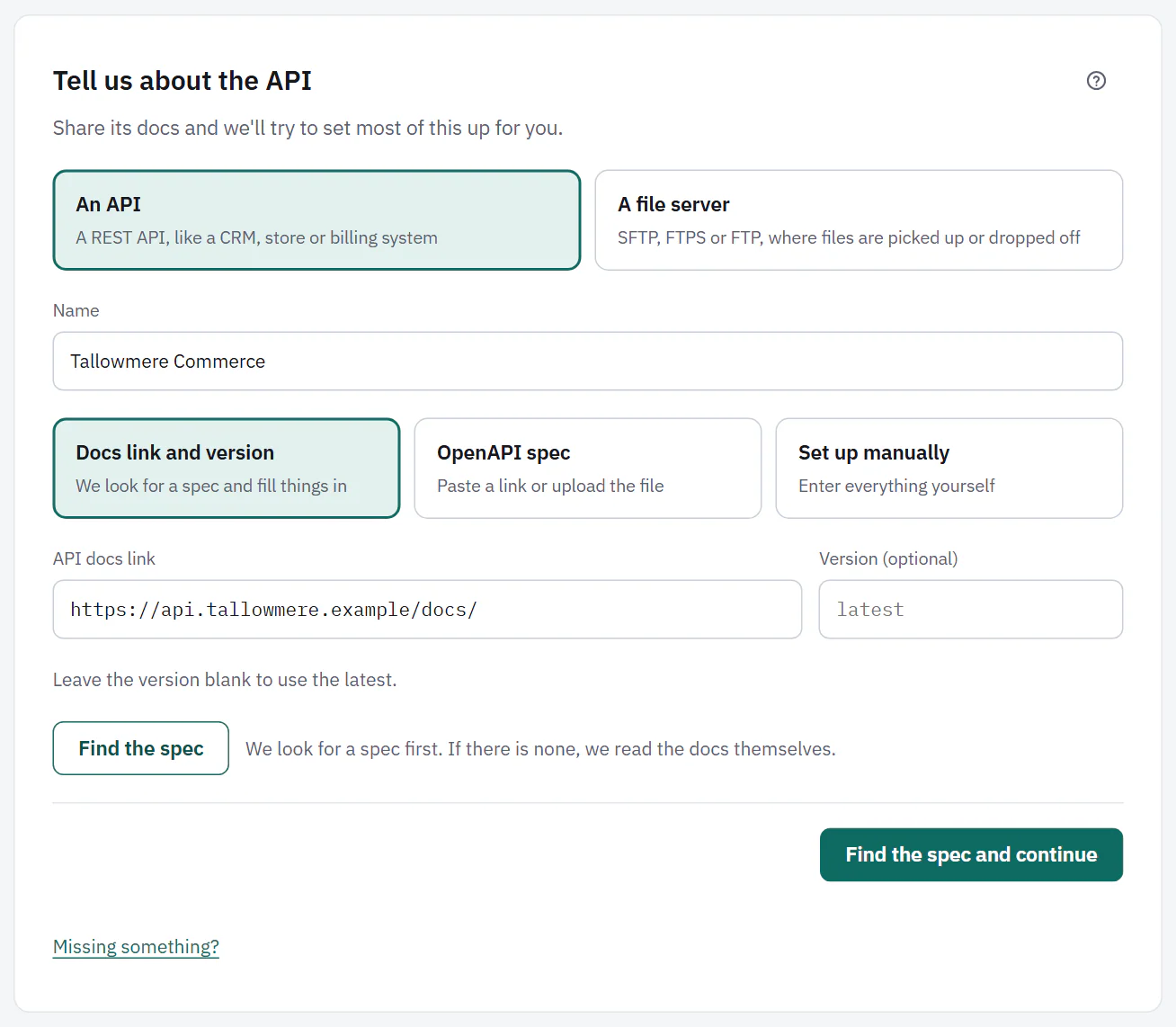
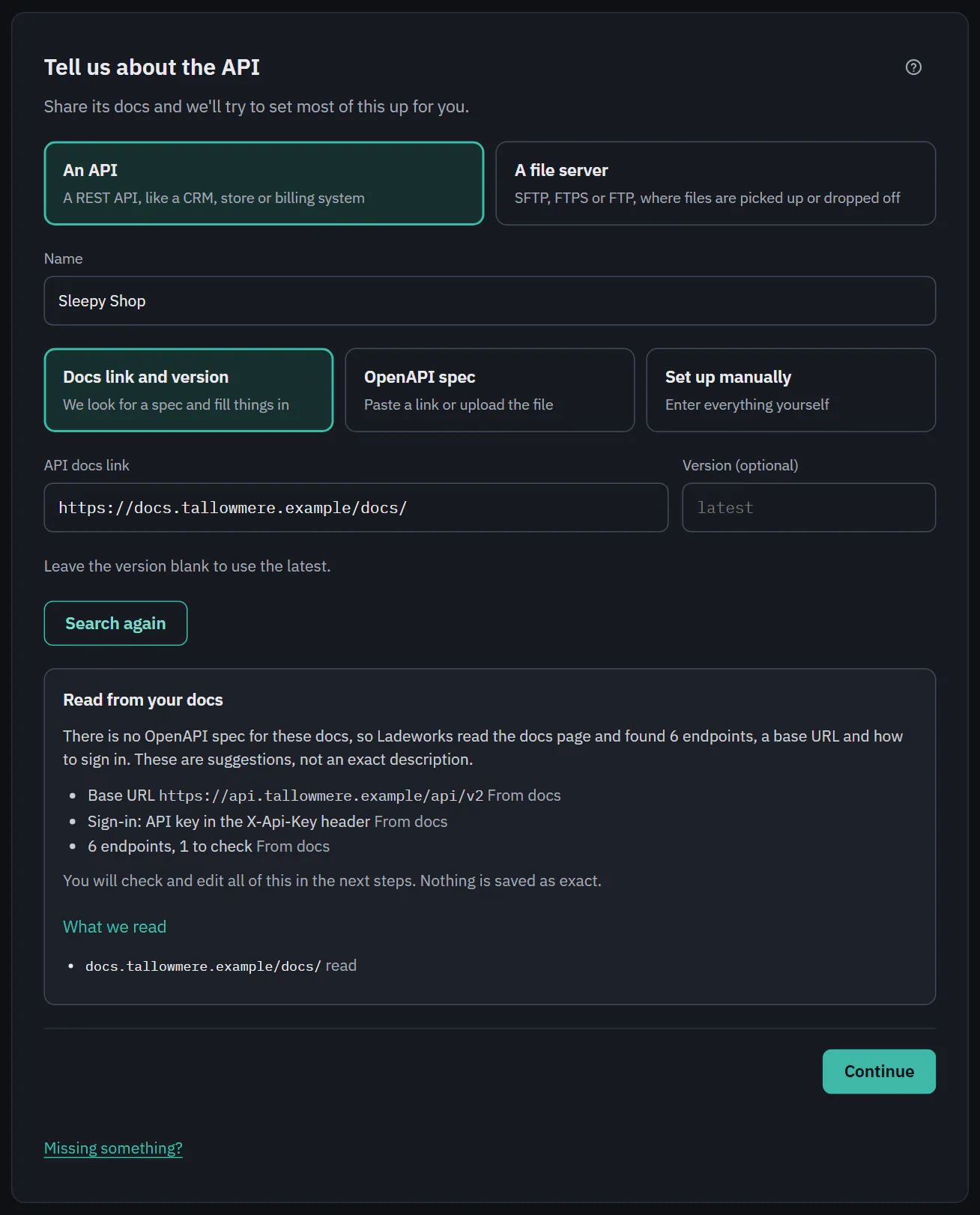
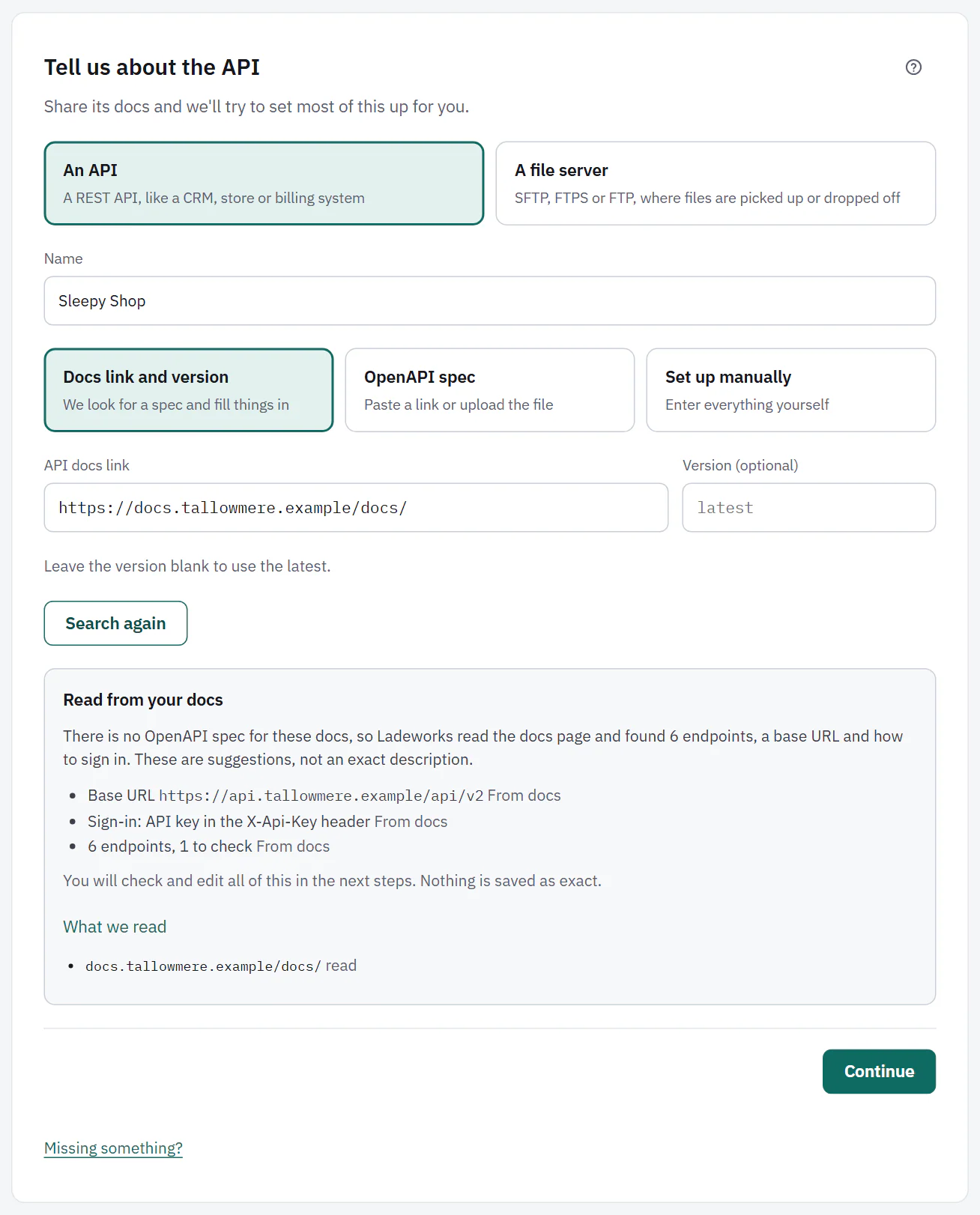
Choose An API, give it a Name, and keep Docs link and version selected. Paste the API docs link. The Version (optional) box is for APIs with several versions. Leave the version blank to use the latest.
Choose Find the spec to look now, or Find the spec and continue to look and move on. We look for a spec first. If there is none, we read the docs themselves.
 (opens the full size image in a new tab)
 (opens the full size image in a new tab)
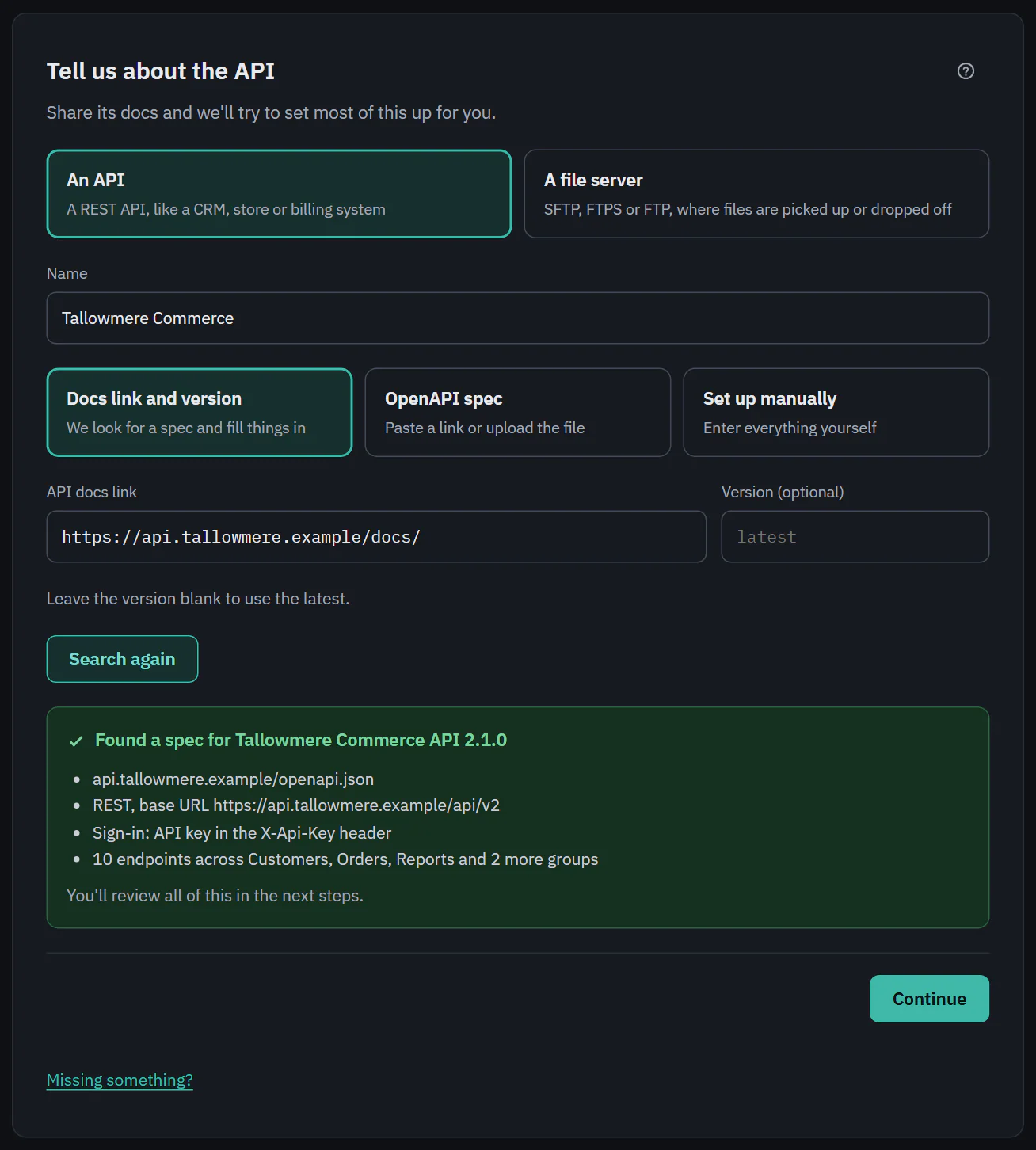
When a spec is found
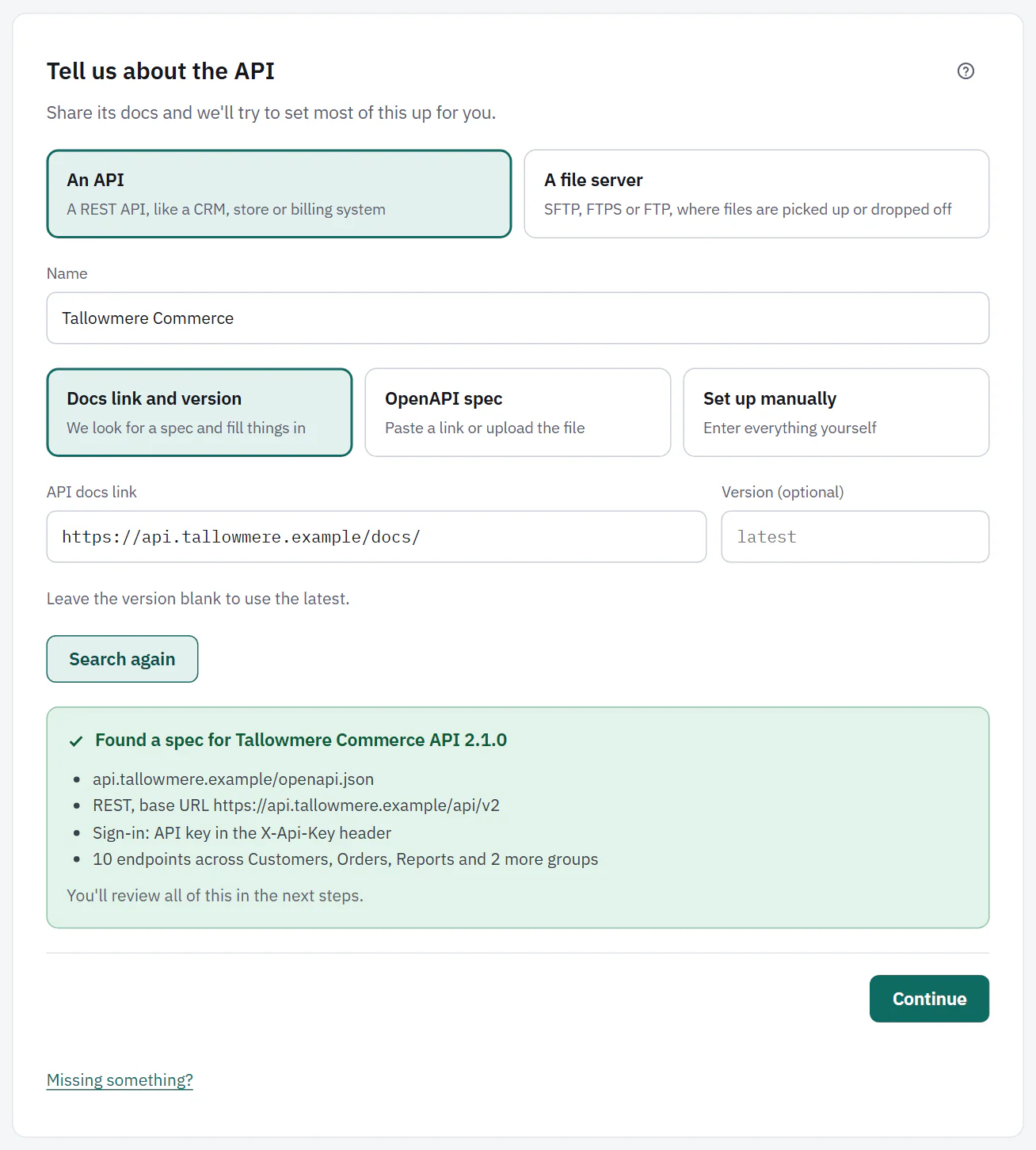
The result says "Found a spec for" the API's name and version, and lists what Ladeworks learned: where the spec is, that the API is REST with its base URL, the sign-in method the spec lists, and how many endpoints there are and in which groups. "You'll review all of this in the next steps."
 (opens the full size image in a new tab)
 (opens the full size image in a new tab)
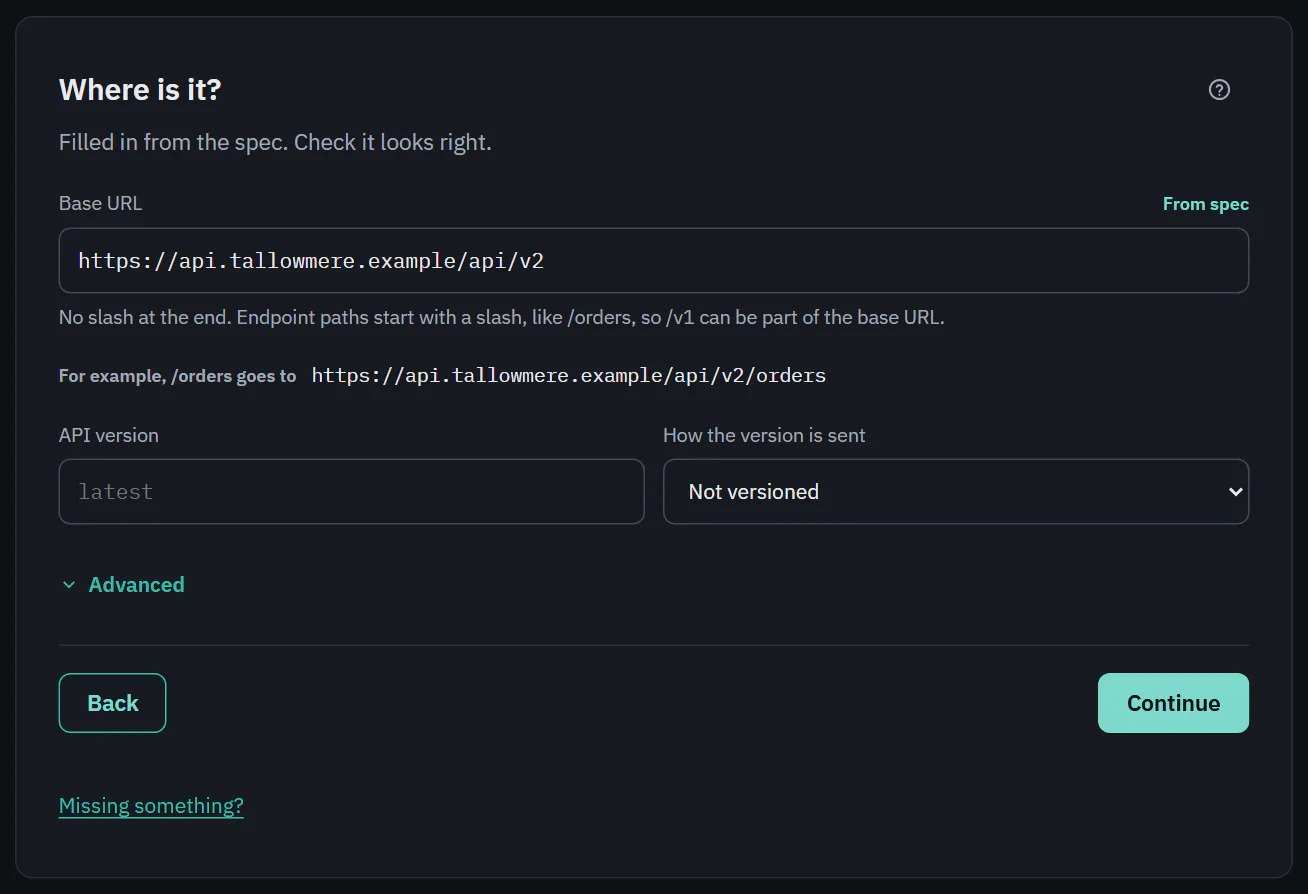
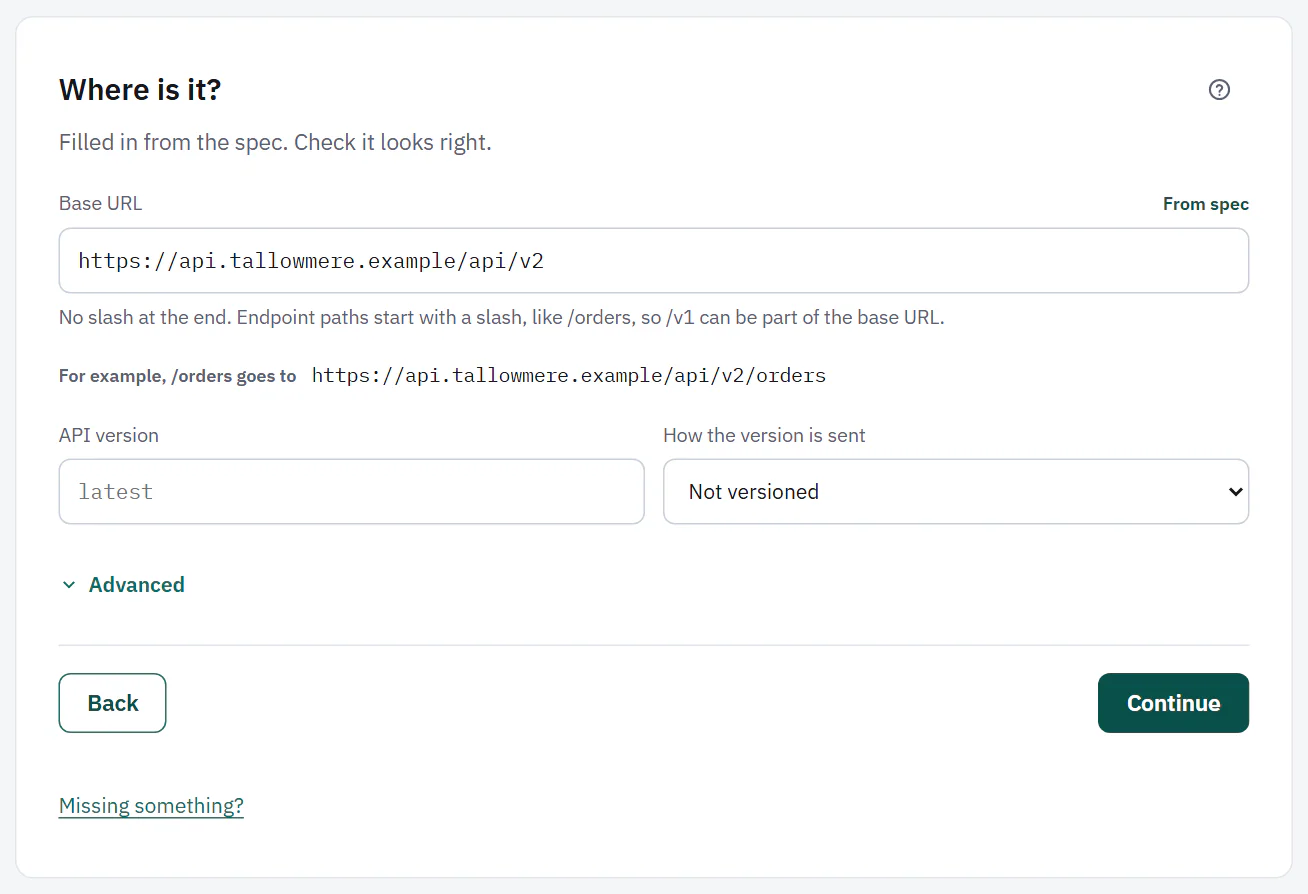
Step 2, Location, opens with the values filled in. Each value that came from the spec is labeled From spec, so you can tell what Ladeworks found from what you typed.
- Base URL is the address every endpoint starts with. Leave off the slash at the end. Endpoint paths start with a slash, like /orders, so a version such as /v1 can be part of the base URL. A line shows where /orders would go. When the spec lists no address, the field says so and waits for you to enter one. When Ladeworks could only guess it from the spec link, the field says that and asks you to check it.
- API version and How the version is sent: in the base URL, as a header, as a query parameter, or not versioned. When the spec puts the version in the URL, it says "In the base URL, from the spec", with a link to change it. An integration with a version set shows "Pinned to" that version.
- Advanced holds the Rate limit (1 request per second unless you change it; pick 5 or 10 per second, set your own number per second or per minute with Custom, or choose no limit) and the Timeout per request. Extra headers sent with every request are added after setup, in the integration's settings.
 (opens the full size image in a new tab)
 (opens the full size image in a new tab)
When there is no spec, but the docs describe endpoints
If no spec exists, Ladeworks reads the docs page itself. The result says "Read from your docs" and lists what it found: a base URL, how to sign in and some endpoints, each labeled From docs. These are suggestions, not an exact description. Endpoints Ladeworks is less sure about are counted as "to check", and What we read lists the pages it used.
You check and edit all of it in the next steps. Nothing is saved as exact. Reading docs is limited for each workspace every day. When you are over the limit, a simpler reader is used and the note under the result says so.
 (opens the full size image in a new tab)
 (opens the full size image in a new tab)
When nothing is found
When there is no spec and no endpoints in the docs, the result says "We couldn't find a spec or any endpoints in these docs." Open What we tried to see every address Ladeworks checked and what each answered. You can Continue and set things up by hand, and Ladeworks will still watch the docs for changes. Use a spec link instead switches to the next option.
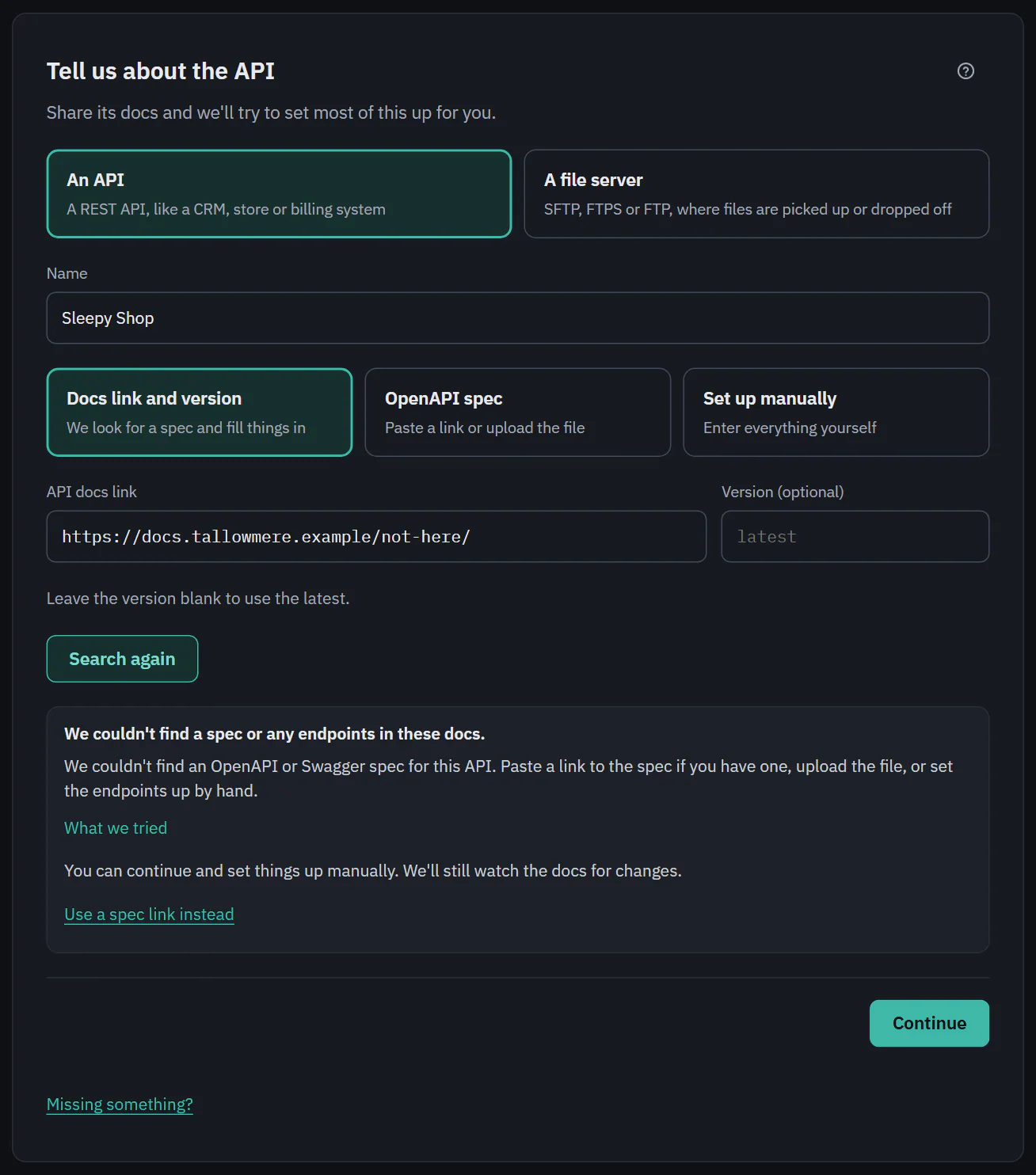 (opens the full size image in a new tab)
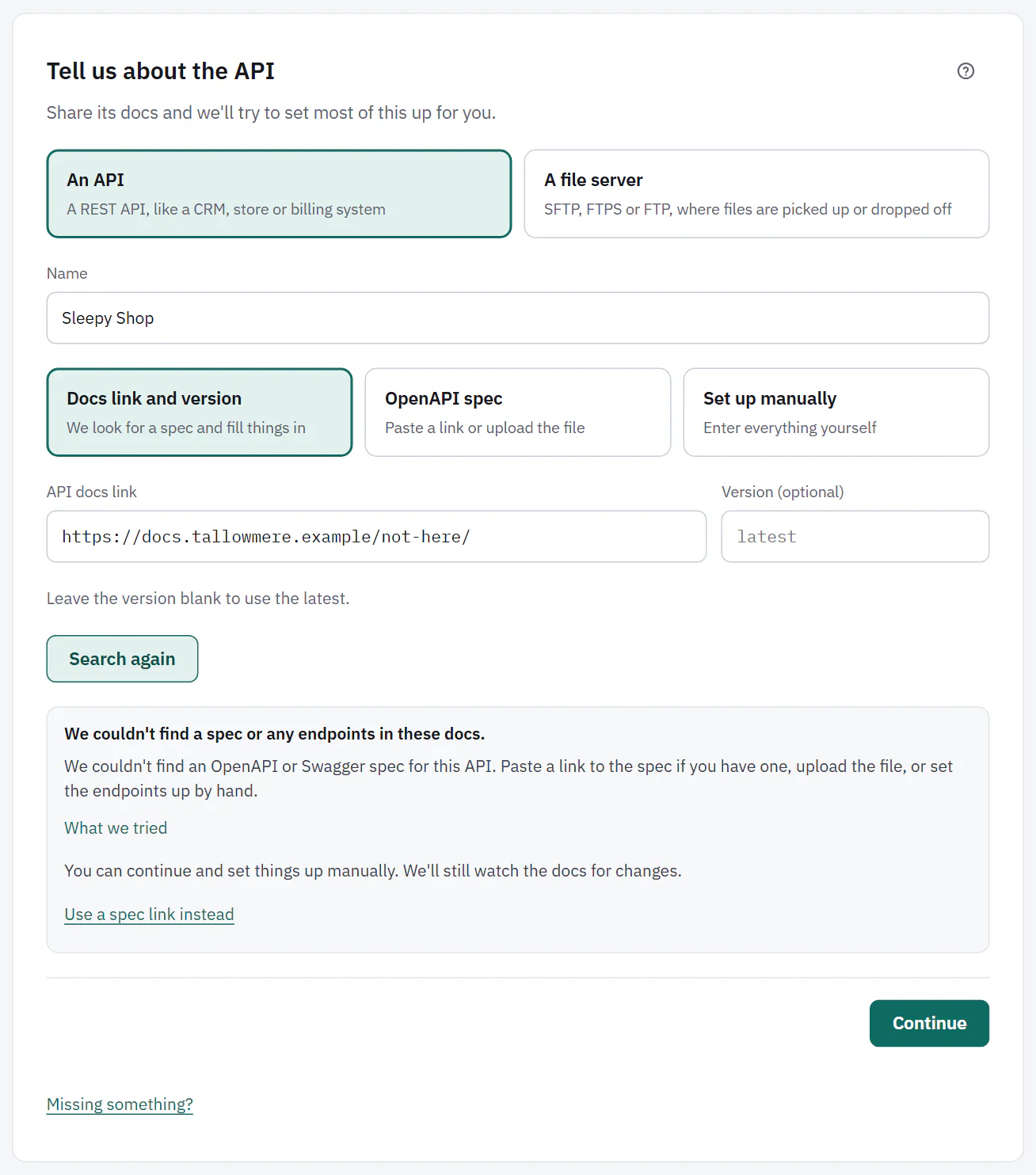 (opens the full size image in a new tab)
An OpenAPI spec by link or upload
If you already have the spec, choose OpenAPI spec. Paste the OpenAPI spec link or choose Upload a file. JSON or YAML both work, and so do OpenAPI 3 and Swagger 2. The button reads Read the spec, and Ladeworks checks the link and common spec paths. After that, the steps are the same as for a docs link.
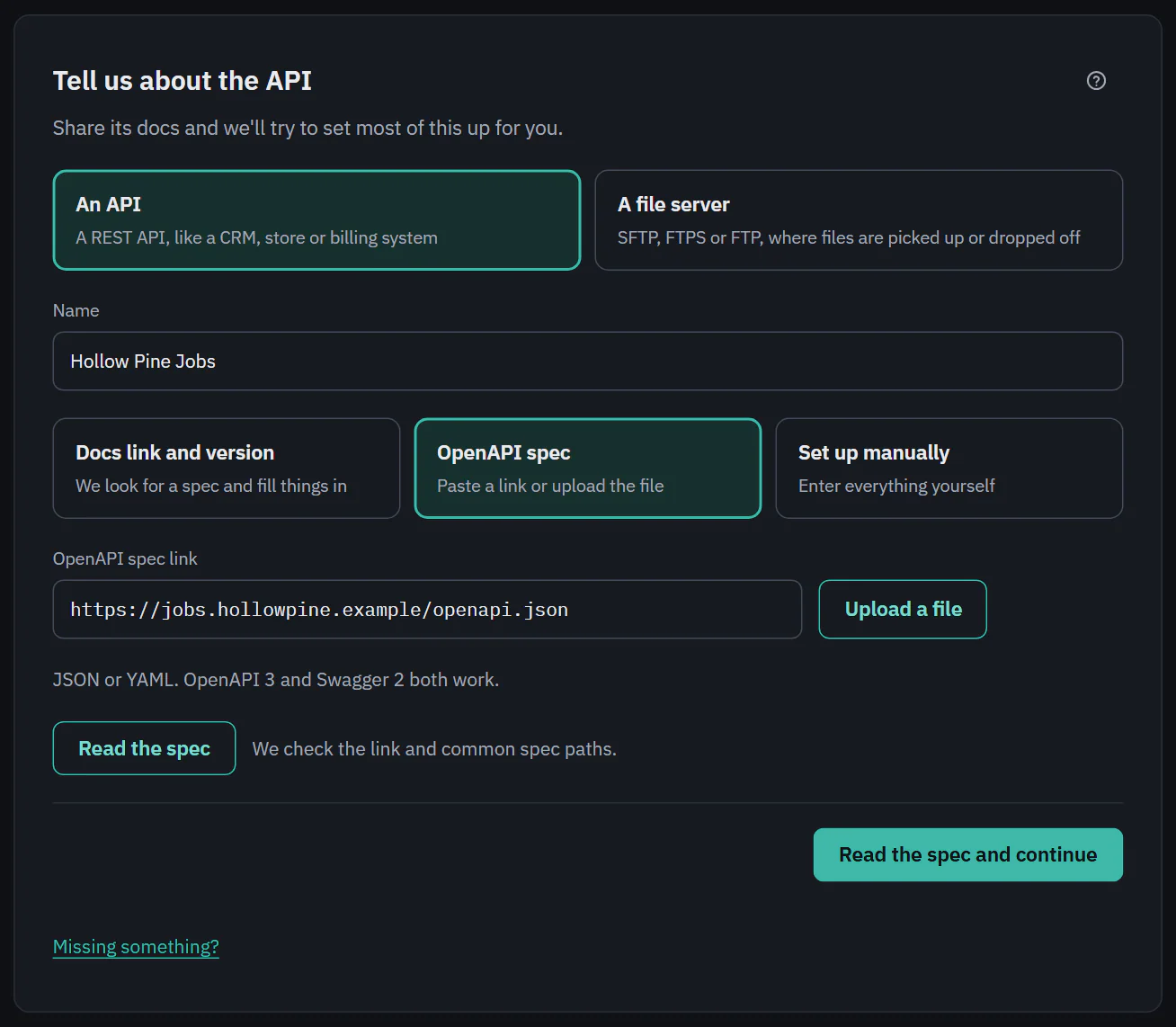 (opens the full size image in a new tab)
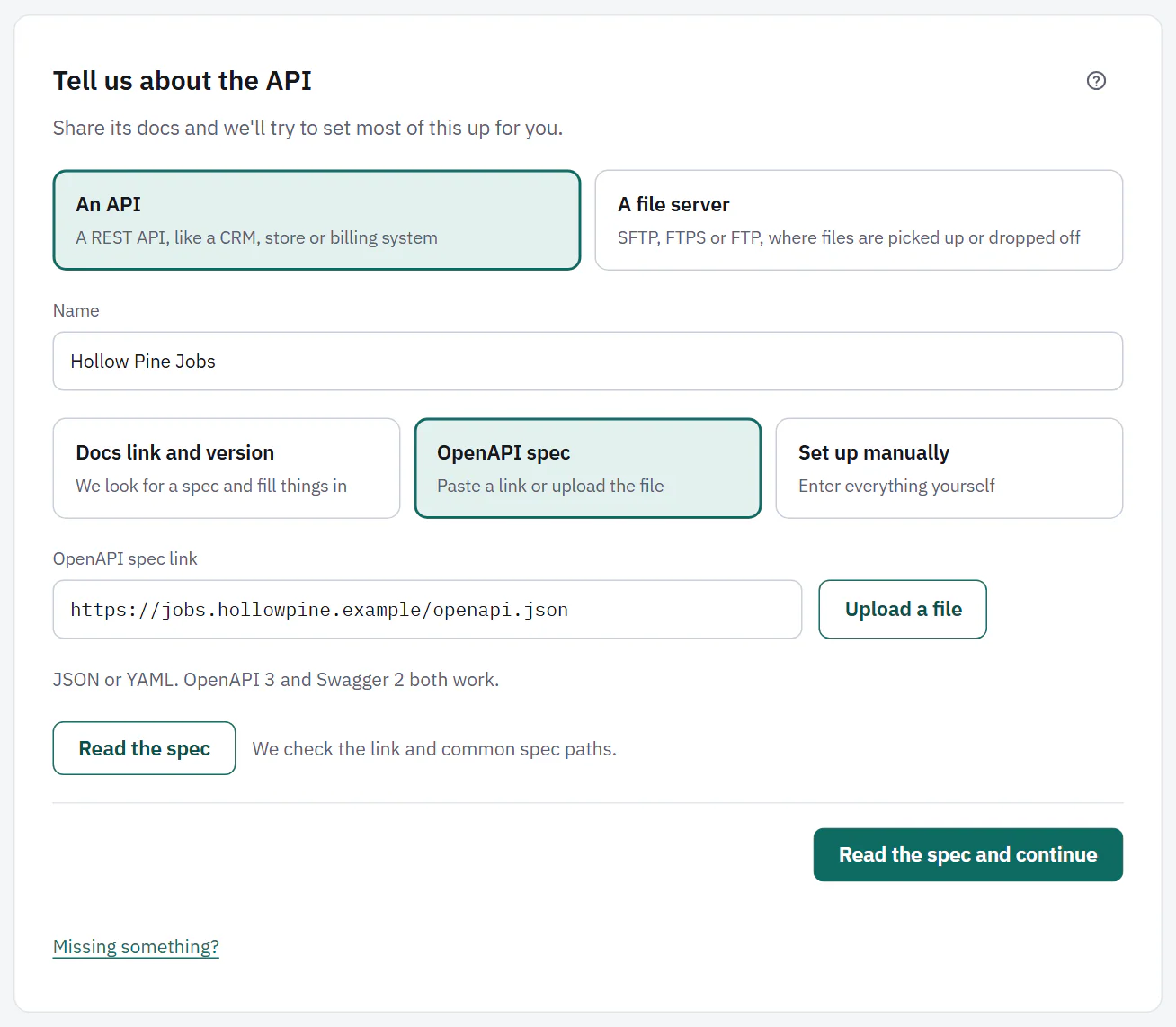 (opens the full size image in a new tab)
The live check of endpoints
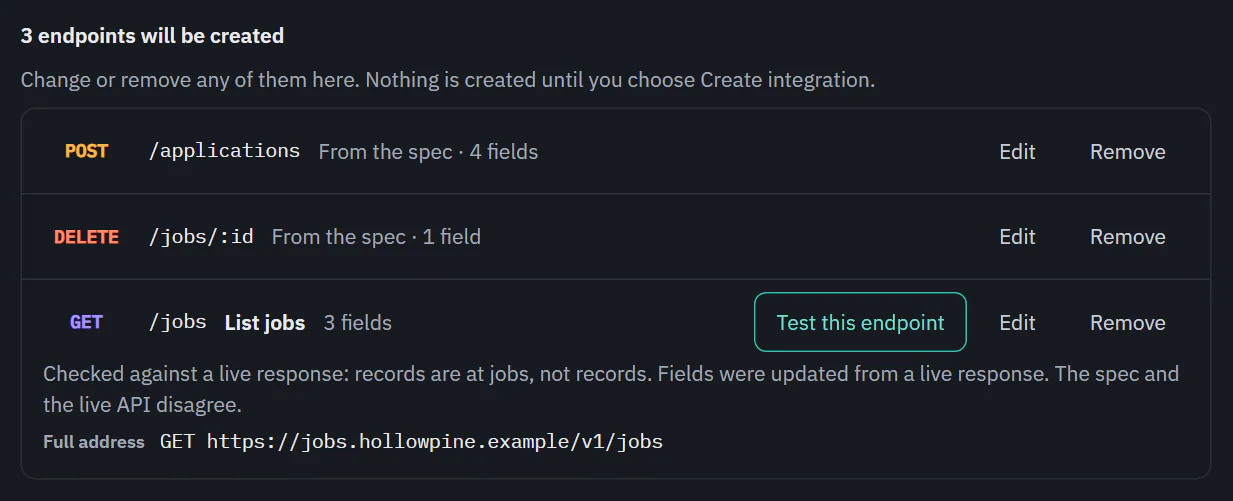
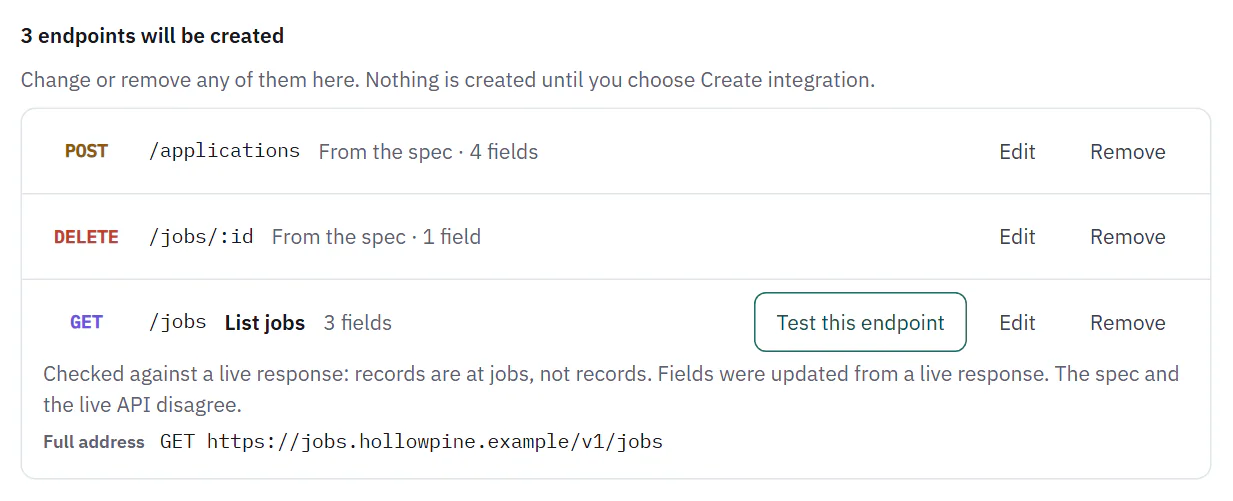
Docs and specs can be wrong about what an API really answers. A spec can be out of date: the list can be under records in the spec and under jobs in the live API. So when you reach step 5, Ladeworks makes one real request to each endpoint it can call without values nobody has given, and compares the answer with the draft.
- It only calls GET endpoints that need no path value and no required query parameter without an example. It sends your saved sign-in, never counts the request as an API call, checks at most 10 endpoints, 3 at a time, and waits up to 15 seconds for each.
- When the answer matches, the row says "Checked against a live response. It matches."
- When it does not, the live answer wins. The row says what changed, for example "Checked against a live response: records are at jobs, not records. Fields were updated from a live response." For an endpoint taken from a spec it adds "The spec and the live API disagree."
- When a request fails or is not JSON, the draft stays and the row says "Couldn't check this against a live response." That never blocks setup.
 (opens the full size image in a new tab)
 (opens the full size image in a new tab)
Step 5: choose endpoints
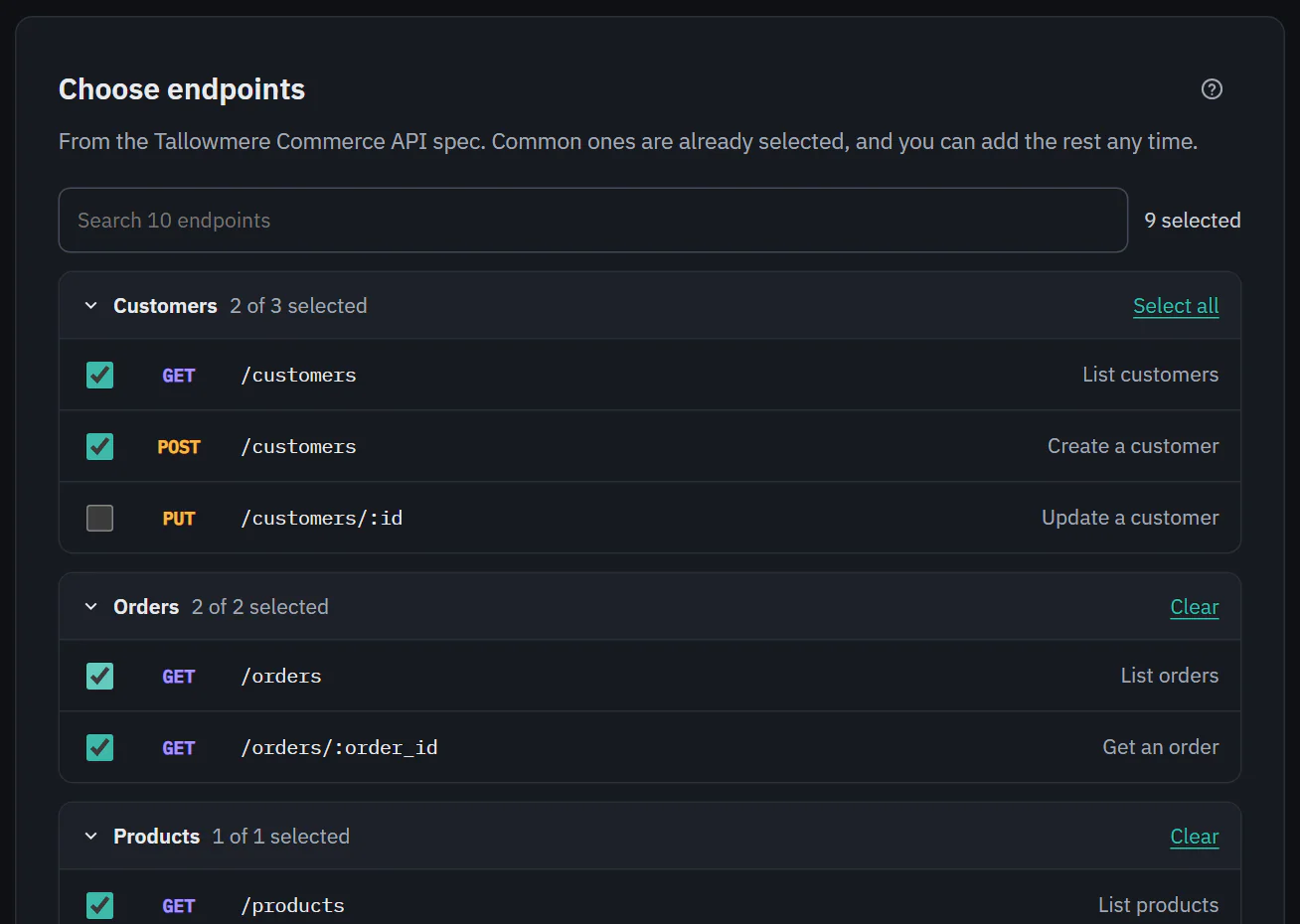
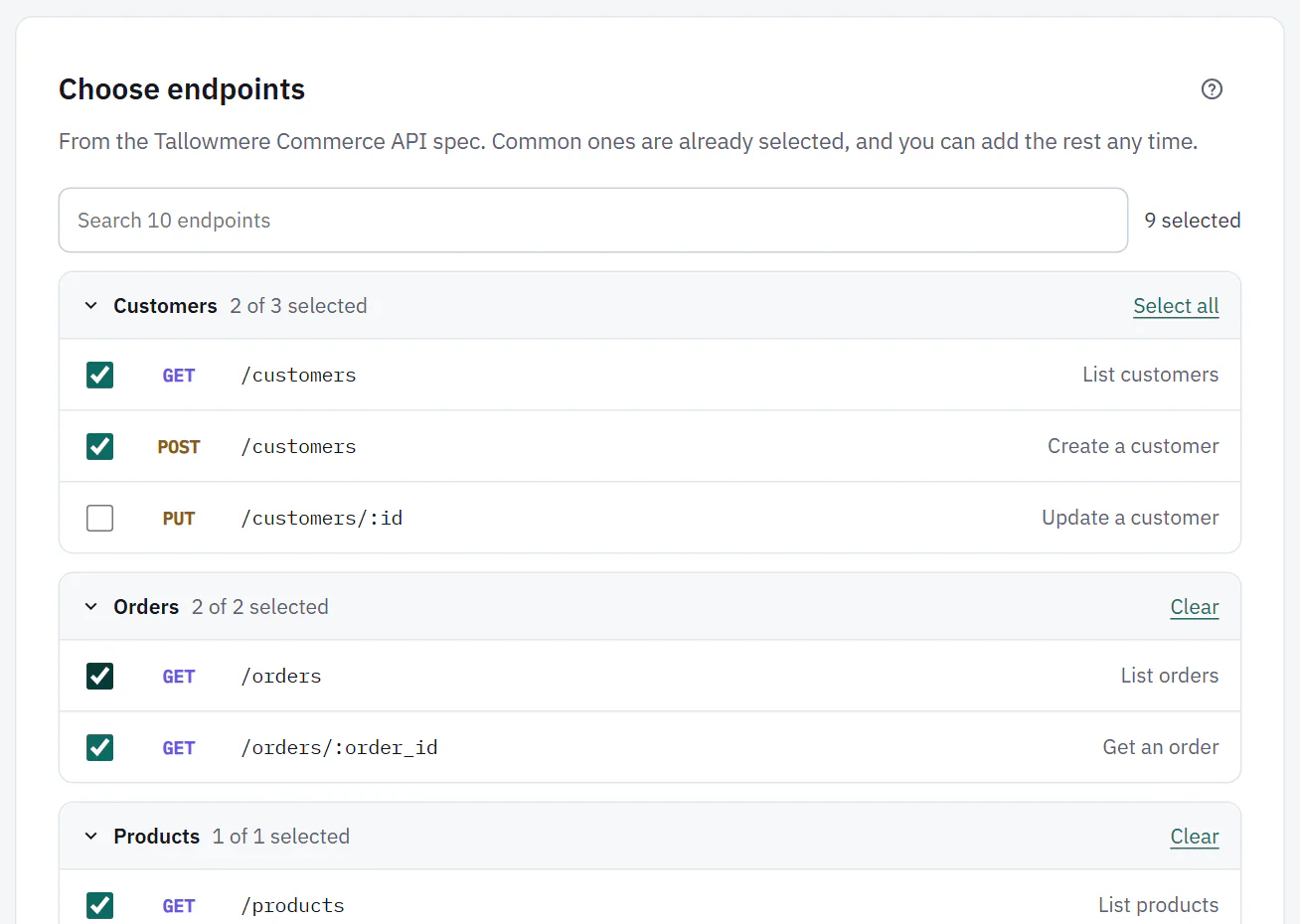
With a spec, step 5 lists its endpoints in groups of checkboxes, with a search box and a Select all or Clear link for each group. Common ones are already selected, and you can add the rest any time. Below the list, "will be created" shows each endpoint you chose. Edit opens it to change, Remove drops it, and Test this endpoint makes a real request for GET endpoints. Nothing is created until you choose Create integration.
Add an endpoint that isn't in the spec lets you add one by hand.
 (opens the full size image in a new tab)
 (opens the full size image in a new tab)
Setting one up by hand
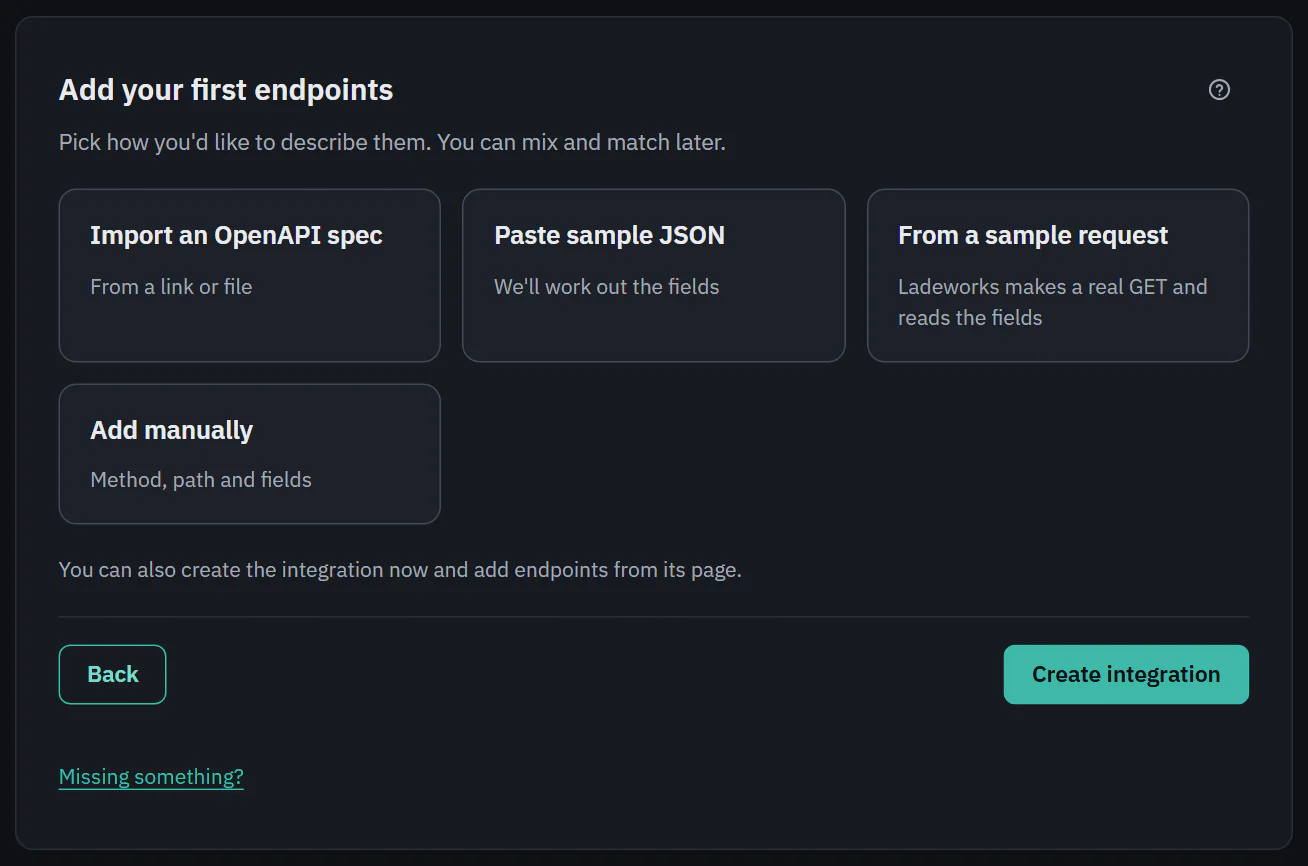
Choose Set up manually in step 1 when there are no docs to read. You enter the base URL yourself, pick a sign-in method, and in step 4 type a request to test, since Ladeworks does not guess a path. Step 5 is Add your first endpoints, with four ways in:
- Import an OpenAPI spec from a link or file.
- Paste sample JSON. Ladeworks works out the fields.
- From a sample request. Ladeworks makes a real GET and reads the fields.
- Add manually. You give the method, path and fields.
You can also create the integration now and add endpoints from its page later.
 (opens the full size image in a new tab)
 (opens the full size image in a new tab)
Next: sign-in methods.