DocsShaping data
Filter rows
Keeps the rows that match your conditions and removes the rest. It makes no API calls. Rows it removes are not counted as skipped.
Condition blocks
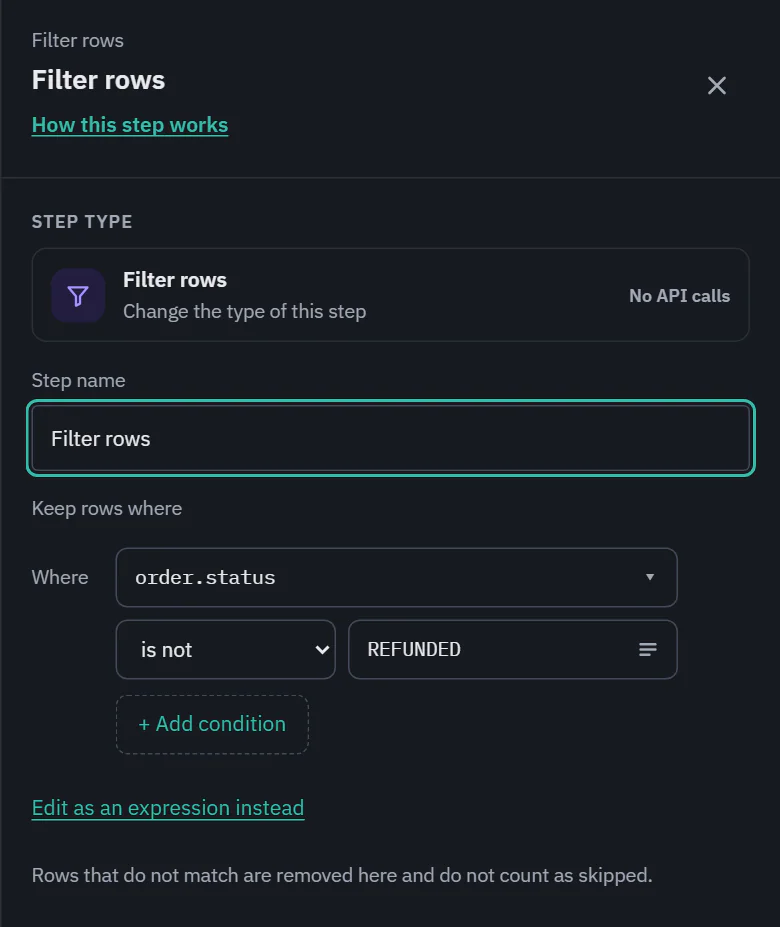 (opens the full size image in a new tab)
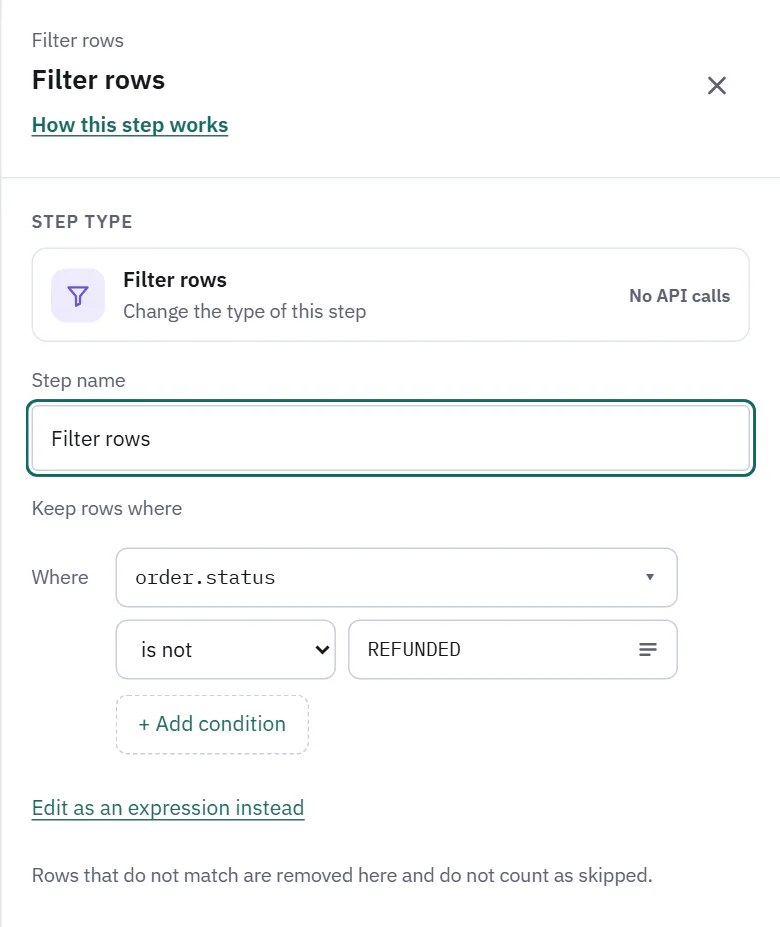 (opens the full size image in a new tab)
Each condition is one block. On the left, the joiner: Where, then and or or. On the first line, the field. Under it, how to compare and the value side by side. Remove is on the right. + Add condition adds a block. With two or more, choose All of these or Any of these for how they combine. The same blocks are used by Only for some rows and by End run if.
Pick the field
Field is a searchable list of the fields the step receives: what the pulled endpoint returns, a CSV's columns, what a Split step makes, the fields a Get details step adds. Nested ones use dots, such as wage.median. Each shows its type in gray (text, number, true or false, date). Whole objects and lists are not listed, their parts are. A name that is not in the list can still be used: the list offers "Use" and what you typed.
The type narrows how to compare to what makes sense:
- Number: is, is not, is more than, is at least, is less than, is at most, is empty, is not empty.
- Text: is, is not, contains, doesn't contain, starts with, ends with, is empty, is not empty.
- True or false: is, is not, is empty, is not empty. The value is a choice of true and false.
- Date: is, is not, is before, is after, is on or before, is on or after, starts with, is empty, is not empty. Before and after compare calendar days, so 2026-10-10 and 2026-10-10T15:04:05Z are the same day. The value must be a date such as 2026-10-01, and a value that is not a date does not match and never stops a run.
- A field of unknown type gets every comparison.
When the fields are not known (a CSV with no saved columns, or an endpoint with no response fields yet), the field is a text box with the note "Ladeworks doesn't know this step's fields yet. Fetch a sample on the endpoint, or type the field name." and, when the rows come from an endpoint, an Open the endpoint link. For a CSV, read its columns and the list fills in.
Show values
The small list button at the end of the value box reads a sample of the pull (up to 100 records) and lists the values the field takes, most common first, with how many records had each. It says "From 50 sampled records. No API calls." Click one to fill the value, or type your own. A true or false field offers both without a request. It is only offered while the column still holds the pull's own values, not after a Map step that changes them. It needs payload access, and when the records are not where the endpoint says, the note links to the endpoint.
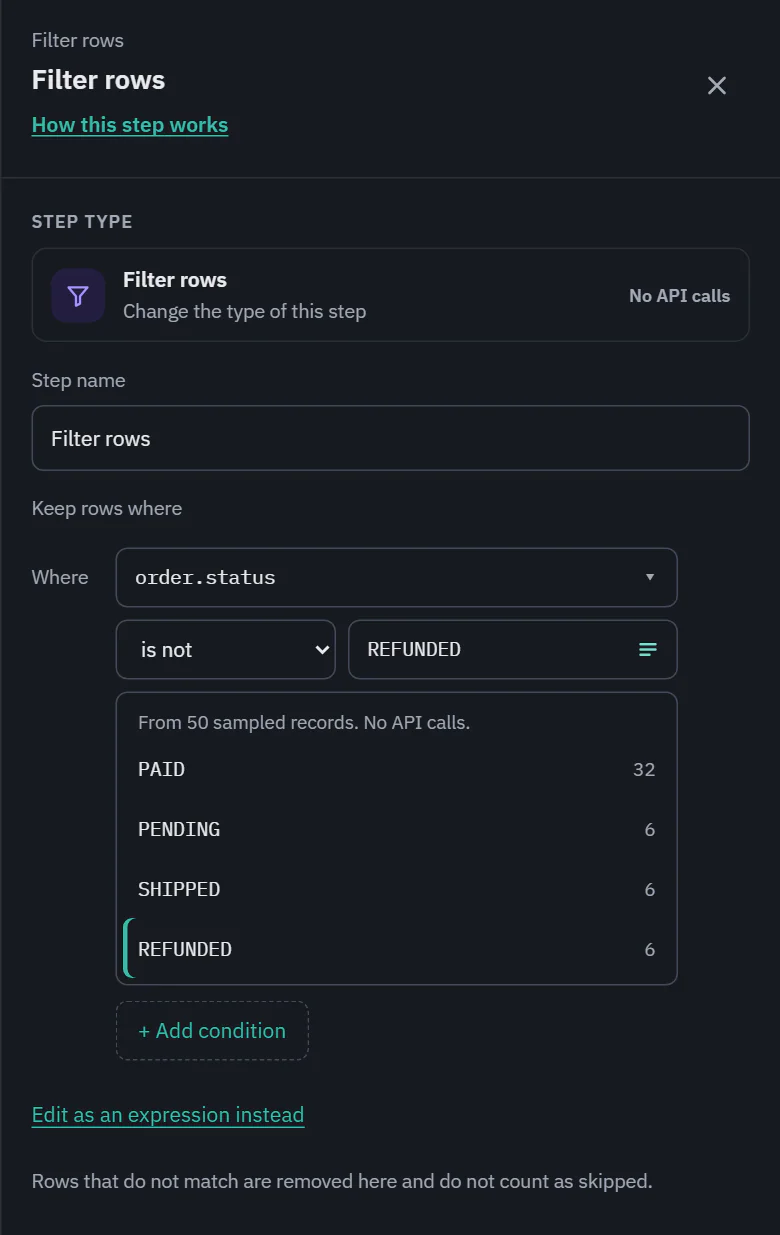 (opens the full size image in a new tab)
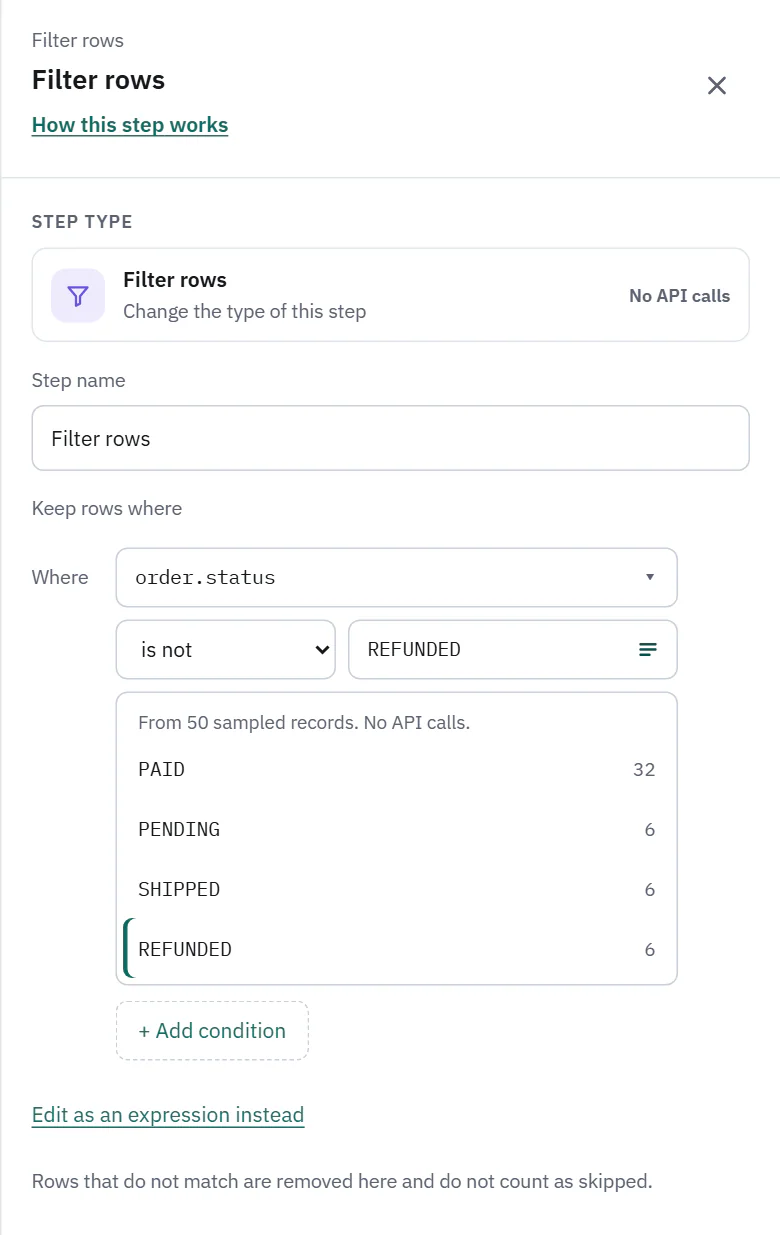 (opens the full size image in a new tab)
Simple conditions or an expression
Conditions are saved as a simple filter on every plan: the server writes the expression for you. Edit as an expression instead switches to writing it yourself, for what conditions cannot say. On Starter, Pro and Business. In the expression editor a Condition box takes something like row.status == "paid" and number(row.total) > 0. Insert a field under the box writes row.name, or row["wage.median"] for a name with a dot, at the cursor. Helpers such as upper, lower, trim and number are available. The expression is checked as you type, and Use the simple editor returns to blocks when the expression is one blocks can show.
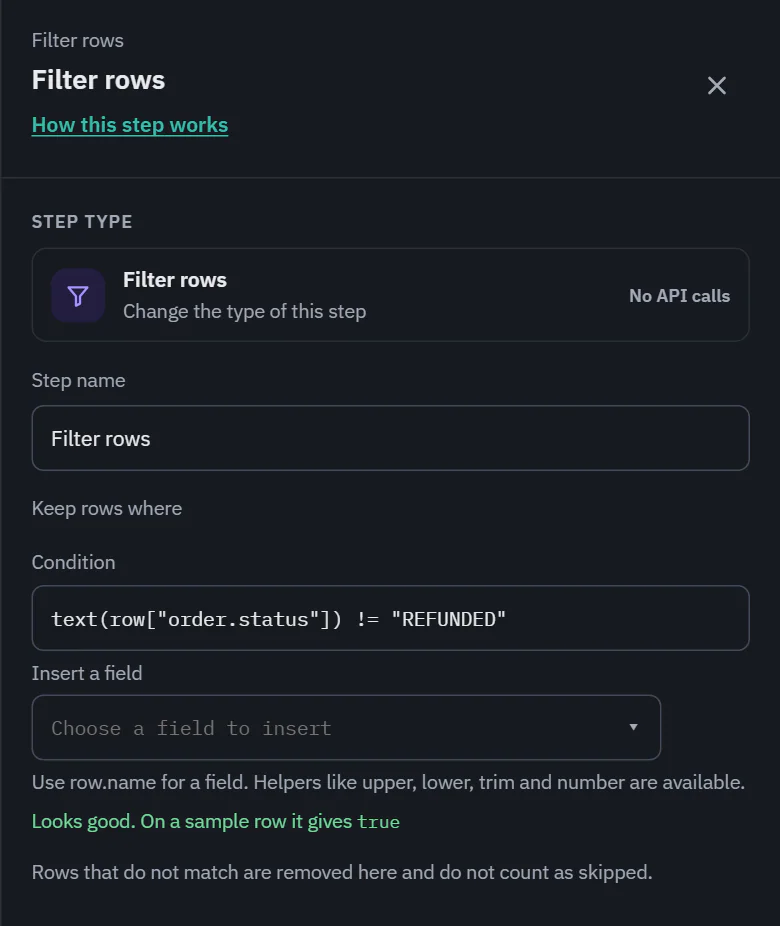 (opens the full size image in a new tab)
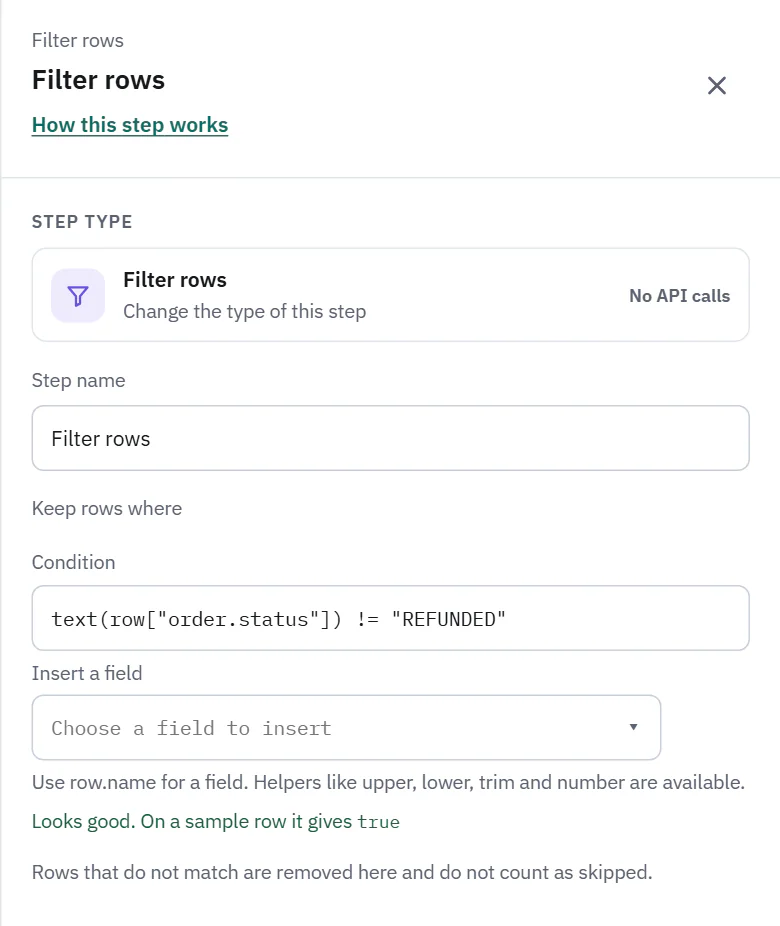 (opens the full size image in a new tab)
Keep rows where the condition is true. To stop the run when something is true instead, use End run if. Which plans have expressions is set by the plan: a filter written as an expression on a plan that only has conditions is kept as it is, but paused until you rebuild it with Rebuild with conditions.
If a field the filter reads is no longer in the rows (you changed the pull, say), the field shows "Not in this step's rows" and the card gets an amber line. It is a warning, never a block, because an API can return fields its spec does not list. Where exactly one field has a close name, a one-click "Use ... instead?" offers it.
The run line reads "112 kept, 8 removed".