DocsYour first workflow
The builder
After Create workflow you land in the builder. The top of the page says what the workflow is and what it costs. The tabs below it hold the steps, the runs and the settings.
The header
 (opens the full size image in a new tab)
 (opens the full size image in a new tab)
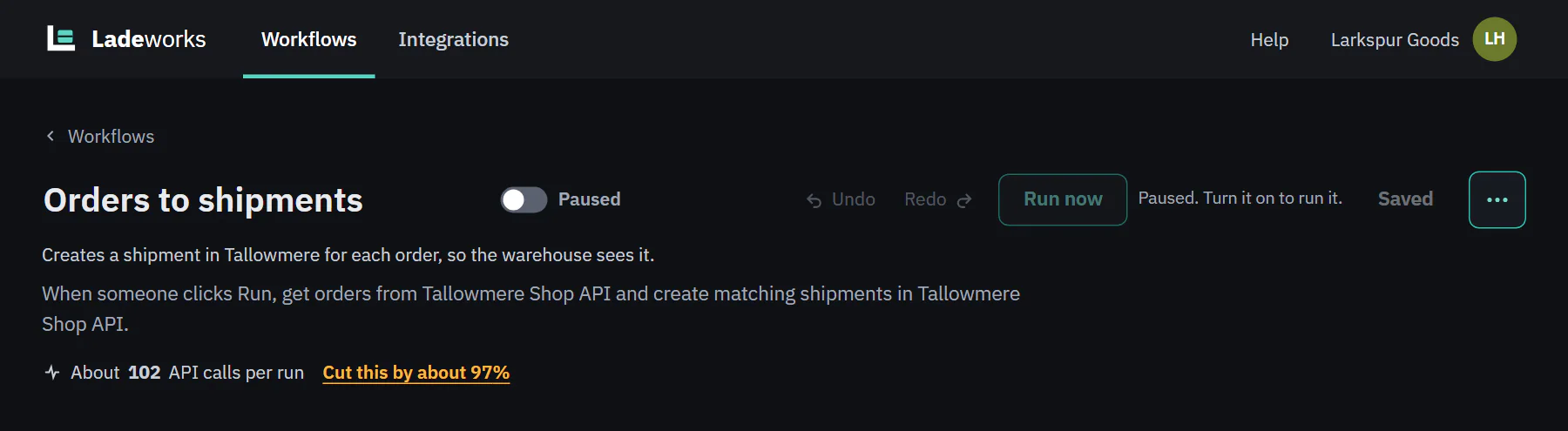
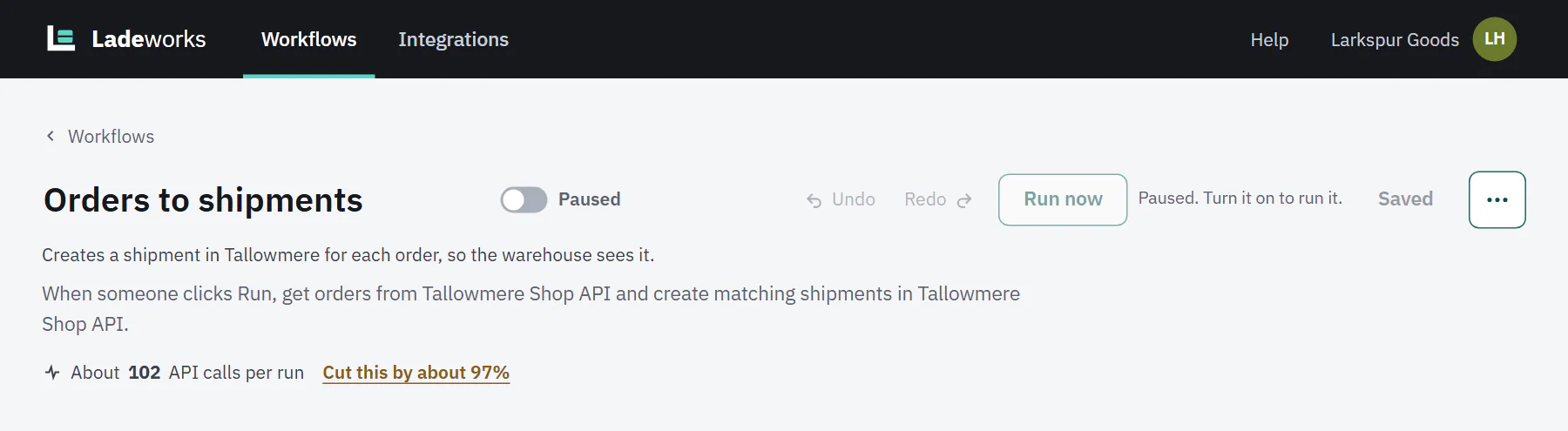
- Name. Click it to rename the workflow. Renaming is an edit, saved with Save.
- The switch. Next to the name. Off says "Paused", on says "Active". A new workflow starts paused. A paused workflow never starts by itself and cannot be run by hand either, so turn it on first. The switch is disabled with a reason when your email is not confirmed ("Confirm your email to turn on workflows.") or when a step needs something the plan does not include ("Fix what is listed below to turn it on.").
- Undo and Redo. Take back and bring back edits you have not saved: adding, removing and moving steps, changes to a step's settings, the trigger and the name. Ctrl+Z and Ctrl+Shift+Z do the same (Cmd on a Mac).
- Run now. Starts a run at once. Test and run covers it. On a paused workflow it is disabled, with the gray note "Paused. Turn it on to run it."
- Save. Shows Save in teal when you have unsaved changes and Saved when you do not. Run now and the switch save first, so you never run an old version. If you leave with unsaved changes, Ladeworks asks whether to save and leave, leave without saving or keep editing.
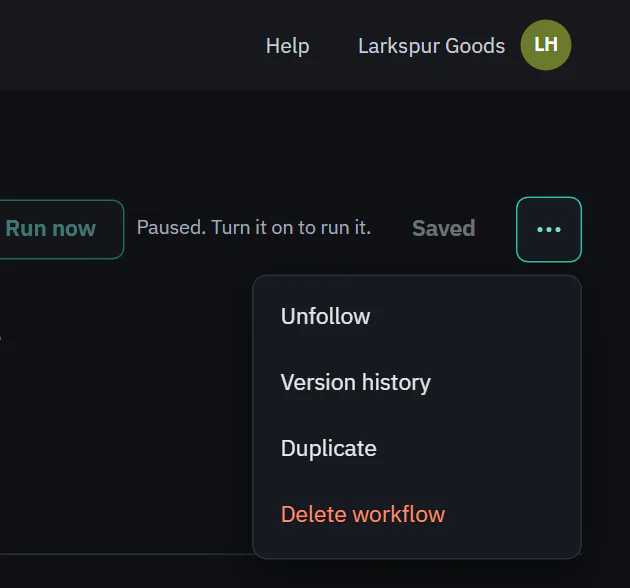
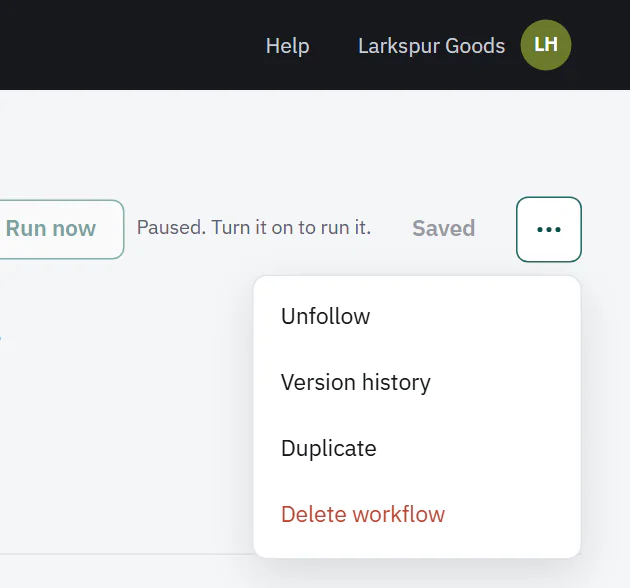
- More actions (the three dots).
 (opens the full size image in a new tab)
 (opens the full size image in a new tab)
- Follow or Unfollow: get alerts about this workflow. What you are alerted about is set per person under Settings, Notifications.
- Version history: every save is a version. Open one to see what changed, and restore it. Restoring saves the old version as a new one, so nothing is lost.
- Duplicate: makes a copy of the workflow and opens it.
- Delete workflow: asks you to type DELETE. Run history is deleted, and data already sent stays where it was. The dialog offers Pause it instead.
The summary and usage lines
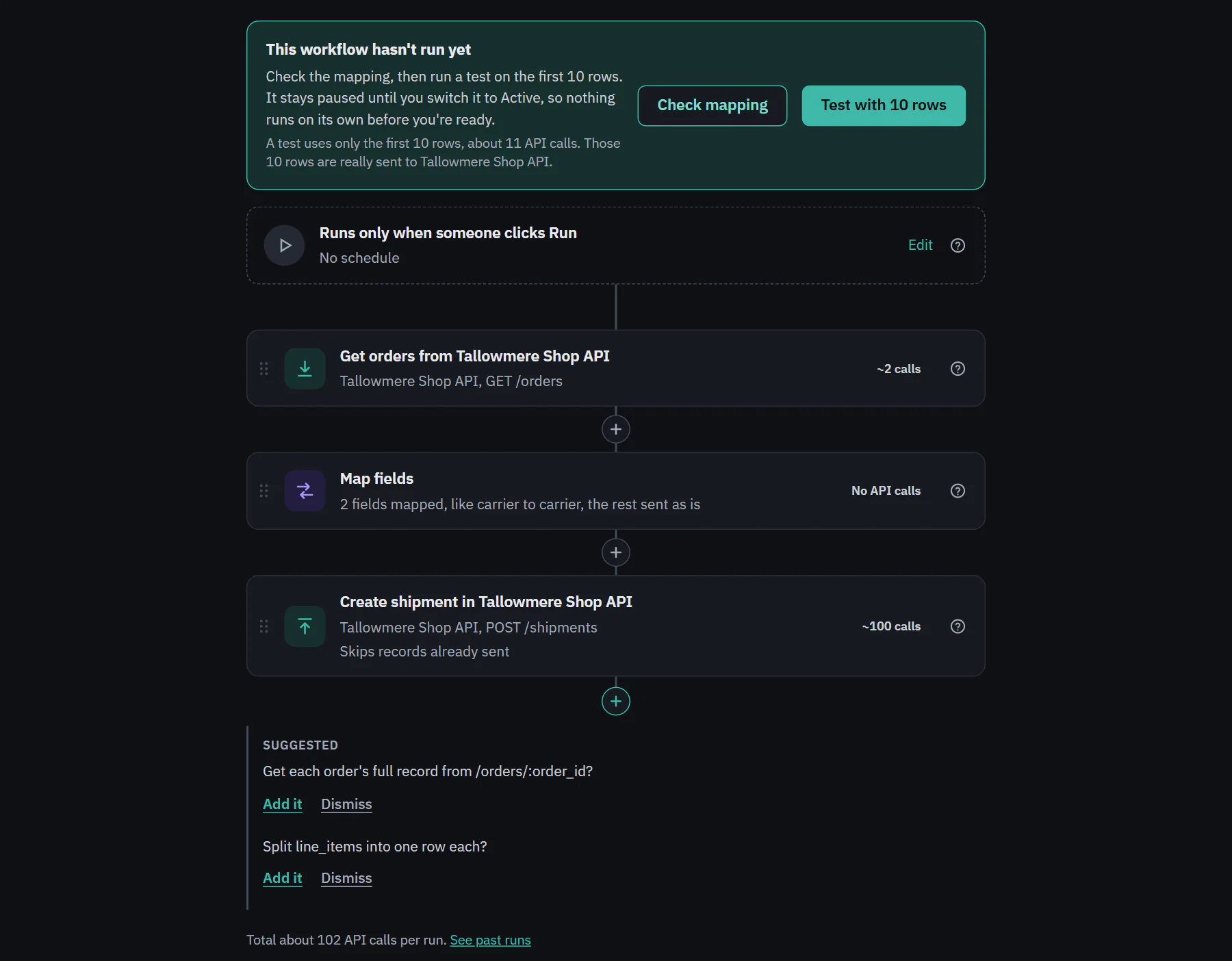
Under the name, one plain sentence says what the workflow does, for example "When someone clicks Run, get orders from Tallowmere Shop API and create matching shipments in Tallowmere Shop API." It is written from the steps, so it changes when they do.
The usage line under it says "About 102 API calls per run". On a schedule it adds "~36,000 a month at this schedule", worked out from how often the workflow runs. When batching would help, a link reads Cut this by about 97%. It opens the Push step with the batching switch in view. When batching is already on, a gray line says how many calls it saves. If one run needs more calls than you have left this month, a short gray note says so.
Every number comes from the steps and from recent runs. A step that makes no API calls says "No API calls".
Steps, Runs and Settings
- Steps is the pipeline: the trigger and the steps in order. Add, move and change steps covers it. The line under the steps reads "Total about 102 API calls per run" with a link to See past runs.
- Runs lists every run, newest first. Reading a run covers it.
- Settings holds the trigger (with Edit), When a row fails and your notification summary. When a row fails is either "Skip the row and keep going" or "Stop the whole run", plus "Retry rate limits and server errors up to 3 times". Retries are free: only the first attempt counts as an API call. The same tab has Call your system when a run ends. On Pro and Business.
 (opens the full size image in a new tab)
 (opens the full size image in a new tab)
Someone who can only view a workflow sees the same page with "View only", no Run now, Save or menu, and no plus buttons. Phones show steps and runs but do not edit them.
Next: add, move and change steps.