DocsConnect an integration
Integration settings
The Settings tab holds everything you chose in the setup, so you can change it later. Owners and Admins can edit it. Everyone else sees "View only. Owners and Admins change integration settings."
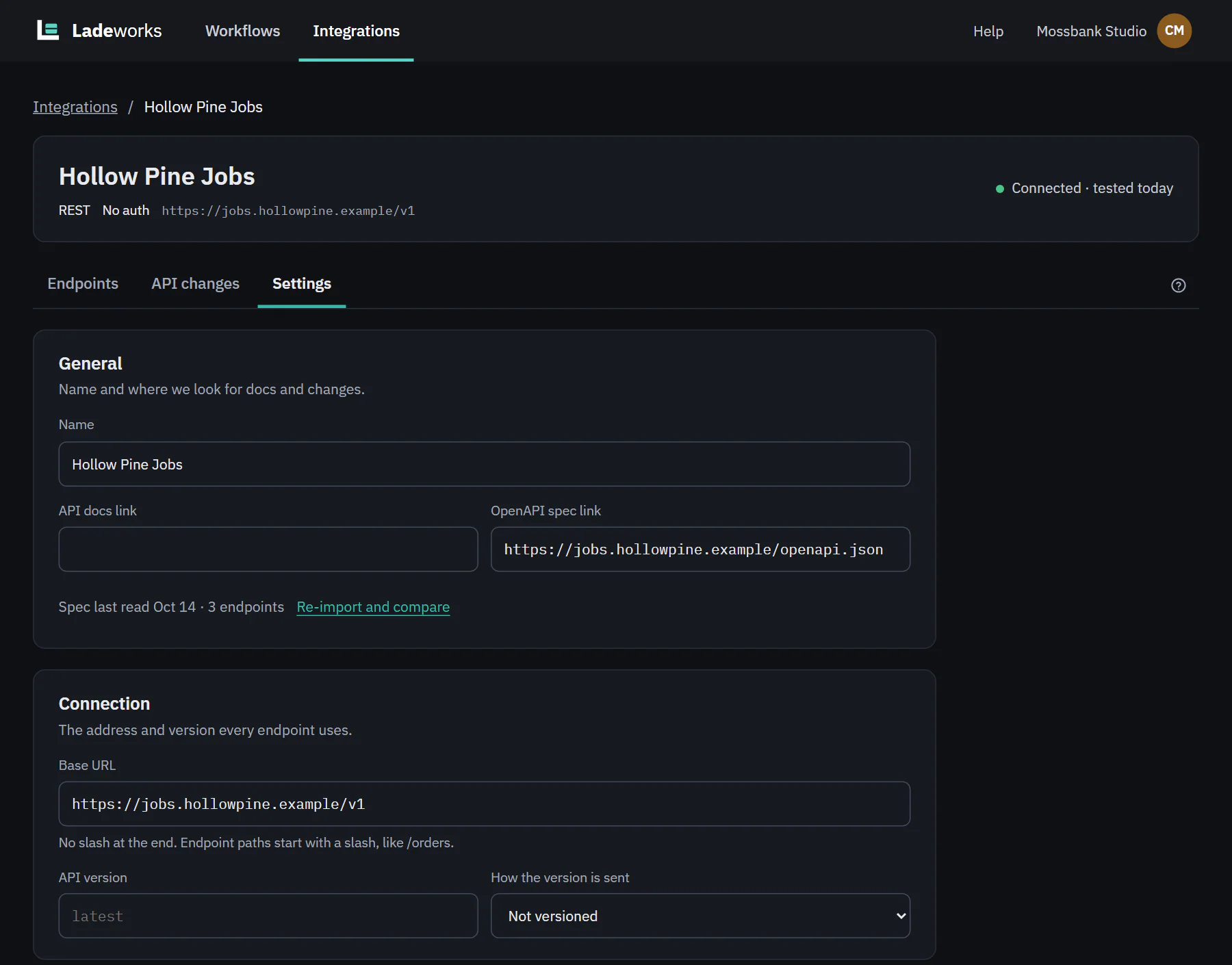 (opens the full size image in a new tab)
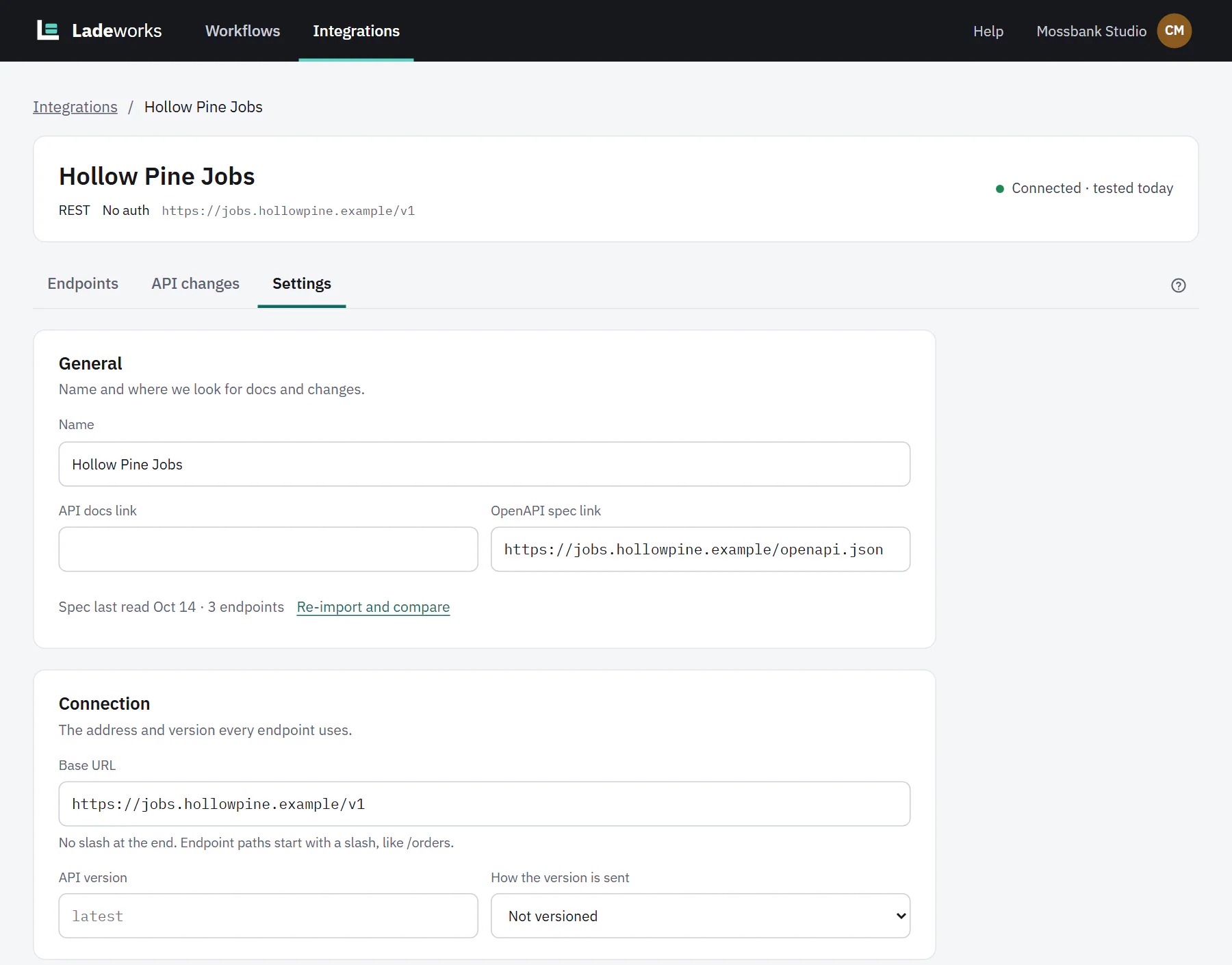 (opens the full size image in a new tab)
Sections
- General. The name, the API docs link and the OpenAPI spec link. Ladeworks checks these links every week for changes. A line shows when the spec was last read and how many endpoints it had.
- Connection. The base URL and version for an API, or the protocol, host, port, starting folder and, for FTPS, the implicit TLS switch for a file server. For a file server it also shows the Server fingerprint with when it was confirmed. Changing the host, port or protocol says "Changing the host, port or protocol means the new server's fingerprint has to be confirmed again. Run a test afterwards." Changing an API's version says how many endpoints and workflows it affects, so test endpoints after switching.
- Authentication. The same fields as the setup. A status line shows the method and whether it works. Test connection runs a test, and for a file server it asks for the fingerprint if it is new or changed. Save sign-in saves new credentials. Saved secrets show only their end, with Replace key or a similar button, and the old one keeps working until you save.
- Advanced. For an API, the Rate limit (1 request per second by default; 5 or 10 per second, Custom for your own number per second or per minute, or no limit), the Timeout per request (30, 60 or 120 seconds) and Extra headers. Extra headers go with every request. Keys and tokens belong under Authentication, not here. For a file server, only the timeout.
- Delete this integration. See below.
If you leave the page with unsaved changes, Ladeworks warns you first.
Re-import and compare
When an API's spec changes, choose Re-import and compare under General. For an integration with no spec, the link says Import a spec. A dialog, "Re-import the spec", reads the spec again and shows what would change before it touches anything. Fields you added by hand are never removed.
Choose where to read it from: Spec link, Docs link, Upload a file or Live API only. Then Compare with the saved endpoints. The summary counts what is new, changed and removed, how many were corrected from a live response, and how many are unchanged.
- New endpoints are ticked to be added. Untick any you don't want.
- Changed endpoints list fields added, removed or changed. Fields that workflows use stay, and the dialog says so.
- No longer in the spec endpoints can be deleted, but are not unless you tick them. One that workflows use stays, with "Used in" and the count.
- Corrected from a live response. The same live check as in the setup runs on every saved GET endpoint that can be called without values. When the real answer differs, it lists what it adds or removes, what stays because workflows use it, and which workflows are affected when the records move.
Apply changes saves it all and says how many were added, updated and removed. If nothing differs the dialog says "The spec and the live API match what you have saved. Nothing to apply." Live API only runs only the live check, as "Check endpoints against the live API". Use it for an integration whose endpoints came from docs or were made by hand.
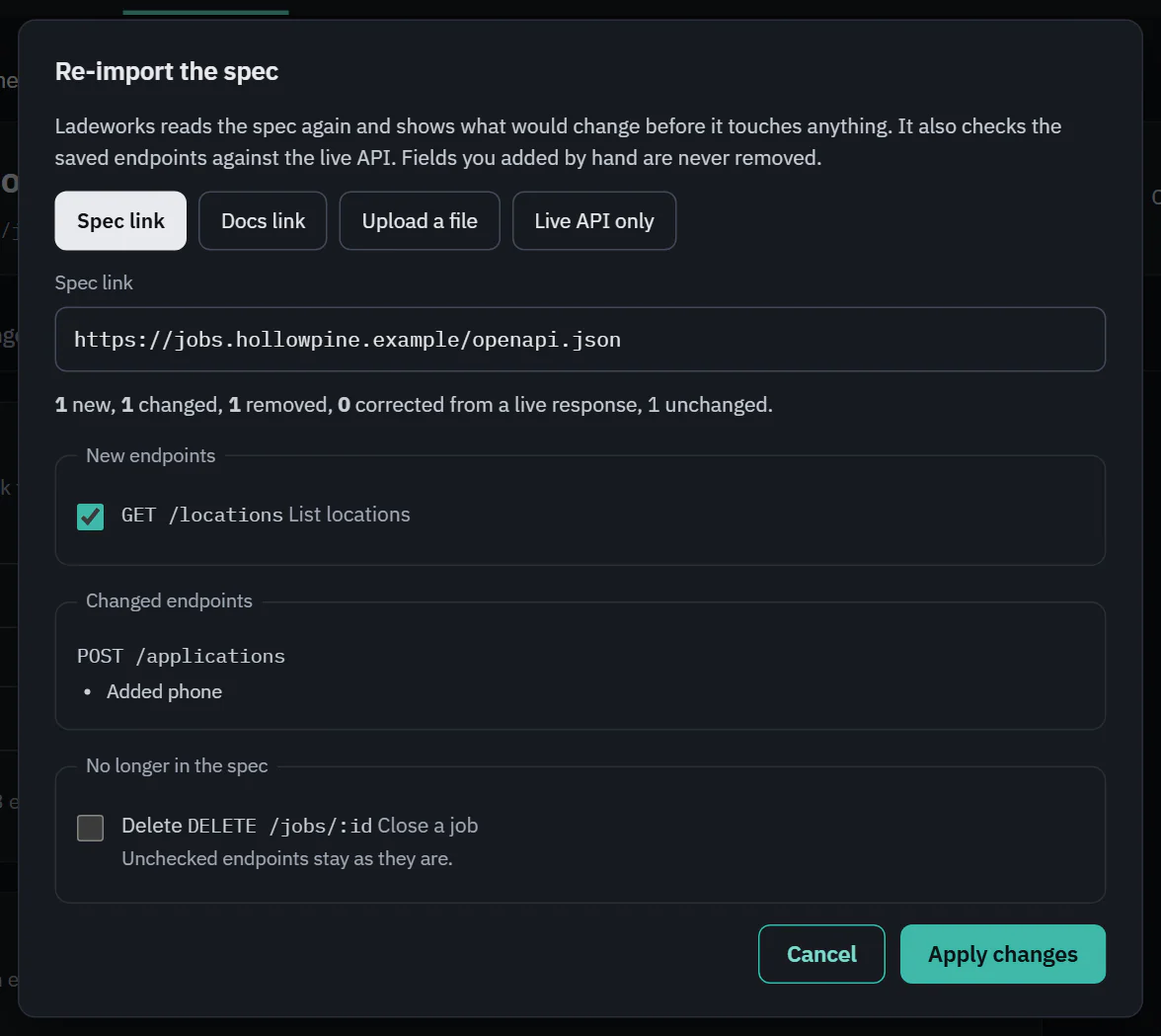 (opens the full size image in a new tab)
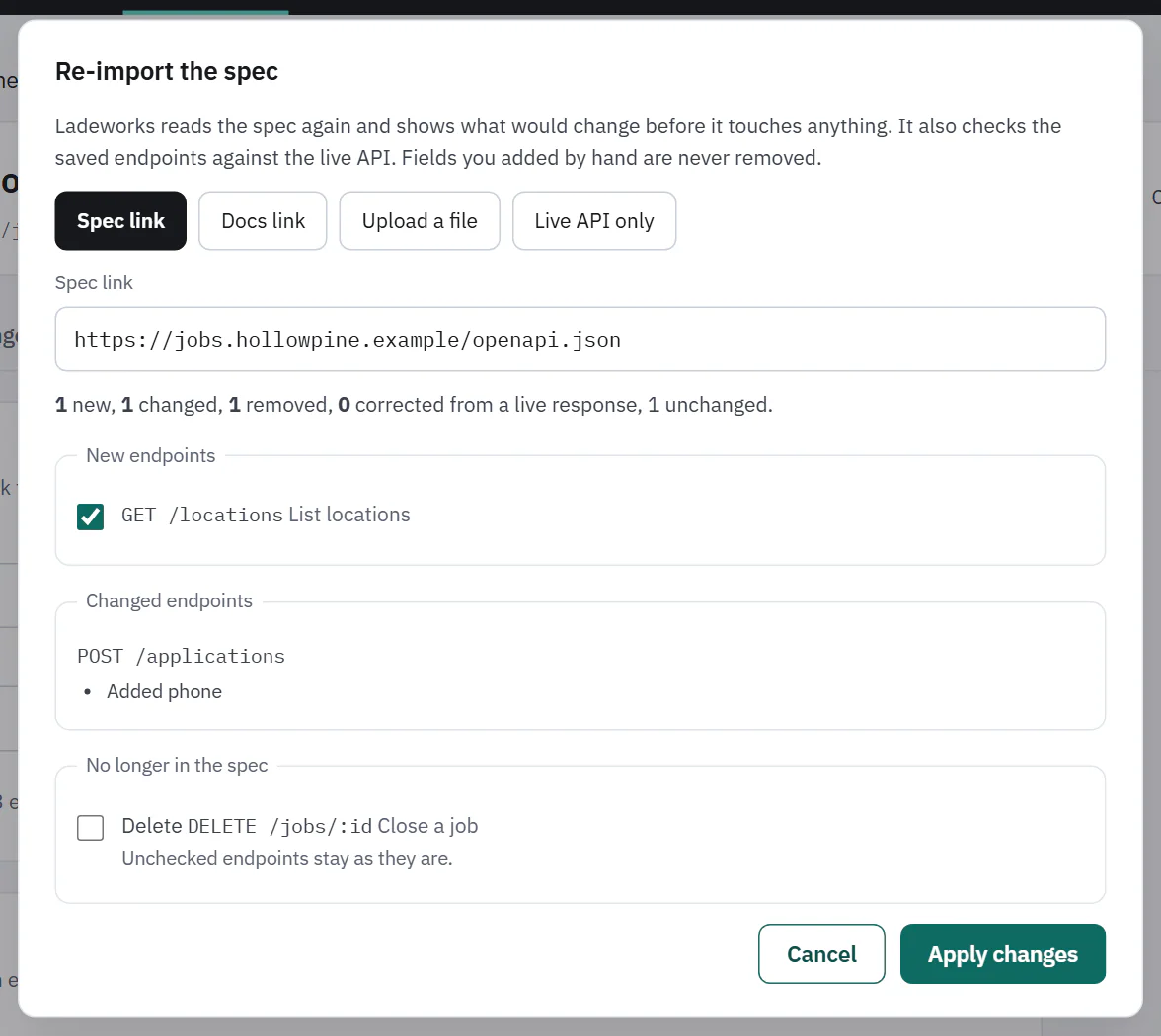 (opens the full size image in a new tab)
Delete an integration
Delete integration removes the integration, its endpoints or folders and its saved credentials. You can't undo it. If workflows use it, the button is off and the section lists them: "Remove it from them, or pick another integration there, then delete it."
 (opens the full size image in a new tab)
 (opens the full size image in a new tab)