DocsHelp
The Help menu
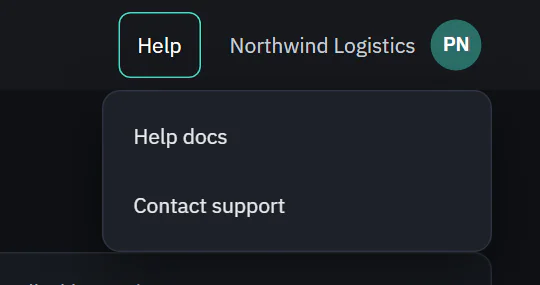
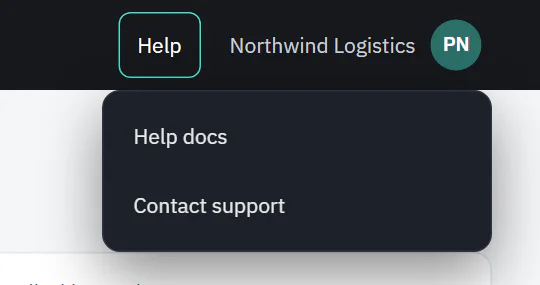
Help is in the top bar, next to your workspace name. Every member of a workspace sees it, whatever their role.
Help docs
Help docs is always first. It opens these pages in a new tab.
Contact support
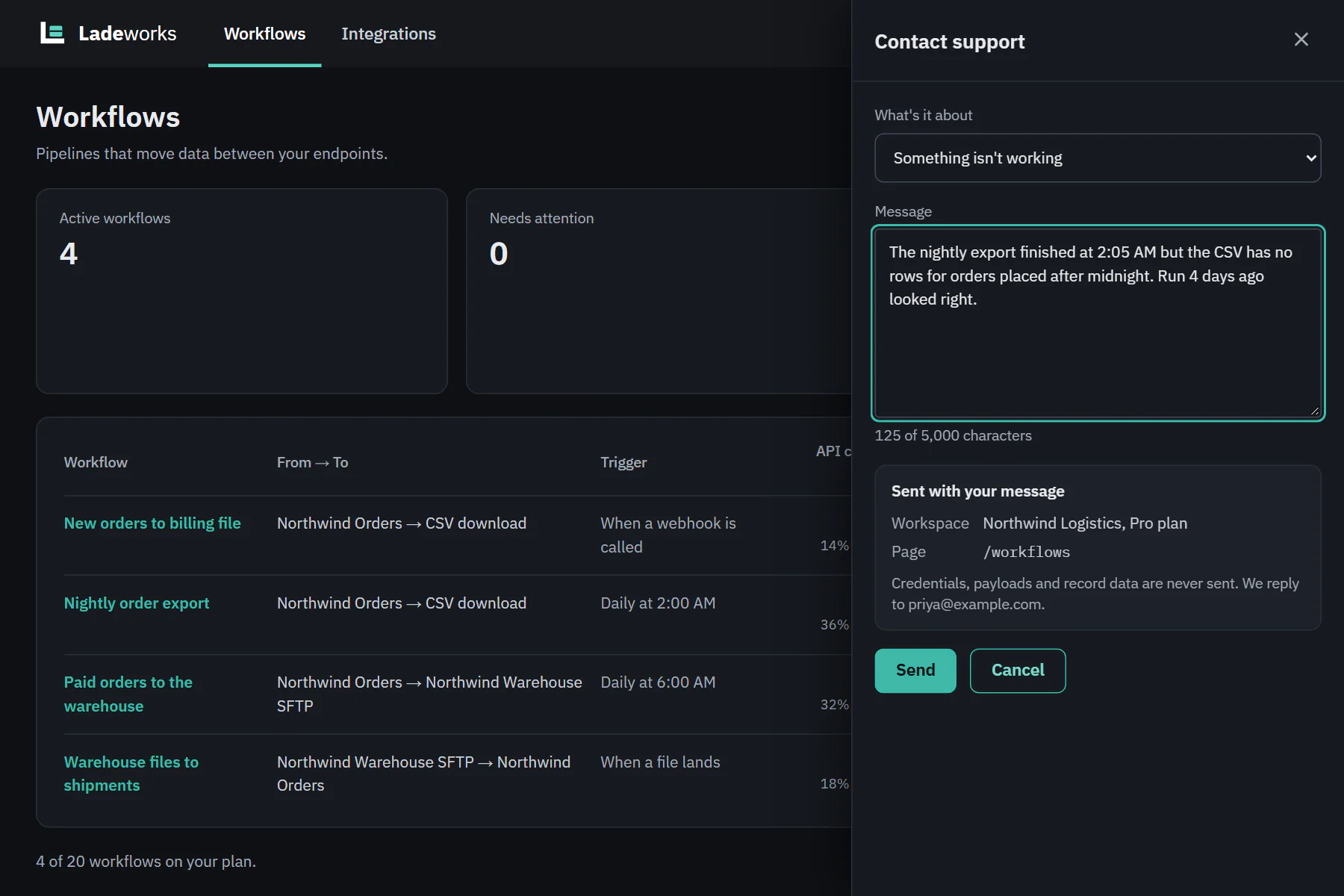
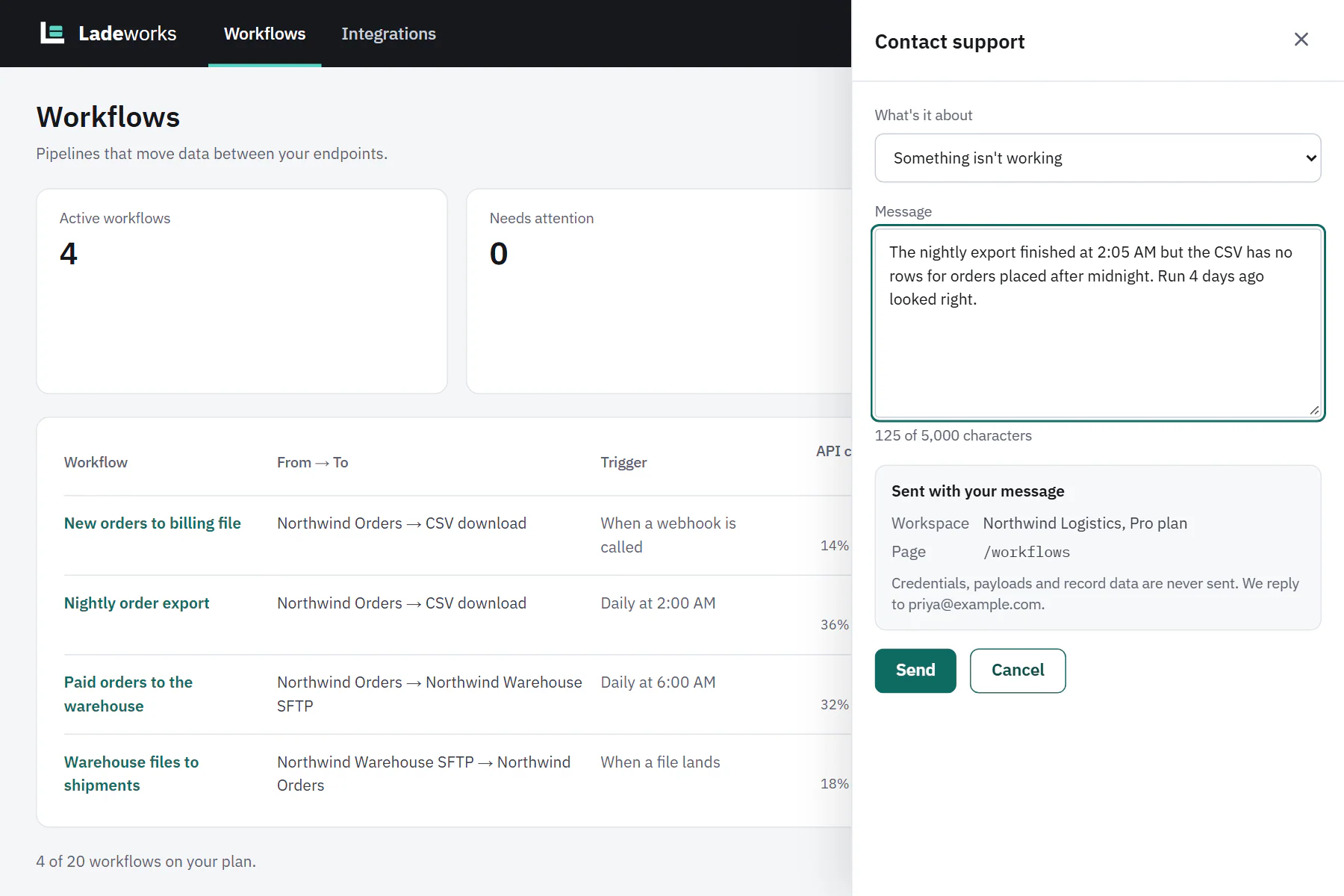
Contact support opens a message form on the right of the page. It is on Starter, Pro and Business. Anyone in the workspace can use it.
 (opens the full size image in a new tab)
 (opens the full size image in a new tab)
- Choose Help, then Contact support.
- Pick what the message is about under What's it about: Something isn't working, Billing, Question or Idea. Billing messages go to the team that handles payments.
- Write your Message. It is required, and can be up to 5,000 characters. A counter under the box shows how many you have used.
- Read Sent with your message, then choose Send.
 (opens the full size image in a new tab)
 (opens the full size image in a new tab)
What is sent with your message
The Sent with your message box lists everything that goes along with what you write.
- Workspace. The workspace name and its plan.
- Page. The path of the page you were on, without anything after a question mark.
- Run or Integration. Only when you open the panel from one of those pages: see Get help with this.
- Your email address, so we can reply. The box ends with "Credentials, payloads and record data are never sent."
When you open the panel from a run or an integration, Ladeworks looks up the details itself and checks that they belong to your workspace. It never attaches credentials, payloads or record data.
After you send
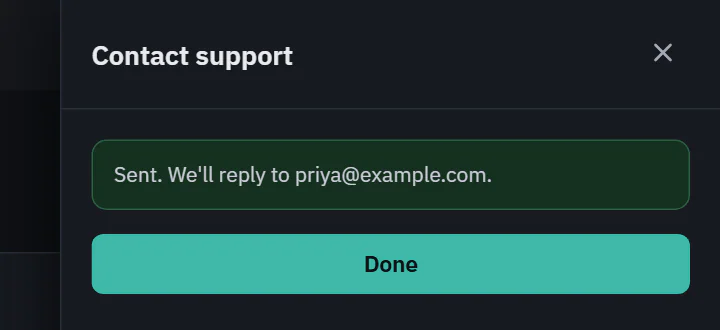
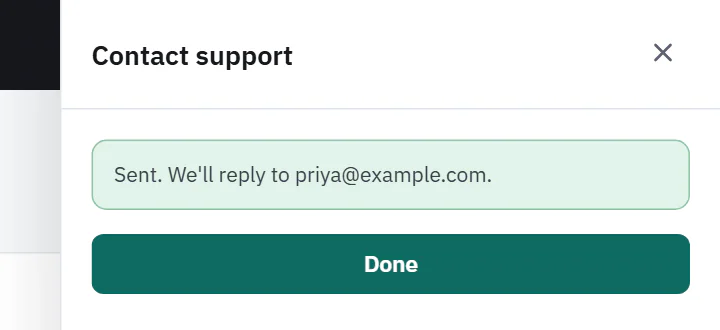
The panel says "Sent. We'll reply to" your address, and you get an email that says "We got your message". There is no promise about how fast we reply. Replies come by email, to the address on your account. If you send many messages in a short time, the panel says how many you have sent and asks you to wait a while.
 (opens the full size image in a new tab)
 (opens the full size image in a new tab)
Send feedback and Talk to us
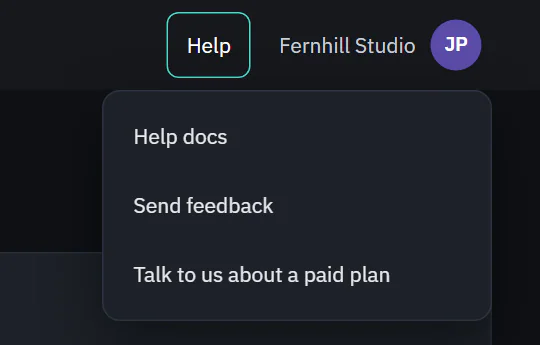
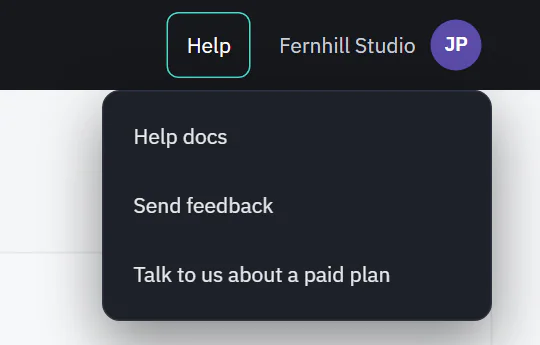
On Free, there is no in-app support. Help has two other choices after Help docs. Both are open to every member, not only Owners and Admins.
 (opens the full size image in a new tab)
 (opens the full size image in a new tab)
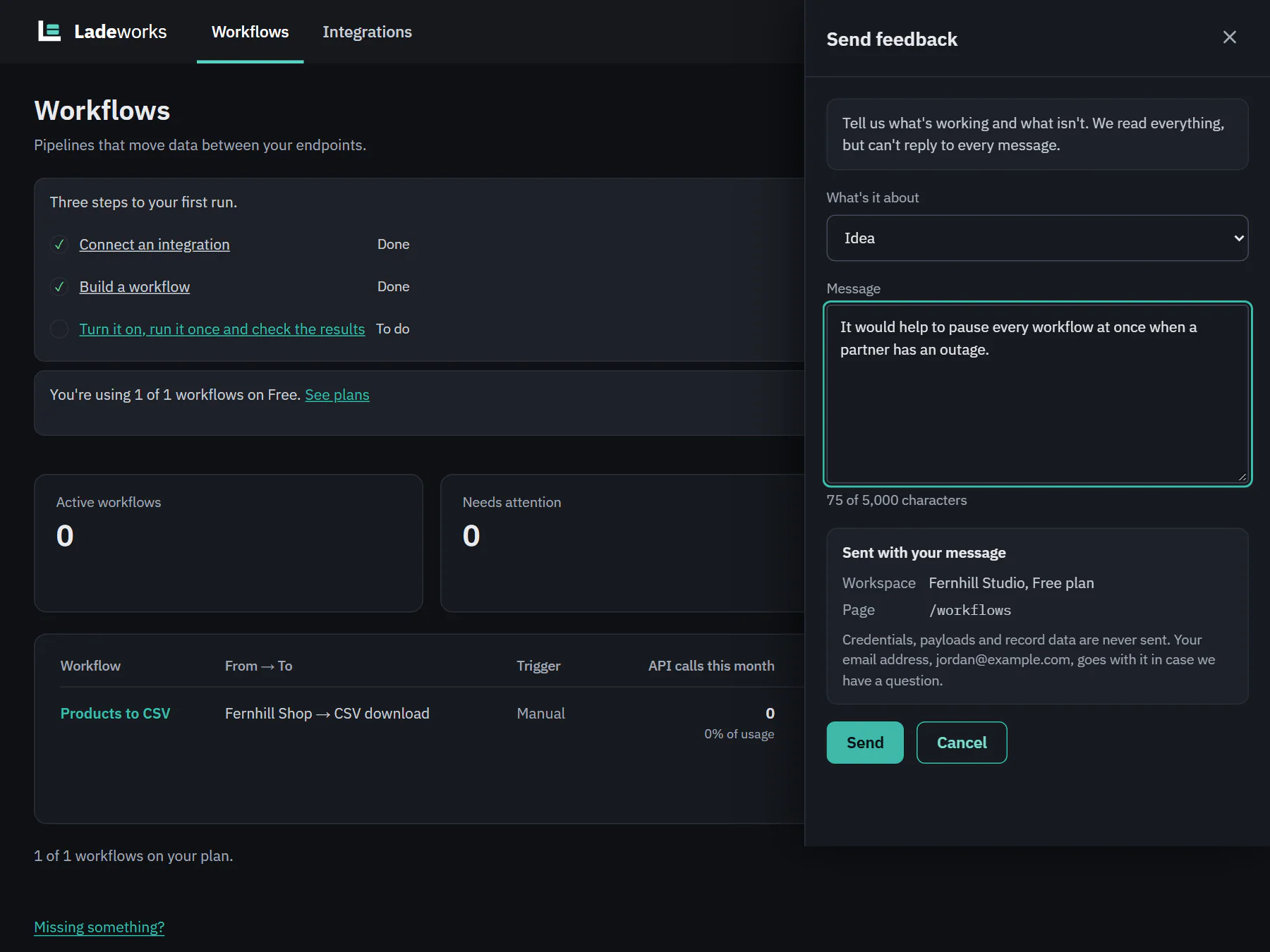
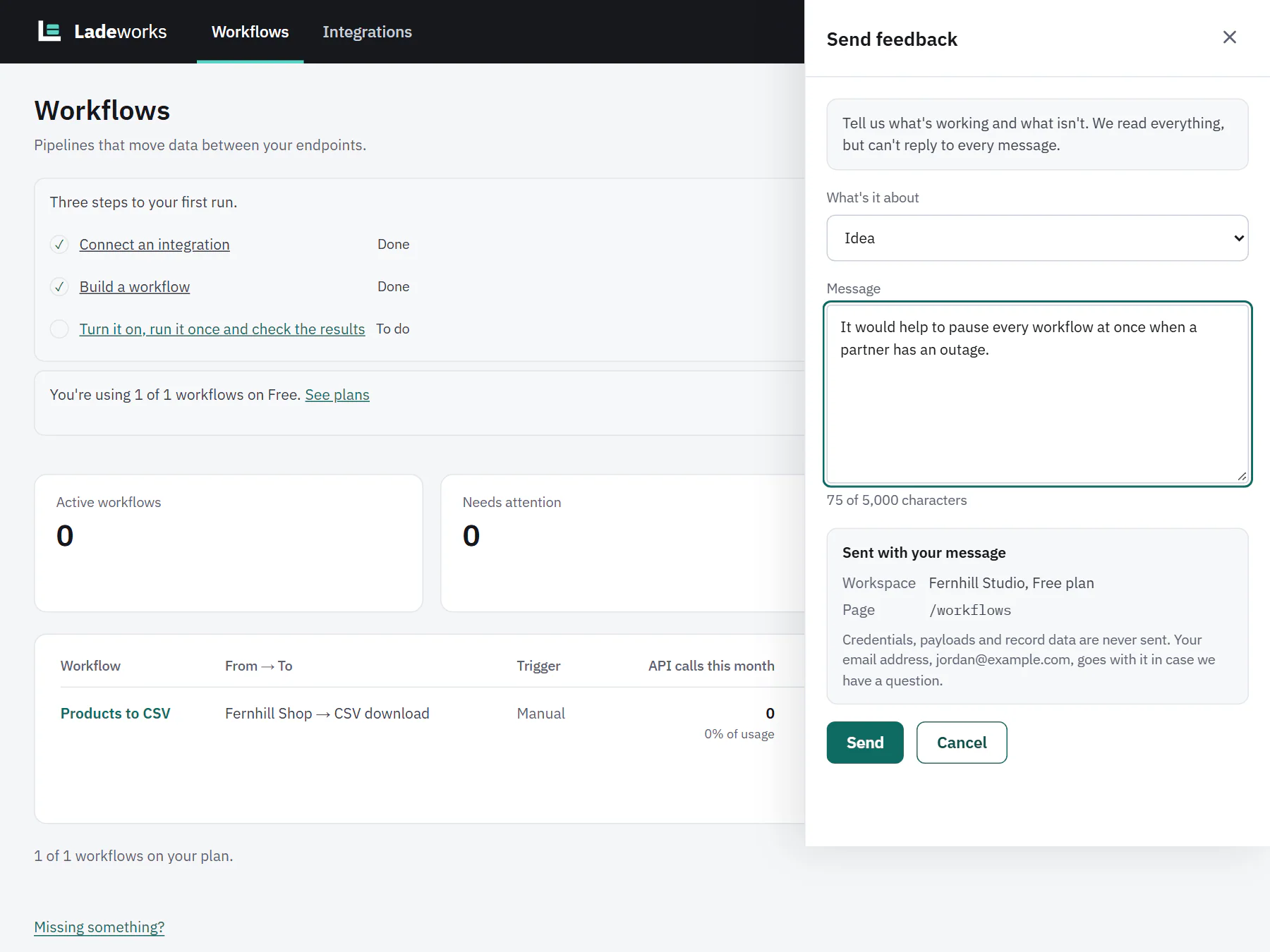
Send feedback opens a panel that says "Tell us what's working and what isn't. We read everything, but can't reply to every message." Choose what it is about (Something isn't working, Idea or Something else), write a Message and choose Send. It says "Thanks. We read every message." Nothing is promised and no confirmation email is sent. The Sent with your message box lists the workspace, its plan and the page, and says your email address goes with it in case we have a question.
 (opens the full size image in a new tab)
 (opens the full size image in a new tab)
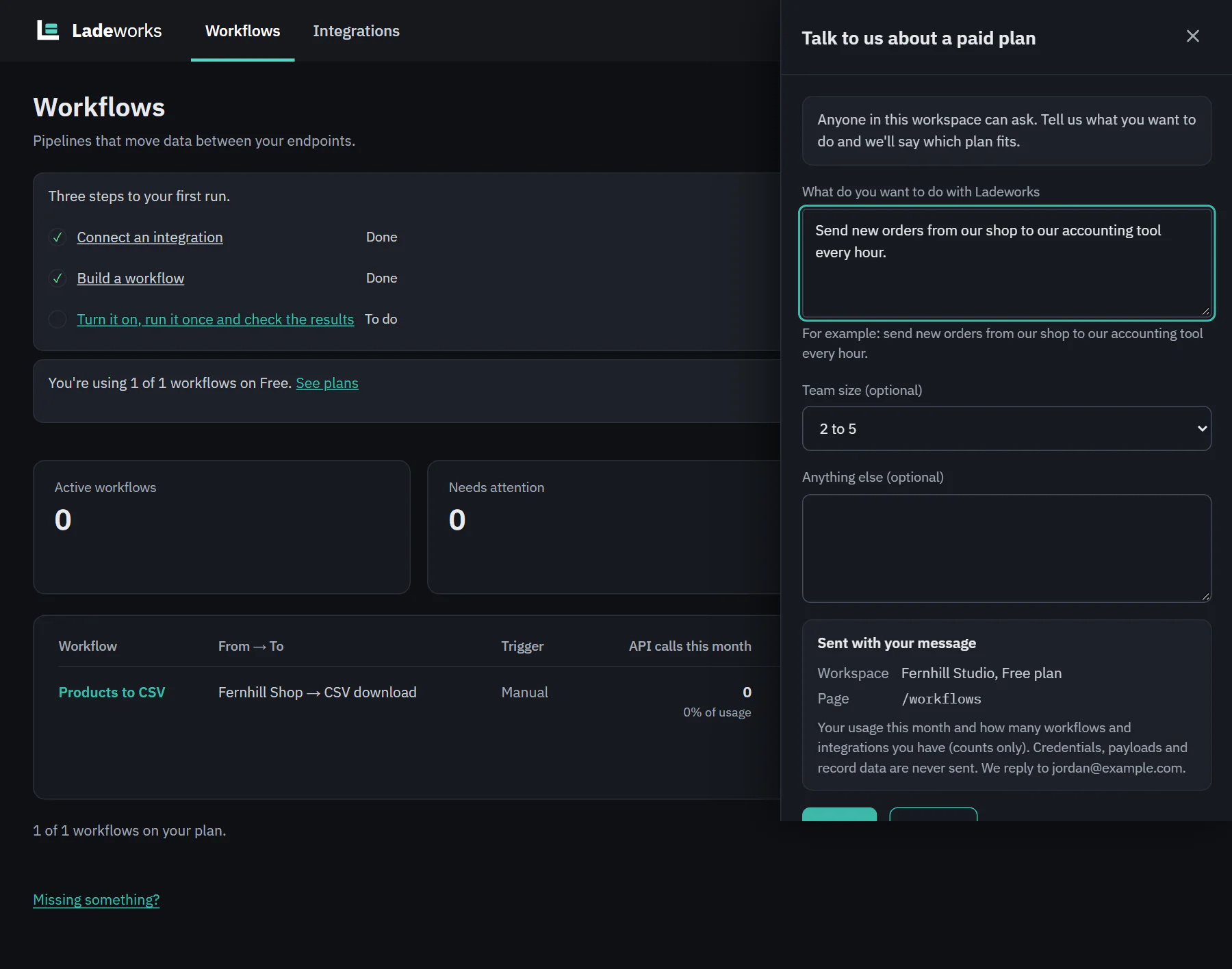
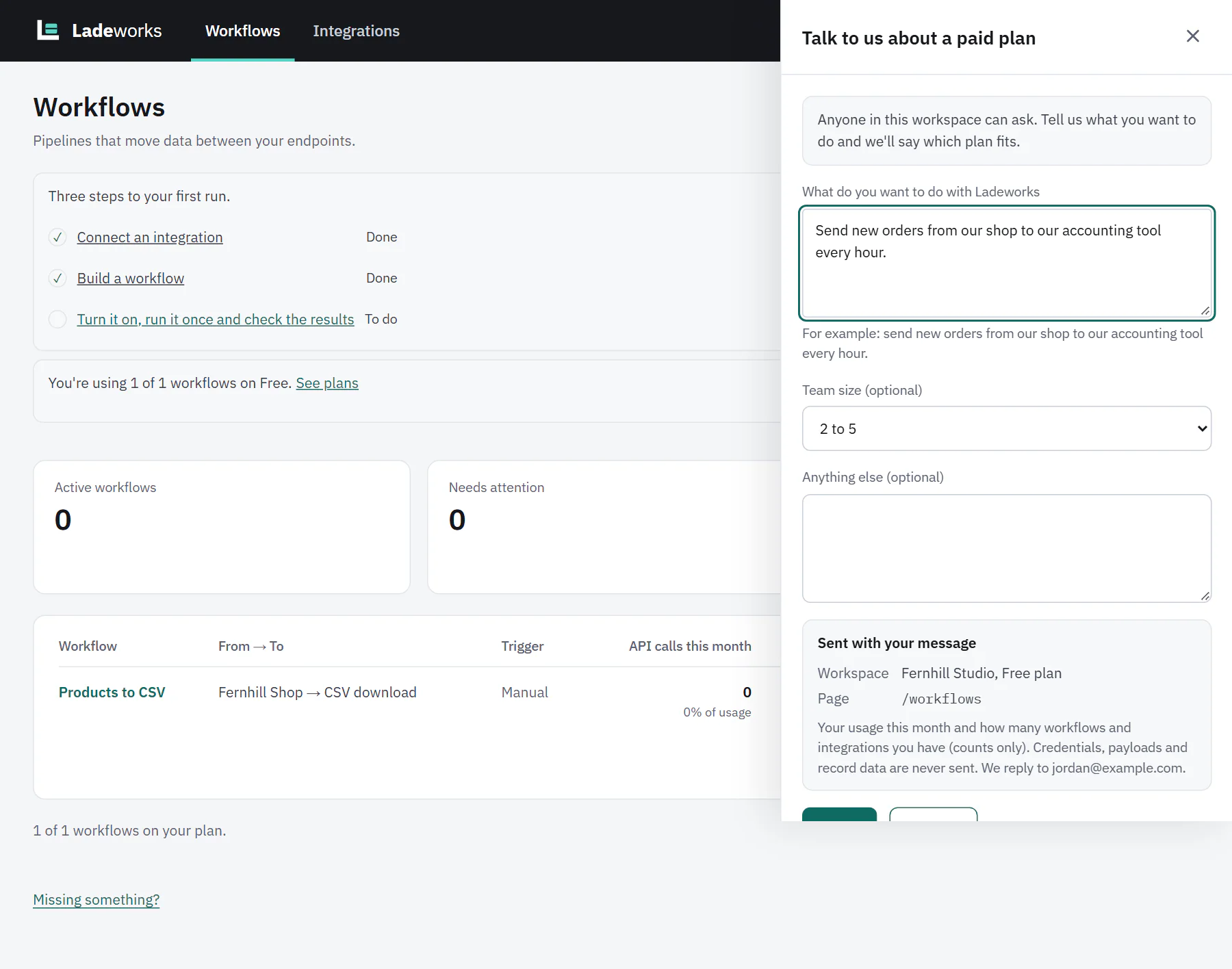
Talk to us about a paid plan opens a panel for a question about plans. Tell us what you want to do with Ladeworks (required), and optionally your team size and anything else. The Sent with your message box also says your usage this month and how many workflows and integrations you have go with it, counts only. After you send, it says "Thanks." followed by the first name of the person who will reply, and the address the reply goes to. A person replies in their own words, to the address on your account.
 (opens the full size image in a new tab)
 (opens the full size image in a new tab)
Credentials, payloads and record data are never sent from any of these panels.