DocsConnect an integration
The endpoint editor
The endpoint editor holds everything Ladeworks knows about one call to an API: where it goes, what it sends and what comes back. Workflows read the fields from here.
Name, method and path
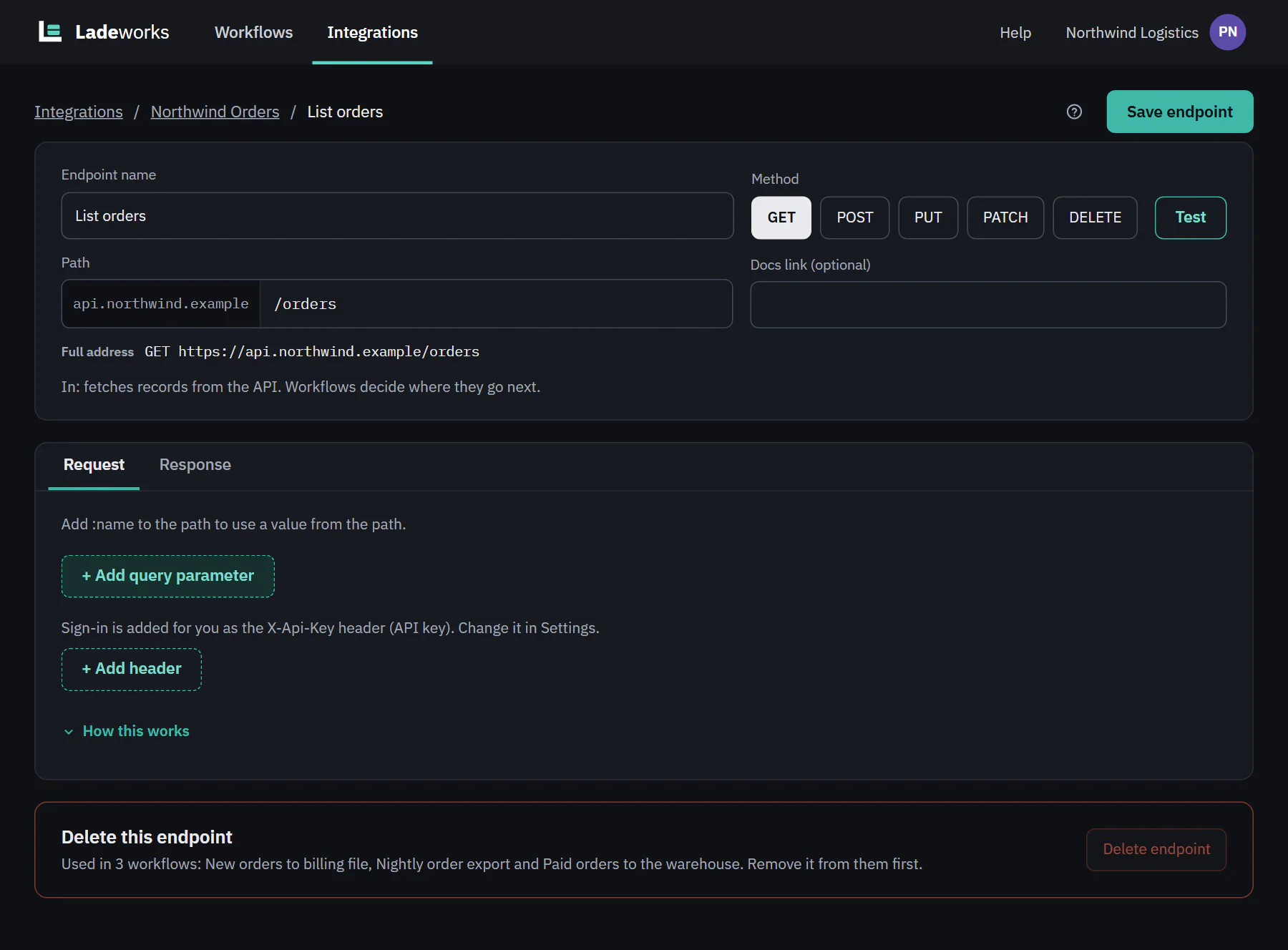
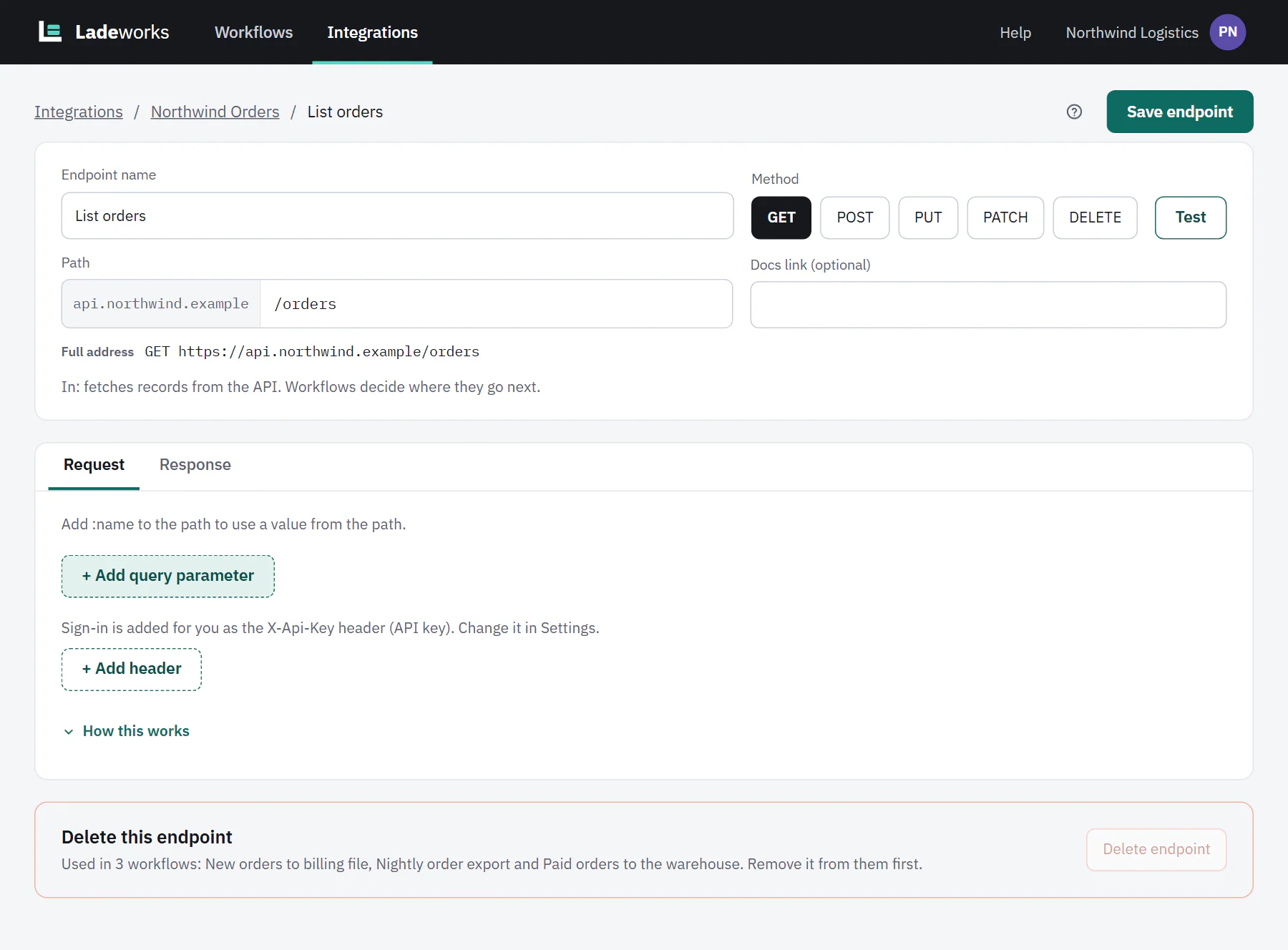
At the top are the Endpoint name, the Method (GET, POST, PUT, PATCH or DELETE), the Path after the integration's address and an optional Docs link (optional). A line shows the full address. Test opens a side panel to make a real request. Save endpoint saves your changes. A note says whether the endpoint is In (fetches records) or Out (sends data), and workflows decide where the data comes from or goes.
A path can hold values, written like /customers/:id. Each :name becomes a path value a workflow fills in. Take it out of the path to remove it. If workflows use a path value, removing it from the path asks first.
The Request tab
Request fields come in small groups: Path values, Query parameters, Headers and, for endpoints that send data, Body fields. Sign-in is added for you as a header from the integration's settings, so it is not edited here. A group with nothing in it shows only its add link, such as + Add query parameter.
 (opens the full size image in a new tab)
 (opens the full size image in a new tab)
Each field is a row:
- Name. Use dots for nested names, so address.city is sent as a city inside an address.
- Type: string, number, integer, boolean, date, datetime, object or array. Change it from the list in the row.
- Required. A checkbox for each field. A path value is always required.
- Default, used when a workflow doesn't fill the field, and Example, which fills the request preview and test requests. Workflows never send the example.
- Allowed values (optional), one per line. They are read from the spec when there is one, and translations in workflows offer them as choices.
- Description (shown in workflows).
- Used in a number of workflows, shown under the name when workflows use the field.
Edit opens a form for the field. Send it somewhere else moves a field to another group, such as from body fields to query parameters, and workflows keep their mappings.
Renaming and removing a used field
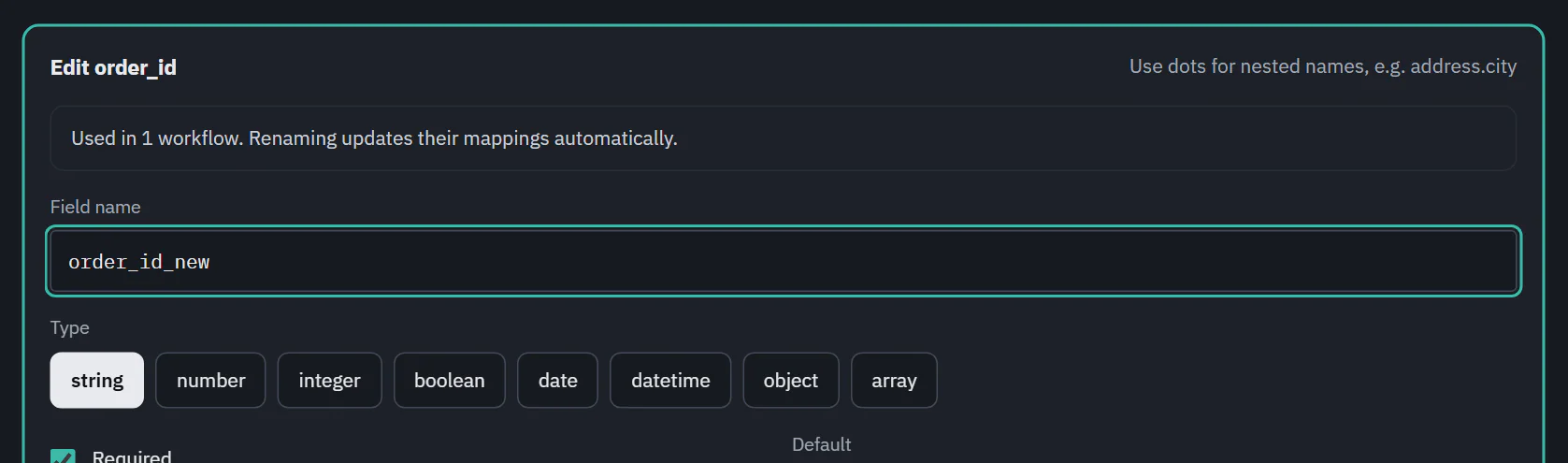
When workflows use a field, the edit form says "Used in 1 workflow." If you rename it, it adds "Renaming updates their mappings automatically." If you change only the type or required, it says "Changes to type or required apply to their next run."
Removing a used field asks first: "Used in 1 workflow. Remove anyway?" with Remove and Keep. Nothing is lost until you confirm.
 (opens the full size image in a new tab)
 (opens the full size image in a new tab)
 (opens the full size image in a new tab)
 (opens the full size image in a new tab)
Paste sample JSON
For an endpoint that sends data, Paste sample JSON sits next to + Add body field. Paste an example of the JSON the API expects, choose Read the sample, and Ladeworks lists the fields it found with their types ("Found 4 fields."). Nested objects become dotted names like customer.email, and dates are detected. Add 4 fields adds them. Existing fields keep their names and the workflows that use them, and fields you added by hand are left alone. Examples in the sample are customer data, so only names and types are kept.
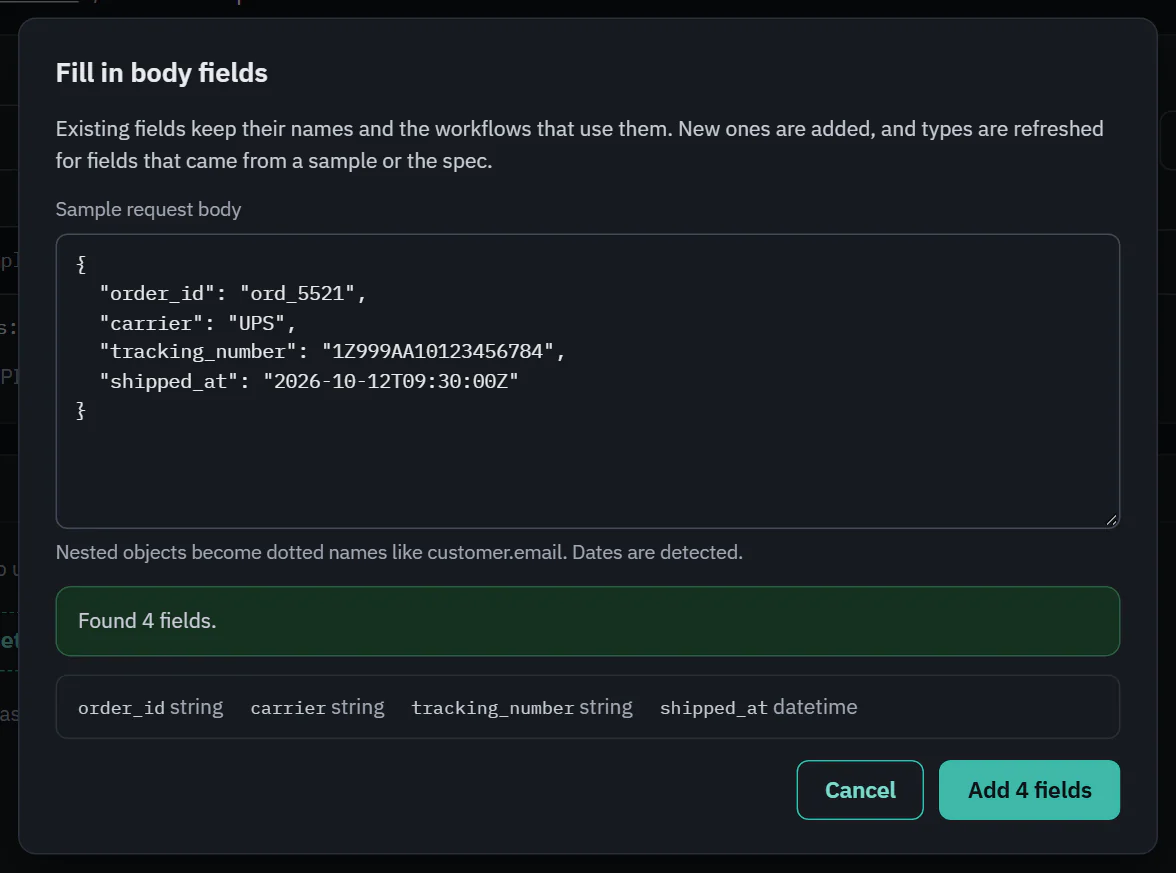 (opens the full size image in a new tab)
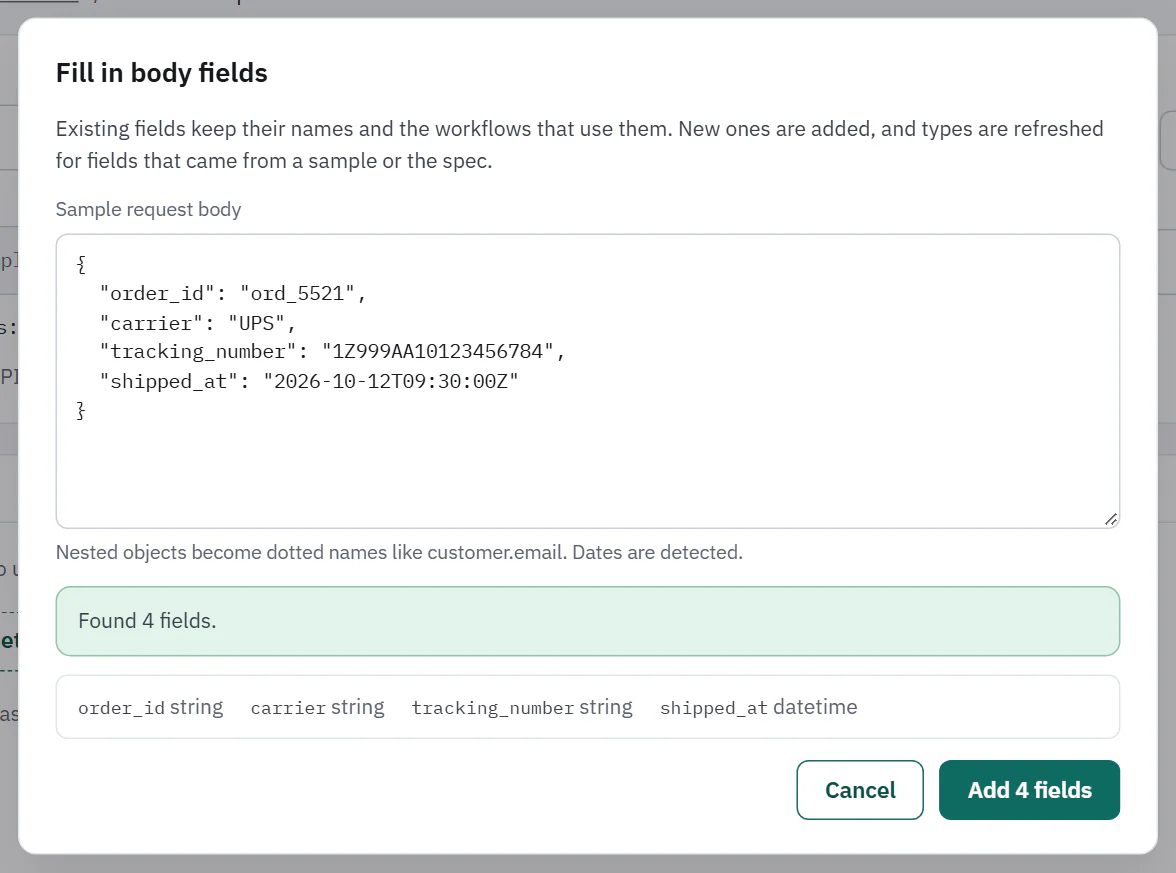 (opens the full size image in a new tab)
The Response tab
GET endpoints have a Response tab. It has two settings and a table of fields.
- Where the records are. A response is one record or a list of them, sometimes inside a wrapper like {"result": [...]}. It says for example "The list at data". Each item in the list becomes one row for a workflow. Change picks another list, and Paste sample or fetch one reads a sample, either pasted or from a real request that is not counted as an API call.
- Getting more pages. How to ask for the next page of a big list, for example "Page numbers: ?page=2, 100 per page". Each page is one API call. If the endpoint returns a list and paging is not set, a note says a run only reads the first page. Set up pages or Change opens the options.
- Response fields. The columns workflows can use. Untick Include to leave one out, change its type, Edit or Remove it, or + Add field. Nested fields are flattened with dots.
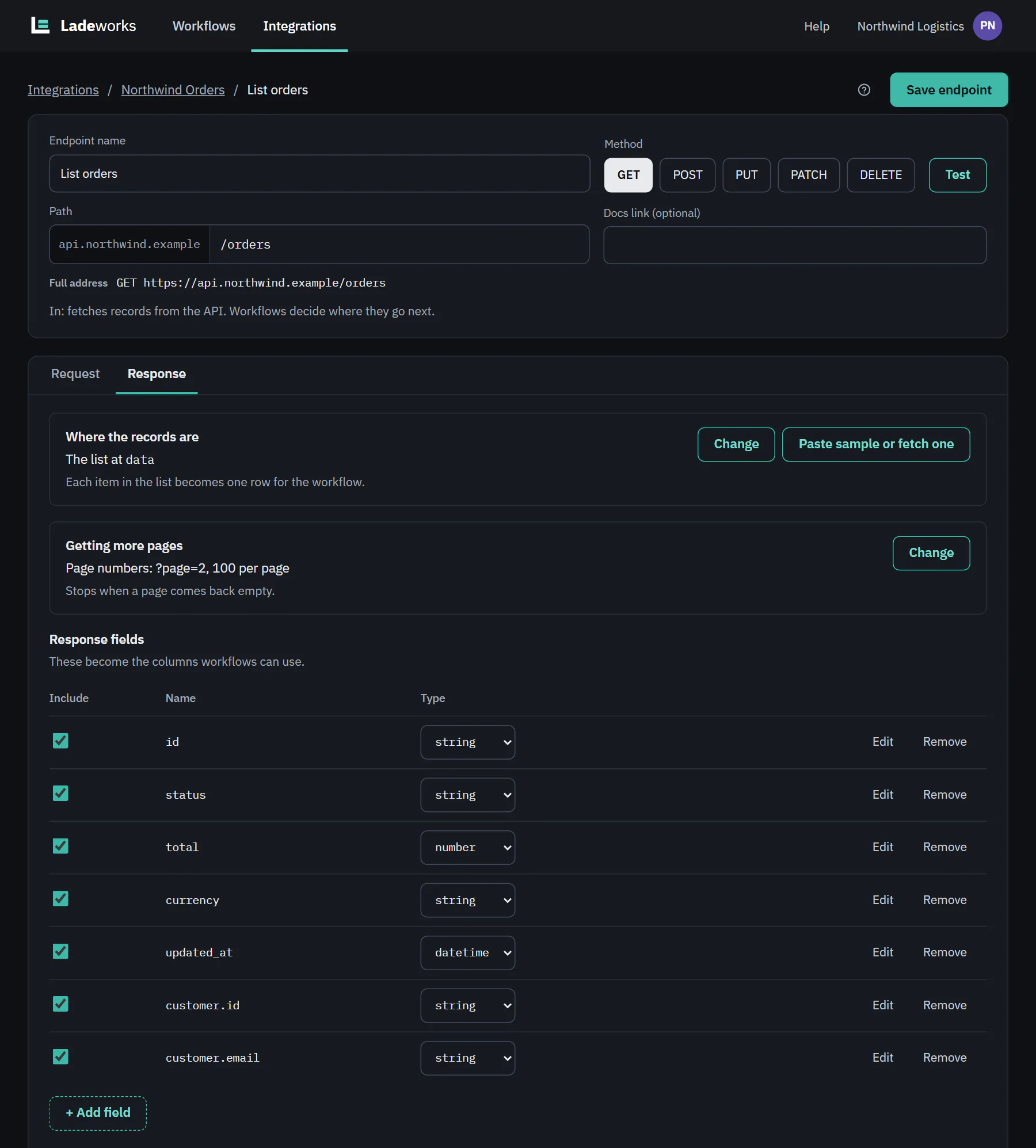 (opens the full size image in a new tab)
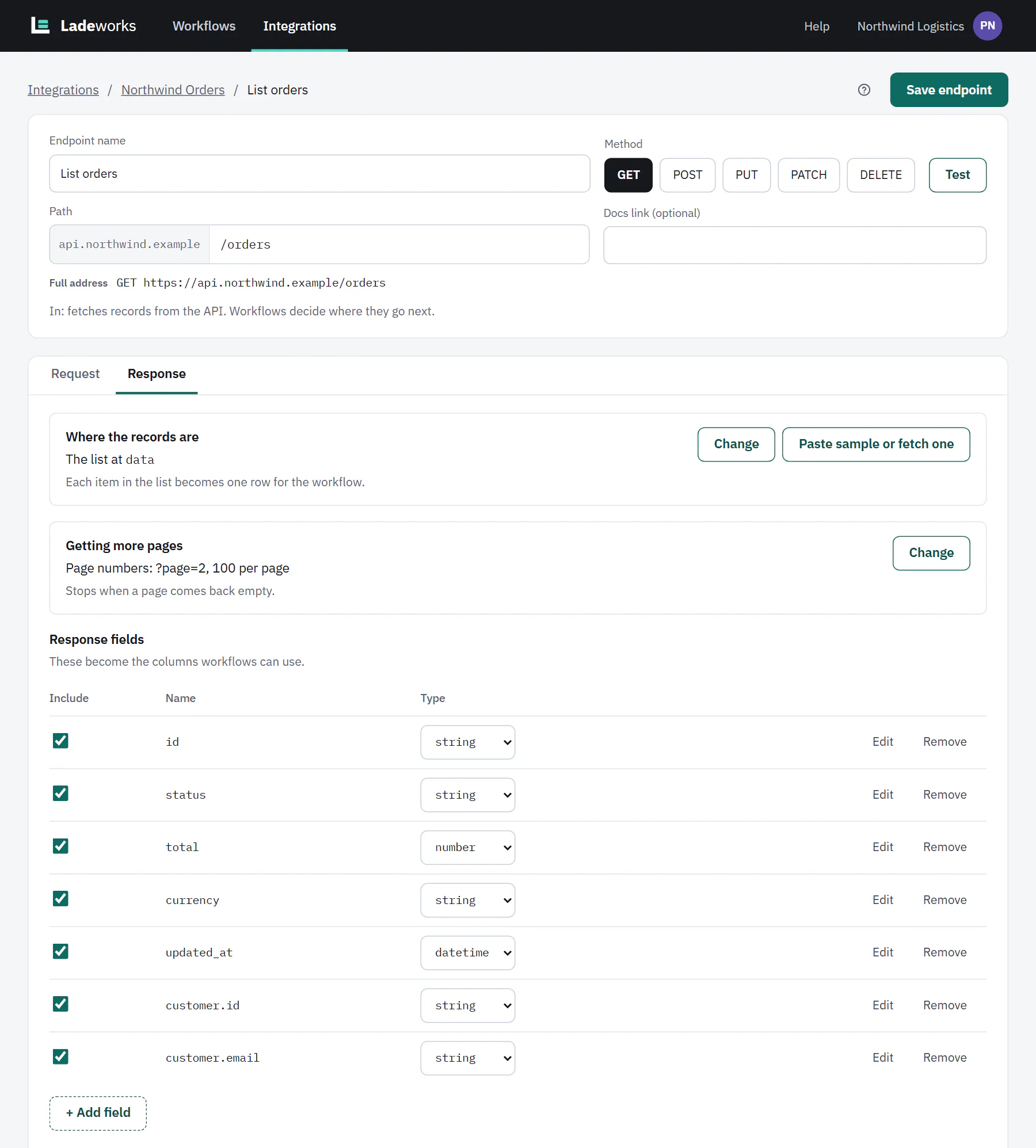 (opens the full size image in a new tab)
Delete an endpoint
Delete endpoint removes the endpoint and its fields. If workflows use it, the button is off and the section says "Used in" those workflows, "Remove it from them first." If you re-import the spec later, a deleted endpoint can come back.
For a file server, the editor is simpler: a name, Pick up files or Drop off files, the folder and pattern, and Delete folder.