DocsAdvanced workflows
Conditions and flow
Four tools control what happens to rows as they move through a workflow: a condition on a step, a step that ends the run, a pause, and a step that starts another workflow. There is no separate branching feature. Conditions on steps and End run if cover it.
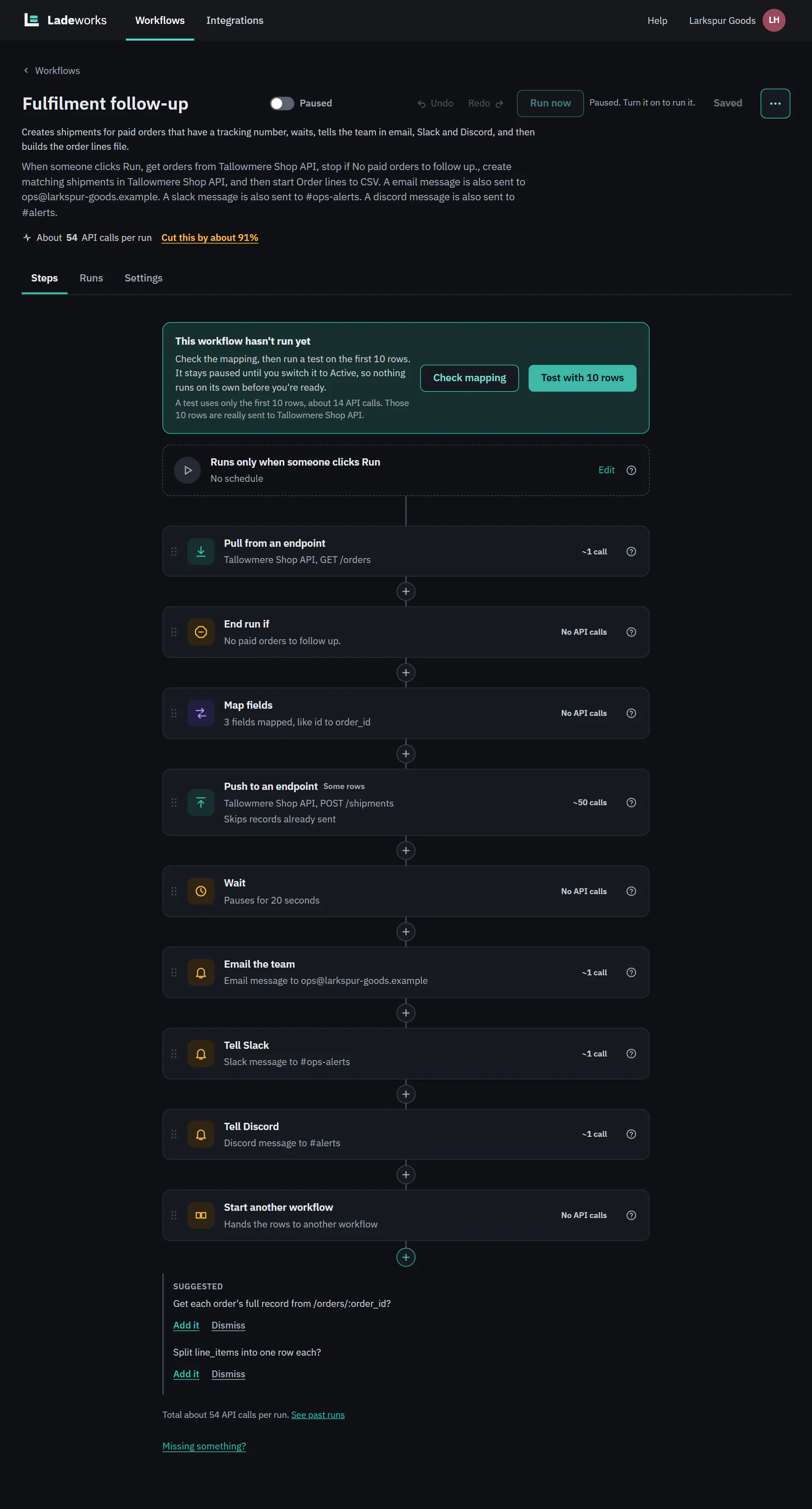
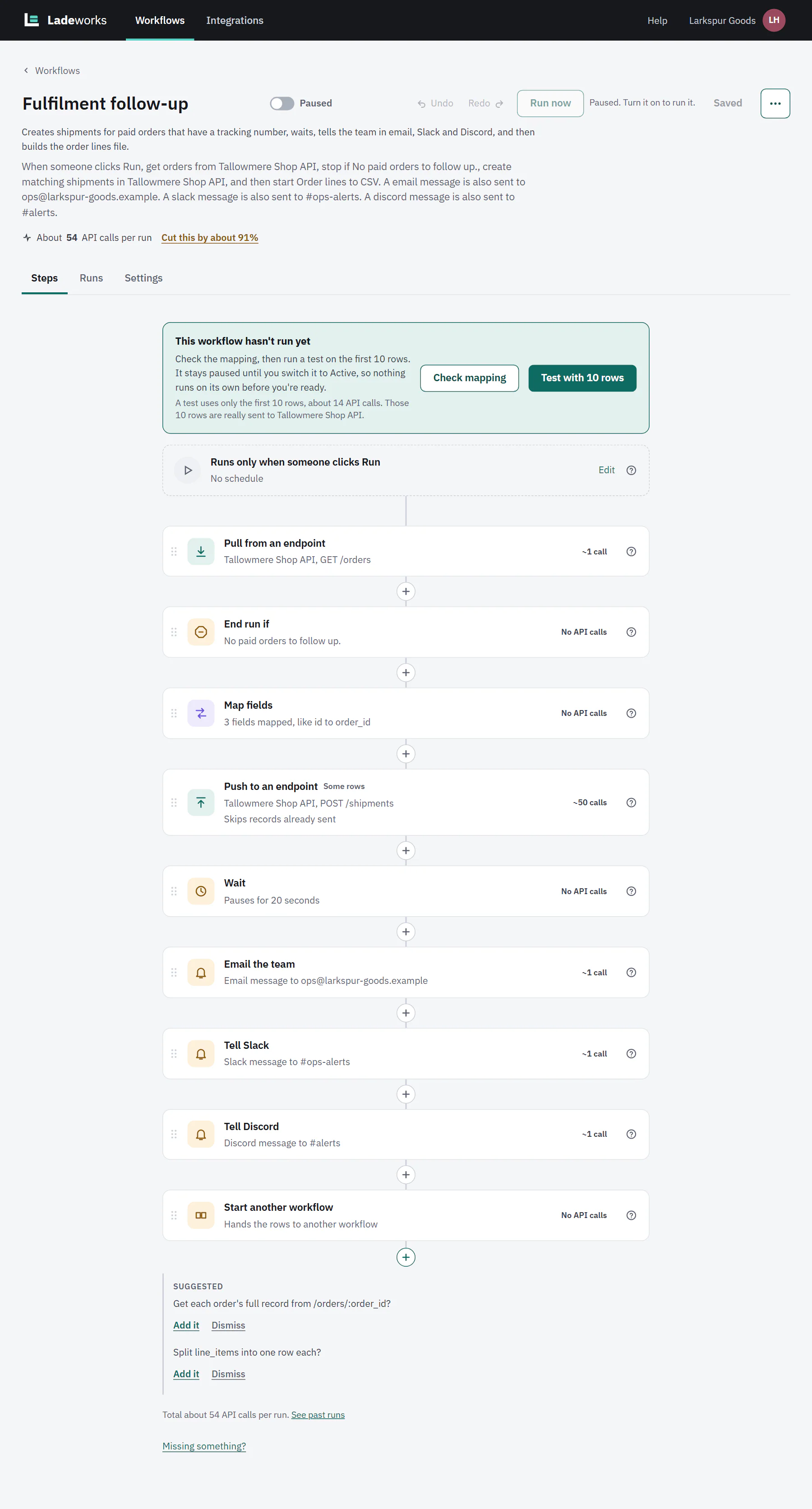
Larkspur Goods is a made-up shop that sells through a made-up platform called Tallowmere Commerce. Its data and its file server run on a test machine, so nothing here touches a real system. This page uses its workflow Fulfilment follow-up, which creates shipments for paid orders, waits, tells the team and then hands the rows on.
 (opens the full size image in a new tab)
 (opens the full size image in a new tab)
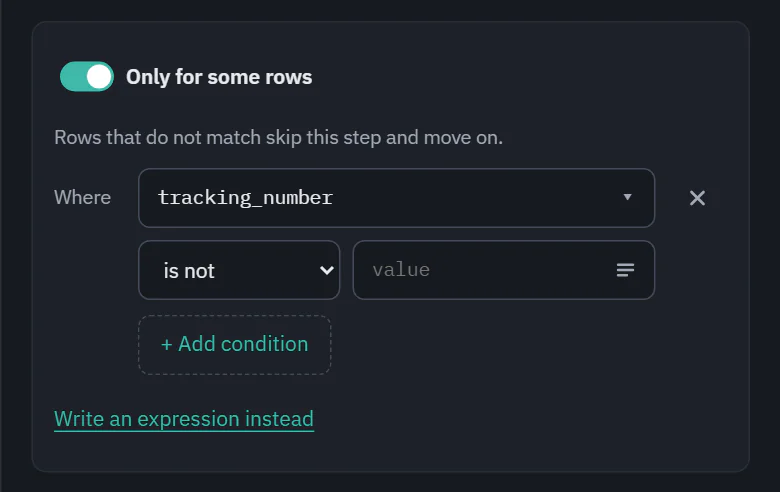
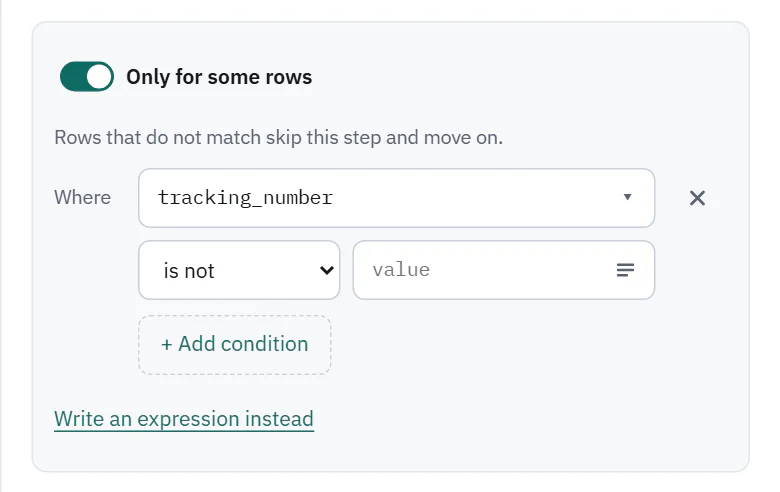
Only for some rows
A switch near the bottom of a step's settings, Only for some rows, limits the step to rows that match. On Pro and Business. It is on Push to an endpoint, Write a CSV, Map fields, Get details for each row, Send a message and Remove duplicates. A step that has a condition shows a Some rows label on its card.
Rows that do not match skip that step and move on to the next one. They are not an error, and they are not counted as skipped rows.
Conditions are built from blocks: Where, then the field, how to compare and a value, with + Add condition for more (joined by and or or). The field list shows what the step receives, and the value box can show the values a field takes in a sample. Write an expression instead switches to a written condition. These are the same blocks Filter rows uses, described in Shaping data.
 (opens the full size image in a new tab)
 (opens the full size image in a new tab)
With Send a message set to One for the whole run, a condition makes the message go out only if at least one row matched.
End run if
End run if stops the run when a condition is met, for example when nothing is left to do. On Starter, Pro and Business. It costs no API calls, and its step line reads Passed, 10 rows left when the run goes on.
Under End the run when, choose one of four:
- There are no rows. The check happens when the rows run out, so it fires when nothing reached this step.
- Fewer than a number. It counts the rows that reached this step.
- Any row matches. Condition blocks, like a filter. The first matching row ends the run.
- Something else. A written Condition that can use rowsSoFar, rowsPulled, rowsSkipped and apiCalls.
Then Show the run as Ended early or Failed, and add a Message in the run (optional) that says why.
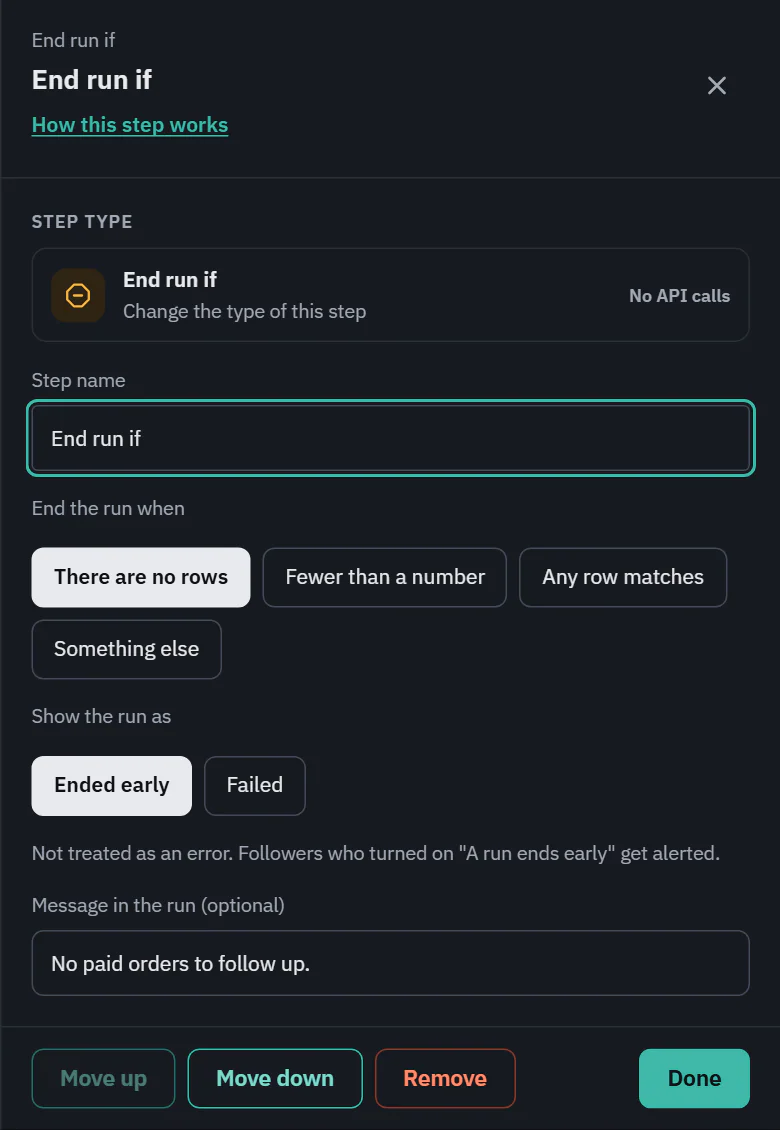 (opens the full size image in a new tab)
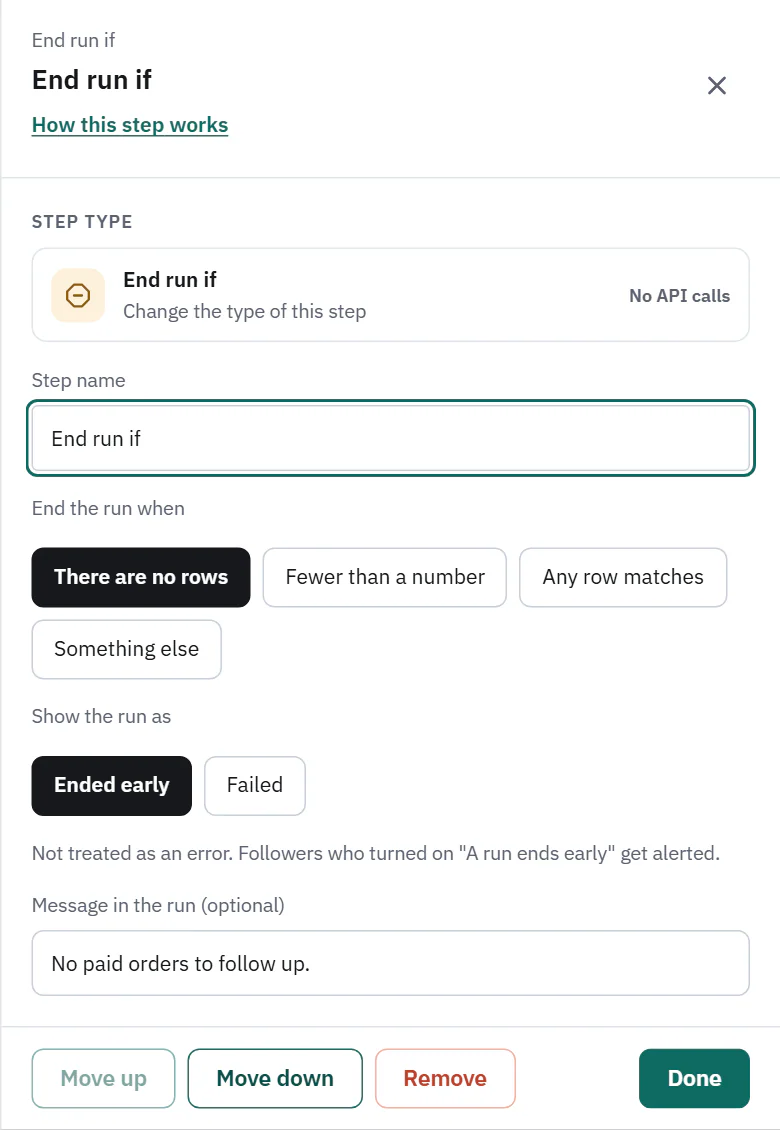 (opens the full size image in a new tab)
Ended early or Failed
- Ended early is not treated as an error. The run's dot is gray, followers who turned on "A run ends early" get an alert, and an outgoing webhook set to Ended early is called.
- Failed is treated as an error. The dot is coral, followers get failure alerts, and an outgoing webhook set to Failed is called.
Choose Ended early when "nothing to do" is a normal day, and Failed when it means something broke upstream. The run shows your message under the result, and the step that ended it is marked in the steps list. Rows that already passed stay passed: the run is stopped, not undone.
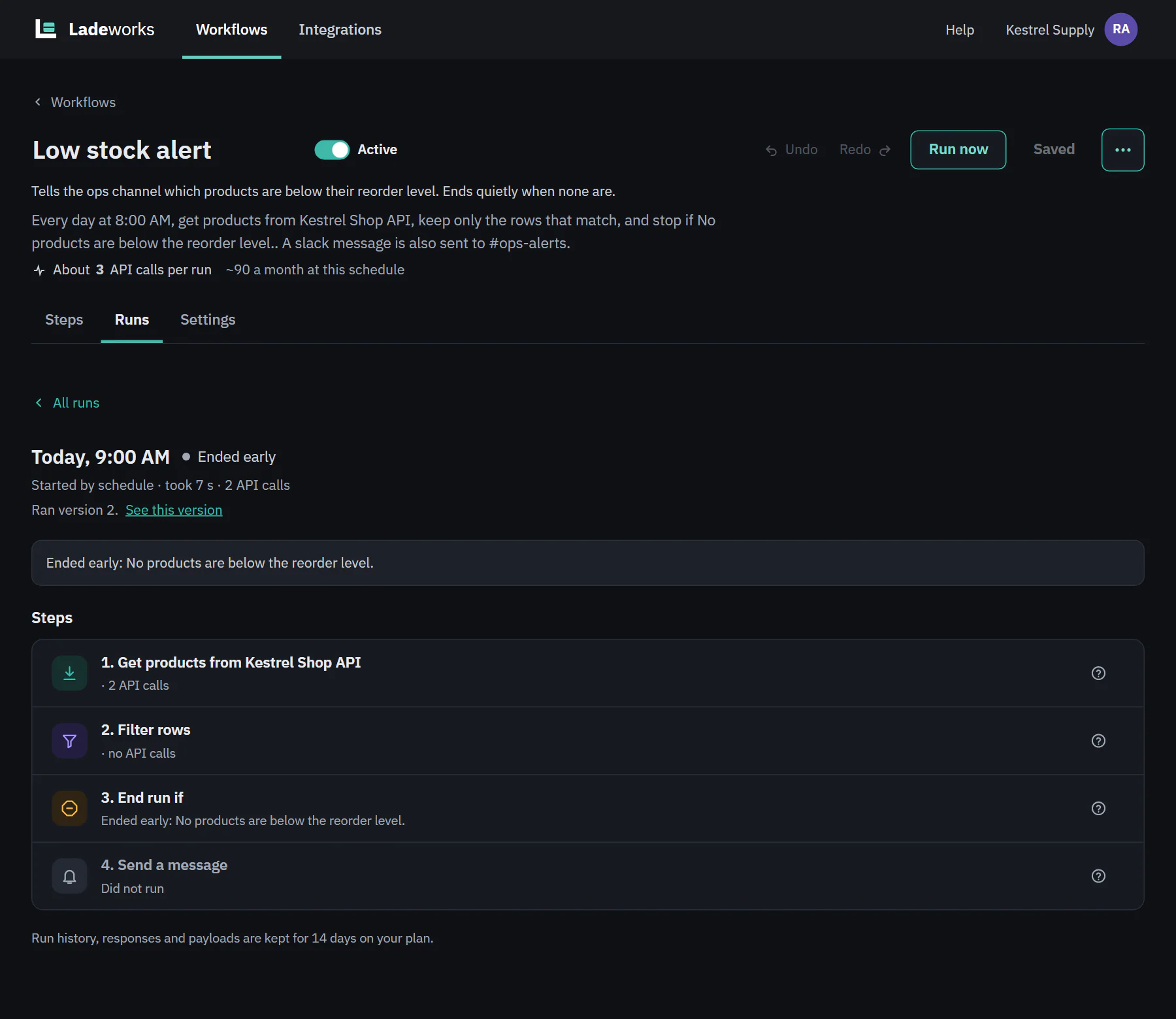 (opens the full size image in a new tab)
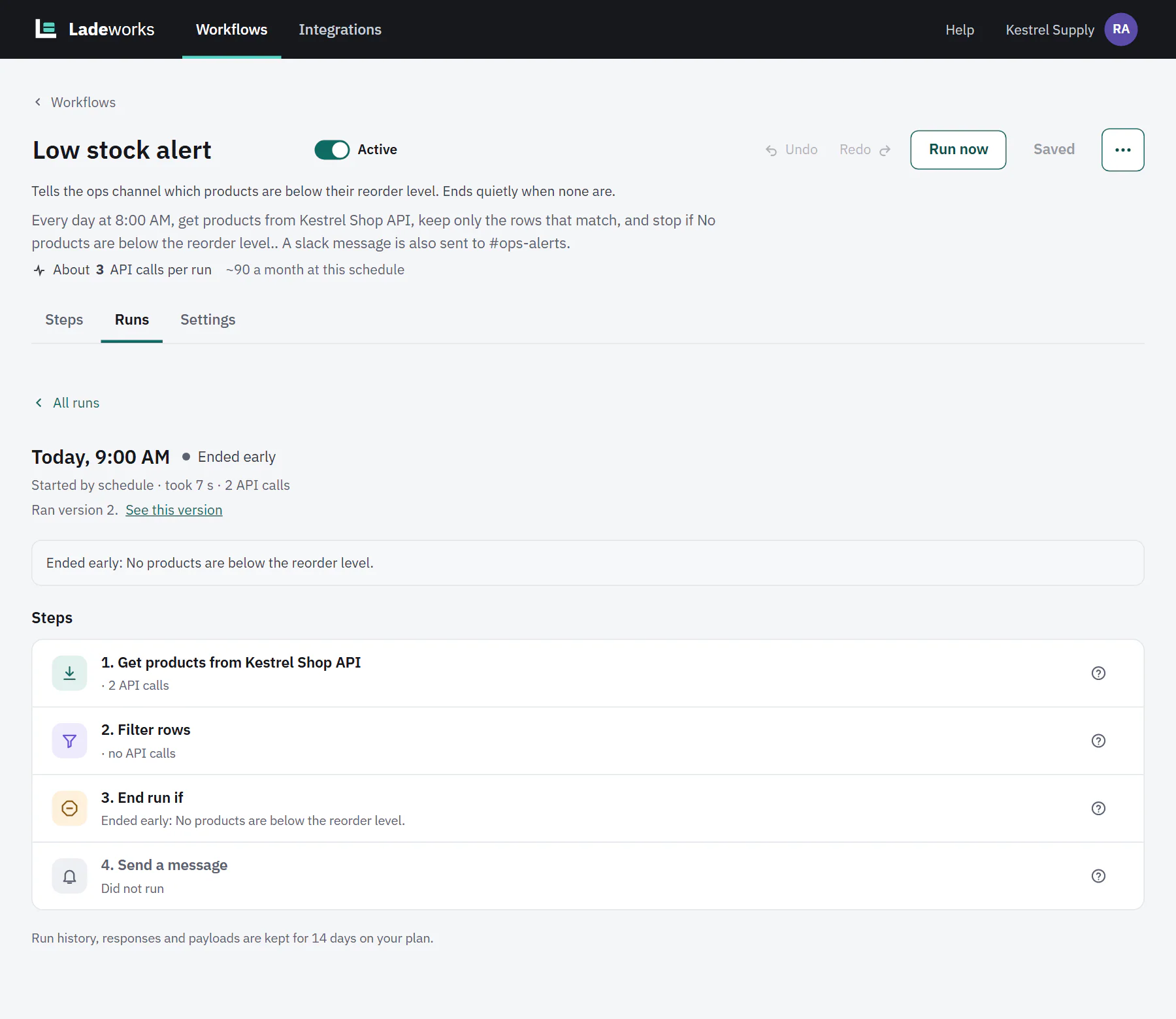 (opens the full size image in a new tab)
Wait
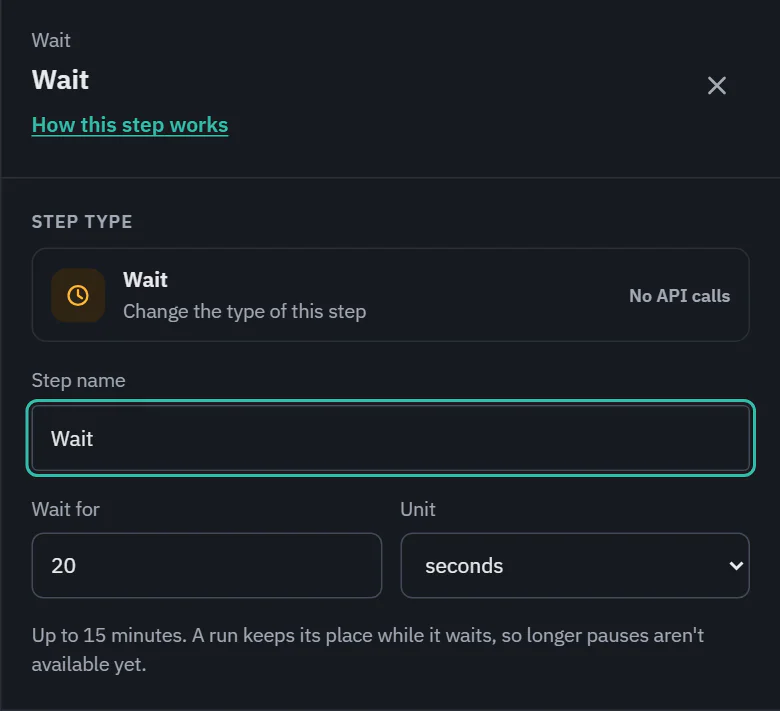
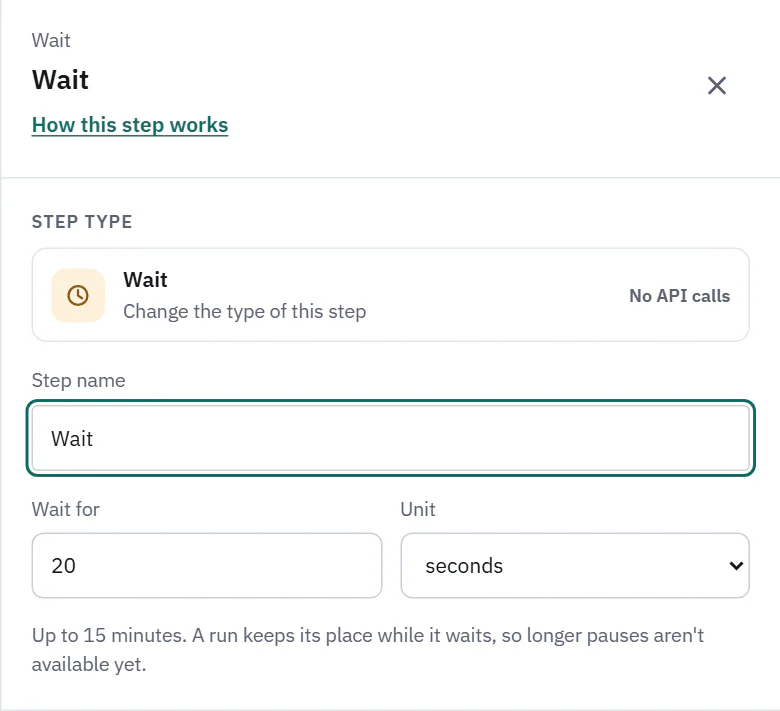
Wait pauses the run before the next step. On Pro and Business. Set Wait for and a Unit of seconds or minutes, from 1 second to 15 minutes. It pauses once, when the first row reaches it, and costs no API calls. Run details say Waited 20 seconds.
Use it to give another system time, for example after a Push that triggers work on the other side. While it waits, the run keeps its place, which is why longer pauses are not available. For something that takes minutes or hours, use Request a report and wait instead.
 (opens the full size image in a new tab)
 (opens the full size image in a new tab)
Start another workflow
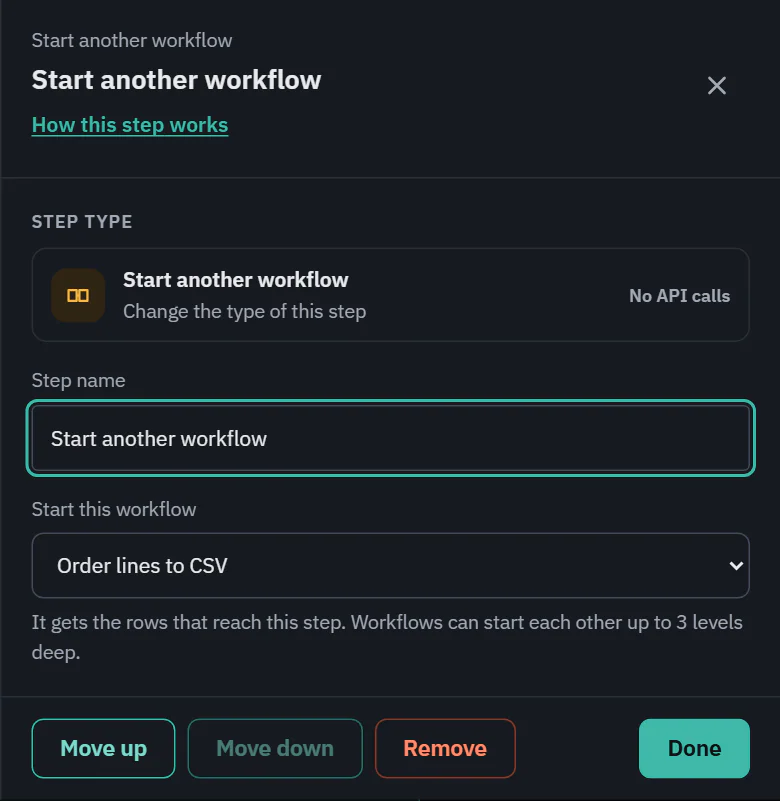
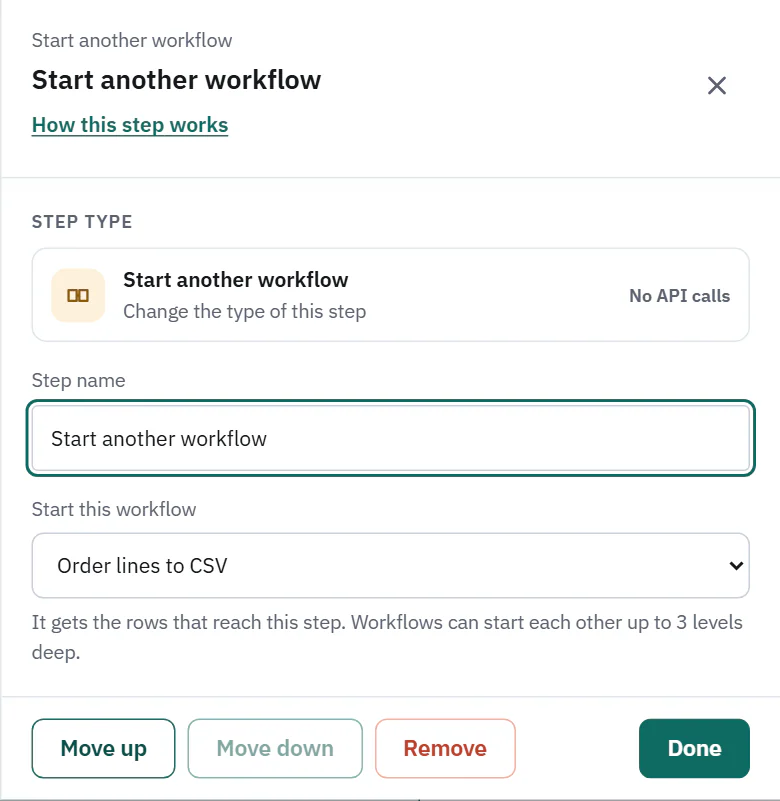
Start another workflow hands the rows that reach it to a different workflow. On Pro and Business. Choose it under Start this workflow. It costs no API calls itself. The other workflow runs as its own run, which says Started by another workflow, and its steps count their own calls.
 (opens the full size image in a new tab)
 (opens the full size image in a new tab)
- The rows go over as a CSV file, the way a file chosen at Run now would. The step line reads Handed 10 rows to Order lines to CSV (run 1a2b3c4d). With no rows it reads No rows to hand over, so Order lines to CSV was not started.
- Workflows can start each other up to 3 levels deep, and a workflow cannot start one that is already part of the chain, so there are no loops.
- The other workflow cannot take rows from a webhook, and it cannot be running at that moment: "X is already running, so it can't take these rows now."
When the other workflow is paused
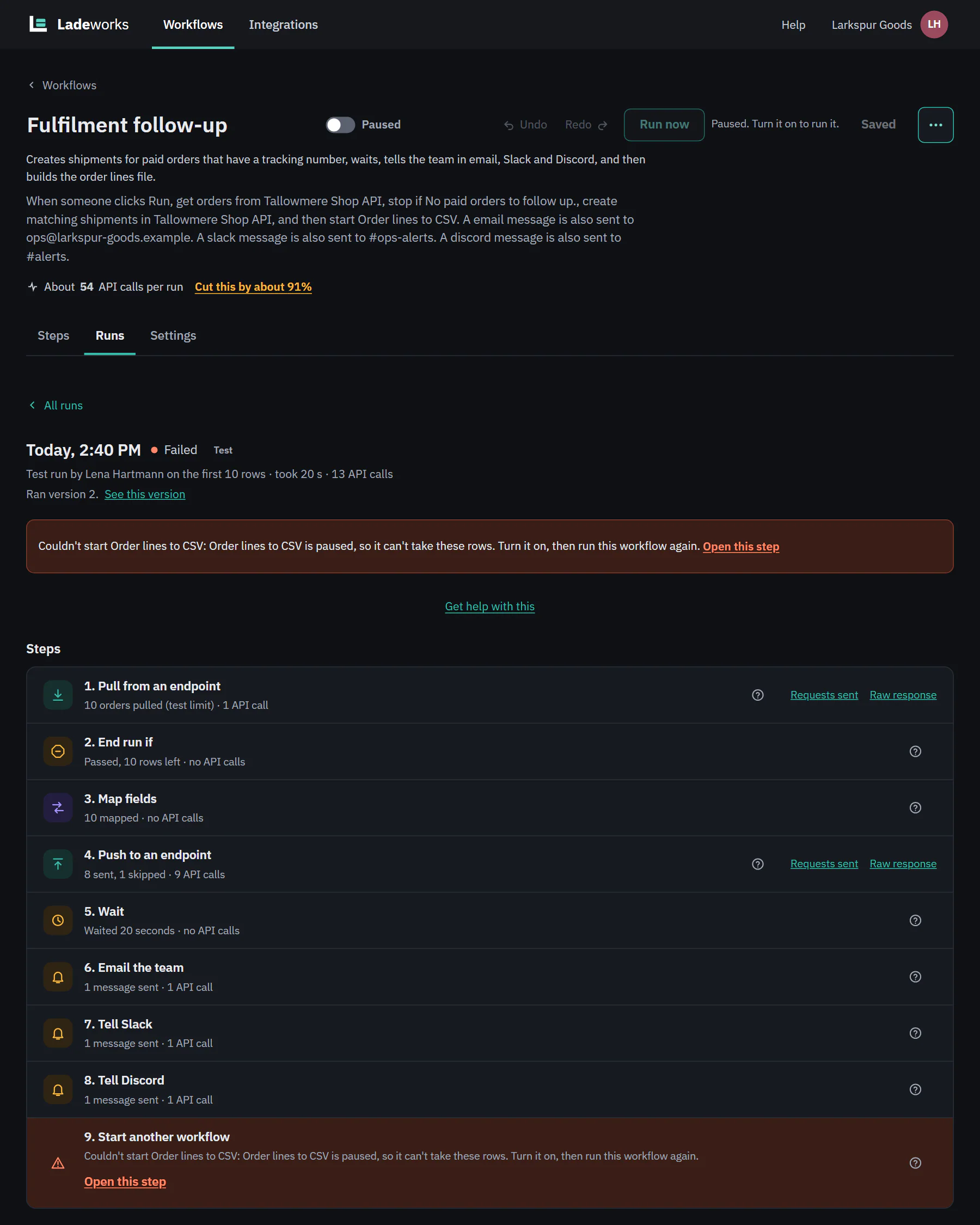
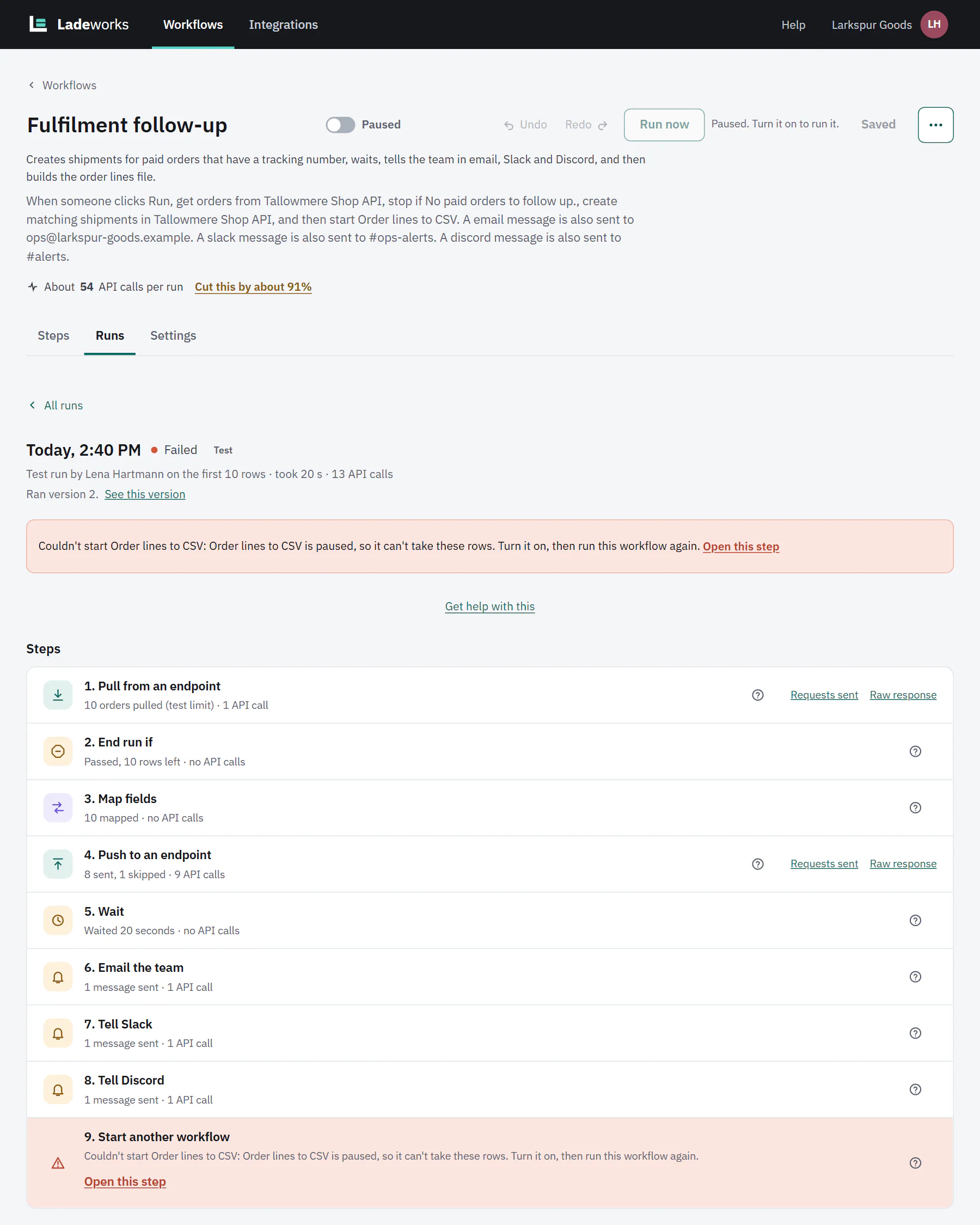
A paused workflow is never started by another one. The step fails, and so does the run, with the reason and what to do:
Couldn't start Order lines to CSV: Order lines to CSV is paused, so it can't take these rows. Turn it on, then run this workflow again.
Turn the other workflow on, then run this one again. Open this step on the failed step opens its settings.
 (opens the full size image in a new tab)
 (opens the full size image in a new tab)