DocsYour first workflow
Reading a run
Every run is kept, with what was pulled, what was sent and what was skipped, and enough detail to see why. Open the Runs tab and choose a run.
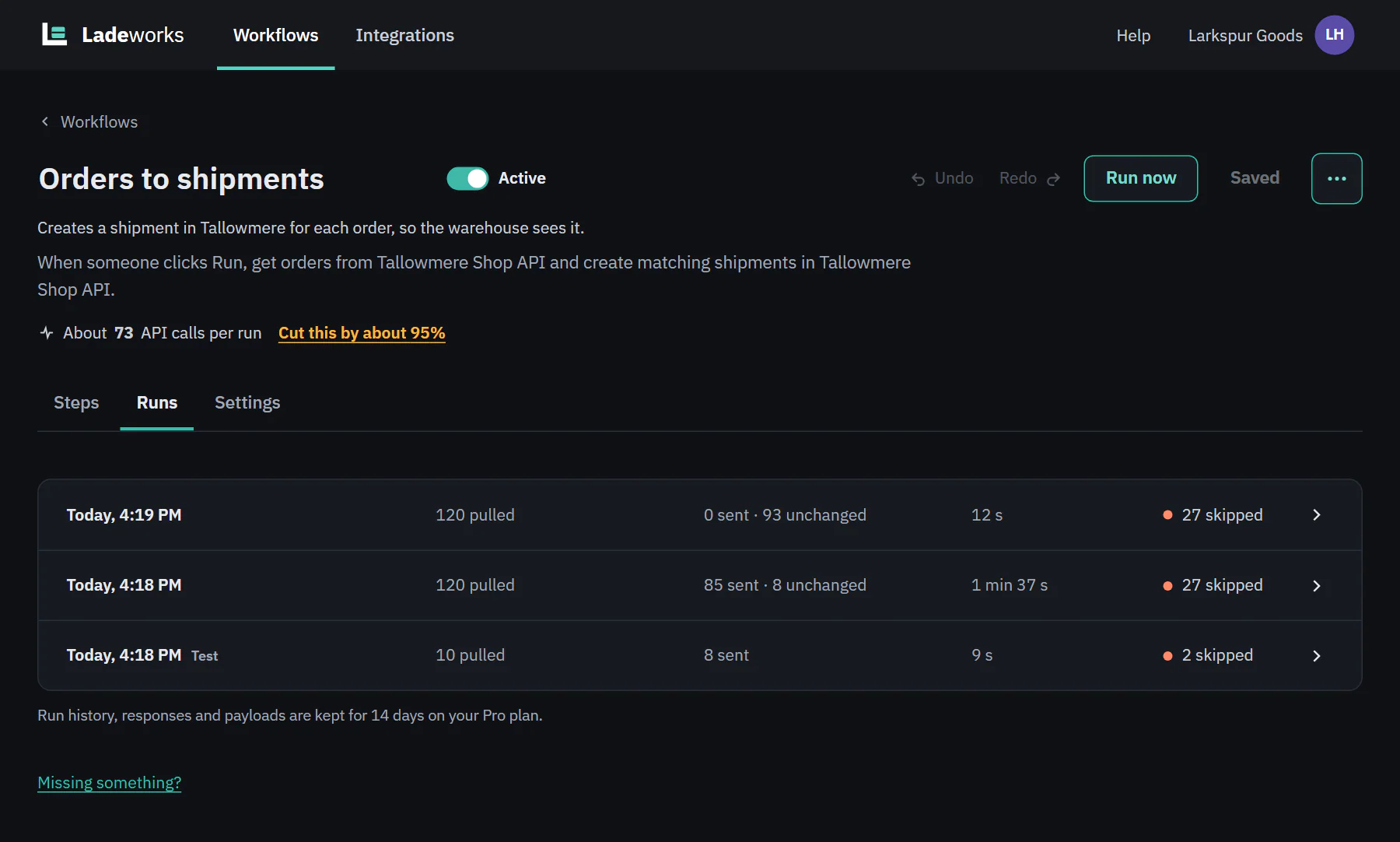
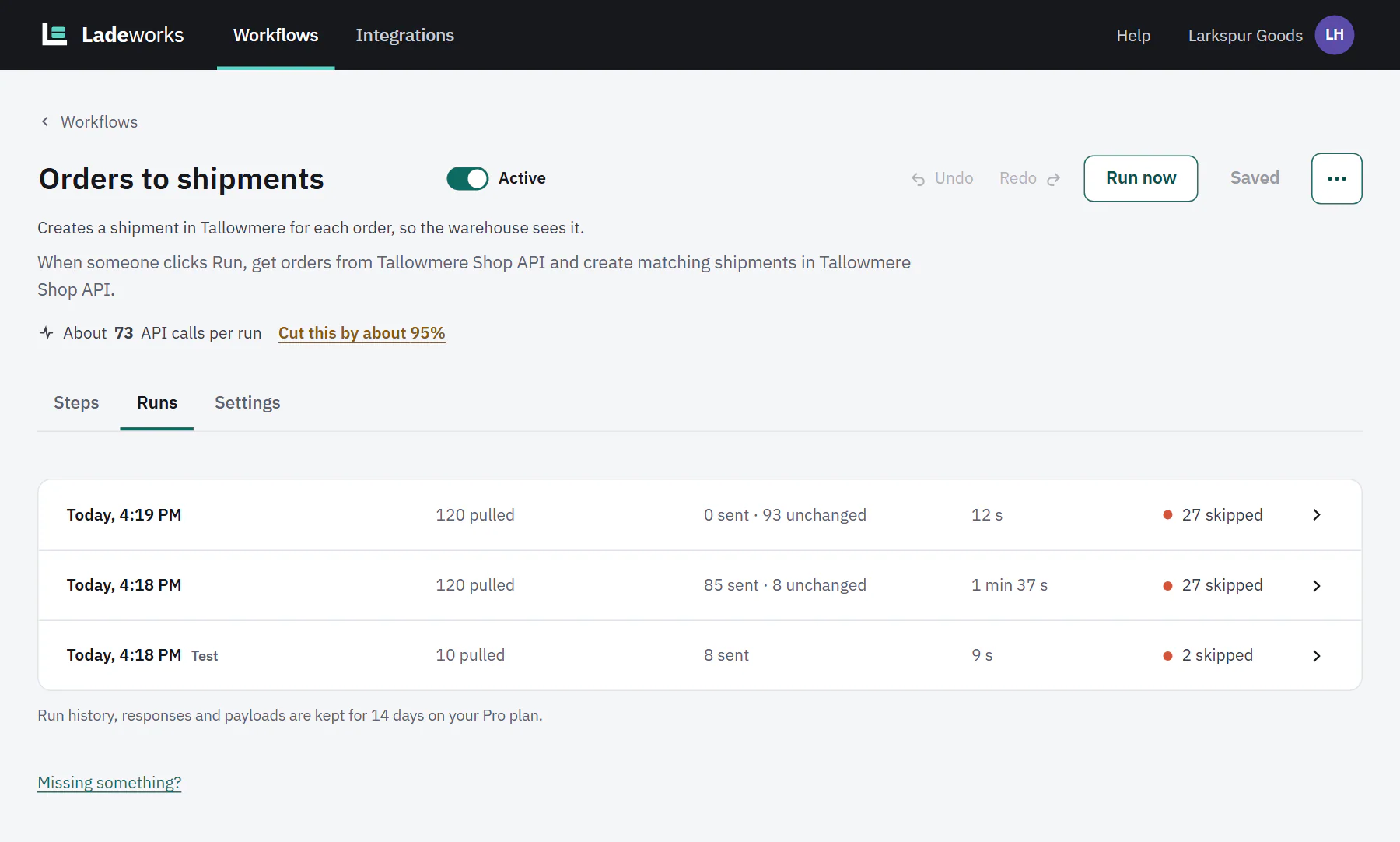
The run list
Each row has when it started (with a Test label for a test run), how many rows were pulled, how many were sent (and how many were unchanged), how long it took (for a run in progress, the time so far; nothing for a queued run), and the result as a dot and a word: Success, "2 skipped", Ended early, Failed, Running, Queued or Waiting for the report. Show older runs loads more. Under the list a note says how long Ladeworks keeps run history, responses and payloads: 14 days on the plan these pages describe.
 (opens the full size image in a new tab)
 (opens the full size image in a new tab)
Counts and steps
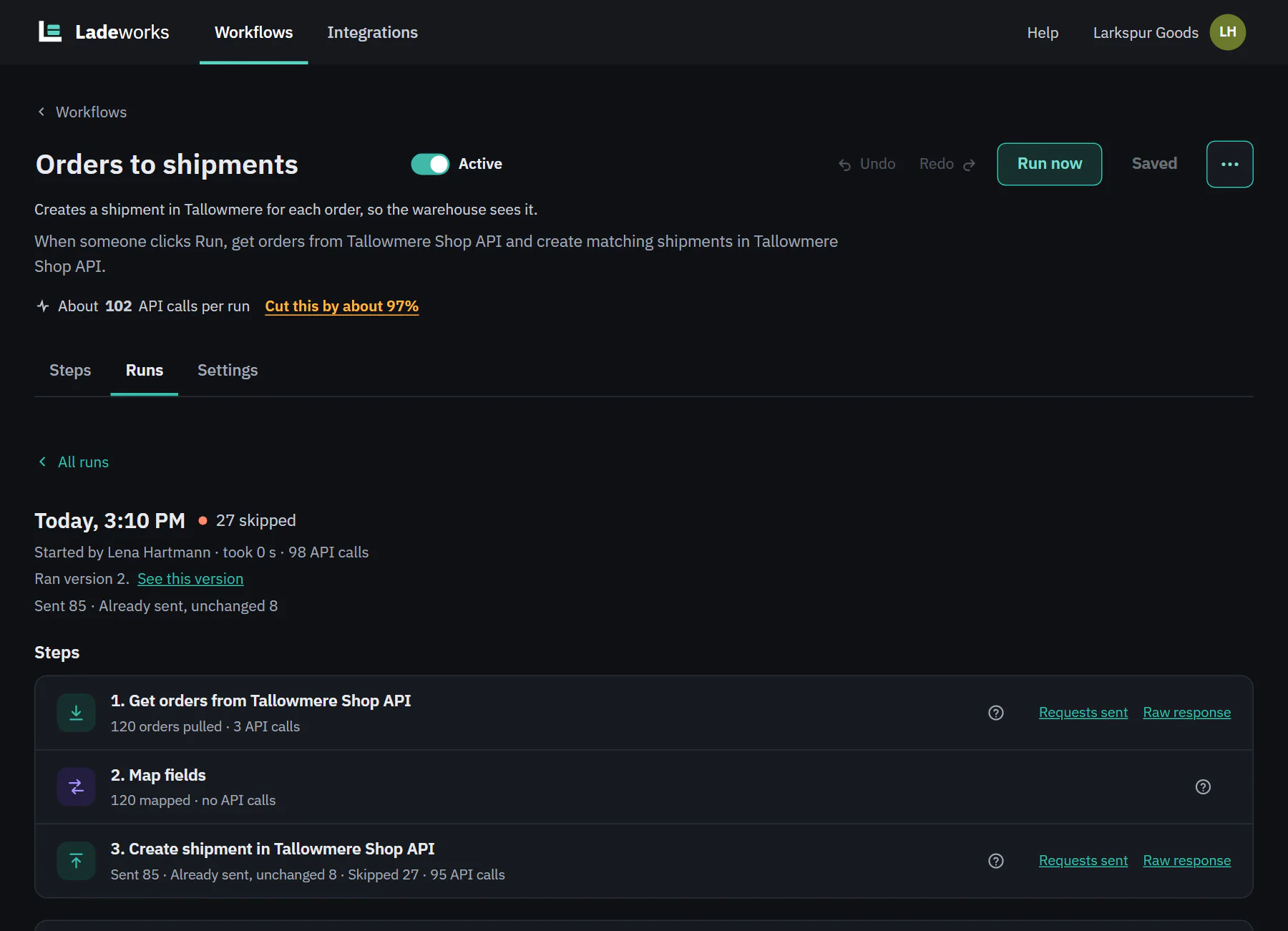
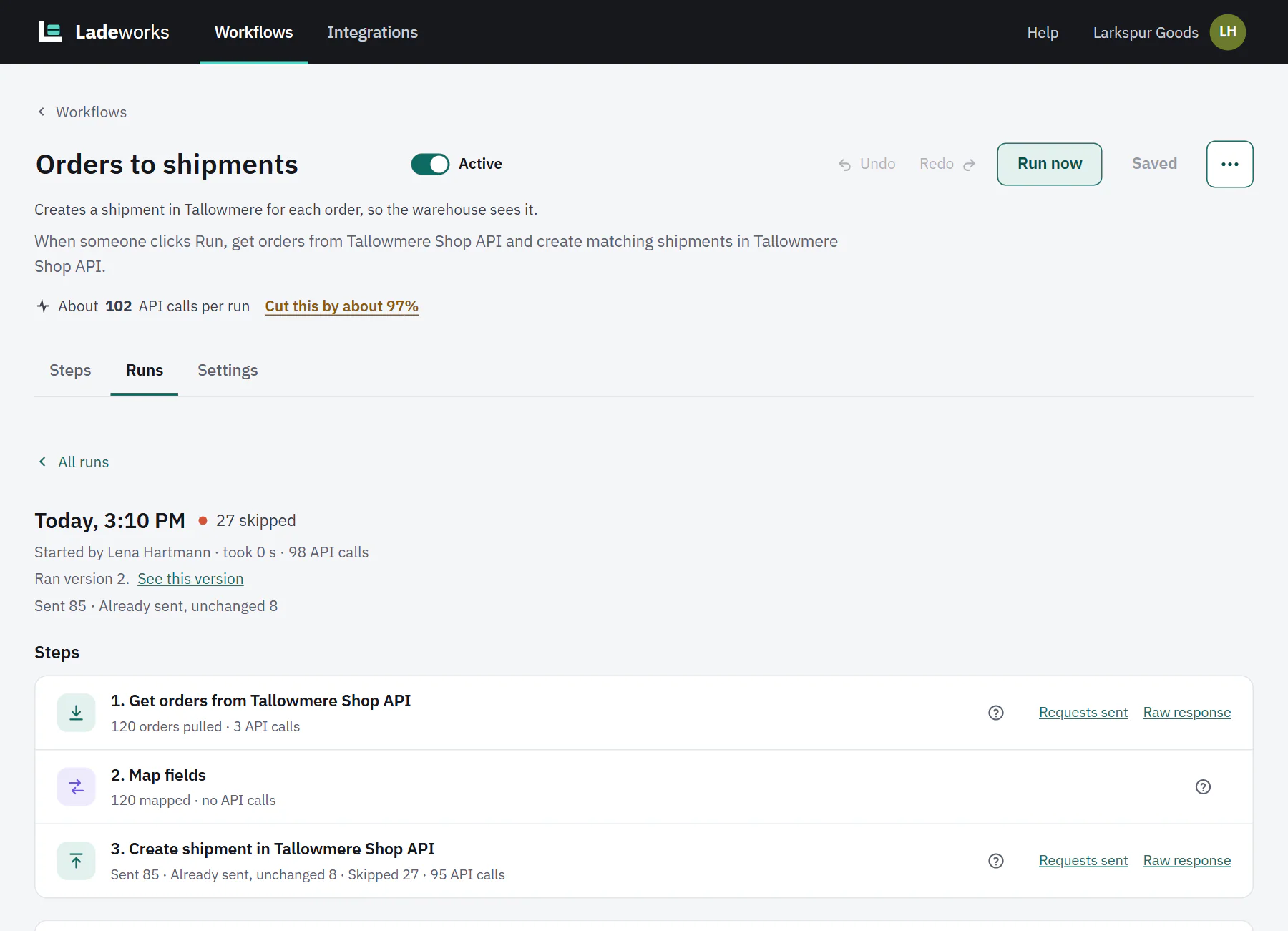
At the top of a run: when it started, the result, who or what started it ("Started by Lena Hartmann", or a schedule, a file, a webhook), how long it took and how many API calls it used. Ran version 2. See this version opens the saved version that ran, so you can see the steps as they were. If a Push step left records out, a line adds "Sent 85 · Already sent, unchanged 8".
Below, Steps lists every step with what it did, in the order it ran. The lines use the same words each time:
- Pull: "120 orders pulled", then the calls it made. A test says "(test limit)".
- Filter rows: "112 kept, 8 removed". Remove duplicates: "93 kept, 27 duplicates removed". Map fields: "120 mapped". Split a list into rows: "Split 120 rows into 340 rows".
- Get details for each row: "100 got details". Push: "85 sent, 27 skipped", or "Sent 85 · Already sent, unchanged 8 · Skipped 27". Write a CSV: "214 rows written to Larkspur SFTP, /outbound/".
- A step that did not run says "Did not run". A failed step is in coral, with the message and an Open this step link that opens the builder with that step's settings and the field that needs fixing.
Steps that run inside Ladeworks say "no API calls". People with payload access also see Requests sent and Raw response links on steps that made requests. They download the exact requests, with sign-in headers removed, and the raw answers. Without payload access, counts and messages still show, and a gray note says that rows, requests, responses and files are hidden.
 (opens the full size image in a new tab)
 (opens the full size image in a new tab)
Skipped rows
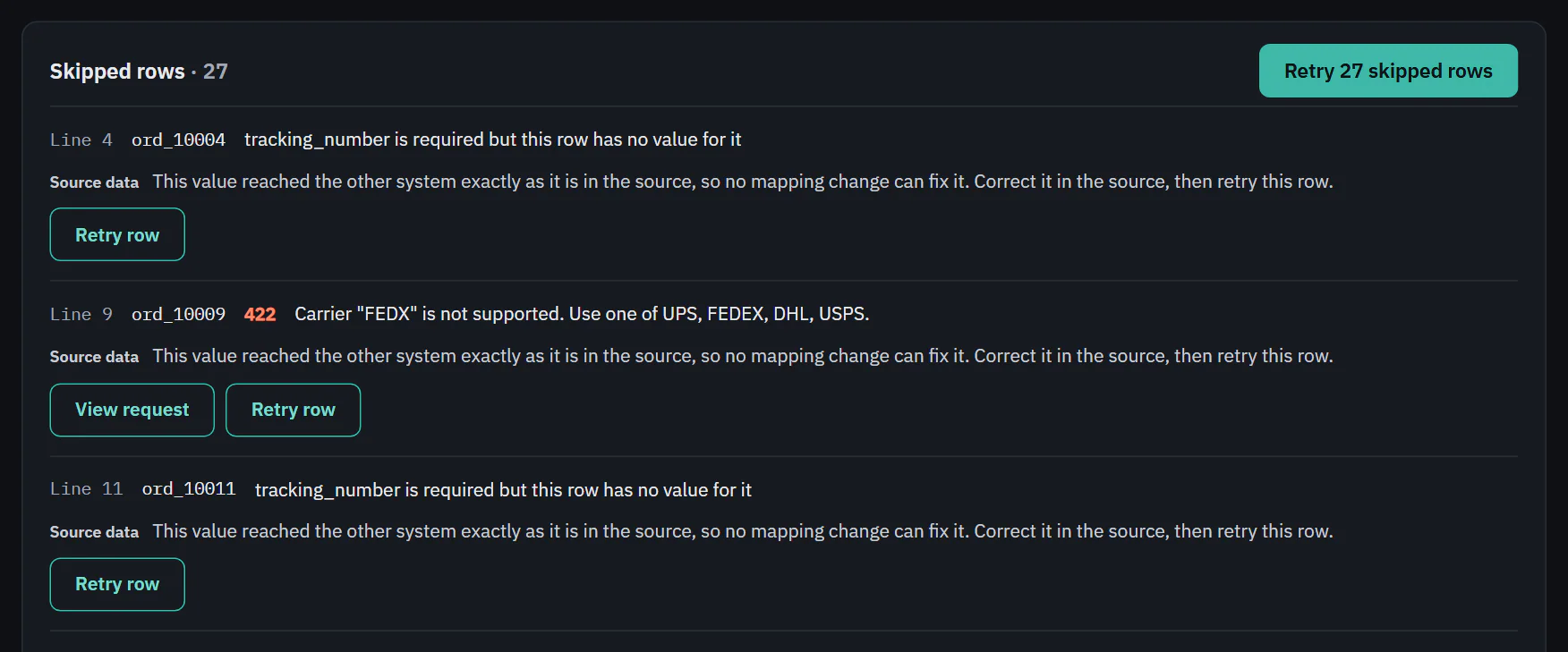
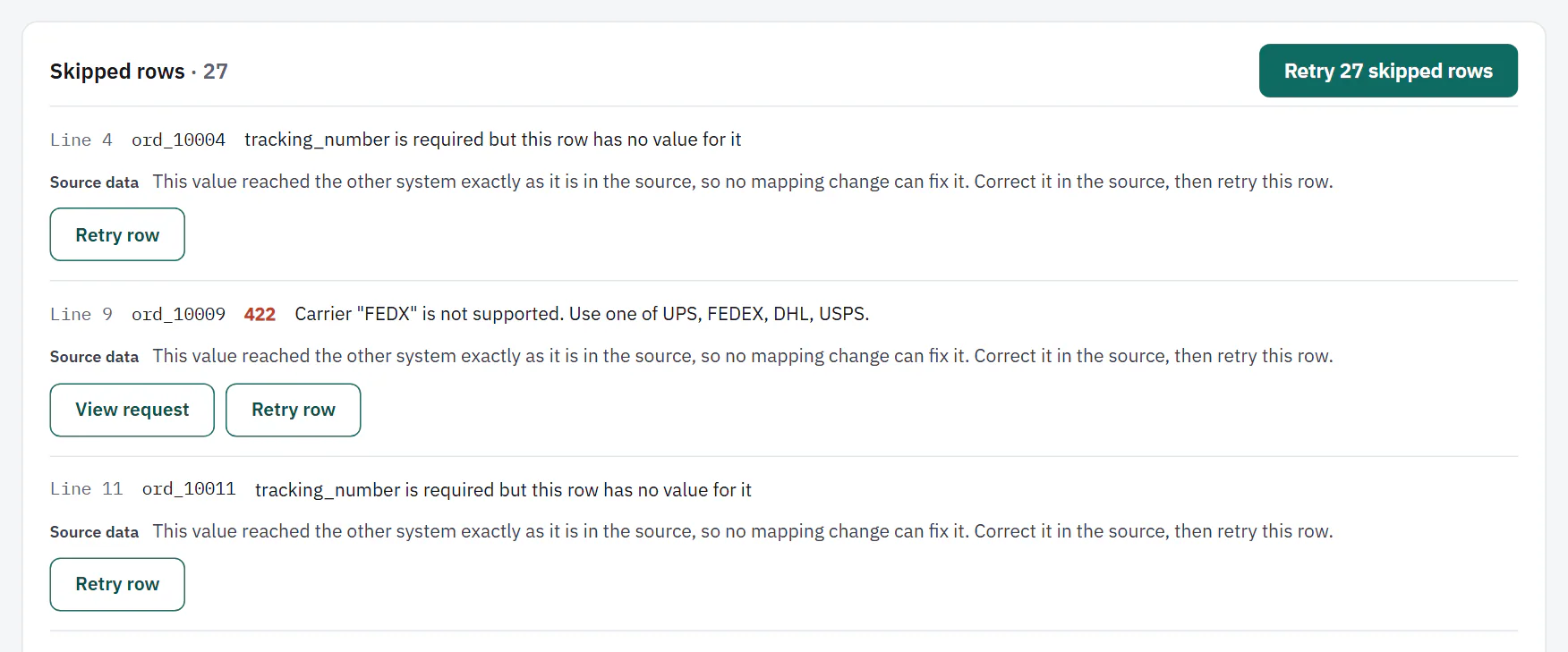
By default (When a row fails in Settings), a row that cannot be processed is skipped and the run goes on. Skipped rows are listed in their own section with the line number in the source, the record's id, the status code if the other system answered, and its message. Under each, a tag says the cause.
 (opens the full size image in a new tab)
 (opens the full size image in a new tab)
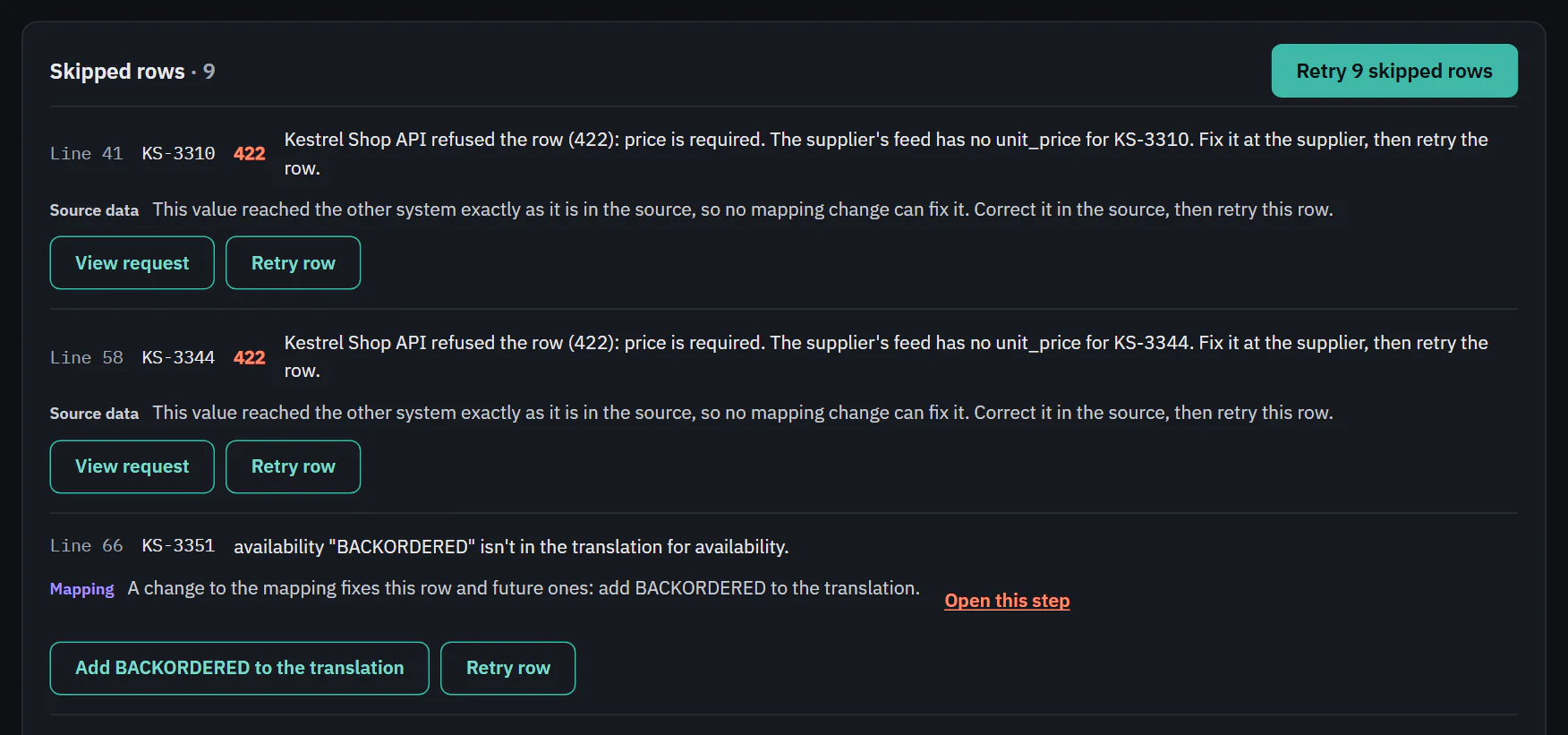
- Source data: the value reached the other system exactly as it is in the source, so no mapping change can fix it. Correct it in the source, then retry the row.
- Mapping: something in a Map fields step produced a value the other system will not accept. A change to the mapping fixes it, for this row and the ones after. The row has a button that makes the change, or opens the builder with the change ready.
- Other: anything else. The message says what happened.
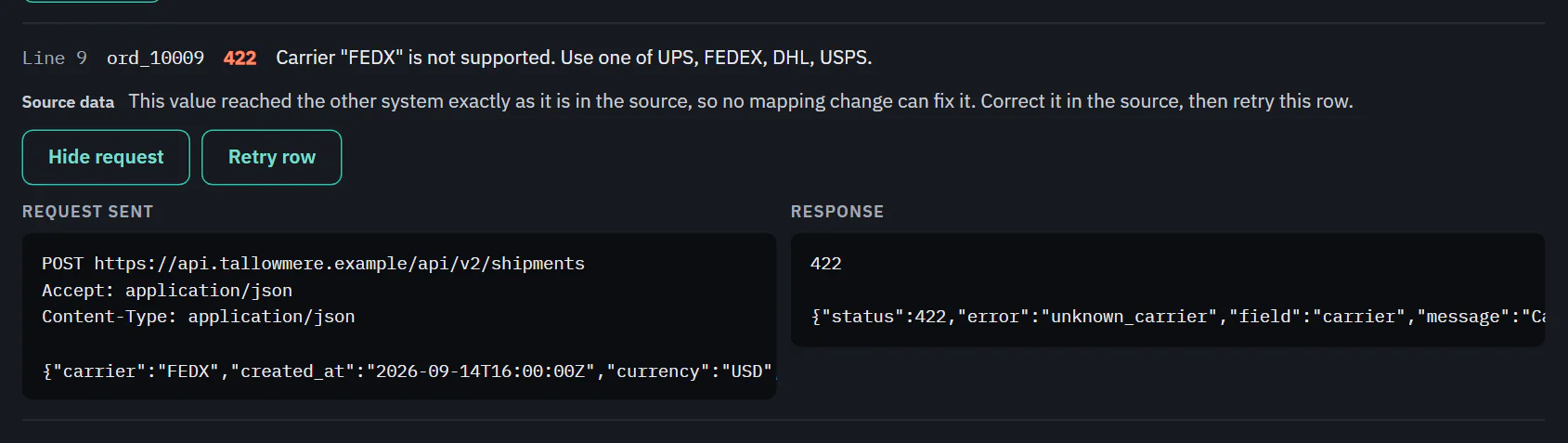
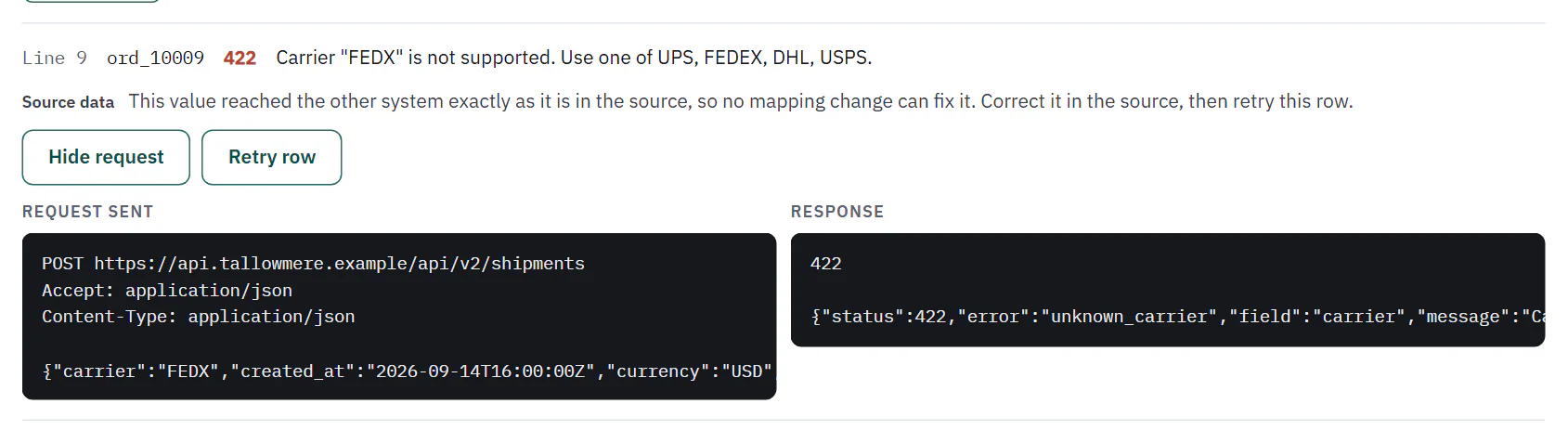
View request shows what Ladeworks sent and what came back, side by side, so you can see the exact answer. Hide request closes it.
 (opens the full size image in a new tab)
 (opens the full size image in a new tab)
Fix the mapping and retry
Mapping causes come with a one-click fix when Ladeworks knows it. The example below is from a different workspace, Kestrel Supply. Its price feed maps the supplier's availability through a translation of IN_STOCK and LOW, and some rows say BACKORDERED. Each Mapping row offers Add BACKORDERED to the translation and Open this step. The first opens the builder at that mapping with BACKORDERED already in the table and its result left empty, so you choose what it becomes. Other fixes, such as uppercasing a currency, apply at once and the button then says what it did. The same fix is only offered once for a run.
 (opens the full size image in a new tab)
 (opens the full size image in a new tab)
- Retry row sends one row again, using the stored row with the fixed mapping, and shows "Sent after retrying." or why it failed again. It runs in the background, so the result appears on the row in a moment. After a fix with no retry yet, the row says "The mapping is fixed. Retry this row to send it again."
- Retry 27 skipped rows (the teal button at the top of the section) does it for every skipped row. Retries are free: only the first attempt counts as an API call.
- A retried row is added to the run's counts, and a note says how many rows were sent after the run ended.
- A paused workflow cannot retry: turn it on first.
Rows that were already sent
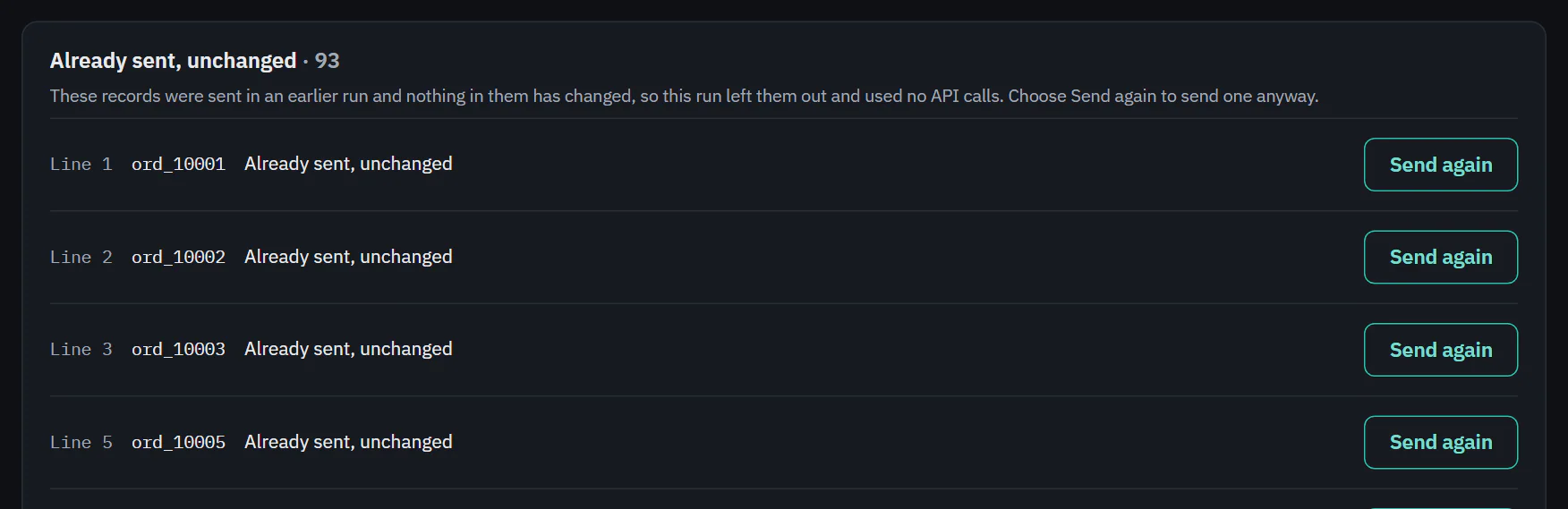
When a Push step has "Don't send records that were already sent" on, a record whose key and contents match what it sent before is not sent again. That is not a skip and not a failure, and it costs no API call. These rows are listed in a quieter section, Already sent, unchanged, with the note that the run left them out. The first 200 are listed. Send again sends one record anyway, and says "Queued. It is sent again in a moment." To send everything again, use Forget sent records on the Push step.
 (opens the full size image in a new tab)
 (opens the full size image in a new tab)
The Output card
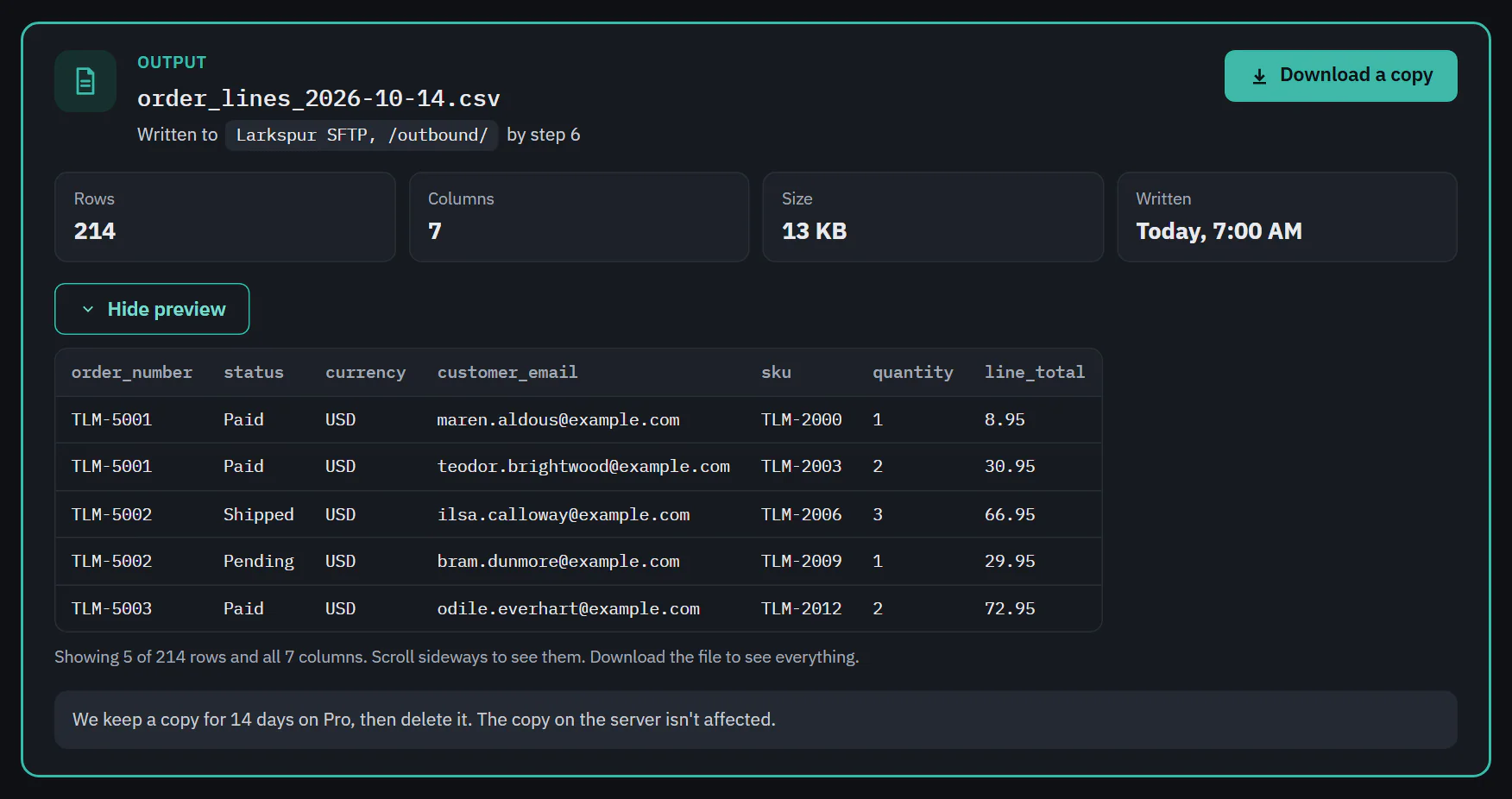
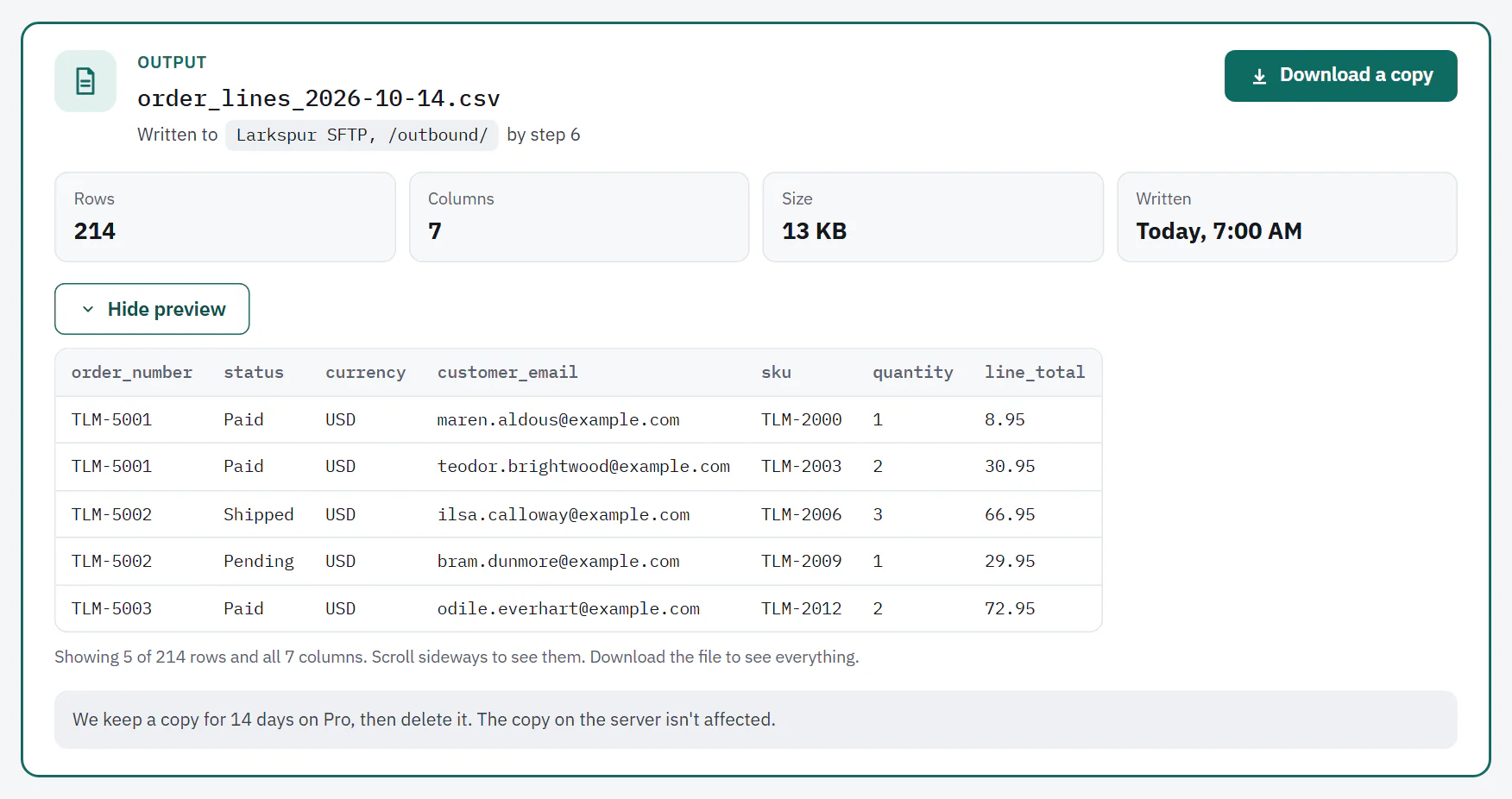
When a workflow writes a file, the run has an Output card: the file name, where it was written ("Written to Larkspur SFTP, /outbound/ by step 6", or for a download, that it is kept with the run), Rows, Columns, Size and Written. Download a copy saves the file. Preview first 5 rows shows the first rows in a table, scrolling sideways when there are many columns. Long cells are cut.
Ladeworks keeps its copy for the plan's retention, 14 days here, then deletes it. The copy on your file server is not affected. For A CSV to download, Ladeworks's copy is the only one, so download it in time.
 (opens the full size image in a new tab)
 (opens the full size image in a new tab)
Run details also have buttons for runs that wait for a report (Stop waiting) and, for a workflow that starts when a file lands, Run again with this file. Pro and Business can also download the request body a webhook run received.
Next: Shaping data goes through every step and its settings.