DocsTeam and security
Two-factor sign-in
Two-factor sign-in adds a 6-digit code from an authenticator app to your log in. Anyone can turn it on for their own account, on every plan.
Set it up
- Open Settings, then Profile, and find Two-factor authentication under Password and sign-in. It says "Off. Add a second step when you log in." Choose Set up.
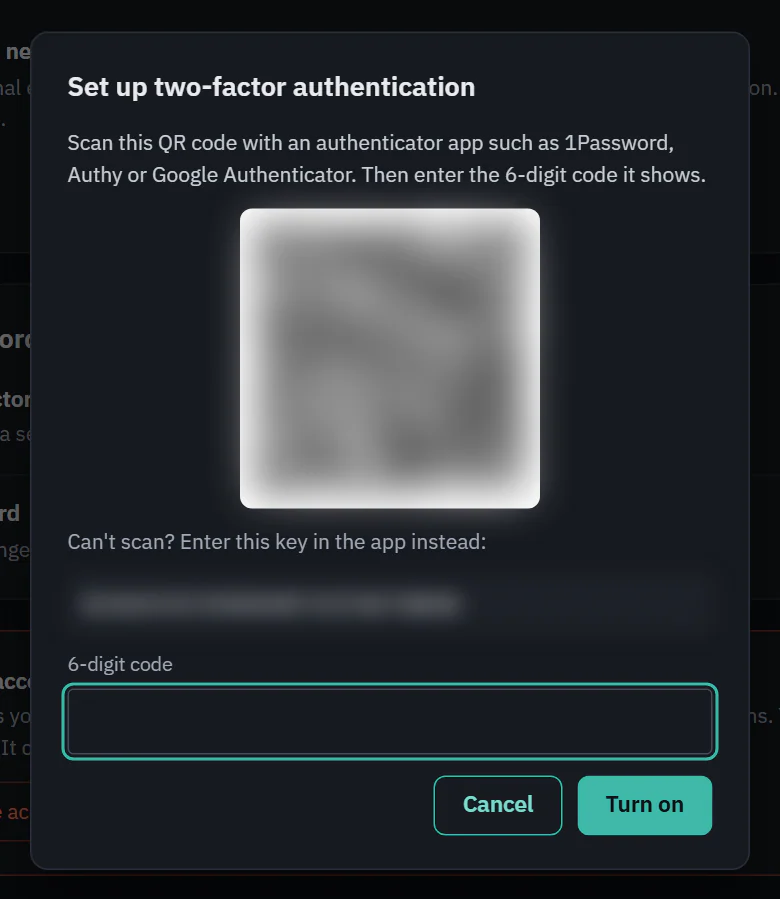
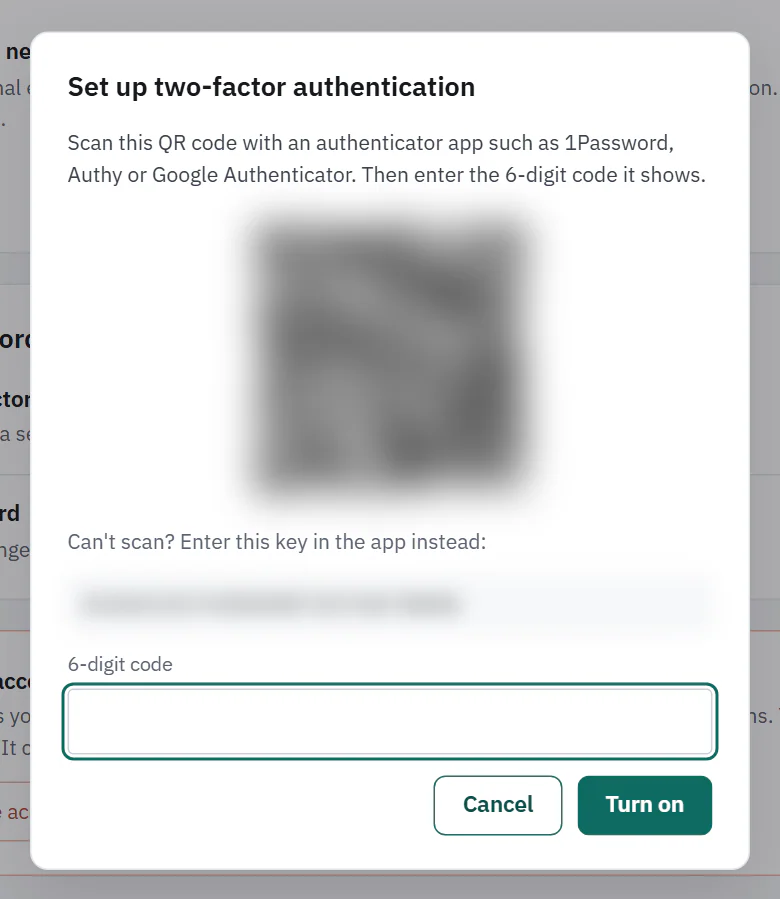
- Scan the QR code with an authenticator app such as 1Password, Authy or Google Authenticator. If you cannot scan, enter the key shown under "Can't scan? Enter this key in the app instead:".
- Enter the 6-digit code the app shows under 6-digit code and choose Turn on. Codes change every 30 seconds.
- Save your recovery codes, then choose I've saved them.
 (opens the full size image in a new tab)
 (opens the full size image in a new tab)
Recovery codes
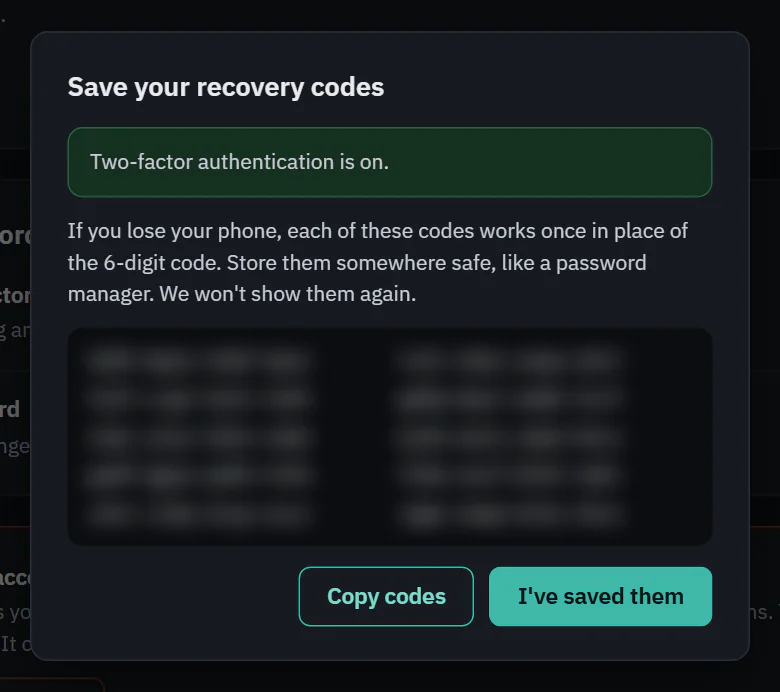
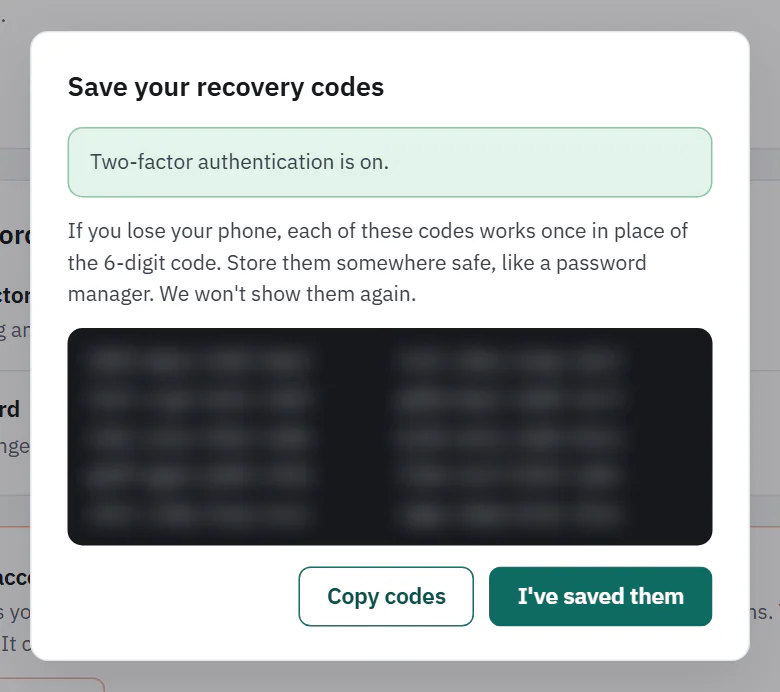
Ladeworks shows 10 recovery codes once. If you lose your phone, each code works one time in place of the 6-digit code. Store them somewhere safe, like a password manager. The dialog says "We won't show them again", and has Copy codes to help you save them.
 (opens the full size image in a new tab)
 (opens the full size image in a new tab)
Lost your recovery codes and your phone? Ladeworks has no reset by email. Ask the Owner of your workspace, or contact us. See Resets by the Owner for what the Owner can do.
Logging in with it
After your email and password, the page says "Enter your code" with "Two-factor authentication is on for this account." Enter the 6-digit code, or one of your recovery codes, under Authentication code.
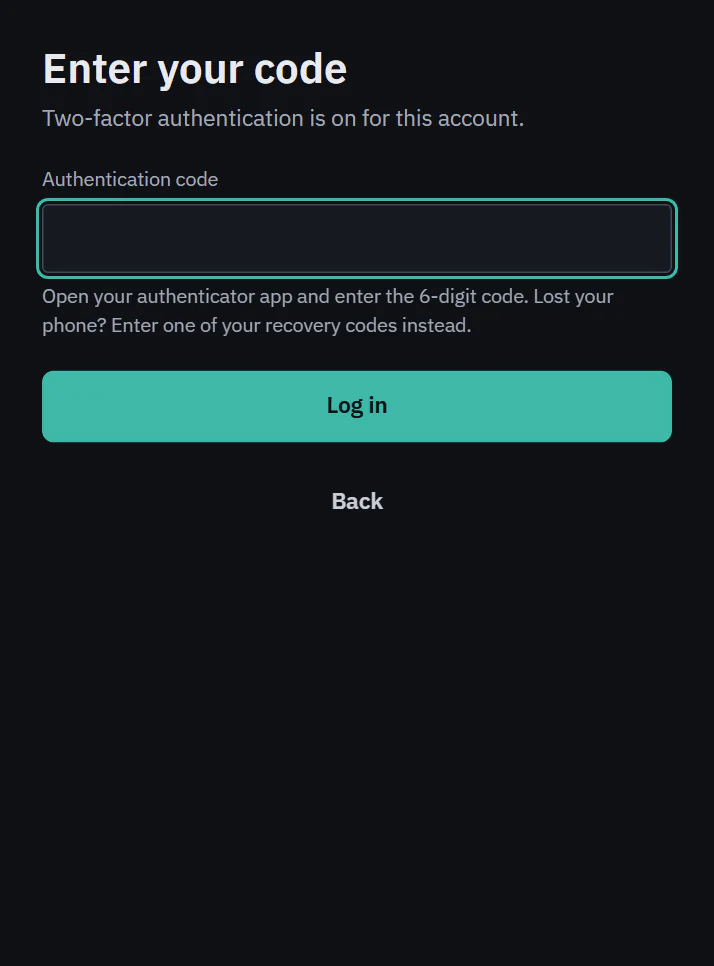 (opens the full size image in a new tab)
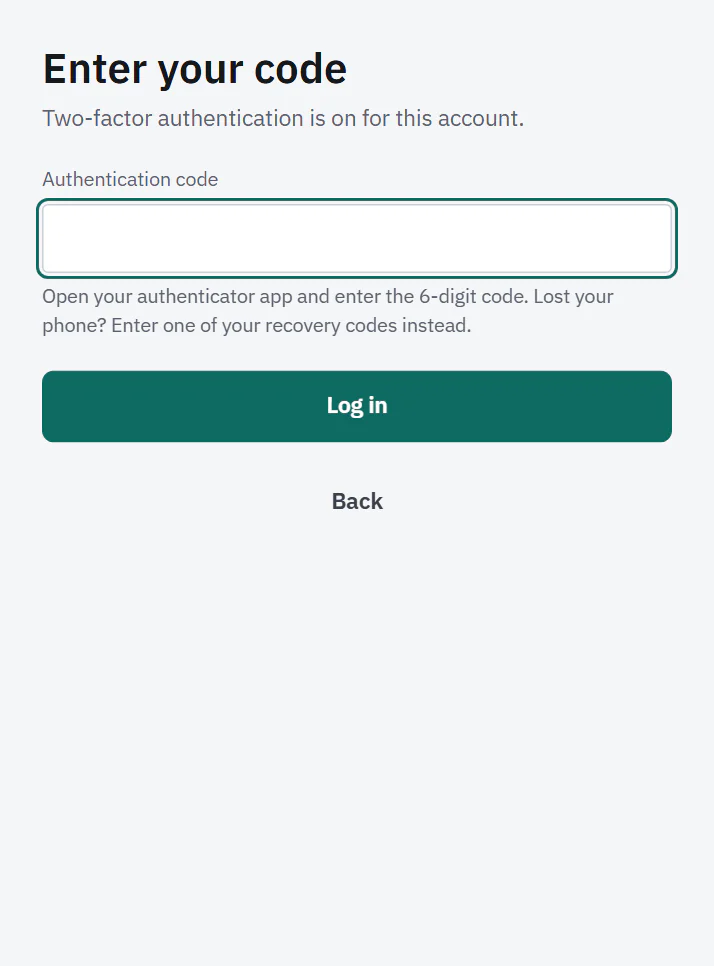 (opens the full size image in a new tab)
With Google sign-in
Google sign-in does not skip the second step. After Google confirms who you are, you land on "Enter your code" with the line "Google confirmed who you are. Two-factor authentication is on for this account, so one more step." Your session starts only after a correct code or recovery code. An account without two-factor signs in with Google as before.
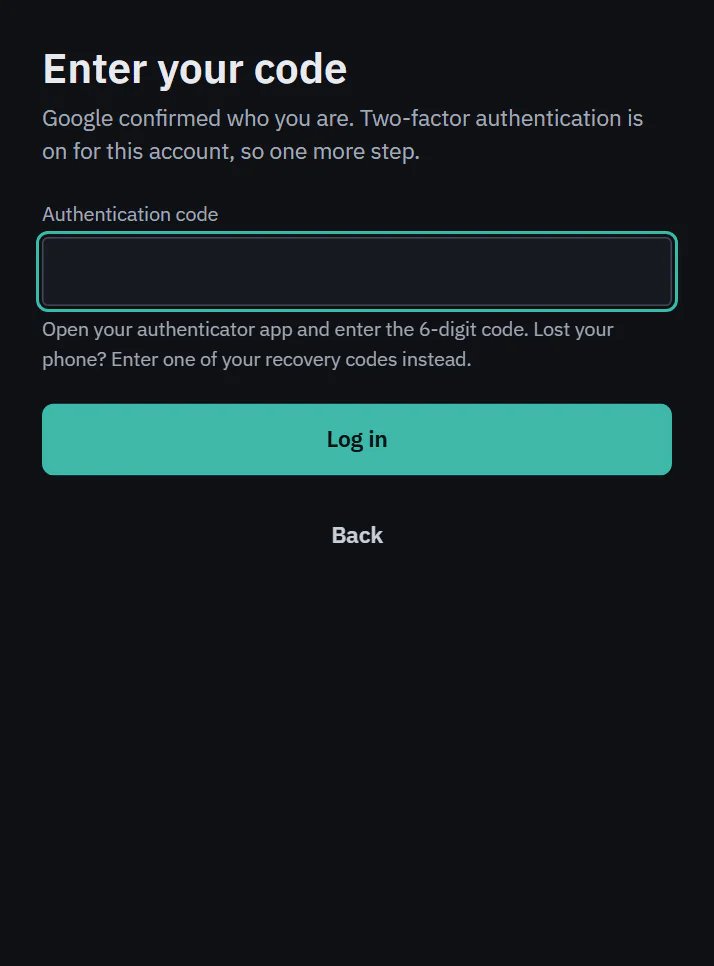 (opens the full size image in a new tab)
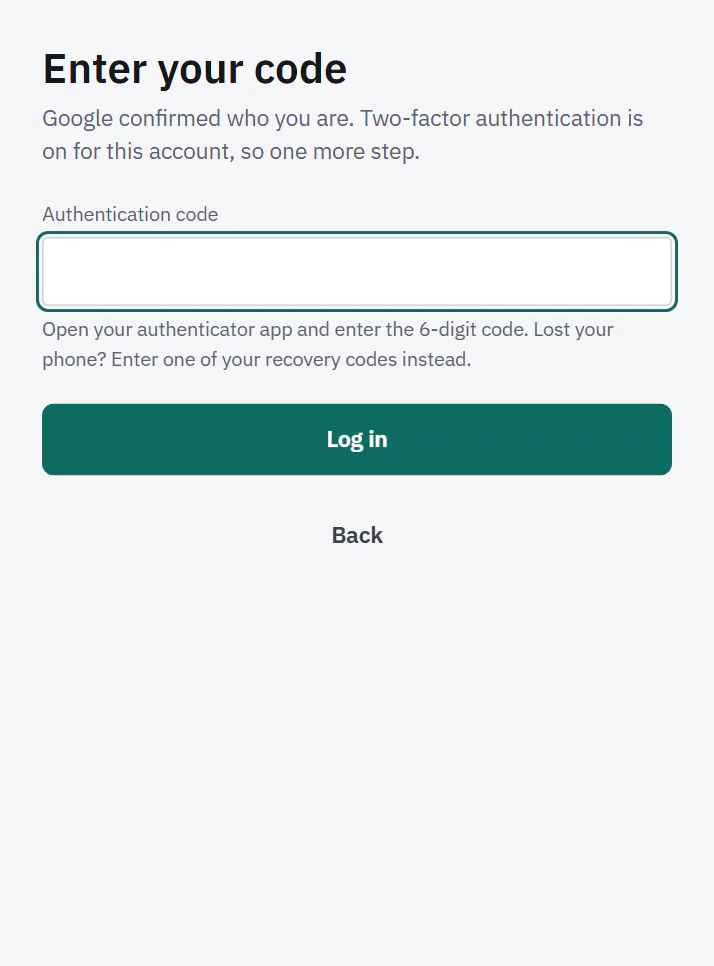 (opens the full size image in a new tab)
Turning it off
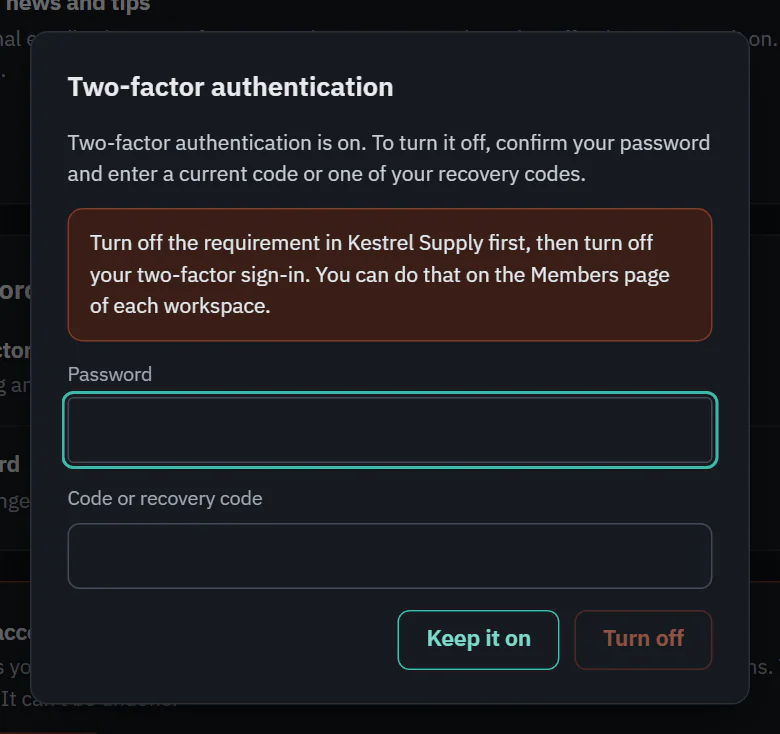
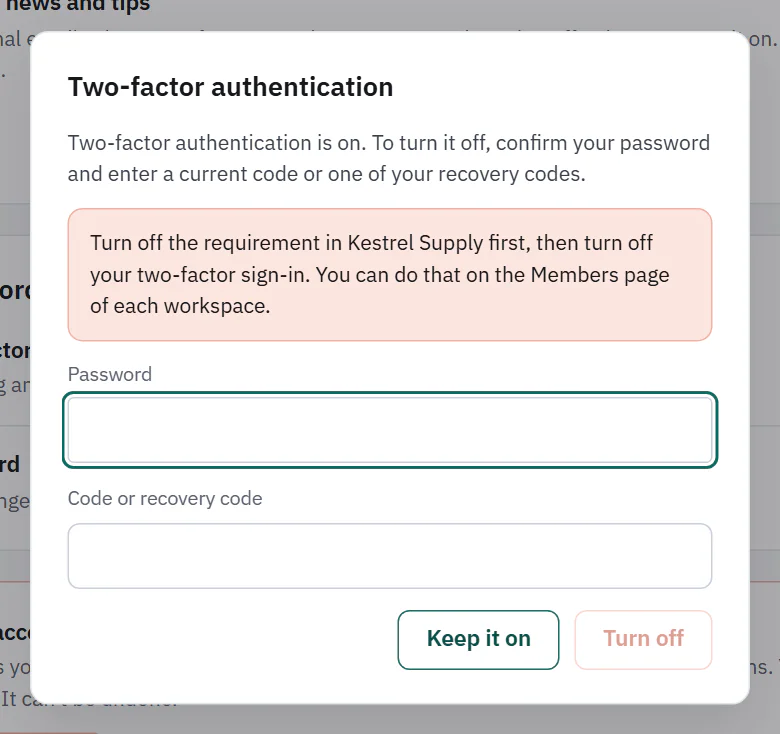
In Profile, choose Manage. To turn it off, confirm your password (not needed if you only use Google) and enter a current code or a recovery code. If you own a workspace that requires two-factor, Turn off stays off until you stop the requirement there. If you belong to one, you get a warning that you will not be able to open it until you set two-factor up again.
 (opens the full size image in a new tab)
 (opens the full size image in a new tab)