DocsUsage and billing
Plan and billing
Open Settings, then Plan and billing. Owners and Admins see it, and only they can change it.
Plan and usage
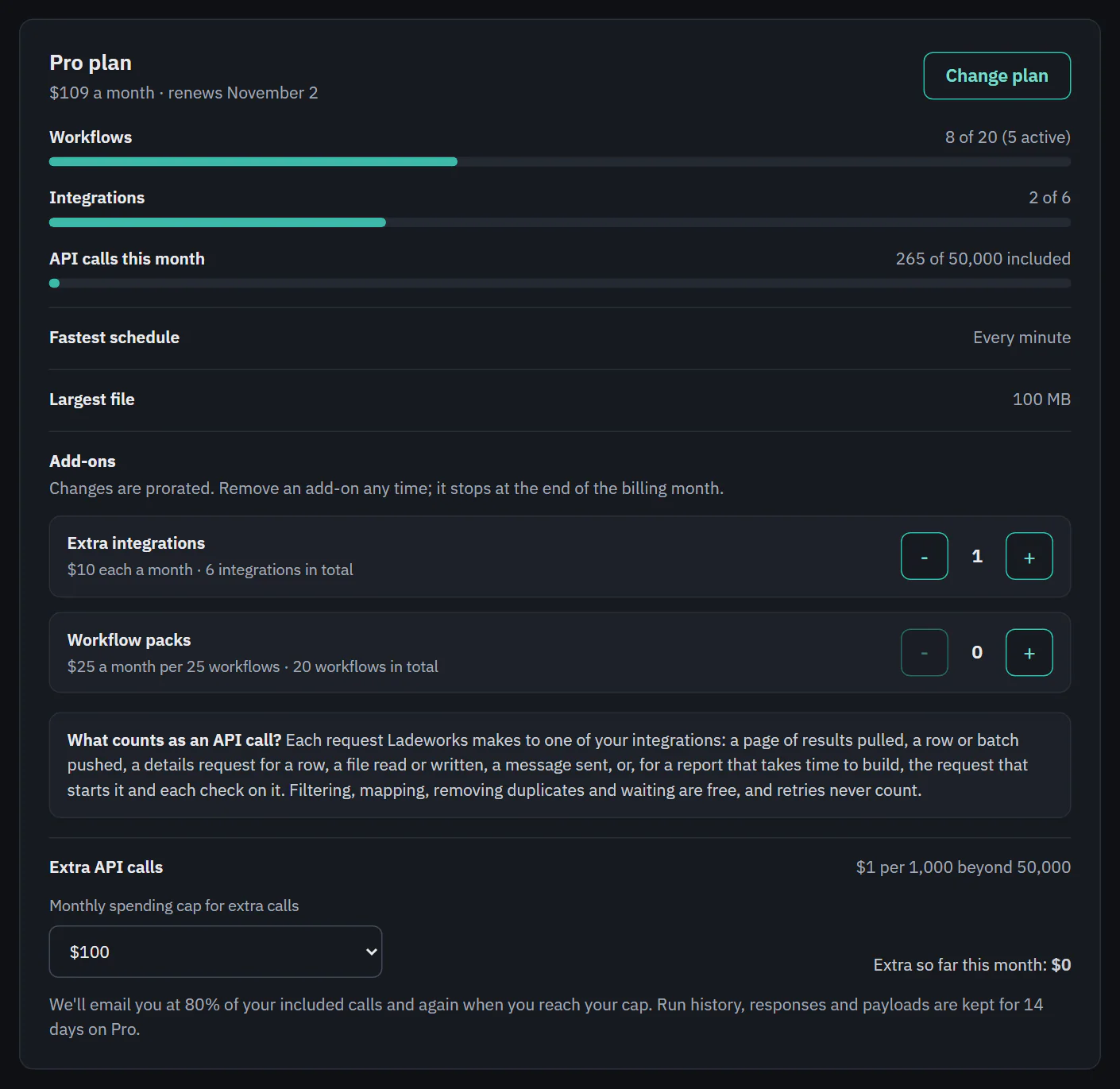
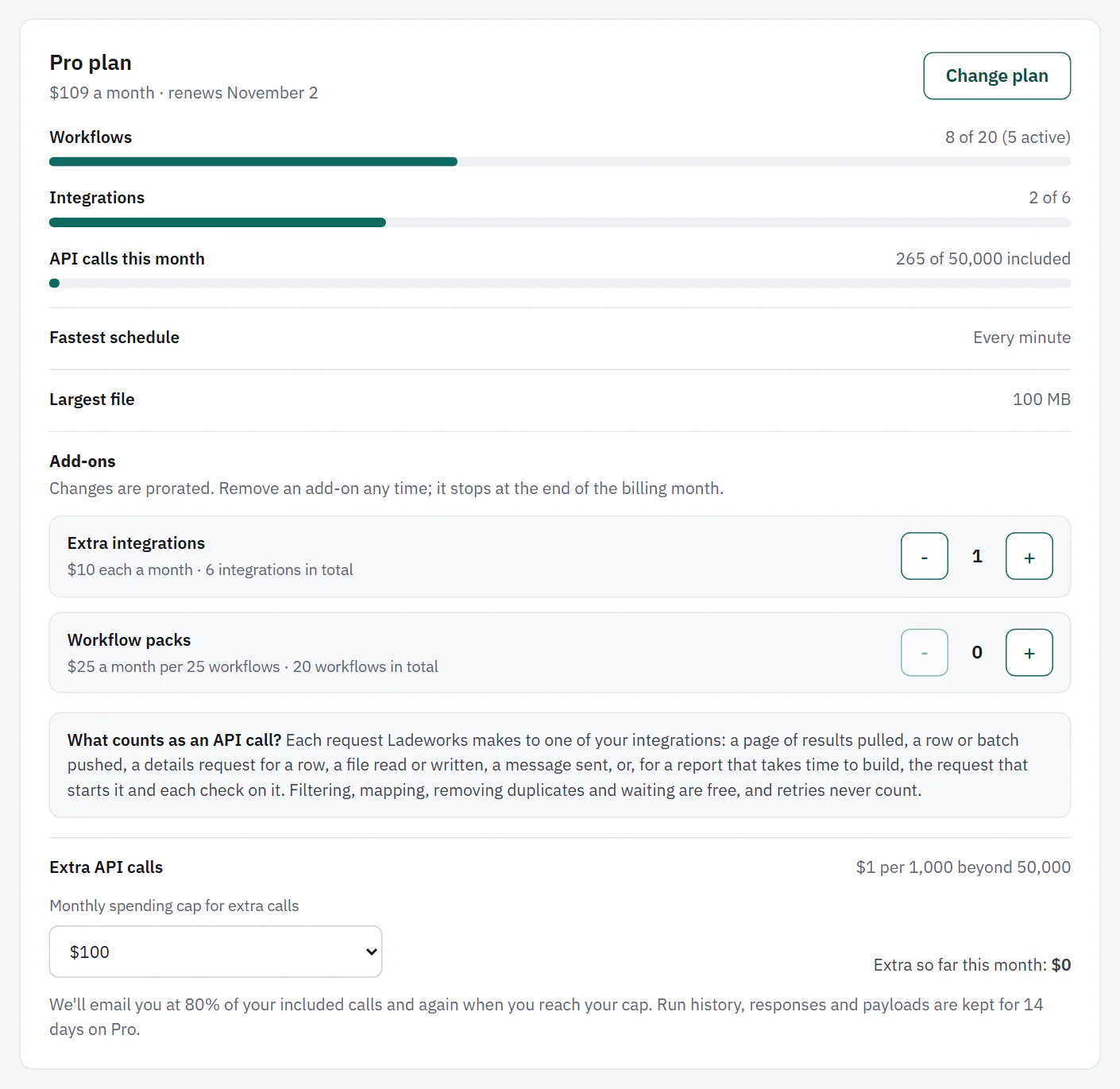
The top card names your plan, its price and when it renews, for example "$109 a month" and "renews" with the date. Below it are bars for Workflows (with how many are active), Integrations and API calls this month, and facts for Fastest schedule and Largest file. A bar changes color at 80% and again at the limit. The card ends with what counts as an API call and the spending cap (see Usage and the spending cap). Change plan opens the plans.
 (opens the full size image in a new tab)
 (opens the full size image in a new tab)
Add-ons
On Pro. Two add-ons add to your plan's limits.
- Extra integrations: $10 each a month, with no cap on how many.
- Workflow packs: $25 a month per 25 workflows.
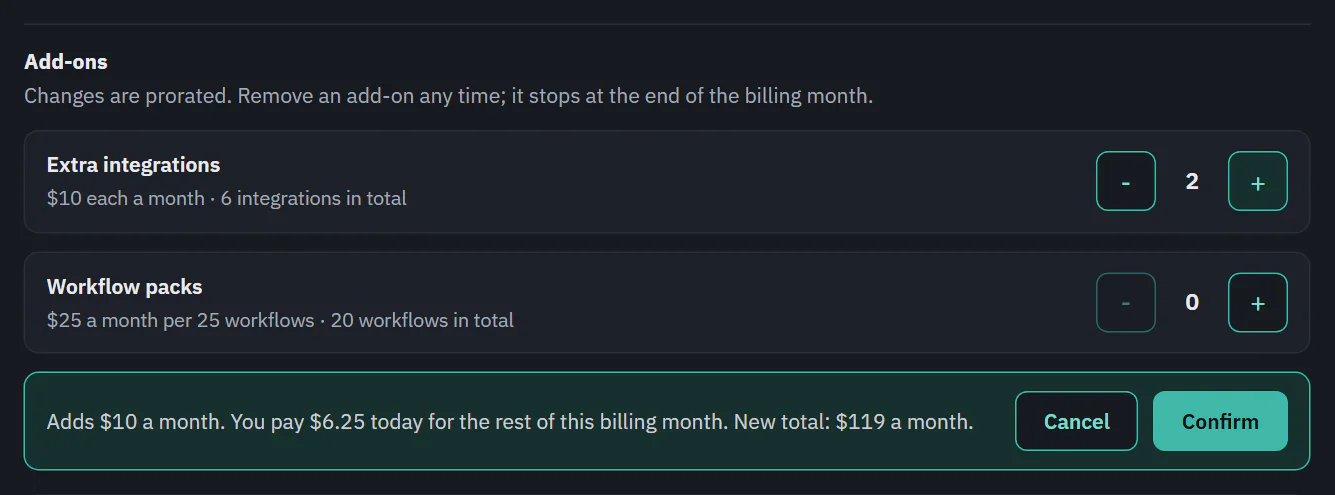
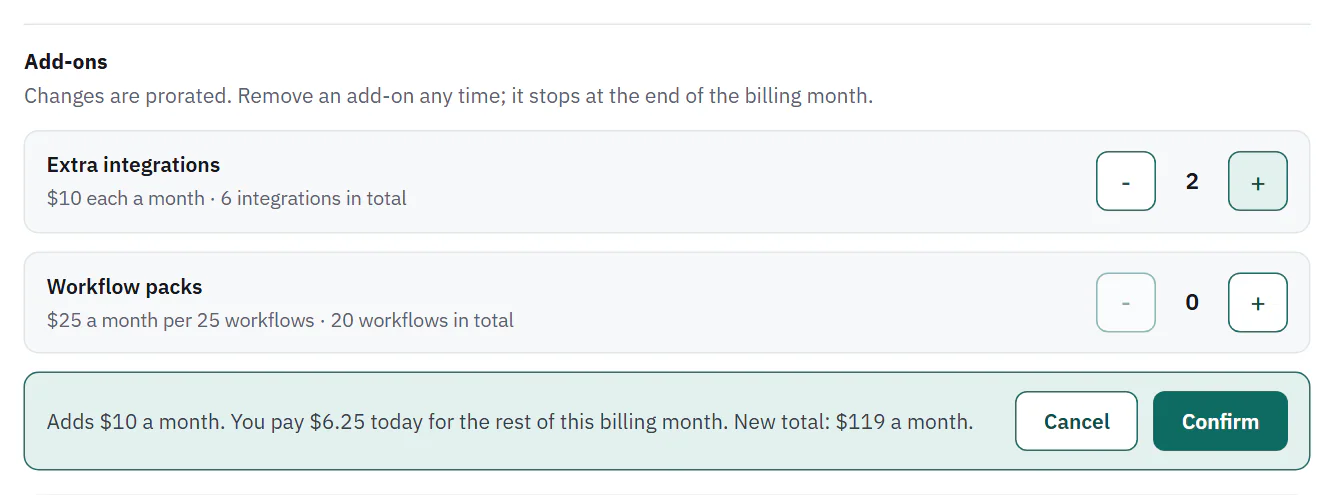
Use the plus and minus buttons. Before anything is charged, a summary says what changes: "Adds $10 a month. You pay $6.25 today for the rest of this billing month. New total: $119 a month." Choose Confirm to apply it or Cancel to leave it. The new limit applies right away. An add-on you remove stops at the end of the billing month: the row says "Drops to 0 on" that date.
 (opens the full size image in a new tab)
 (opens the full size image in a new tab)
Add-ons and plan changes need a confirmed email. While your plan is set to end, add-ons are locked until you choose Keep my plan.
Card, billing email and invoices
 (opens the full size image in a new tab)
 (opens the full size image in a new tab)
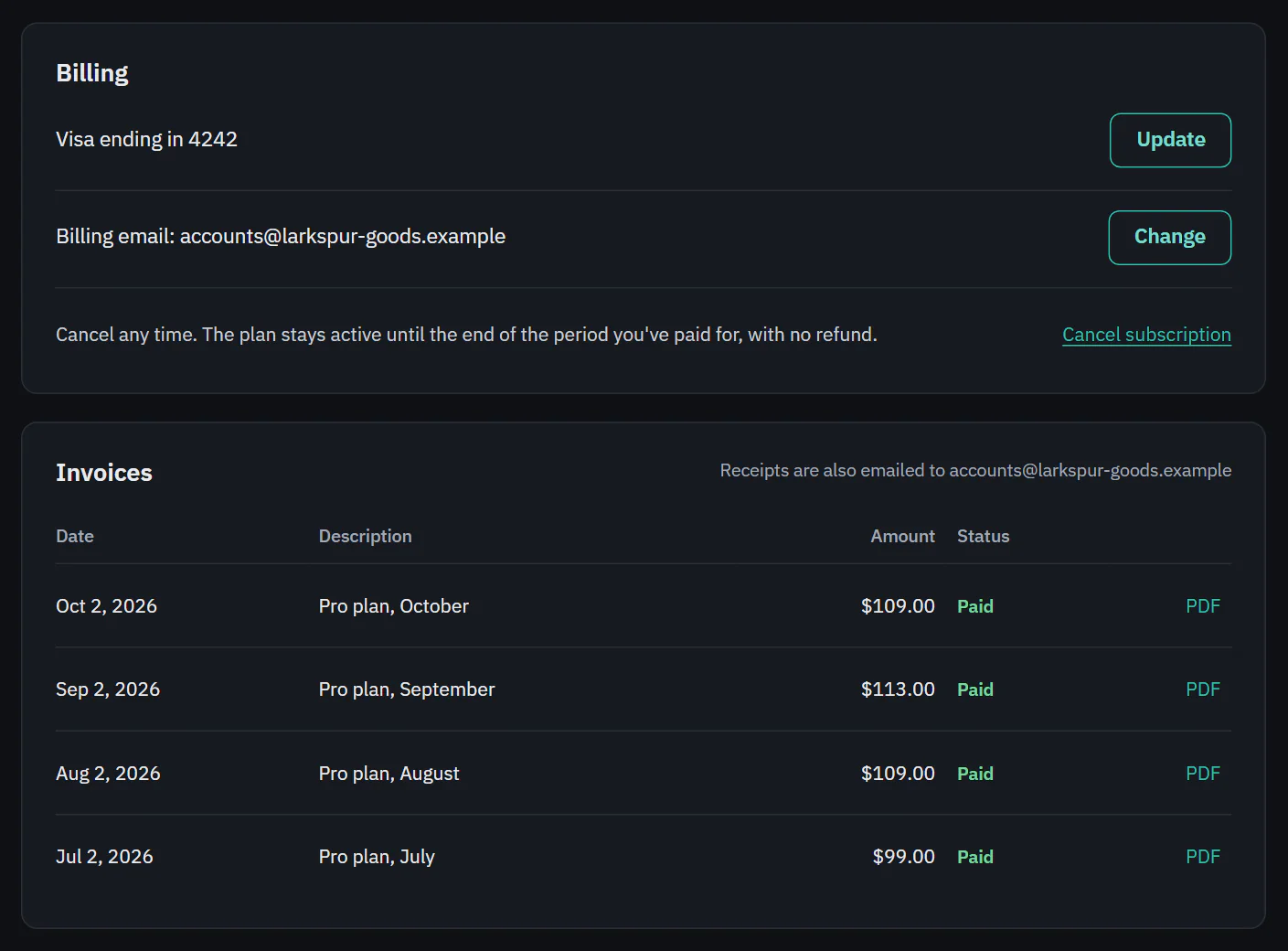
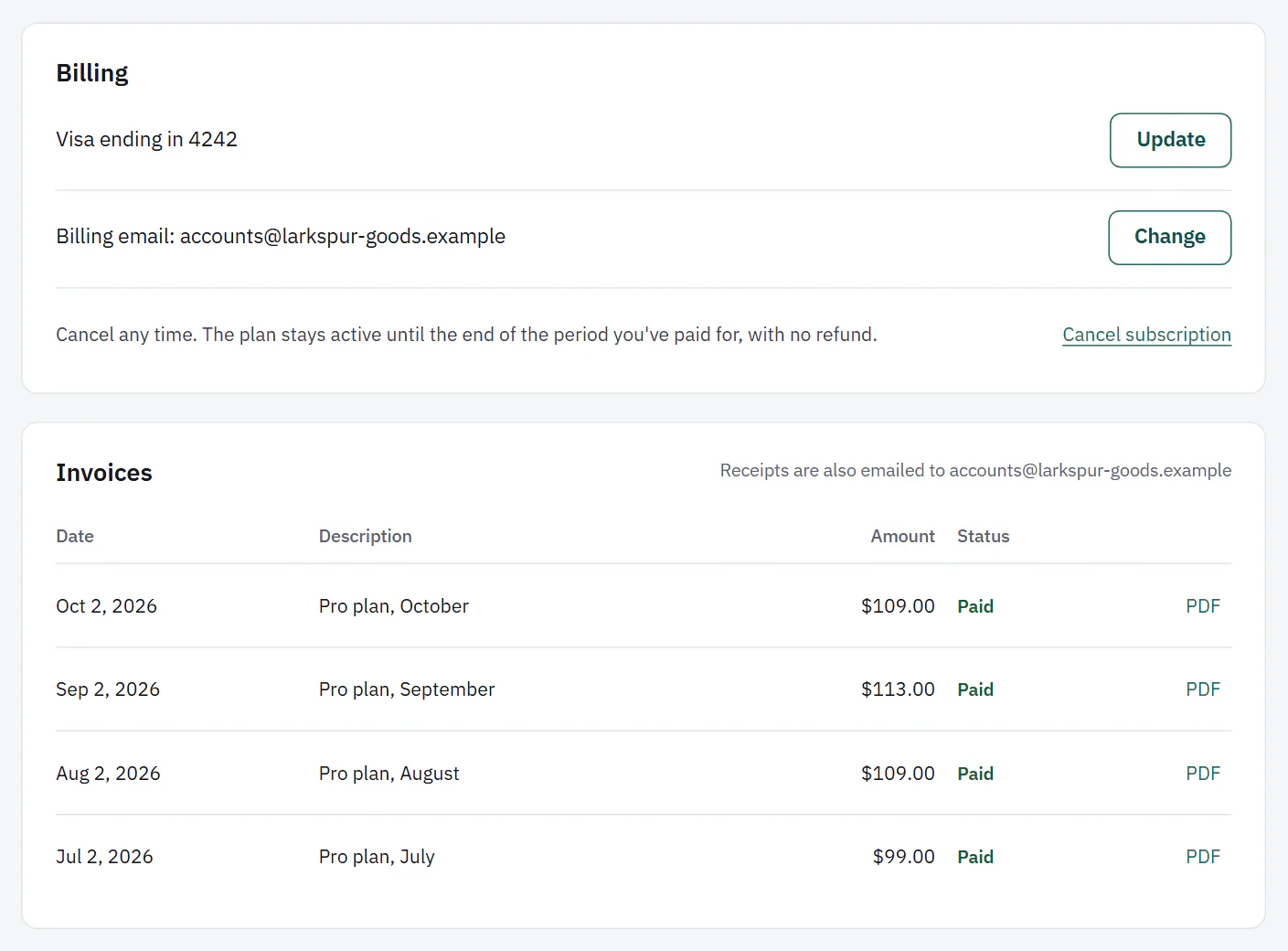
- Update (or Add card) opens "Update card". Enter the card in the payment form and choose Save card. Ladeworks never stores the full number: the payment provider does.
- Change next to the billing email opens "Billing email". Receipts and payment problems are sent there. Choose Change email.
- Invoices lists the date, description, amount and status (Paid, Open or Failed) of each. PDF downloads one. Extra API calls appear as a line on the invoice.
- Account credit appears when you have some, for example from a downgrade. It is applied to your next charges.
If a payment fails, a banner says "Your last payment didn't go through" and "Your workflows keep running while we retry." Choose Update card to fix it.