DocsAdvanced workflows
Read a file from a link
Some APIs do not answer with records. They answer with a link to a file, such as {"url": "https://files.example.com/export_123.csv"}. Read a file from a link downloads the file at the link and reads its rows. On Pro and Business.
Where it goes
The step takes the rows of the step before it. For each row it downloads the file at that row's link, and the file's rows take the place of the row: one row in, many rows out. It cannot be the first step ("Add a step that gets the link first, like a Pull."). Typical uses:
- A Pull whose answer is one record with a link, then Read a file from a link, then Filter rows or Map fields, then a destination.
- A Pull of a list where each record has a link.
- Get details for each row, when the details hold the link.
- Request a report and wait, whose finished answer holds the link. See reports that take time.
The step costs 1 API call for each file, on top of the request that returned the link. After a Pull, the builder suggests it: "This endpoint returns a link. Read the file it points to?"
Settings
 (opens the full size image in a new tab)
 (opens the full size image in a new tab)
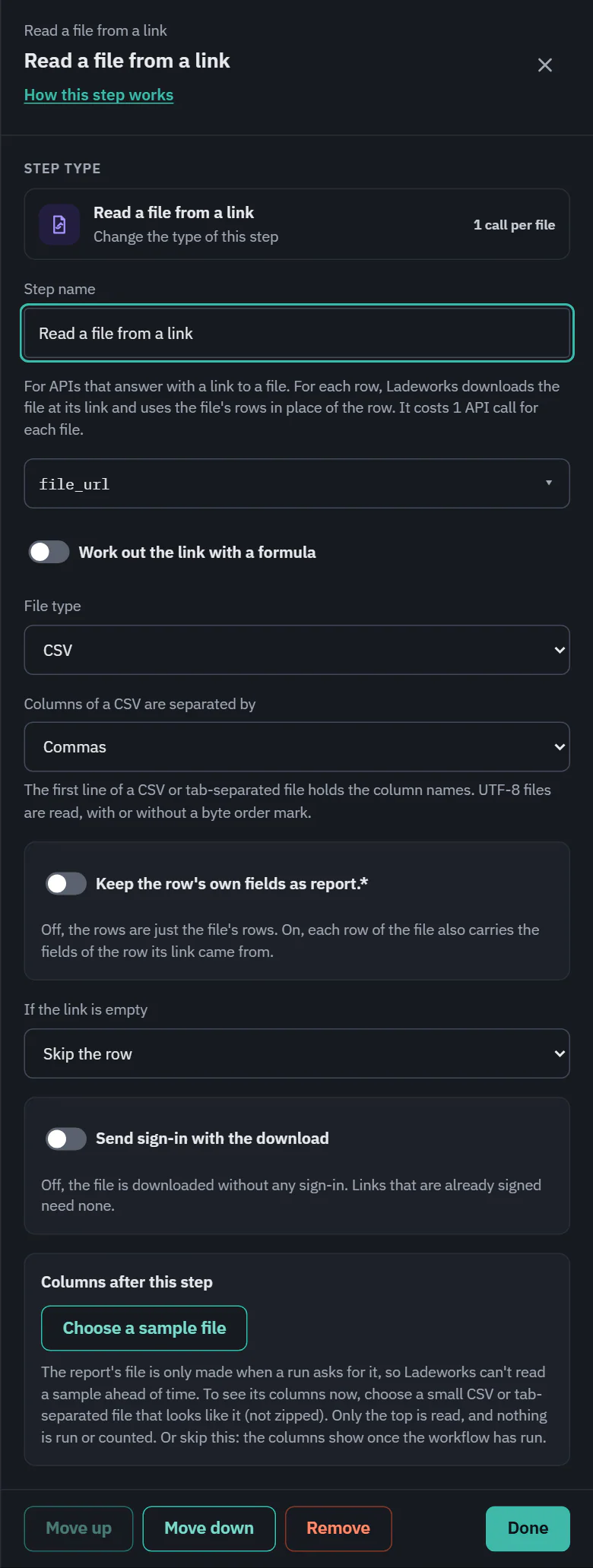
- Link field: the field that holds the link, from the fields the earlier step hands over. Type a name if it is not listed. Or turn on Work out the link with a formula, for example to join a base address and a path.
- File type: Detect (the default), CSV, Tab-separated, JSON or JSON lines. Detect guesses from the file's name, its content type and its first bytes. A gzip file is unpacked on its own, whatever its headers say. A CSV or tab-separated file's first line holds the column names, and UTF-8 is read with or without a byte order mark.
- Columns of a CSV are separated by: commas, semicolons, tabs or pipes.
- Records are at (JSON only, optional): leave it blank when the file is a list of records, or enter a path such as data.items.
- Keep the row's own fields as report.*: off by default, so the rows are just the file's rows. On, each row of the file also carries the fields of the row its link came from, under the prefix you choose.
- If the link is empty: Skip the row or End the run.
- Send sign-in with the download: off by default. See below.
Limits and what a run shows
- A run downloads at most 50 files. If it reaches that, the step line says "Stopped after 50 files, the most one run reads".
- Files are streamed, never loaded whole. The plan's largest file applies to the bytes downloaded and to the bytes after unpacking, so a small gzip file cannot grow past it. A server that announces a bigger file is refused before a byte is read.
- A web page is refused: "The link returned a web page, not a file".
- A test run reads at most 10 rows.
- The step line reads like 14 rows read from rpt_0001.csv (367 bytes) at 127.0.0.1:8306: the file name and the host, never the full link.
Credentials and the link
The link comes from a third party, so it is treated with care.
- No integration credentials and no default headers go to the link's host. With Send sign-in with the download off, the download is a plain request. Links that are already signed need no sign-in.
- With it on, you choose an Integration whose sign-in to send, and the sign-in goes only when the link has the same address (scheme, host and port) as that integration. A link on any other host gets no sign-in and none of its headers, even with the switch on. A redirect to a different host drops credential headers too.
- The full link is never stored, logged or shown, because a pre-signed link is a secret. Run details keep only the scheme, host and path, with ?redacted where the query was.
- Because of that, a row skipped at or before this step cannot be retried by itself: "This row's file link was not kept, because links like this give access to the file. Run the workflow again to get a fresh link."
Read a sample file
The steps after this one need to know the file's columns to offer them in their field pickers. Under Columns after this step, Read a sample file makes the first step's request once, follows the link in the first record, and reads the top of the file. It is a test read, so it costs no API calls. The step then lists the columns, says which file they came from and when, and offers Read again and Forget the columns.
After a Request a report and wait step there is nothing to read ahead of time, because the file is only made when a run asks for it. There the button is Choose a sample file: pick a small CSV or tab-separated file that looks like the report (not zipped). Only its top is read. Or skip it: the columns show once the workflow has run.