DocsMonitoring and alerts
Team alerts and connected apps
Personal notifications reach one person. A team alert goes to a shared channel in Slack or Discord, so the whole team sees a failure. Team alerts are in addition to each person's own notifications. On Pro and Business.
Slack and Discord are on Pro and Business. Below that, an existing Slack connection stays but nothing is sent, and Disconnect still works. Email alerts are on every plan.
Connect Slack
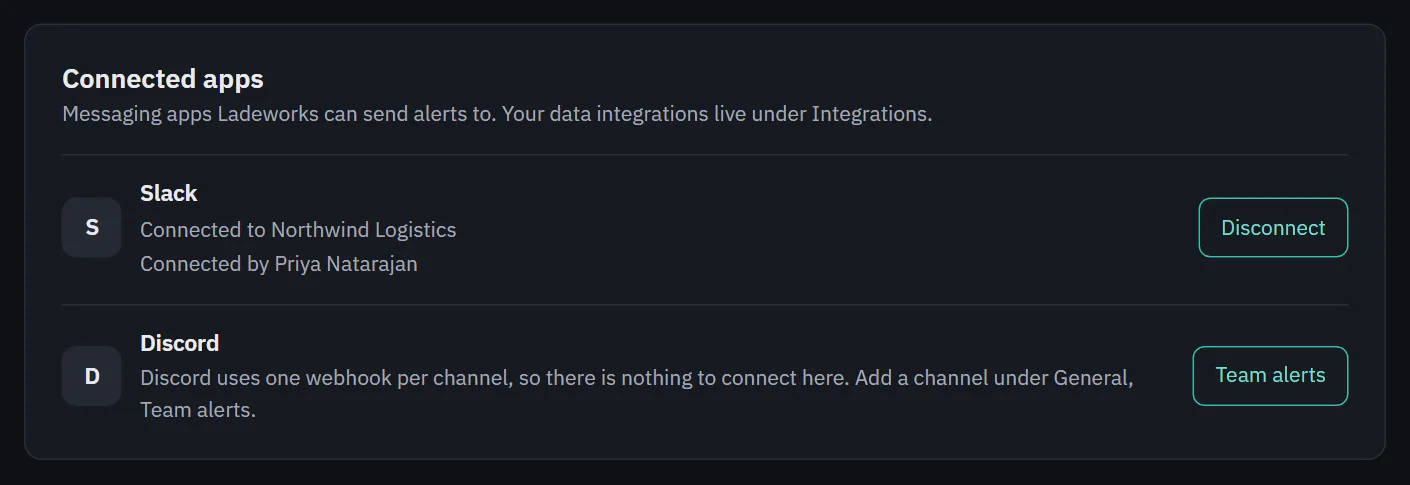
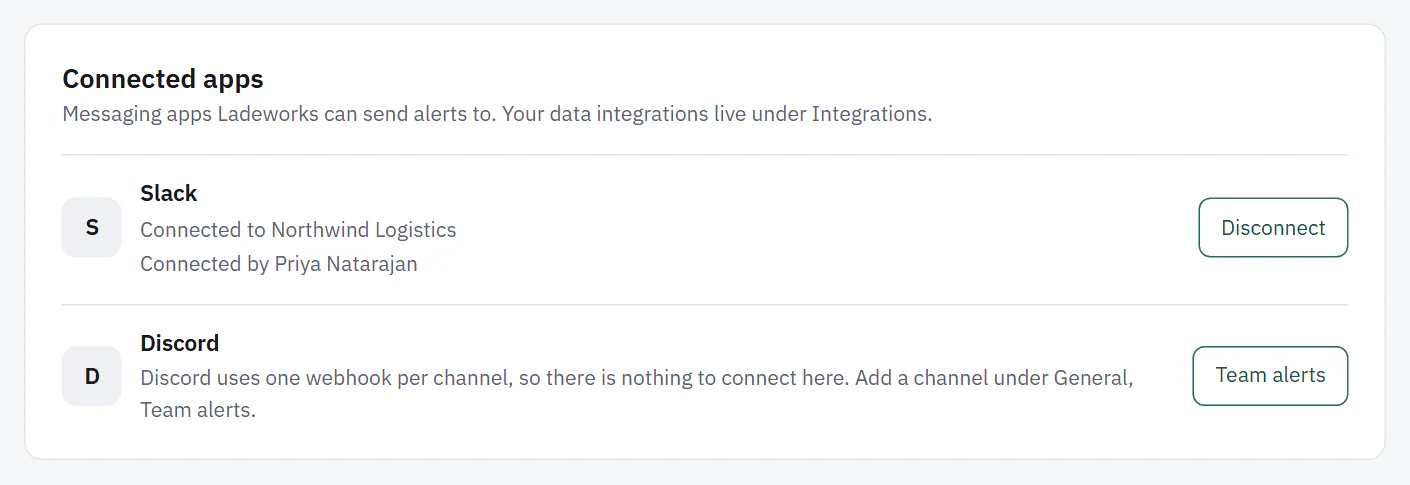
Owners and Admins open Settings, then Connected apps, and choose Connect next to Slack. Slack asks you to allow Ladeworks in your Slack workspace. When you come back, the page says "Slack is connected" and shows the Slack workspace and who connected it.
Disconnect asks "Disconnect Slack?" first. Disconnecting stops Slack DMs for everyone and removes Slack team channels. A Send a message step that posts to Slack skips those rows until Slack is connected again.
Discord has nothing to connect. It uses one webhook for each channel, which you paste when you add the channel.
 (opens the full size image in a new tab)
 (opens the full size image in a new tab)
Add a team channel
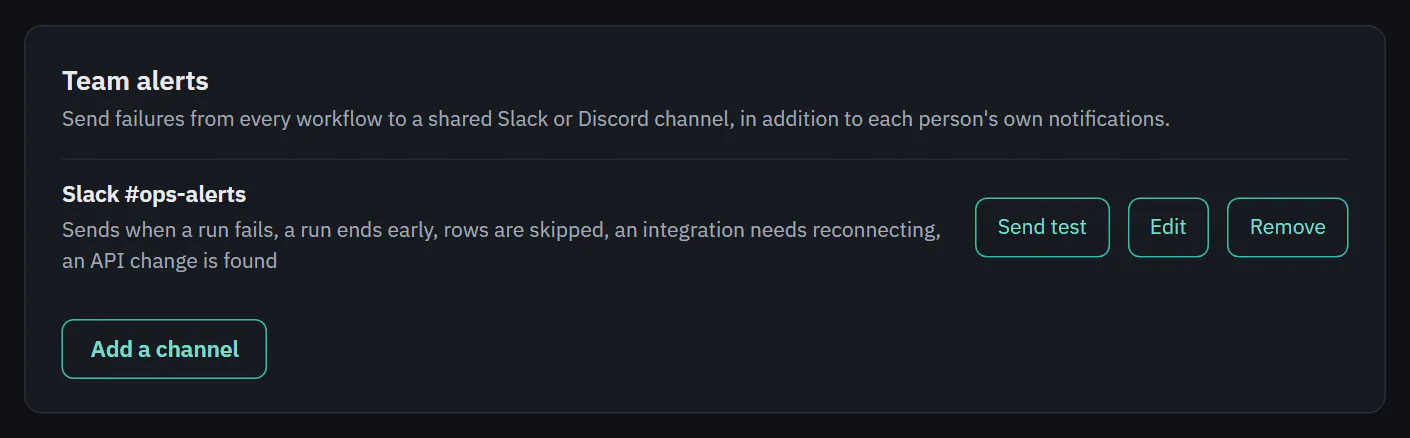
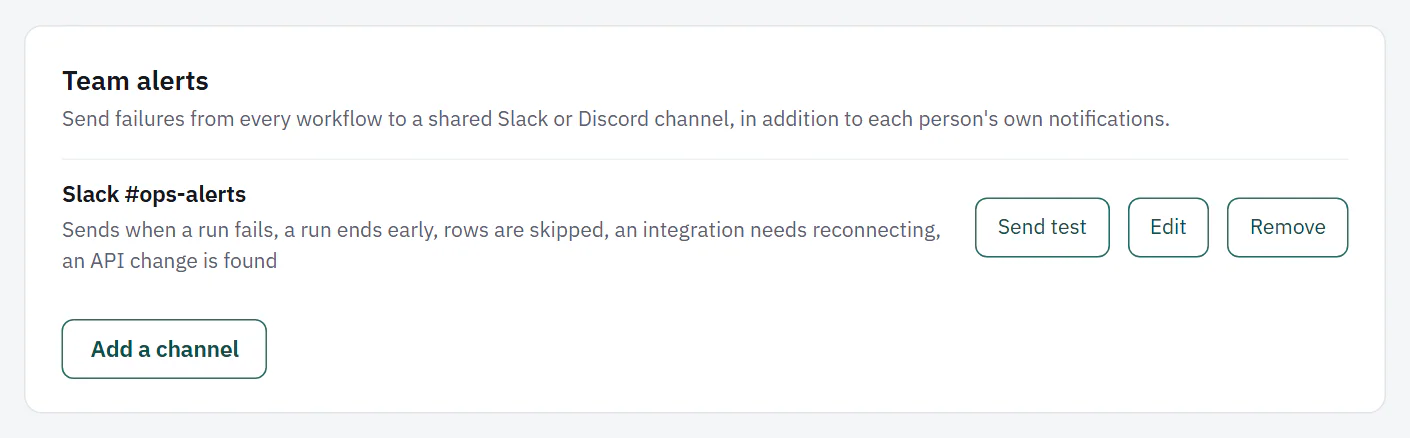
Open Settings, then General. The Team alerts card lists your channels. Choose Add a channel.
- Under Send to, choose Slack or Discord.
- For Slack, enter or pick the Channel, such as #ops-alerts. Connect Slack first or this stays off. For Discord, enter a Channel name (only so you can recognise it) and paste the Discord webhook URL. In Discord, open the channel's settings, choose Integrations, then Webhooks, and copy the URL. Ladeworks saves it sealed and shows only its last characters.
- Under Send these, tick the events: A run fails, A run ends early, Rows are skipped, An integration needs reconnecting, A run succeeds, An API change is found and Usage is high. A new channel starts with A run fails ticked.
- Choose Save changes at the bottom of the page.
 (opens the full size image in a new tab)
 (opens the full size image in a new tab)
Send test posts a test message to the channel and shows whether it arrived, so you can check the setup before something fails. Edit changes the channel or its events, and Remove deletes it. Only Owners and Admins manage team alerts.
A channel with no events ticked sends no alerts, but a Send a message step can still use it.
Someone editing a workflow is a personal alert only. It never goes to a team channel.