DocsAdvanced workflows
Example: a file lands, then each row is pushed to an API
A warehouse drops a CSV of shipped orders in a folder. Each row should become a shipment in the shop's API, and the team should get an email when it is done. On Pro and Business.
Larkspur Goods is a made-up shop that sells through a made-up platform called Tallowmere Commerce. Its data and its file server run on a test machine, so nothing here touches a real system.
What it does
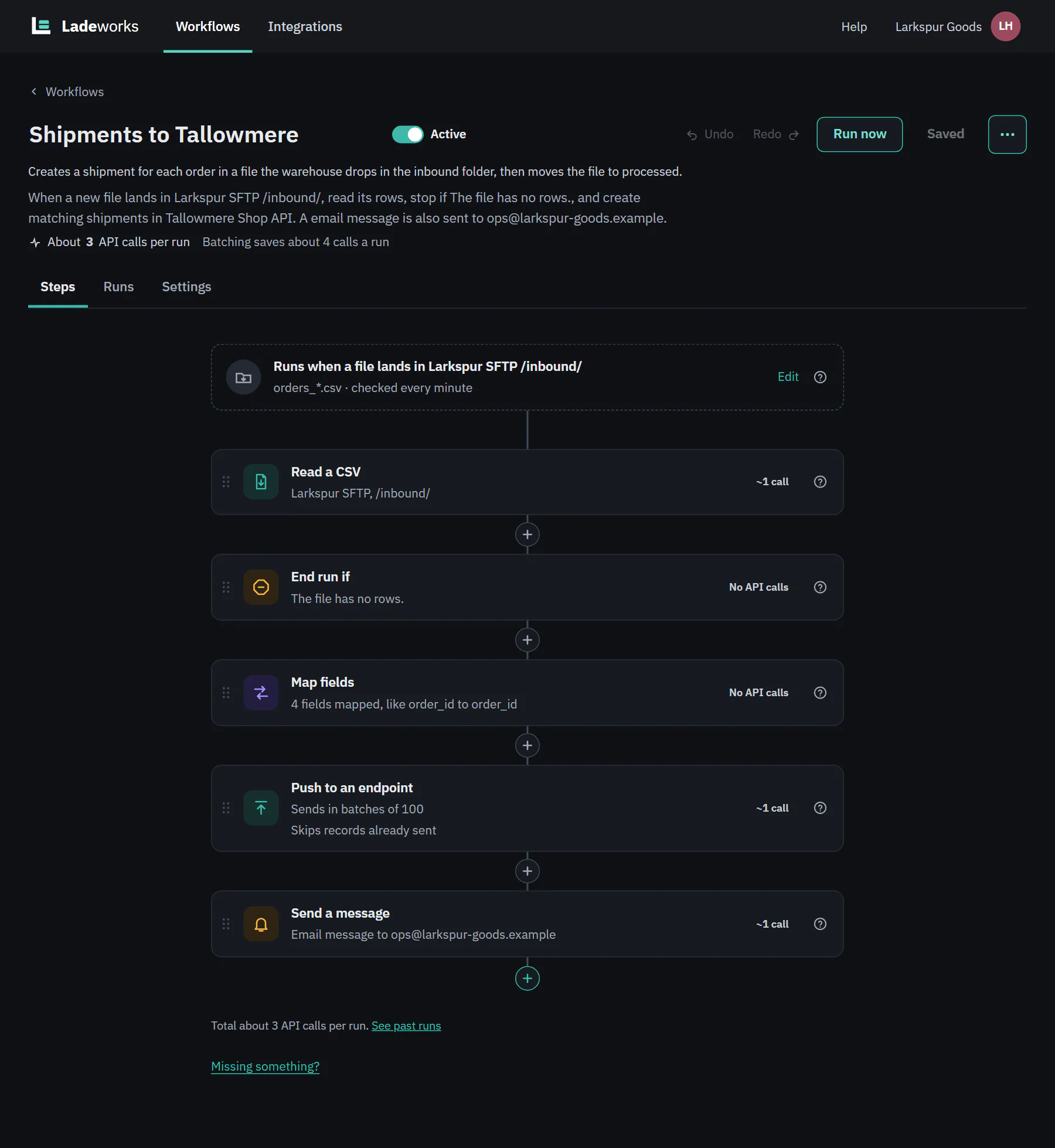
Shipments to Tallowmere watches /inbound/ on Larkspur SFTP for orders_*.csv. For each new file it reads the rows, ends early if the file is empty, maps the columns, creates shipments in Tallowmere Shop API in batches of 100 without sending a record twice, and sends one email. Then it moves the file to /processed/.
Build it
- Choose + New workflow. The source is the folder /inbound/, the destination is the endpoint POST /shipments, and the trigger is When a file lands. Set For files named to orders_*.csv, Check for new files to every minute, and After the run to Move the file to a processed folder. See triggers.
- Read a CSV reads the file that started the run, 1 API call.
- Add End run if: There are no rows, shown as Ended early, with the message "The file has no rows." An empty file is then a quiet gray result and not an error. On Starter, Pro and Business.
- Map fields sets the columns the API wants: order_id, carrier, tracking_number and a ship_date of today().
- Push to an endpoint sends to POST /shipments. Turn on Send in batches of 100, which cuts the step from one call for each row to one call for each batch, and leave Don't send records that were already sent on, telling records apart by order_id, so a file that lands twice never makes a shipment twice.
- Send a message by email, One for the whole run: "Created shipments for {{ rowCount }} rows from the warehouse file. {{ rowsSkipped }} were skipped."
 (opens the full size image in a new tab)
 (opens the full size image in a new tab)
Turn it on and watch it work
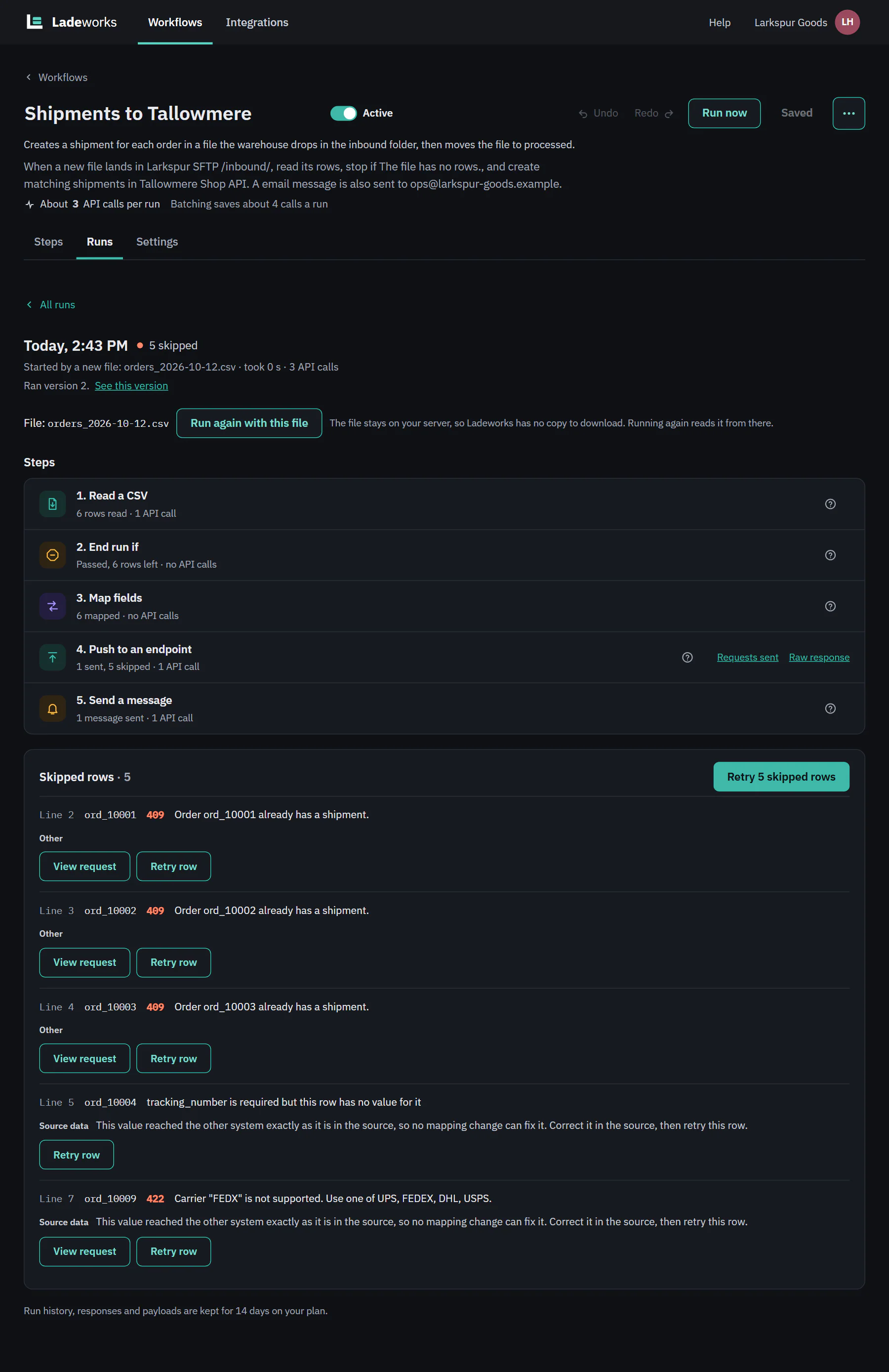
Before you turn it on, open the trigger and choose Check folder now: files already in the folder count as new, so you see which ones would start a run. In this example the folder held two files, so turning the workflow on started two runs, one at a time, oldest name first. Open the later one:
 (opens the full size image in a new tab)
 (opens the full size image in a new tab)
- The run cost 3 calls: 1 to read the file, 1 for the whole batch, and 1 for the email.
- Two of the six rows were skipped, and the run says why for each. Both have the cause Source data: the value reached the API exactly as it is in the file, so no mapping change can fix it. Correct the file or the source system, then choose Retry row or Retry 2 skipped rows.
- The sent rows are remembered. Retrying, or a run again with the same file, sends only what was not sent. A skipped row does not hold up the rest.
- Run again with this file starts another run with the same file, read from the server.
The notes under reading a run explain every part of this page. Next: a list, then details for each row, then a CSV.