DocsUsage and billing
Changing plans
Open Plan and billing and choose Change plan, or go to the plans page. Every plan has unlimited members. Changes take effect right away and are prorated.
Upgrading
Choose Upgrade to a plan. From the lowest plan, it opens checkout: pick the plan, set your "Monthly spending cap" ($50 by default), enter the card, the Country and ZIP code or Postal code, and an address under Send receipts to. The summary shows what is due today and when the next charge is, and the button reads "Pay" and the amount, then "and upgrade". Ladeworks does not store the full card number.
If you are already subscribed, a panel opens under the cards: "You'll be charged $X today, prorated for the rest of this billing month, then $Y a month from" the renewal date. "New limits apply right away." Choose Confirm upgrade. Any account credit is applied first. After an upgrade, workflows that were paused only because of your old plan start again by themselves.
Upgrading needs a confirmed email: "Confirm your email to upgrade your plan." The plan that is a step up is the one teal button. The highest plan is a quote: Talk to us.
Downgrading
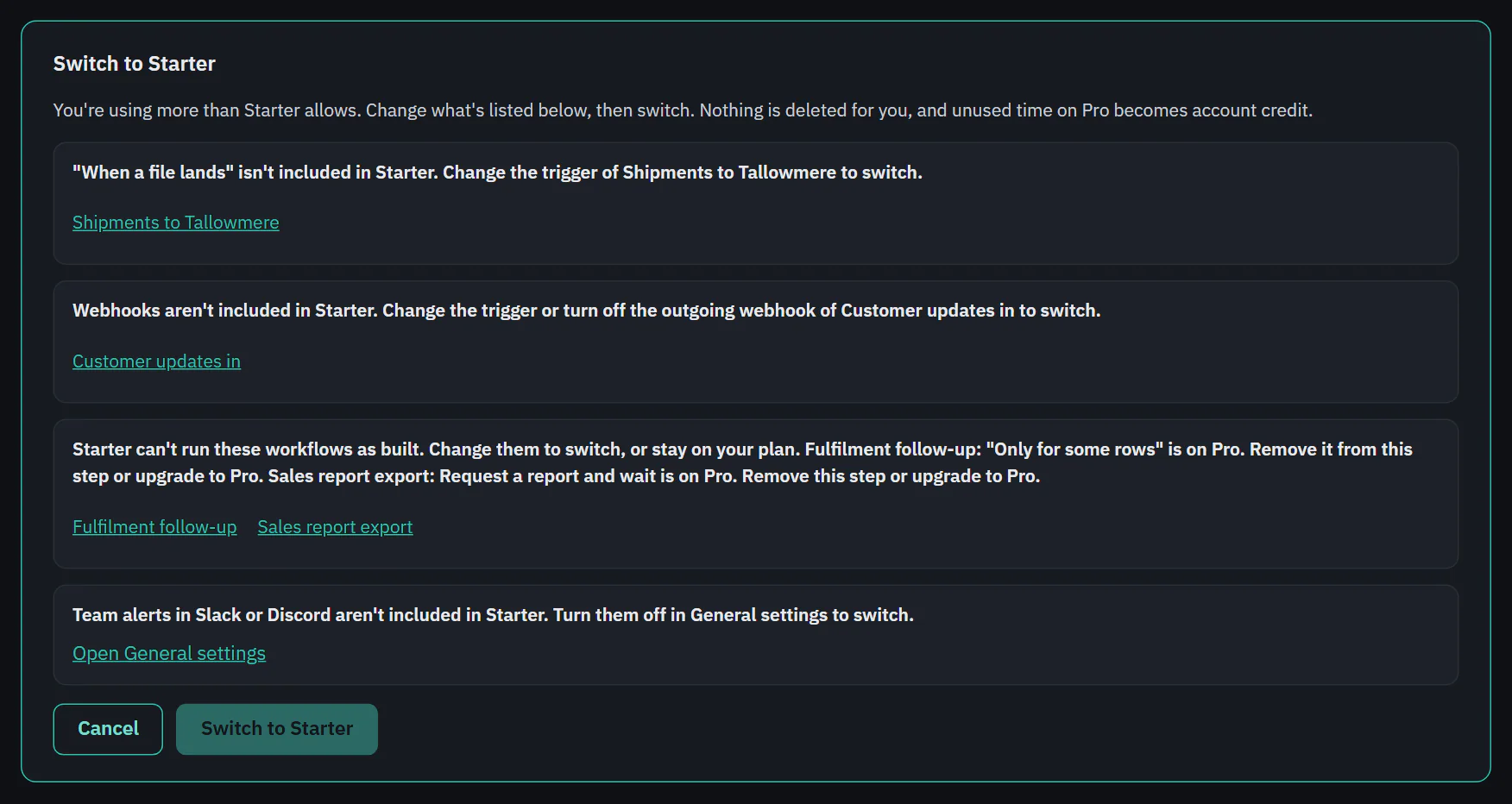
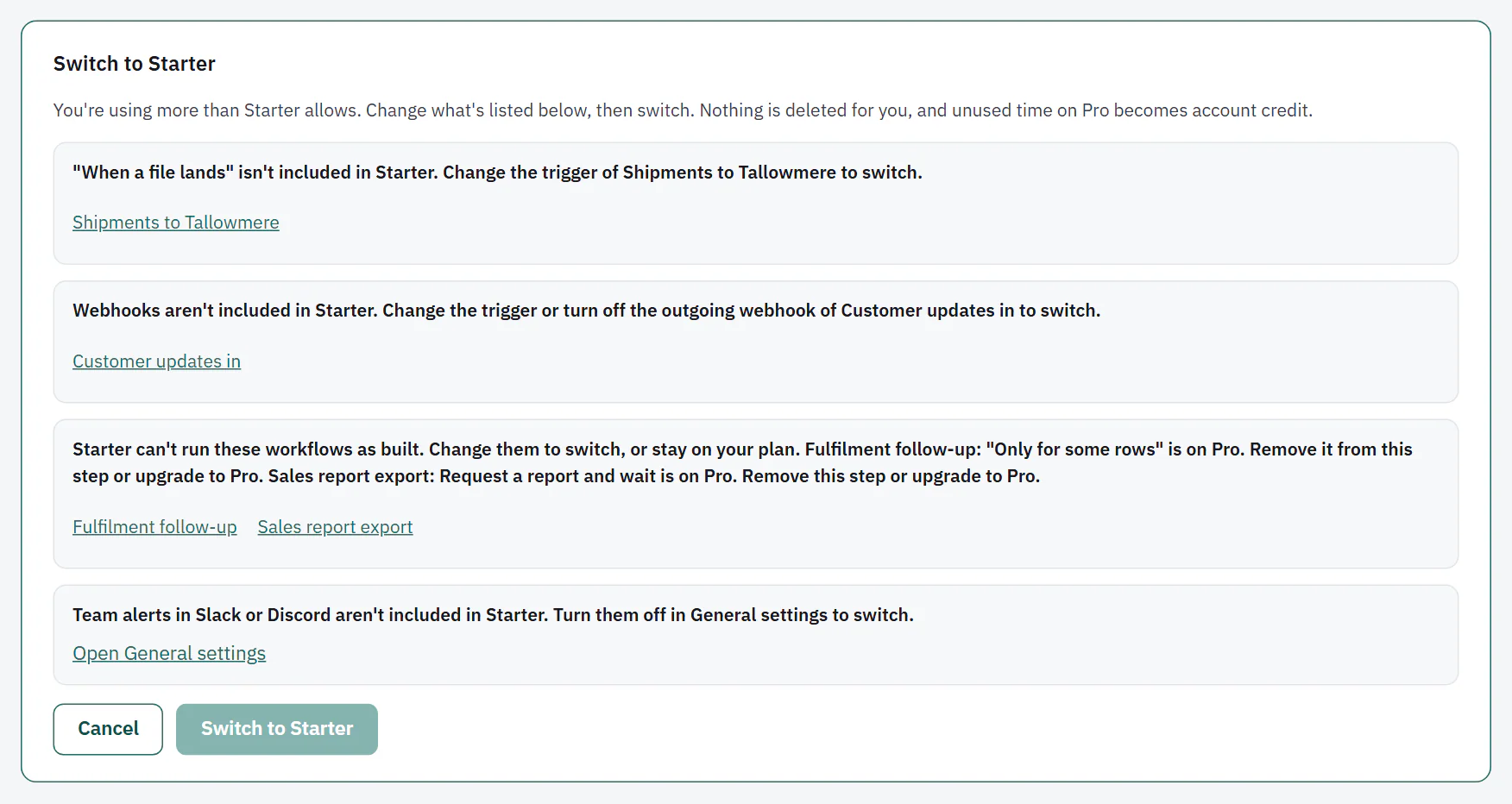
Choose Switch to a lower plan. If you are using more than that plan allows, Ladeworks does not switch you. It says "You're using more than that plan allows. Change what's listed below, then switch. Nothing is deleted for you." and lists what is over the limit, each with a link to fix it.
 (opens the full size image in a new tab)
 (opens the full size image in a new tab)
- More integrations than the plan has: remove the extras.
- More workflows than the plan has: delete the extras.
- A schedule faster than the plan allows: slow it down.
- A "When a file lands" trigger, a webhook, or an outgoing webhook the plan lacks: change the trigger or turn it off.
- A step or option the plan lacks: remove it.
- Team alerts to Slack or Discord: turn them off in General settings.
When everything fits, the panel says the plan fits your usage, and that unused time on your current plan becomes account credit, plus what you will pay a month from the renewal date. Choose Switch to the plan to finish.