DocsGetting started
Sign up
Creating an account takes a minute. You start on the Free plan, and you do not need a card.
Create your account
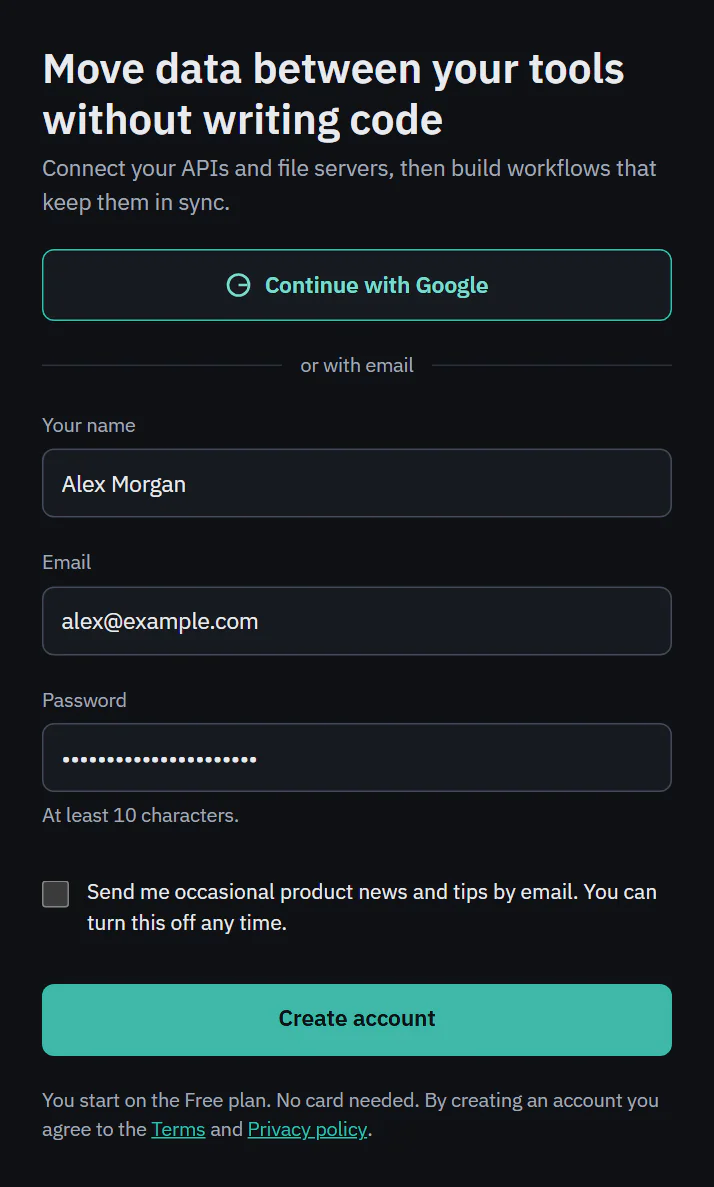
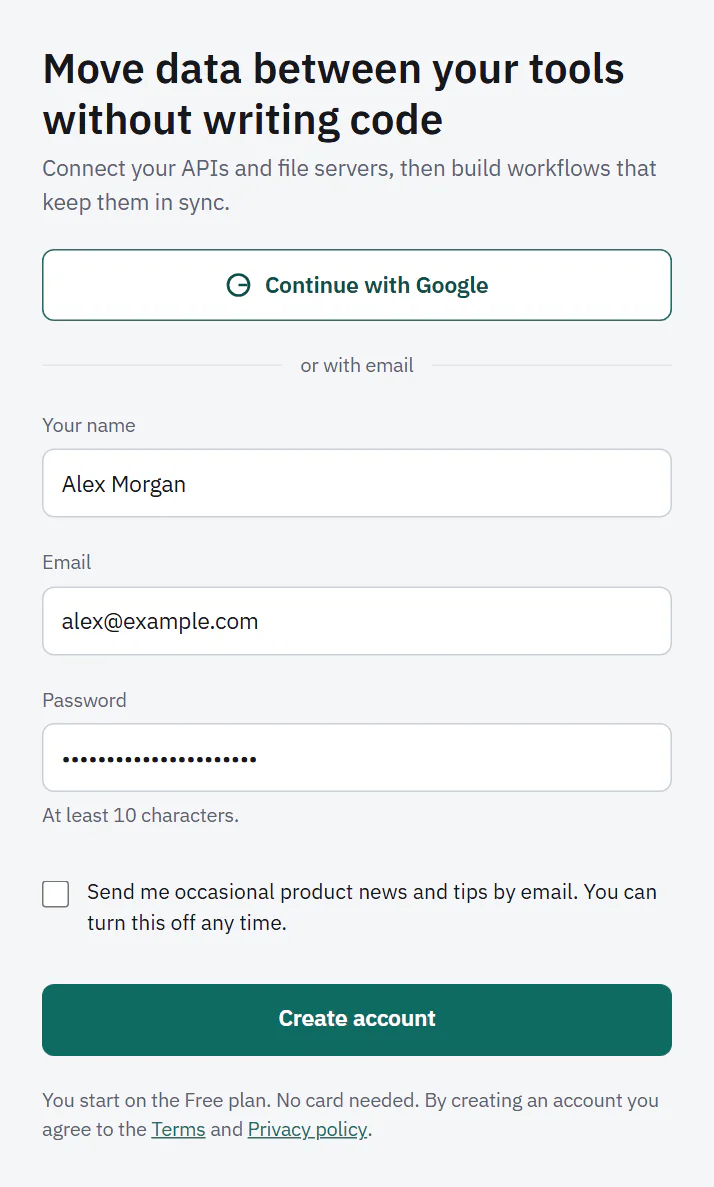
Go to the sign-up page and choose one way in.
- Continue with Google. Your Google account proves your email, so there is nothing to confirm later.
- Email and password. Enter your name, your email and a password of at least 10 characters. The box that asks to send you product news and tips is unticked. Tick it only if you want those emails. You can change it later in Profile.
Then choose Create account.
 (opens the full size image in a new tab)
 (opens the full size image in a new tab)
If someone invited you to their workspace, use the link in the invitation instead. It adds you to their workspace, so you do not create one.
Name your workspace
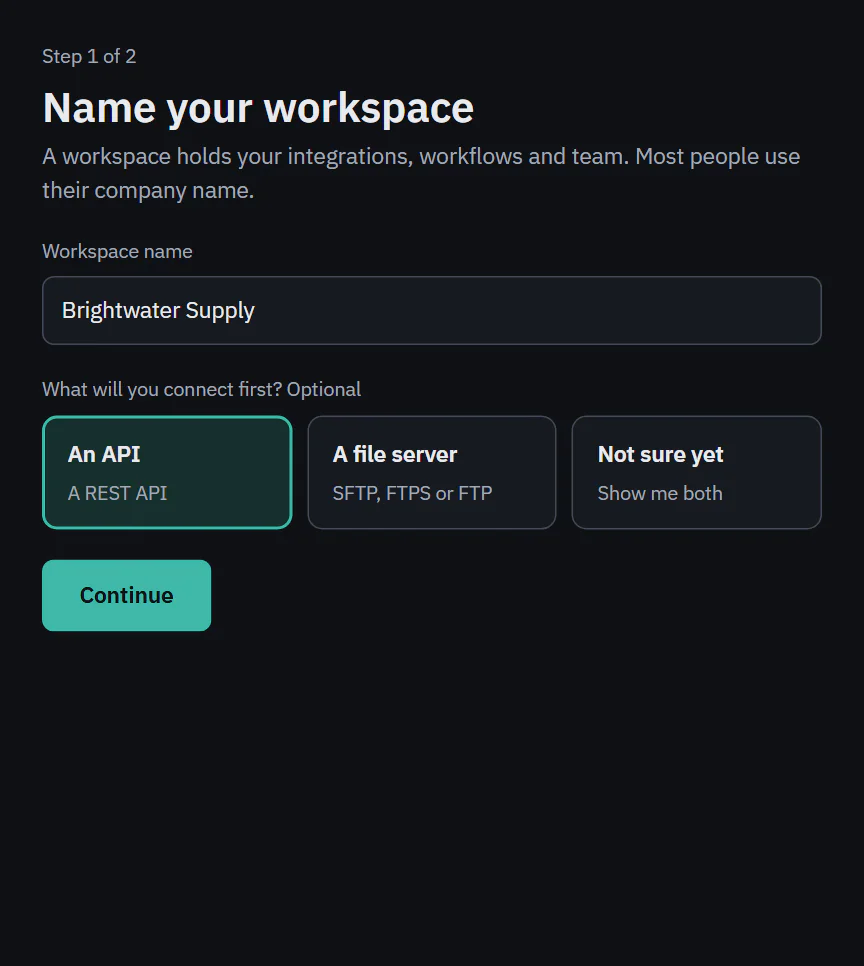
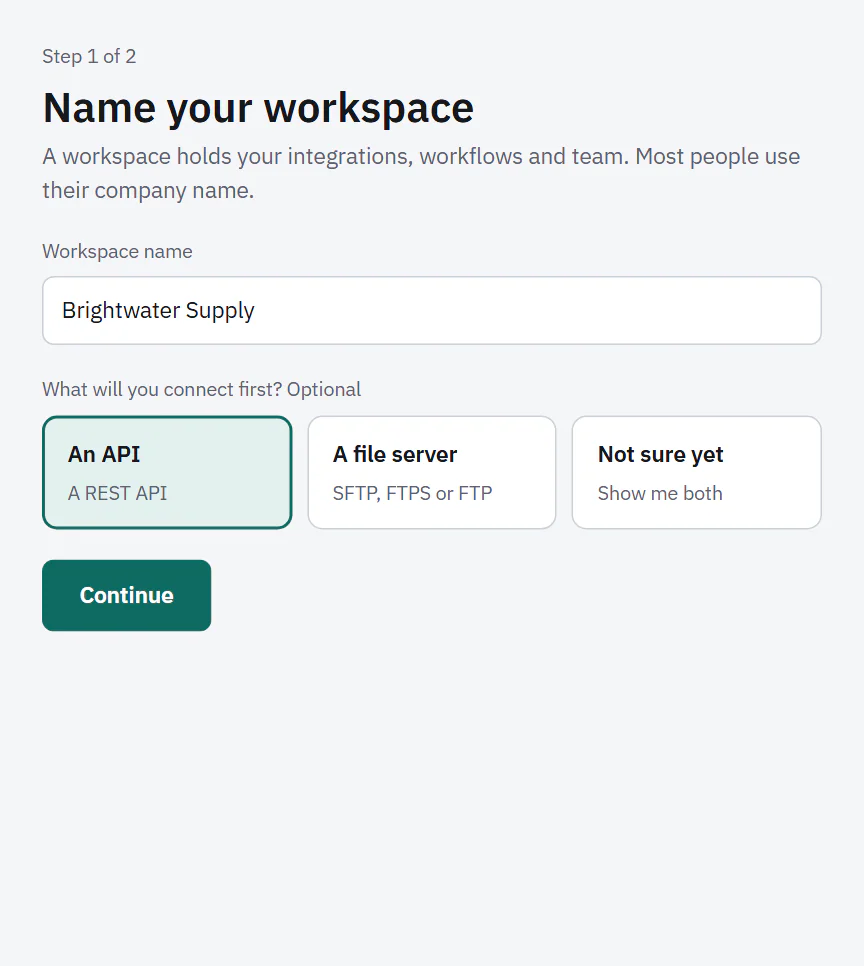
A workspace holds your integrations, workflows and team. Most people use their company name. Enter it under Workspace name.
The next question is optional: What will you connect first? Choose An API, A file server or Not sure yet. It only decides which option comes first on the next screen. You can connect either one.
Choose Continue. You are on step 2 of 2, the welcome screen. The welcome checklist explains it.
 (opens the full size image in a new tab)
 (opens the full size image in a new tab)
Confirm your email
If you signed up with an email and a password, Ladeworks sends a message titled "Confirm your email" with a link. The link works for 7 days. If you ask for another one, only the newest link works.
Your account works right away. Until you use the link, a gray bar under the top bar says "Confirm your email. We sent a link to" followed by your address. It has two buttons: Resend sends the link again (one a minute, five a day), and Change email opens Profile so you can fix a typo.
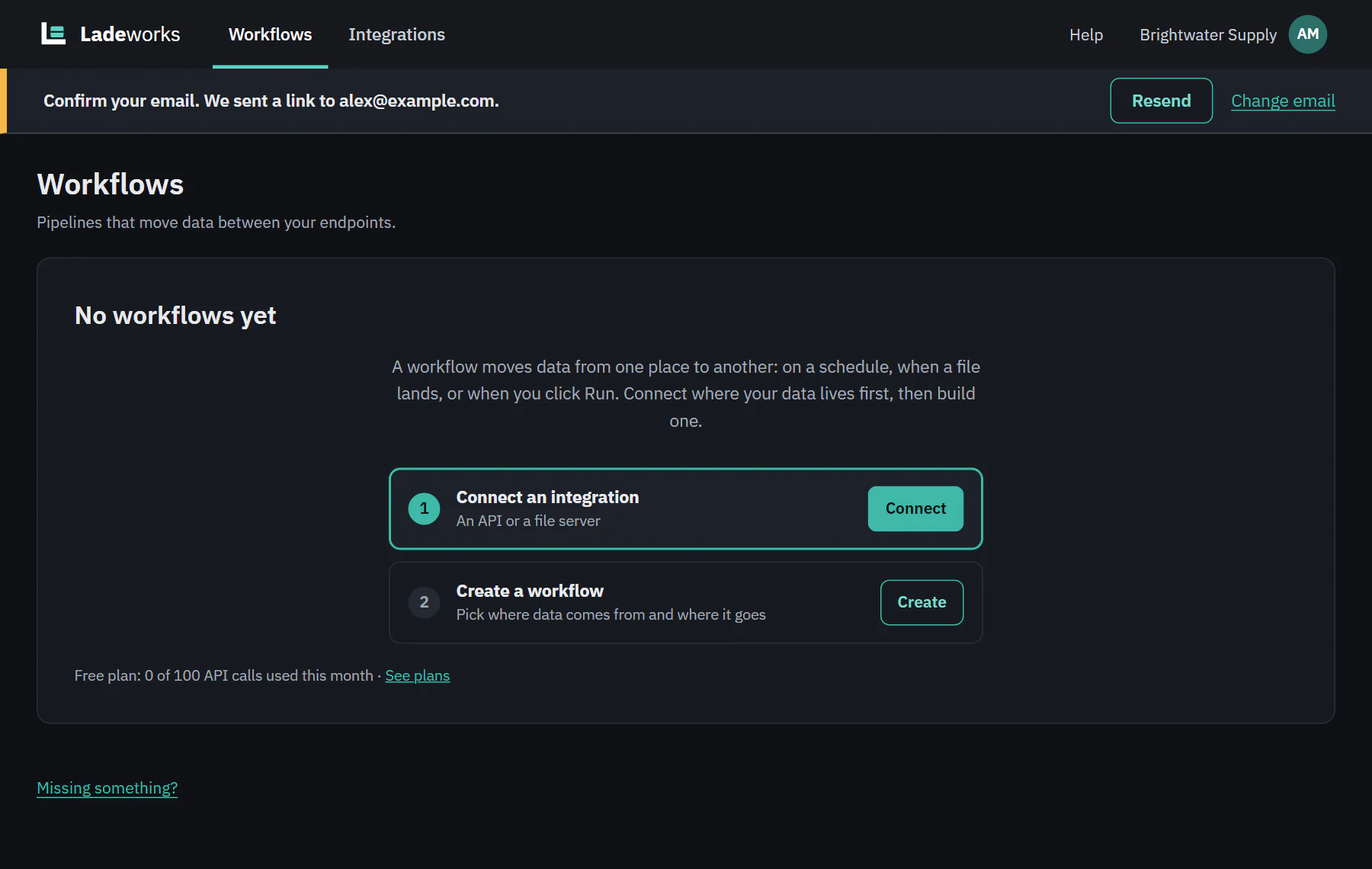 (opens the full size image in a new tab)
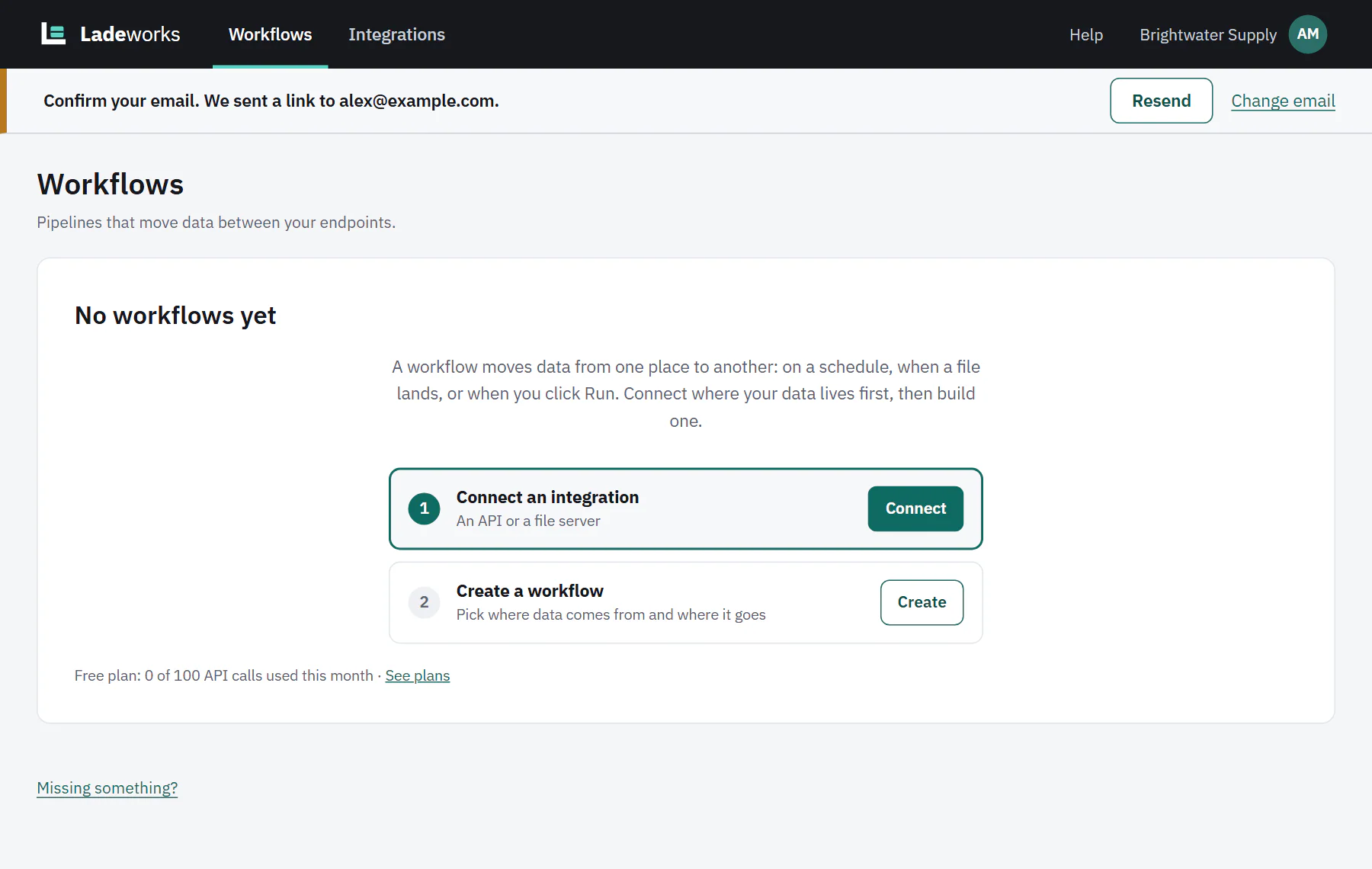 (opens the full size image in a new tab)
What waits until you confirm
- Inviting people. The Members page says "Confirm your email to invite teammates."
- Turning a workflow on. The workflow says "Confirm your email to turn on workflows." Nothing runs on its own until a workflow is on.
- Paying. Upgrading your plan and changing add-ons say "Confirm your email to upgrade your plan." and "Confirm your email to change add-ons."
Everything else works. You can connect integrations, build workflows and change settings while you wait.
Next: the welcome checklist.