DocsTeam and security
Leave or delete a workspace, delete your account
Leaving a workspace and deleting one are different. Leaving only removes you. Deleting removes everything for everyone.
Leave a workspace
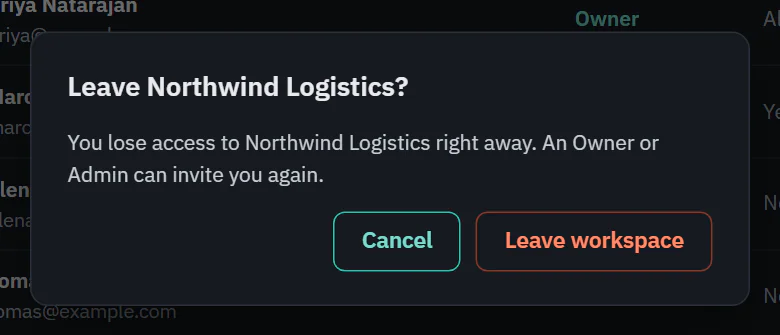
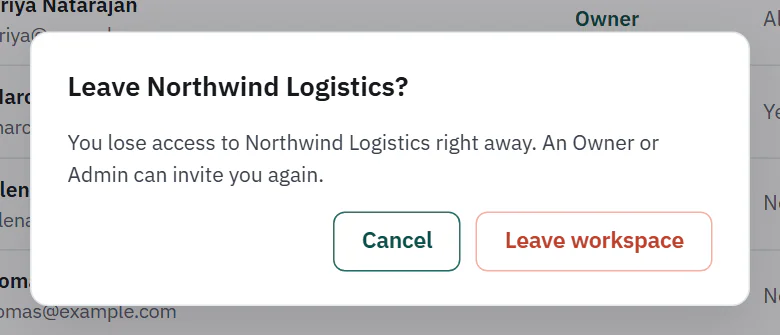
Anyone who is not the Owner can leave. Open Settings, then Members, and choose Leave workspace next to "Leave this workspace". The dialog "Leave" followed by the workspace name and a question mark says you lose access right away and that an Owner or Admin can invite you again. The workflows you made stay in the workspace.
 (opens the full size image in a new tab)
 (opens the full size image in a new tab)
The Owner cannot leave. Ladeworks says "The Owner can't leave a workspace. Transfer ownership to another member first, or delete the workspace." See Transfer ownership.
Delete a workspace
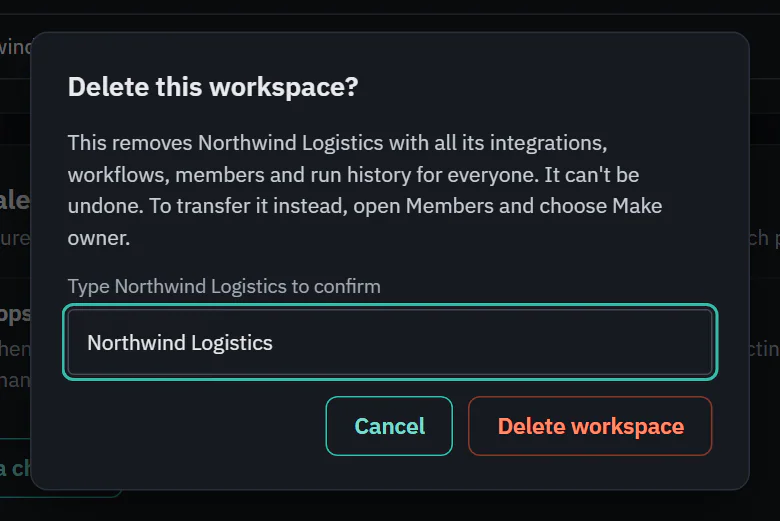
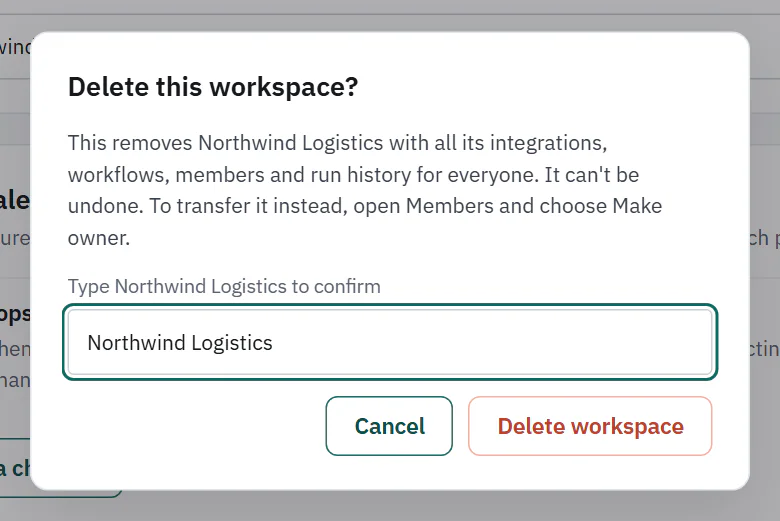
Only the Owner can delete a workspace. Open Settings, then General, and choose Delete workspace in the red card. The dialog "Delete this workspace?" says it removes the workspace with all its integrations, workflows, members and run history for everyone, and that it can't be undone. Type the workspace name exactly to turn on the Delete workspace button. Any subscription on the workspace is cancelled.
 (opens the full size image in a new tab)
 (opens the full size image in a new tab)
To keep the workspace and hand it on instead, use Make owner on the Members page.
Delete your account
Open Settings, then Profile, and choose Delete account in the red card. Ladeworks first checks the workspaces you own.
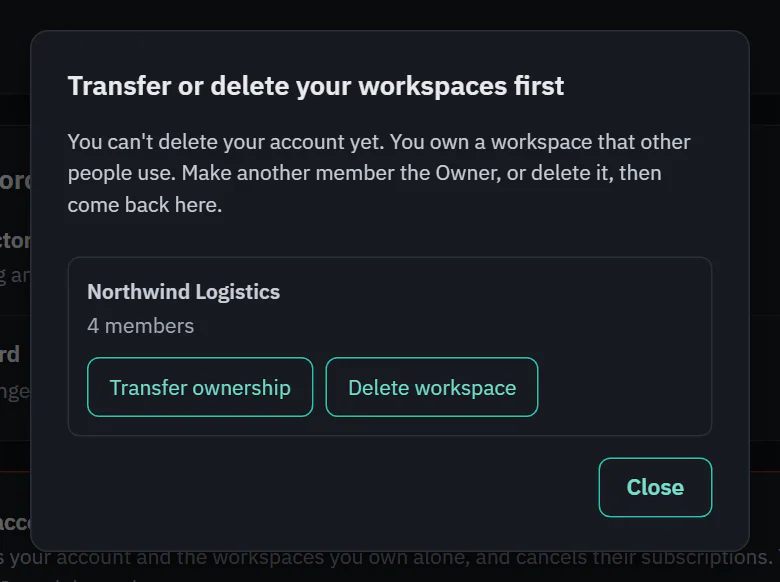
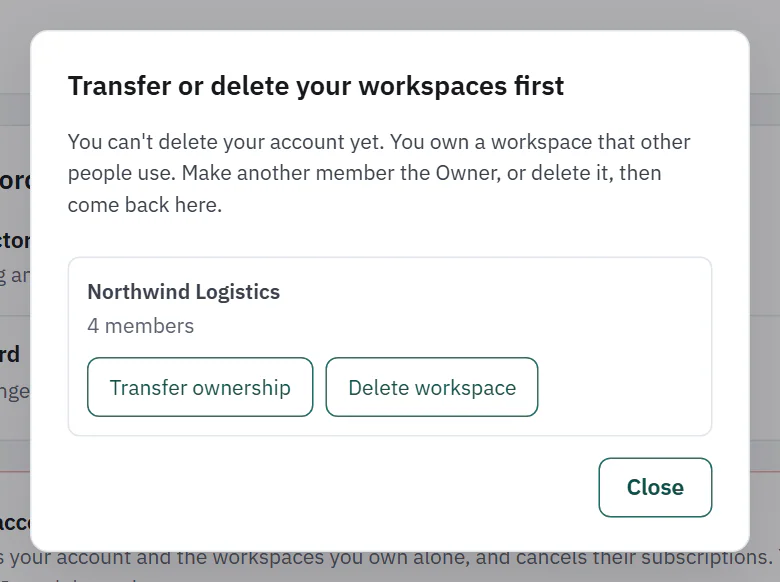
- A workspace you own that other people use blocks it. The dialog "Transfer or delete your workspaces first" lists each one with Transfer ownership and Delete workspace, which take you to the right page.
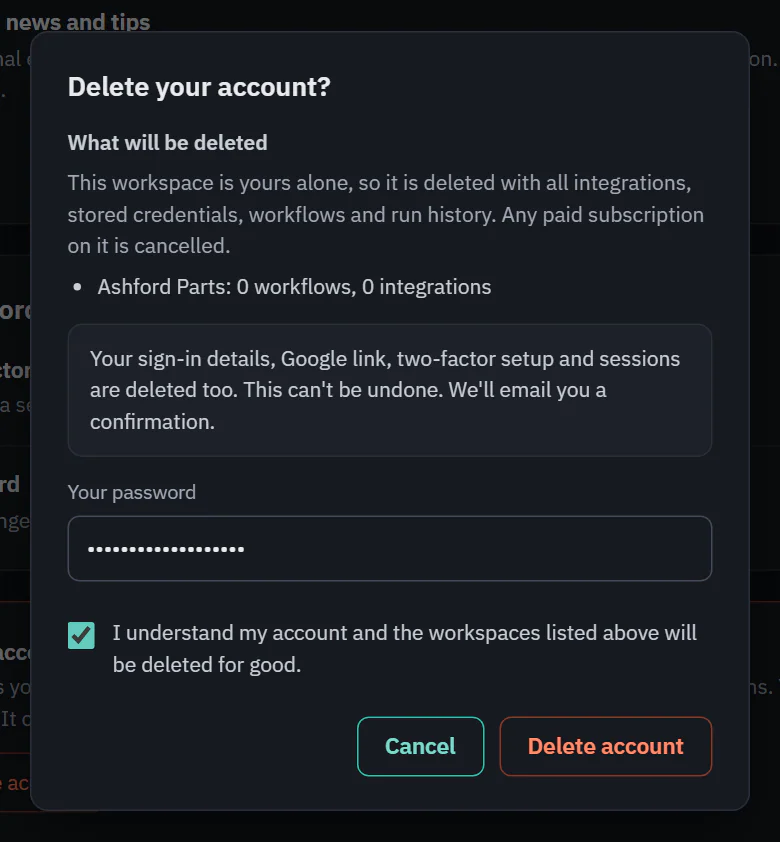
- A workspace you own alone is deleted with the account, with its integrations, stored credentials, workflows and run history, and any subscription on it is cancelled.
- A workspace you belong to keeps everything, including workflows you made. You are removed, and invitations you sent from it are cancelled.
 (opens the full size image in a new tab)
 (opens the full size image in a new tab)
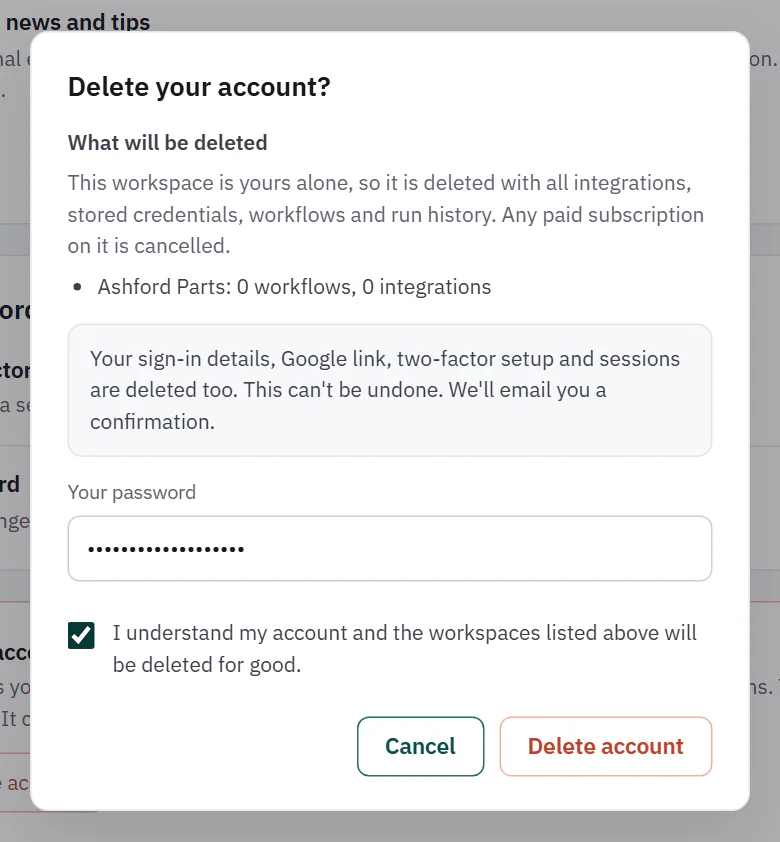
When nothing blocks it, the dialog "Delete your account?" lists exactly what will be deleted under What will be deleted and the workspaces you will leave. To go ahead, enter your password (or your email address if you sign in with Google), your authentication code if two-factor is on, and tick "I understand my account and the workspaces listed above will be deleted for good." Your sign-in details, Google link, two-factor setup and sessions are deleted too, and Ladeworks emails you a confirmation. It can't be undone.
 (opens the full size image in a new tab)
 (opens the full size image in a new tab)