DocsAdvanced workflows
Triggers
The trigger is the first card in the builder. It decides what starts a run. Click it, or choose Edit on its card, to open When this workflow runs. There are four choices: On a schedule, When a file lands, When a webhook is called and Only when I click Run.
Larkspur Goods is a made-up shop that sells through a made-up platform called Tallowmere Commerce. Its data and its file server run on a test machine, so nothing here touches a real system. The screenshots on this page are its workflows.
A workflow only starts from a trigger while it is on. A paused workflow never starts from a schedule, a new file or a webhook. How to build a workflow and read a run is in the builder and reading a run.
On a schedule
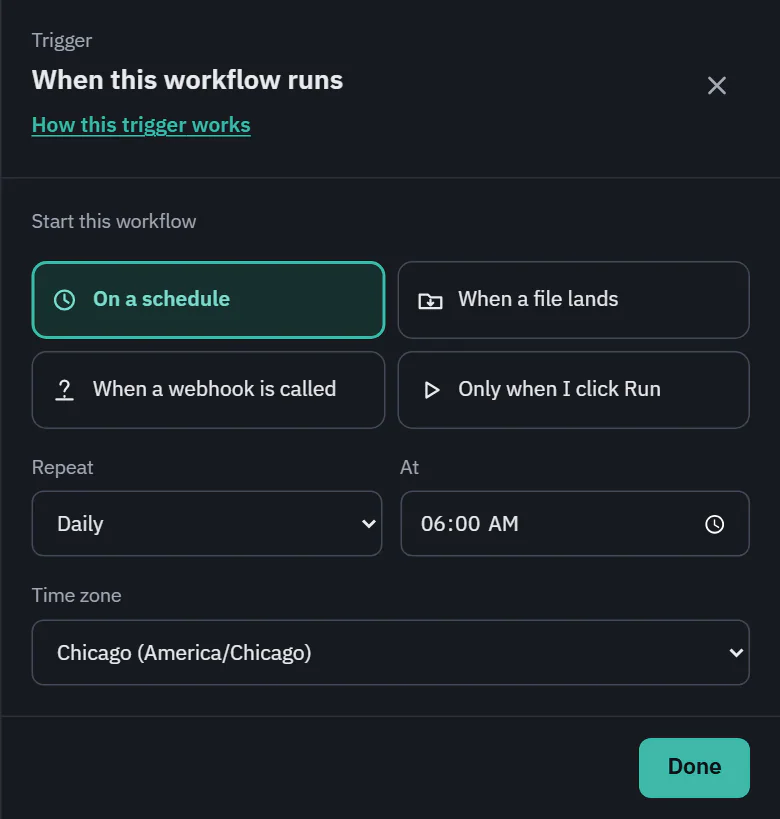
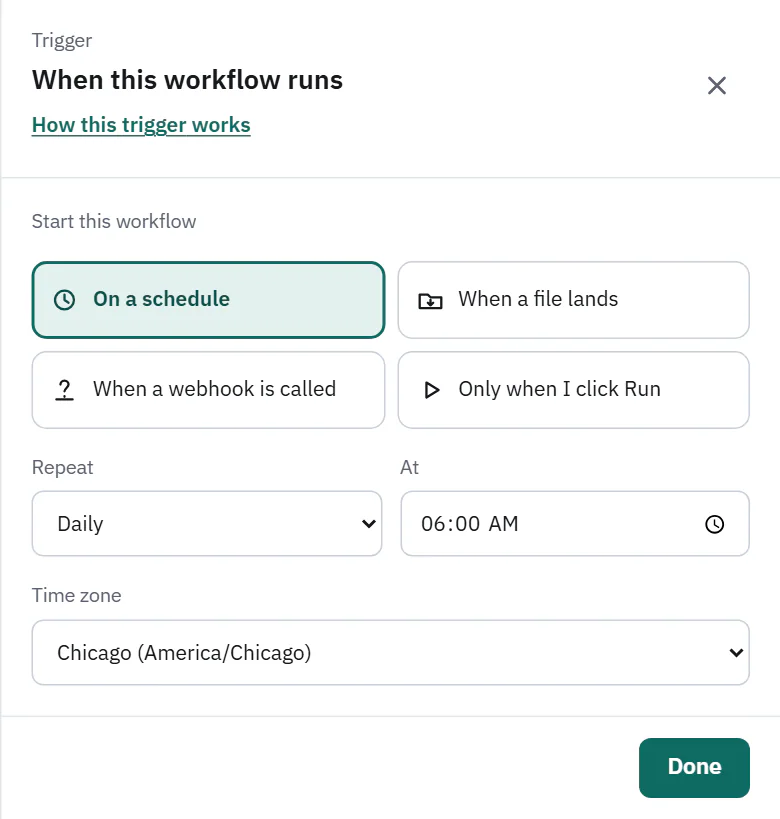
Choose how often under Repeat: Daily, Every few minutes, Hourly, Weekly or Custom (cron). On Starter, Pro and Business.
Daily and Weekly ask for a time (At, and for weekly the day under On). Hourly asks for the Minute past the hour. Custom (cron) takes five fields: minute, hour, day of month, month and day of week. For example 0 2 * * 1-5 is 2:00 AM on weekdays. Every schedule has a Time zone, which starts as yours, so "6:00 AM" means 6:00 AM there.
 (opens the full size image in a new tab)
 (opens the full size image in a new tab)
How often
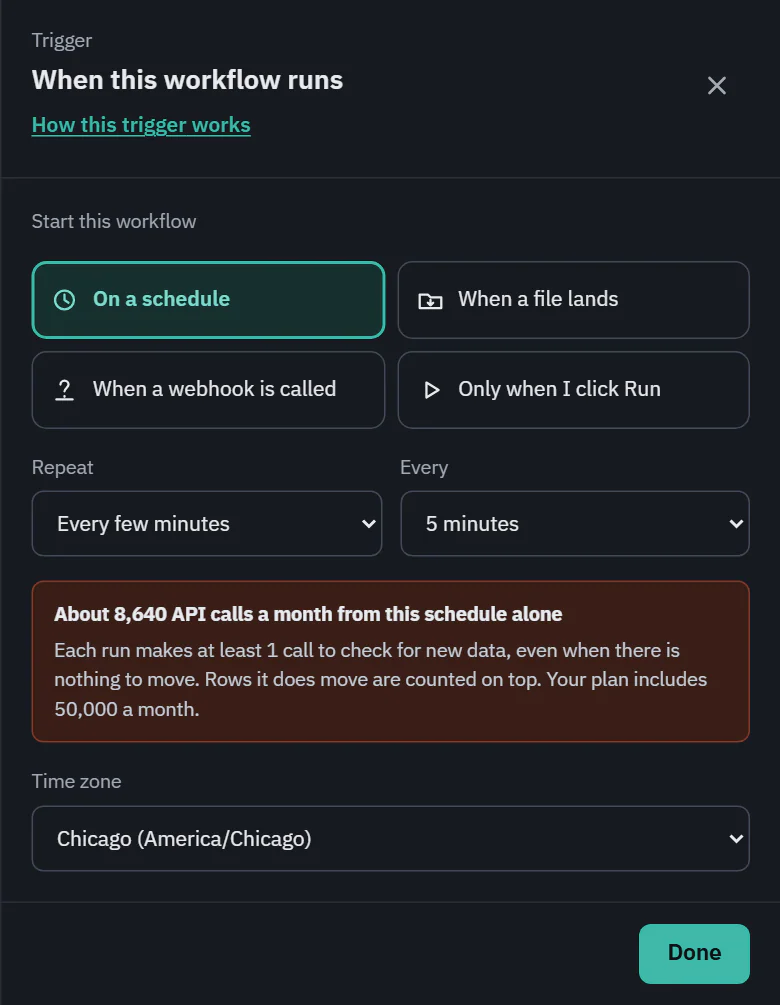
Choosing Every few minutes adds an Every list of 1, 5, 15 and 30 minutes. How fast a schedule can be depends on the plan: Starter as often as every 5 minutes, Pro and Business every minute. The choices a plan cannot use are listed with a lock, not hidden.
The same limit applies to how often a folder is checked for new files.
What a schedule costs
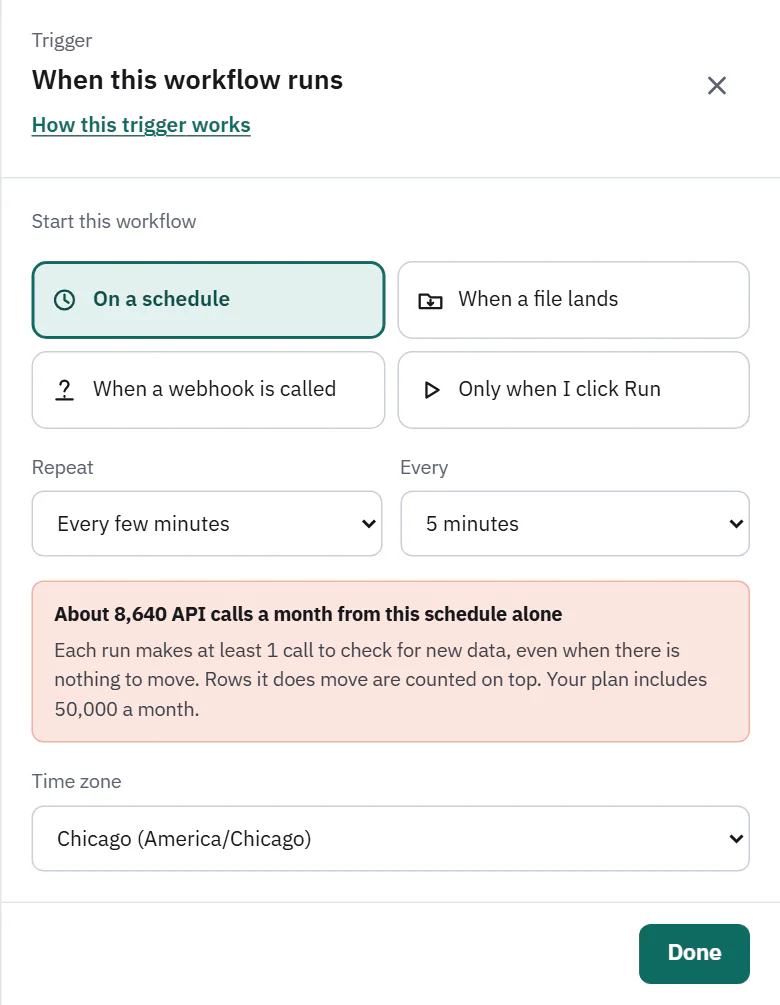
Picking a short interval shows a box with an estimate, for example "About 43,200 API calls a month from this schedule alone" at 1 minute. The box is highlighted at 5 minutes or faster. Each run makes at least 1 call to check for new data, even when there is nothing to move, and the rows it does move are counted on top.
 (opens the full size image in a new tab)
 (opens the full size image in a new tab)
If a run is still going when the next one comes due, the new one is skipped, so runs of one workflow never overlap. When that happens the workflow page shows a gray note, such as "3 scheduled runs were skipped in the last 24 hours because the previous run was still going", with a link to choose a slower schedule. The note goes away after 24 hours without a skip, or when you change the schedule.
When a file lands
A new file in a file server folder starts a run. On Pro and Business. It needs a file server integration with a folder that Ladeworks picks files up from.
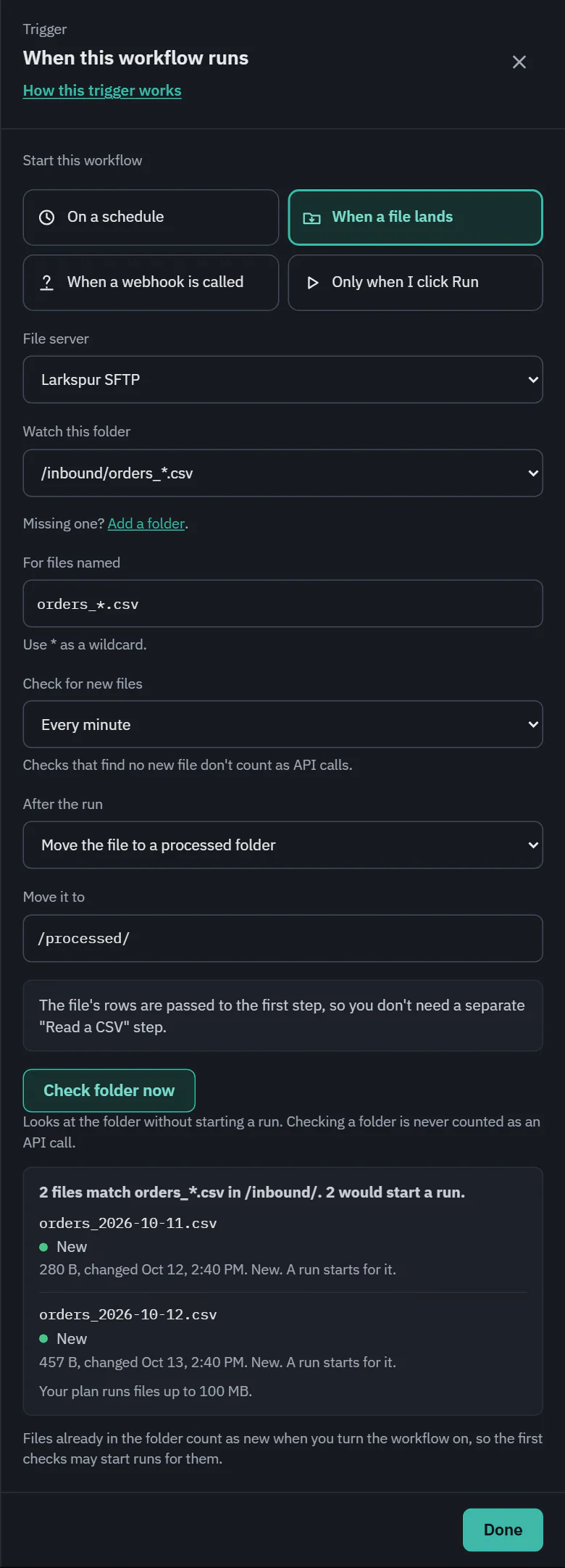
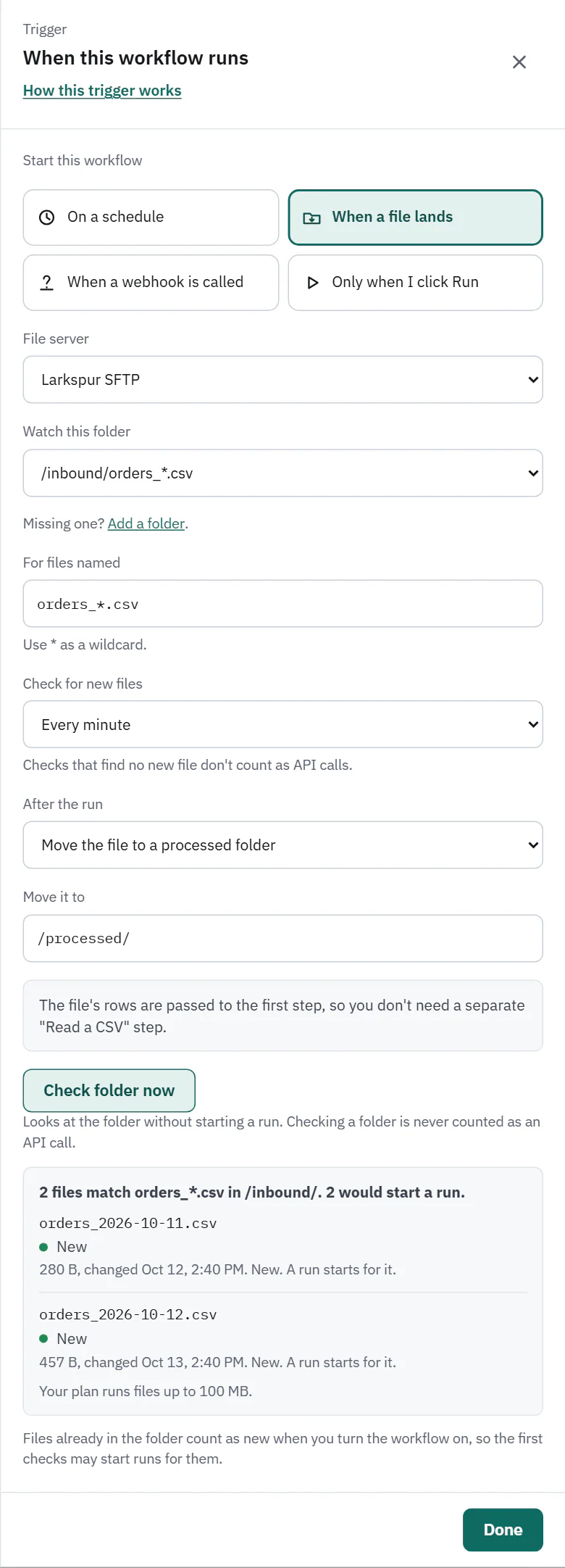
Choose the File server and the folder under Watch this folder. Then set:
- For files named. A file name pattern, with * as a wildcard. orders_*.csv matches orders_2026-10-12.csv and not returns_2026-10-12.csv.
- Check for new files. Every minute, 5 minutes, 15 minutes or hour, limited by the plan the same way schedules are.
- After the run. Move the file to a processed folder (with Move it to, which starts as /processed/), Delete the file, or Leave it (only new files trigger a run).
The file's rows are handed to the first step, so the workflow does not need to pull anything. If the first step is still a Pull when you switch to this trigger, the builder offers Replace with "Read the new file", which keeps your filters and mapping and shows the calls saved, or Keep both steps. Replacing can be undone.
Check folder now
Check folder now looks at the folder without starting a run. It says how many files match and how many would start a run, and lists each file with a state and the reason.
- New: a run starts for it.
- Settling: it was changed recently, or modified less than 30 seconds ago, so it may still be uploading. It runs on a later check.
- Too large: it is over the plan's file size limit. The run is rejected before anything is read.
- Running: a run is working on it.
- Processed: its run did not fail. It runs again only if its size or modified time changes.
- Failed: its run failed. It runs again only if the file changes, or when you choose Run again with this file on the run.
 (opens the full size image in a new tab)
 (opens the full size image in a new tab)
What counts as a new file
- A file Ladeworks has not seen before is new. A file whose size or modified time changed since Ladeworks last looked is new again, so a replaced file runs again.
- A new file waits until it has settled: unchanged since the previous check and at least 30 seconds old. Files still being written are looked at again on the next check.
- Settled files run in name order, one run at a time for each workflow. The rest stay new and go on the next checks, and when a run ends the folder is checked again right away.
- Files already in the folder when you turn the workflow on count as new, so the first checks may start runs for them. Use Check folder now before you turn it on.
- A file that fails is not tried again unless it changes, or you run it again by hand.
What costs API calls
Looking at a folder never costs API calls, whether or not it finds anything, and neither does Check folder now. A run costs the 1 call to read its file. Moving or deleting the file afterward is part of that read and is not counted. A file over the size limit is rejected before it is read, so it costs nothing. Run details say Started by a new file: orders_2026-10-12.csv.
The worked example builds a workflow on this trigger.
When a webhook is called
Another system starts a run by calling a web address that belongs to the workflow. On Pro and Business. Save the workflow with this trigger to get its address and secret.
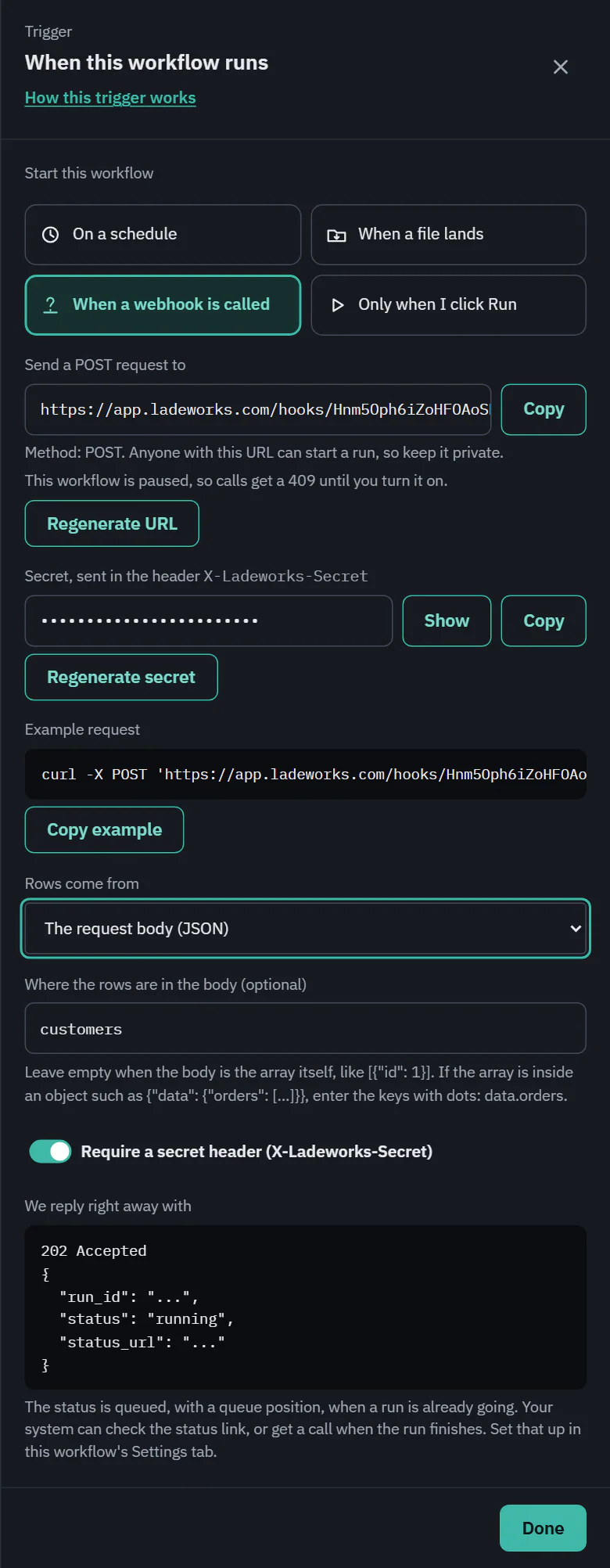
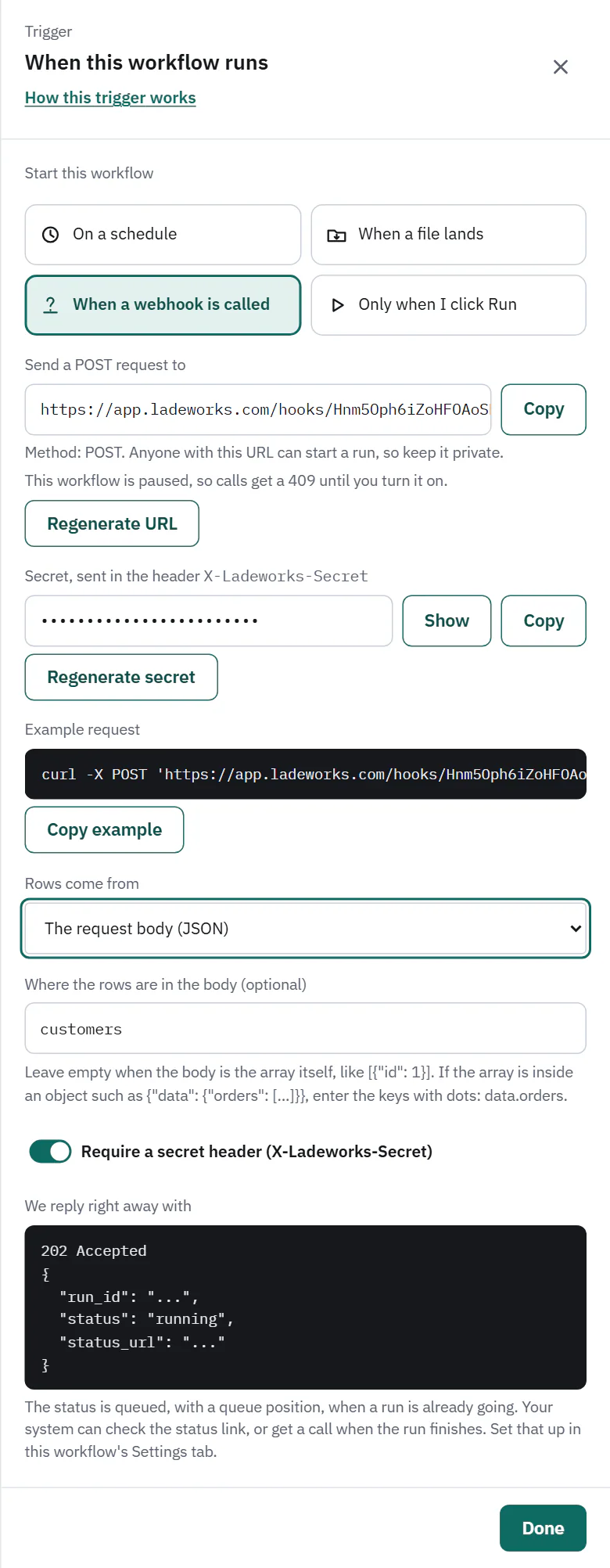
- Send a POST request to shows the address, with Copy and Regenerate URL. Anyone with the address can start a run, so keep it private. Regenerating makes the old address stop working at once, and calls already accepted keep running.
- Require a secret header (X-Ladeworks-Secret) is on by default. The secret shows as dots under Secret, sent in the header, with Show, Copy and Regenerate secret. A call with the wrong or missing secret gets a 401.
- Rows come from is The request body (JSON) or Nothing, just start the run. With a body, the call sends a JSON array of objects, such as [{"id": 1}]. If the array sits inside an object, enter the keys with dots under Where the rows are in the body (optional), for example customers or data.orders.
- Example request is a ready-made curl command with Copy example.
 (opens the full size image in a new tab)
 (opens the full size image in a new tab)
What the caller gets back
Ladeworks answers at once with 202 Accepted and a body that holds run_id, status (running) and status_url. The run happens in the background. If a run of the same workflow is already going, the call waits its turn: the status is queued, with a queue_position, up to 10 calls wait, and the next one gets a 429 with a Retry-After header. The caller can read status_url (with the same secret header) for the counts and result, or get a call when the run ends. See outgoing webhooks.
- A workflow that is paused answers a call with a 409 until you turn it on.
- A web address that is not active, such as one that was regenerated, gets a 404 that says to copy the current address.
- A body that is not JSON, or that has no array where the webhook expects one, is refused before any run starts: "Nothing was started."
- A body over the plan's largest file is refused with a message that says how many rows to send at a time.
Testing it
Turn the workflow on, copy the example request, and run it in a terminal with a small JSON body of your own. A run appears in the Runs tab, started by a webhook, and Download the request body on it shows exactly what arrived (people with payload access). A webhook workflow starts with its rows from the body, so it should not begin with a Pull or a Read a CSV: the builder refuses to save until you remove it or set the rows to Nothing, just start the run.
The call itself is not an API call. The steps of the run count as usual.