DocsConnect an integration
Built-in integrations
QuickBooks Online, Shopify, Square, HubSpot and ERPNext are built in. You sign in once with a button, and Ladeworks looks after the rest: the sign-in, the list of endpoints, and ready-made actions, triggers and templates for the work people do most. There is no client ID, key or secret to enter.
Connect from Add an integration
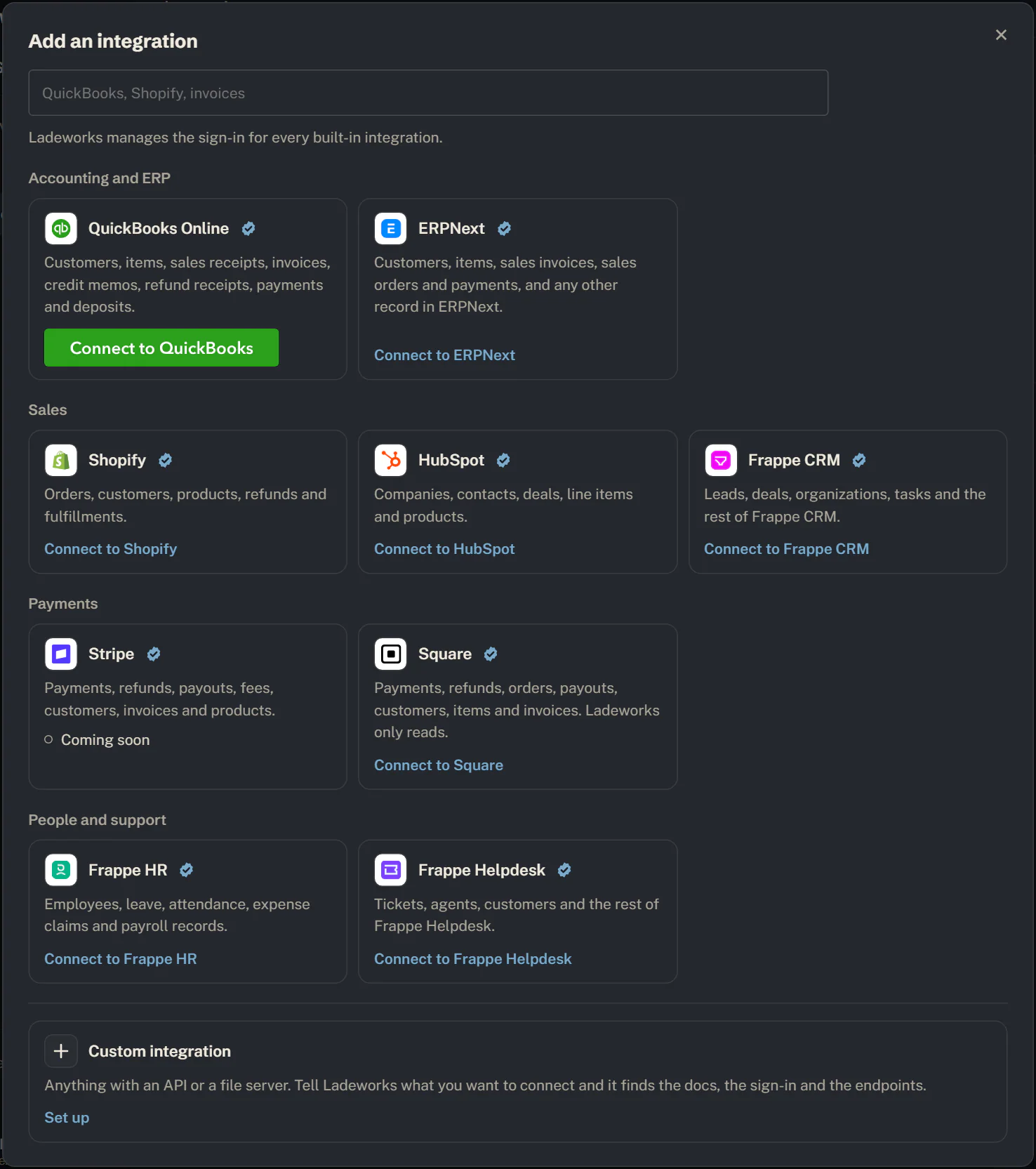
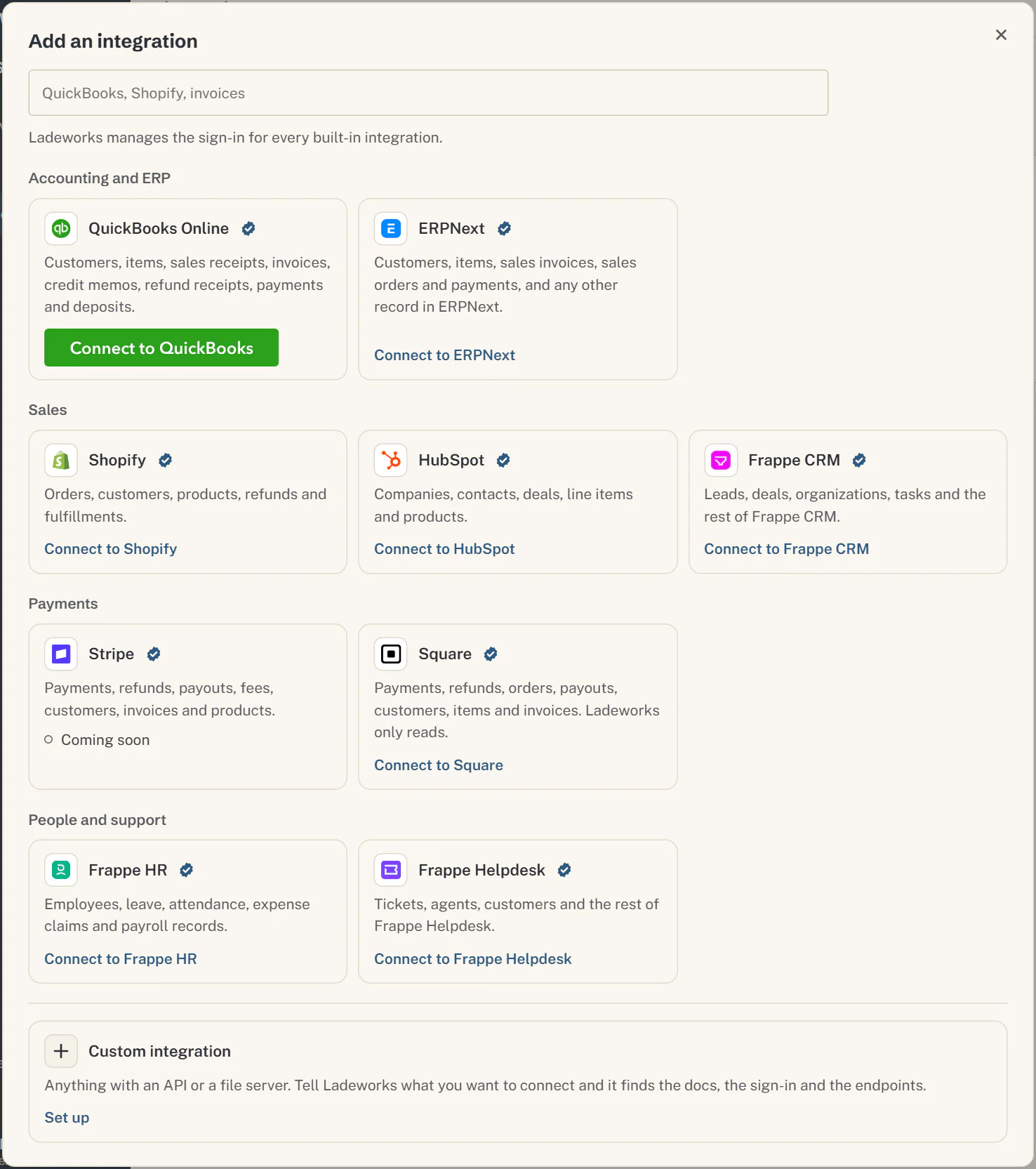
Choose Integrations in the left rail, then Add an integration. The window lists the built-ins under four headings by the kind of software: Accounting and ERP (QuickBooks Online and ERPNext), Sales (Shopify, HubSpot and Frappe CRM), Payments (Square, with Stripe marked Coming soon), and People and support (Frappe HR and Frappe Helpdesk). Each card has a one-line summary of what it covers, a small Ladeworks mark and a Connect button. Type in the search box above them to narrow the list by name or by a record type such as invoices. A Custom integration card at the bottom is for everything else, and it stays there whatever you search for.
Only Owners and managers connect integrations. Anyone else sees "Only owners and managers connect integrations" and is told to ask an owner or manager of the workspace, or to pick another workspace.
 (opens the full size image in a new tab)
 (opens the full size image in a new tab)
QuickBooks Online
Choose Connect to QuickBooks. QuickBooks asks you to sign in and pick the company to connect, and you come back to Ladeworks. The integration opens with a green note, "QuickBooks Online is connected."
Only the accounting side of QuickBooks is connected. QuickBooks Desktop is a different product and is not this connection.
To connect another company, open the same Connect page: with a company already connected, it lists each one and the button reads Connect another company. A company can be connected to one workspace at a time. If it is already connected in this workspace, Ladeworks tells you to open that integration and use Reconnect. If it is connected to another Ladeworks workspace, disconnect it there first.
Shopify
Choose Connect to Shopify. Shopify opens its own page, where you pick your store and approve access, and you come back to Ladeworks connected. The integration opens with a green note, "Shopify is connected."
Shopify's list of endpoints is its GraphQL API, so its endpoints are queries and mutations. You use them in workflows the same way as any other.
HubSpot
Choose Connect to HubSpot. You need to be a Super Admin in HubSpot to connect it, because HubSpot lets only a Super Admin install an app. HubSpot opens its own page, where you pick your account and approve access, and you come back to Ladeworks connected. The integration opens with a green note, "HubSpot is connected." The Connect page is also the address HubSpot's install button opens: if you start there, you sign in to Ladeworks first and then connect.
What it connects. Companies, contacts, deals, line items and products, reading and sending: Ladeworks can read them, create them and change them from workflows, and read a deal's linked companies, contacts and line items. Other kinds of record, such as tickets, are not part of the connection.
To connect another HubSpot account, open the same Connect page: with an account already connected, it lists each one and the button reads Connect another account. A HubSpot account can be connected to one workspace at a time. If it is connected to another Ladeworks workspace, disconnect it there first.
- Changes reach workflows about a minute after they happen. A workflow can start When something changes in HubSpot for contacts, companies, deals, products and line items, created, updated or deleted. Changes made in the first few minutes after connecting may not appear.
- Every field counts, custom fields included. Changing any field of a record, including one you made yourself, can start a workflow, and the row has the record's current values.
- HubSpot's own background updates don't start workflows. After a record changes, HubSpot goes on to update fields it works out by itself, such as dates of last activity and when a deal entered a stage. Ladeworks skips those, so one edit starts one run.
If someone uninstalls the app inside HubSpot, or removes its access, the integration is marked Needs attention with the reason "HubSpot no longer lets Ladeworks in. The app was uninstalled or its access was removed. Connect HubSpot again to keep your workflows running." Workflows that use it stop until it is reconnected, and nothing else changes. Choose Reconnect to sign in to the same account again.
To disconnect, delete the integration (Settings, then Delete this integration). Ladeworks uninstalls its app from your HubSpot account, so HubSpot emails your account's admins about it, and stops listening for changes. The records in HubSpot are not touched.
Square
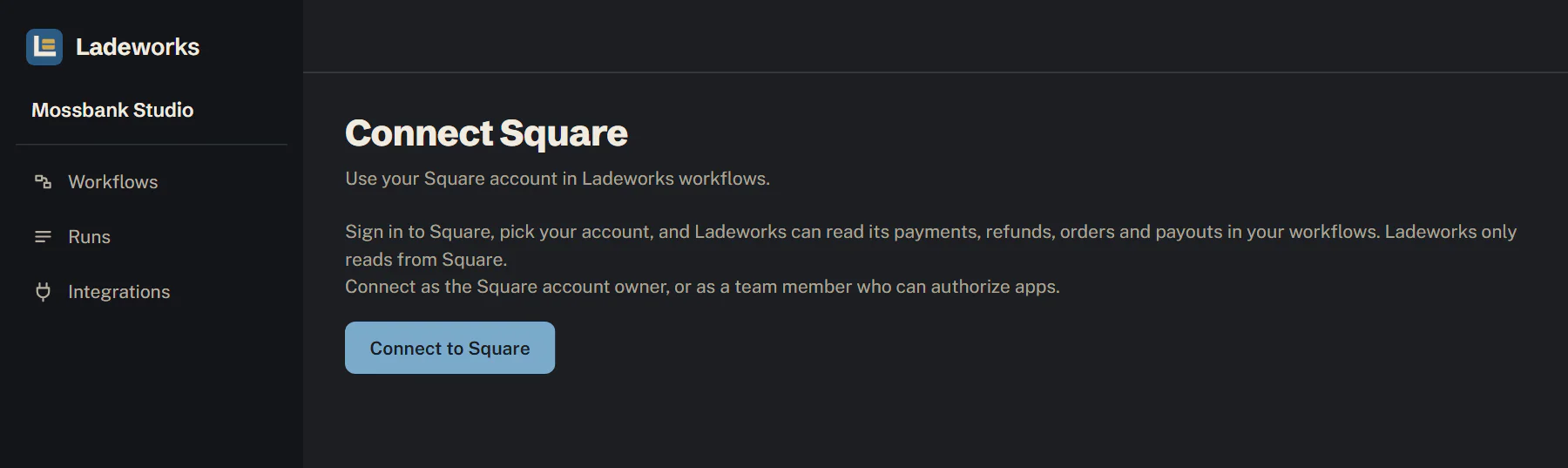
Choose Connect to Square. Square opens its own page, where you pick your Square account and approve access, and you come back to Ladeworks connected. Only the account owner, or a team member who can authorize apps in Square, can approve it. The integration is named after your business.
Ladeworks only reads from Square. The permissions Square shows before you approve are read only: your business profile and locations, payments and refunds, orders, payouts, customers, catalog items, invoices and gift cards. Ladeworks never creates or changes anything in your Square account, and it does not ask to see your bank account. Ladeworks keeps the sign-in fresh by itself, so there is nothing to renew.
To connect another Square account, open the same Connect page: with an account already connected, it lists each one and the button reads Connect another account. A Square account can be connected to one workspace at a time. If it is connected to another Ladeworks workspace, disconnect it there first.
What the actions do. The ready-made actions are listed on Built-in actions. Get payments, Get refunds, Get payouts, Get customers and Get invoices read what is new. Four do more for each sale, refund, payout or day. They are a head start, not a limit: Use another endpoint opens the other endpoints Square has, and the Endpoints tab lists the ones Ladeworks keeps ready.
- Get sale details reads one whole sale from a payment or an order: the items with their SKUs, discounts, tax, tips, service charges, gift cards sold and used, how it was paid and the customer. A sale paid in several payments is sent once, when the last one is in.
- Get refund details reads a refund with the items returned, when Square has them, tied to the sale it came from.
- Get payout lines reads what is inside a paid payout and checks that it adds up to the payout to the cent. A payout that does not add up, one that took money from your bank, or one that is not paid yet is skipped with a message that says why, so a wrong deposit is never made.
- Get daily sales gives one row for each location and business day, in that location's own time zone: the items sold, tax, tips, service charges, gift cards, what was paid by card, cash and other ways, and the day's refunds. Business day ends at says when your trading day ends. Midnight is the plain calendar day. A day that ends before noon is dated the day it started, so with 2:00 AM, Friday's late sales stay on Friday. A day that ends at noon or later is dated the day it ends. A day is read once, after it has ended, and sent once.
The Square Clearing account. The Square templates book every sale, card and cash, to one account, usually named Square Clearing (Undeposited Funds is not offered for it, because QuickBooks cannot take money out of it on a deposit line). A payout takes the card money out of it with a bank deposit, and a daily cash deposit takes the cash out of it into the account you choose for cash. With both running, Square Clearing nets to zero, and what is left in it is money Square has not paid out yet. See Square to QuickBooks Online.
- Changes reach workflows as Square reports them. A workflow can start When something changes in Square for a completed payment, a completed refund, a paid payout, a customer that was created or updated, and a paid invoice. Each run reads the record again, so the row has its current values.
- If Ladeworks is offline for a while, nothing is lost: it also reads the list of events Square keeps, every hour, and starts the runs it missed.
- Amounts are whole numbers in the smallest unit of the currency, such as cents, as Square sends them. The ready-made actions also give a decimal twin of each amount that works for every currency, including ones with no cents, such as the yen.
If someone removes the app inside Square, the integration is marked Needs attention with the reason "Square no longer lets Ladeworks in. Access was removed in Square. Connect Square again to keep your workflows running." Workflows that use it stop until it is reconnected, and nothing else changes. Choose Reconnect to sign in to the same account again.
To disconnect, delete the integration (Settings, then Delete this integration). Ladeworks stops reading Square at once and removes its app from your Square account too, so there is nothing to remove there. The records in Square are not touched.
 (opens the full size image in a new tab)
 (opens the full size image in a new tab)
ERPNext
Choose Connect to ERPNext. Ladeworks asks one question, Your ERPNext site address: type the address you open ERPNext at, without https://, such as acme.frappe.cloud. Ladeworks takes you to your own site, where you sign in as yourself and approve access, and you come back to Ladeworks connected. The integration opens with a green note, "ERPNext is connected." Ladeworks registers itself with your site as an app, so there is no API key or secret to create or enter.
Ladeworks can do what the person who approves can do in ERPNext, and nothing more. Connect as someone who can read and create the records your workflows use.
ERPNext version 16 or later is needed. If the site runs an older version, the page says which version it found and asks you to update the site and connect again. A site without ERPNext on it, such as a plain Frappe site, is refused with "ERPNext isn't installed on this site." If the site doesn't let apps register themselves, the page says to ask your ERPNext administrator to turn on Enable Dynamic Client Registration under OAuth Settings.
To connect another site, open the same Connect page: with a site already connected, it lists each one and the button reads Connect another site.
Starting a workflow when something changes. A workflow can start When something changes in ERPNext for customers, items, sales invoices, sales orders, payment entries, quotations and delivery notes, created, updated or deleted. Triggers need the person who connects to be a System Manager in ERPNext: ERPNext tells Ladeworks the moment something changes. Everyone else gets changes read on a timer: Ladeworks checks for changes every few minutes, and cannot see records that were deleted. Submitting or cancelling a record saves it, so both arrive as an update. The Connect page says this before the button: "Connect as a System Manager in ERPNext so workflows can start the moment something changes."
What the actions do. The ready-made actions are listed on Built-in actions. To read, there are Get customers, Get items, Get sales invoices, Get sales orders and Get payment entries, each of which reads only the records that changed since the last run. To look up or add, there are Find or create a customer and Find or create an item. To send, there are Create a sales invoice, Create a sales order and Record a payment. A new sales invoice or sales order is saved as a draft unless you turn on Submit it, which posts it to the books. Choices such as the company, price list, warehouse and customer group are read from your site, so a dropdown lists what your site has.
The field picker. Every Get action has a section, Fields this action reads, with the fields most workflows need. Turn off the ones you don't need. Add fields opens every field your site has for those records, custom fields included, with the names you see in ERPNext, and the lists inside a record, such as the lines of an invoice. Every field of the record reads the whole record, and Refresh fields reads your site's fields again after you add a custom one. ERPNext sends only the fields you ask for, so a field that isn't picked is not in the row.
Any other part of the ERPNext API. The actions are a head start, not a limit. The Endpoints tab has All endpoints: List records of any type, Read one record, Create a record, Update a record, Delete a record and more, which work for every record type your site has, custom ones included. In a step, Use another endpoint opens them.
Reconnect. If the site stops accepting the sign-in, for example after someone removes the app's access or the person who connected is deactivated, the integration is marked Needs attention with the reason "ERPNext asked to sign in again. Use Reconnect on this integration." Workflows that use it stop until it is reconnected, and nothing else changes. Choose Reconnect on the Connect page or under Sign-in in the integration's Settings and approve access again on your site.
Disconnect. Delete the integration (Settings, then Delete this integration). Ladeworks takes back its access to your site and removes the change hooks it created there. The records in ERPNext are not touched. The app Ladeworks registered stays listed on your site, and a System Manager can delete it there under OAuth Client.
Typing a built-in's name
If you type QuickBooks Online, Shopify, Square, HubSpot or ERPNext in What would you like to integrate with?, or paste a link to their docs, the screen says "QuickBooks Online connects in one click. Use Connect on the Integrations page." with the Connect button right there. A custom setup of any of them is not offered, and neither is Set up manually for them. Connecting a built-in does not use AI.
What the integration page shows
It is the same page as any integration (see The integration page), with a few differences.
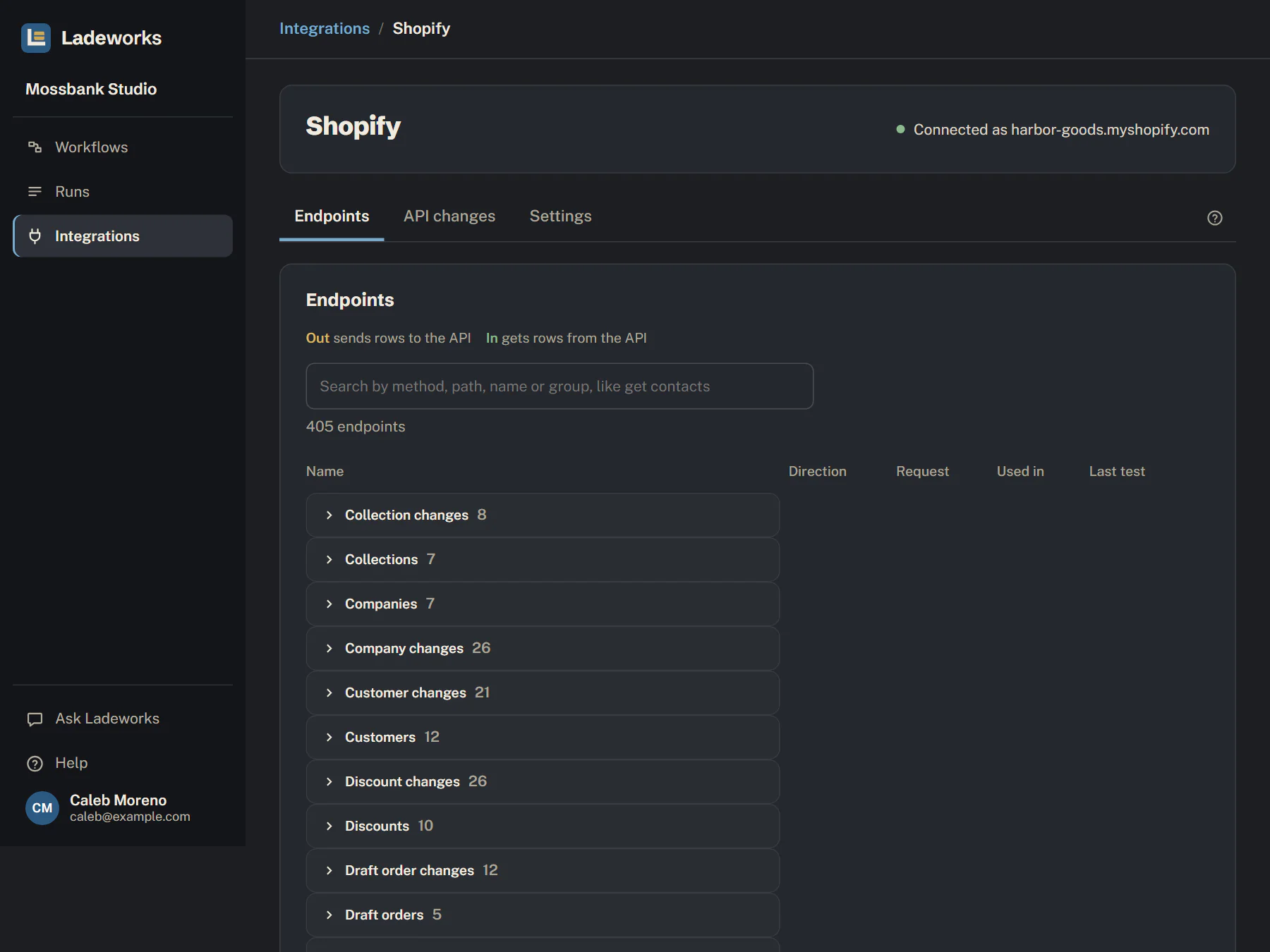
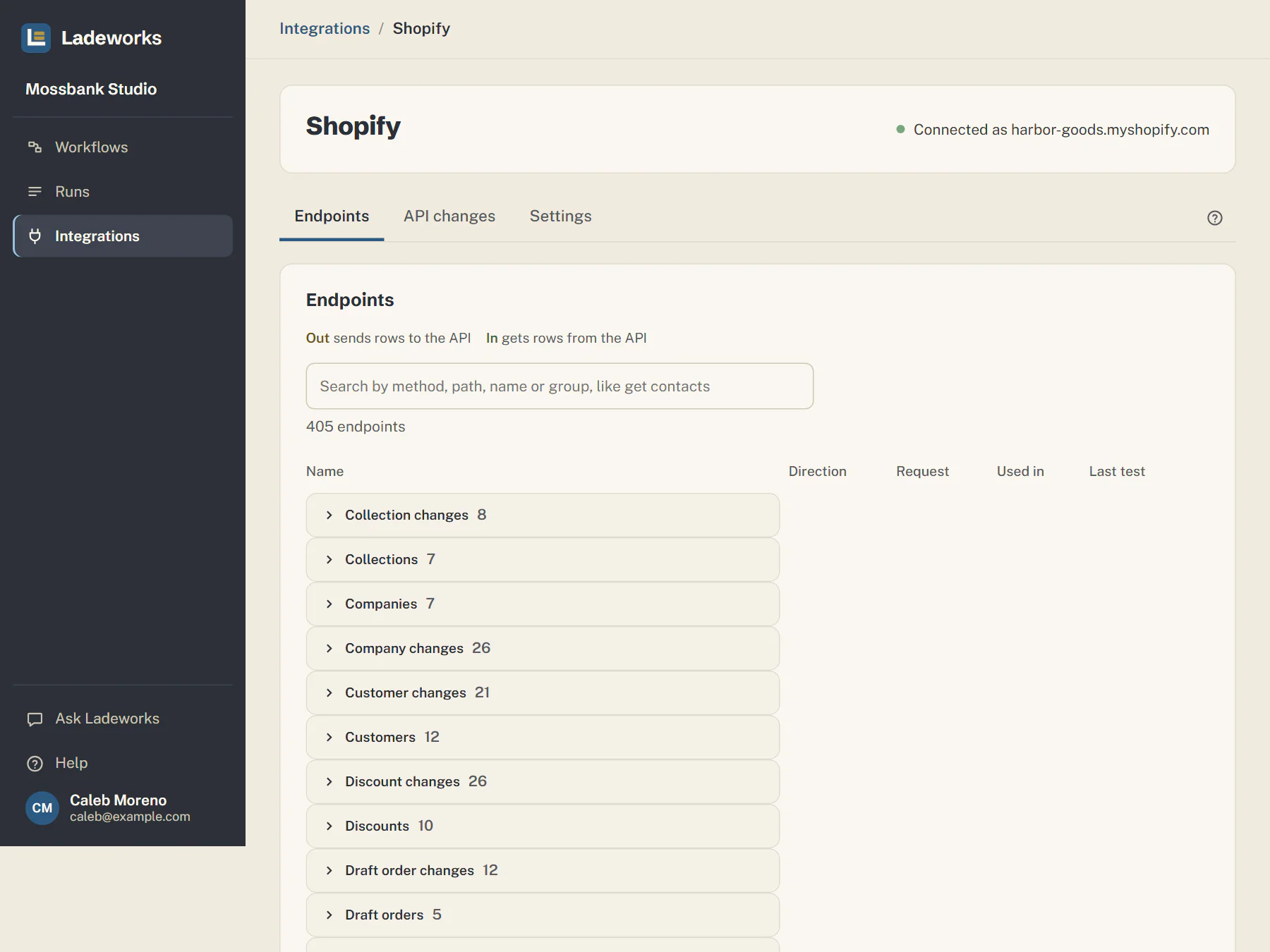
- On the Integrations page, a small Ladeworks mark sits next to the name, and the company or store is shown under it, such as Harbor Goods LLC. The Status column reads "Connected as" that company or store.
- The header shows the name and a status: "Connected as" the company or store, or "Needs attention" with the reason. There is no address or sign-in type, because Ladeworks manages the connection.
- The Endpoints tab lists every endpoint Ladeworks knows, grouped, with search. Open one to read its fields. There is no + New endpoint, and an endpoint can't be renamed, changed or deleted, because Ladeworks keeps the list current. On Shopify you still choose which fields an endpoint reads: see Choosing Shopify's fields. QuickBooks Online and HubSpot endpoints have a Test button. Shopify's, being GraphQL, are tested from the endpoint page.
- The list is a head start, not a limit: it is what Ladeworks keeps ready for you to use in workflows.
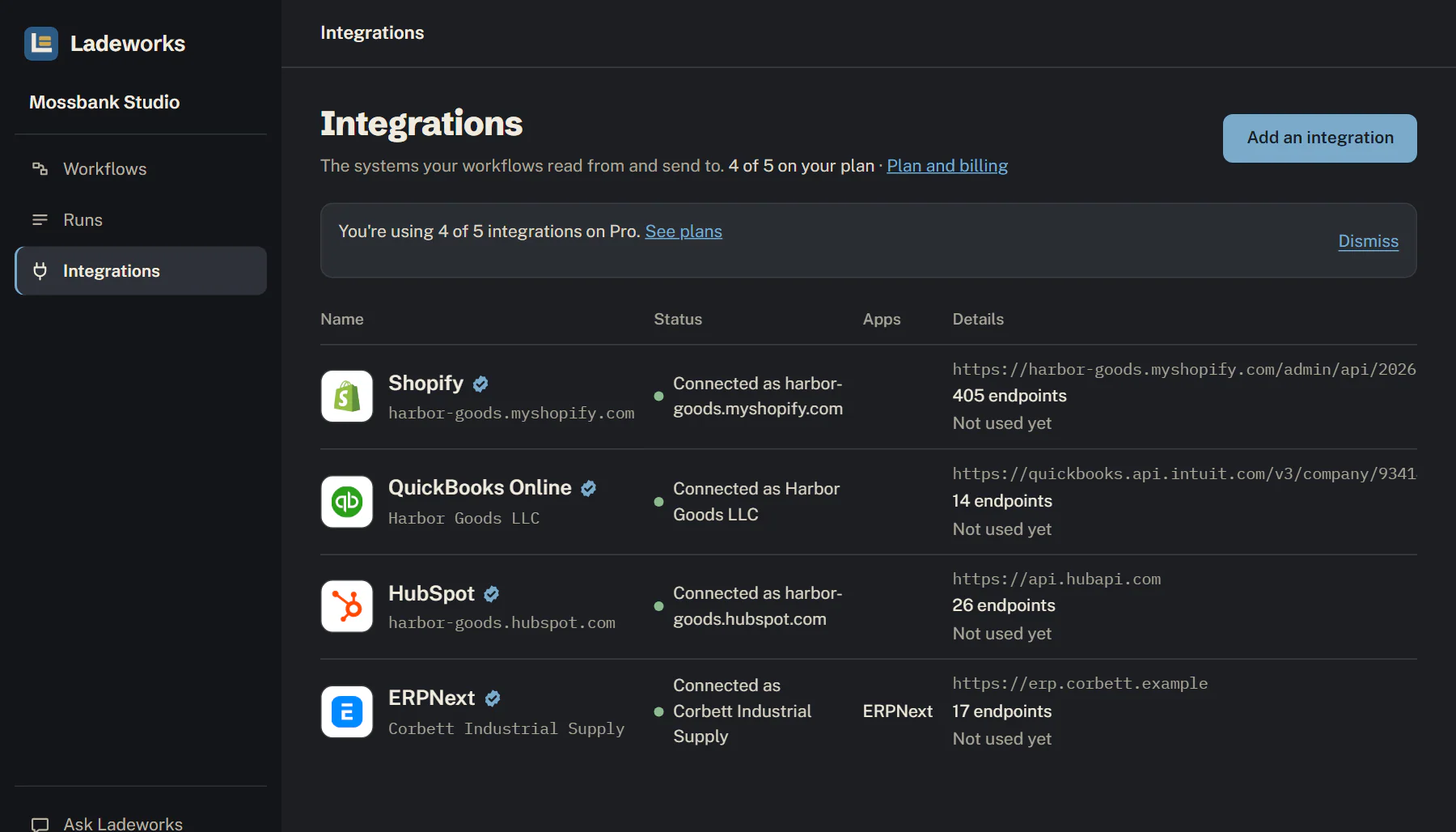 (opens the full size image in a new tab)
 (opens the full size image in a new tab)
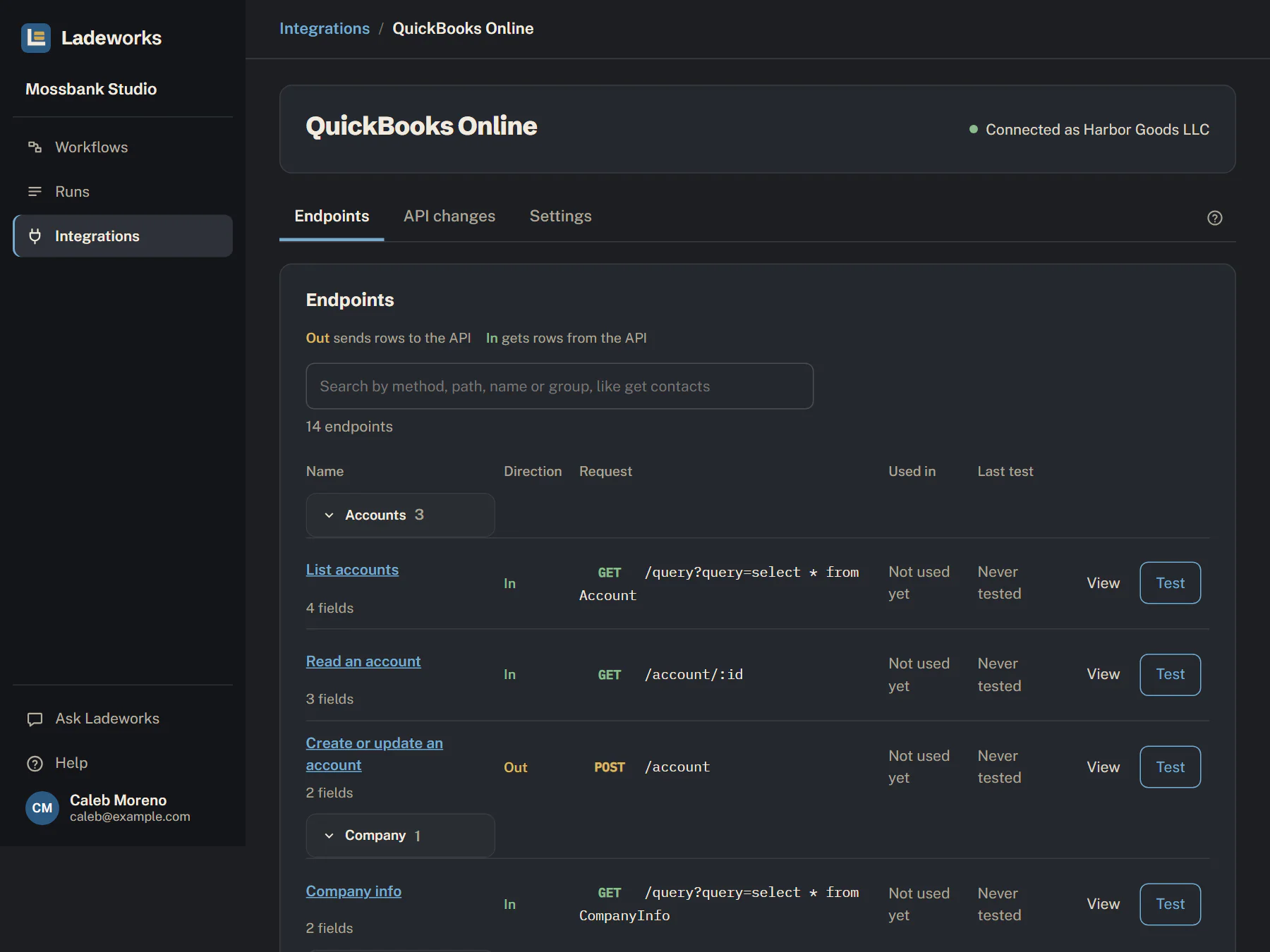 (opens the full size image in a new tab)
 (opens the full size image in a new tab)
 (opens the full size image in a new tab)
 (opens the full size image in a new tab)
Choosing Shopify's fields
A Shopify endpoint reads only the fields that are switched on. On the endpoint page, the Response tab lists them under Response fields: "The fields that are switched on. They become the columns workflows can use, and Ladeworks reads only these." Each row has an On switch. Switching one off takes it out of the list, and the page says "Switched off" the field, "It's still under Add fields." If workflows use it, the page says how many, and they get no value for it until you switch it on again.
This page is about the endpoints. A Get data step, and the change trigger, have their own choice of fields: see Choose the fields a Shopify step reads.
Each endpoint starts with the record's own values switched on. For records that hold lines, such as orders, draft orders, fulfillment orders, returns and refunds, the line items, tax lines and similar lists are on too, with the money and tax inside them.
Add fields
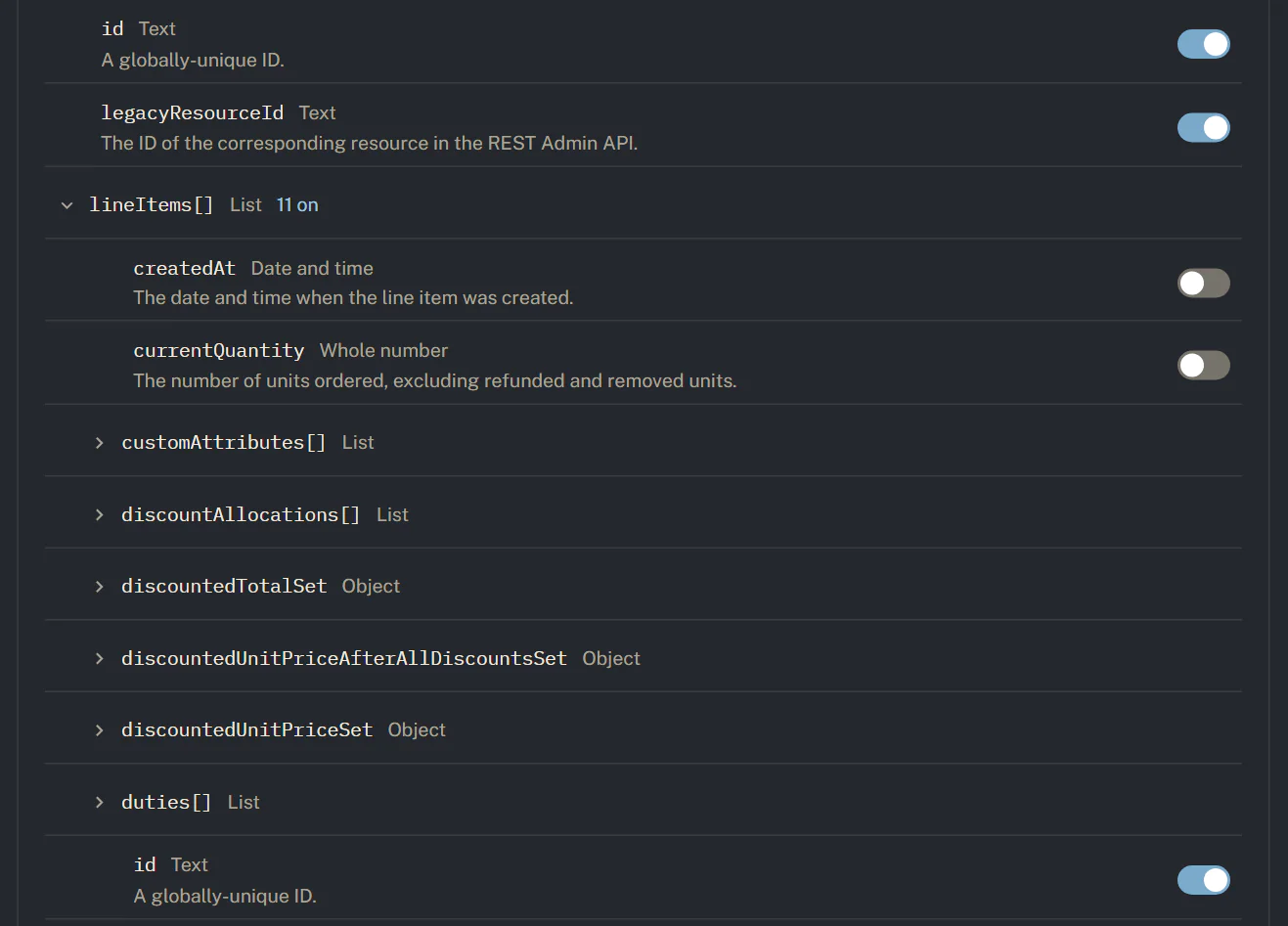
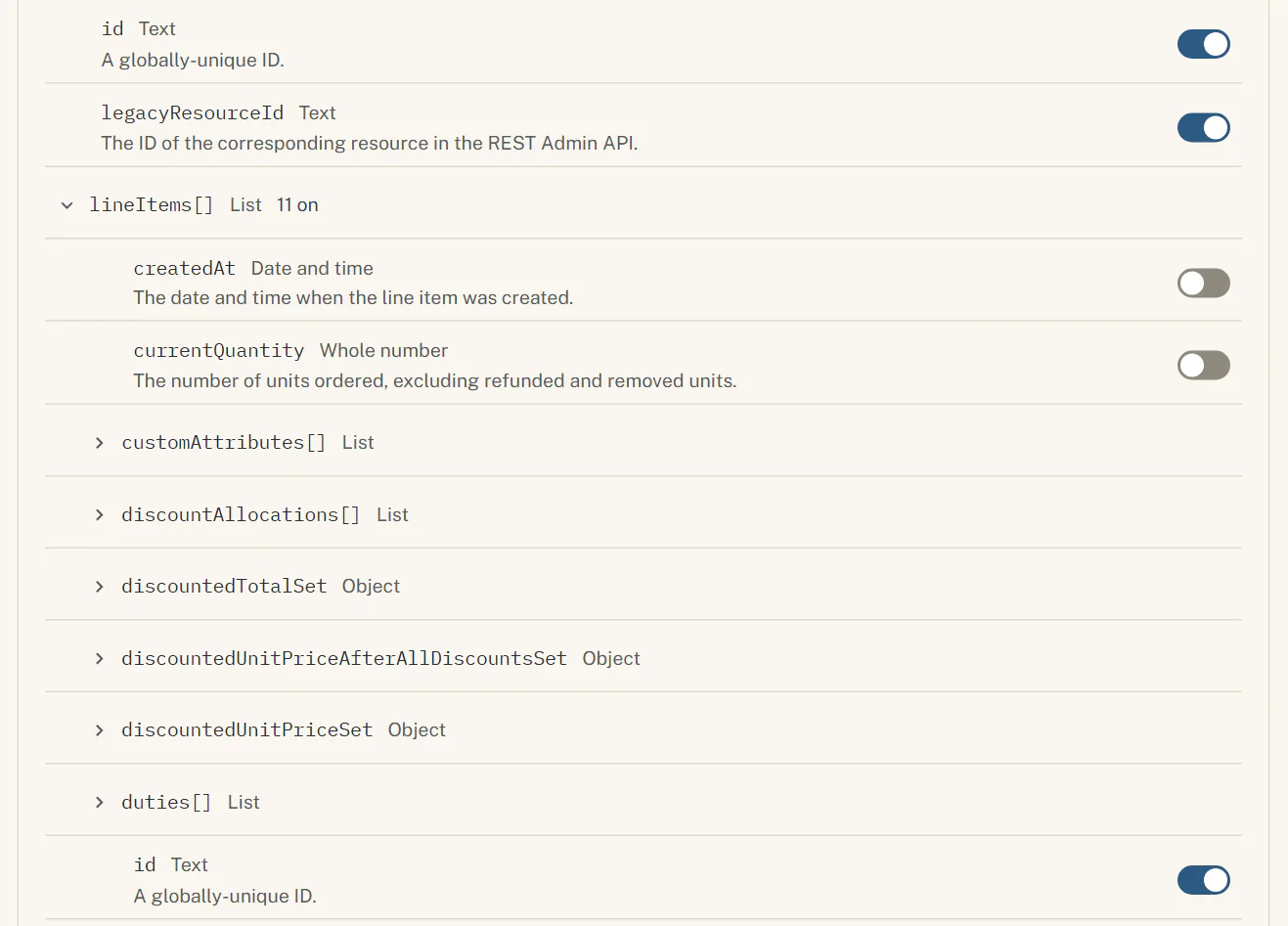
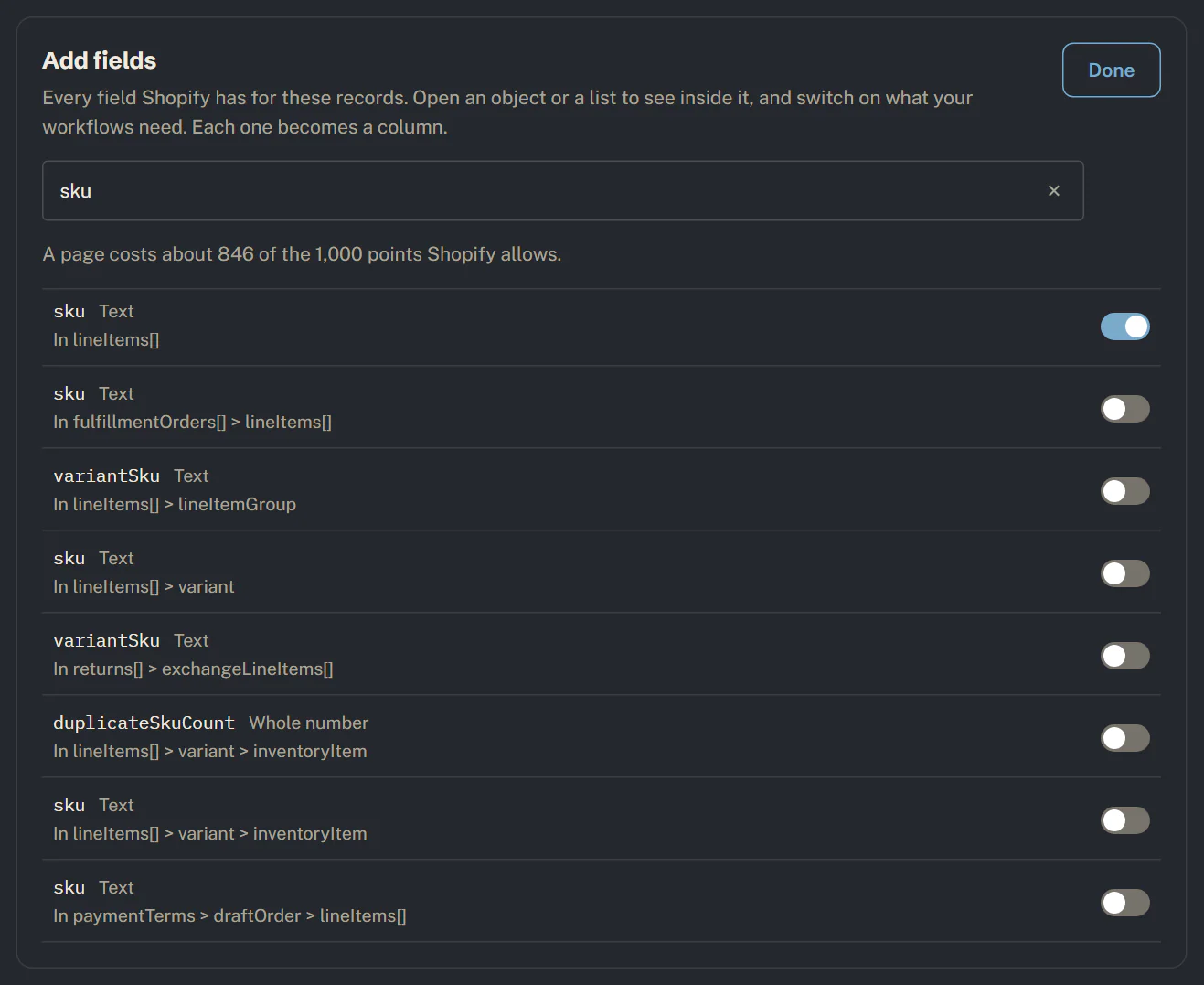
Add fields, under the list, opens every field Shopify has for that record. Open an object or a list to see inside it, and switch on what your workflows need. Each one becomes a column. A list shows as lineItems[], and an object or list with fields switched on inside it shows how many, such as "11 on". Done closes it.
Search fields by name looks through the whole record, lists inside lists included, for a name such as sku or tax. Each result says where it sits, for example "In lineItems[] > taxLines[]". A value has its switch right there, and an object or a list has Open, which shows it in place in the tree.
Switching on a field inside a list switches on what Ladeworks needs to read that list to the end, such as the id of what holds it.
 (opens the full size image in a new tab)
 (opens the full size image in a new tab)
 (opens the full size image in a new tab)
 (opens the full size image in a new tab)
Some fields can't be read yet. Each level of the tree ends with a line such as "3 fields here can't be read yet", which opens to say why for each one: it can be one of several types, it needs a value Ladeworks can't send yet (such as a metafield's key), or Shopify shares it only with apps that have an access scope Ladeworks doesn't ask for.
Everyone in the workspace can open Add fields and look. Owners and managers switch fields on and off.
What a page costs
Shopify limits how much one request may ask for, in points: 1,000 for a request. Add fields shows what a page of records costs with the fields switched on now, for example "A page costs about 340 of the 1,000 points Shopify allows." Every field and every list adds to it.
When a full page would cost more, the line says so, and Ladeworks reads fewer records at a time. It never reads fewer fields: every record and every field still comes through.
Lists inside a record, such as an order's line items, are read to the end, a page at a time, before the record moves on, so an order with 60 lines reaches your workflow with 60 lines. See Long lists inside a record.
Settings and signing in again
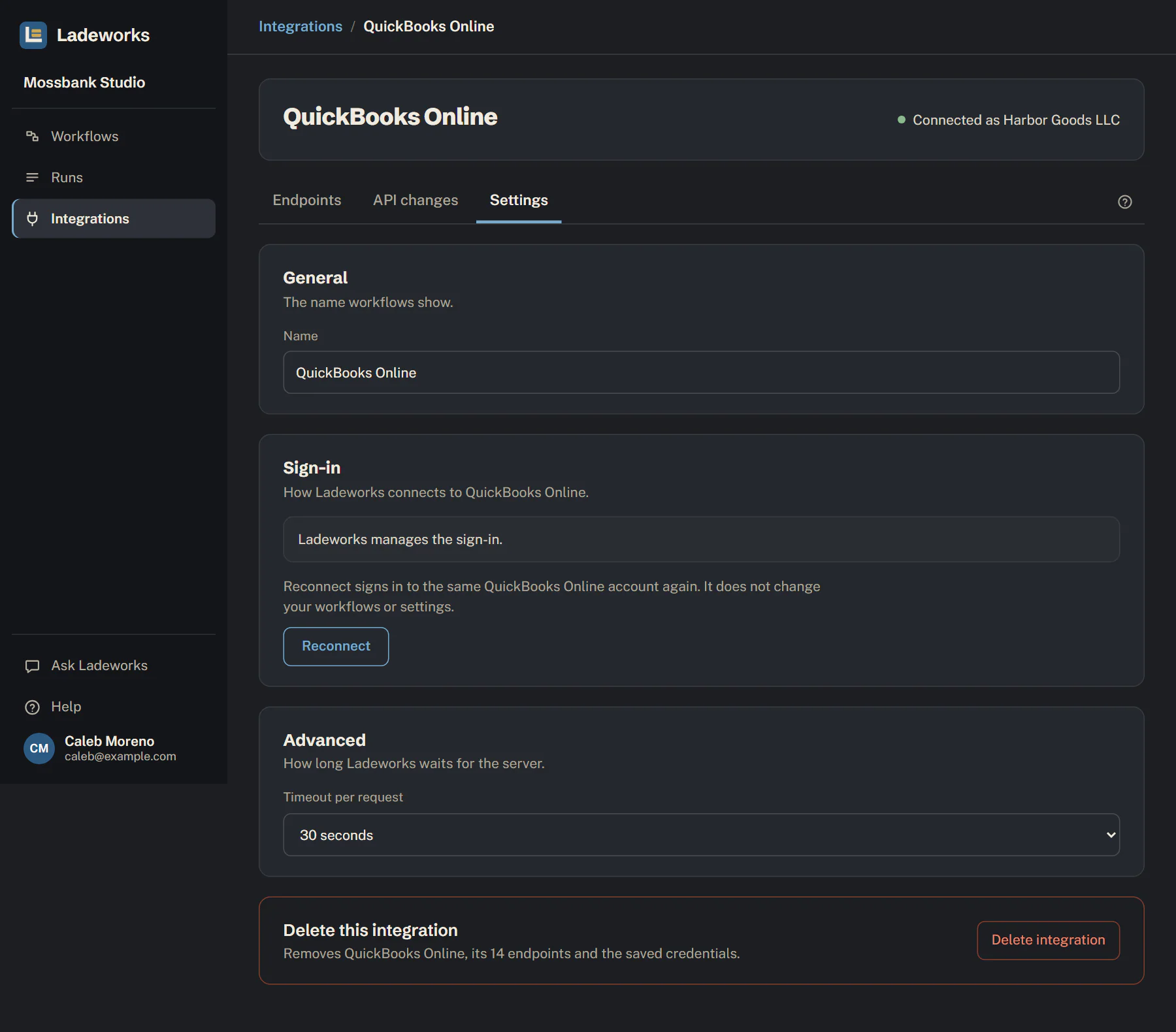
The Settings tab of a built-in has General (the name), Sign-in, Advanced (the timeout per request) and Delete this integration. There is no Connection or Authentication section and no docs link, spec, rate limit or extra headers, because Ladeworks manages those.
Sign-in says "Ladeworks manages the sign-in." Reconnect signs in to the same account again. It does not change your workflows or settings.
 (opens the full size image in a new tab)
 (opens the full size image in a new tab)
When QuickBooks, Shopify, Square, HubSpot or ERPNext stops accepting the sign-in, the integration is marked Needs attention with a reason such as "Sign in again to keep workflows running." Choose Reconnect, here or on the Connect page. If someone disconnects Ladeworks from inside QuickBooks, the page says "QuickBooks Online is disconnected": workflows that use it are paused until it is reconnected, and nothing else changed.
Delete integration removes the connection, its endpoint list and the stored sign-in. Workflows that use it must be changed first.
What counts toward your plan
A built-in counts like any other integration toward the number on your plan, for example "2 of 5 on your plan" with QuickBooks Online and Shopify connected. When the plan is full, connecting another shows the same window as adding any other integration.
What you can build with them
- Actions. In the workflow builder, a connected built-in adds named actions with labeled inputs and lists filled from your own company or store, such as creating an invoice or setting stock. See Built-in steps.
- Triggers. A workflow can start when something changes in QuickBooks Online, Shopify, Square, HubSpot or ERPNext: choose When something changes. See Triggers.
- Templates. New workflow opens a menu that says "Start from a template, or start blank and describe what you need." with templates for each connected built-in. See Workflow templates.
For any other API, connect it as a custom integration: see Connecting an integration.