DocsShaping data
Choose the fields a Shopify step reads
A Shopify Get data step and the When something changes in Shopify trigger come with every field a workflow usually needs. You can turn off the ones you don't want, and add any other field Shopify has, a custom metafield included. The same section sits in Get new orders, Get refunds, Get payouts, Get products, Get customers and the trigger.
Fields this action reads
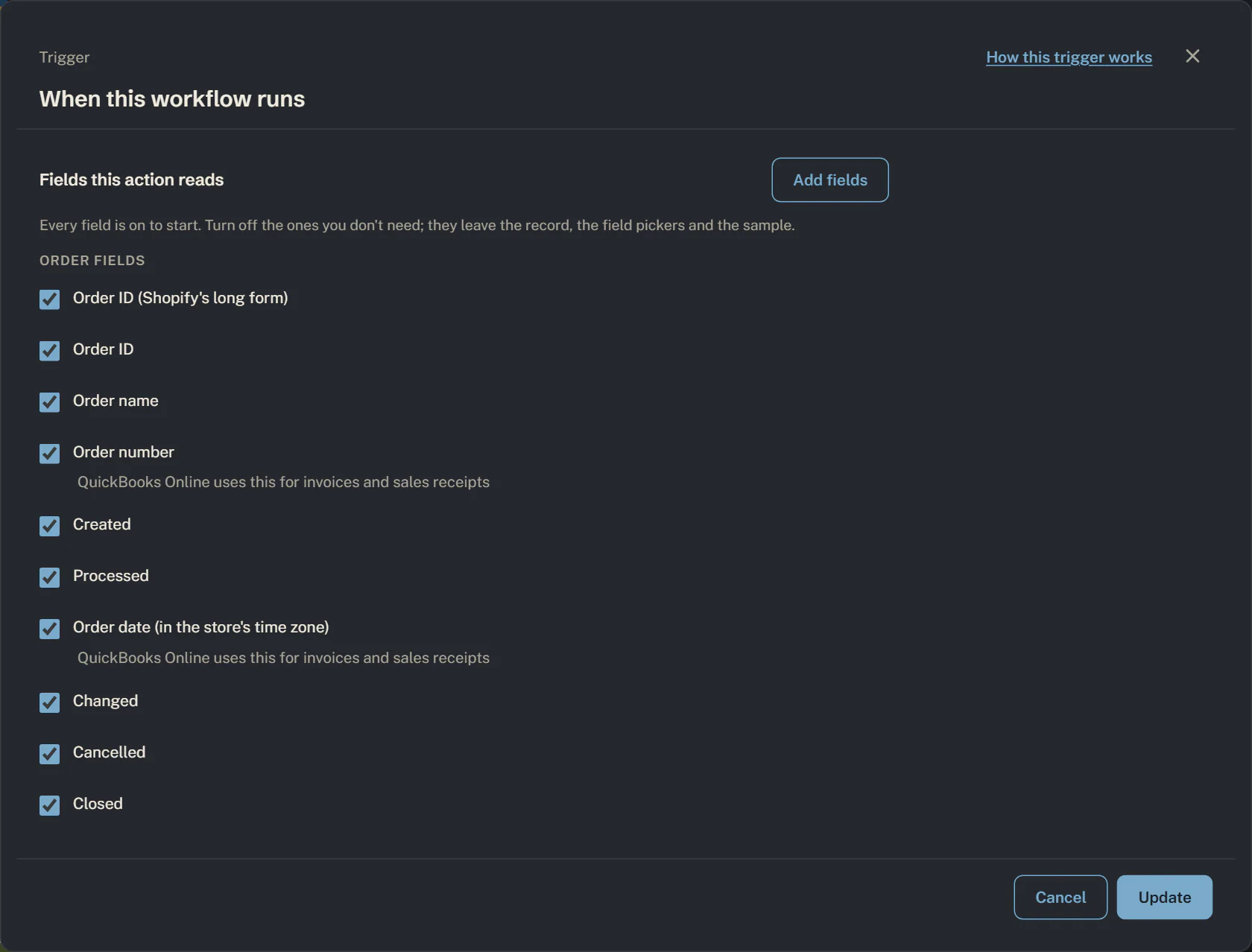
Open a Shopify Get data step, such as Get new orders, and scroll to Fields this action reads. Every field the action reads has a checkbox, grouped the way a record is built: Order fields, then Customer, Billing address, Shipping address and so on. The line under the heading says "Every field is on to start. Turn off the ones you don't need; they leave the record, the field pickers and the sample."
The step opens in the same large window as every other step, and Add fields sits at the top right of this section.
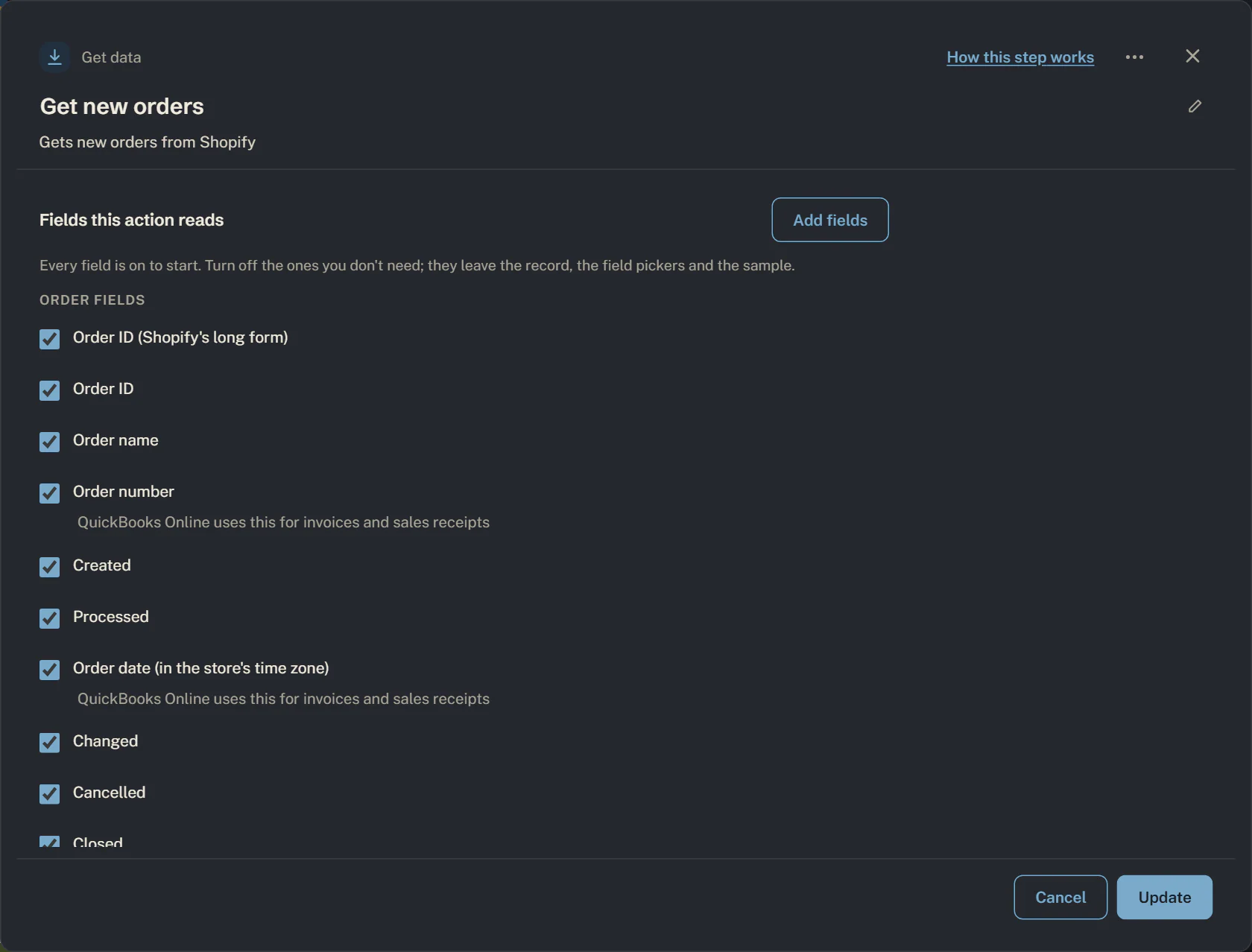 (opens the full size image in a new tab)
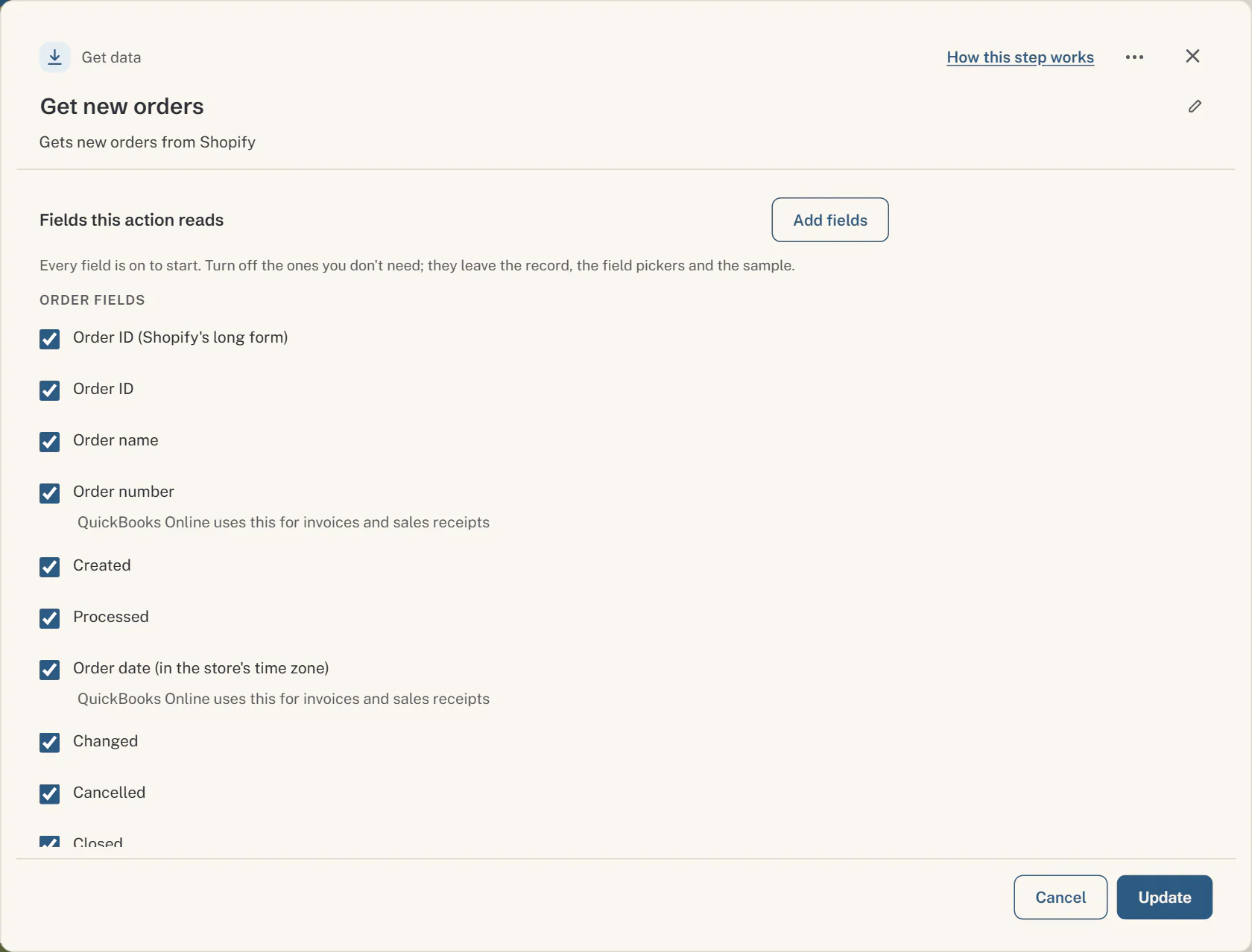 (opens the full size image in a new tab)
Hide a field
Uncheck a field to hide it. A hidden field leaves the record, the field pickers in later steps and the sample. Check it again to bring it back.
Ladeworks still reads what it needs from Shopify to work out its other fields, so hiding a field never breaks one that is worked out from it. Order ID and Changed can't be hidden, because Ladeworks uses them to tell records apart and to read only what changed.
Fields another app uses
When another built-in app is connected in the workspace and its actions use a field, a gray note under the field says so, such as "QuickBooks Online uses this for invoices and sales receipts". When every field of a group is used for the same thing, the note shows once, under the group's heading. A note shows only for apps you have connected, so a workspace with no QuickBooks Online connection sees none.
Nothing is locked. If you uncheck a field that is used, Ladeworks asks "QuickBooks Online uses this field. Hide it anyway?" with Hide it and Keep it. A step that still uses a hidden field gets no value for it.
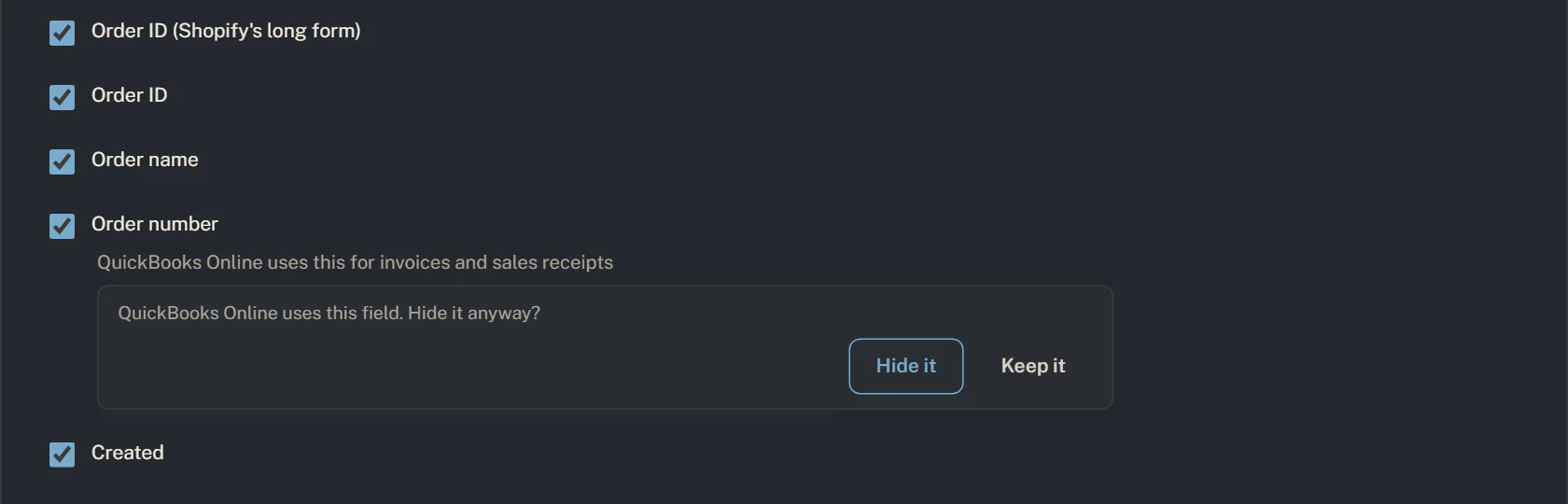 (opens the full size image in a new tab)
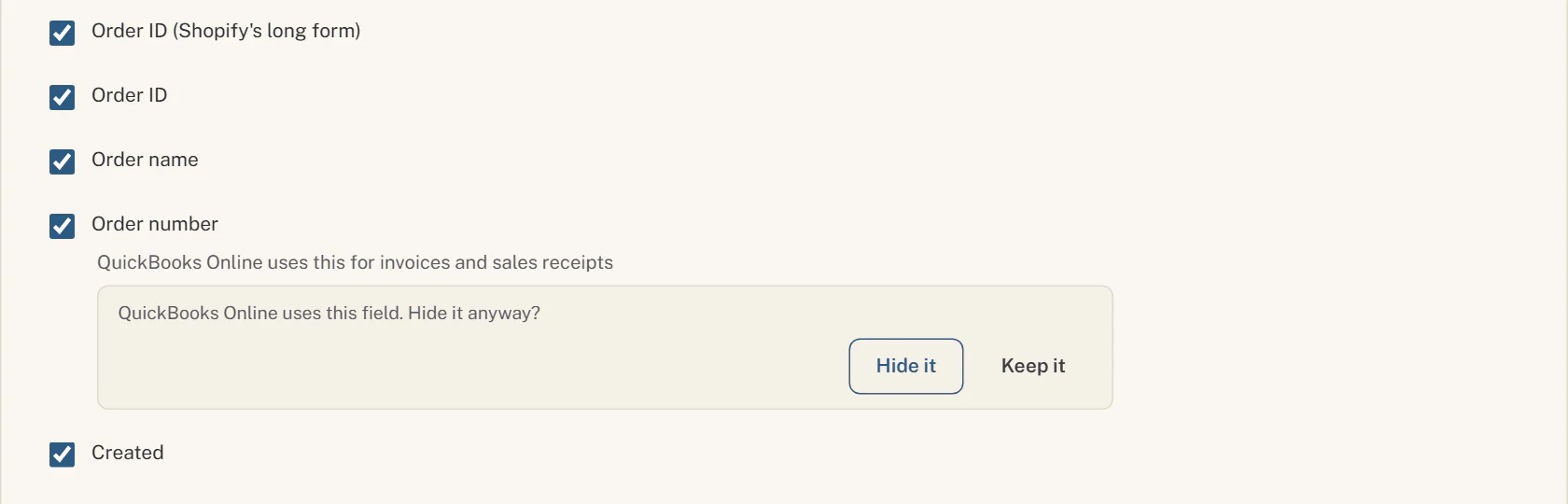 (opens the full size image in a new tab)
Add fields
Add fields shows every field Shopify has for these records, not only the ones Ladeworks reads for you. The same window switches to the list, with a Back to link at the top that returns to the step, and Done at the bottom does the same. Nothing opens on top of anything else.
Each field has its plain name, such as "Billing address matches shipping address", with Shopify's own name beside it in a monospaced font, such as billingAddressMatchesShippingAddress, and a short description. Check a field to add it.
A field that holds other fields is a group to open. An object shows as Object, such as billingAddress, and a list shows as List with [] after its name, such as lineItems[]. Open one to see what is inside it. A count such as "3 added" tells you where you have already added fields.
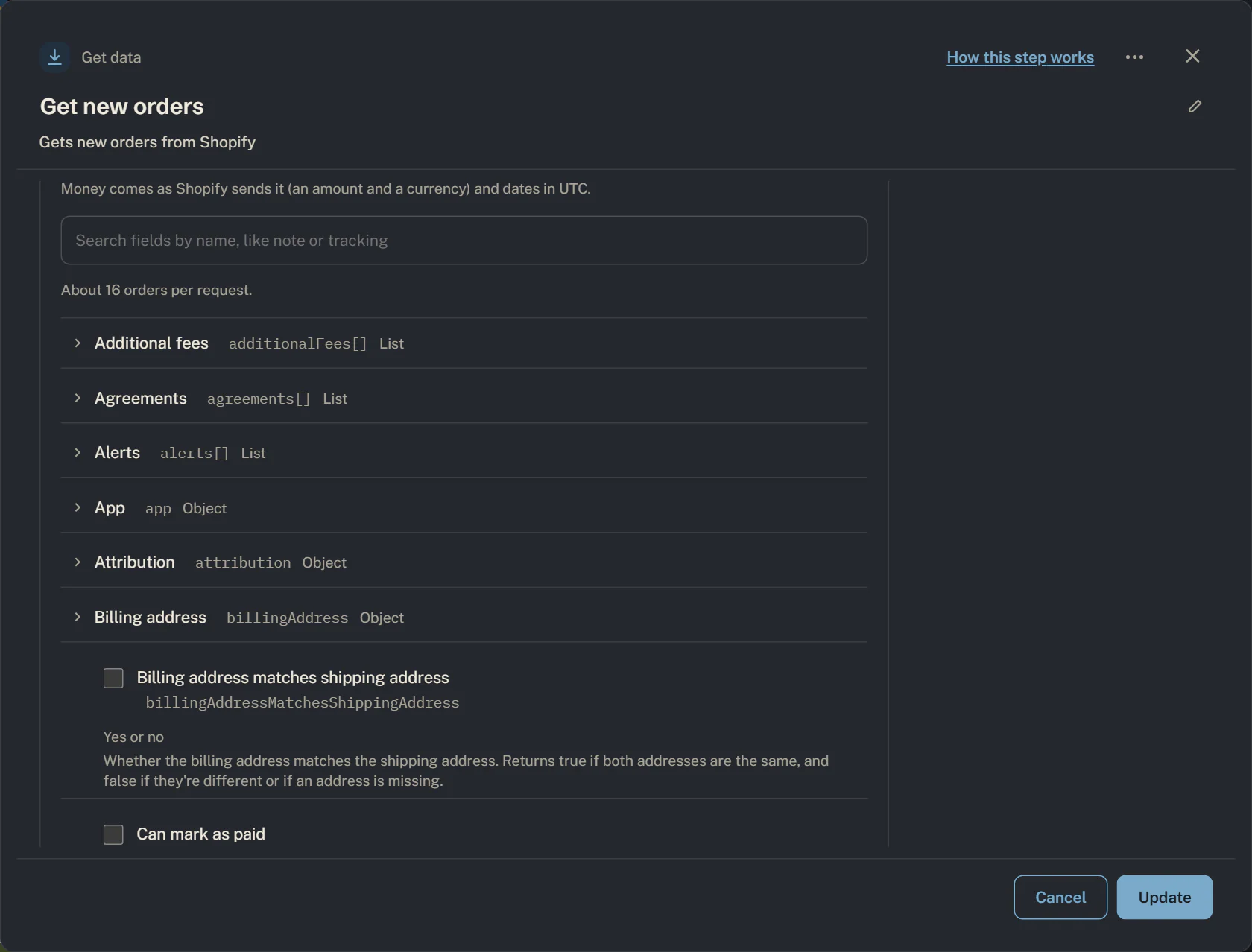 (opens the full size image in a new tab)
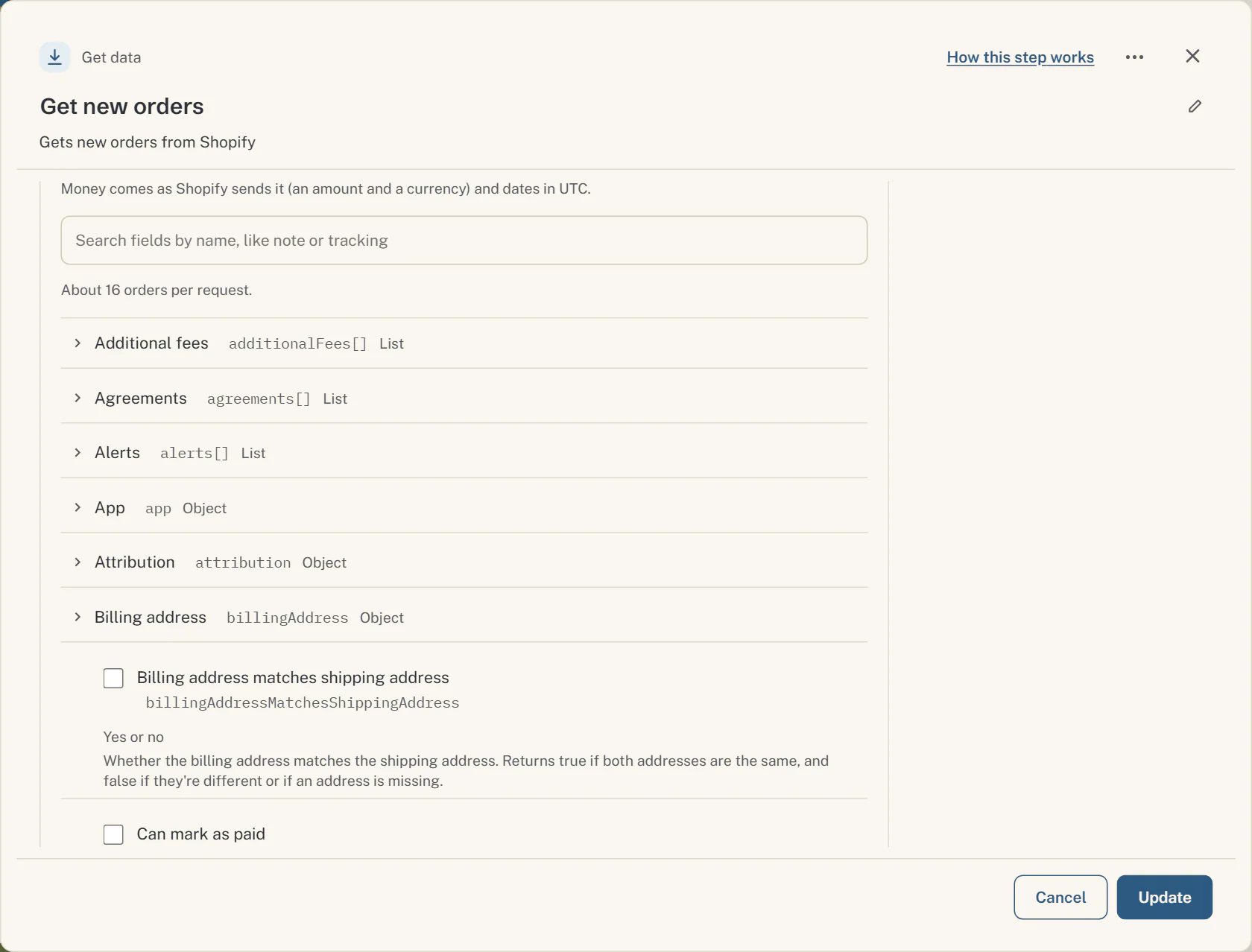 (opens the full size image in a new tab)
Search
The box says "Search fields by name, like note or tracking". It looks through the whole record, lists inside lists included. Each result says where the field sits, with a path such as "Customer › Note", so you can tell the order's note from the customer's and from a refund's. An object or a list in the results has Open, which takes you to it in the list.
A field the action already has says so, for example "Already read as Order note", with its checkbox on and unavailable. A field that can't be added is unavailable too, with the reason under it. One reason is that a single order with the field would cost more than Shopify allows in one request. Another is that Shopify gives a list in a way Ladeworks can't read to the end yet.
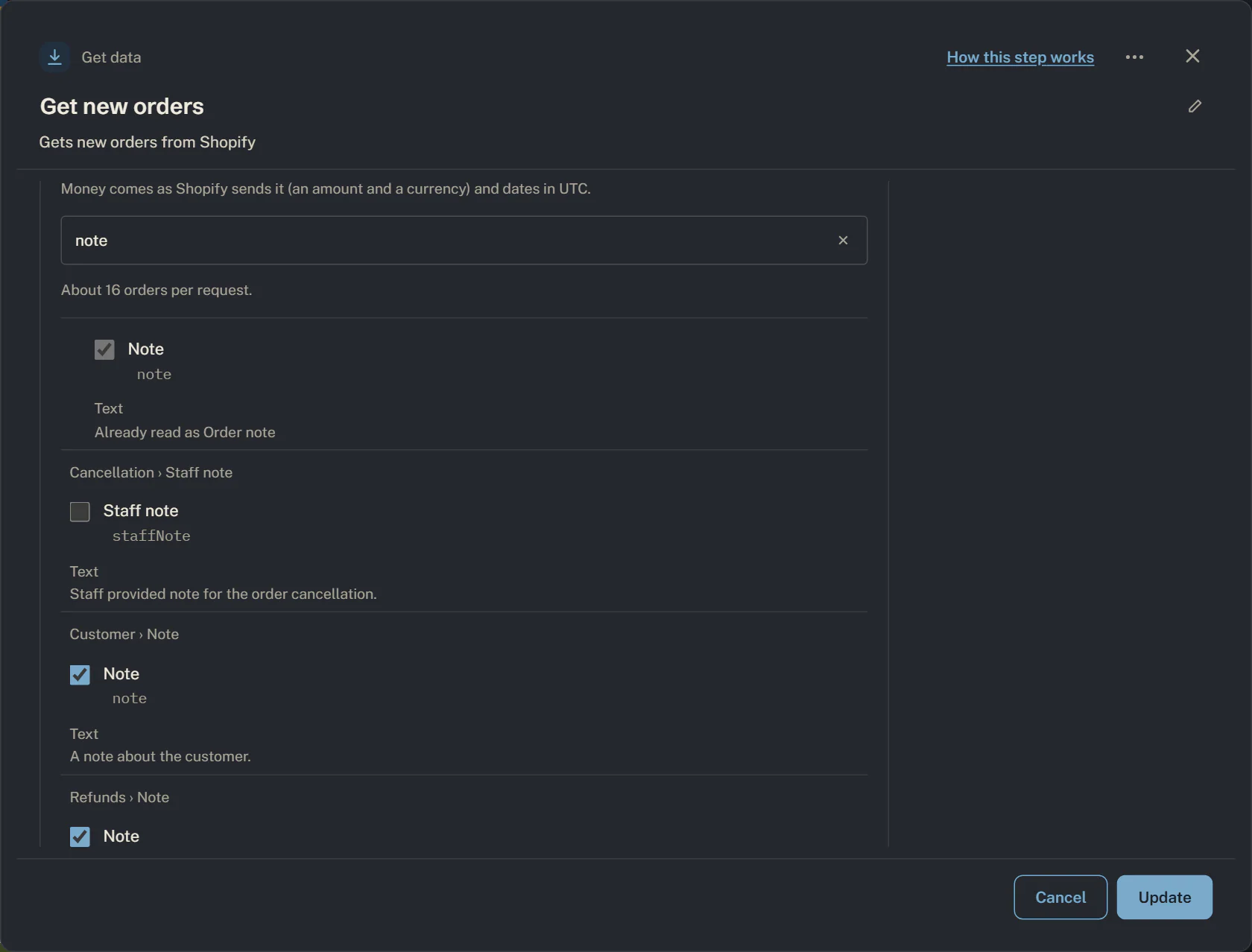 (opens the full size image in a new tab)
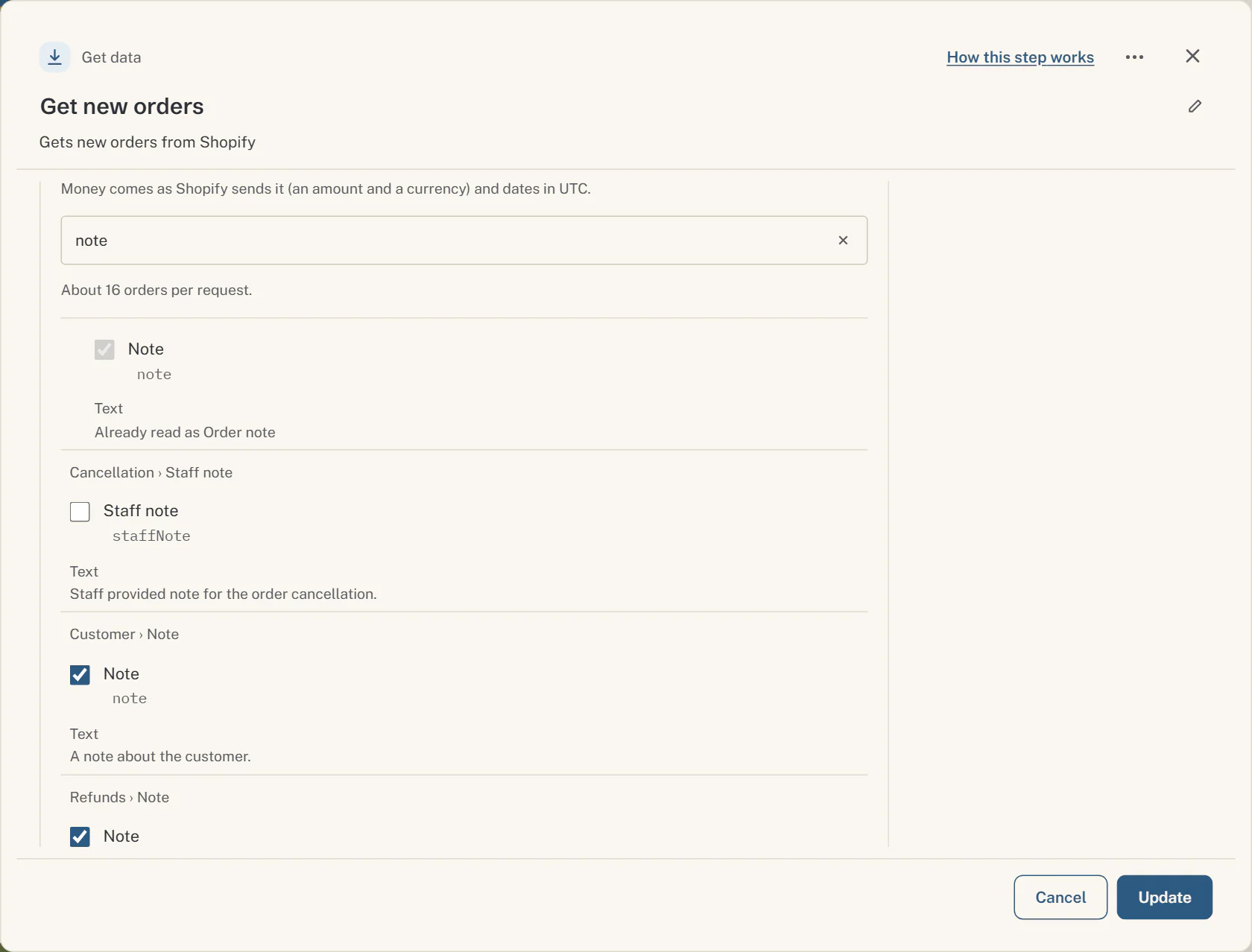 (opens the full size image in a new tab)
Orders per request
Shopify limits how much one request may ask for. A line under the search box, and again under Fields this action reads, says how many records Ladeworks reads in one request with your choice, for example "About 16 orders per request." The more you add, the fewer records fit, and a run makes more requests for the same orders. Every record and every field still comes through.
Add a metafield
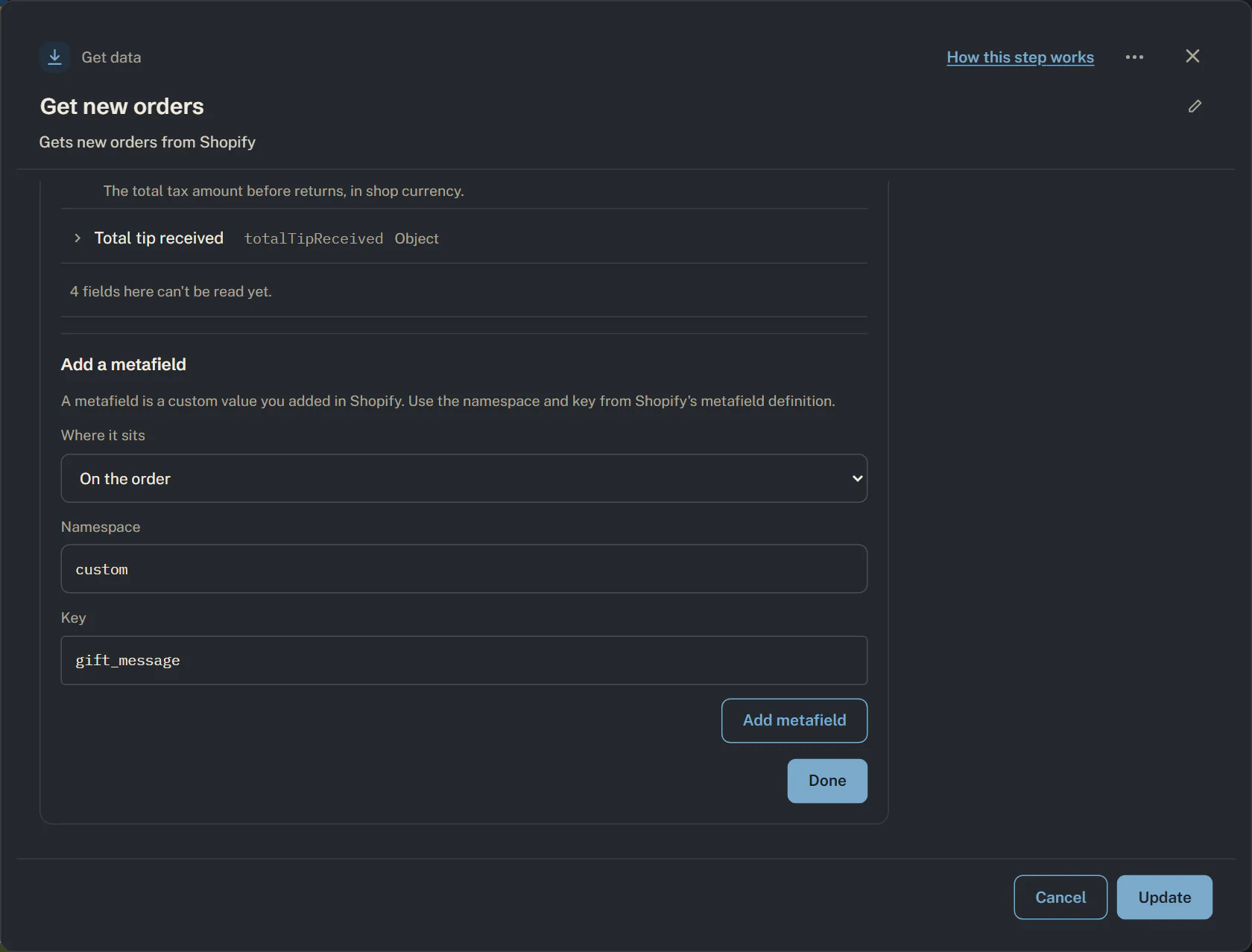
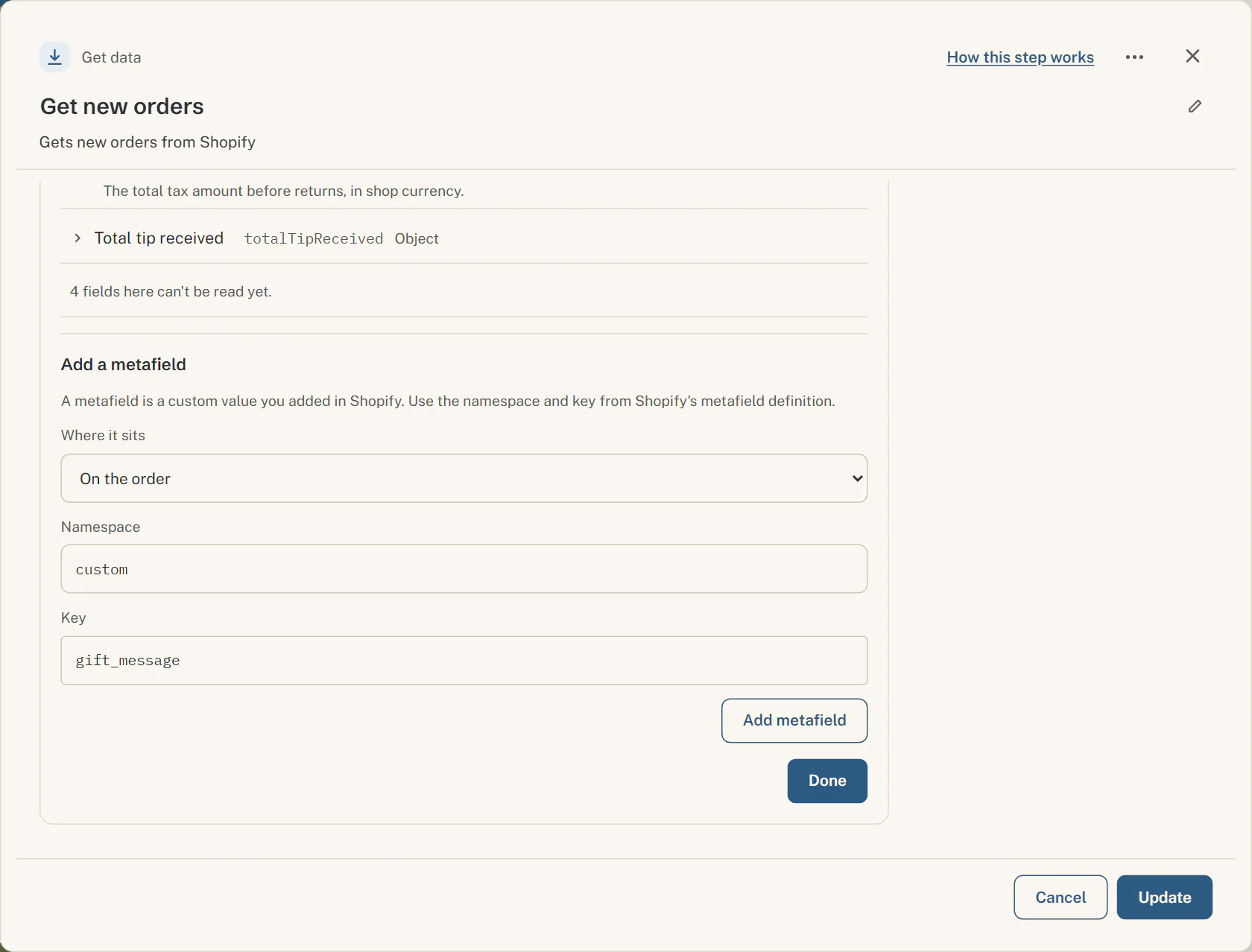
A metafield is a custom value you added in Shopify, such as a gift message on an order. At the bottom of Add fields, Add a metafield asks for:
- Where it sits: On the order, or On the product of each line item. This choice appears for orders. The other actions read the metafield from their own records, such as each customer.
- Namespace: as Shopify's metafield definition shows it, such as custom. It takes 3 or more letters, digits, dashes or underscores.
- Key: such as gift_message. It takes letters, digits, dashes or underscores, up to 64 characters.
Choose Add metafield. If something is missing, the form says what to type, for example "Type the namespace, for example custom."
 (opens the full size image in a new tab)
 (opens the full size image in a new tab)
Fields you added
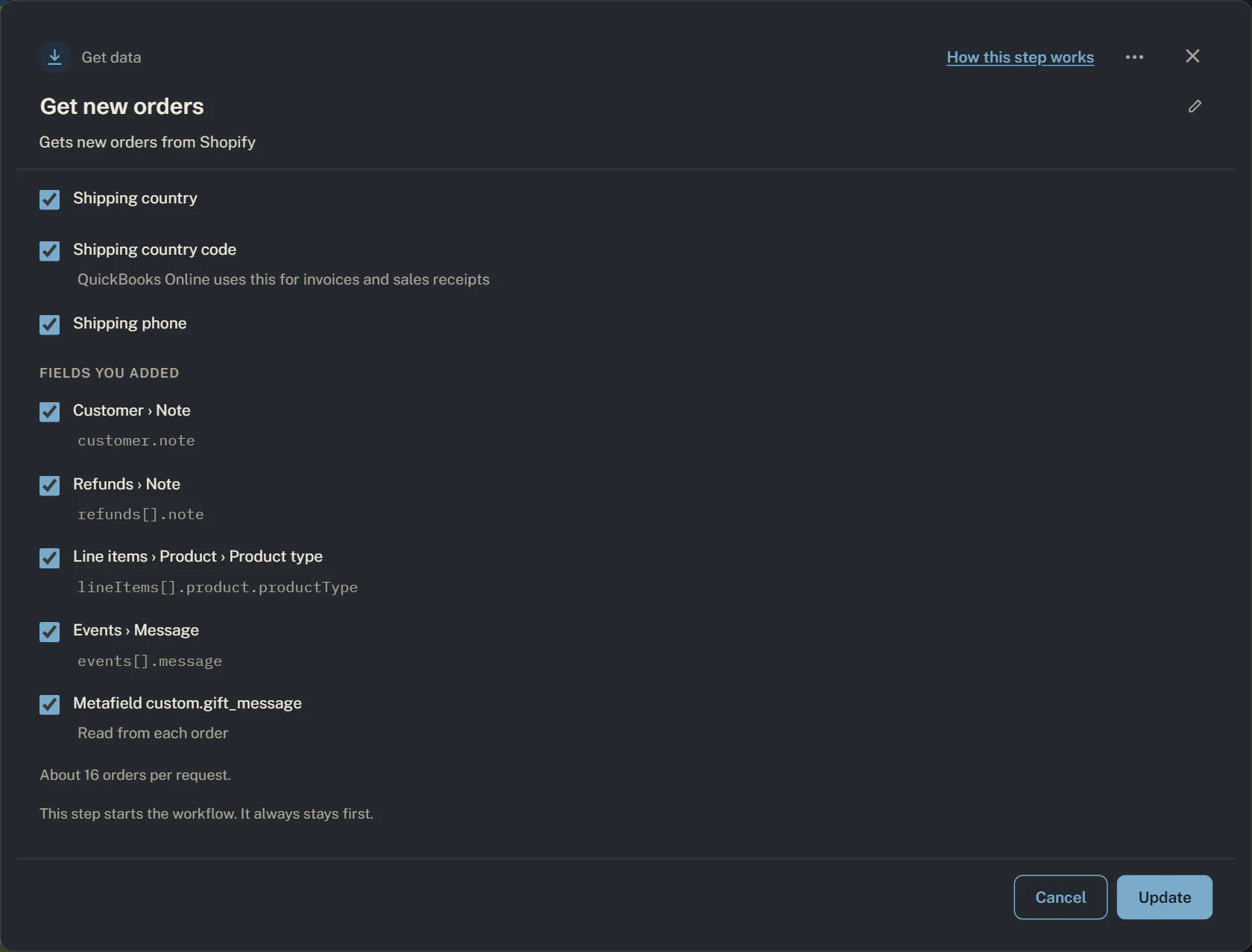
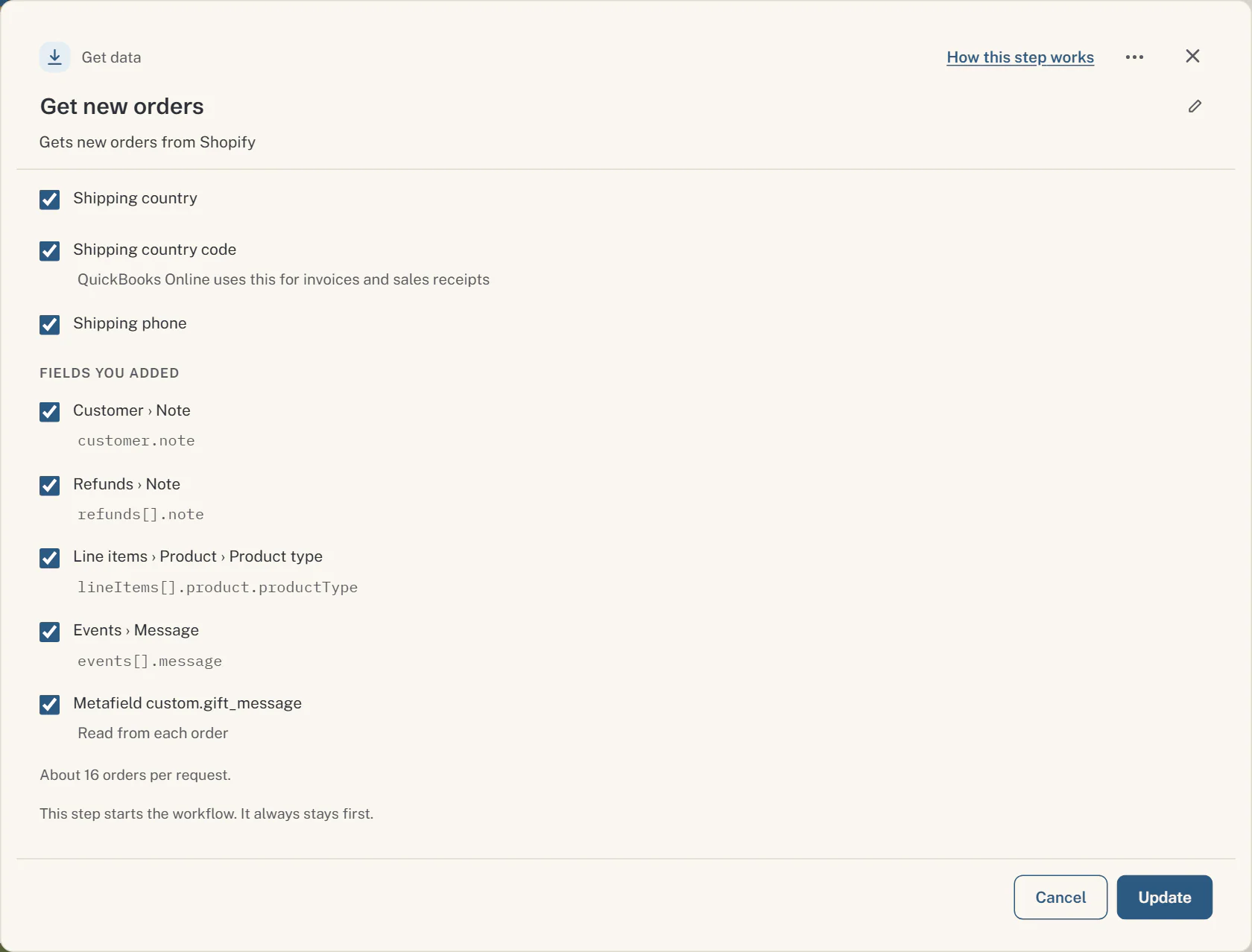
Added fields show under Fields you added in the step, each with its label and, in a monospaced font, the path it has in the record, for example "Customer › Note" with customer.note. A metafield shows as "Metafield custom.gift_message" with a line such as "Read from each order". Uncheck one to take it out.
 (opens the full size image in a new tab)
 (opens the full size image in a new tab)
What an added field looks like in the record
- It arrives under its path: customer.note, refunds[].note, lineItems[].product.productType, metafields.custom.gift_message. A metafield on the product of each line item arrives as lineItems[].product.metafields.custom.gift_message. When the path starts inside a group that is already in the record, such as customer, the field joins that group.
- It comes as Shopify sends it. Money is an amount and a currency, and dates are in UTC. The fields Ladeworks reads for you are tidied up, for example the order date in the store's time zone, but a field you add is not changed.
- It works wherever a built-in field works: in the Map fields pickers, in the mappings a template fills in, in Filter rows and in the sample. Its label in the pickers is the plain one, such as "Customer › Note".
- A list you add is read to the end before the record moves on. An order with 60 refunds reaches your workflow with 60 refunds, and a record is never sent with items missing.
In a CSV, a field inside an object becomes a column named by its path, such as customer.note. A list such as refunds[] holds several items for one order, and left as it is, the whole list goes into one cell. Use Split a list into rows to give each item its own row, then map its fields.
The same section on the trigger
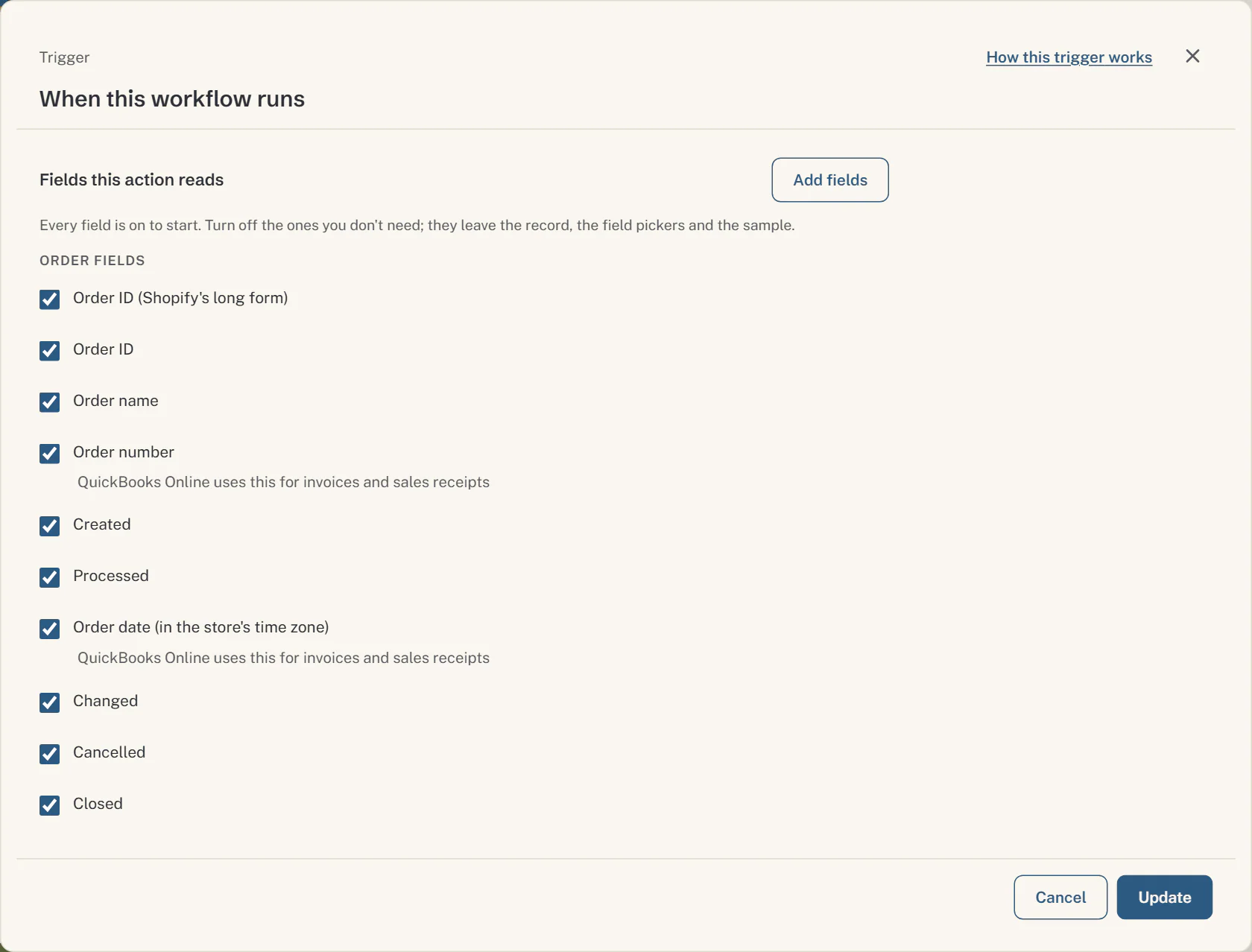
The When something changes in Shopify trigger hands the workflow each changed record with the same fields as the matching Get action. So its window has the same Fields this action reads section, below Record type and Start when a record is, with the same checkboxes, notes, Add fields and Add a metafield. See Triggers.
 (opens the full size image in a new tab)
 (opens the full size image in a new tab)
Send data steps in the same window
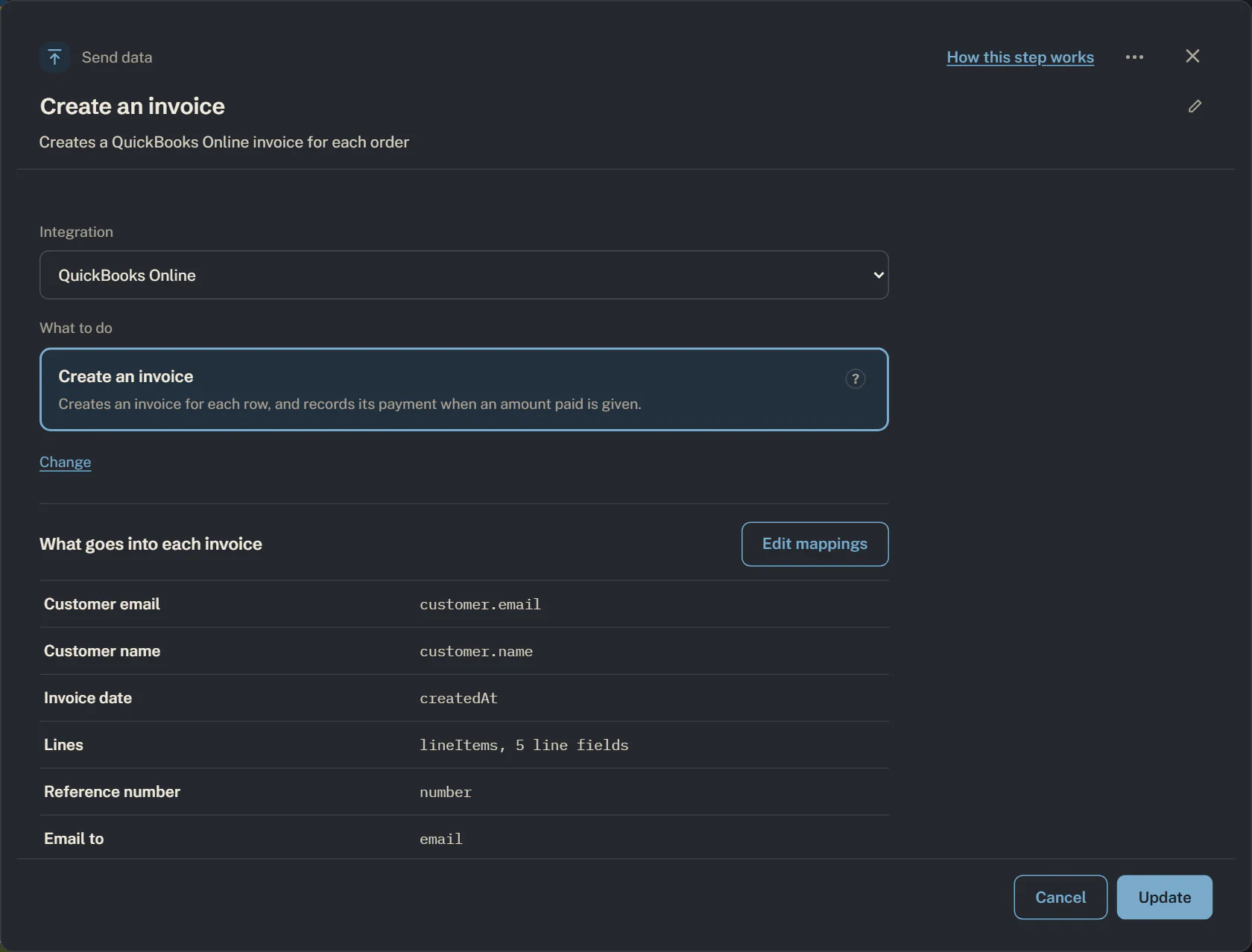
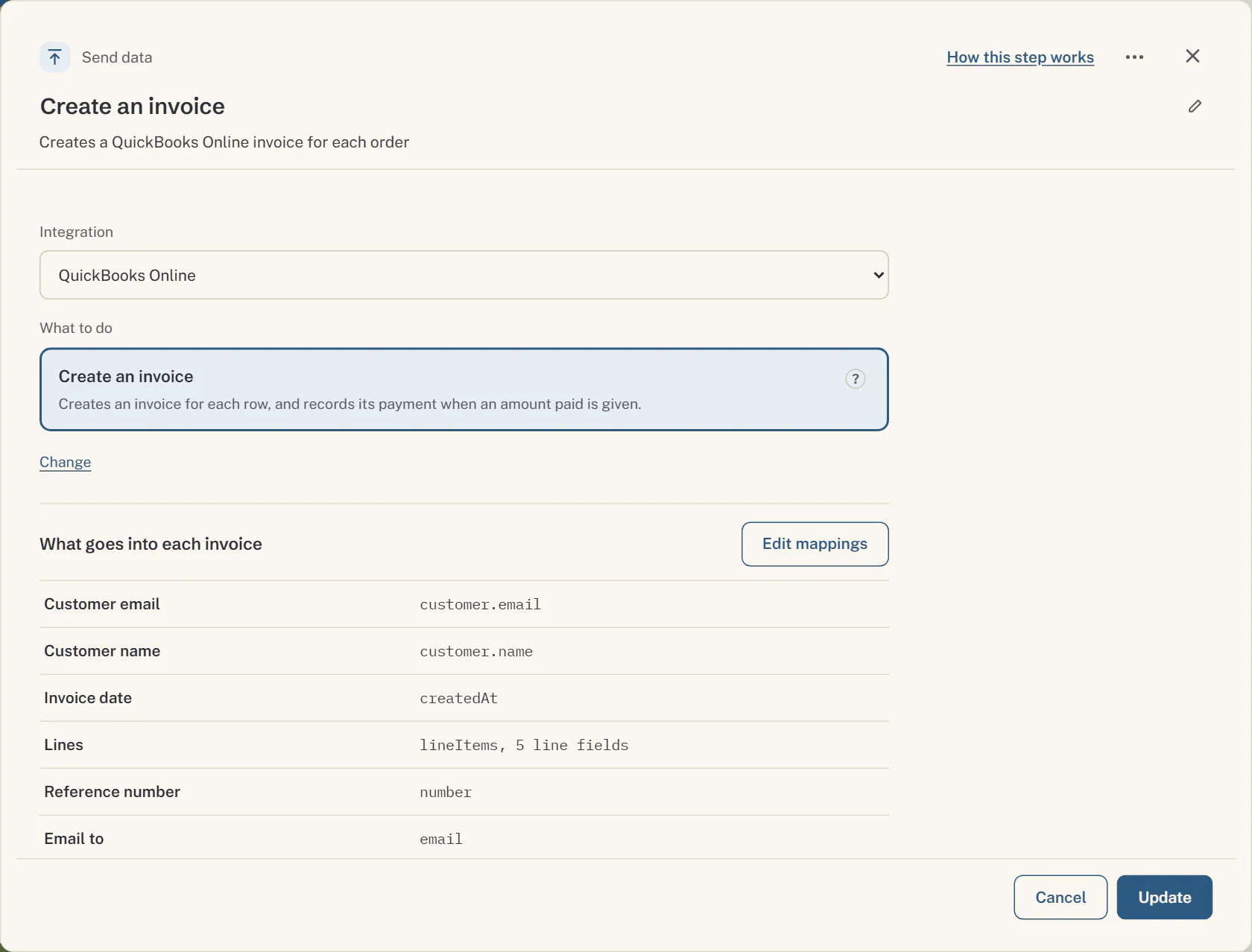
A step that sends data, such as Create an invoice, has Edit mappings. It switches the same window to the Map fields step before it, with a Back to link and the step's name at the top. Fields you added are in the list of fields to pick from.
 (opens the full size image in a new tab)
 (opens the full size image in a new tab)
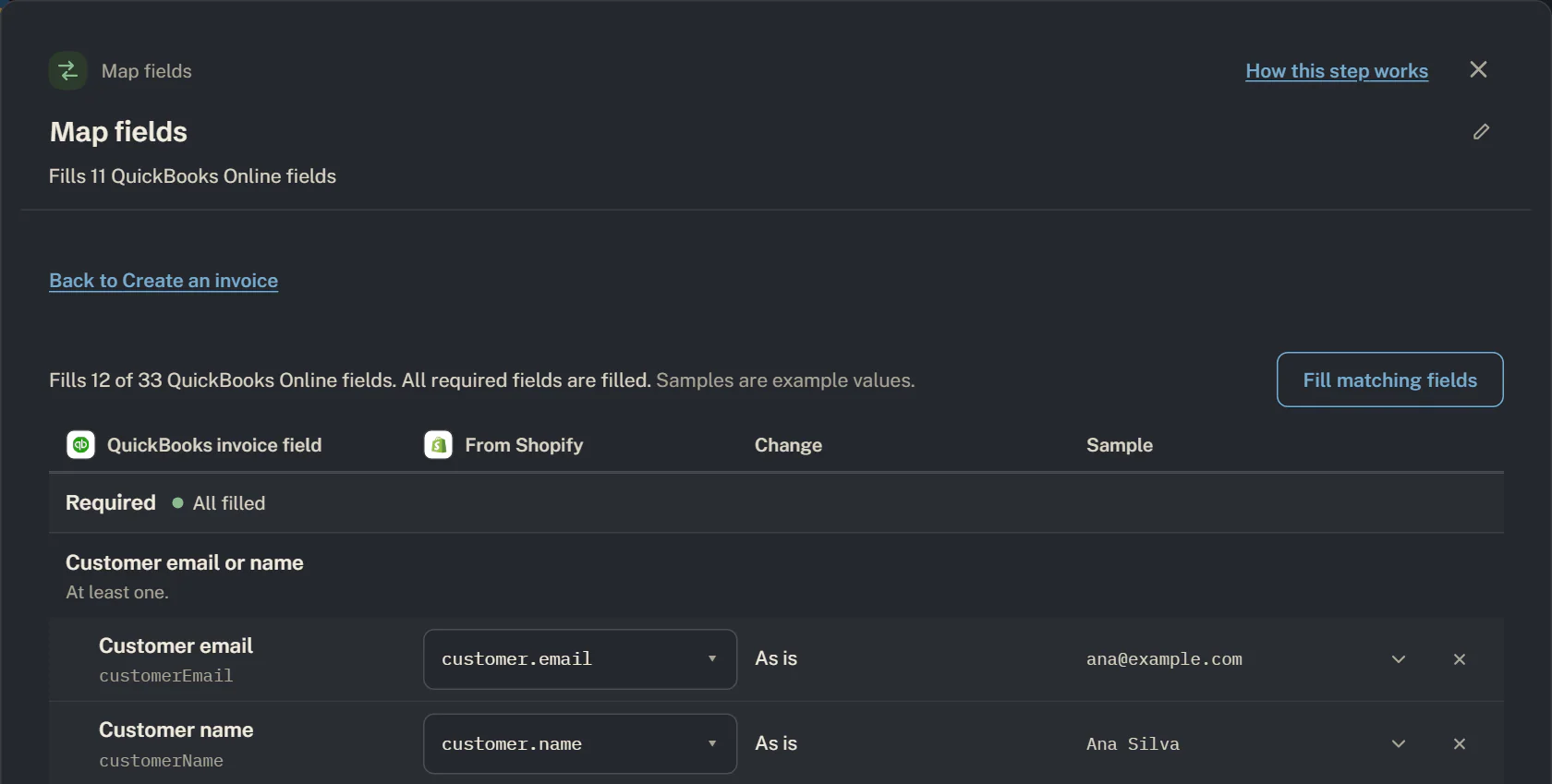 (opens the full size image in a new tab)
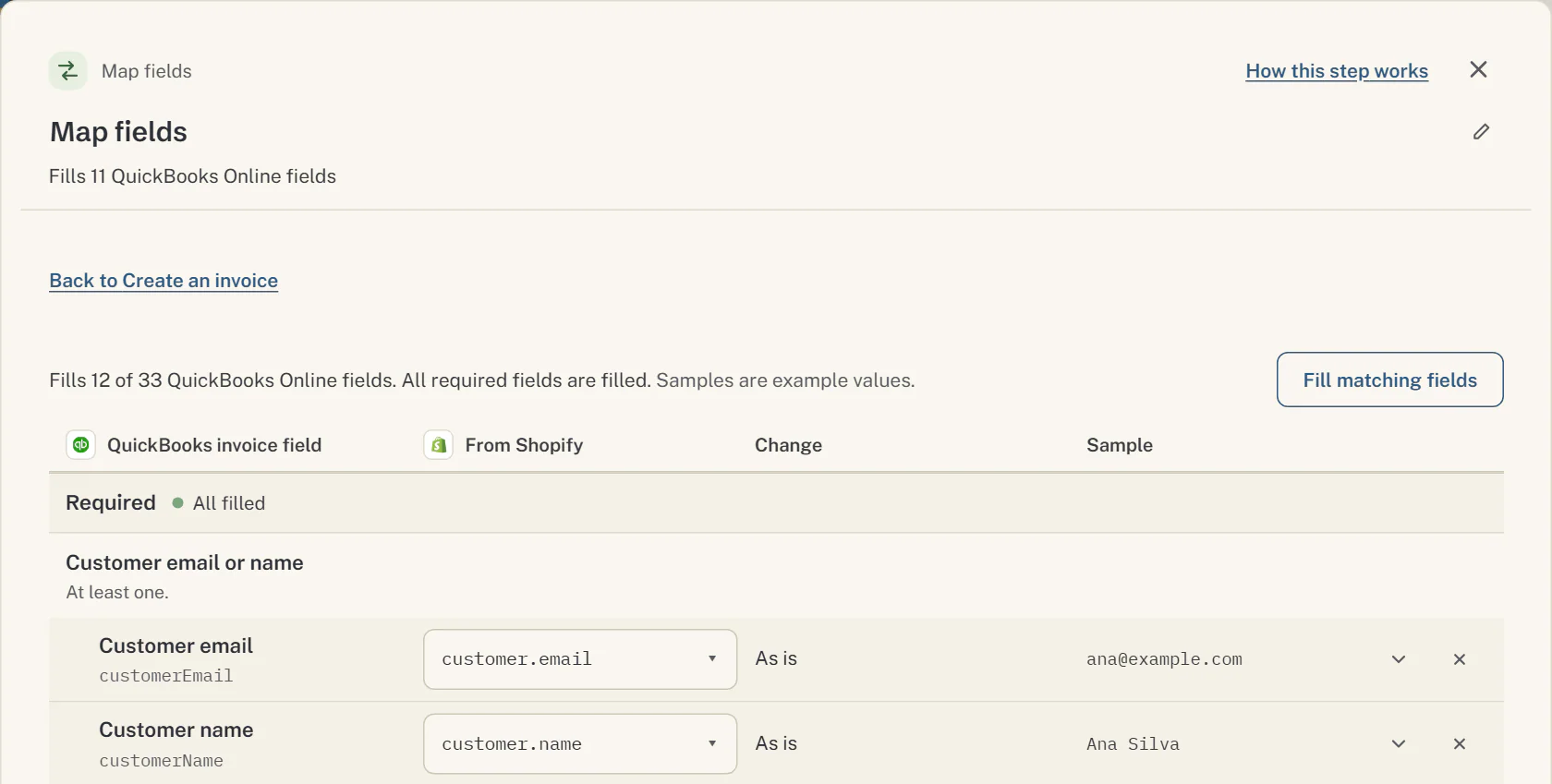 (opens the full size image in a new tab)