DocsYour first workflow
Start from a template
A template is a workflow for Shopify, Square, QuickBooks Online or HubSpot, already built. You choose one, answer the few things it needs (the bank account for deposits, where to save a CSV), and Ladeworks creates the workflow turned off and opens it in the builder. You can change any step. Connect Shopify, Square, QuickBooks Online or HubSpot first: see the built-in integrations.
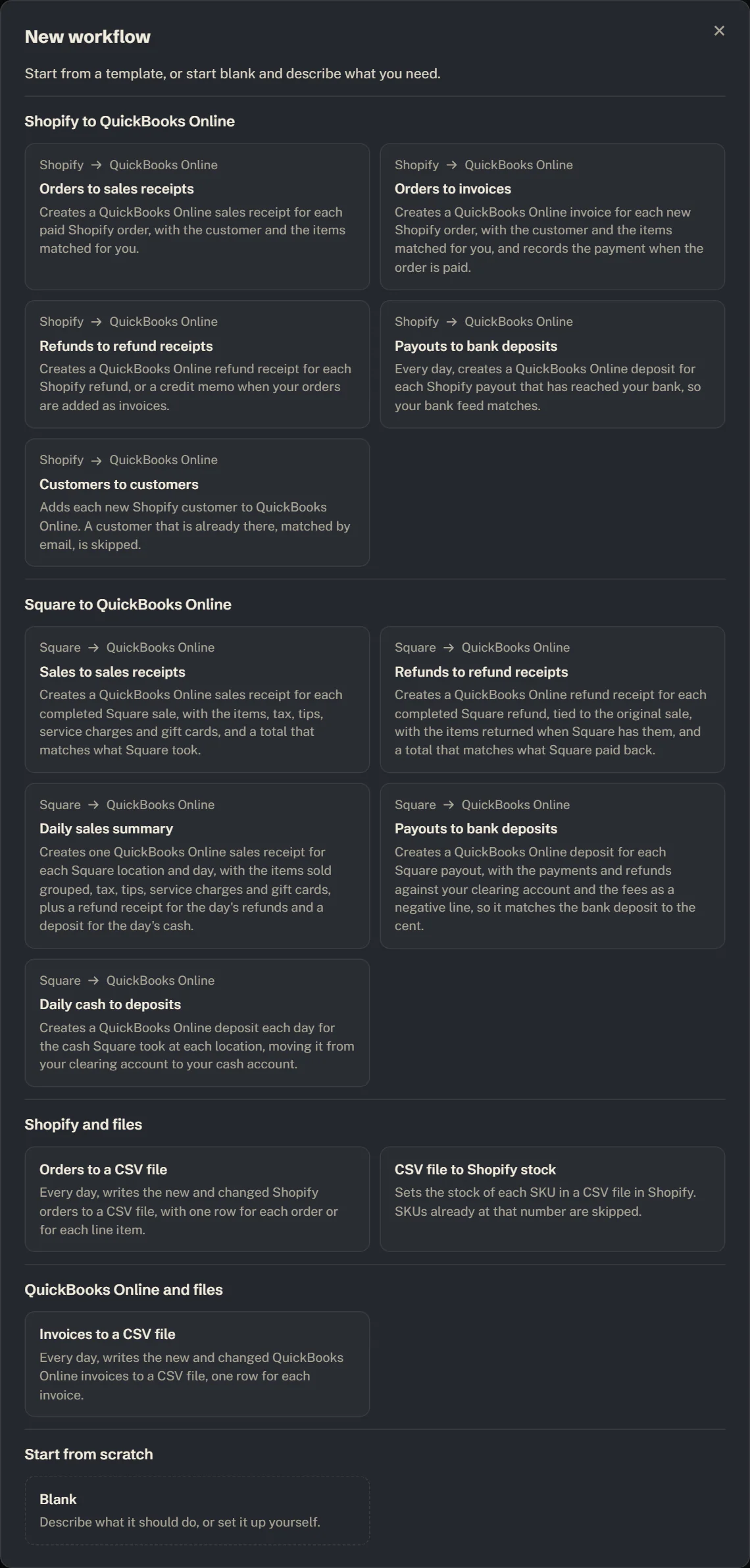
The template menu
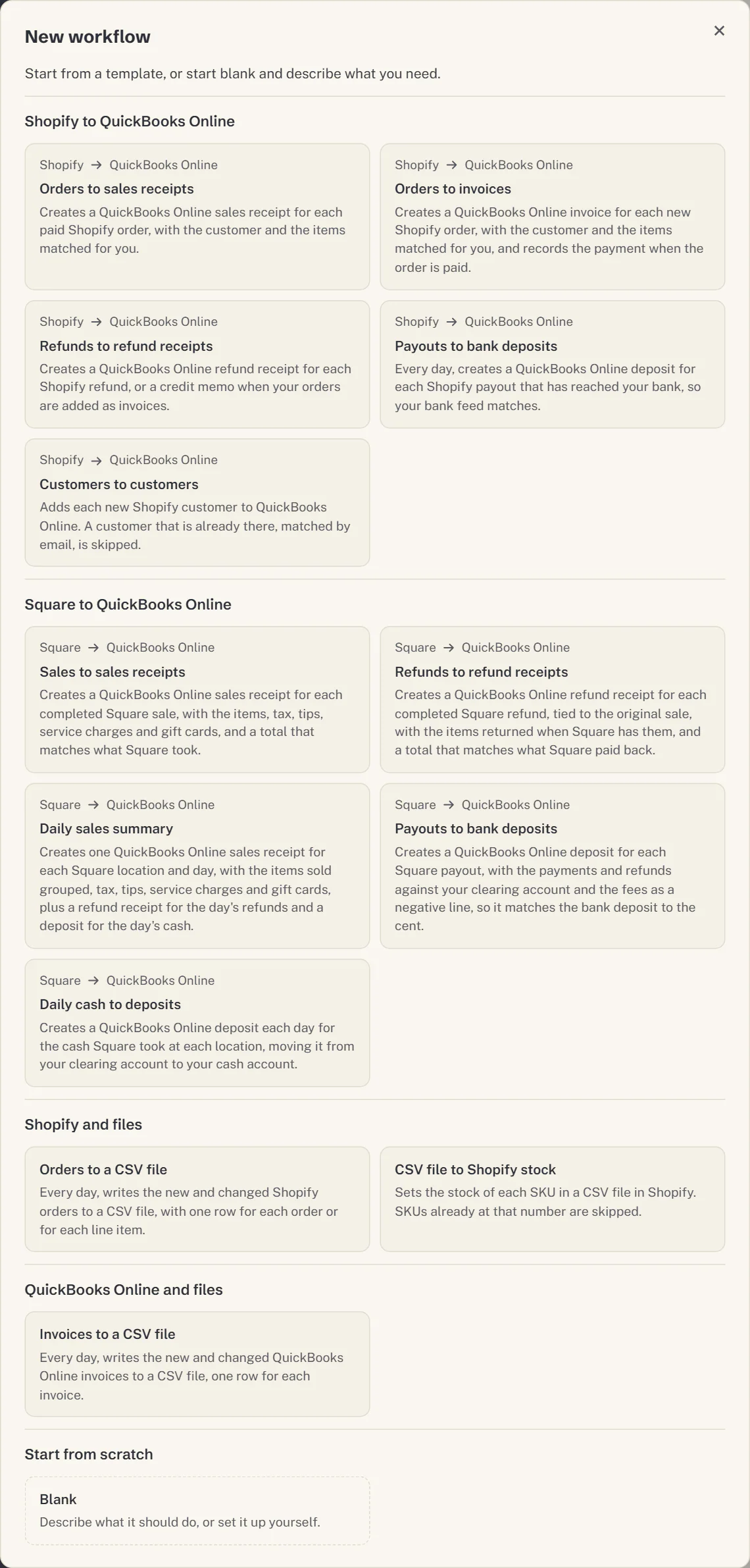
Choose + New workflow on the Workflows page (or Create in the checklist while there are no workflows yet). The New workflow menu says "Start from a template, or start blank and describe what you need." Templates are grouped by the built-in apps you have connected:
- Shopify to QuickBooks Online shows when both are connected.
- Square to QuickBooks Online shows when both are connected.
- Shopify and files shows when Shopify is connected.
- Shopify to HubSpot shows when both are connected.
- QuickBooks Online and files shows when QuickBooks Online is connected.
- HubSpot and files shows when HubSpot is connected.
- Start from scratch is always there, with Blank: "Describe what it should do, or set it up yourself." It opens What should this workflow do?
Each template is a card with its name and one line about what it does. With neither app connected there are no templates, so + New workflow opens the New workflow page straight away.
 (opens the full size image in a new tab)
 (opens the full size image in a new tab)
Choose a template
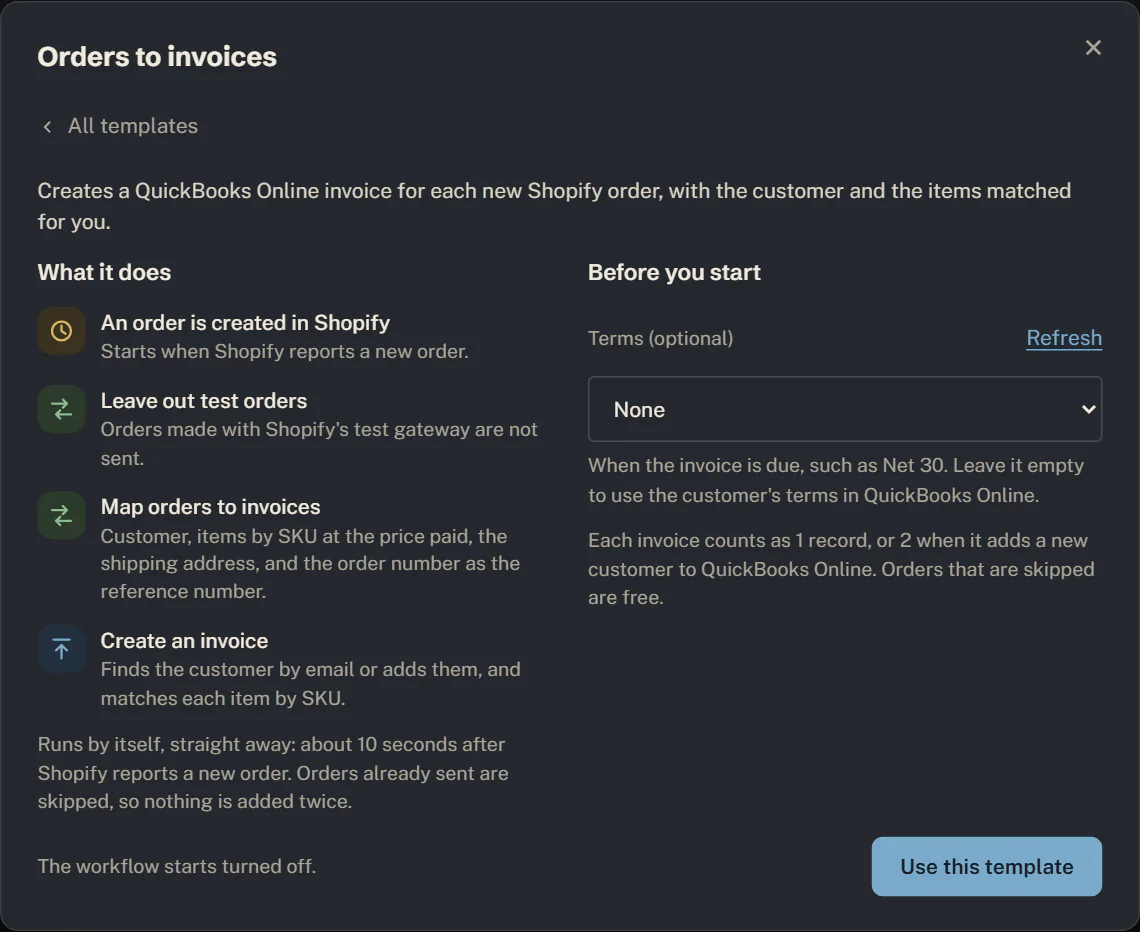
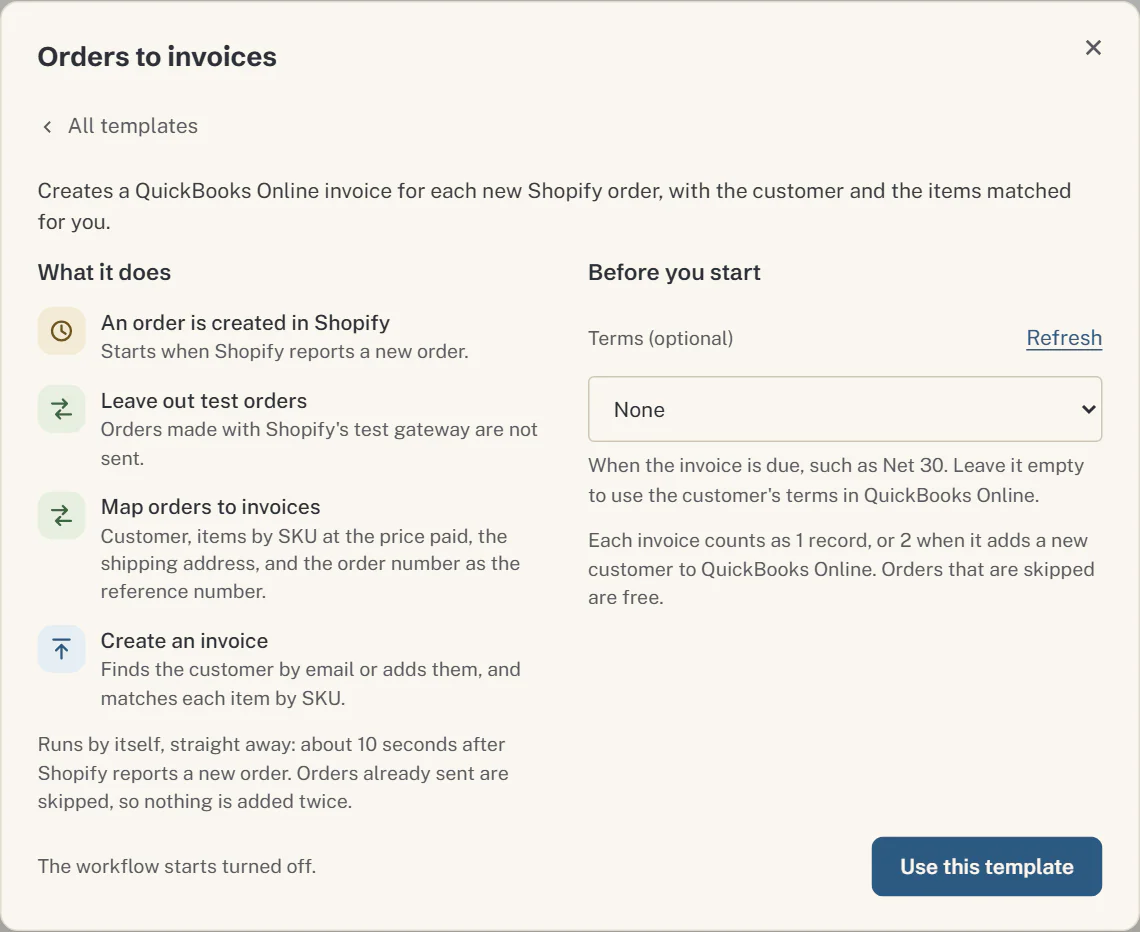
A card opens the template. At the top are its name and what it does, and All templates goes back to the menu. Two columns follow:
- What it does lists the trigger and the steps, with the same icons as the builder. A gray line under it says when the workflow runs on your plan, and another says what other plans add.
- Before you start holds the template's questions, and under them a gray line with what a run counts in records. A template with nothing to decide says "Nothing to decide. You can change everything in the builder."
Some answers are lists read live from QuickBooks Online or Shopify, such as the account a deposit goes into. Refresh reads the list again. If the connection needs attention, the message has a Reconnect link. A question without a star in the list below can be left empty, and is marked "(optional)". Use this template stays off until every required question is answered, then creates the workflow ("Creating" while it works). The footer says "The workflow starts turned off."
A template fits your plan where it can: a plan that cannot use a change trigger gets a template that starts when you click Run, for example. A template that cannot fit shows a lock and the plan it needs, and Use this template becomes an upgrade button for that plan.
 (opens the full size image in a new tab)
 (opens the full size image in a new tab)
Use this template counts toward the workflows your plan allows, like any other workflow.
After you use a template
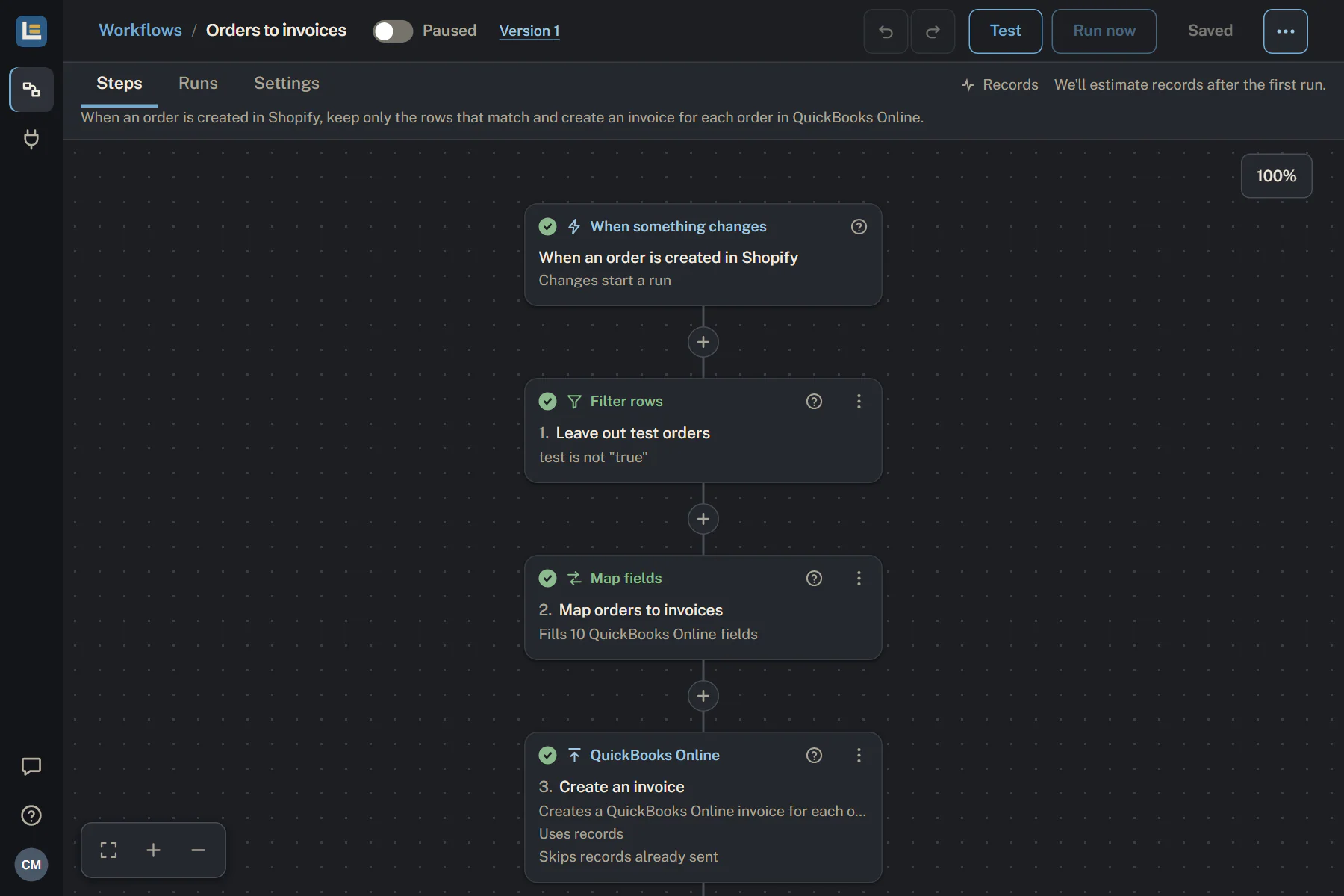
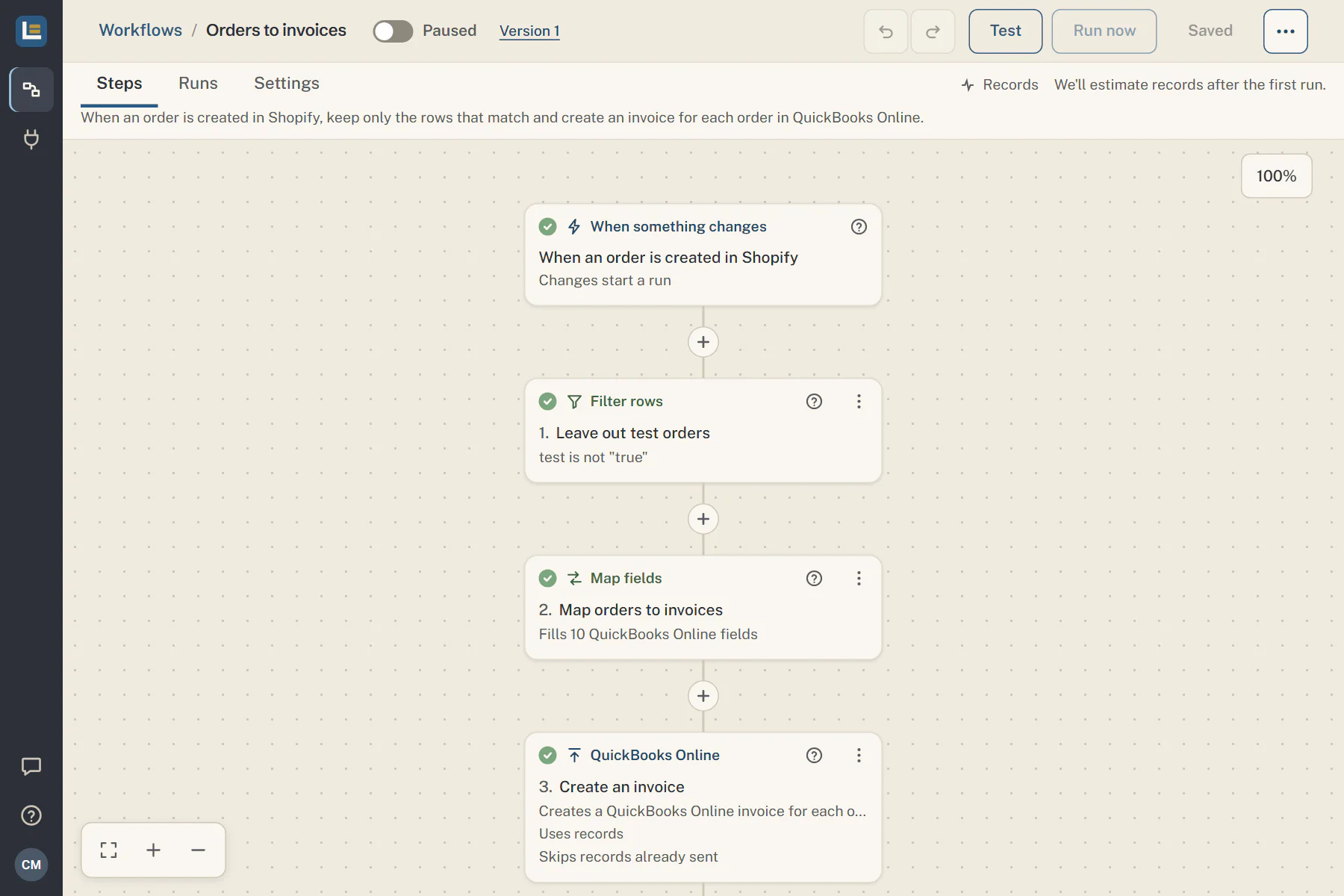
The workflow opens in the builder, turned off, with its steps filled in: the built-in actions, and the default mapping between the two apps. Check the steps, open Map fields to see what fills each QuickBooks Online field, and Test it with one row. Then turn it on.
 (opens the full size image in a new tab)
 (opens the full size image in a new tab)
How a template runs on your plan
The workflow's trigger depends on the plan, and a gray line in the preview says which. On Free, where there is no change trigger, a template that follows Shopify starts when you click Run and reads what is new since the last run. Templates that follow Shopify use a change trigger: Starter: changes are collected and run every 5 minutes; Pro and Business: about 10 seconds after the first change, or sooner once 100 changes are waiting. On Starter, Pro and Business. The Square templates for sales, refunds and payouts always start from a change in Square, so on Free they show as locked in the menu. On Free, Daily sales summary shows as locked too, because it has more steps than the plan allows, and Daily cash to deposits starts when you click Run. The templates that run every day use a schedule. On Starter, Pro and Business. On Free they start when you click Run.
Without file servers (Free), the CSV templates keep each run's file to download. With file servers (Starter, Pro and Business) you can pick a folder to save the file in, and CSV file to Shopify stock can start when a file lands in a folder, checked at the pace the plan allows (Starter: every 15 or 60 minutes; Pro and Business: every minute, 5, 15 or 60 minutes).
The templates
Every template creates the workflow turned off. Where a template asks for a start date, On the first run, start from says how far back the first run reads (Yesterday, 7 days ago or 30 days ago); later runs read from the last run.
Shopify to QuickBooks Online
These need both apps connected.
Orders to sales receipts
Creates a QuickBooks Online sales receipt for each paid Shopify order, with the customer and the items matched for you. Needs Shopify and QuickBooks Online.
- Steps: Keep paid orders, Map orders to sales receipts, Create a sales receipt.
- Asks: Deposit to, the account the money goes into (optional: leave it empty and QuickBooks Online picks one), and On the first run, start from.
- Records: 1 for each sales receipt, or 2 when it adds a new customer to QuickBooks Online. An order that was already sent is skipped and is free.
- How it runs: starts when Shopify reports a new or changed order. Starter: changes are collected and run every 5 minutes; Pro and Business: about 10 seconds after the first change, or sooner once 100 changes are waiting.
Orders to invoices
Creates a QuickBooks Online invoice for each new Shopify order, with the customer and the items matched for you. Needs Shopify and QuickBooks Online.
- Steps: Leave out test orders, Map orders to invoices, Create an invoice.
- Asks: Terms, when the invoice is due, such as Net 30 (optional: leave it empty to use the customer's terms in QuickBooks Online), and On the first run, start from.
- Records: 1 for each invoice, or 2 when it adds a new customer. An order that was already sent is skipped and is free.
- How it runs: starts when Shopify reports a new order. Starter: changes are collected and run every 5 minutes; Pro and Business: about 10 seconds after the first change, or sooner once 100 changes are waiting.
Refunds to refund receipts
Creates a QuickBooks Online refund receipt for each Shopify refund, or a credit memo when your orders are added as invoices. Needs Shopify and QuickBooks Online.
- Steps: Map refunds to refund receipts and Create a refund receipt, or Map refunds to credit memos and Create a credit memo, depending on your answer.
- Asks: Your orders are added as, Sales receipts or Invoices, to match the template you use for orders (a refund of an invoiced order becomes a credit memo); Refund from, the account the refund is paid out of (asked only for sales receipts); and On the first run, start from.
- Records: 1 for each refund receipt or credit memo, or 2 when it adds a new customer. A refund that was already sent is skipped and is free.
- How it runs: starts when Shopify reports a new refund. Starter: changes are collected and run every 5 minutes; Pro and Business: about 10 seconds after the first change, or sooner once 100 changes are waiting.
Payouts to bank deposits
Every day, creates a QuickBooks Online deposit for each Shopify payout that has reached your bank, with fees and refunds taken off, so your bank feed matches. A payout that was already deposited is skipped. Needs Shopify and QuickBooks Online.
- Steps: Get payouts, Map payouts to deposit lines, Create a deposit.
- Asks: Deposit to, the bank account the payouts arrive in; Clearing account, where your Shopify sales are booked before the payout (the charges come out of it, and refunds and adjustments are taken from it); Fees account, the expense account for Shopify's fees; and On the first run, start from (7, 30 or 90 days ago). The first three are required.
- Records: 1 for each deposit. Reading payouts is free.
- How it runs: every day at 7:00 AM in your time zone, reading the payouts paid since the last run. On Starter, Pro and Business.
Customers to customers
Adds each new Shopify customer to QuickBooks Online. A customer who is already there, matched by email, is skipped. Needs Shopify and QuickBooks Online.
- Steps: Get new customers (by hand) or the change trigger, Map customers, Add a customer.
- Asks: On the first run, start from only.
- Records: 1 for each customer added. A customer already in QuickBooks Online is skipped and is free.
- How it runs: starts when Shopify reports a new customer. Starter: changes are collected and run every 5 minutes; Pro and Business: about 10 seconds after the first change, or sooner once 100 changes are waiting.
Square to QuickBooks Online
These need both apps connected. Daily sales summary makes one sales receipt for each location and each day, with the items sold on it. The templates that send each sale, refund and payout start from a change in Square, so they need a plan with change triggers. On Starter, Pro and Business.
All of them book sales to one account, usually named Square Clearing. Payouts take the card money out of it, and a daily cash deposit takes the cash out of it, so it nets to zero. Use the same clearing account in every Square template you turn on. Undeposited Funds is not offered as a clearing account, because QuickBooks cannot take money out of it on a deposit line.
Daily sales summary
Every day, creates one QuickBooks Online sales receipt for each Square location, with the items sold, tax, tips, service charges and gift cards. A day with refunds also gets a refund receipt, and a day with cash gets a deposit that moves the cash out of your clearing account. A day already sent is skipped. Needs Square and QuickBooks Online.
- Steps: Get daily sales, Map days to sales receipts, Create a sales receipt, Map refunds to a refund receipt, Create a refund receipt, Map cash to a deposit, Create a cash deposit.
- Asks: Deposit to, the clearing account every sale is booked to; Cash account, where the day's cash goes; Item for other Square sales, the item a line goes on when no QuickBooks item matches Item for tips, the item tips go on (all four are required); and, optional, Business day ends at (midnight unless you change it), First day to read, the items for service charges and gift cards, the payment method for card sales, and the QuickBooks location or class to set from the Square location.
- Records: 1 for each sales receipt, or 2 when it adds a new customer. A refund receipt and a cash deposit count 1 each, and are only made on days that have refunds or cash. Days already sent are free.
- How it runs: every day at 7:00 AM in your time zone, reading the business days that have ended since the last run. On Starter, Pro and Business.
Sales to sales receipts
Creates a QuickBooks Online sales receipt for each completed Square sale, with the items matched, tax, tips, service charges and gift cards, and a total that matches what Square took. A sale paid in several payments is one receipt. Needs Square and QuickBooks Online.
- Steps: Get sale details, Map sales to sales receipts, Create a sales receipt.
- Asks: Deposit to, the clearing account the money goes into until Square pays it out; Item for other Square sales, the item a line goes on when no QuickBooks item matches the Square item by SKU or name; Item for tips, the item tips go on (both required); and, optional, the items for service charges and gift cards, the payment methods for card and cash sales, and the QuickBooks location or class to set from the Square location.
- Records: 1 for each sales receipt, or 2 when it adds a new customer to QuickBooks Online. A sale that was already sent is skipped and is free.
- How it runs: starts when Square reports a completed payment. Starter: changes are collected and run every 5 minutes; Pro and Business: about 10 seconds after the first change, or sooner once 100 changes are waiting.
Refunds to refund receipts
Creates a QuickBooks Online refund receipt for each completed Square refund, tied to the original sale, with the items returned when Square has them and a total that matches what Square paid back. Needs Square and QuickBooks Online.
- Steps: Get refund details, Map refunds to refund receipts, Create a refund receipt.
- Asks: Refund from, the account the refund is paid out of, the same as Deposit to in the sales template; Item for other Square sales; and, optional, the items for service charges and gift cards, the payment methods, and the location or class.
- Records: 1 for each refund receipt, or 2 when it adds a new customer. A refund that was already sent is skipped and is free.
- How it runs: starts when Square reports a completed refund. Starter: changes are collected and run every 5 minutes; Pro and Business: about 10 seconds after the first change, or sooner once 100 changes are waiting.
Payouts to bank deposits
Creates a QuickBooks Online deposit for each Square payout that has been paid to your bank, equal to the payout to the cent, so your bank feed matches. Fees, reserves and other adjustments are their own lines. A payout that does not add up, or that took money from your bank, is skipped with the reason. Needs Square and QuickBooks Online.
- Steps: Get payout lines, Map payouts to deposit lines, Create a deposit.
- Asks: Deposit to, the bank account the payouts arrive in; Clearing account, where your Square sales are booked before the payout; Fees account, the expense account for Square's fees; Other Square adjustments account, for reserves, Square Capital payments and disputes; and Deposit lines, Totals or One line per payment. The first four are required.
- Records: 1 for each deposit. Reading the payout is free.
- How it runs: starts when Square reports a paid payout. Starter: changes are collected and run every 5 minutes; Pro and Business: about 10 seconds after the first change, or sooner once 100 changes are waiting.
Daily cash to deposits
For shops that send each sale with Sales to sales receipts. Every day, creates one QuickBooks Online deposit for the cash Square took at each location, moving it from your clearing account to your cash account. A day with no cash makes no deposit. Needs Square and QuickBooks Online.
- Steps: Get daily sales, Map cash to a deposit, Create a cash deposit.
- Asks: Cash account, where the day's cash goes; Clearing account, the one the cash comes out of; and, optional, Business day ends at and First day to read.
- Records: 1 for each deposit, and only days with cash make one. Reading days is free.
- How it runs: every day at 7:00 AM in your time zone. On Starter, Pro and Business.
Square is read only, so these templates send nothing to Square.
Shopify to HubSpot
These need both apps connected.
Customers to contacts
Adds each new Shopify customer to HubSpot as a contact. A contact that is already there, matched by email, is skipped. Needs Shopify and HubSpot.
- Steps: Get new customers (by hand) or the change trigger, Map customers, Add a contact.
- Asks: Lifecycle stage of new contacts, HubSpot's choice, Lead or Customer (set on new contacts only), and On the first run, start from.
- Records: 1 for each contact added. A contact already in HubSpot is skipped and is free. A customer with no email is skipped.
- How it runs: starts when Shopify reports a new customer. Starter: changes are collected and run every 5 minutes; Pro and Business: about 10 seconds after the first change, or sooner once 100 changes are waiting.
Orders to deals
Creates a HubSpot deal for each paid Shopify order, named with the order number and attached to the customer's contact. The contact is added when HubSpot has none. Needs Shopify and HubSpot.
- Steps: Keep paid orders, Map orders to deals, Create a deal.
- Asks: Deal stage, the stage each deal starts in, read from your HubSpot pipelines (optional: leave it empty to use the first stage of your default pipeline), and On the first run, start from.
- Records: 1 for each deal created, and 1 more when it adds the customer as a contact. An order that already has a deal is skipped and is free.
- How it runs: starts when Shopify reports a new or changed order. Starter: changes are collected and run every 5 minutes; Pro and Business: about 10 seconds after the first change, or sooner once 100 changes are waiting.
Shopify and files
These need Shopify connected.
Orders to a CSV file
Every day, writes the new and changed Shopify orders to a CSV file, with one row for each order or for each line item. A day with no orders writes no file. An order row has every amount that makes up the total (items before and after discounts, shipping and its discounts, duties, fees, tax and tip), what was refunded and what is left after refunds. A line item row has the order number and date, the SKU, product, variant, quantity, unit price, discount, line total and tax. Needs Shopify.
- Steps: Get new orders, One row for each line item (only for line item rows), Choose the columns, Write a CSV file.
- Asks: Save the file to, a folder on one of your file servers (leave it empty and each run keeps its file to download), One row for each, Order or Line item (Starter and up), and On the first run, start from.
- Records: 1 for each row written: each order, or each line item. Reading orders is free.
- How it runs: every day at 6:00 AM in your time zone. On Starter, Pro and Business.
CSV file to Shopify stock
Sets the stock of each SKU in a CSV file in Shopify. SKUs already at that number are skipped, and a SKU that Shopify does not have is skipped and listed in the run. Needs Shopify.
- Steps: Read the CSV file, Choose the SKU and quantity, Set stock.
- Asks: The file, either I upload it when I run the workflow or It lands in a folder on a file server; Folder to read, for the folder choice; Location, the Shopify location whose stock is set; Which quantity, Available (what can be sold) or On hand (which also counts stock set aside for orders); and the names of the SKU column and Quantity column in your file.
- Records: 1 for each SKU whose stock changes. SKUs already at that number are skipped and are free.
- How it runs: starts when you click Run and upload the file, or, with a folder, when a file lands in it. Each file is read once, so a stock file is never applied twice. The folder is checked at the pace the plan allows (Starter: every 15 or 60 minutes; Pro and Business: every minute, 5, 15 or 60 minutes). On Starter, Pro and Business.
QuickBooks Online and files
These need QuickBooks Online connected.
Invoices to a CSV file
Every day, writes the new and changed QuickBooks Online invoices to a CSV file, one row for each invoice. A day with no invoices writes no file. Needs QuickBooks Online.
- Steps: Get invoices, Choose the columns, Write a CSV file.
- Asks: Save the file to, a folder on one of your file servers (leave it empty and each run keeps its file to download); Which invoices, Any, Not paid in full or Paid in full; and On the first run, start from.
- Records: 1 for each invoice written. Reading invoices is free.
- How it runs: every day at 6:00 AM in your time zone. On Starter, Pro and Business.
HubSpot and files
These need HubSpot connected.
Contacts to a CSV file
Every day, writes the new and changed HubSpot contacts to a CSV file, one row for each contact. A day with no changes writes no file. Needs HubSpot.
- Steps: Get contacts, Choose the columns, Write a CSV file.
- Asks: Save the file to, a folder on one of your file servers (leave it empty and each run keeps its file to download), and On the first run, start from.
- Records: 1 for each contact written. Reading contacts is free.
- How it runs: every day at 6:00 AM in your time zone. On Starter, Pro and Business.
Deals to a CSV file
Every day, writes the new and changed HubSpot deals to a CSV file, one row for each deal. A day with no changes writes no file. Needs HubSpot.
- Steps: Get deals, Choose the columns, Write a CSV file.
- Asks: Save the file to, a folder on one of your file servers (leave it empty and each run keeps its file to download), and On the first run, start from.
- Records: 1 for each deal written. Reading deals is free.
- How it runs: every day at 6:00 AM in your time zone. On Starter, Pro and Business.
The templates are a head start. Shopify, Square, QuickBooks Online and HubSpot also work as APIs through their endpoints, and you can add any step to a workflow made from a template.
Next: the builder.