Get ERPNext sales invoices into QuickBooks Desktop
Turn submitted ERPNext sales invoices into one IIF file, the import file QuickBooks Desktop reads, with each invoice's customer, dates, items, quantities and prices. Import it in QuickBooks, and nobody retypes an invoice.
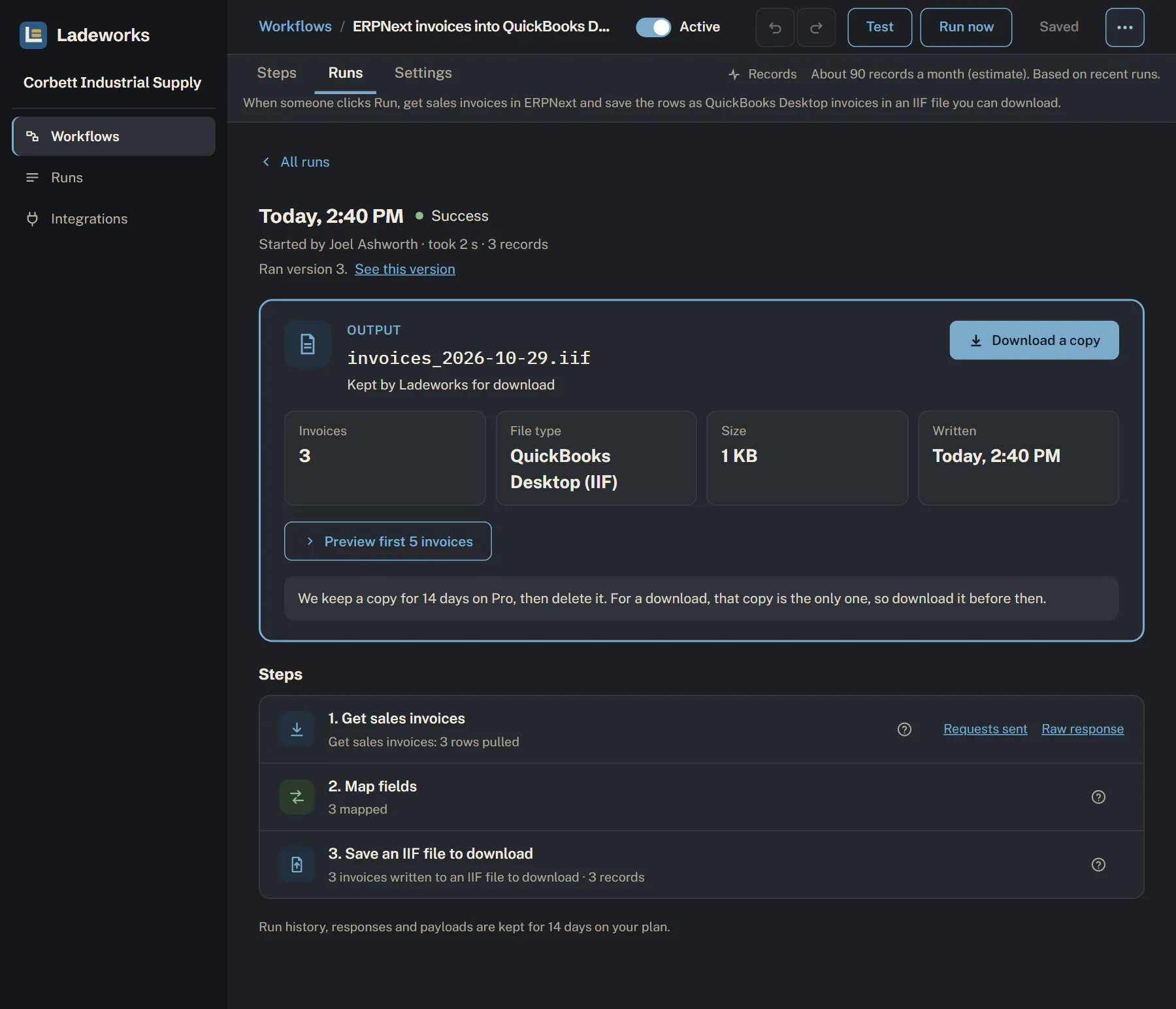
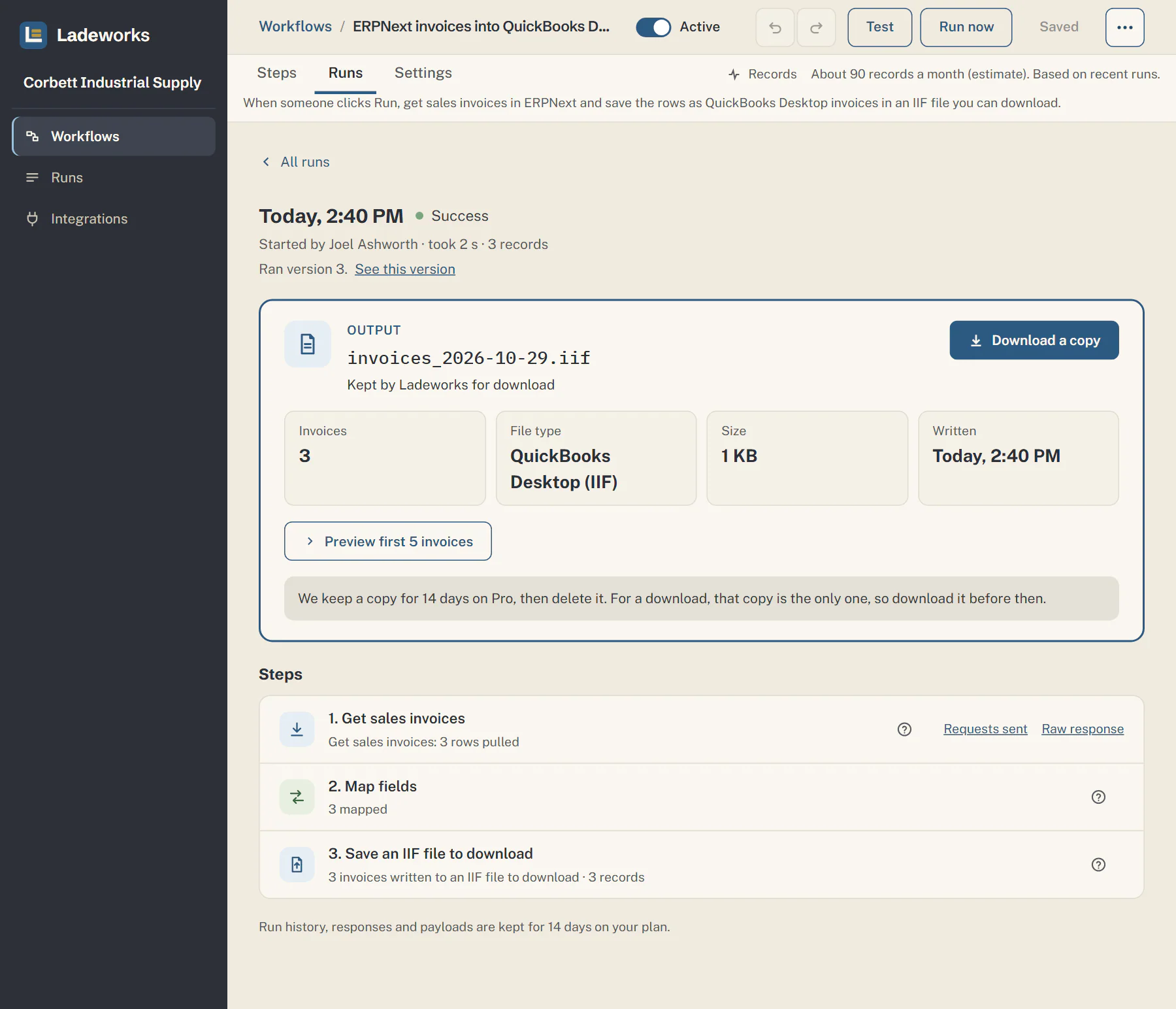
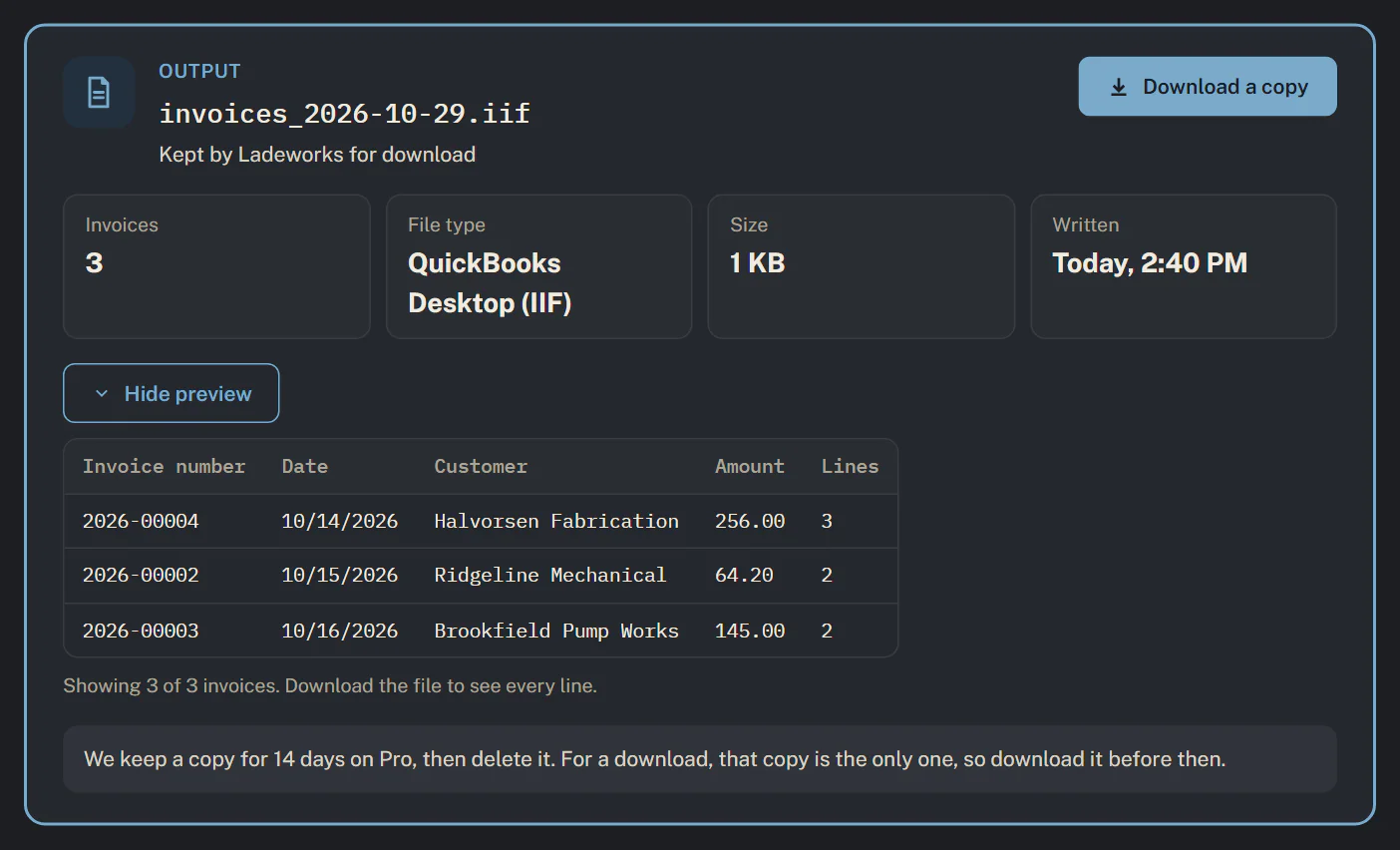
A 33 second recording of the finished workflow. Its run shows Get sales invoices with 3 rows pulled, Map fields with 3 mapped, and 3 invoices written to an IIF file to download, 3 records. The Output card shows an invoices IIF file named for the day of the run, with 3 invoices, File type QuickBooks Desktop (IIF), and its preview lists invoices 2026-00002, 2026-00003 and 2026-00004 for Ridgeline Mechanical, Brookfield Pump Works and Halvorsen Fabrication, with their dates, amounts and number of lines. Then the step Save an IIF file to download opens on the Steps tab, with File type QuickBooks Desktop (IIF), Invoice number qb_number and Item item_code.
The example is made up: Corbett Industrial Supply, a distributor, invoices in ERPNext and keeps its books in QuickBooks Desktop. Everything in the screenshots runs on a test machine, so nothing here touches a real system.
| ACC-SINV-2026-00002, Ridgeline Mechanical, posted 2026-10-15, due 2026-11-15 | |||
|---|---|---|---|
| Item | Qty | Rate | Amount |
| RD-5001 Threaded rod 3/8 x 36 in | 12 | 4.10 | 49.20 |
| NT-6001 Nylon lock nut M8 zinc | 100 | 0.15 | 15.00 |
| Grand total | 64.20 | ||
| Line | Account | Amount | Number | Item | Qty | Price | Memo |
|---|---|---|---|---|---|---|---|
| TRNS | Accounts Receivable | 64.20 | 2026-00002 | ||||
| SPL | Sales | -49.20 | 2026-00002 | RD-5001 | -12 | 4.1 | Threaded rod 3/8 x 36 in |
| SPL | Sales | -15.00 | 2026-00002 | NT-6001 | -100 | 0.15 | Nylon lock nut M8 zinc |
| ENDTRNS |
Every line also has the type INVOICE, the date 10/15/2026 and the customer Ridgeline Mechanical. The TRNS line has the due date 11/15/2026.
 (opens the full size image in a new tab)
 (opens the full size image in a new tab)
What you end up with
- One file, such as invoices_2026-10-29.iif, named for the day of the run, with the submitted sales invoices ERPNext has, ready to download from the run.
- In QuickBooks Desktop, File, Utilities, Import, IIF Files brings each one in as an invoice with the same customer, invoice date and due date, one line for each ERPNext line with its item, description, quantity and price, and a number QuickBooks Desktop can take, such as 2026-00002.
- Ladeworks checks each invoice before it writes it: its lines must add up to the ERPNext total, and every value must fit QuickBooks Desktop's limits. An invoice that does not is left out of the file with the reason, so nothing reaches QuickBooks half right.
Needs the Starter, Pro or Business plan. You also need ERPNext connected, QuickBooks Desktop on a computer you can import into, and a Ladeworks account (Start free is below).
Who this is for
A team that sends its invoices from ERPNext but still keeps its books in QuickBooks Desktop: the accountant works in QuickBooks on a PC in the office, and sales and the warehouse work in ERPNext. Without a workflow, someone retypes each invoice into QuickBooks, and a typo in a quantity or a missed invoice turns up at month end.
QuickBooks Desktop has no web API that a service like Ladeworks can call. The way in is Intuit's own import file, IIF (Intuit Interchange Format): a text file of transactions that QuickBooks Desktop reads with File, Utilities, Import. This workflow writes that file from ERPNext, so the only thing left to do by hand is the import. If your books are in QuickBooks Online instead, it has an API, and Send ERPNext sales invoices to QuickBooks Online creates each invoice there directly.
The workflow below uses Get sales invoices, one of the ready-made ERPNext actions. It is a starting point, not the limit of what Ladeworks can do: the field picker reads any field your site has, and any other part of the ERPNext API works too. Change a step, add one, or write other transactions and other files the same way.
What you need first
- ERPNext, connected. On the Integrations page choose Add an integration, then Connect to ERPNext: type your site address, sign in to ERPNext and approve access. Connect as someone who can read sales invoices. Built-in integrations has the details.
- The same names in QuickBooks Desktop. Each ERPNext customer must be a QuickBooks customer with the same name, such as Ridgeline Mechanical, and each ERPNext item code must be a QuickBooks item with that name, such as RD-5001. The file also names two accounts: Accounts Receivable, and Sales for the income. Use your own account names. See Names must match exactly.
- A backup of the company file before the first import. An import can't be undone in one step.
How it works, in three steps
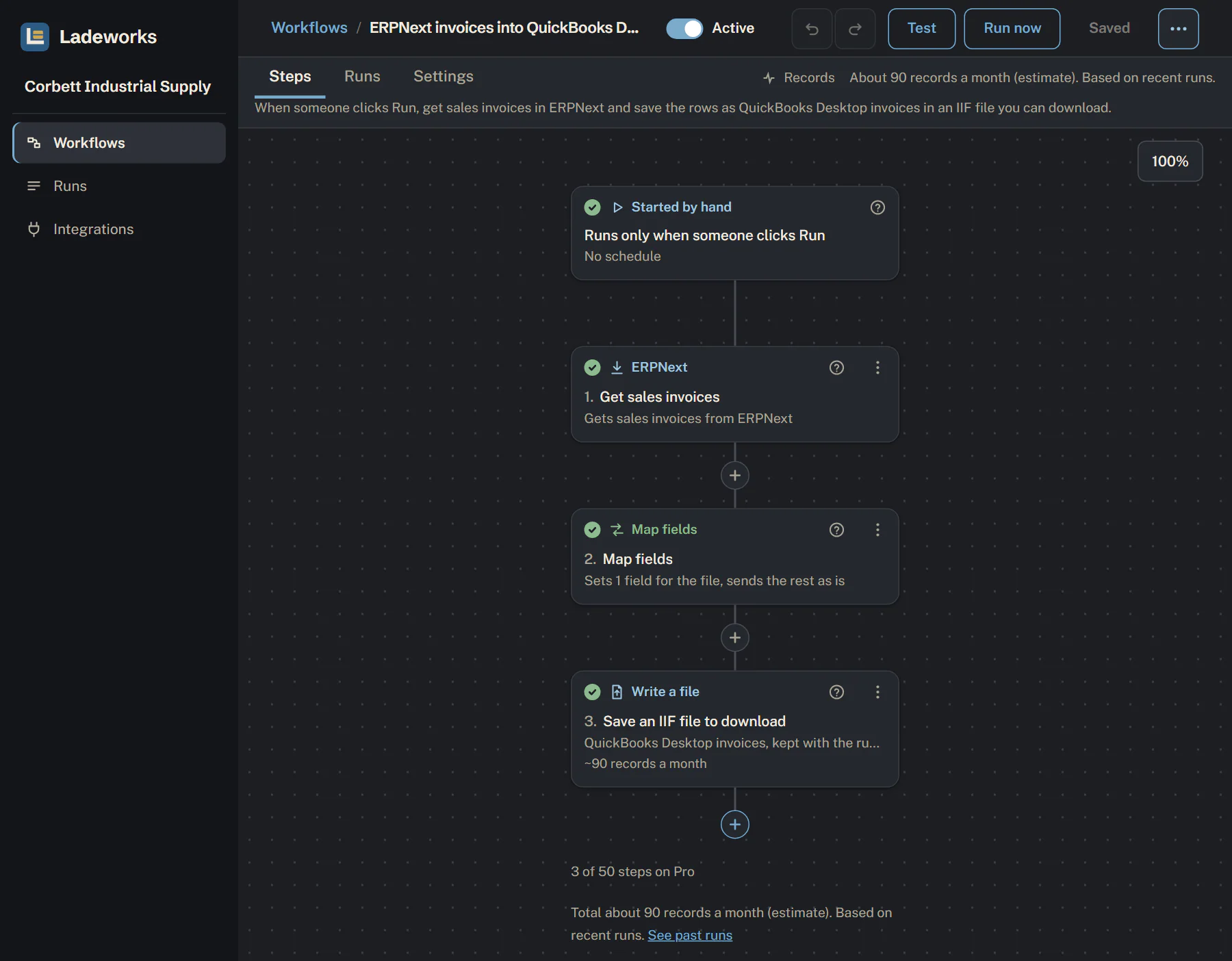
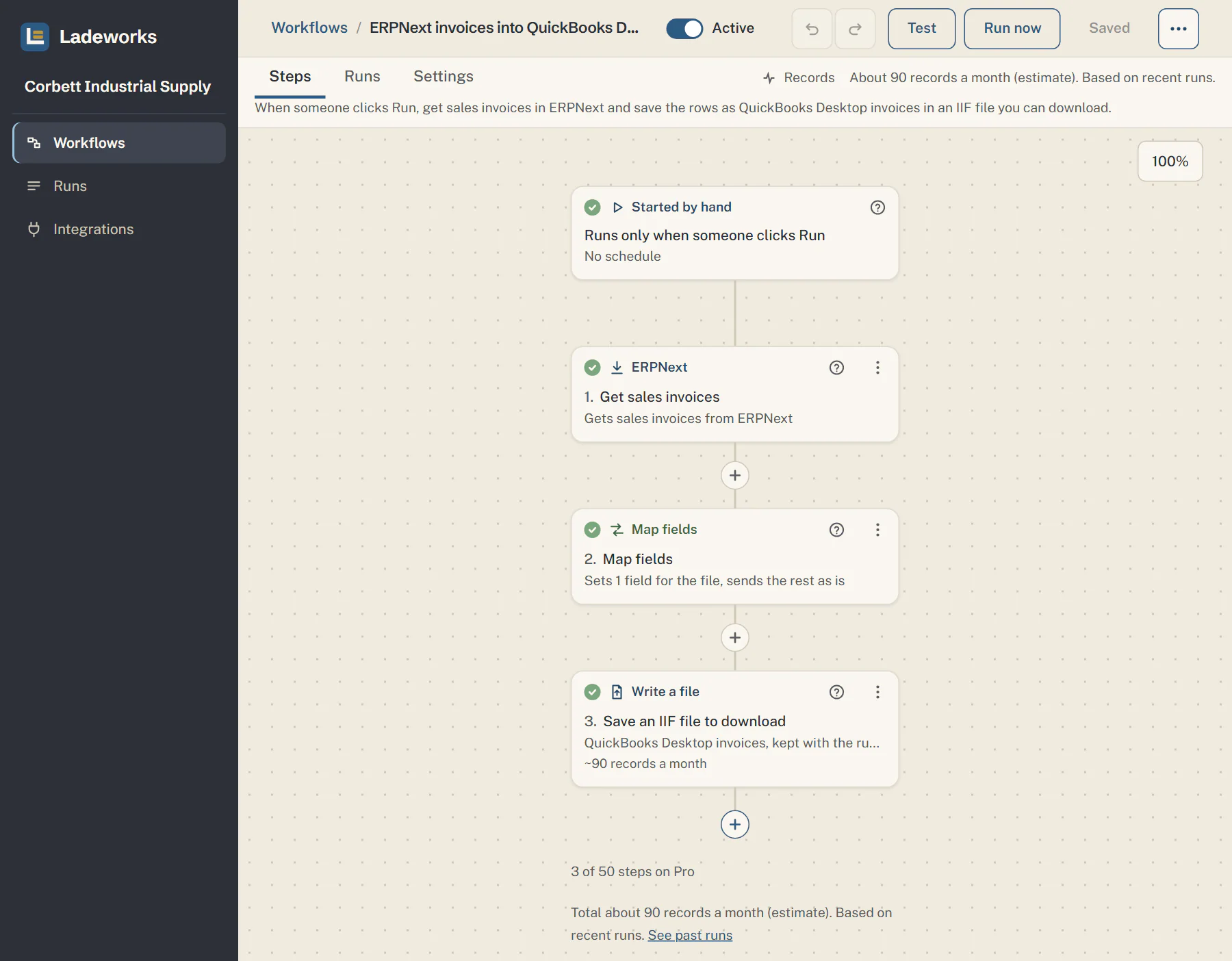
The workflow gets the submitted invoices from ERPNext with their lines, adds an invoice number QuickBooks Desktop can take, and writes all the invoices into one IIF file.
 (opens the full size image in a new tab)
 (opens the full size image in a new tab)
1. Get the submitted sales invoices
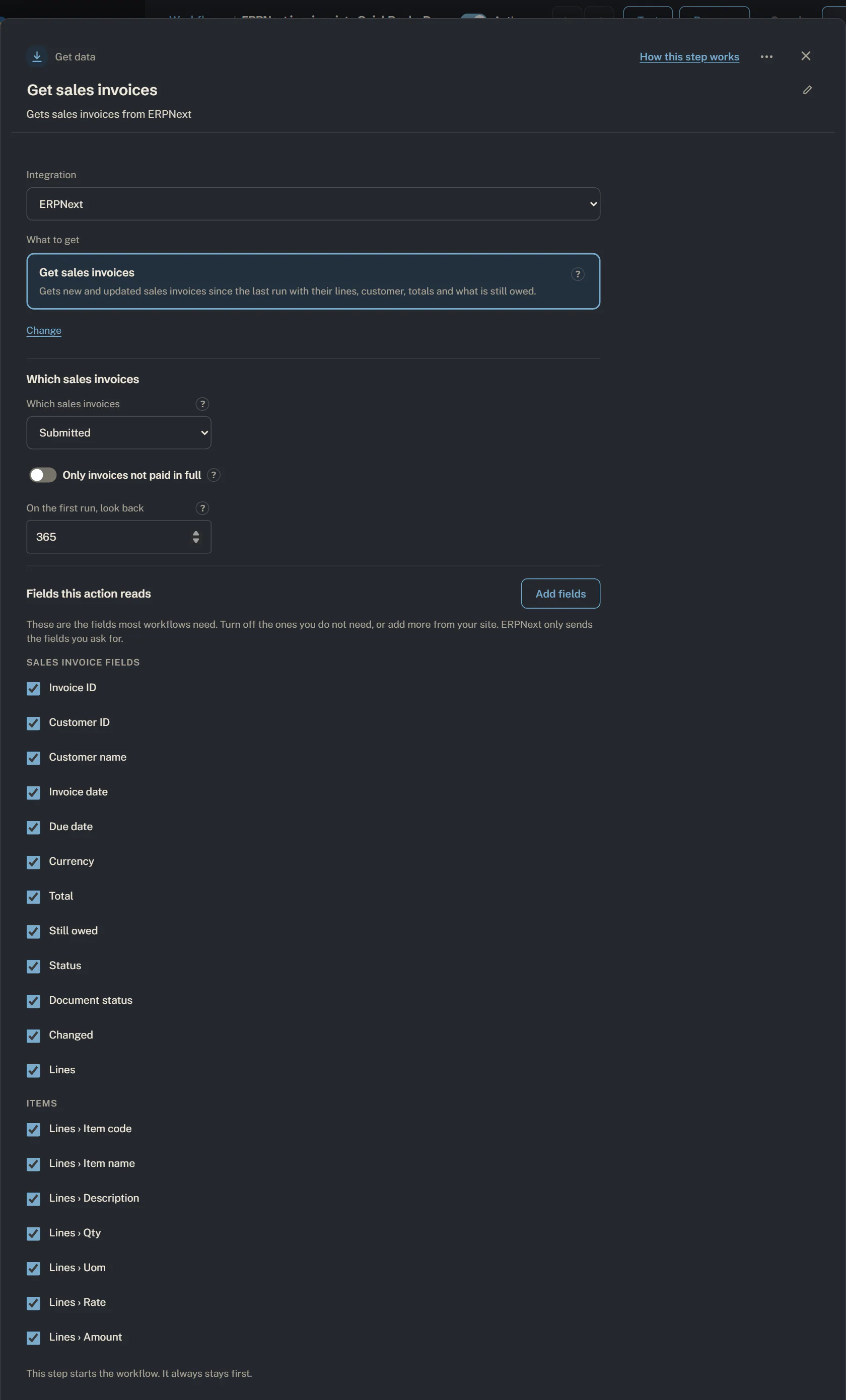
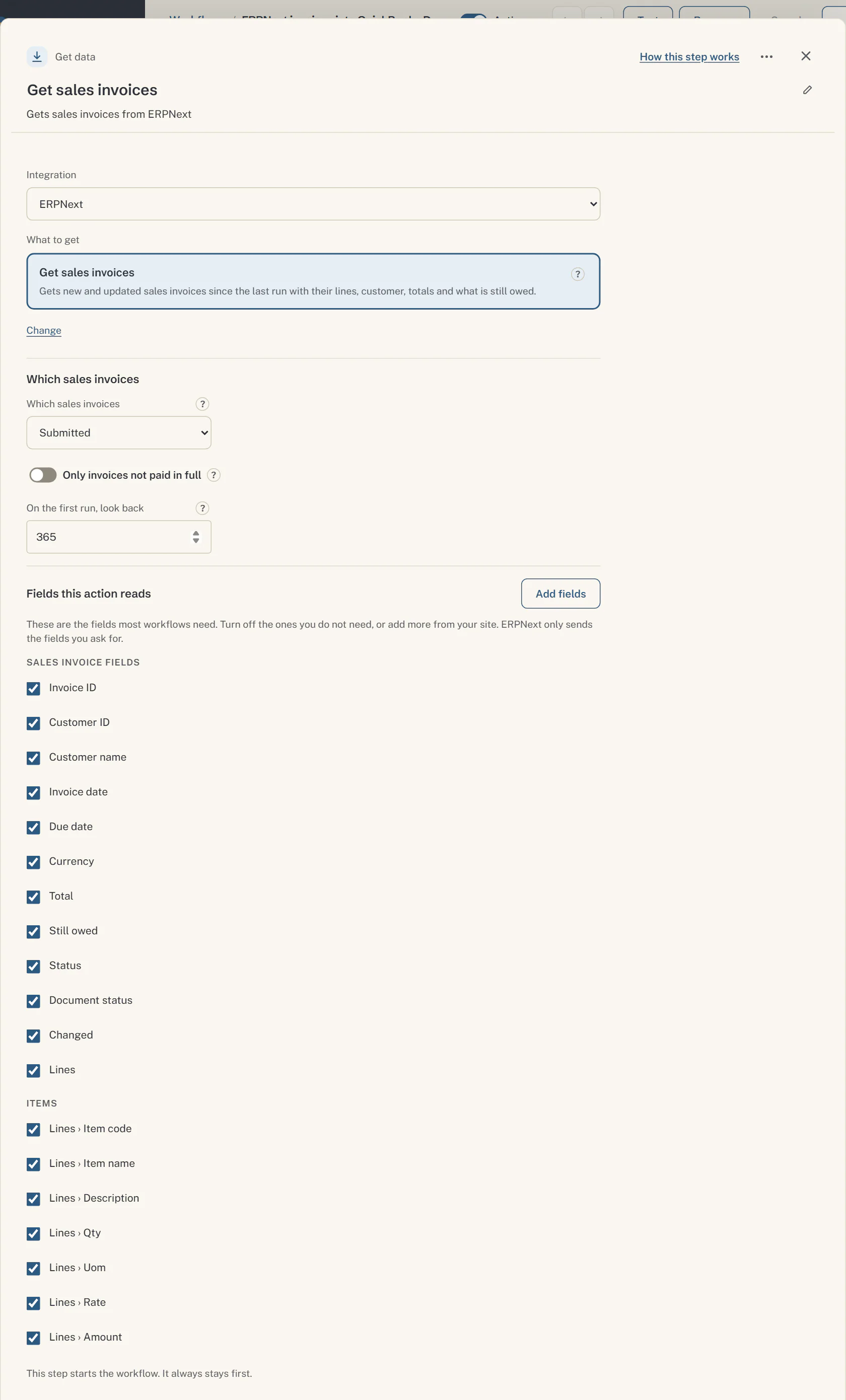
On the Workflows page choose New workflow, then Blank, then Set up manually. Choose Only when someone clicks Run. Under Where does the data come from? choose ERPNext, and Get sales invoices in its list of actions. Under Where should it go? choose A CSV to download: the last step becomes a Write a file step, and step 3 changes it to QuickBooks Desktop's file type. Name it and choose Create workflow. (You can also describe the job under What should this workflow do? and let Ladeworks draft the steps; check each one against this guide.) Open the first step:
- Which sales invoices: choose Submitted. Only submitted invoices are posted to the books: drafts and cancelled invoices are left out.
- On the first run, look back: the number of days of invoices the first run reads, 1 to 365. Type 365 to start with the past year. Later runs read only the invoices that are new or changed since the last run.
- Fields this action reads: the fields most workflows need are already checked, with the invoice's lines under Lines: item code, item name, description, quantity, unit, rate and amount. This workflow needs the invoice ID, customer, dates, total and the lines, so leave them on. Add fields opens every field your ERPNext site has for a sales invoice, custom fields included, and Every field of the record reads the whole invoice.
 (opens the full size image in a new tab)
 (opens the full size image in a new tab)
2. Make an invoice number QuickBooks Desktop can take
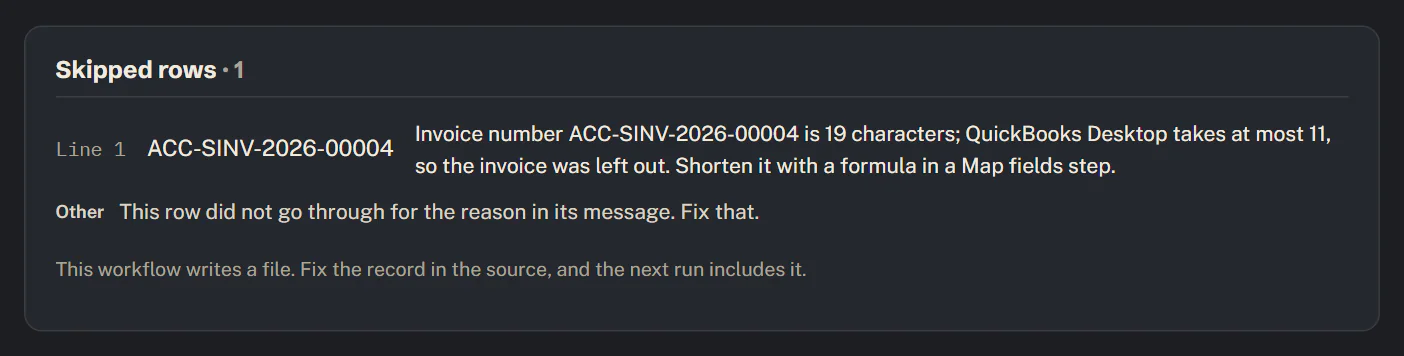
QuickBooks Desktop takes an invoice number of at most 11 characters, and ERPNext's names, such as ACC-SINV-2026-00002, have 19. Ladeworks doesn't cut a QuickBooks Desktop invoice number short to make it fit, because a cut number could clash with another invoice; an invoice whose number is too long is left out of the file with the reason (see When a value is too long). So this step makes a shorter number from the ERPNext name.
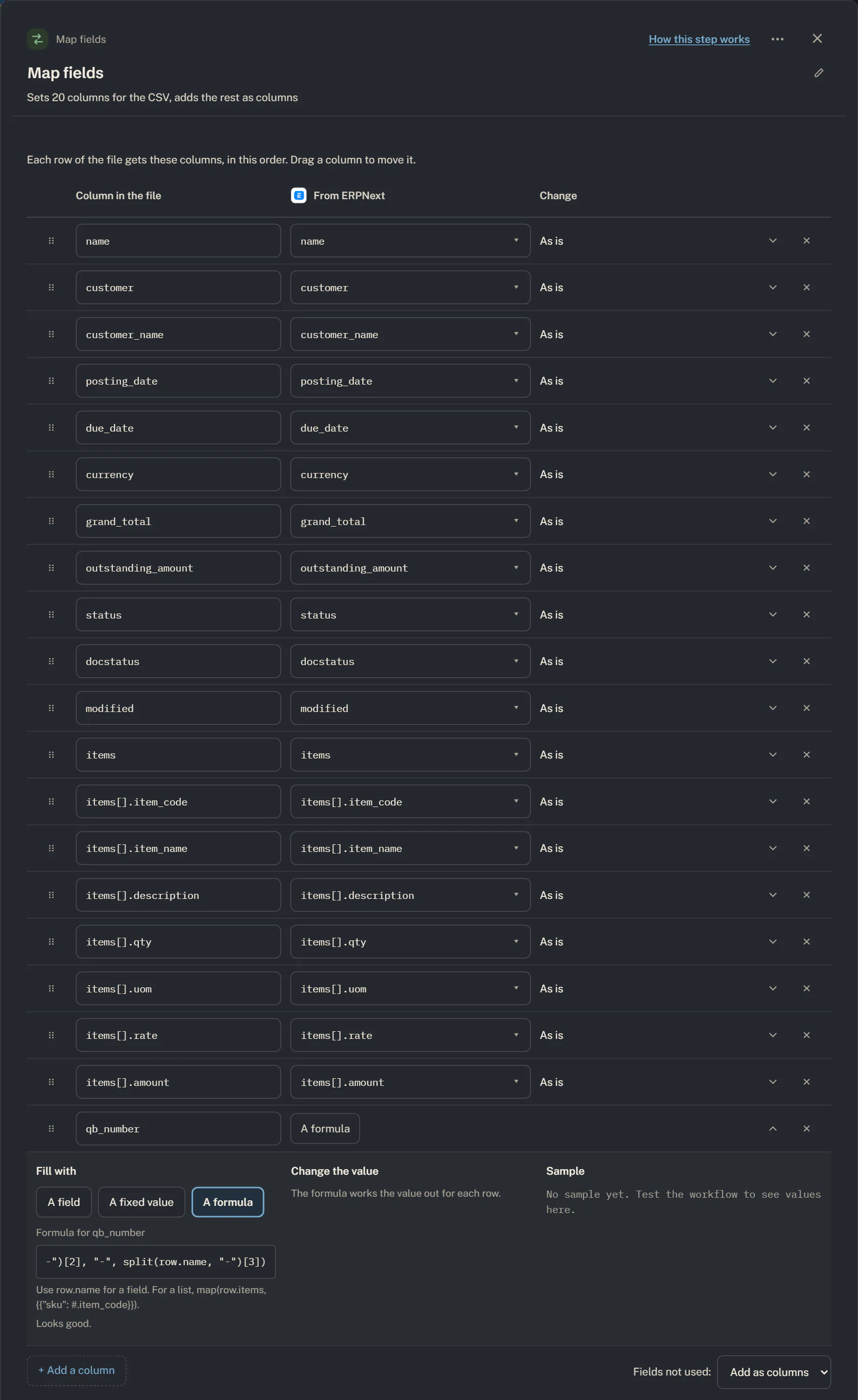
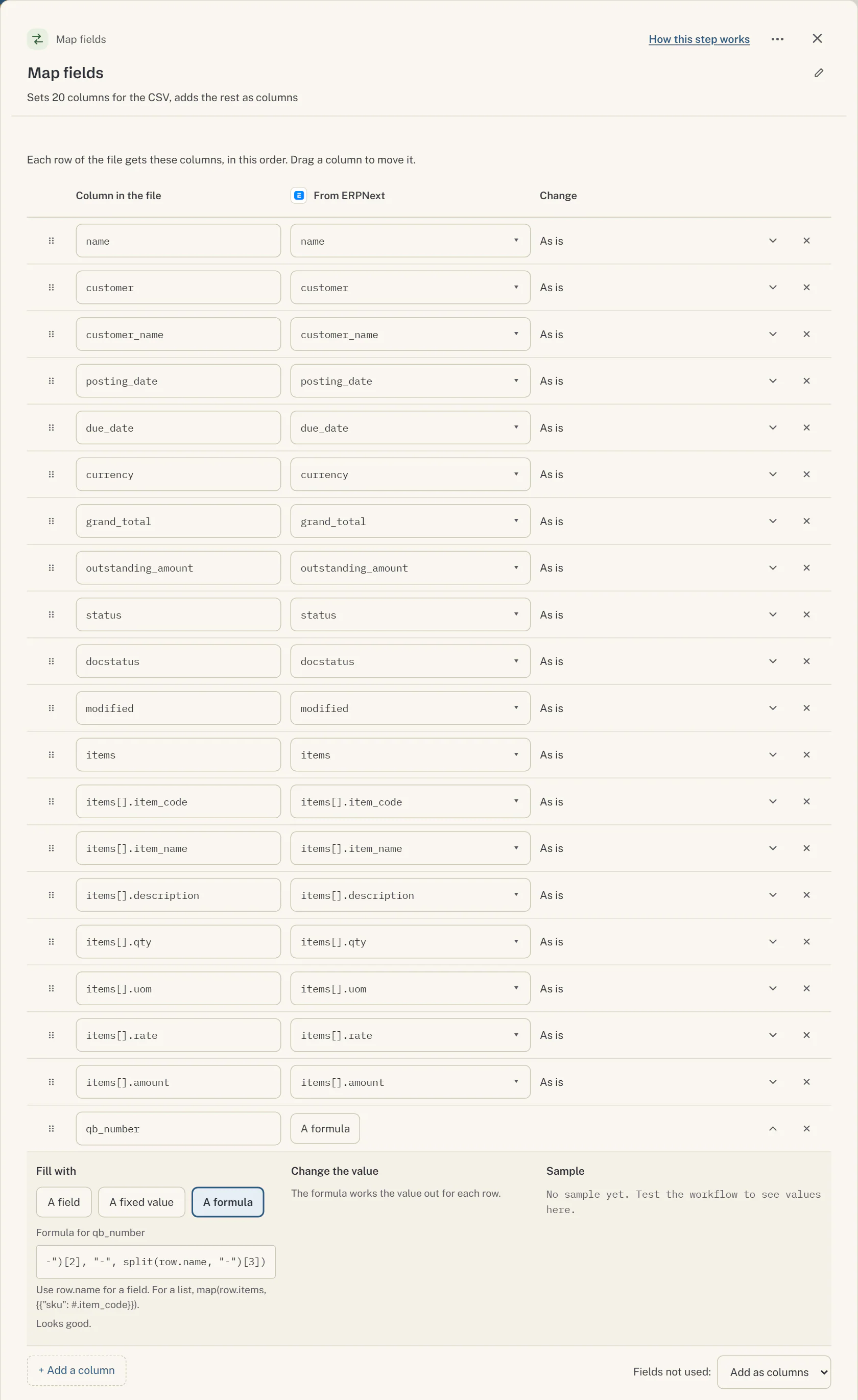
Open Map fields. Set Fields not used to Add as columns, so every field of the invoice reaches the last step unchanged, its lines included. Choose + Add a column, type qb_number as the column name, set Fill with to A formula, and write the formula:
concat(split(row.name, "-")[2], "-", split(row.name, "-")[3])split cuts the name at each dash, so ACC-SINV-2026-00002 becomes the parts ACC, SINV, 2026 and 00002, counted from 0. The formula keeps parts 2 and 3 with a dash between them: 2026-00002, 10 characters. It still says which ERPNext invoice it was, and it stays unique as long as the naming series stays the same. If your series looks different, see Another naming series.
On the real rows the formula gives 2026-00002, 2026-00003 and 2026-00004.
 (opens the full size image in a new tab)
 (opens the full size image in a new tab)
3. Write the invoices as an IIF file
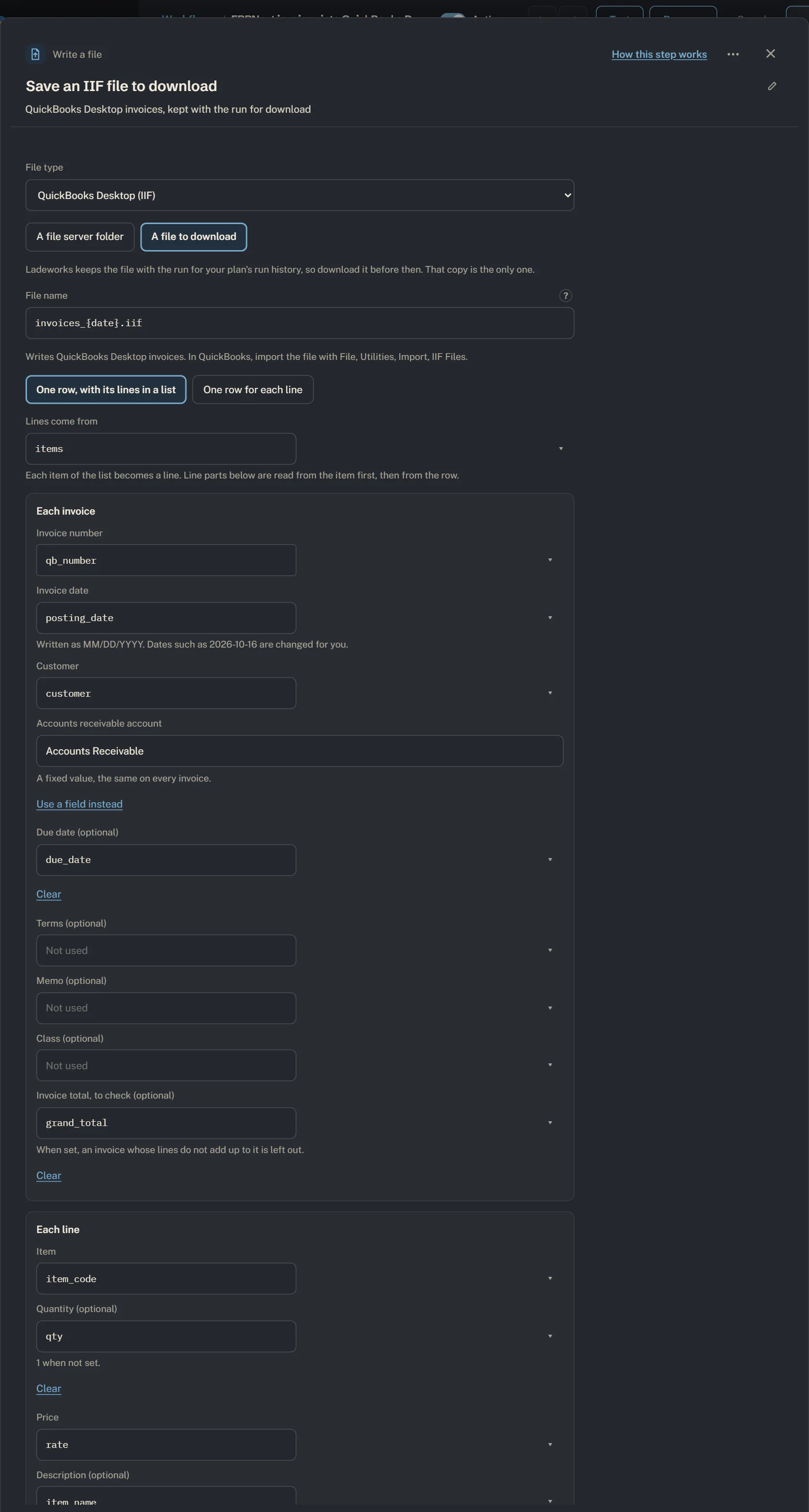
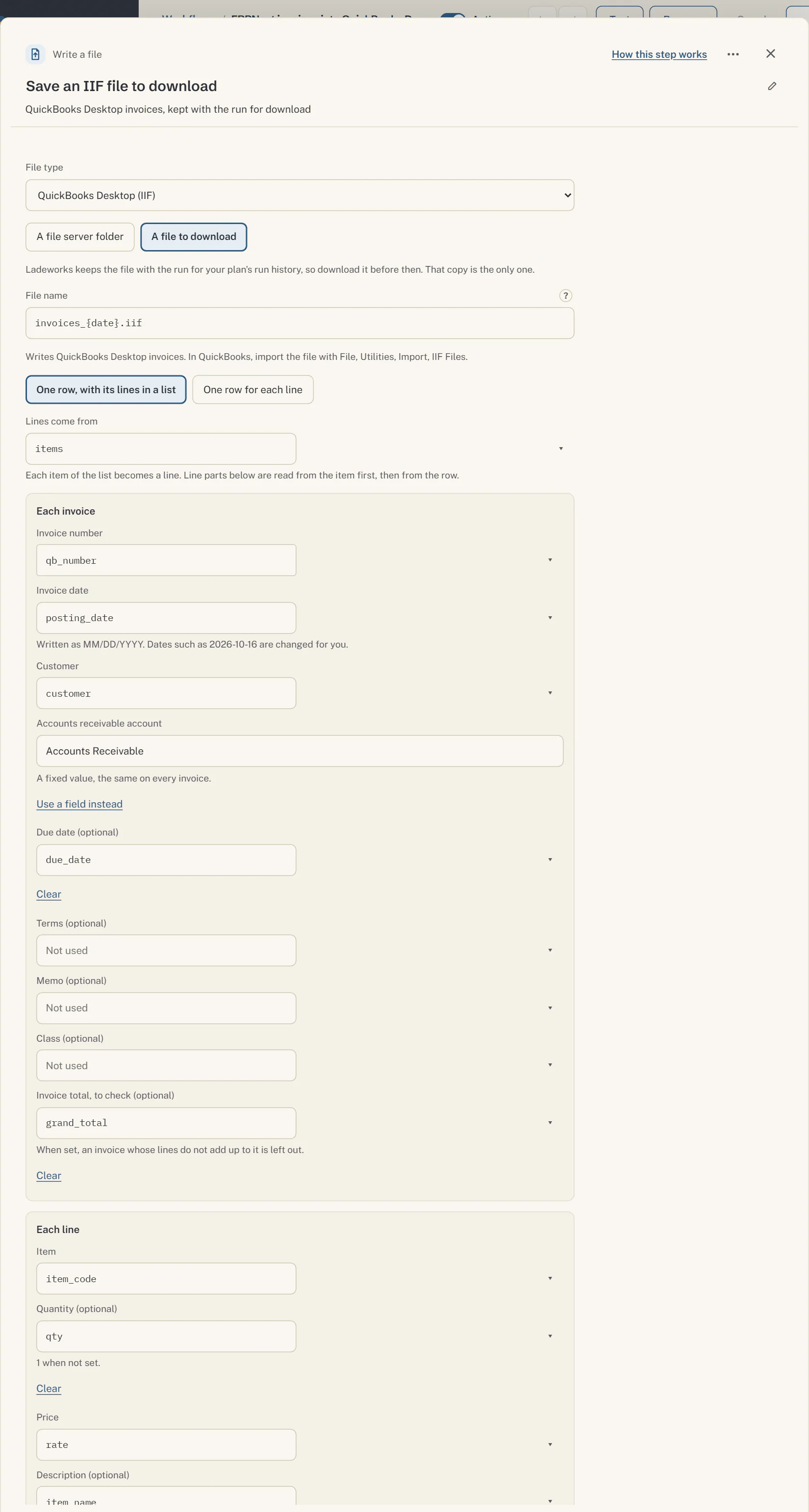
Open the last step, Save a CSV to download, a Write a file step. Set File type to QuickBooks Desktop (IIF), and the step's name becomes Save an IIF file to download. Keep A file to download under Where the file goes, and name the file invoices_{date}.iif: {date} becomes the day of the run. Under Each invoice is, keep One row, with its lines in a list: each row is one invoice, and its lines are the list ERPNext sent.
Then say where each part of the invoice comes from: pick a field of the row from each list. For a fixed value, the same on every invoice, choose + Type a fixed value.
| Part | Comes from | Why |
|---|---|---|
| Lines come from | items | The invoice's lines, read by Get sales invoices. Each item of the list becomes a line. |
| Invoice number | qb_number | The short number from step 2. |
| Invoice date | posting_date | Written as MM/DD/YYYY: 2026-10-15 becomes 10/15/2026. |
| Customer | customer | Must be a customer's name in QuickBooks, exactly. |
| Accounts receivable account | Fixed: Accounts Receivable | The account the invoice total goes to. Use your account's name. |
| Due date | due_date | Optional. |
| Invoice total, to check | grand_total | Optional. An invoice whose lines don't add up to the ERPNext total is left out instead of written wrong. |
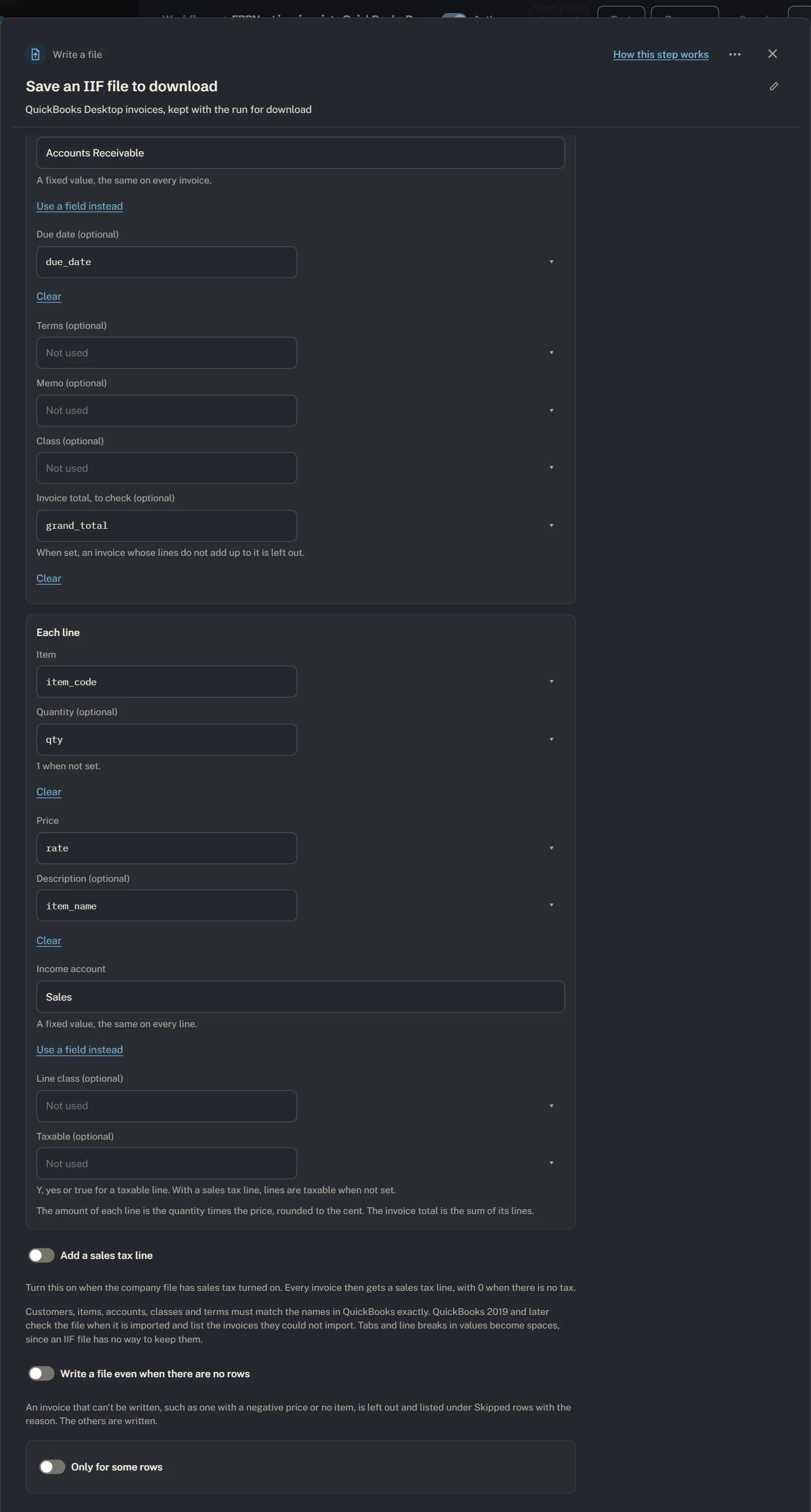
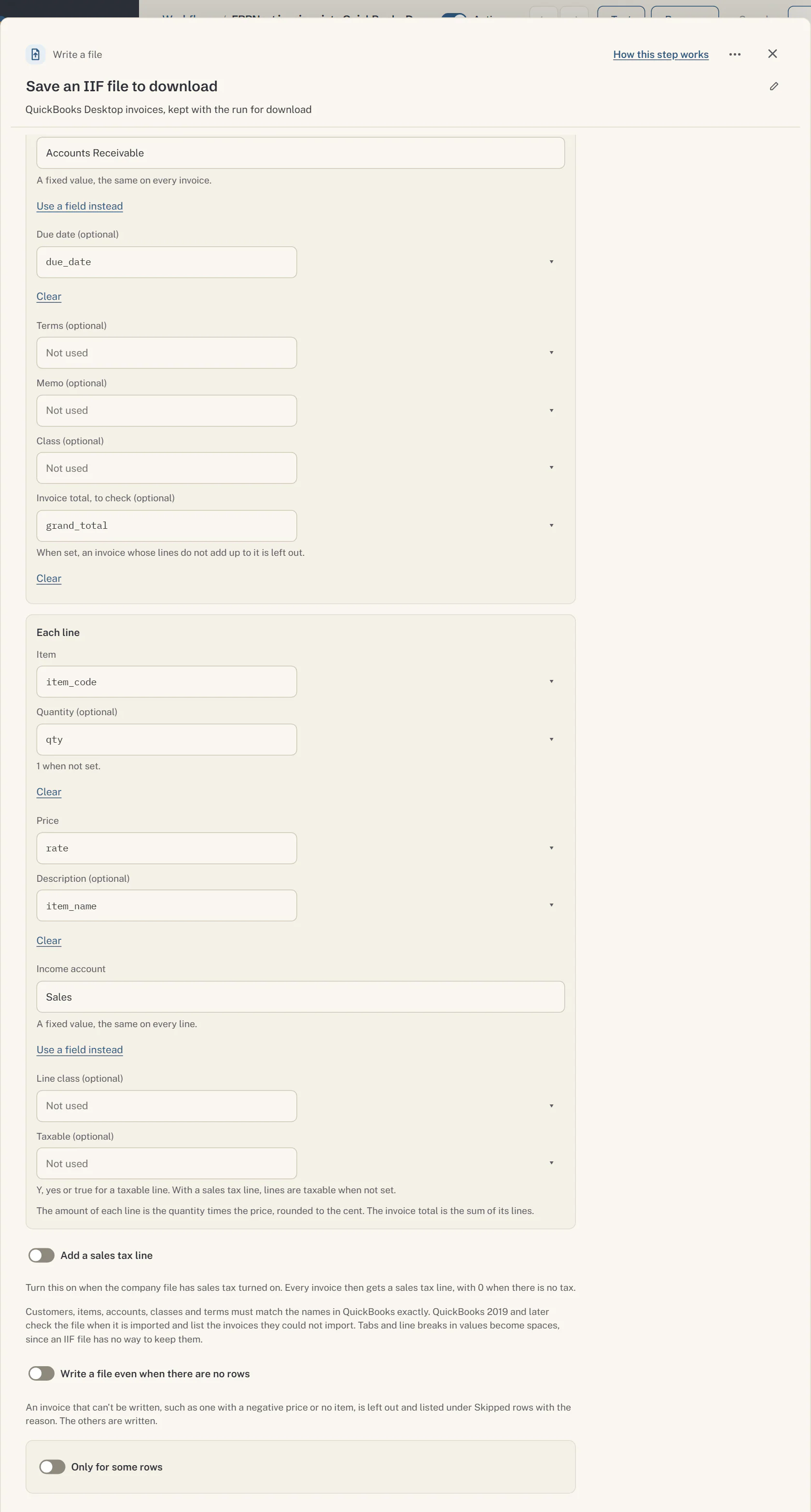
| Item | item_code | Must be an item's name in QuickBooks, exactly. |
| Quantity | qty | |
| Price | rate | Ladeworks works out each line's amount as the quantity times the price, rounded to the cent. |
| Description | item_name | Optional. Shows on the invoice line. |
| Income account | Fixed: Sales | The account each line's income goes to. Use your account's name. |
Terms, Memo, Class, Line class and Taxable stay empty here, and Add a sales tax line stays off (see Sales tax).
 (opens the full size image in a new tab)
 (opens the full size image in a new tab)
 (opens the full size image in a new tab)
 (opens the full size image in a new tab)
Choose Update, then Save, then Run now. Test would send only the first invoice. A workflow that runs only when someone clicks Run is on as soon as nothing in it needs a fix.
What a run looks like
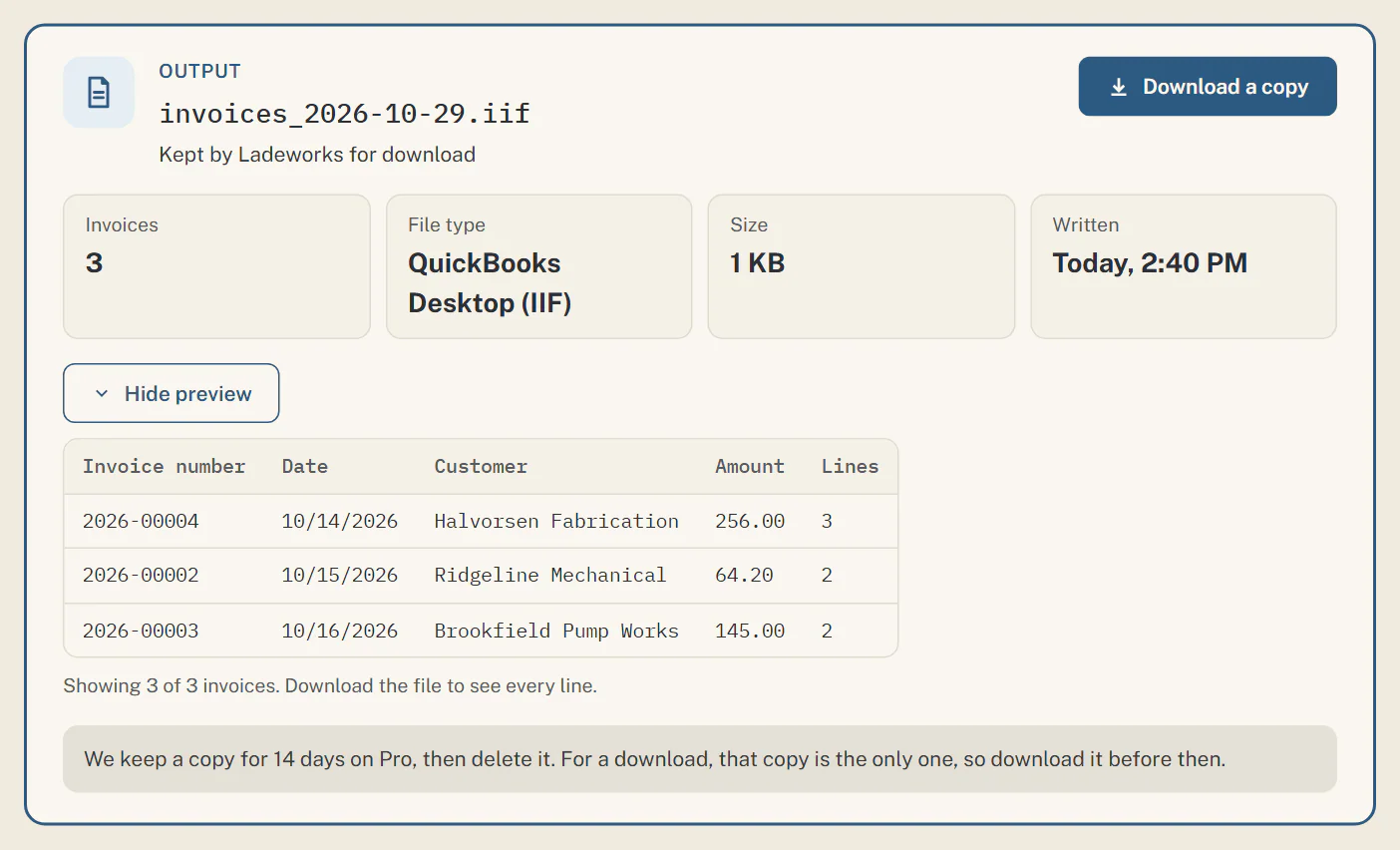
The run got 3 submitted invoices with their lines and wrote all 3 into the file, 3 records, one for each invoice written. Getting the invoices is free. The cancelled invoice ACC-SINV-2026-00001 was left out, because the step gets submitted invoices only. The last step's line reads "3 invoices written to an IIF file to download".
The file is on the run's Output card. Download a copy saves it, and Preview first 5 invoices shows one row for each invoice. Ladeworks keeps the file with the run for your plan's run history, and that copy is the only one, so download it before then.
 (opens the full size image in a new tab)
 (opens the full size image in a new tab)
The invoices come in the order ERPNext last changed them. The file has 16 lines: three header lines that name the columns, then each invoice as a TRNS line, an SPL line for each of its lines, and an ENDTRNS line. The header lines are:
!TRNS	TRNSID	TRNSTYPE	DATE	ACCNT	NAME	CLASS	AMOUNT	DOCNUM	MEMO	CLEAR	TOPRINT	NAMEISTAXABLE	DUEDATE	TERMS
!SPL	SPLID	TRNSTYPE	DATE	ACCNT	NAME	CLASS	AMOUNT	DOCNUM	MEMO	CLEAR	QNTY	PRICE	INVITEM	TAXABLE	EXTRA
!ENDTRNS
And here is one invoice, as written. The gaps are tabs, and each line ends the Windows way:
TRNS		INVOICE	10/15/2026	Accounts Receivable	Ridgeline Mechanical		64.20	2026-00002		N	N	N	11/15/2026
SPL		INVOICE	10/15/2026	Sales	Ridgeline Mechanical		-49.20	2026-00002	Threaded rod 3/8 x 36 in	N	-12	4.1	RD-5001	N
SPL		INVOICE	10/15/2026	Sales	Ridgeline Mechanical		-15.00	2026-00002	Nylon lock nut M8 zinc	N	-100	0.15	NT-6001	N
ENDTRNS
The TRNS line carries the invoice total as a positive amount on the accounts receivable account. Each SPL line carries a line's amount and quantity as negative numbers on the income account: that is how IIF balances an invoice, and QuickBooks shows them as positive on the invoice. The file is Windows-1252 text, which is what QuickBooks Desktop reads.
Import the file into QuickBooks Desktop
- Back up the company file first, the first time at least: File, Back Up Company. An import adds every invoice in the file, and taking them out again means deleting them one by one.
- Import it: in QuickBooks Desktop, choose File, Utilities, Import, IIF Files, and pick the file you downloaded.
- Let QuickBooks review it. QuickBooks Desktop 2019 and later check an IIF file before they import it, and list each transaction that failed, with a file of the failed ones to fix and import again. Intuit advises against Import it for me, which skips that review. Choose the review.
- Check one invoice after the first import: open 2026-00002 and compare it with the ERPNext invoice.
Names must match exactly
An IIF file names things; it does not create them the way you would by hand. The customer, each item, the accounts receivable account and the income account must have exactly the same names in QuickBooks Desktop as in the file. Here that means the ERPNext customer names, such as Ridgeline Mechanical, the ERPNext item codes as the QuickBooks item names, such as RD-5001, and the accounts Accounts Receivable and Sales.
QuickBooks 2019 and later list an invoice with a name they don't have among the failed transactions. Older versions created a missing name on their own, an item as a service item and an account as a bank account, so check the names before the first import there.
When a name differs, change one side so they match: rename the customer or item in QuickBooks, or add it there. When your QuickBooks items have other names than the ERPNext codes, keep a table of them in a formula in Map fields, such as a qb_item column on each line, and pick that field for Item. For accounts, type your own names as the fixed values; a subaccount is written with a colon, such as Income:Sales.
When a value is too long
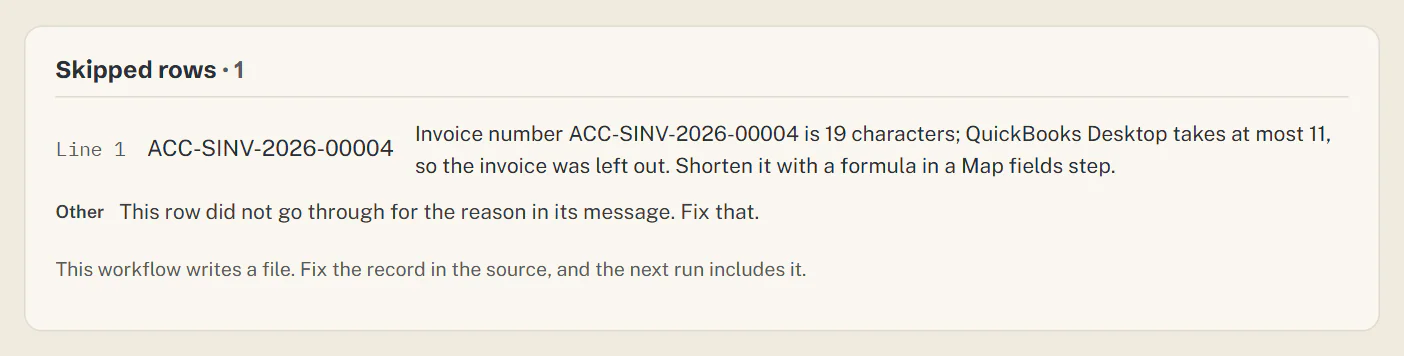
QuickBooks Desktop caps some values: an invoice number at 11 characters, a customer name at 41, and the names of items, accounts, classes and terms at 31. Ladeworks checks each invoice against these limits before it writes it. An invoice with a value over a limit is left out of the file and listed under Skipped rows with the value, its length, the limit and what to do; the other invoices are written. Length limits in the docs lists them all.
This is what a test says when the Write step takes ERPNext's name as the invoice number, without step 2. Test sends the first invoice only and does not use up the invoices a real run will read:
 (opens the full size image in a new tab)
 (opens the full size image in a new tab)
Sales tax
These invoices have no tax, and the company file in this example has sales tax turned off, so the file has no tax line. When a company file has sales tax turned on, QuickBooks Desktop expects a sales tax line on every invoice, with 0 when there is no tax, as in Intuit's own sample files.
For that, turn on Add a sales tax line in the Write step. It needs Sales tax item and Sales tax account, the names of the sales tax item and its liability account in QuickBooks, and either Tax rate (%), applied to the taxable lines, or Tax amount. When your ERPNext invoices carry tax, Tax amount can come from the invoice's tax total, such as total_taxes_and_charges, added under Fields this action reads, so QuickBooks gets the amount ERPNext charged. Invoice total, to check then compares the lines plus the tax with the ERPNext grand total.
Running it again
Get sales invoices reads only what is new or changed since the last run, so a second run's file has the invoices submitted, or changed in ERPNext, since the first. The invoice that was read last can come again if nothing newer was found, so check the file before you import it. Ladeworks does not know what you imported into QuickBooks, and importing the same invoice twice gives QuickBooks two of it. QuickBooks Desktop warns about a duplicate invoice number or refuses it depending on the company's settings, so don't count on it to catch a repeat.
On the first run, look back only matters for the first run. To write only some invoices, change Which sales invoices or turn on Only invoices not paid in full. To have the file ready each morning, click the trigger card and choose On a schedule. On Starter, Pro and Business. With a file server connected, A file server folder under Where the file goes drops each file in a folder instead of keeping it for download. On Starter, Pro and Business.
Variations
- Another source. Any rows with an invoice's customer, date and lines can become an IIF file. HubSpot deals with their line items, for example: get the deals, read each deal's line items in a Get details step as in Send HubSpot won deals to ERPNext, and pick that list under Lines come from.
- One row for each line. Many exports and CSV files have a row for each invoice line, with the invoice number repeated. Start with Read a file instead, and in the Write step choose One row for each line under Each invoice is. The rows that share an invoice number make one invoice, so keep them next to each other, as most exports do.
- Invoice header and lines in two files. Combine with another source matches each row of one source to a row of another by a key and adds its fields, so an invoice file and a lines file can become one set of rows before the Write step.
- Terms, a memo or a class. Pick an ERPNext field, such as payment_terms_template for Terms, added under Fields this action reads, or type a fixed value. Terms and classes must match names in QuickBooks too.
Before your first import
- Back up the company file.
- Match the names. Customers, items, the accounts receivable account and the income account must be in QuickBooks Desktop with exactly the names in the file.
- The first file has the past year's submitted invoices. Lower On the first run, look back if QuickBooks already has the older ones.
- Sales tax on? Turn on Add a sales tax line in the Write step.
- Check the Skipped rows of the run before you import, and fix what they name.
Start free
Connect your own systems and build this workflow yourself. Nothing reaches your systems until you run it or switch it on.
Setup details
You do not need these to follow the story. Open one when you reach that step.
Another naming series
The formula in step 2 expects names with four parts, such as ACC-SINV-2026-00002. If your sales invoices use another naming series, pick the parts that keep the number unique and within 11 characters. For SINV-26-00002, concat(split(row.name, "-")[1], "-", split(row.name, "-")[2]) gives 26-00002. An amended invoice gets a fifth part, such as ACC-SINV-2026-00002-1; to keep that apart from the original, add the fifth part when there is one, and check the result fits.
Where the downloaded file goes
Download a copy saves the file where your browser saves downloads. QuickBooks Desktop reads it from any folder the computer with QuickBooks can open, so save it there, or download it on that computer.
An IIF file has no way to keep a tab or a line break inside a value, so Ladeworks writes those as spaces. A character Windows-1252 does not have becomes a question mark.
More guides for ERPNext: Connect ERPNext, Import a CSV into ERPNext and Export ERPNext items to a CSV every night. More in the docs: QuickBooks Desktop invoices, ERPNext actions and Expressions in Map fields.
More guides: all guides. How each step works: the docs.