Send HubSpot won deals to ERPNext as sales orders
Each HubSpot deal marked closed won becomes a draft ERPNext sales order with the same customer, lines and prices. A customer ERPNext does not have yet is added first, and no deal is sent twice.
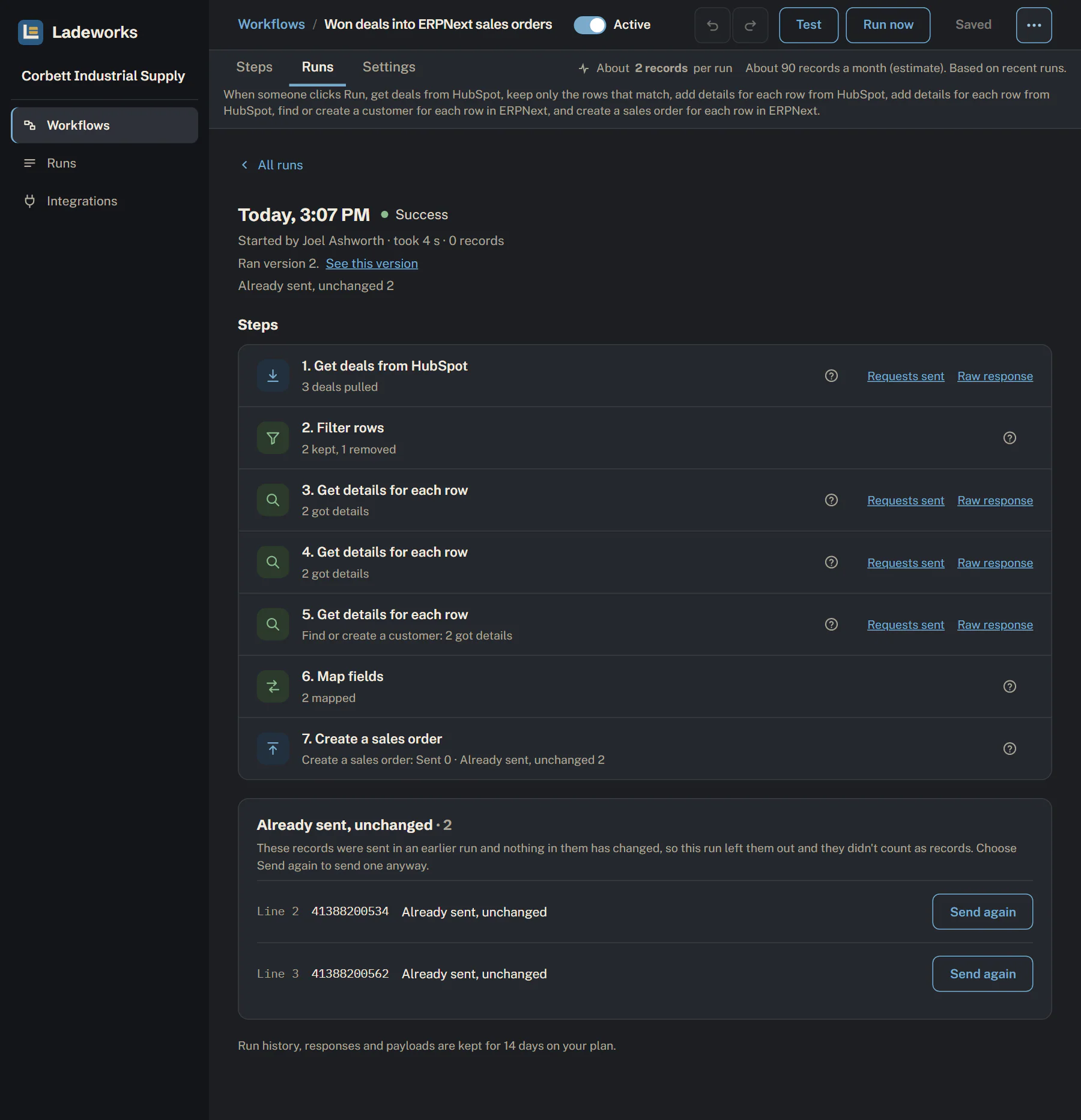
A 34 second recording of the finished workflow. The first run shows 3 deals pulled from HubSpot, 2 kept, Find or create a customer with 2 got details and 1 record, and Create a sales order with 2 sent and 2 records. The step that finds the customer opens on What to send for each row. Run now runs it again: 0 records, Sent 0, Already sent, unchanged 2, and the list shows the deal ids 41388200534 and 41388200562.
The example is made up: Corbett Industrial Supply, a distributor, sells in HubSpot and keeps its orders and stock in ERPNext. Its customers include Ridgeline Mechanical, Northgate Fabricators and Copperline HVAC. Everything in the screenshots runs on a test machine, so nothing here touches a real system.
Ridgeline Mechanical - Q4 rod and nut restock
Closed won, close date 2026-10-16, amount 128.40
Company: Ridgeline Mechanical
RD-5001  Threaded rod 3/8 x 36 in    24 x 4.10 =  98.40
NT-6001 Nylon lock nut M8 zinc 200 x 0.15 = 30.00POST /api/resource/Sales Order
{
"customer": "Ridgeline Mechanical",
"company": "Corbett Industrial Supply",
"transaction_date": "2026-10-16",
"delivery_date": "2026-10-16",
"po_no": "41388200534",
"items": [
{"item_code": "RD-5001", "qty": 24, "rate": 4.1},
{"item_code": "NT-6001", "qty": 200, "rate": 0.15}
]
}
ERPNext saves it as SAL-ORD-2026-00001, a Draft, grand total 128.40.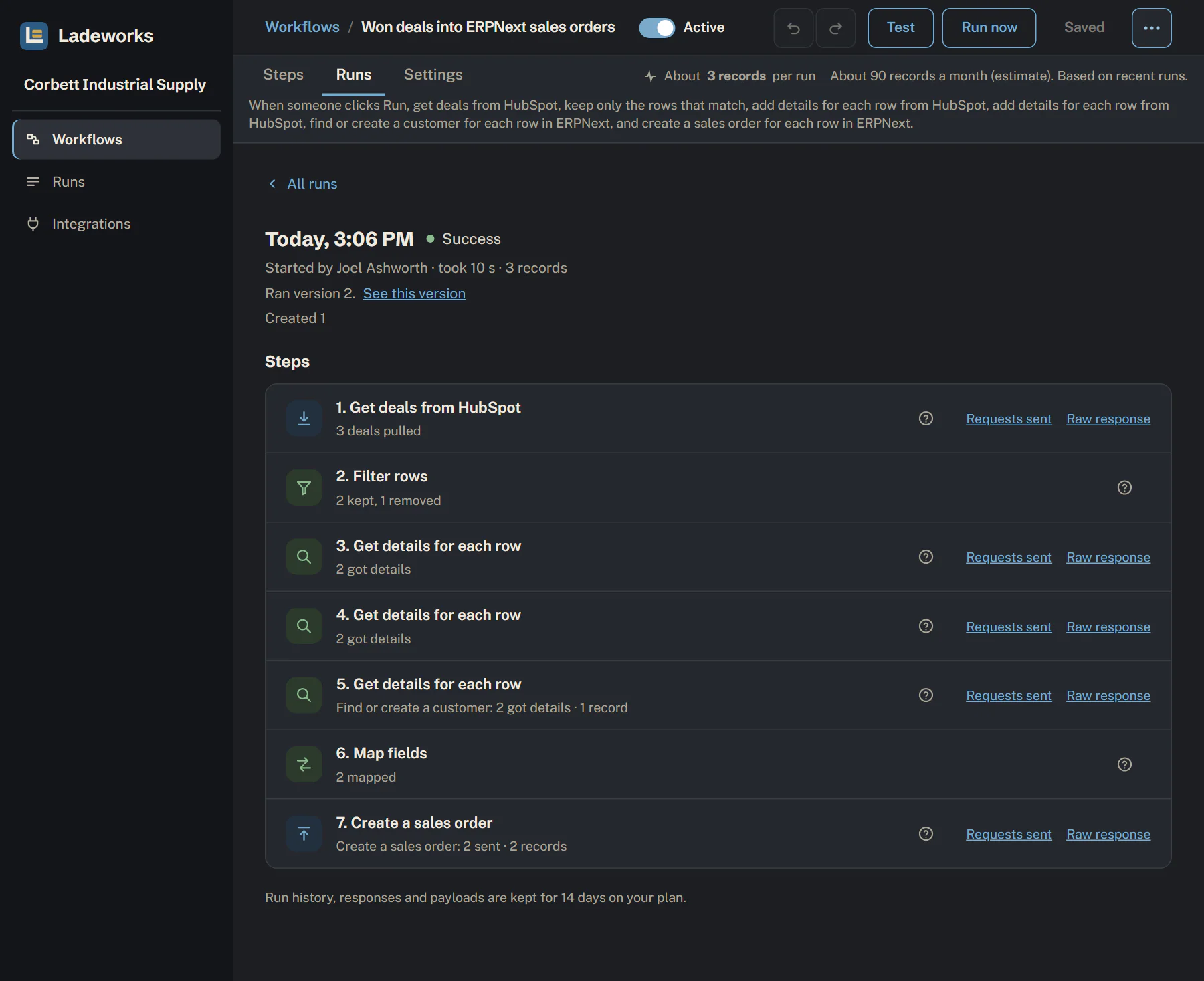 (opens the full size image in a new tab)
 (opens the full size image in a new tab)
What you end up with
- Each HubSpot deal in the closed won stage becomes a sales order in ERPNext, with the deal's company as the customer and one line for each line item on the deal, with its quantity and price.
- The sales order is a draft, because Submit it stays off, so someone on your team checks it and submits it in ERPNext before stock is reserved or anything is delivered.
- A company ERPNext does not have yet is added as a customer first. One it has already is used as it is.
- The HubSpot deal id is on the sales order as the customer's purchase order number, and a deal that was already sent is left out, so ERPNext never gets the same deal twice.
Needs the Starter, Pro or Business plan. You also need HubSpot and ERPNext connected, and a Ladeworks account (Start free is below).
Who this is for
A team whose sales work in HubSpot and whose orders, stock and invoices live in ERPNext. When a salesperson marks a deal closed won, someone has to open ERPNext and type the same customer, products, quantities and prices into a new sales order. That takes time, and a wrong item code or quantity turns up only when the wrong goods are picked. With this workflow, nobody retypes a won deal: it arrives in ERPNext as a draft with everything filled in, and your team only checks it.
The workflow below is a starting point, not the limit of what Ladeworks can do with HubSpot and ERPNext. The ready-made ERPNext actions it uses cover the usual work, and any other part of either API works the same way: change a step, add one, or read and write another kind of record, and connect more systems to the same workflow.
What you need first
- HubSpot, connected with Connect to HubSpot. Choose Integrations, then Add an integration, then Connect to HubSpot, and approve the access on HubSpot's page. You need to be a Super Admin in HubSpot to connect it. There is no key or secret to copy. See HubSpot in the built-in integrations. This workflow only reads from HubSpot, and Ladeworks lists every endpoint it needs.
- ERPNext, connected with Connect to ERPNext. Choose Integrations, then Add an integration, then Connect to ERPNext, type your site address, such as acme.frappe.cloud, and sign in and approve access on your own site. Ladeworks can do what the person who approves can do in ERPNext, so connect as someone who can read and add customers and create sales orders. See ERPNext in the built-in integrations. The workflow uses two of its ready-made actions, Find or create a customer and Create a sales order.
- The same codes in both systems. Each HubSpot product's SKU (hs_sku) must be the item code of the same item in ERPNext, such as RD-5001. The SKU is copied onto each line item when a salesperson adds a product to a deal, and the sales order line names the ERPNext item by it. ERPNext refuses a line whose item code it does not know.
- A customer group in ERPNext for the customers the workflow adds. Here it is Commercial, which a new ERPNext site has. Use one of yours.
How it works, in seven steps
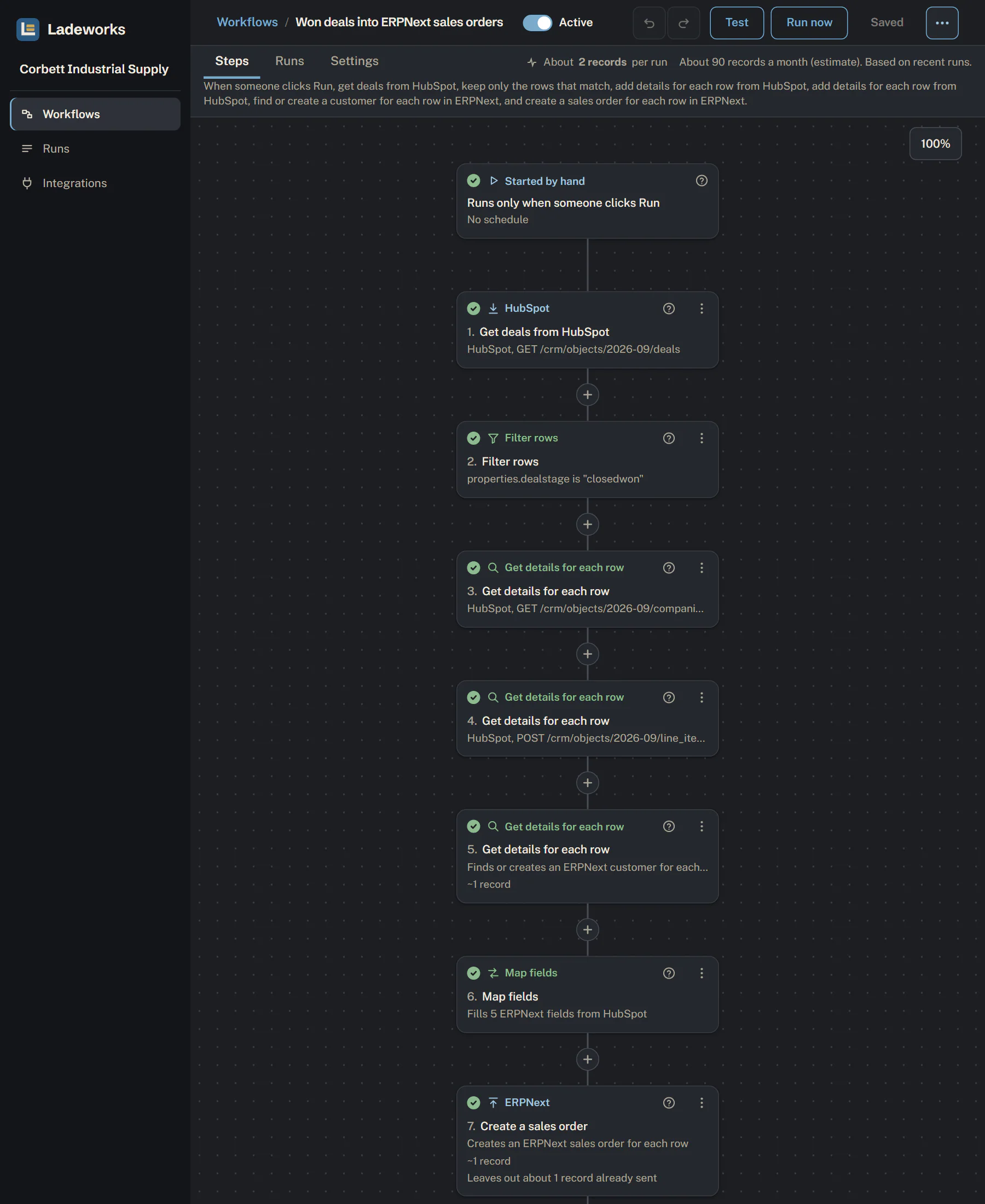
The workflow lists the deals in HubSpot with the ids of their company and line items, keeps the closed won ones, reads each deal's company and line items, finds the customer in ERPNext or adds it, maps everything into the fields of a sales order, and creates the sales order.
 (opens the full size image in a new tab)
 (opens the full size image in a new tab)
1. List the deals in HubSpot
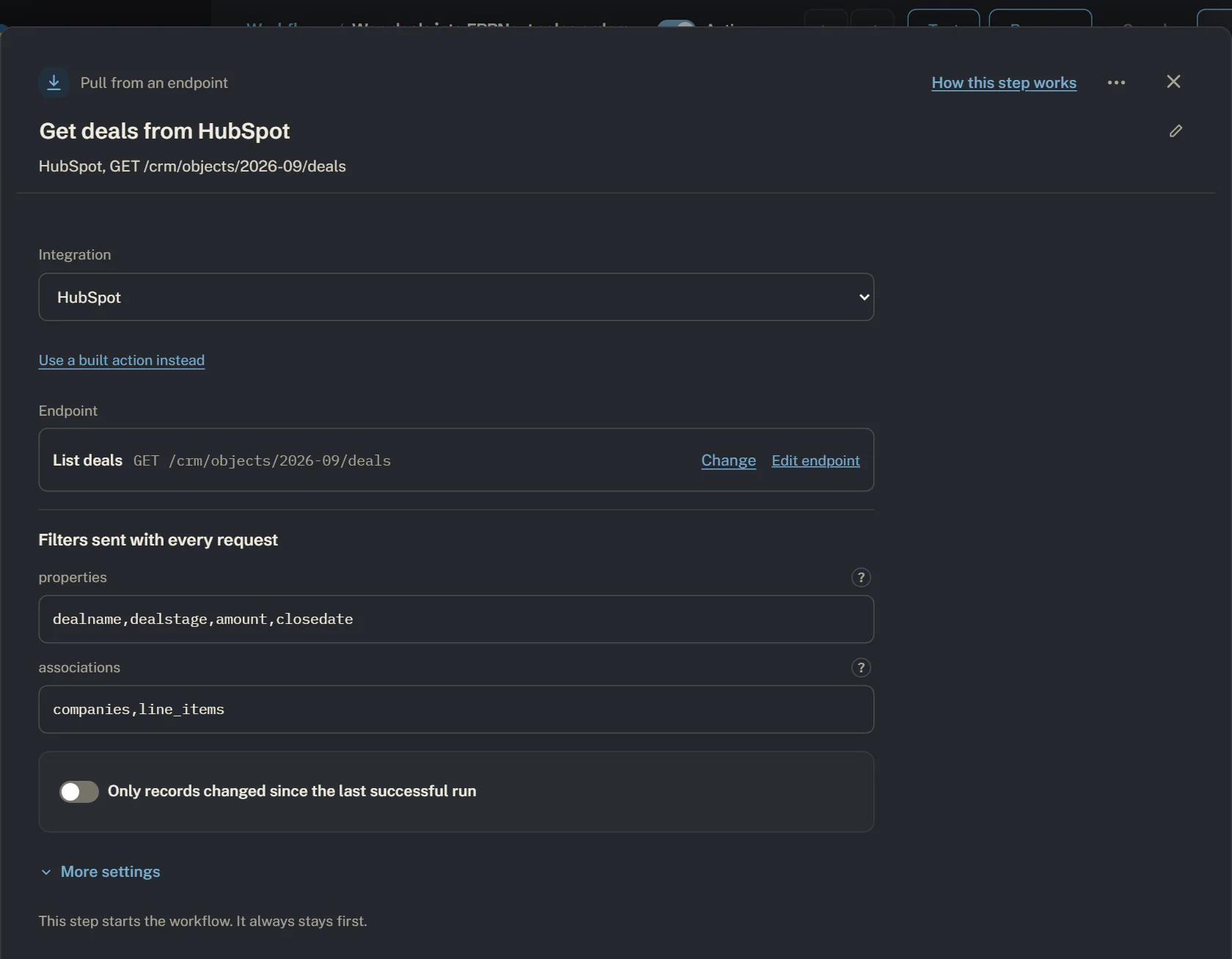
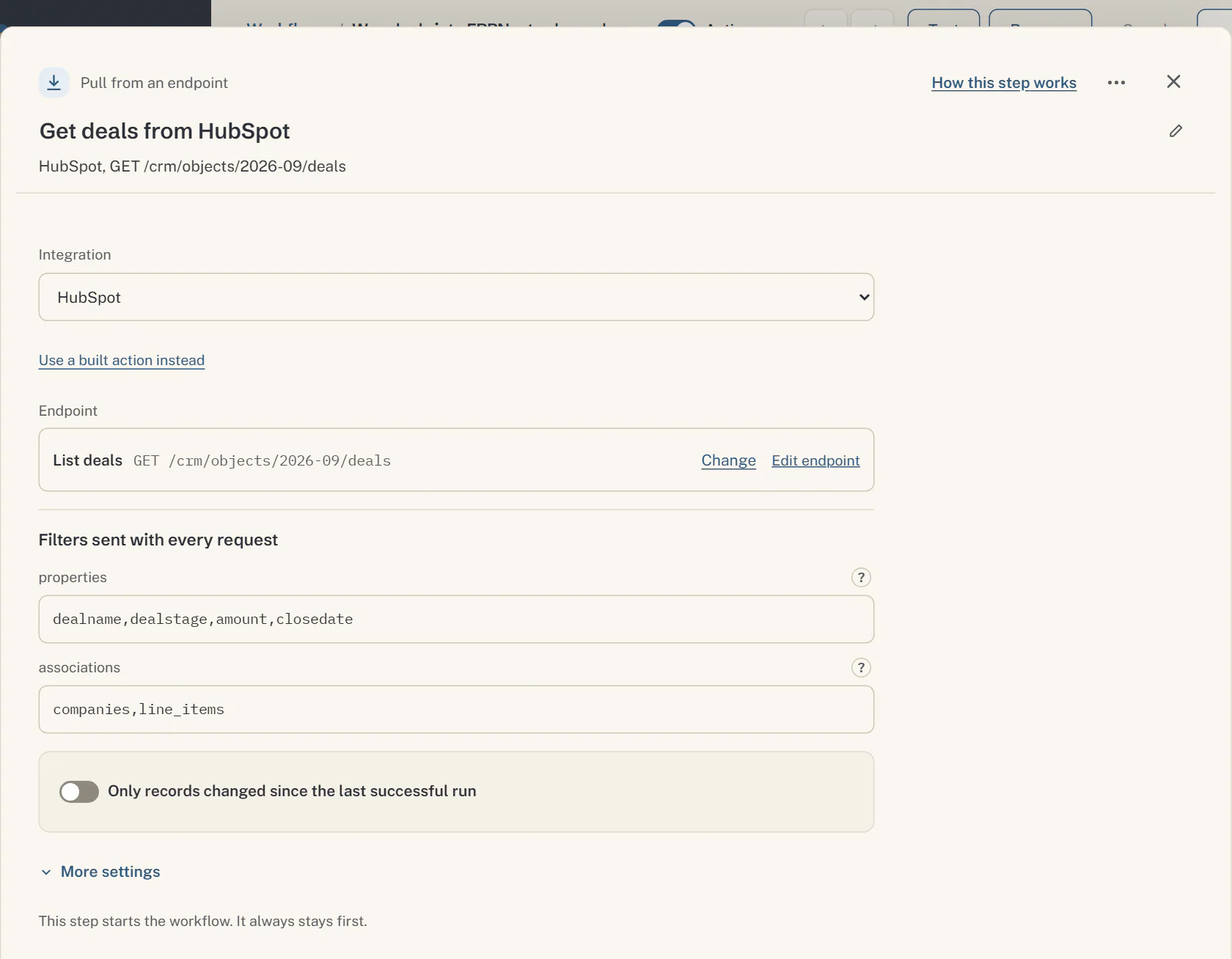
On the Workflows page choose New workflow, then Blank, then Set up manually. Choose Only when someone clicks Run while you try it out, open HubSpot under where the data comes from, choose Use another endpoint (HubSpot opens with ready-made actions, and this guide uses its endpoints), and choose List deals (GET /crm/objects/2026-09/deals). Open ERPNext under where it goes and choose Create a sales order, name the workflow and choose Create workflow. (You can also describe the job under What should this workflow do? and let Ladeworks draft the steps; check each one against this guide.) Open the first step and fill in what to send with every request:
- properties: dealname,dealstage,amount,closedate. HubSpot returns only a few properties unless you list them.
- associations: companies,line_items. Each deal then comes with the ids of its companies and line items.
Ladeworks asks HubSpot for 100 deals a page, the most it gives, and follows HubSpot's paging to the next page.
 (opens the full size image in a new tab)
 (opens the full size image in a new tab)
2. Keep the closed won deals
Add Filter rows after the first step and keep rows where properties.dealstage is closedwon. HubSpot stores the stage's internal ID, not the label "Closed won" you see in HubSpot, and closedwon is the ID in the default pipeline. If your deals use another pipeline, HubSpot's List deal pipelines and their stages endpoint lists each stage's ID. The filter comes before the steps that read more about each deal, so a deal that is not won goes no further.
3. Read the deal's company
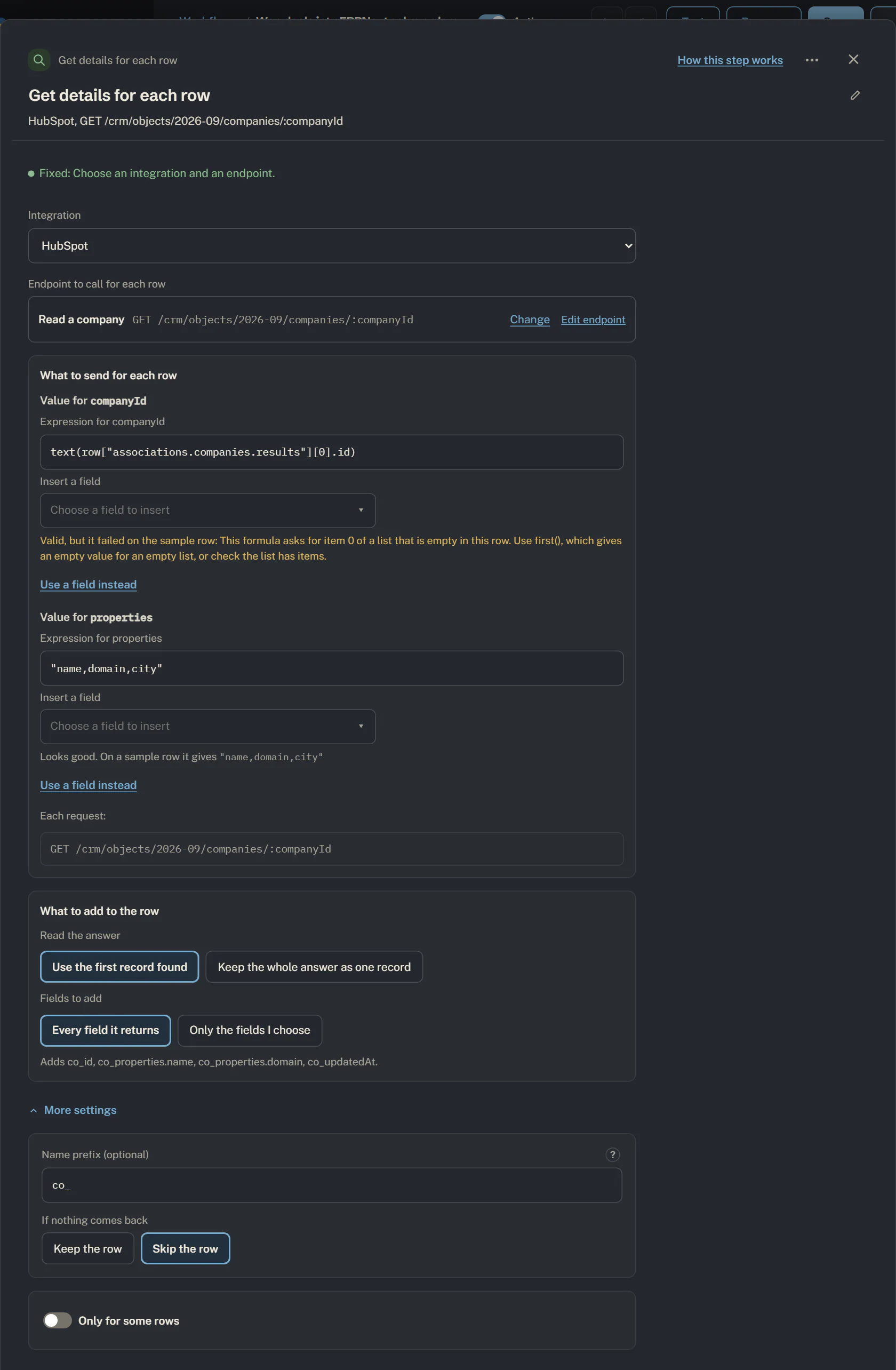
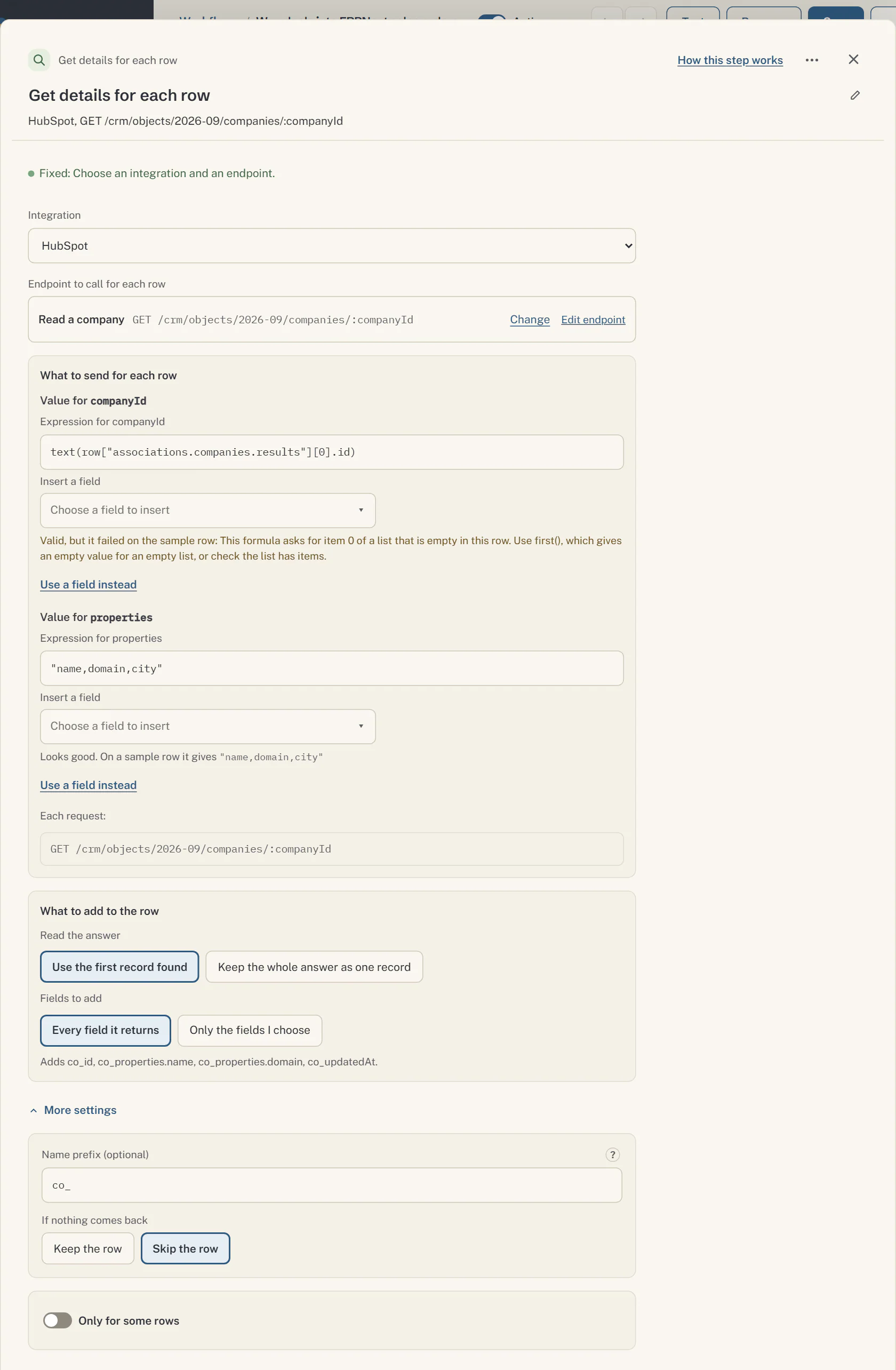
Add Get details for each row, choose HubSpot, then Use another endpoint and Read a company (GET /crm/objects/2026-09/companies/:companyId). Under What to send for each row, for Value for companyId choose + Write an expression and write:
text(row["associations.companies.results"][0].id)Then, under Also send a value for, choose properties and write the expression "name,domain,city", in quotes. Keep Every field it returns. Under More settings, set Name prefix to co_ and choose Skip the row. The row gets co_properties.name, such as Ridgeline Mechanical, which becomes the ERPNext customer.
Why [0]: HubSpot lists a deal's primary company twice, once as deal_to_company and once as deal_to_company_unlabeled, with the same id. Both entries point at the same company, so the first one is the right one. A deal with no company at all has no first entry, so that row is skipped and run details say why. text() makes sure the id is sent as text.
The box under the formula may say it failed on the sample row. The pasted sample keeps only the names of the fields, not their values, so the sample row has no company yet. A run reads real deals.
 (opens the full size image in a new tab)
 (opens the full size image in a new tab)
4. Read the deal's line items, in one call
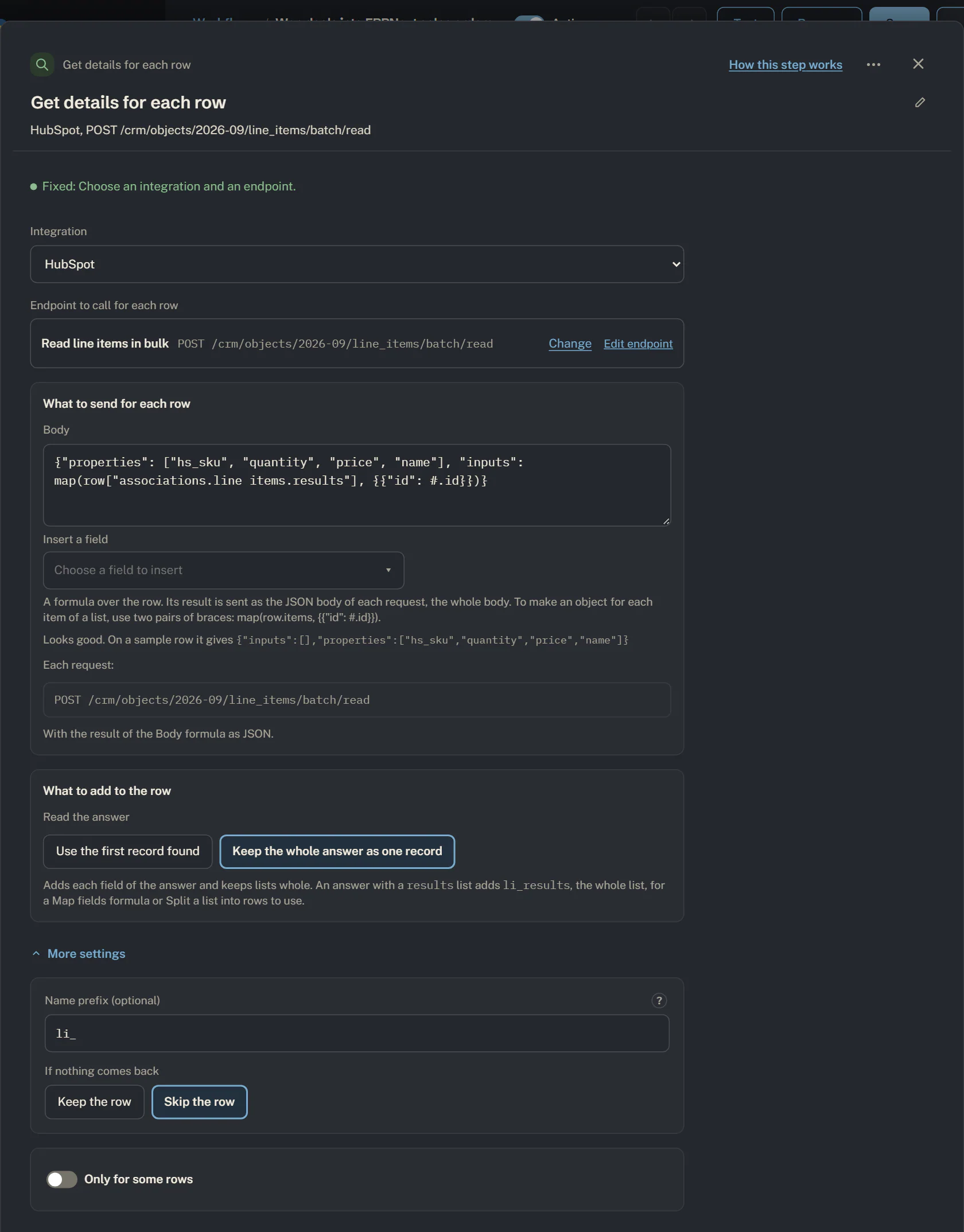
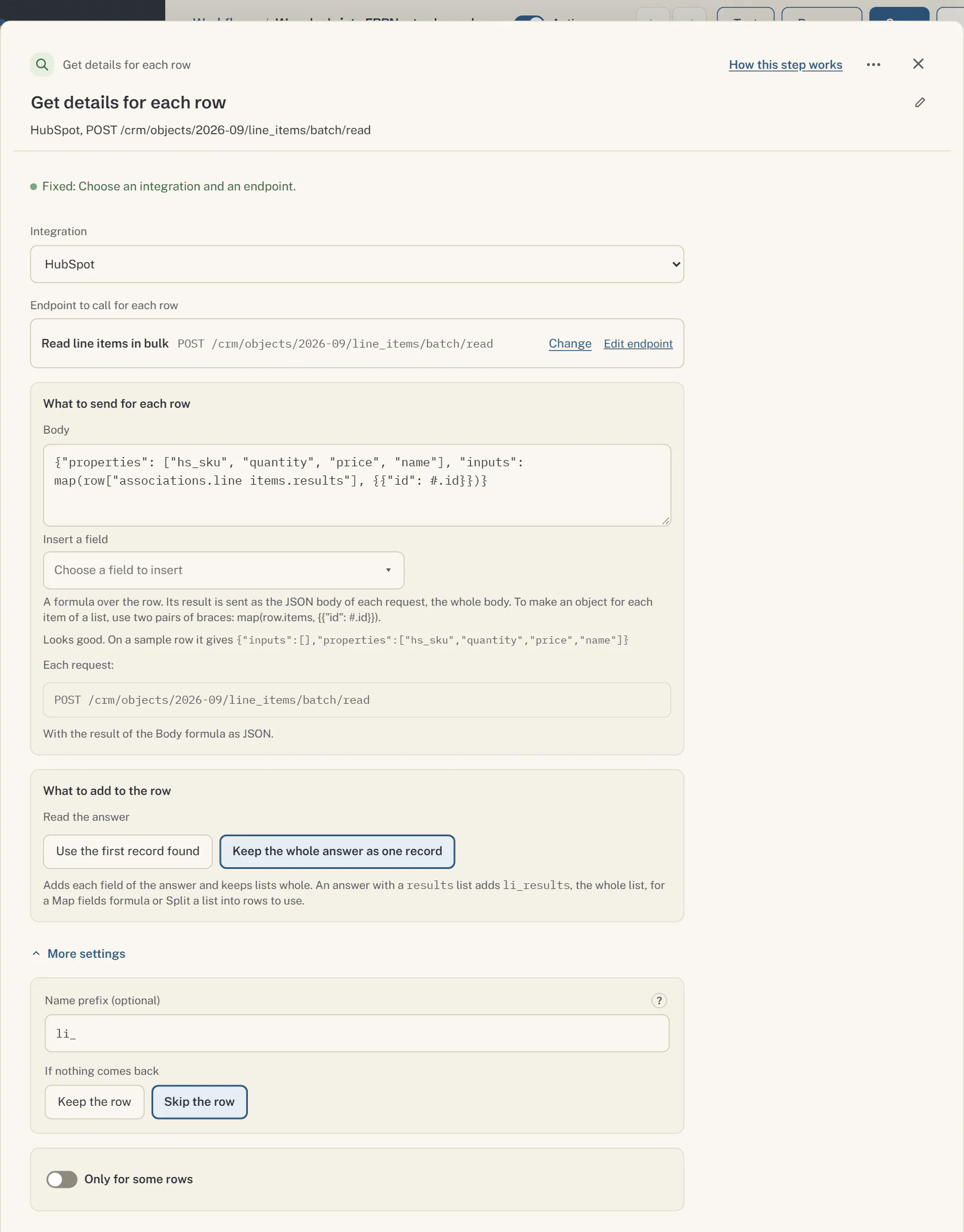
Add a second Get details for each row, choose HubSpot, then Use another endpoint and Read line items in bulk (POST /crm/objects/2026-09/line_items/batch/read). A POST endpoint shows Body: a formula whose result is sent as the JSON body. Write:
{"properties": ["hs_sku", "quantity", "price", "name"],
 "inputs": map(row["associations.line items.results"], {{"id": #.id}})}
It asks for four properties of each line item, and makes one {"id": ...} for each line item id on the deal. map goes through the list and # is the item it is on. The braces are doubled because the outer pair holds what to do for each item and the inner pair makes the object; with single braces the formula is refused, and the message says to add the second pair.
The key is line items with a space, because that is how HubSpot names it in the answer, even though you asked for line_items. A field name with a space is written in brackets and quotes: row["associations.line items.results"].
Under What to add to the row, set Read the answer to Keep the whole answer as one record. Under More settings, set Name prefix to li_ and choose Skip the row. HubSpot answers with a results list, so the row gets li_results: every line item of the deal, each with properties.hs_sku, properties.quantity and properties.price. See Call a POST endpoint with a body.
{"status": "COMPLETE", "results": [
  {"id": "51702266010",
   "properties": {"hs_sku": "SC-4002", "name": "Deck screw #10 x 3 box of 50",
                  "price": "8.75", "quantity": "10", ...}}],
 "startedAt": "...", "completedAt": "..."}
HubSpot sends every value as text, "10" and "8.75", and does not keep the order of the ids you sent. Neither matters here: the next steps turn the values into numbers, and the order of the lines on a sales order does not change it.
 (opens the full size image in a new tab)
 (opens the full size image in a new tab)
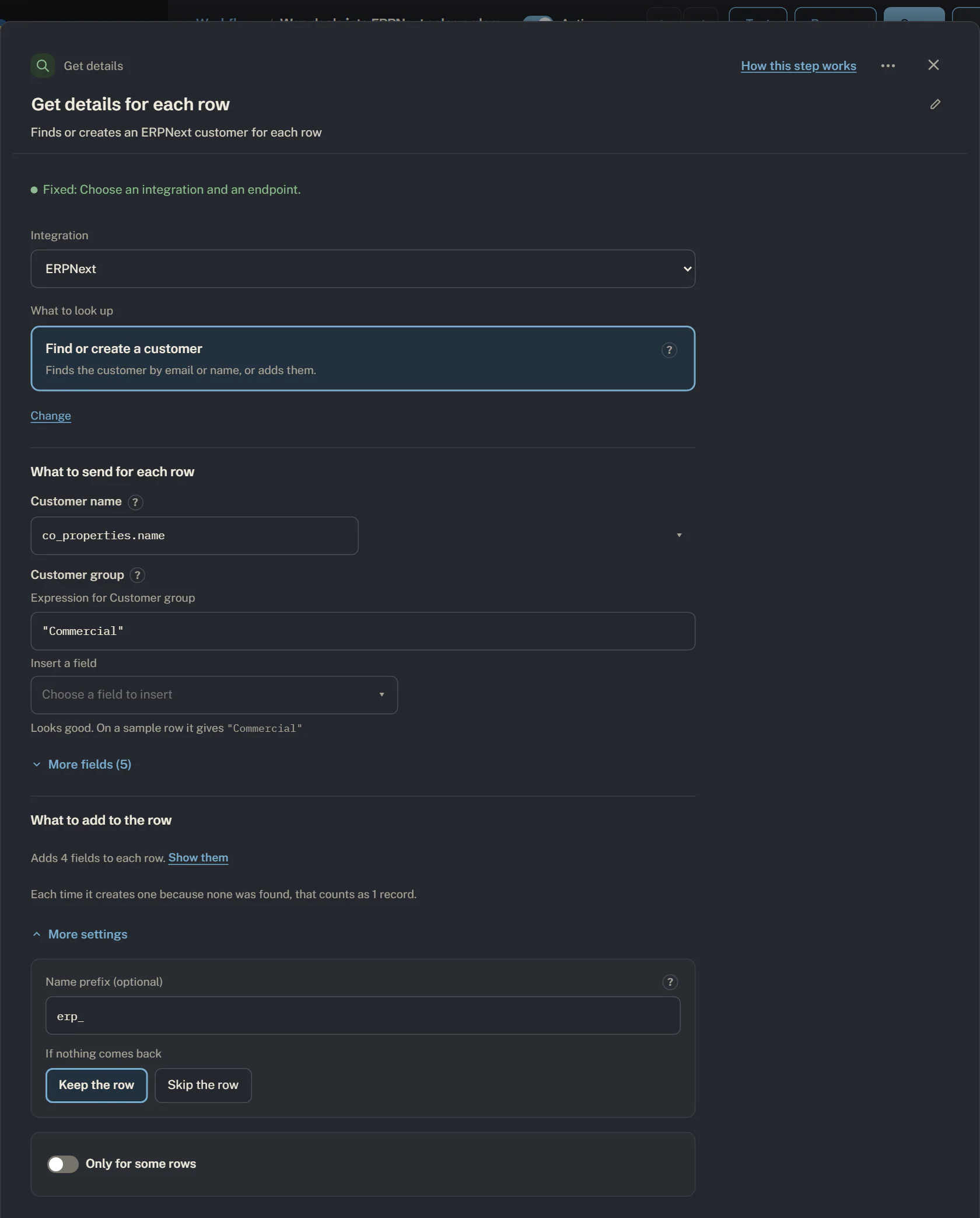
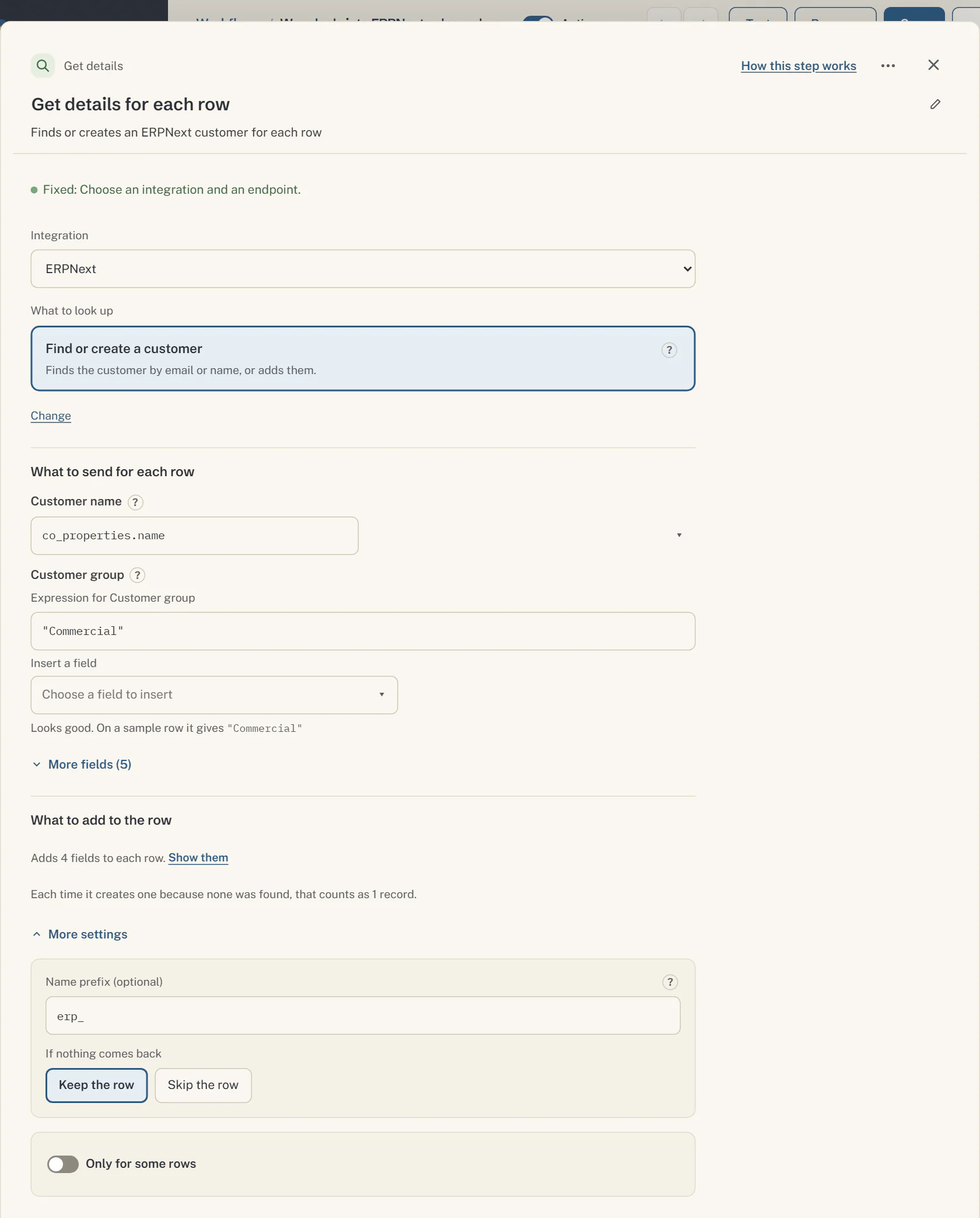
5. Find the customer in ERPNext, or add it
Add a third Get details for each row and choose ERPNext. Under What to look up choose Find or create a customer. Under What to send for each row, for Customer name choose the field co_properties.name. For Customer group, open the box and choose + Write an expression, then write "Commercial", in quotes. The action looks for a customer with that name, and adds one when there is none. A new customer is a Company unless you set Customer type. More fields also has the customer's email, territory, phone and tax ID.
Under More settings, set Name prefix to erp_. The row then gets erp_id, the customer's ID in ERPNext, erp_displayName, erp_email and erp_created, which says whether this step added the customer. Looking up a customer is free. Adding one counts as 1 record, and the step says so under What to add to the row.
 (opens the full size image in a new tab)
 (opens the full size image in a new tab)
6. Map the deal into a sales order
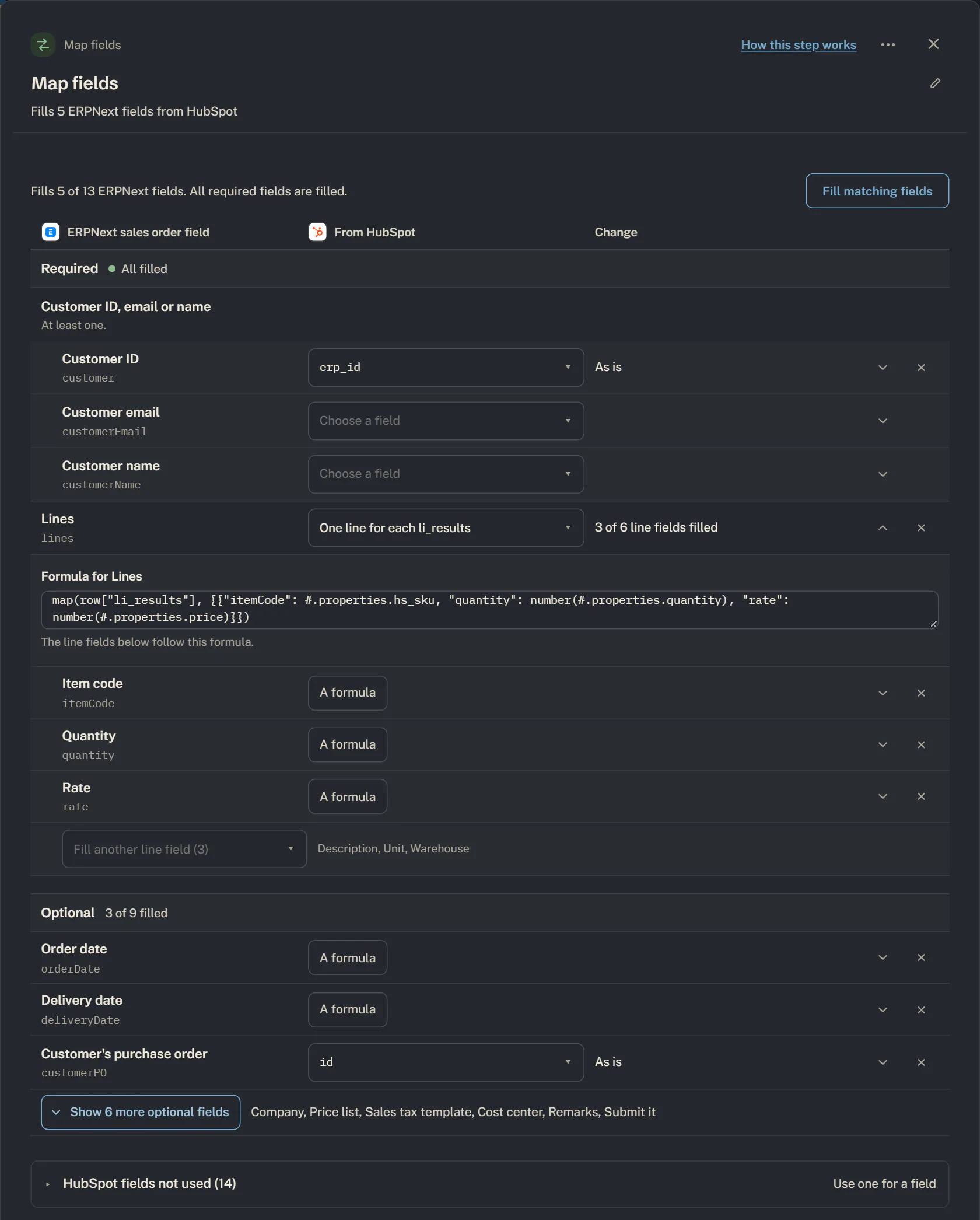
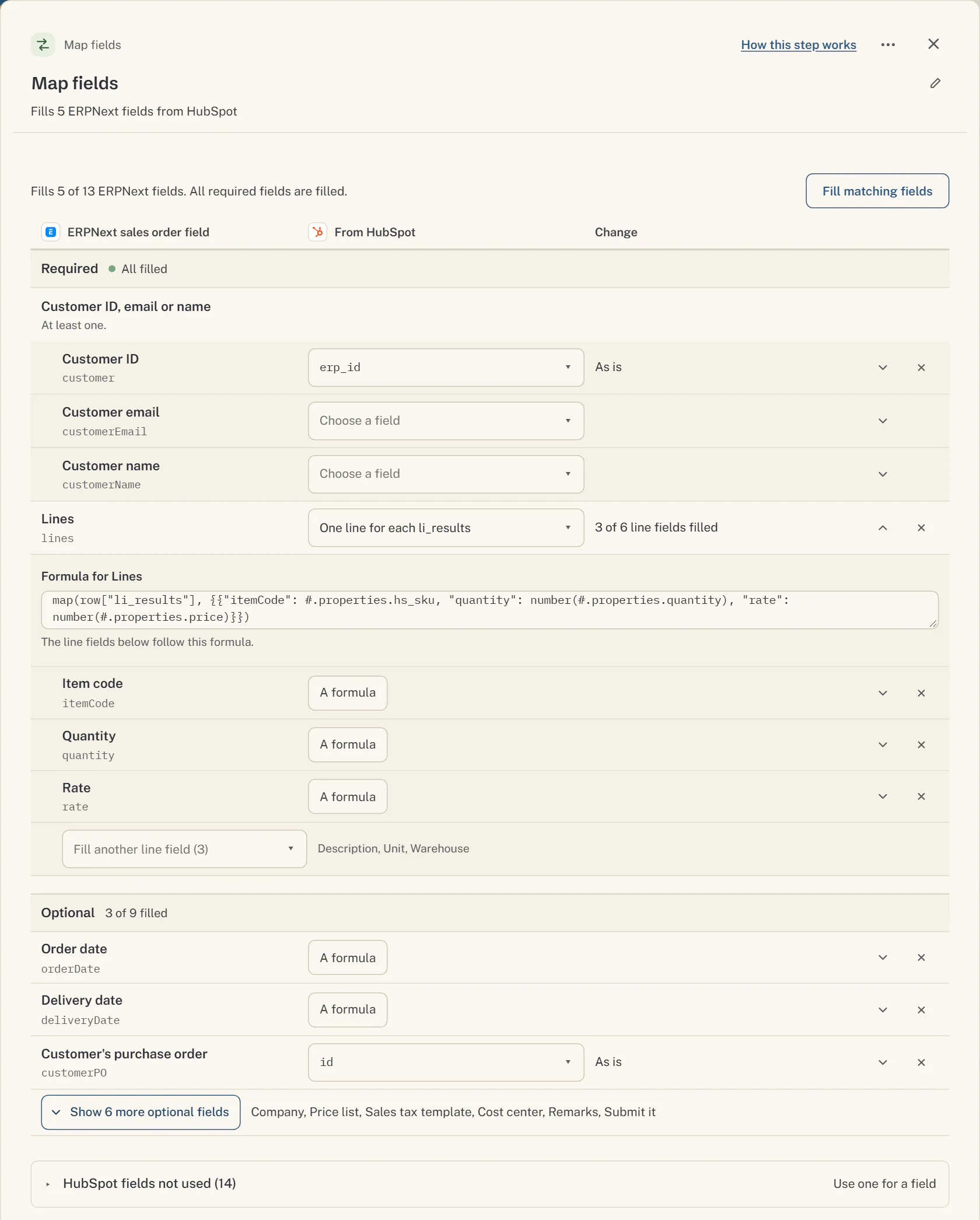
Open Map fields. The sheet lists the fields of ERPNext's sales order: what is required first, then the optional ones. Fill these five:
| ERPNext field | Filled from | What happens to it |
|---|---|---|
| Customer ID | erp_id | The customer found or just added. |
| Lines | A formula | One line for each line item, below. |
| Order date | A formula | split(row["properties.closedate"], "T")[0], the close date. |
| Delivery date | A formula | The same formula. ERPNext needs a delivery date on every sales order. |
| Customer's purchase order | id | The HubSpot deal id, so the order says which deal it came from. |
For a field, open the box beside the ERPNext field and choose it. For a formula, click the row and set Fill with to A formula, then write it. HubSpot's close date is a date and time, such as 2026-10-16T17:00:00Z; split cuts it at the T and [0] keeps the date. The time is in UTC, so a deal closed late in the evening in the Americas can get the next day's date.
Lines first asks for a list: choose associations.line items.results, then click the row to open Formula for Lines and replace what it holds with this formula, which makes one sales order line for each line item and fills the Item code, Quantity and Rate of each:
map(row["li_results"], {{
  "itemCode": #.properties.hs_sku,
  "quantity": number(#.properties.quantity),
  "rate": number(#.properties.price)
}})
# is the line item it is on. The SKU becomes the item code, and number() turns HubSpot's text into the numbers ERPNext expects. The deal's own amount is not sent: ERPNext works out the total from the lines, and for this deal it came to the same 128.40. Company stays empty, because a site with one company uses it, and Submit it stays empty too, which keeps the order a draft.
 (opens the full size image in a new tab)
 (opens the full size image in a new tab)
7. Create the sales order, once
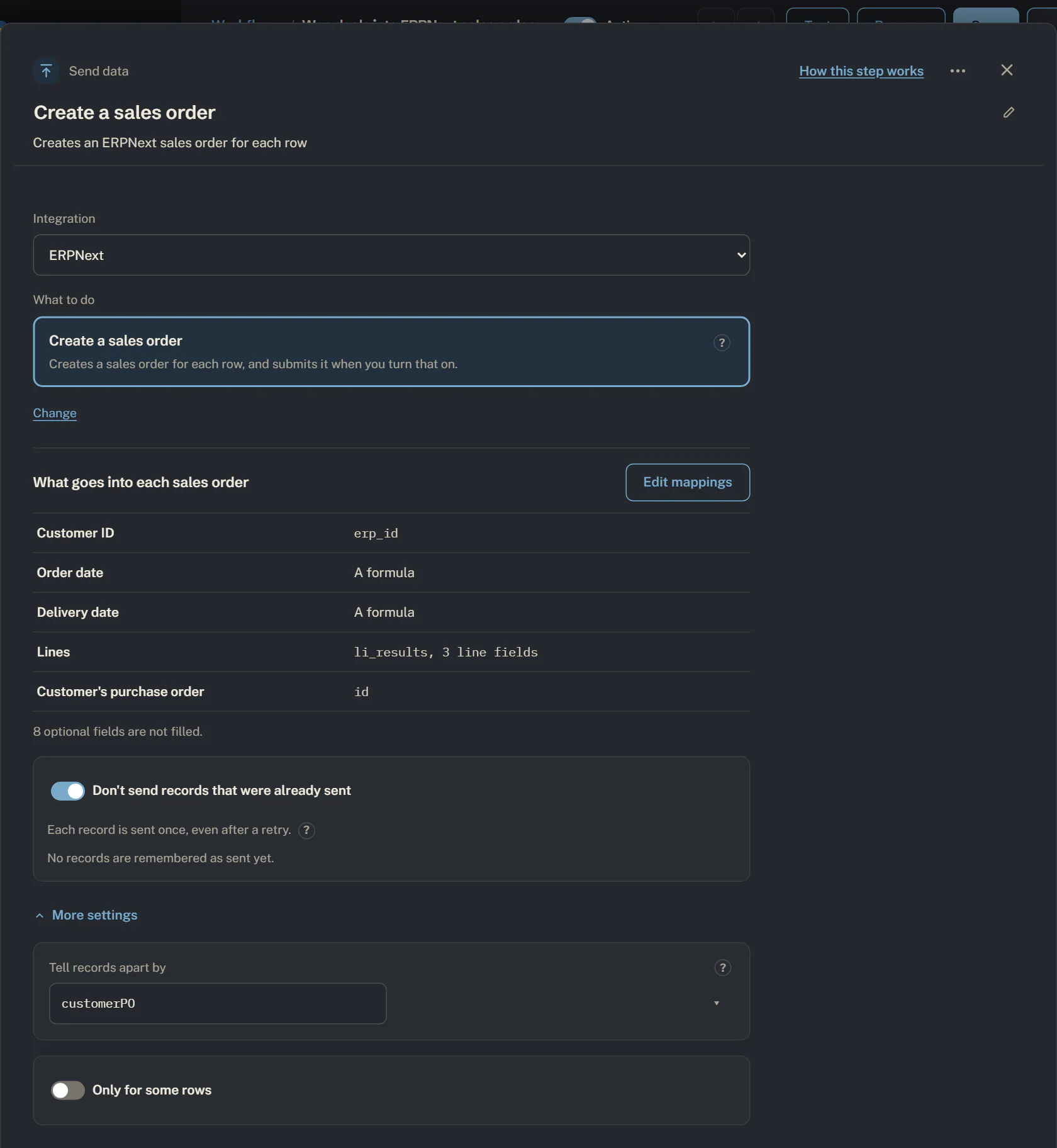
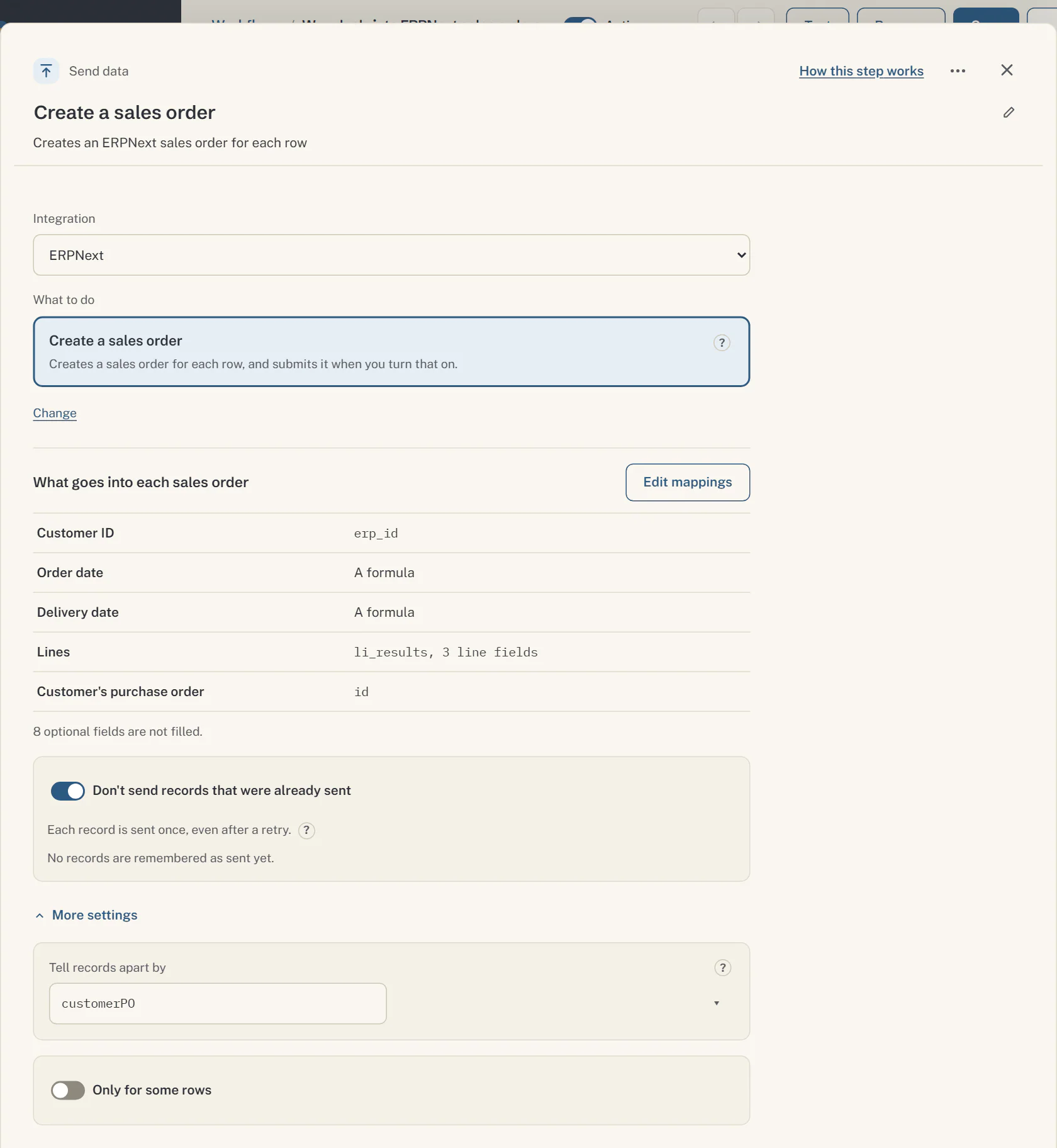
The last step is Send data with Create a sales order. It lists What goes into each sales order, which is what Map fields filled, and says that 8 optional fields are not filled. Don't send records that were already sent is on already: under More settings, set Tell records apart by to customerPO, the field that holds the deal id.
ERPNext saves a sales order created through the API as a draft. That is on purpose here: Submit it is off, so someone checks the order, the customer and the delivery date in ERPNext and submits it, and only then does it reserve stock and count as a confirmed order. Nothing a salesperson types in HubSpot becomes a confirmed order on its own. Turn Submit it on in Map fields only when you want orders submitted as they arrive.
 (opens the full size image in a new tab)
 (opens the full size image in a new tab)
Choose Update for each step you changed, then Save, then Run now.
What a run looks like
The first run pulled 3 deals, kept the 2 that were closed won and created 2 sales orders and one customer: 3 records. Reading the deals, the companies and the line items, and finding a customer that ERPNext already has, are free. Ridgeline Mechanical was already a customer. Northgate Fabricators was not, so step 5 added it, which counts as 1 record, and each sales order counts as 1.
ERPNext got SAL-ORD-2026-00001 for Ridgeline Mechanical, 128.40, and SAL-ORD-2026-00002 for Northgate Fabricators, 505.00, with its four lines: 100 wedge anchors, 500 hex bolts, 500 hex nuts and 1000 washers. Both are drafts. Copperline HVAC's deal was still at Contract sent, so it was filtered out; it will be sent on the first run after someone marks it closed won.
The second run, with nothing new, pulled the same 3 deals and sent none: Already sent, unchanged 2, with 0 records. Step 5 found both customers and added none.
 (opens the full size image in a new tab)
 (opens the full size image in a new tab)
Why a deal is never sent twice
The last step remembers each deal it sent by its customerPO, the deal id, and leaves out a deal whose data has not changed since. That keeps a deal from becoming two sales orders when the workflow runs again.
It is not a promise to send each deal only once whatever happens. If the data of a sent deal changes, for example a salesperson adds a line item after marking it closed won, the step sends the changed deal again, and ERPNext gets a second draft sales order for the same deal. Two ways to handle it: make changes to a won deal on the draft in ERPNext instead, or, when an order is not final yet, keep the deal out of closed won until it is. If a second draft does arrive, it shows the same purchase order number as the first, so delete the one you do not need.
Send again on a run sends one deal again on purpose, and also creates another draft.
Records per run, and keeping runs quick
Each sales order sent to ERPNext is one record, and so is each customer step 5 adds. A deal that was already sent is left out and does not count, and the reads and lookups before it are free. Every run still reads each closed won deal's company and line items before the last step leaves it out, so with many won deals a run with nothing new still takes a while.
The Pull step's Only records changed since the last successful run needs a query parameter that filters by change time, and HubSpot's list of deals has none. HubSpot filters by date only in its search (POST /crm/objects/2026-09/deals/search), and a Pull step reads GET endpoints only, so the search cannot start this workflow. What does work:
- Drop old won deals early. Add a second condition to step 2, such as keeping only deals whose close date is on or after the first of this month. As an expression: row["properties.dealstage"] == "closedwon" and row["properties.closedate"] >= "2026-10-01". Move the date on now and then. Deals before it go no further than the list.
- Run it on a schedule that fits. Once it works, click the trigger card and choose On a schedule, such as every hour during the working day, instead of every few minutes. On Starter, Pro and Business.
- Keep HubSpot's paging at 100. It is the most HubSpot gives, so the list takes as few requests as it can.
Each run's page shows the records it delivered, step by step.
Variations
- A deal without line items is skipped at step 4: the Body formula has no line item ids to work with, so the row stops there, and run details say why. Add the line items in HubSpot and the next run sends it.
- A deal without a company is skipped at step 3 the same way.
- Submitted orders. Turn on Submit it in Map fields to have ERPNext submit each order as it arrives. A submitted order can be cancelled in ERPNext, not edited.
- Any other part of ERPNext. The two actions are a head start. Use another endpoint in a step opens everything ERPNext's API has, such as a customer's contact or address, and the connection's Endpoints tab lists it under All endpoints. Read the deal's contact with HubSpot's Read a contact, for example, and add it in ERPNext the same way as the customer.
- Another pipeline or stage. Change the value in step 2 to the stage's internal ID.
- Prices from a second source. Combine with another source matches each deal line to a row of another source, such as a CSV price list, by a key such as the SKU, and adds its fields before the Map fields step.
Before you go live
- Try it on a test ERPNext site, or a test deal, first. Run now sends every won deal, and Test sends only the first, after asking (Send a test?). Both really create customers and sales orders.
- Match the codes. Every HubSpot product's SKU must be an ERPNext item code.
- The first run sends every closed won deal in HubSpot. Add the close date condition in step 2 if ERPNext already has the older orders.
- Check the customer group in step 5: it must exist in your ERPNext. If your site has more than one company, choose Company in Map fields.
- Taxes and price lists are not set here. ERPNext applies its own defaults to the draft, and Price list and Sales tax template in Map fields can set them. Check them before you submit the first orders.
Start free
Connect your own systems and build this workflow yourself. Nothing reaches your systems until you run it or switch it on.
More guides: Send ERPNext sales invoices to QuickBooks Online. More in the docs: Connect to ERPNext, Connect to HubSpot, ERPNext actions, Get details for each row, Expressions in Map fields and Don't send records that were already sent.
More guides: all guides. How each step works: the docs.