Send ERPNext sales invoices to QuickBooks Online
Every evening, each submitted ERPNext sales invoice becomes a QuickBooks Online invoice with the same number, customer, dates and lines. A new customer is added, and each invoice is sent once.
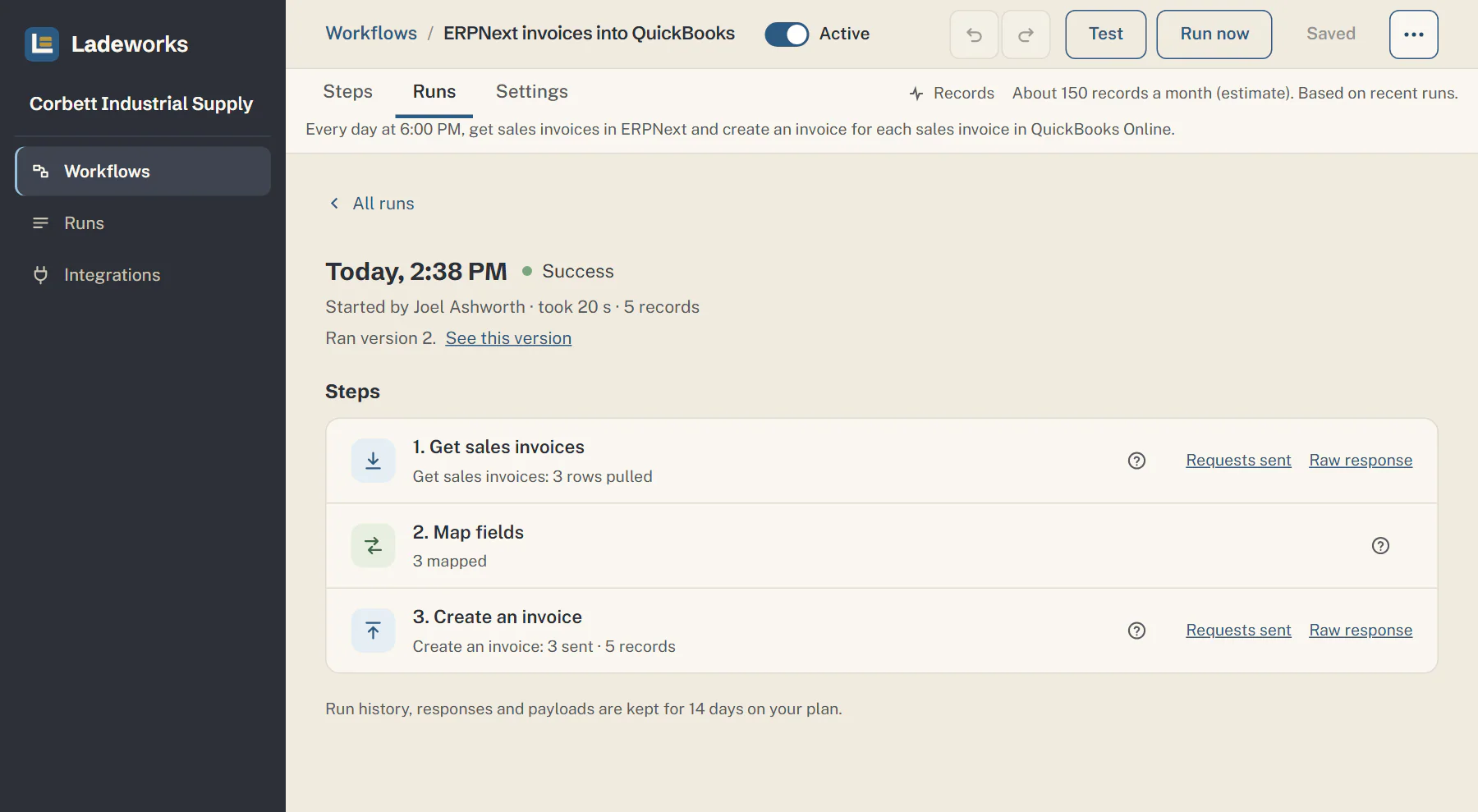
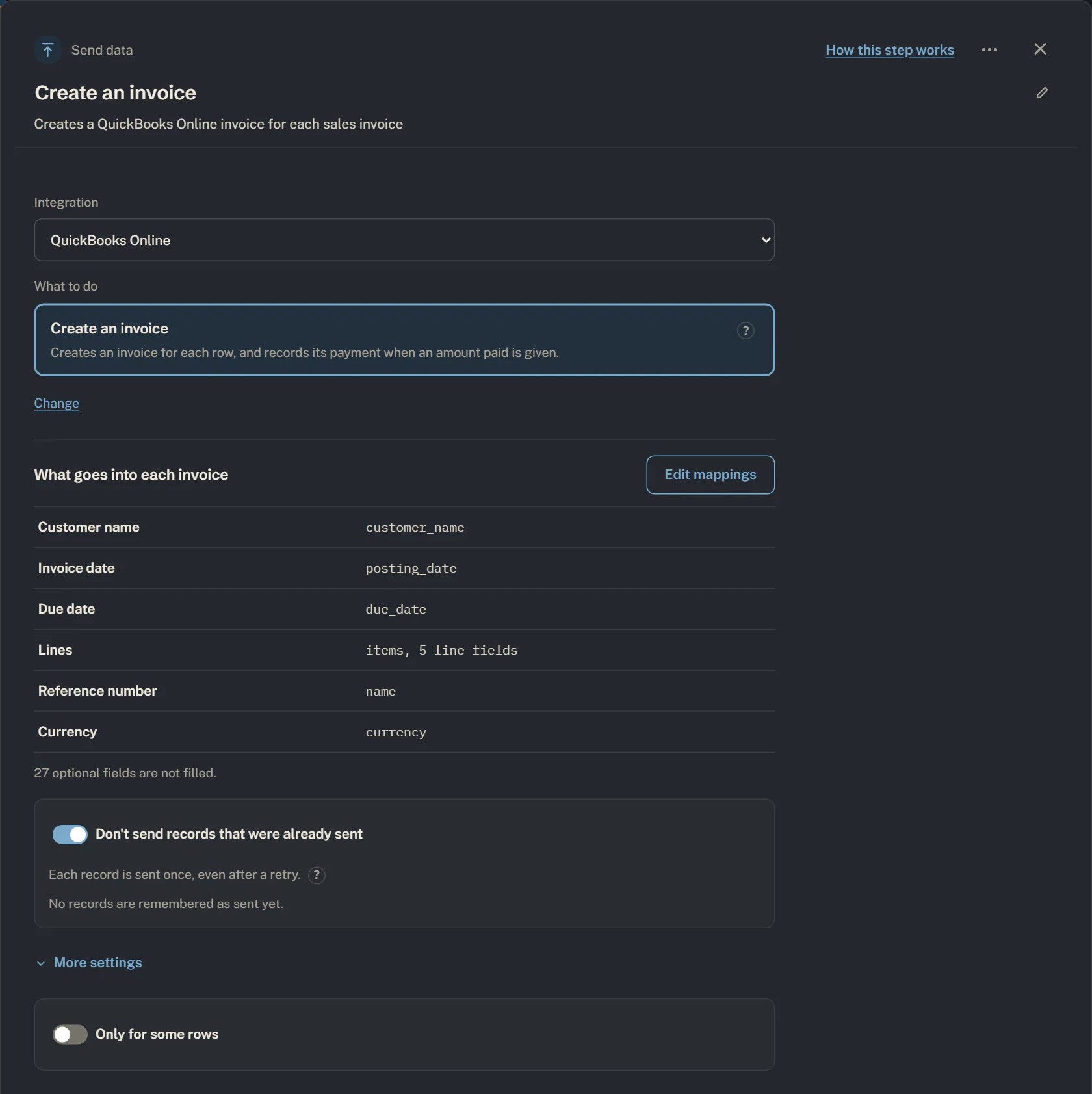
A 30 second recording of the finished workflow. The first run shows Get sales invoices with 3 rows pulled and Create an invoice with 3 sent and 5 records. The Create an invoice step opens and shows what goes into each invoice. Run now runs it again: 0 records, and the invoice read again is listed as Already sent, unchanged, ACC-SINV-2026-00003.
The example is made up: Corbett Industrial Supply, a distributor, invoices in ERPNext and keeps its books in QuickBooks Online. Everything in the screenshots runs on a test machine, so nothing here touches a real system.
ACC-SINV-2026-00002   Ridgeline Mechanical
Posted 2026-10-15, due 2026-11-15
RD-5001  Threaded rod 3/8 x 36 in   12 x 4.10 =  49.20
NT-6001  Nylon lock nut M8 zinc    100 x 0.15 =  15.00
Grand total 64.20Customer name Ridgeline Mechanical
Reference number ACC-SINV-2026-00002
Invoice date 2026-10-15
Due date 2026-11-15
Lines
RD-5001 12 x 4.10 Threaded rod 3/8 x 36 in
NT-6001 100 x 0.15 Nylon lock nut M8 zinc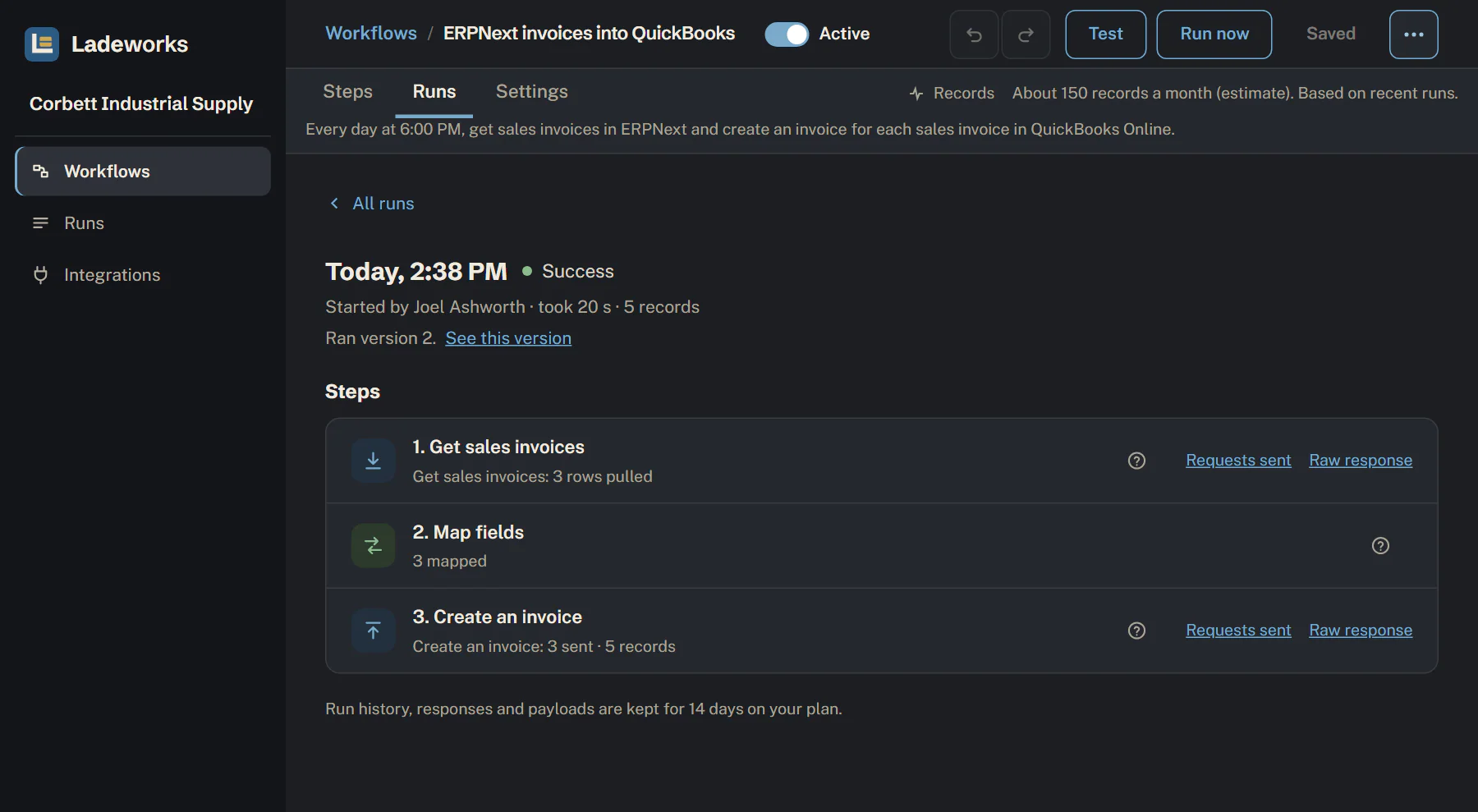 (opens the full size image in a new tab)
 (opens the full size image in a new tab)
What you end up with
- Every evening at 6:00, each sales invoice submitted in ERPNext is created in QuickBooks Online.
- The QuickBooks invoice has the ERPNext number as its reference number, the same customer, invoice date and due date, and one line for each ERPNext line.
- A customer QuickBooks does not have yet is added. An invoice that was already sent is left out, so QuickBooks never gets it twice.
Needs the Starter, Pro or Business plan. You also need ERPNext and QuickBooks Online connected, and a Ladeworks account (Start free is below). A scheduled workflow starts paused, so nothing runs until you turn it on.
Who this is for
A team that sends its invoices from ERPNext but keeps its books in QuickBooks Online: an accountant or bookkeeper works in QuickBooks, and sales and the warehouse work in ERPNext. Without a workflow, someone retypes each invoice into QuickBooks, or exports and imports them by hand, and a typo in an amount or a missed invoice turns up at month end. This workflow copies each invoice once, the evening it is submitted.
If your books are in QuickBooks Desktop instead, it takes invoices from an import file rather than an API: Get ERPNext sales invoices into QuickBooks Desktop writes that file.
What you need first
- ERPNext, connected with Connect to ERPNext: type your site address, sign in to ERPNext and approve access. Connect as someone who can read sales invoices. There is no API key or secret to enter. See Built-in integrations.
- QuickBooks Online, connected with Connect to QuickBooks. Ladeworks looks after the sign-in: there is no client ID or key to enter. See Built-in integrations.
- The items, in QuickBooks. Ladeworks matches each invoice line to a QuickBooks item by its SKU, then by its name. Here the SKU of each QuickBooks item is the ERPNext item code, such as RD-5001. A line with no matching item is skipped, and the run says which one. See When the SKUs differ.
- The customers need not exist. A customer QuickBooks does not have is added by its name, and counts as one more record. Ridgeline Mechanical and Brookfield Pump Works are added by the first run below, and Halvorsen Fabrication was already there.
How it works, in three steps
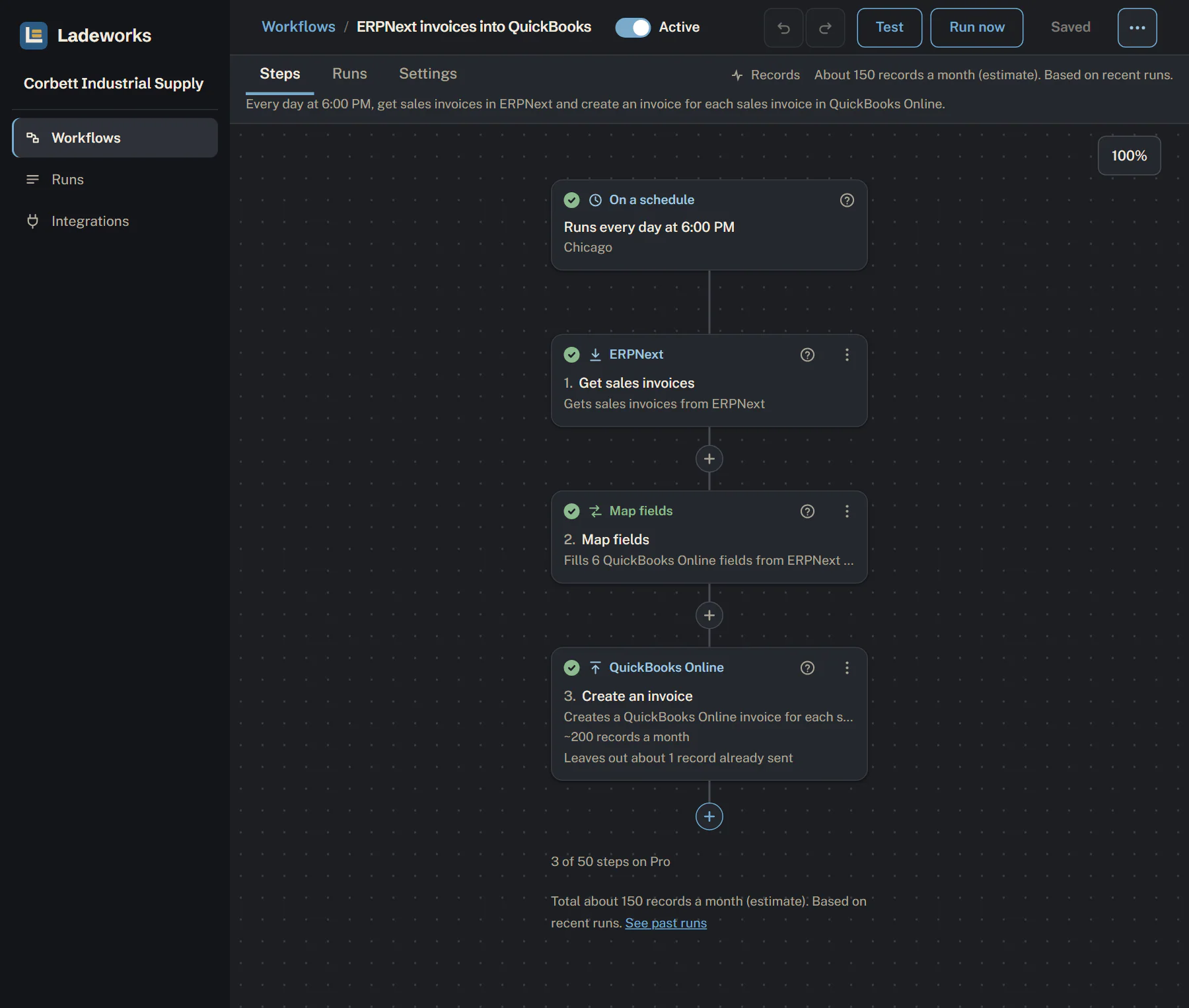
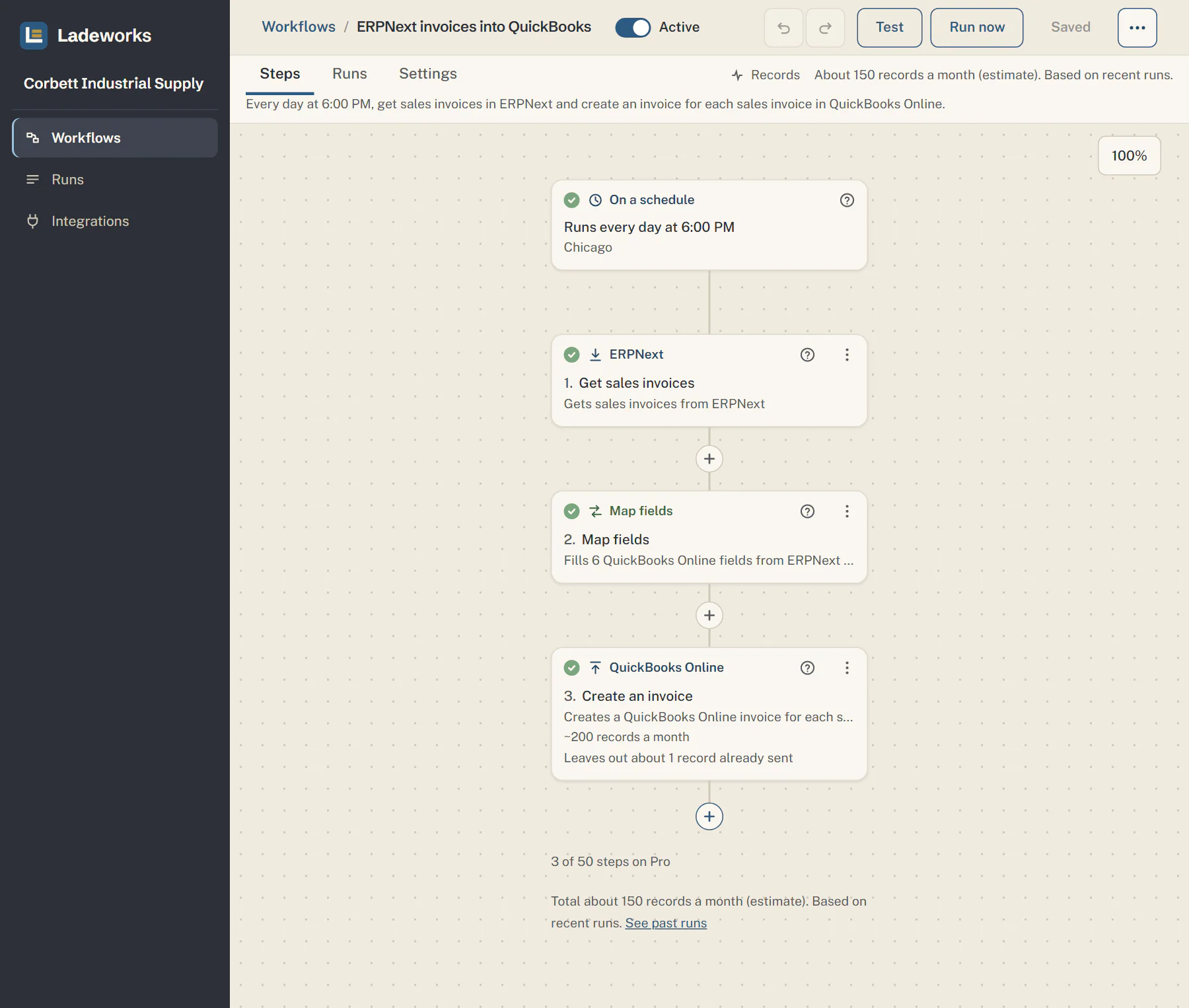
The workflow gets the submitted invoices from ERPNext with their lines, maps each invoice into the fields of Create an invoice, and sends it. The map comes filled in: ERPNext sales invoices into QuickBooks invoices is one of the mappings Ladeworks already knows. Create an invoice does the rest in QuickBooks: it finds or adds the customer, matches each line to an item, and checks that the reference number is not already used.
 (opens the full size image in a new tab)
 (opens the full size image in a new tab)
1. Get the submitted sales invoices
On New workflow, choose On a schedule. Under where the data comes from, open ERPNext and choose Get sales invoices. Under where it goes, open QuickBooks Online and choose Create an invoice. Name the workflow and choose Create workflow. Then open the first step:
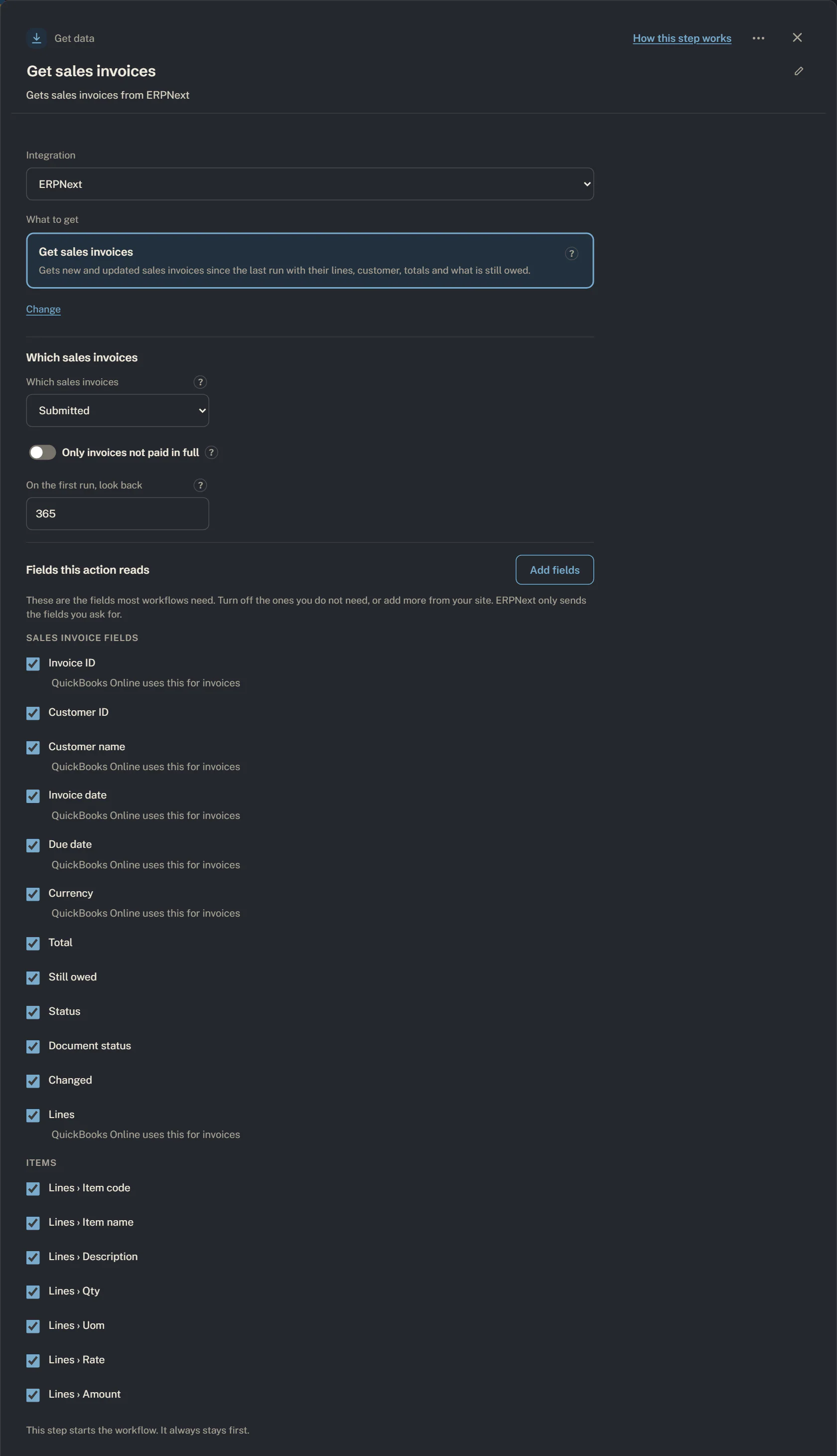
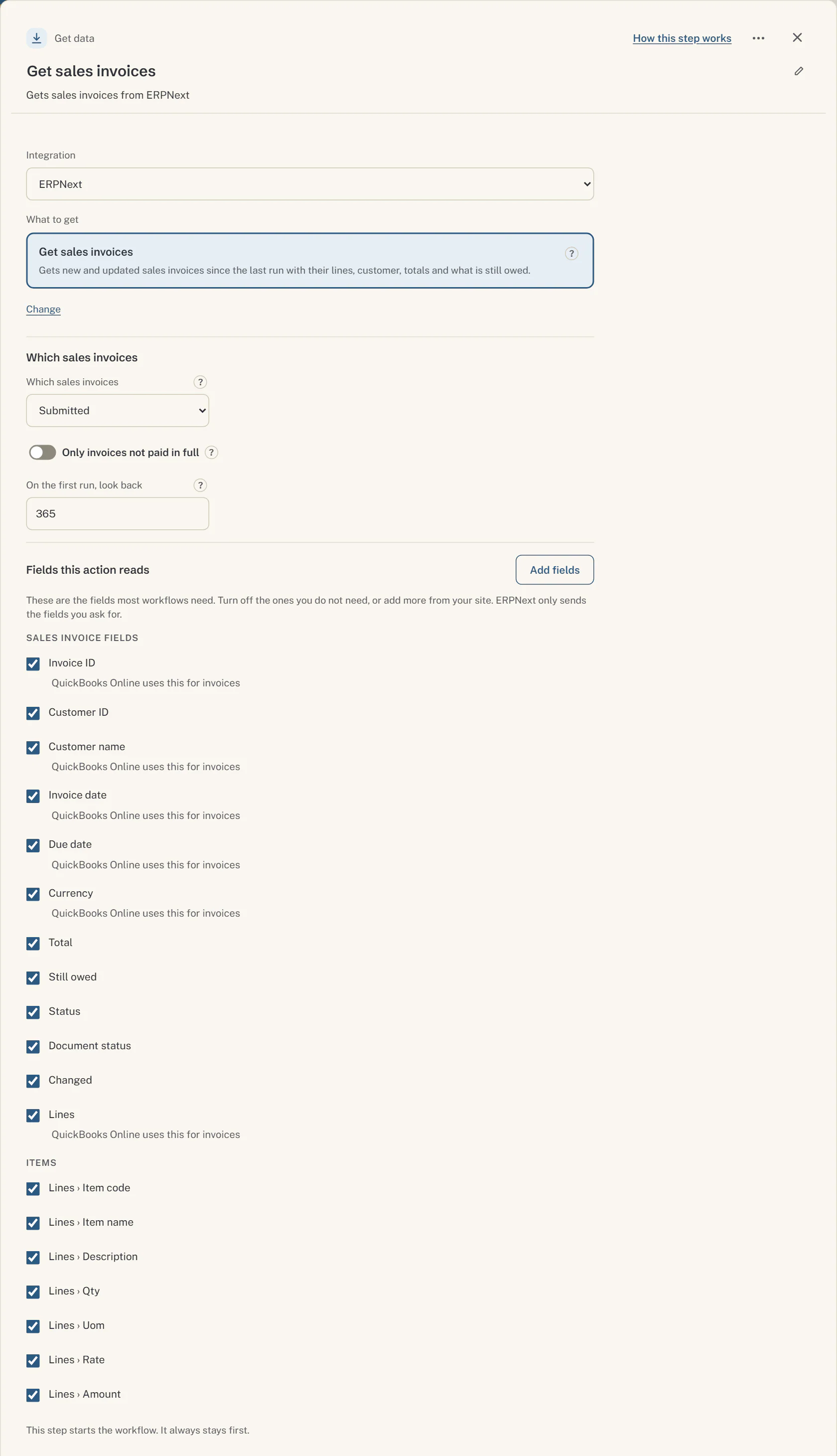
- Which sales invoices: choose Submitted. Drafts are not final and cancelled invoices should not reach the books, so neither is sent. Only invoices not paid in full stays off here, because the books need paid invoices too.
- On the first run, look back: the number of days of invoices the first run reads, from 1 to 365. The example uses 365, so the first run takes every invoice of the year. Later runs read from the last successful run.
- Fields this action reads: the fields most workflows need are on already, and the ones QuickBooks uses are marked "QuickBooks Online uses this for invoices". Turn off what you do not need. Add fields opens every field your ERPNext site has for a sales invoice, custom fields included, and Every field of the record reads them all, so any part of the invoice can be used in a later step.
 (opens the full size image in a new tab)
 (opens the full size image in a new tab)
Choose Update to keep the step. Only invoices that are new or changed since the last run are read, so each run reads a little, not every invoice there ever was. The lines of each invoice arrive on the row, so no step is needed to read them. This action is a head start: any other part of the ERPNext API works too, through Use another endpoint in a step and the All endpoints list on the integration.
2. Check the map
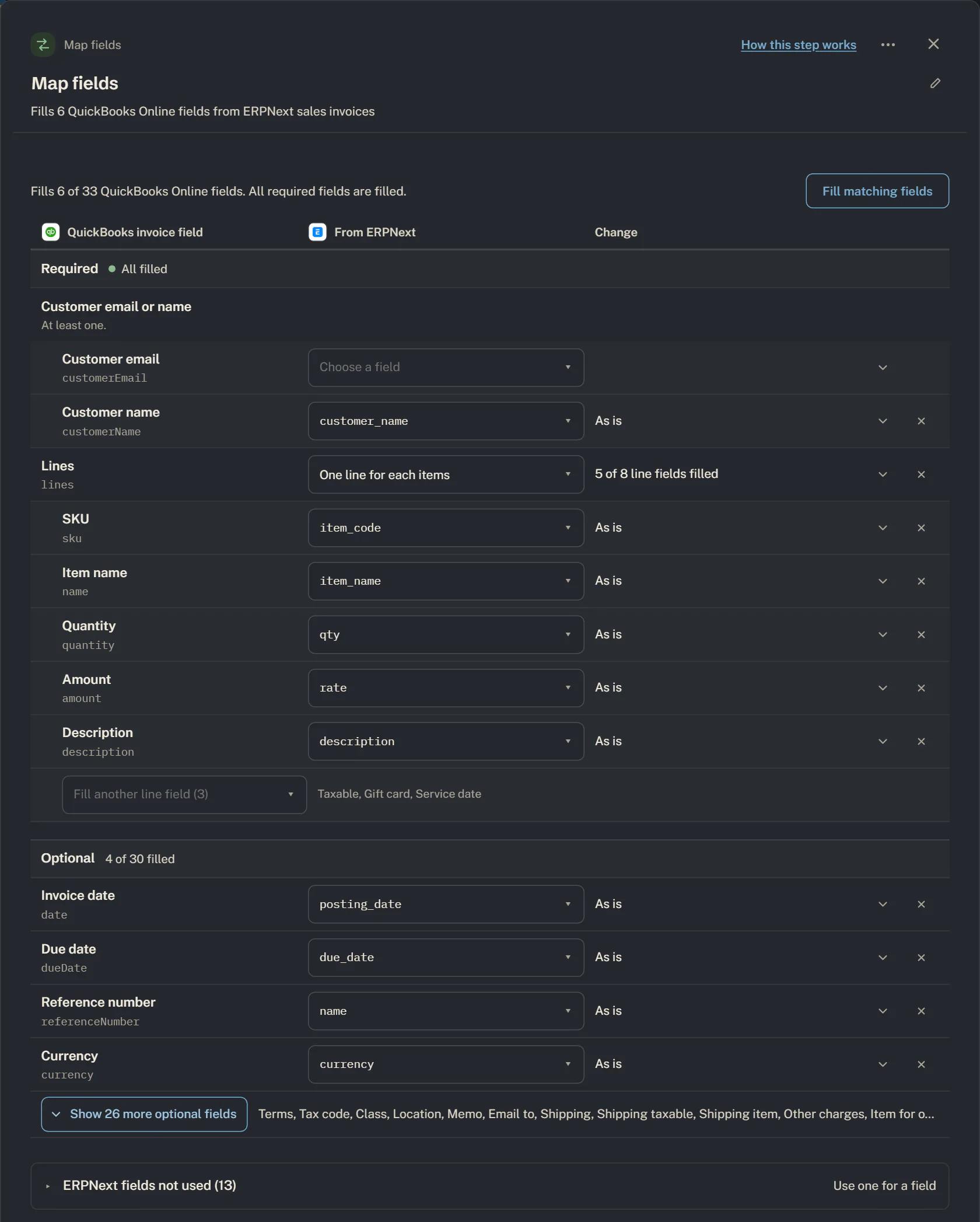
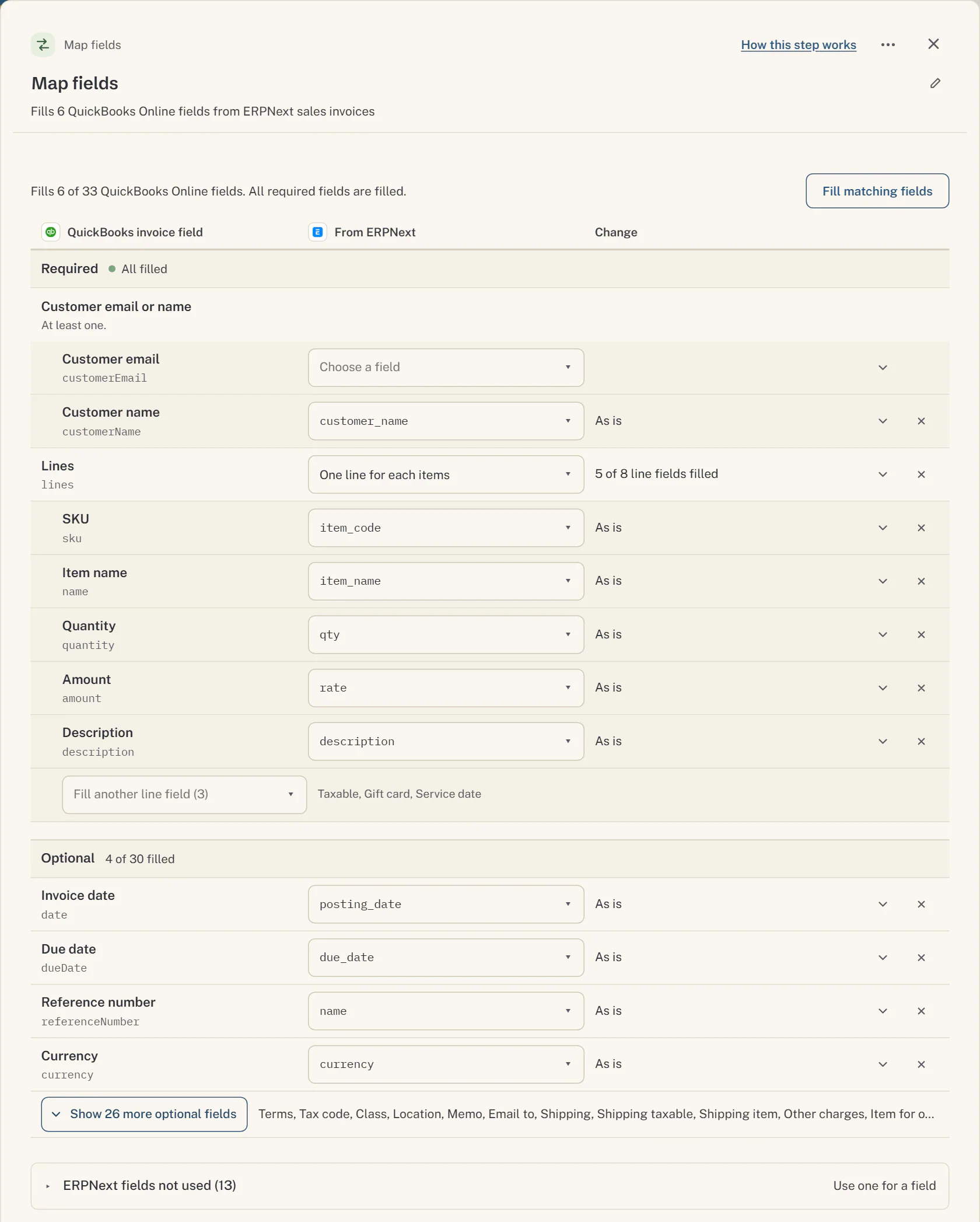
Open Map fields. It says "Fills 6 of 33 QuickBooks Online fields. All required fields are filled." The fields of Create an invoice are filled from the fields of the ERPNext invoice:
| Create an invoice field | From | Notes |
|---|---|---|
| Customer name | customer_name | The customer's name in QuickBooks. A new name is added as a customer. |
| Reference number | name | QuickBooks takes up to 21 characters, and ACC-SINV-2026-00002 is 19. Ladeworks checks the number is not already used, and skips the invoice if it is. |
| Invoice date | posting_date | |
| Due date | due_date | |
| Currency | currency | |
| Lines | One line for each items | One QuickBooks line for each ERPNext line. |
Each line has SKU from item_code, Item name from item_name, Quantity from qty, Amount from rate and Description from description. Amount is the price of one item, and ERPNext's rate is too: QuickBooks multiplies it by the quantity. Customer email or name needs at least one of the two, and the name is enough.
 (opens the full size image in a new tab)
 (opens the full size image in a new tab)
Change any row if your books need it. The fields left empty, such as Terms, Tax code and Memo, are not sent. If your company charges sales tax, Tax code and Sales tax rate are there, and each line has a Taxable field. Choose Update.
3. Create the invoice, once
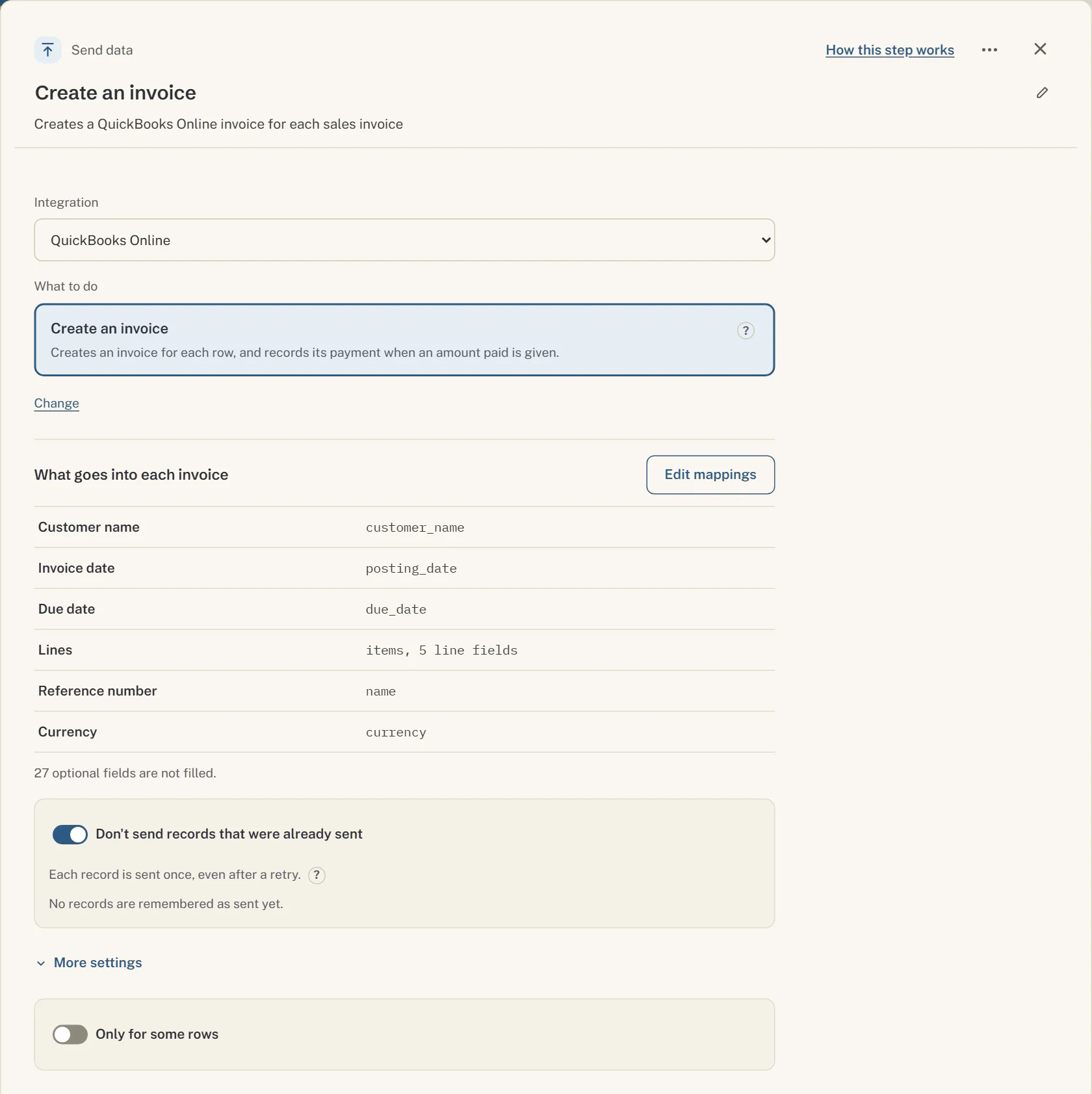
The last step is Create an invoice, a Send data step on QuickBooks Online. It shows what goes into each invoice. Don't send records that were already sent is on already: each invoice is sent once, even after a retry. Leave More settings as it is.
 (opens the full size image in a new tab)
 (opens the full size image in a new tab)
Click the trigger card, keep Daily and set At to 6:00 PM, after the day's invoices are submitted. Choose Update, then Save, switch the workflow on, and choose Run now to send today's invoices without waiting for the evening.
To send each invoice the moment it is submitted instead of every evening, choose When something changes in ERPNext as the trigger, with the record type Sales invoice. Triggers need the person who connects to be a System Manager in ERPNext: ERPNext then tells Ladeworks the moment something changes. Everyone else gets changes read on a timer, every few minutes.
What a run looks like
The first run read 3 submitted invoices and created 3 in QuickBooks. It used 5 records: one for each invoice, and one for each customer it added. Ridgeline Mechanical and Brookfield Pump Works were new, so they were added. Halvorsen Fabrication was in QuickBooks already. In QuickBooks the invoices have the totals 64.20, 145.00 and 256.00, the same as in ERPNext. Reading the invoices is free.
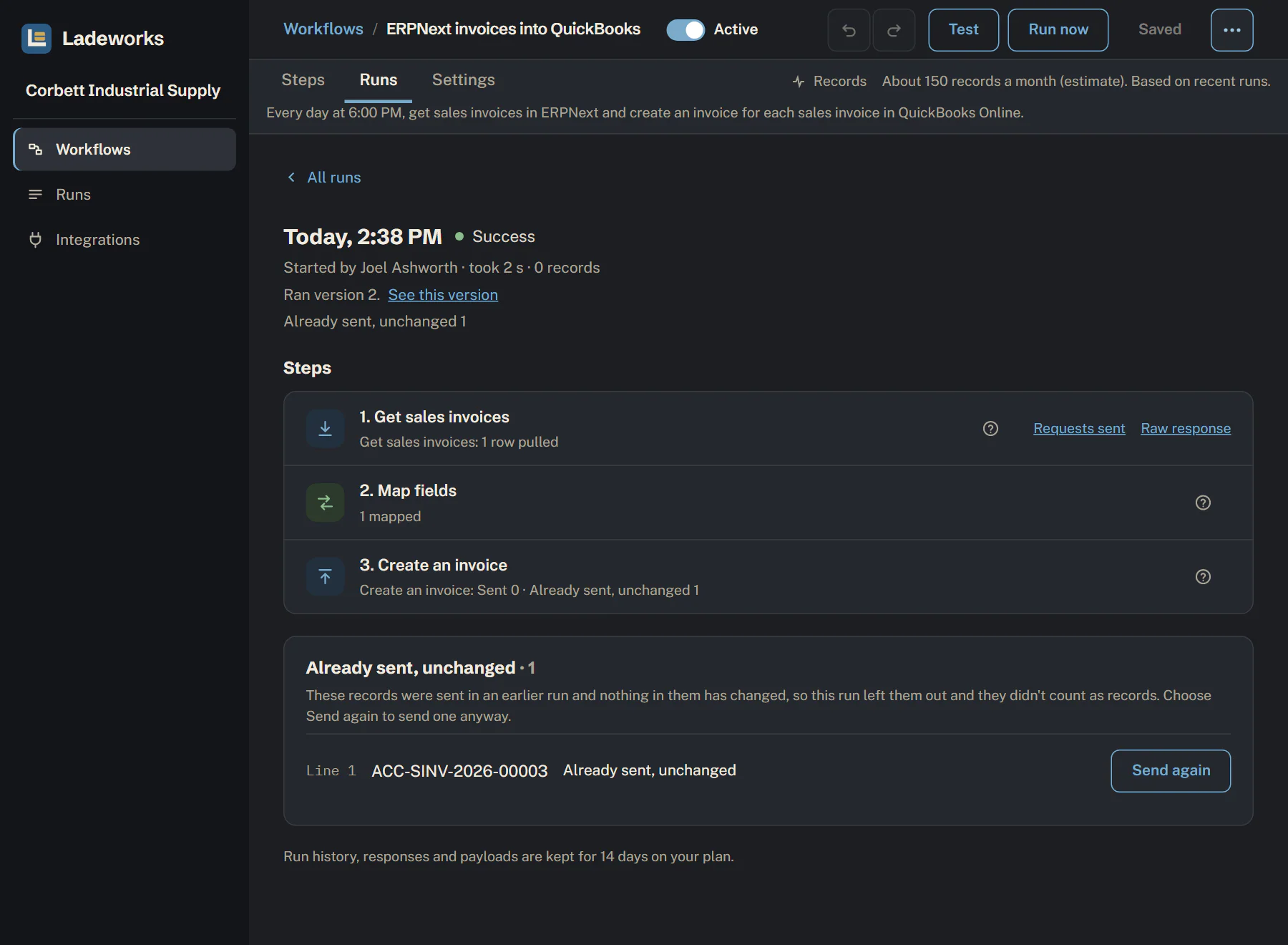
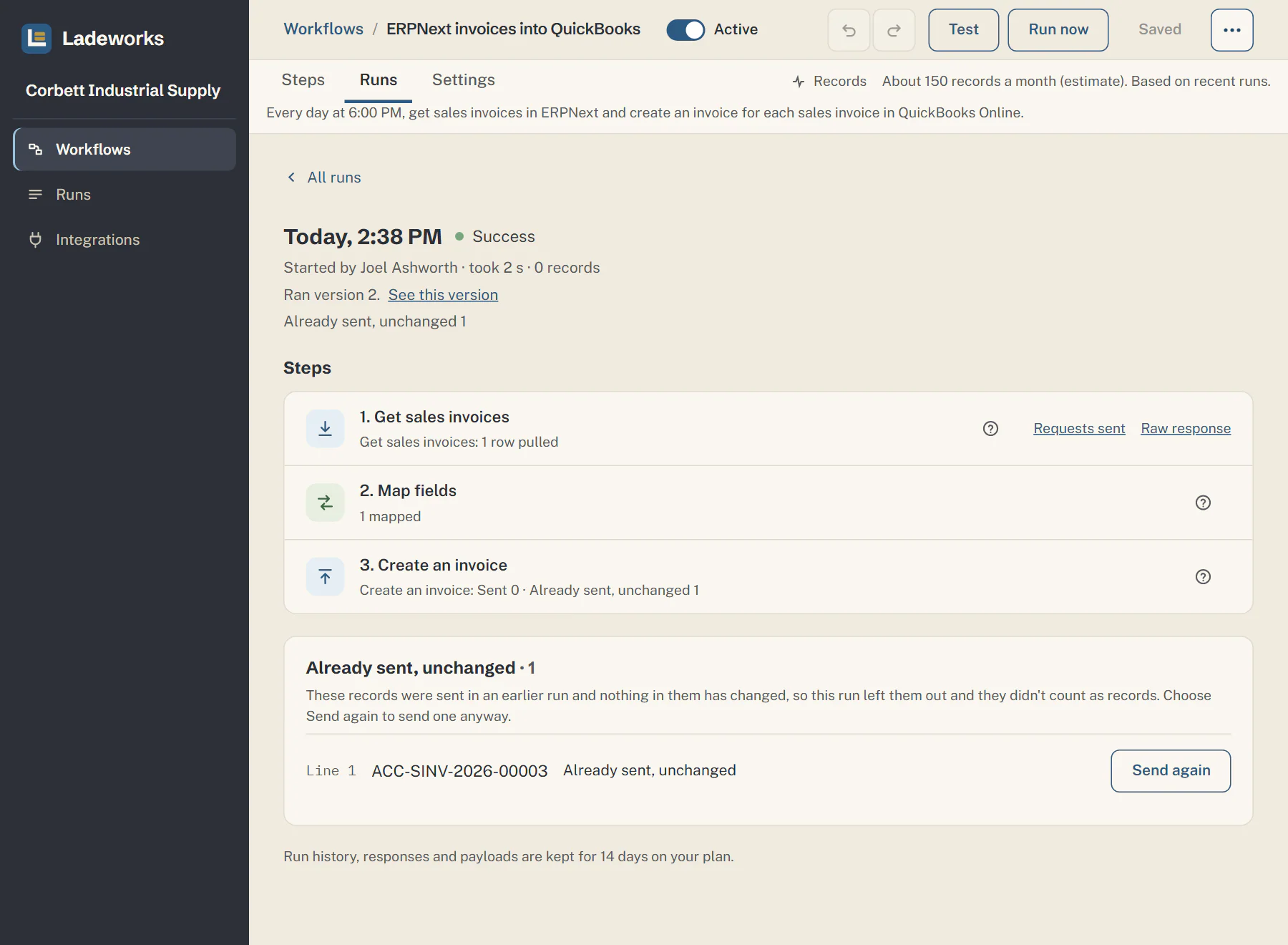
The second run, with no new invoices, read only the invoice at the edge of the last run and sent none: Already sent, unchanged 1, with 0 records. The newest invoice is read once more in case two changed at the same moment, and the last step leaves it out because it has not changed.
 (opens the full size image in a new tab)
 (opens the full size image in a new tab)
Why an invoice is never sent twice
Two things stop a second copy. The last step remembers each invoice it sent by its data, and leaves out one that has not changed. And Create an invoice checks QuickBooks for the reference number first, because QuickBooks itself allows two invoices with the same number, and skips the invoice if the number is already used.
ERPNext makes sure the number does not change. A submitted sales invoice cannot be edited. To change one, you cancel it and amend it, and the amendment is a new invoice with a new name, such as ACC-SINV-2026-00002-1. The workflow sends the amendment as a new invoice the next evening, and leaves the cancelled one out, because Which sales invoices is Submitted.
The cancelled original stays in QuickBooks, so void or delete it there when you amend an invoice in ERPNext. Send again on a run sends one invoice again on purpose, but the reference number check still skips it while the original is in QuickBooks.
Records per run
Each invoice created in QuickBooks is one record, and so is each customer it adds. Invoices already sent and unchanged are left out and do not count, and reading ERPNext is free. Because each run reads only what changed since the last one, runs stay quick as the years of invoices add up. Each run's page shows the records it delivered, step by step.
Before you go live
- Run Test first. Test sends only the first row, for real, and uses up to 2 records: one for the invoice and one if it adds a customer. Run now sends every invoice.
- Match the items. Each ERPNext item code needs a QuickBooks item with the same SKU, or the same name, or its invoices are skipped.
- The first run sends every submitted invoice in the look back. Lower On the first run, look back if QuickBooks already has the older ones. The reference number check skips any that are there.
- Taxes are not mapped here. These invoices have none. If yours do, set Tax code or Sales tax rate in Map fields before you go live.
- Amendments are new invoices. Void the cancelled original in QuickBooks.
Start free
Connect your own systems and build this workflow yourself. Nothing reaches your systems until you run it or switch it on.
Setup details
You do not need these to follow the story. Open one when you reach that step.
When the SKUs differ
Ladeworks looks for a QuickBooks item whose SKU is the line's SKU, and then one whose name is the line's Item name. If your QuickBooks items use their own SKUs, give the QuickBooks items the ERPNext item names, which Item name is filled with already. To send every line to one catch-all item instead, fill SKU with A fixed value: the SKU of that item. The line's description still carries the ERPNext item name.
A line that matches no item is skipped with the message "No item in QuickBooks matches" the SKU or name, and its line number. Add the item in QuickBooks, or change the SKU or name, and run again.
When the customer names differ
The customer is found by its name, or by its email when Customer email is filled. If a customer is spelled differently in ERPNext and QuickBooks, a second QuickBooks customer is added, so change one of the names to match. QuickBooks keeps one name for each customer, vendor and employee, so a name a vendor already has can't be used for a customer, and the row says so.
More guides for ERPNext: Import a CSV into ERPNext and Export ERPNext items to a CSV every night. More in the docs: ERPNext, Built-in actions and Don't send records that were already sent.
More guides: all guides. How each step works: the docs.