Export ERPNext items to a CSV every night
Every night, write the ERPNext items that are new or changed to a dated CSV with the fields you choose, ready to download or dropped in the folder another system reads.
A 29 second recording of the finished workflow. The trigger card says it runs every day at 2:00 AM. The first step, Get items, opens on its list of fields. Run now finishes, and the Output card shows a file of 1 row and 10 columns, the one item that changed since the last run. The preview shows AN-3001 with the new price 1.95.
The example is made up: Corbett Industrial Supply keeps its items in ERPNext, and the systems around it read a CSV of them. Everything in the screenshots runs on a test machine, so nothing here touches a real system.
Item code:     HX-1001
Item name:     Hex bolt M8 x 40 zinc
Item group:    Products
Unit:          Nos
Selling price: 0.45
Last changed: 2026-10-15 23:02:50item_code,item_name,item_group,stock_uom,standard_rate,modified
HX-1001,Hex bolt M8 x 40 zinc,Products,Nos,0.45,2026-10-15 23:02:50.247164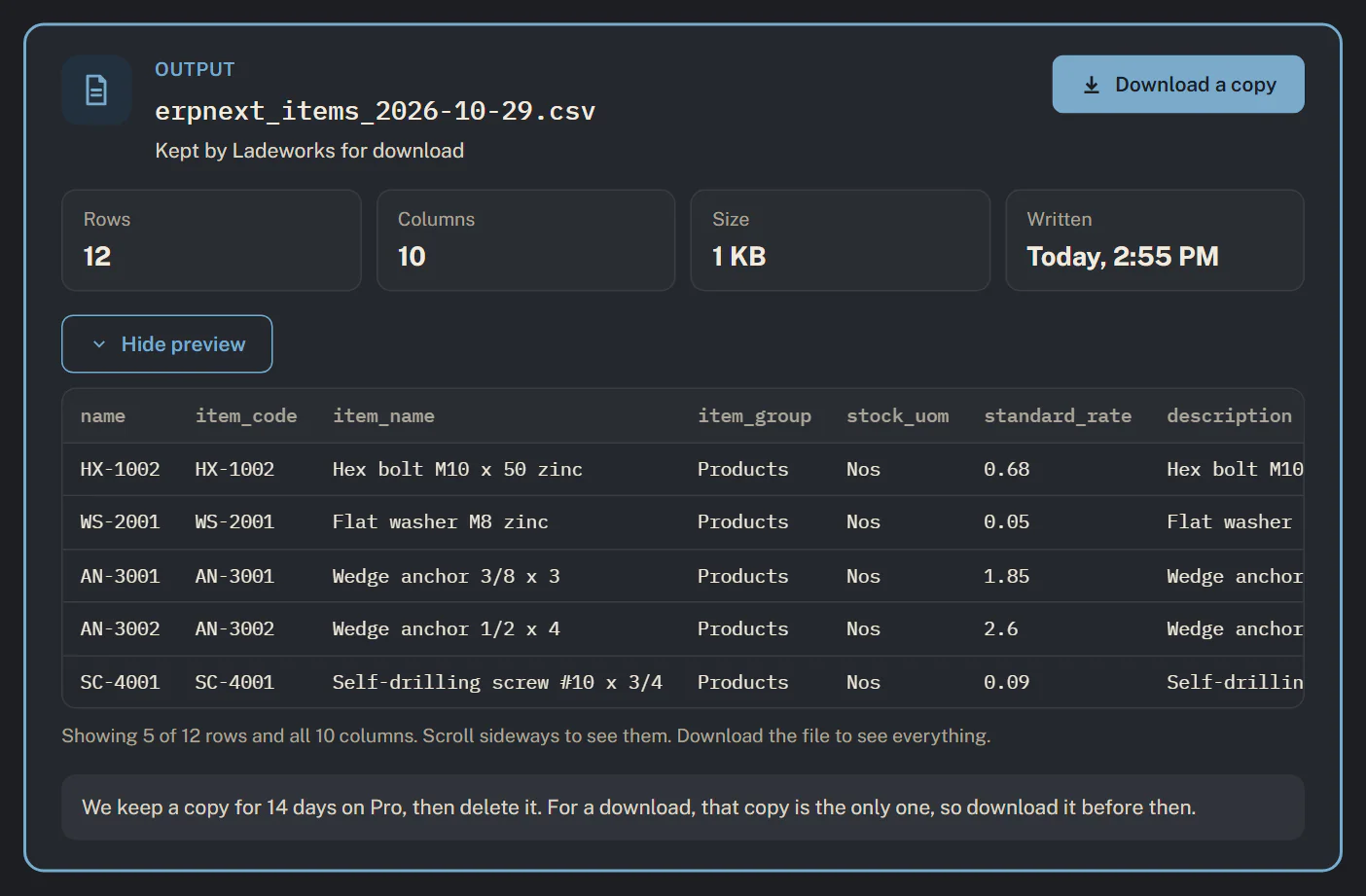 (opens the full size image in a new tab)
 (opens the full size image in a new tab)
What you end up with
- It runs every night at 2:00.
- It writes erpnext_items_2026-10-29.csv (the day it ran), with the fields you chose.
- The first run writes every item changed in the last year. After that, each night's file holds the items that are new or changed since the run before.
- You download it from the run, or it lands in the folder another system reads.
Needs the Starter, Pro or Business plan. You also need an ERPNext site on version 16 and a Ladeworks account (Start free is below). A scheduled workflow starts paused, so nothing runs until you turn it on.
Why not export it from ERPNext by hand?
You can: ERPNext's report view and its Data Export tool both download items as a CSV, and for a one-off file that is the quickest way. This workflow is for the file someone or something needs every day. It runs while nobody is at work, writes the same columns each time, names the file by the day, and can put it straight into the folder the other system reads, so nobody has to remember.
How it works, in four steps
1. Connect ERPNext
ERPNext is a built-in integration, so there is no key or secret to make. On the Integrations page choose Add an integration, then Connect to ERPNext, type your site address, such as acme.frappe.cloud, sign in to ERPNext and approve access. Connecting ERPNext is in the import guide, and Built-in integrations covers the rest.
2. Get the items, with the fields you want
On the Workflows page choose New workflow, then Blank, then Set up manually. Choose On a schedule. For the source choose ERPNext, then Get items, and choose A CSV to download as the destination. Name the workflow and choose Create workflow. (Or describe the job under What should this workflow do? and let Ladeworks draft the steps; check each one against this guide.) Then open the first step.
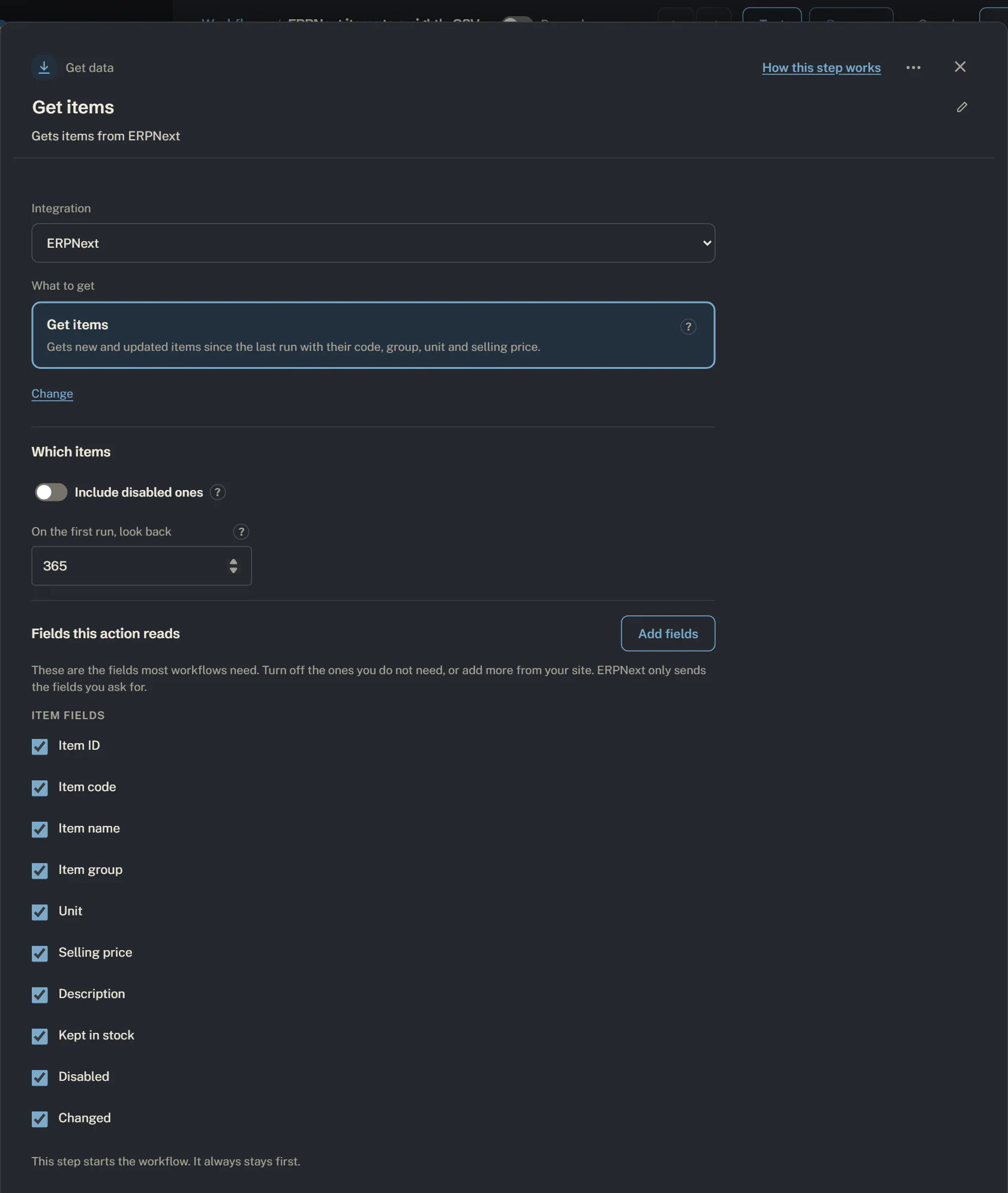
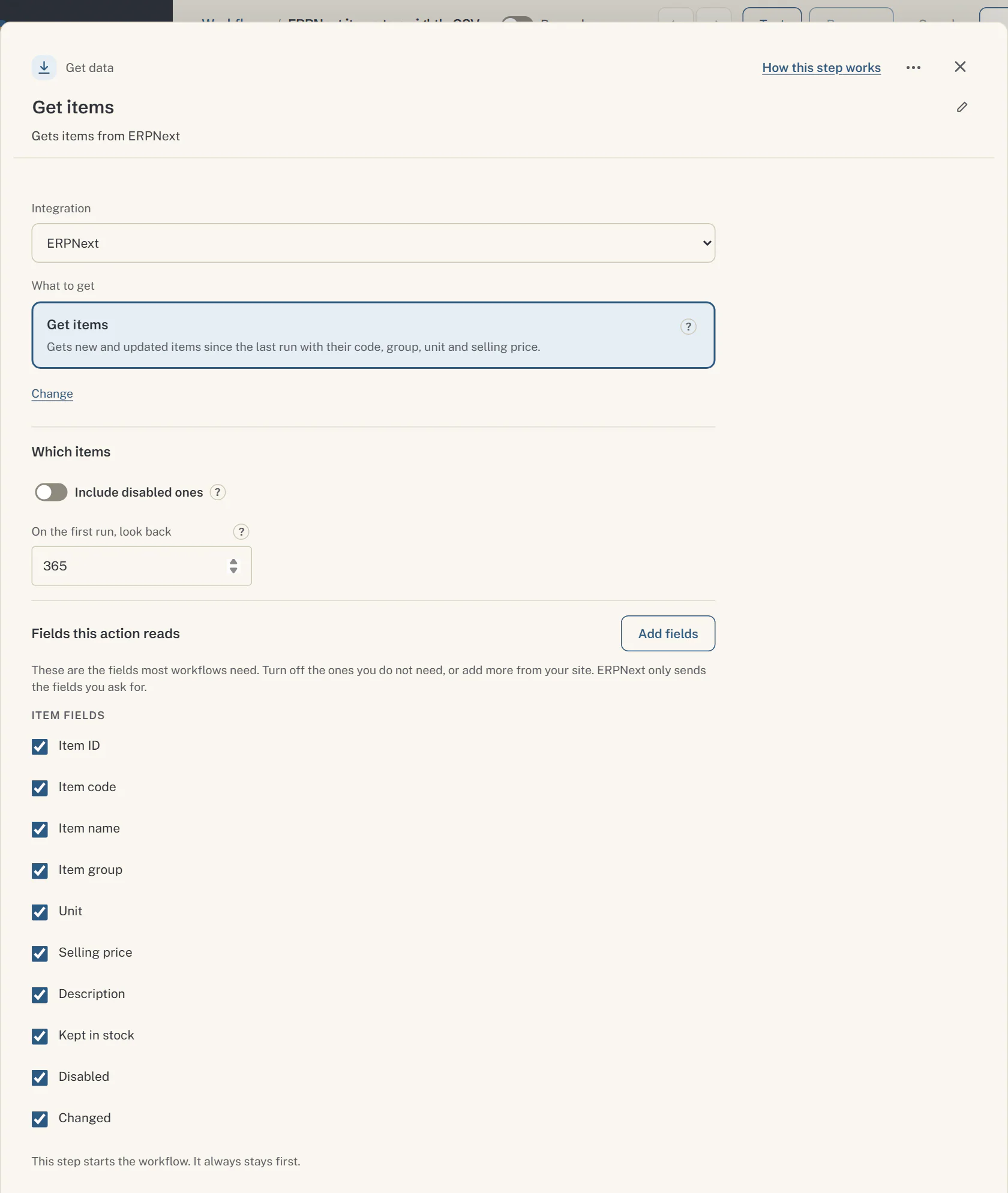
Get items reads the items that are new or changed since the last run. Include disabled ones is off, so disabled items are left out. On the first run, look back says how many days of changes the first run reads, from 1 to 365: it is 365 here, so the first file has every item changed in the last year.
 (opens the full size image in a new tab)
 (opens the full size image in a new tab)
Fields this action reads lists the fields most workflows need, all on. Turn off the ones the reader of the file does not need. ERPNext sends only the fields you ask for, so a field that is off is not in the file. Add fields opens every field your site has for items, custom fields included, with the names you see in ERPNext. Check the ones you want, or choose Every field of the record. Refresh fields reads your site's fields again after someone adds one.
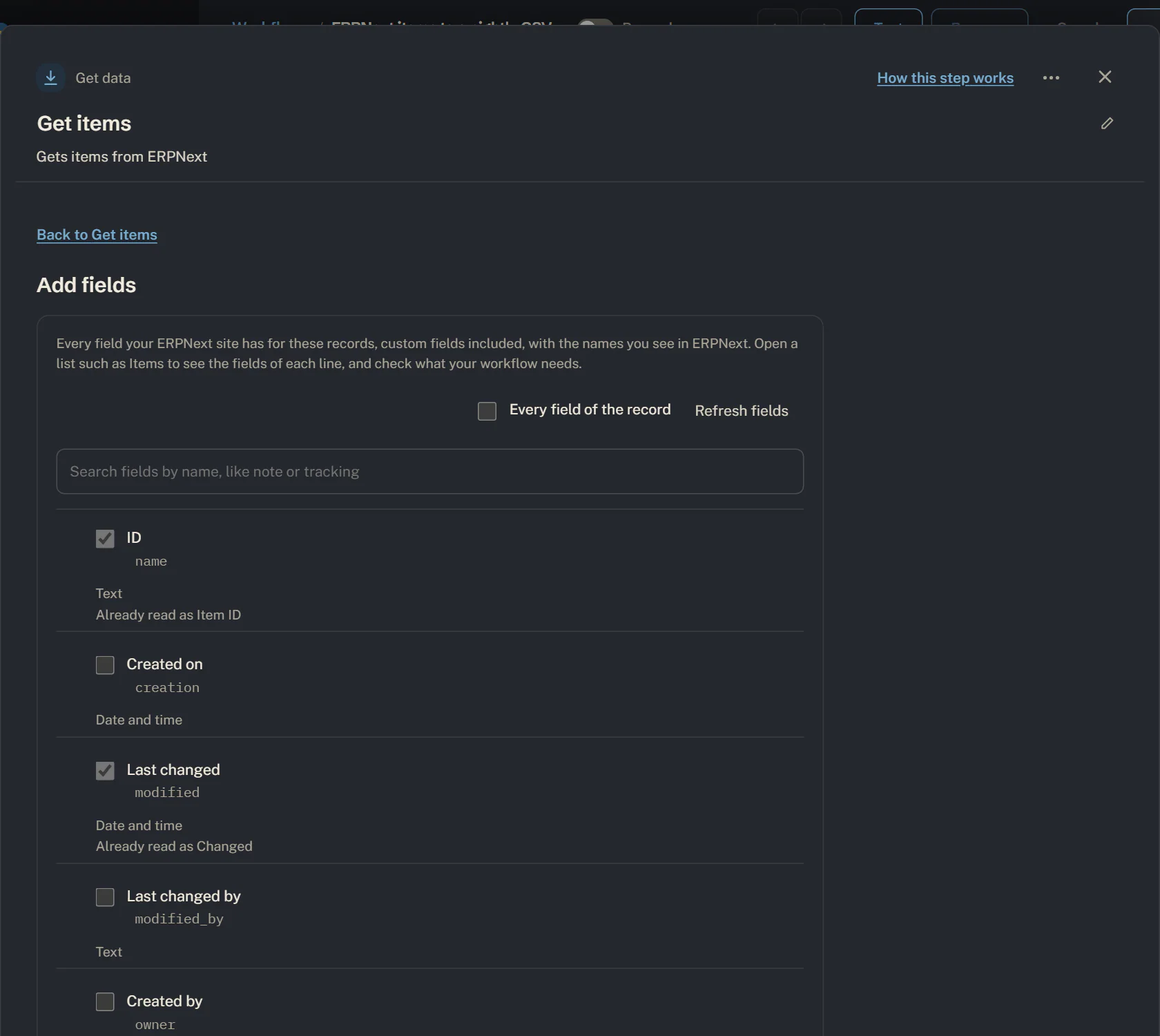 (opens the full size image in a new tab)
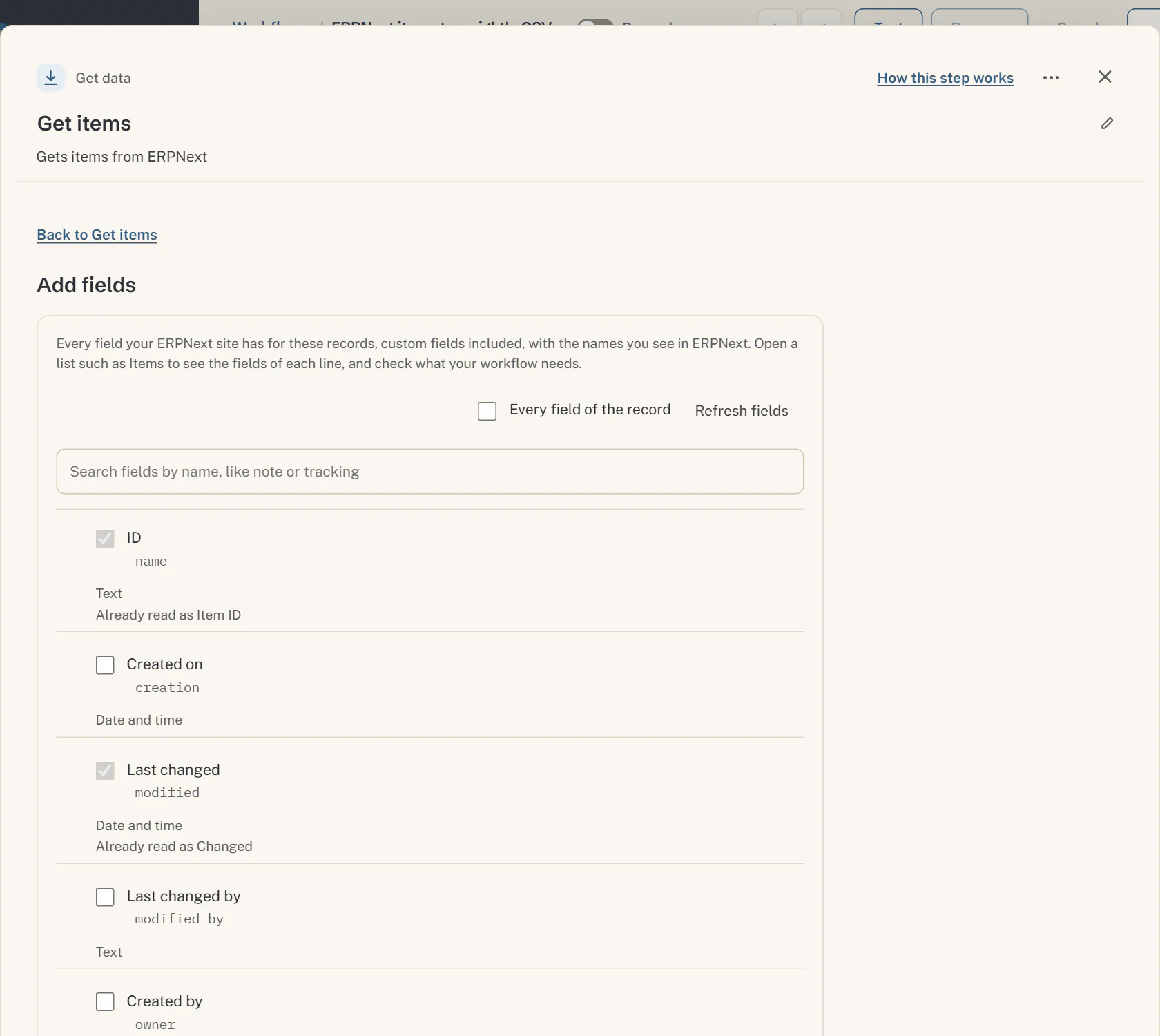 (opens the full size image in a new tab)
ERPNext sends the items a page at a time, and Ladeworks asks for page after page until there are no more, so a long item list comes out whole.
3. Keep the fields as they are
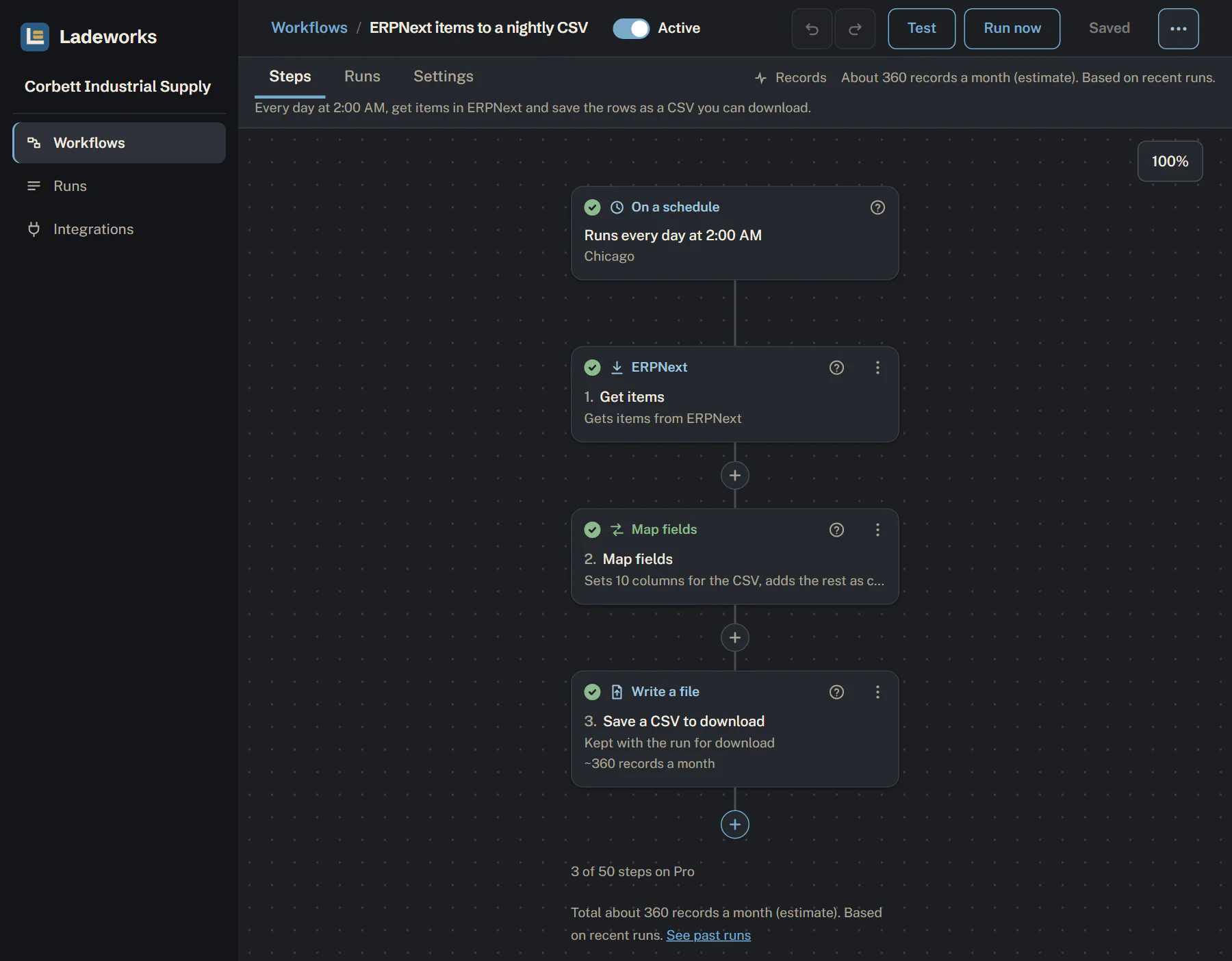
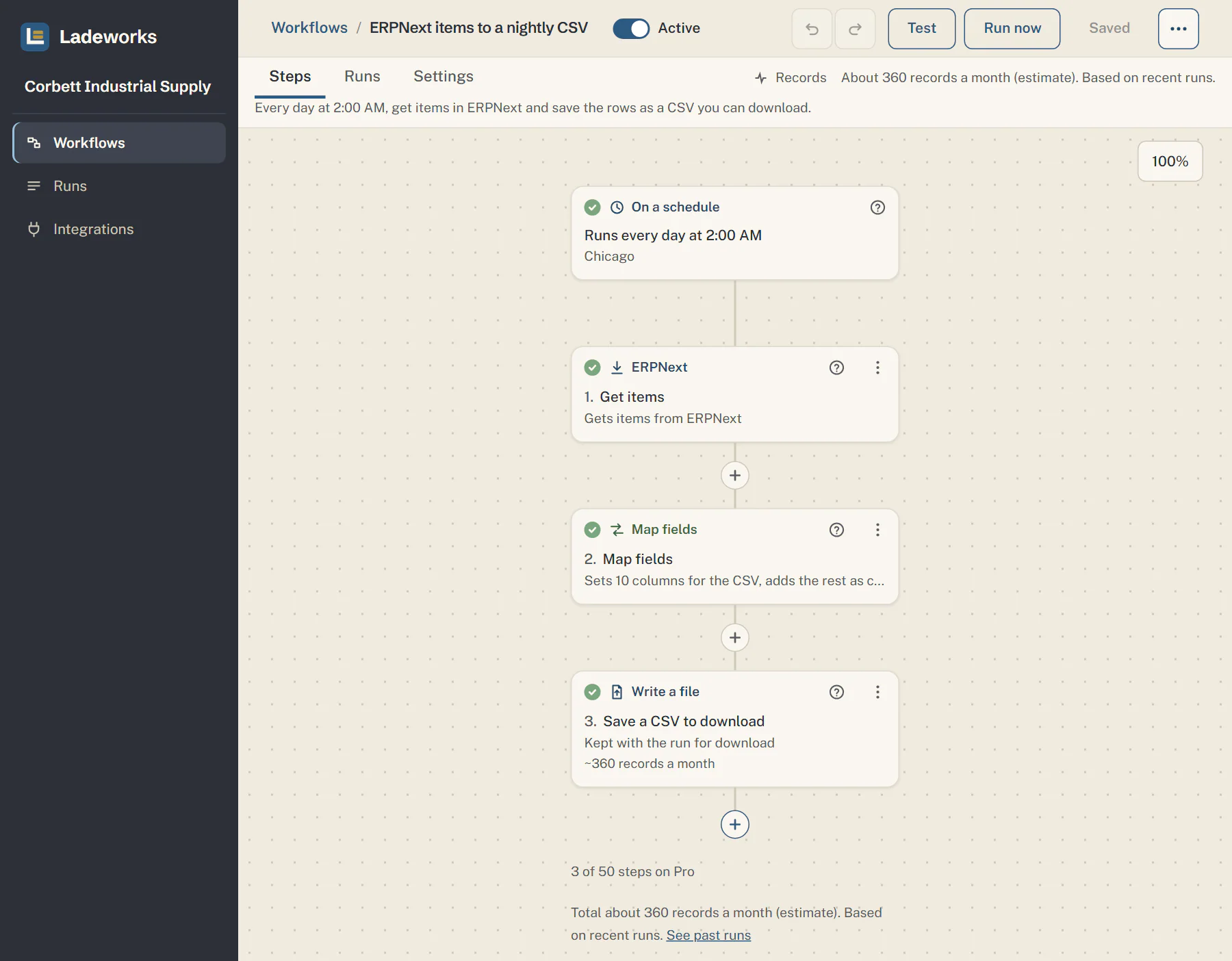
The Map fields step starts with a row for each field the action reads, so every field becomes a column under its own name. The step says "Sets 10 columns for the CSV, adds the rest as columns". To rename a column for the system that reads the file, type the new name in that row's column name box, then choose Update to keep the sheet.
4. Write the file, every night
The last step writes the CSV. Its File name is erpnext_items_{date}.csv, where {date} becomes the day of the run. Click the trigger card, choose Daily and set At to 2:00 AM. Choose Update, then Save, switch the workflow on, and choose Run now to see a file before tonight. For a QuickBooks Desktop file instead of a CSV, the File type choice has QuickBooks Desktop (IIF): see ERPNext invoices to QuickBooks Desktop.
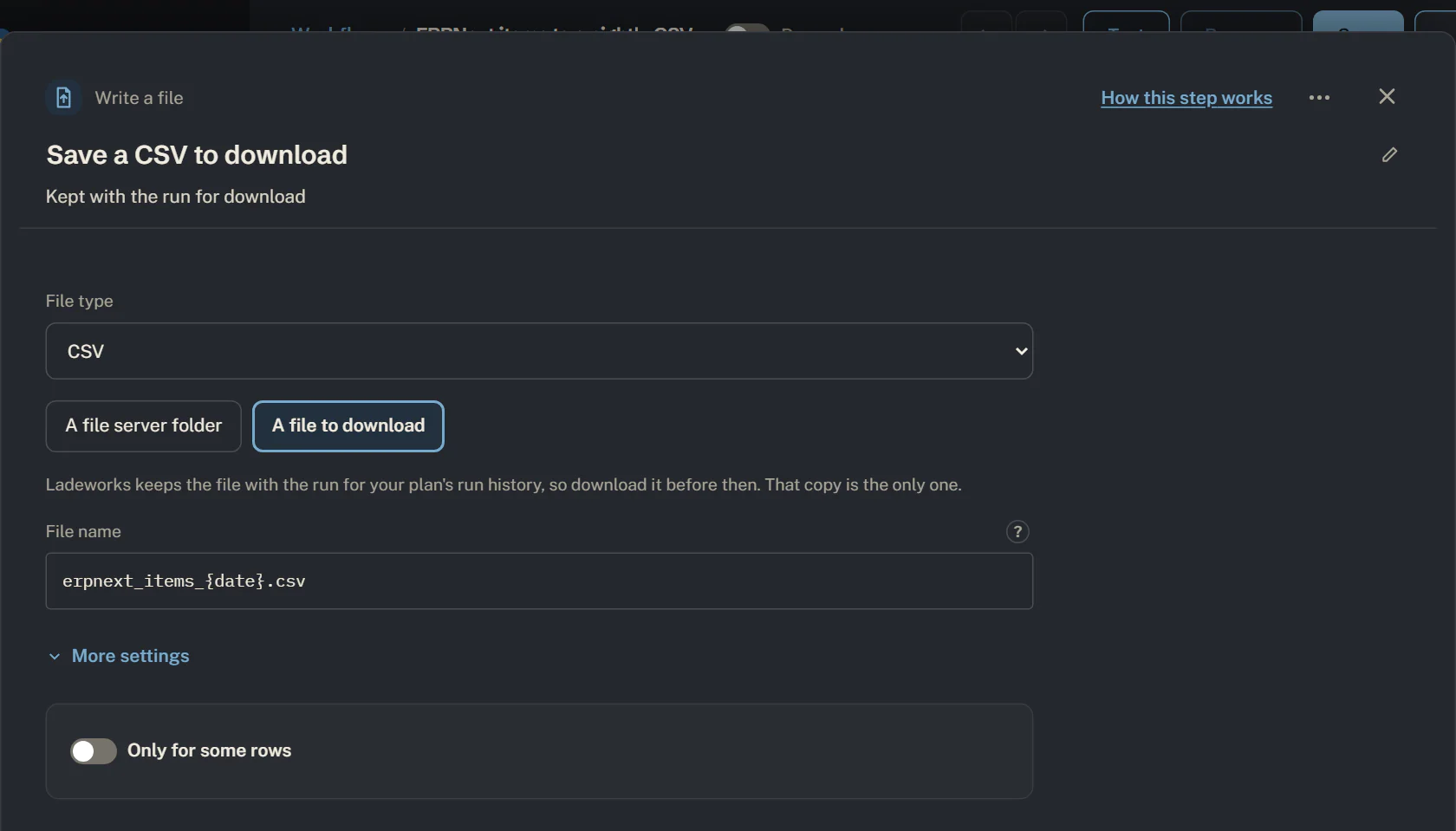 (opens the full size image in a new tab)
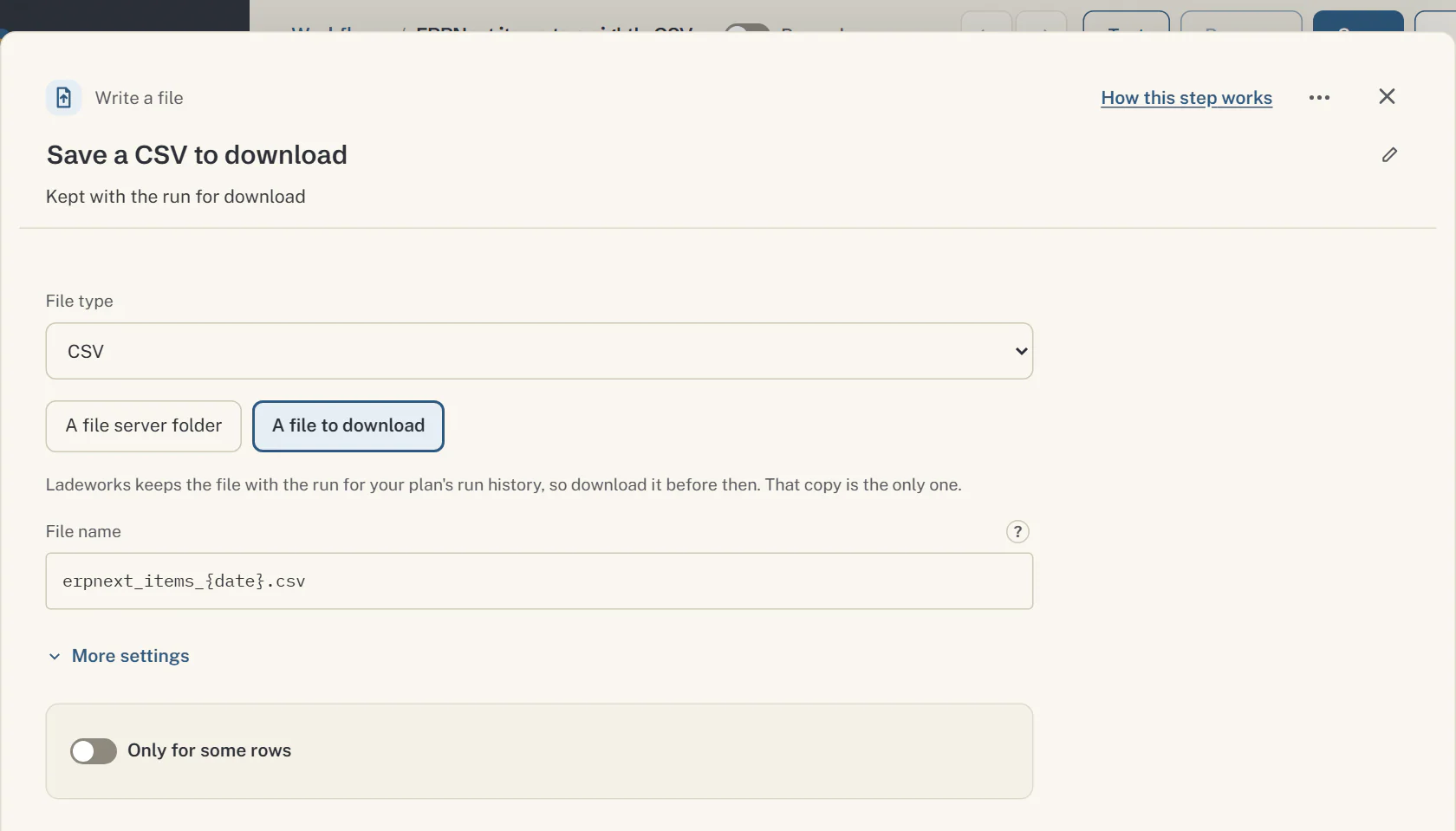 (opens the full size image in a new tab)
 (opens the full size image in a new tab)
 (opens the full size image in a new tab)
What a run looks like
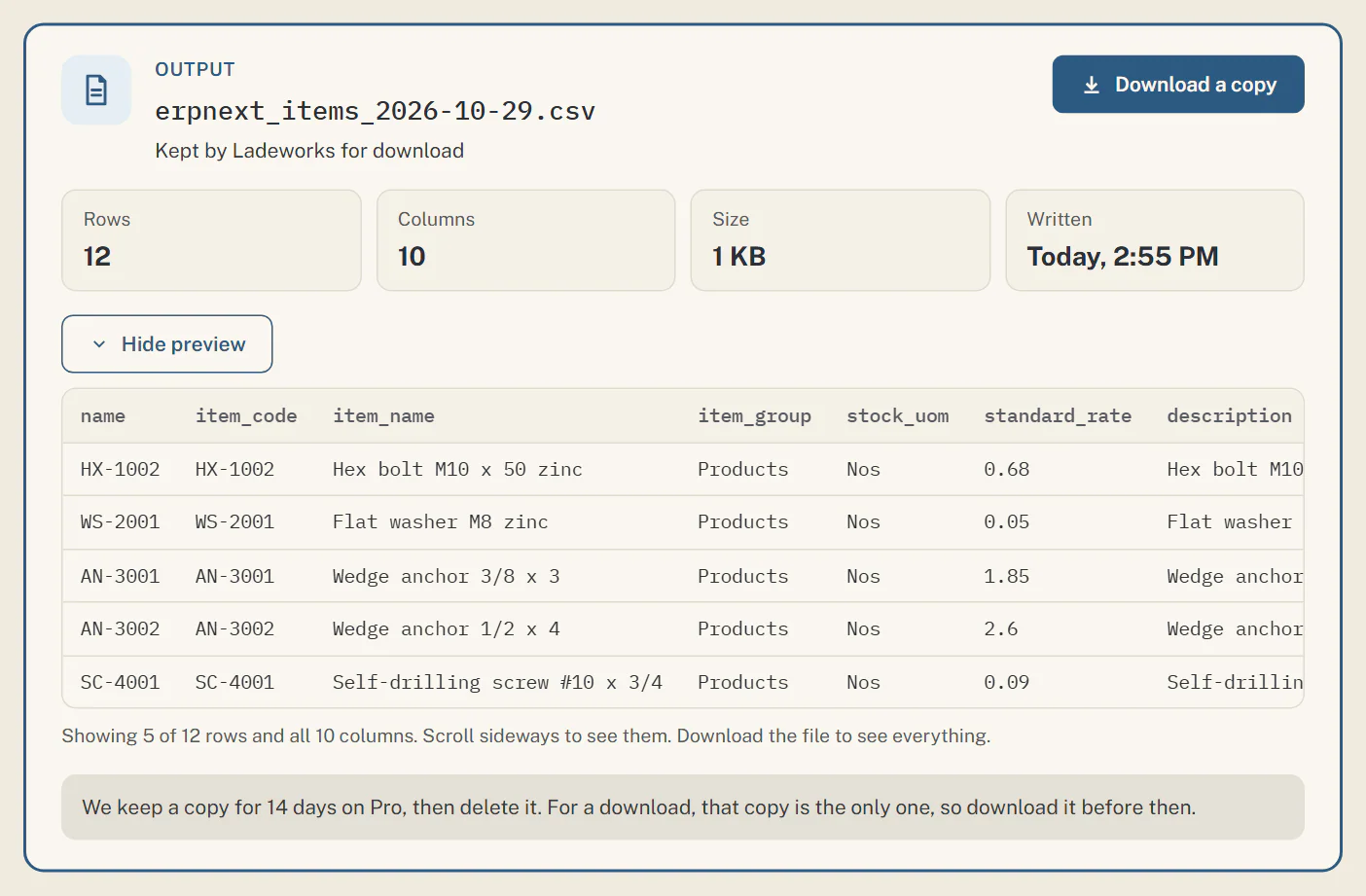
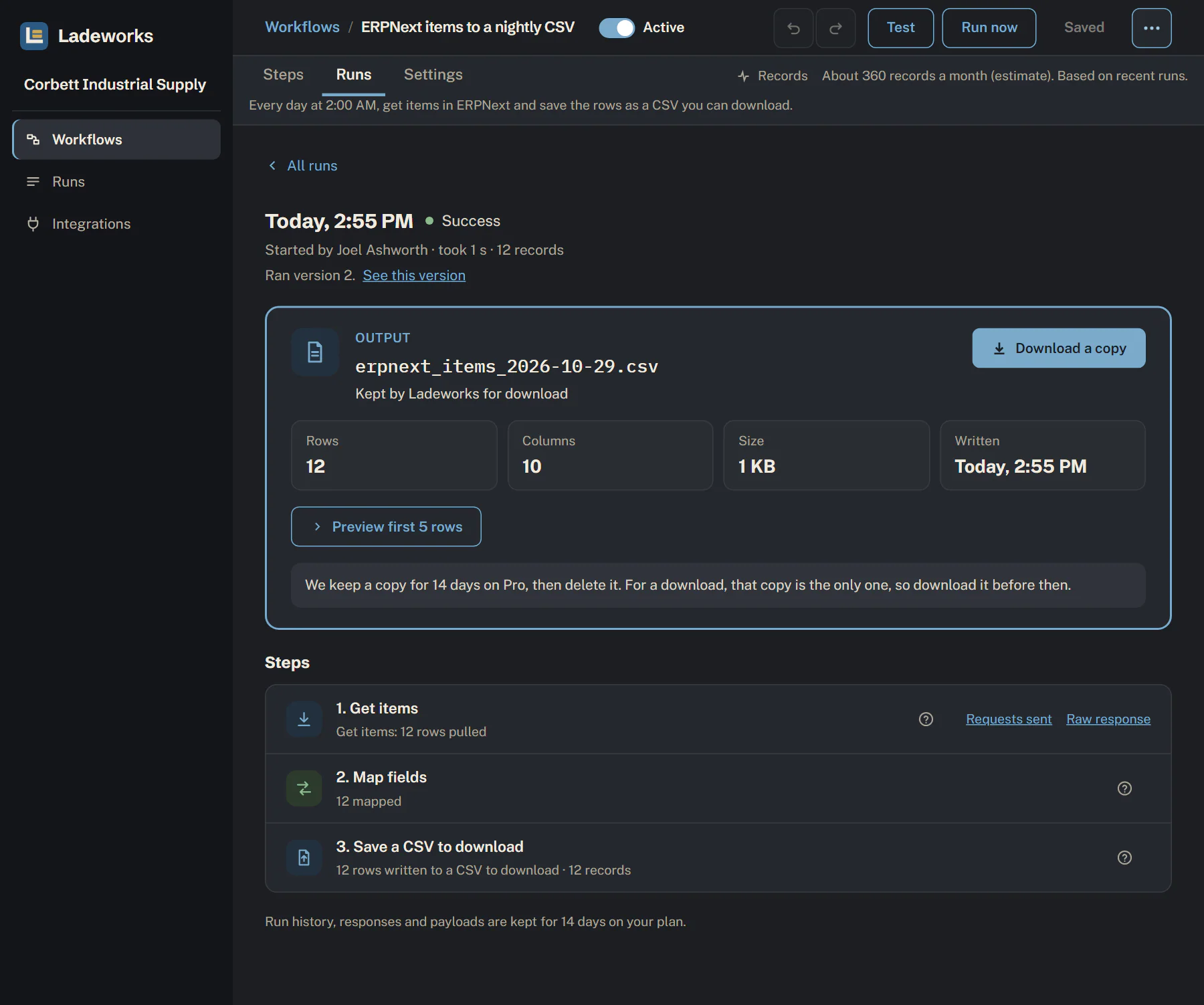
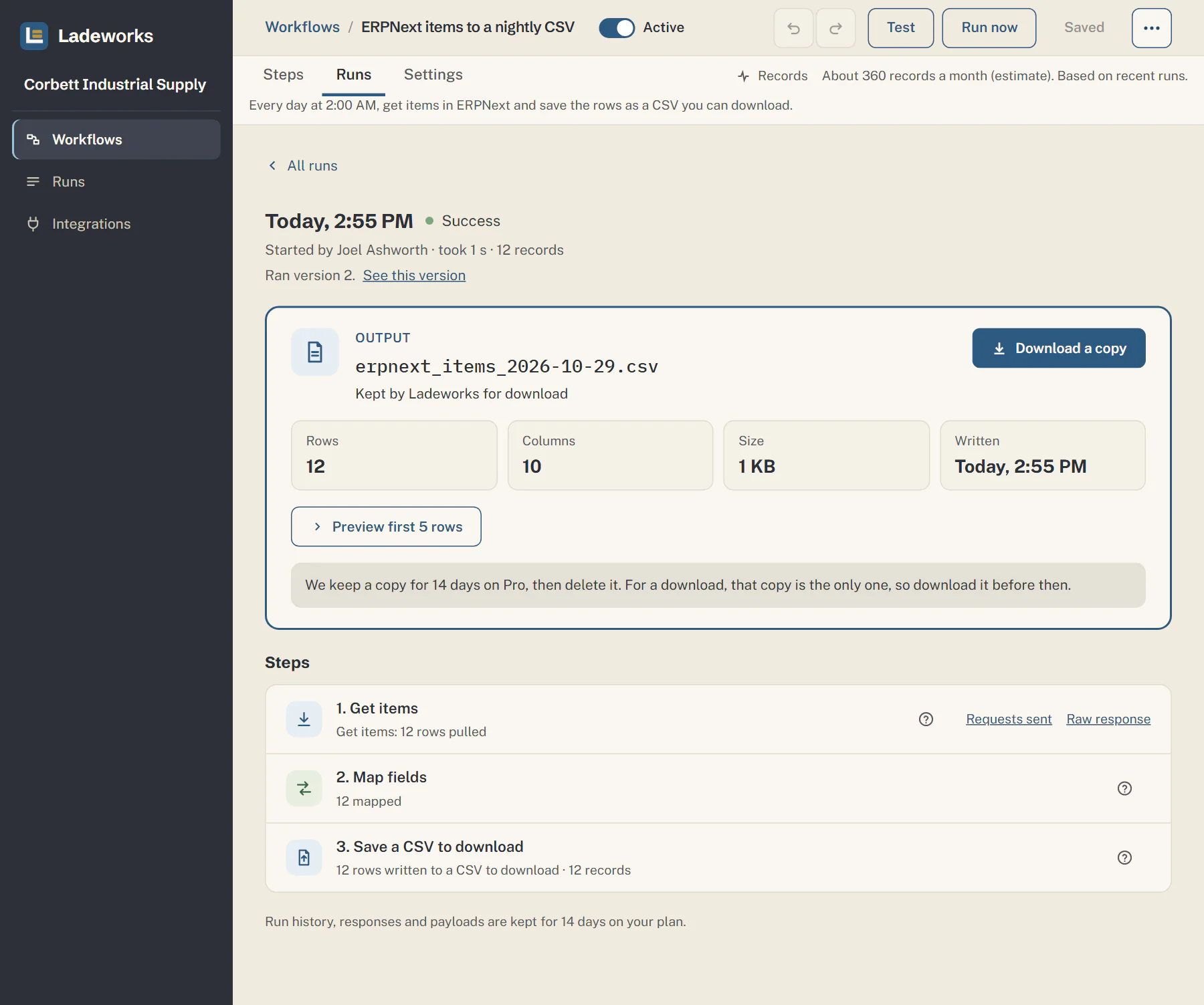
Each run lists its steps with what they did: 12 items pulled, 12 mapped, and 12 rows written to a CSV to download. Each row written is a record, so the first run shows 12 records. Getting items from ERPNext is free. The Output card names the file and has Download a copy and Preview first 5 rows.
The next night, only what changed is read. In the recording, the price of one item, AN-3001, changed in ERPNext, so that night's file has one row, with the new price.
 (opens the full size image in a new tab)
 (opens the full size image in a new tab)
If ERPNext stops accepting the sign-in, the run fails and says so in words, with the next step: Reconnect ERPNext on the Integrations page. People who follow the workflow get an alert. Notifications covers who hears about it.
Before you go live
- Check the fields. Only the fields that are on are in the file. Use Add fields for one the list does not show.
- Each file holds what changed. After the first run, a file is only as long as the night's changes. If the reader needs every item each night, read them with Use another endpoint and List records of any type.
- Download the file before the run history ends. Ladeworks keeps the only copy of a download for your plan's run history.
- Disabled items are left out unless Include disabled ones is on.
- Times are ERPNext's. The modified column is in your ERPNext site's time zone.
Start free
Connect your own systems and build this workflow yourself. Nothing reaches your systems until you run it or switch it on.
Setup details
You do not need these to follow the story. Open one when you reach that step.
Write the file to a folder another system reads
If the system that needs the file reads it from a folder on an SFTP, FTPS or FTP server, Ladeworks can drop it there. Connect the server as a file server with a Drop off files folder. In the last step, choose A file server folder under Where the file goes and pick the folder. Needs the Starter, Pro or Business plan.
If the reader wants the same name every night, drop the date from File name and set the folder's If the file already exists to replace the file. Leave Protect against spreadsheet formulas off for a file another system reads, and turn it on for a file people open in Excel.
Ladeworks writes the file under a temporary name and renames it when the last row is in, so the reader never picks up half a file.
Connect a file server and Write a file have the details.
Other records, or every item every night
Get items is one of the ready-made actions. Get customers, Get sales invoices, Get sales orders and Get payment entries work the same way, each with its own fields. They are a head start, not a limit: any other part of ERPNext's API works too. Use another endpoint opens the connection's All endpoints list, where List records of any type lists any record type your site has, custom ones included, and Read one record, Create a record and the rest work the same way for one record.
To write every item every night instead of the changed ones, choose Use another endpoint and List records of any type (GET /api/resource/:doctype), and set doctype to Item, fields to the fields you want and order_by to item_code asc. Frappe has no separate query parameter for a change time, only filters, and a request that names no fields gets only each item's name.
Going the other way, from a file into ERPNext? See Import a CSV into ERPNext, and update the items that already exist. More in the docs: Built-in actions, Write a file and Triggers.
More guides: all guides. How each step works: the docs.