Get data into an older ERP that only imports CSV files
Every morning, pull new invoices from your billing API and get one dated CSV in the exact layout your older ERP imports, written to the folder it reads.
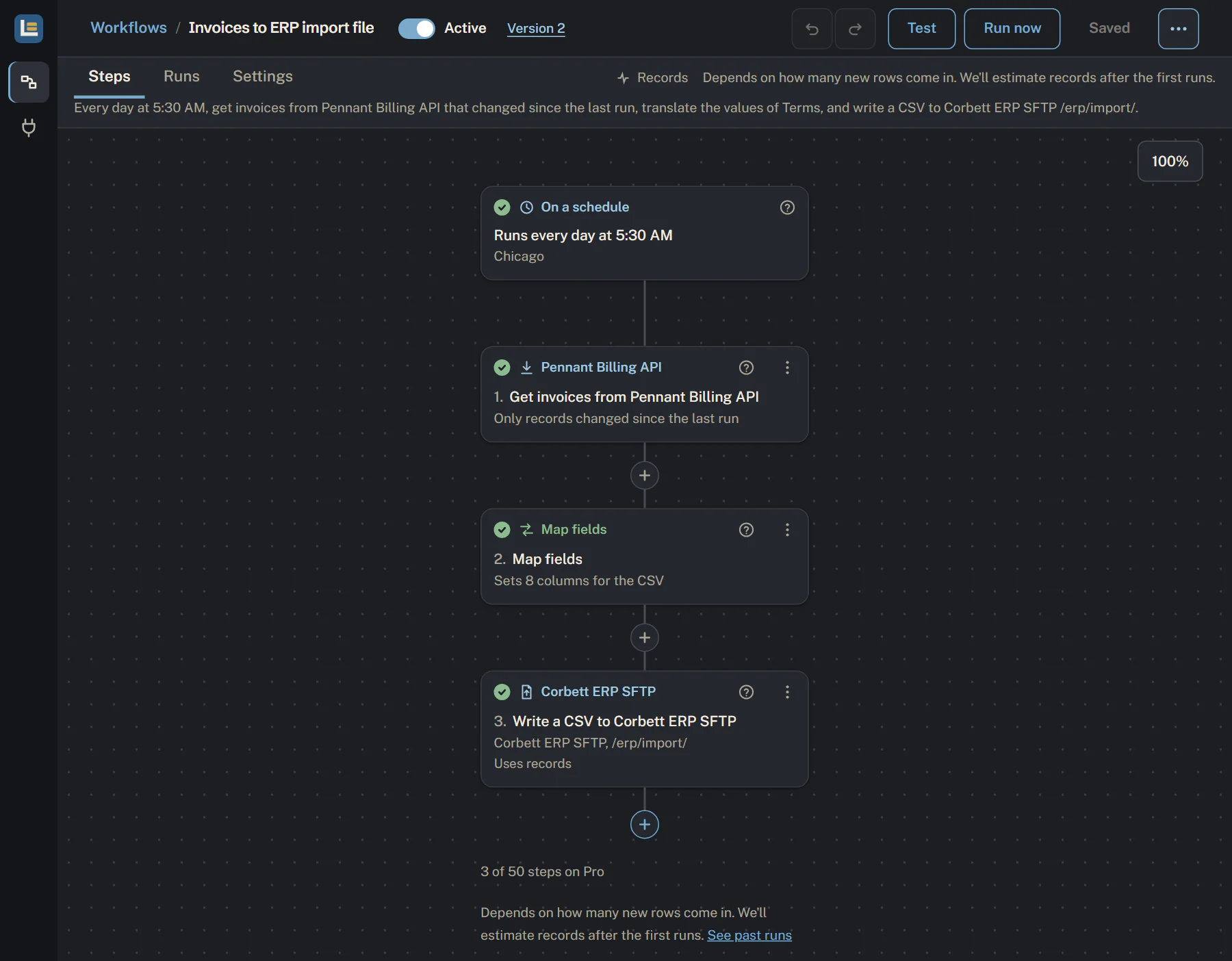
A 30 second recording of the finished workflow. The Steps tab shows a daily 5:30 AM schedule and three steps. The Map fields step opens as a wide sheet and its InvoiceDate row shows the date formula. Back on the workflow, the Runs tab opens the latest run: 23 rows written and 1 skipped. The Output card previews the file in the ERP layout, and the skipped row shows its reason, a Source data tag and a gray note.
The example is made up: Corbett Industrial Supply bills through Pennant Billing, and its ERP is any older system that imports invoices from a CSV file. Everything in the screenshots runs on a test machine, so nothing here touches a real system.
{
  "invoice_number": "INV-20401",
  "issued_on": "2026-10-08",
  "due_on": "2026-11-07",
  "amount_total": 1842.5,
  "payment_terms": "NET30",
  "customer": { "erp_number": "100412", ... },
  ...
}CompanyCode,CustomerNo,InvoiceNo,InvoiceDate,DueDate,Amount,Terms,Reference
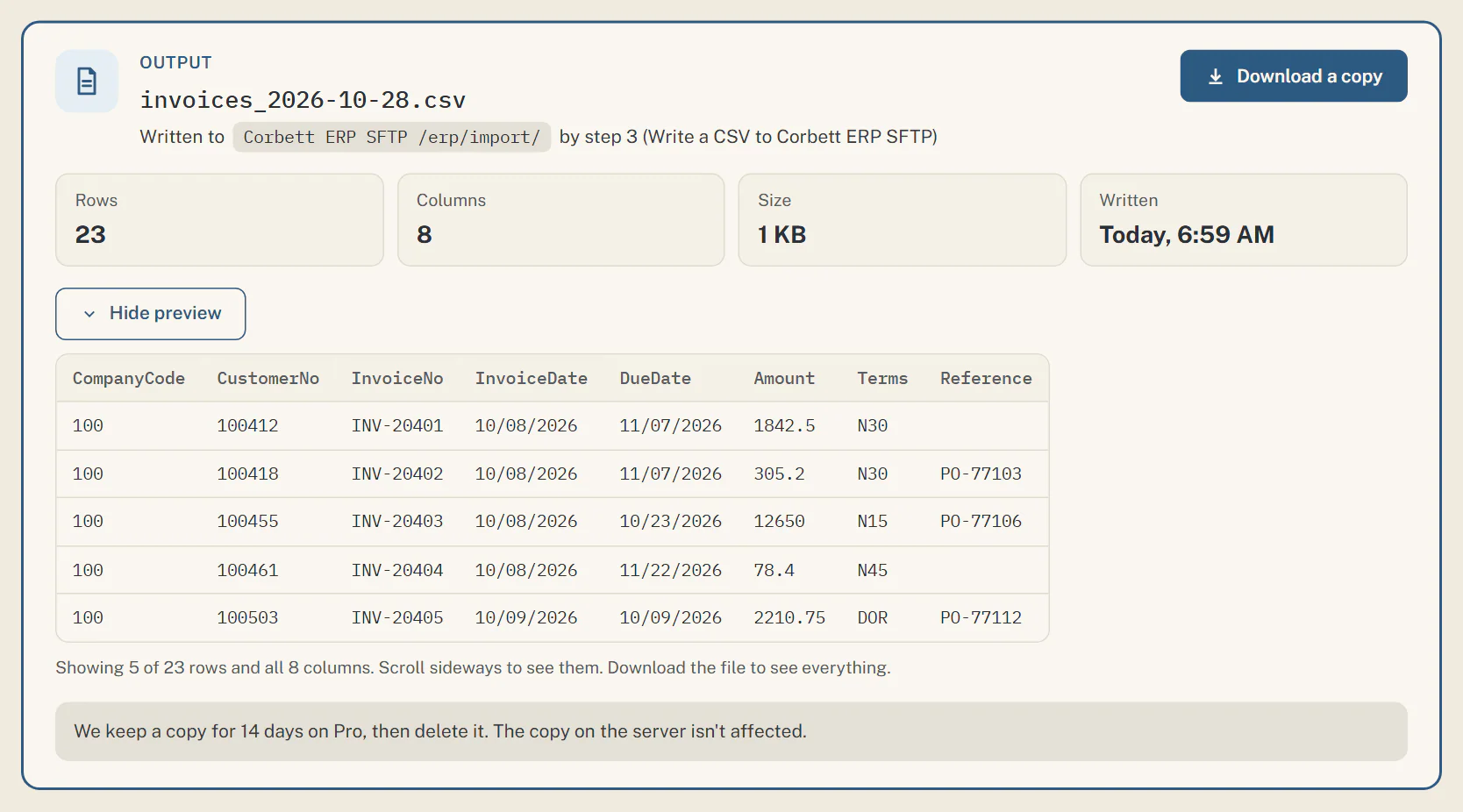
100,100412,INV-20401,10/08/2026,11/07/2026,1842.5,N30,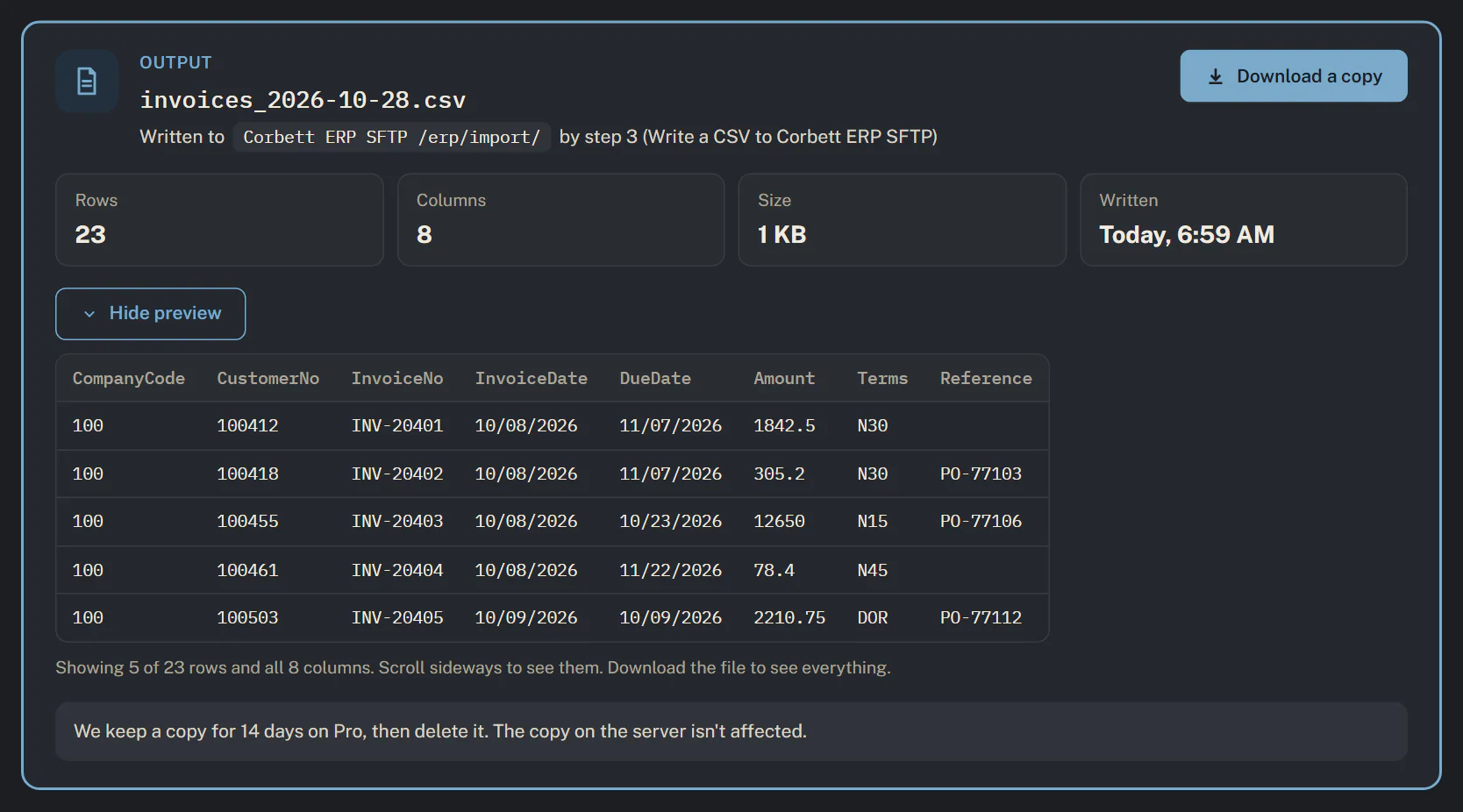 (opens the full size image in a new tab)
 (opens the full size image in a new tab)
What you end up with
- It runs every morning at 5:30.
- It writes a dated file such as invoices_2026-10-15.csv (the day it ran) in your ERP's layout, into the folder your ERP imports from.
- It tells you which rows it could not write, and why.
Needs the Starter, Pro or Business plan. You also need an API key for the billing system, the ERP's import layout, and a Ladeworks account (Start free is below). A scheduled workflow starts paused, so nothing runs until you turn it on.
How it works, in four steps
To build it yourself, choose New workflow on the Workflows page, then Blank, then Set up manually. Pick On a schedule, the billing API's endpoint as the source and the ERP's import folder as the destination, name it, and choose Create workflow. The builder opens with the steps below. You can also describe the job in one sentence under What should this workflow do? and Ladeworks drafts the steps; check each one against this guide.
1. Connect both systems
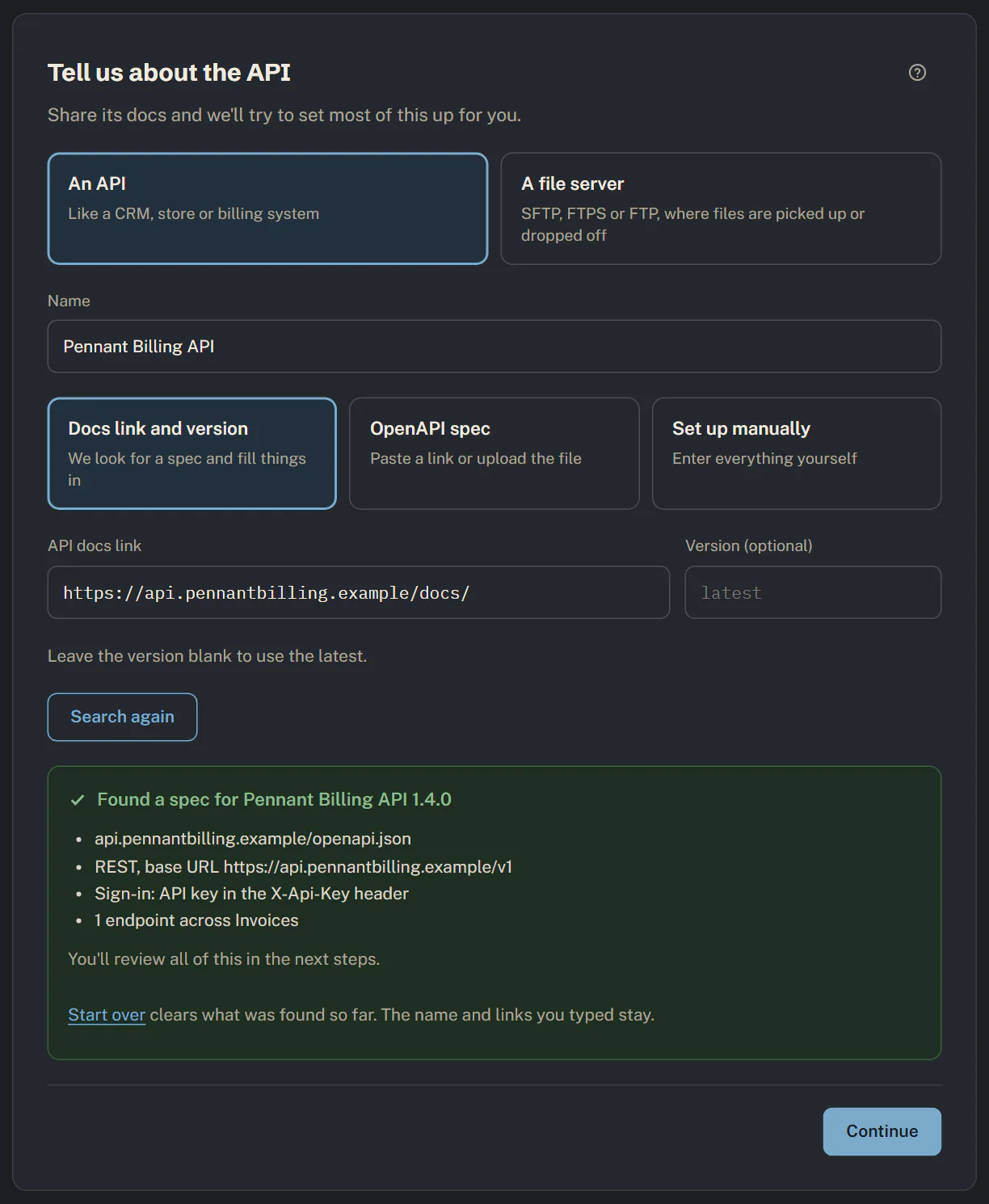
Add the billing API from its docs link: Ladeworks reads the base address, the sign-in method and the endpoints from the spec, and you check each value. Then add the ERP's import folder as a file server.
Both take a few minutes. Connecting the API and connecting the file server have the steps.
 (opens the full size image in a new tab)
 (opens the full size image in a new tab)
2. Pull only what changed
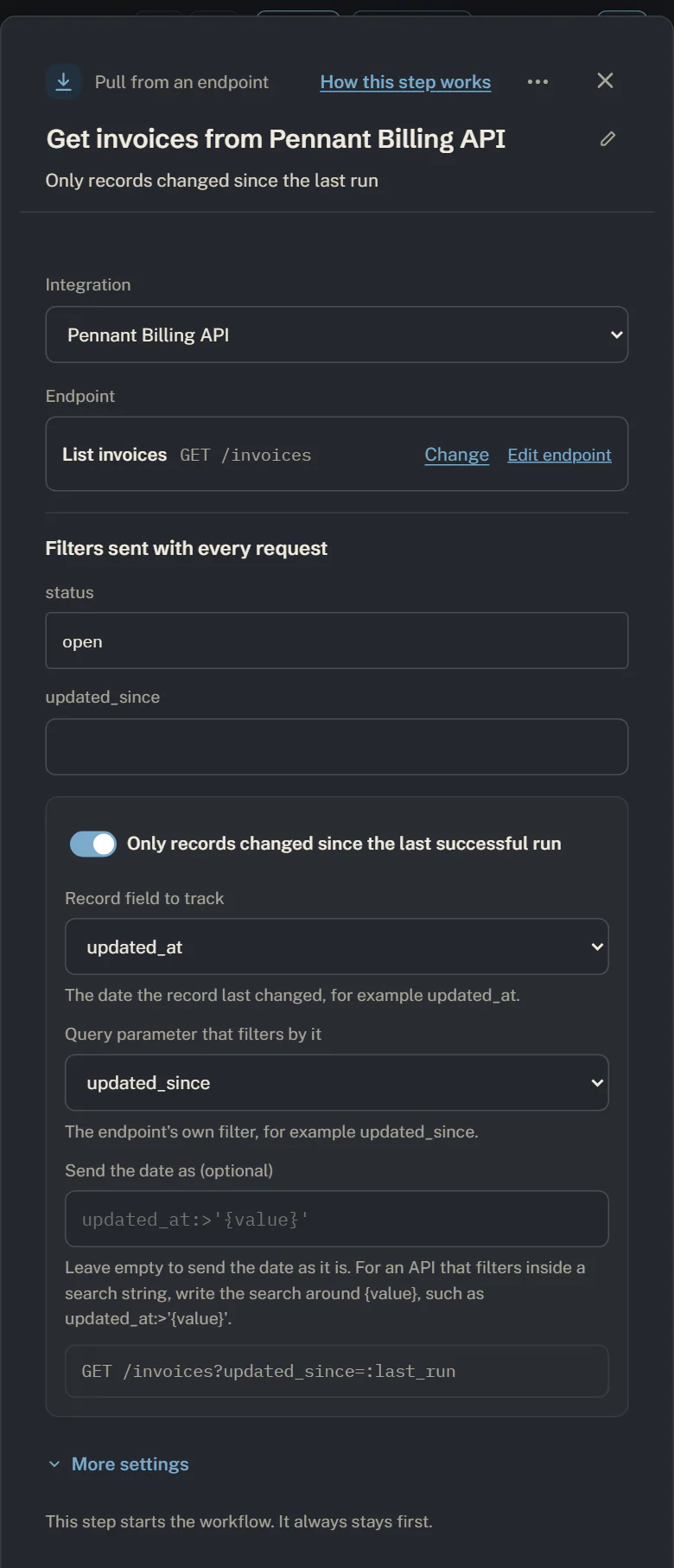
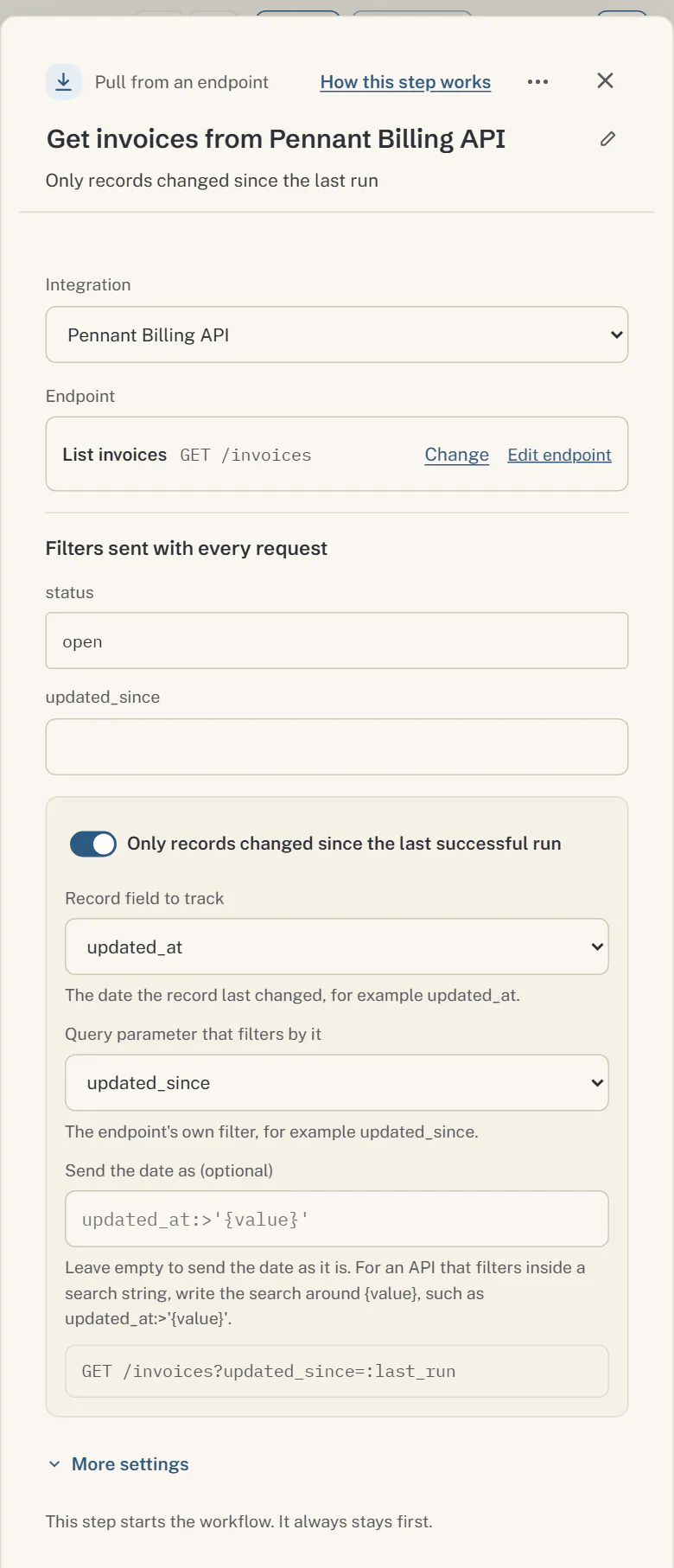
The first step reads the invoices endpoint. It asks for status open, so paid invoices stay out. It also keeps track of updated_at, so each morning's run asks only for invoices that changed since the last run.
 (opens the full size image in a new tab)
 (opens the full size image in a new tab)
3. Shape it into the ERP's layout
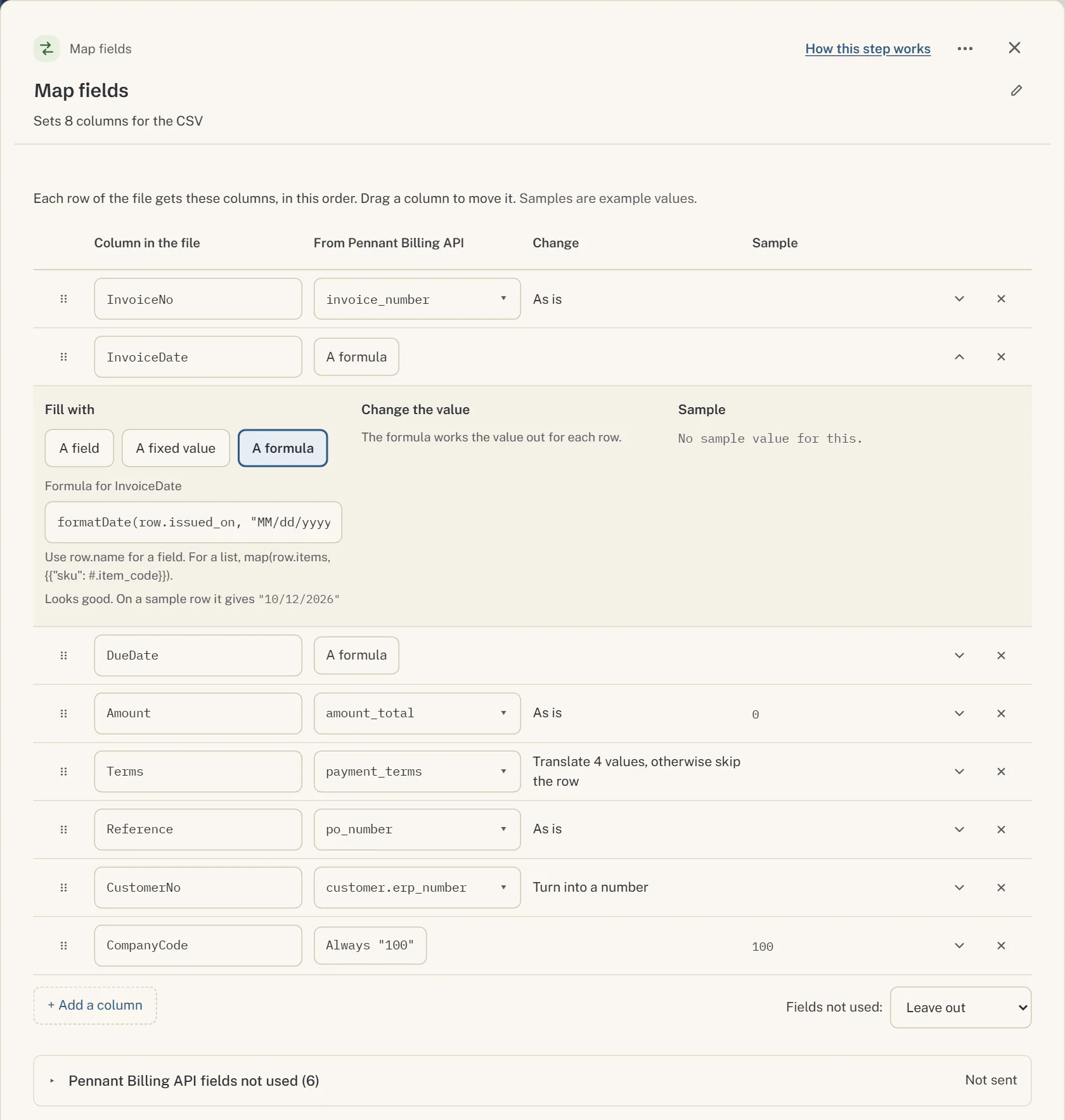
The Map fields step opens as a wide sheet with one row for each column of the file. It starts with a column for every field the billing API sends, so remove the ones the ERP does not want, then rename and rewrite the rest. The ERP wants these eight, in this order.
| ERP column | Comes from | What happens to it |
|---|---|---|
| CompanyCode | Nothing, it never changes | Filled with a fixed value, 100 |
| CustomerNo | customer.erp_number | Changed to a number |
| InvoiceNo | invoice_number | Renamed |
| InvoiceDate | issued_on | Filled with a formula |
| DueDate | due_on | The same formula |
| Amount | amount_total | Renamed |
| Terms | payment_terms | Translated: NET30 becomes N30 |
| Reference | po_number | Renamed |
The date is the one that needs a formula. The API says 2026-10-12 and the ERP wants 10/12/2026:
formatDate(row.issued_on, "MM/dd/yyyy")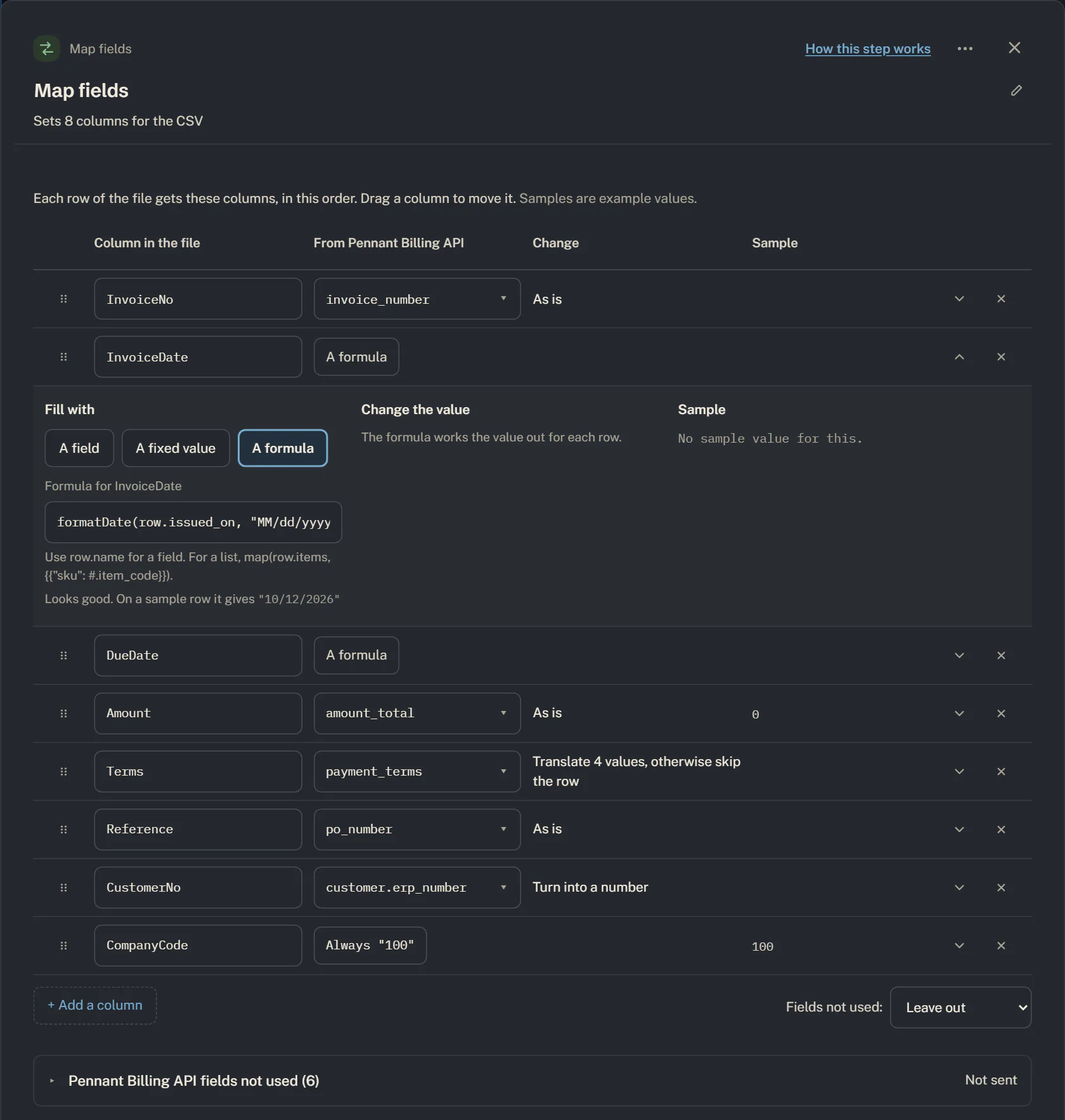 (opens the full size image in a new tab)
 (opens the full size image in a new tab)
Mapping notes cover the numbers, the codes and the other columns. Choose Update when the sheet is right, and Save when the workflow is.
4. Write the file, on a schedule
The last step writes a CSV to the ERP's import folder. Its name is invoices_{date}.csv, where {date} becomes the day of the run, and the columns are listed in the ERP's order. Then set the schedule to daily at 5:30 AM, before the ERP's own import runs, and switch the workflow on. To see a run before tomorrow, choose Run now. Choose Update to keep a change to a step, then Save the workflow.
 (opens the full size image in a new tab)
 (opens the full size image in a new tab)
When a row is wrong
One invoice in the example has no customer number yet, because its customer is new. The run does not fail and does not write a bad line. It writes the other 23 rows and lists the one it could not write, with its line number, its id and the reason.
 (opens the full size image in a new tab)
 (opens the full size image in a new tab)
The fix is in the billing system: give that customer an ERP number. In this example API, editing an invoice changes its updated_at, so the next run picks it up and writes it to a new file next to the first one, invoices_2026-10-15_1.csv. That file holds only the corrected invoice, so the ERP imports each invoice once.
There is no Retry row button for a workflow that writes a file, because the file is written once, at the end of a run. Fix the record and let the next run include it. A rejected API key or a file server that is down fails the whole run instead, and says so in words. Reading a run explains both.
Before you go live
- The first run pulls everything. There is no earlier run to compare with, so it writes every open invoice. Run it before the ERP's import is pointed at the folder, or move the file out.
- Test sends only the first row, and writes a real file with it. It asks first (Send a test?), and it is not a dry run. Use a test folder until you like the file.
- Amounts are written as 1842.5, not 1842.50. If your ERP insists on two decimals, check that first.
- The ERP's folder must be reachable over SFTP, FTPS or FTP. What to do if it is not.
- The changed-since filter may repeat the newest invoice. If your API includes records changed at exactly that time, it appears in two files.
Start free
Connect your own systems and build this workflow yourself. Nothing reaches your systems until you run it or switch it on.
Setup details
You do not need these to follow the story. Open one when you reach that step.
The ERP's folder has to be reachable
Ladeworks connects to file servers over SFTP, FTPS or FTP. It cannot open a folder on someone's computer or a Windows network share. So the folder your ERP imports from has to be on an SFTP server, or synced to one that Ladeworks can reach.
If the ERP runs on Windows, one way is the OpenSSH Server that Windows 10 and Windows 11, and Windows Server 2019 or later, include as an optional feature. Your IT team or managed provider can turn it on and point an account at the import folder. Choose SFTP where you can: plain FTP does not encrypt the password or the files.
If the server only accepts known addresses, Ladeworks connects from the same small set of IP addresses every time. The file server setup shows them in step 1 and again under "Firewall", with a Copy both button, so you can send them to whoever manages the firewall.
Ladeworks writes each file under a temporary name that starts with a dot and ends in .tmp, then renames it to its real name when the last row is in. A file that is still being written never shows up under its final name, so the ERP does not import half a file.
Connect the billing API
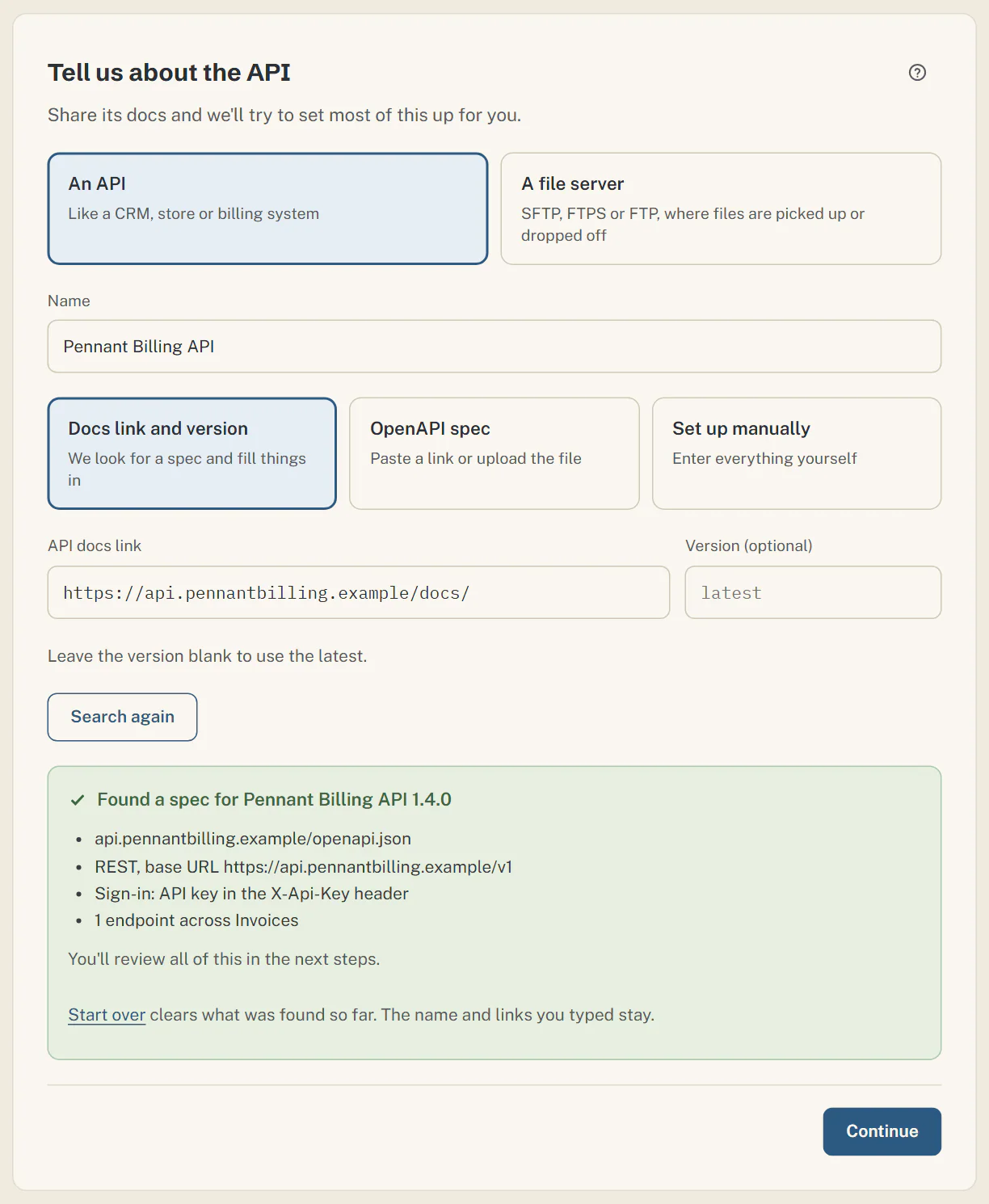
On the Integrations page choose Add an integration, then Custom integration. The first question is What would you like to integrate with?: type the name of your system and choose Go, and Ladeworks looks up the docs, the sign-in and the endpoints. If you would rather do it by hand, as in the screenshot above, choose Set up manually, then An API. Give it a name, paste the link to the API's docs and choose Find the spec. If the docs link to an OpenAPI spec, Ladeworks reads the base address, the sign-in method and the endpoints from it. Next come the location, the sign-in (an API key in a header, in this example), a test that makes one real request, and the endpoints you want. Choose Create integration at the end.
Connect an API from a docs link goes through each step, and sign-in methods covers keys, tokens, Basic and OAuth.
Connect the ERP's file server
Choose Add an integration, then Custom integration again. On the first question you can type the file server's name and choose Go, or choose Set up manually, then A file server. Pick SFTP, enter the host and port, the user name and the password (or have Ladeworks generate an SSH key and send its public half to whoever runs the server), then confirm the server's host key fingerprint when the test shows it. In the last step, Set up folders, add a Drop off files folder for the ERP's import folder.
Set the path (here /erp/import/) and what to do If the file already exists. This guide uses Add a number to the name, so a second file on the same day is saved next to the first instead of replacing it.
Connect a file server has the full setup, including the fingerprint check and SSH keys.
Mapping notes, field by field
Map fields shows a row for each column of the file: the column's name, the field that fills it, what changes and a sample. Choose a row's arrow to open it: Fill with offers A field, Text with fields, A fixed value and A formula, and Change the value offers As is, Uppercase, lowercase or trim spaces, Turn into a number and Translate values. Remove a row with its x for each field the ERP does not want (here the id, the status, the currency, the customer id and name, and the updated time): it moves to the Pennant Billing API fields not used box, where Use brings it back. Set Fields not used to Leave out, so only the columns you map go out.
Names. Type the ERP's column name in the row's name box, such as InvoiceNo.
Fixed value. + Add a column, named CompanyCode, with Fill with set to A fixed value and 100 under Value to send.
Dates. Open InvoiceDate, set Fill with to A formula and type the formula, and do the same for DueDate with due_on. Ladeworks checks the formula as you type and shows what it gives on a sample row.
Numbers. Amounts arrive from the API as numbers, so they are written with no thousands separators: 12650, not 12,650. When a source gives amounts as text such as "$1,200.50", Turn into a number under Change the value reads it as 1200.5.
Customer numbers. Turn into a number passes a number through and cannot work out a blank one, which is how an invoice with no customer number is stopped and reported instead of written with a hole in it. For customer numbers that are text, use Translate values on the customer id instead: a customer that is not in the table skips its row, and the row offers a one-click Add fix that opens the table.
Codes. Translate values is a table: NET15 becomes N15, NET30 becomes N30, NET45 becomes N45 and DUE_ON_RECEIPT becomes DOR. A value that is not in the table skips its row with a clear message, which is the safe choice for a code the ERP would not know.
Map fields describes every choice. Only records changed since the last run covers the pull step's filter.
File options and variations
In the write step, File name is invoices_{date}.csv and Columns, in order (optional) holds the ERP's columns, which fixes both their names and their order whatever the earlier steps did:
CompanyCode,CustomerNo,InvoiceNo,InvoiceDate,DueDate,Amount,Terms,ReferenceLeave Protect against spreadsheet formulas off: it is for files people open in Excel, not for files another system reads. The file is UTF-8 text, with a header line, commas between columns (Columns are separated by also offers semicolon, tab and pipe), a line feed at the end of each line, and quotes only around a value that has a comma, a quote or a line break in it.
For the schedule, click the trigger card at the top of the Steps tab (Edit), choose Daily and set At. The Time zone starts as yours, and the date in the file name uses it too.
- A fixed file name. If the ERP expects the same name every time, drop the date from File name and set the folder's If the file already exists to replace the file, or to fail the step so an unread file is never overwritten.
- More than one file a day. Use {datetime} in the file name, and schedule the workflow Hourly or Every few minutes.
- Other sources. The first step can be any endpoint of an API you connect, or a CSV from a file server folder. Filter rows, Split a list into rows, Get details for each row and Combine with another source (add the rows of a second source, or match each row to a row of another one by a key) cover most other shapes.
- Another file type. Write a file has a File type choice: CSV, or QuickBooks Desktop (IIF) for QuickBooks Desktop. ERPNext invoices to QuickBooks Desktop uses it.
Write a file covers file names, empty files and the Output card, and Triggers covers every schedule choice.
Using ERPNext? See Import a CSV into ERPNext and Export ERPNext items to a CSV every night. More in the docs: Create a workflow, Map fields and notifications.
More guides: all guides. How each step works: the docs.