Shopify to QuickBooks Online
Your books keep up with your Shopify store.
Every sale, refund and payout reaches QuickBooks Online on its own, with the customer and items matched. Nobody types it in twice.
Free trial, no card needed. Starts with orders to sales receipts.
Ana Ruiz · ana@example.com
Then, on its own
Customer Ana Ruiz, found by email
Templates
Pick the job. Check every step before it runs.
Each template is a real workflow you can change. Use one, or use all 5.
Orders to sales receipts
Most popularRuns by itself when Shopify reports a paid order. Orders already sent are skipped, and an order edited after it was sent updates its receipt.
Steps
- An order is paid in Shopify
- Keep paid orders
- Map orders to sales receipts
- Create a sales receipt
Field mapping
| From Shopify | To QuickBooks Online |
|---|---|
| Customer email | Customer, found by email or added |
| Item SKU | Product or service, matched by SKU |
| Price paid | Rate |
| Shipping | Shipping item |
| Tax charged | Sales tax |
| Order number | Reference number |
| Order date | Date, in your store's time zone |
| Shipping address | Ship to |
You choose the account the money goes into, the shipping item and the gift card item.
Orders to invoices
For orders paid laterRuns by itself when Shopify reports a new or changed order. A paid order gets its payment recorded, and an order edited after it was sent updates its invoice.
Steps
- An order is created or changed in Shopify
- Leave out test orders
- Map orders to invoices
- Create an invoice
Field mapping
| From Shopify | To QuickBooks Online |
|---|---|
| Customer email | Customer, found by email or added |
| Item SKU | Product or service, matched by SKU |
| Price paid | Rate |
| Shipping | Shipping item |
| Tax charged | Sales tax |
| Amount paid | Payment on the invoice |
| Order number | Reference number |
| Order date | Date, in your store's time zone |
You choose the terms, the account payments go into and the shipping item.
Refunds to refund receipts
Pairs with either orders templateRuns by itself when Shopify reports a refund. Refunds already sent are skipped, so nothing is added twice.
Steps
- A refund is made in Shopify
- Map refunds to refund receipts
- Create a refund receipt
Field mapping
| From Shopify | To QuickBooks Online |
|---|---|
| Customer email | Customer, found by email or added |
| Refunded item SKU | Product or service, matched by SKU |
| Refunded price | Rate |
| Shipping refunded | Shipping item |
| Tax refunded | Sales tax |
| Order number | Memo |
| Refund ID | Reference number |
You choose whether your orders are added as receipts or invoices, the account the refund comes from and the shipping item.
Payouts to bank deposits
DailyRuns every morning. A payout that already has a deposit is skipped.
Steps
- Every day at 7:00 AM
- Get payouts
- Map payouts to deposit lines
- Create a deposit
Field mapping
| From Shopify | To QuickBooks Online |
|---|---|
| Charges | A line from the clearing account |
| Refunds | A line from the clearing account |
| Fees | A line from the fees account |
| Payout date | Deposit date |
| Payout amount | Deposit total, the lines add up to it |
You choose the bank account, the clearing account and the fees account.
Customers to customers
Keeps your list in stepRuns by itself when Shopify reports a new customer. A customer already in QuickBooks Online, matched by email, is skipped.
Steps
- A customer is added in Shopify
- Map customers
- Add a customer
Field mapping
| From Shopify | To QuickBooks Online |
|---|---|
| Name | Display name |
| Email, used to match | |
| Phone | Phone |
| Address | Billing address |
You choose which fields to send, or leave them as they are.
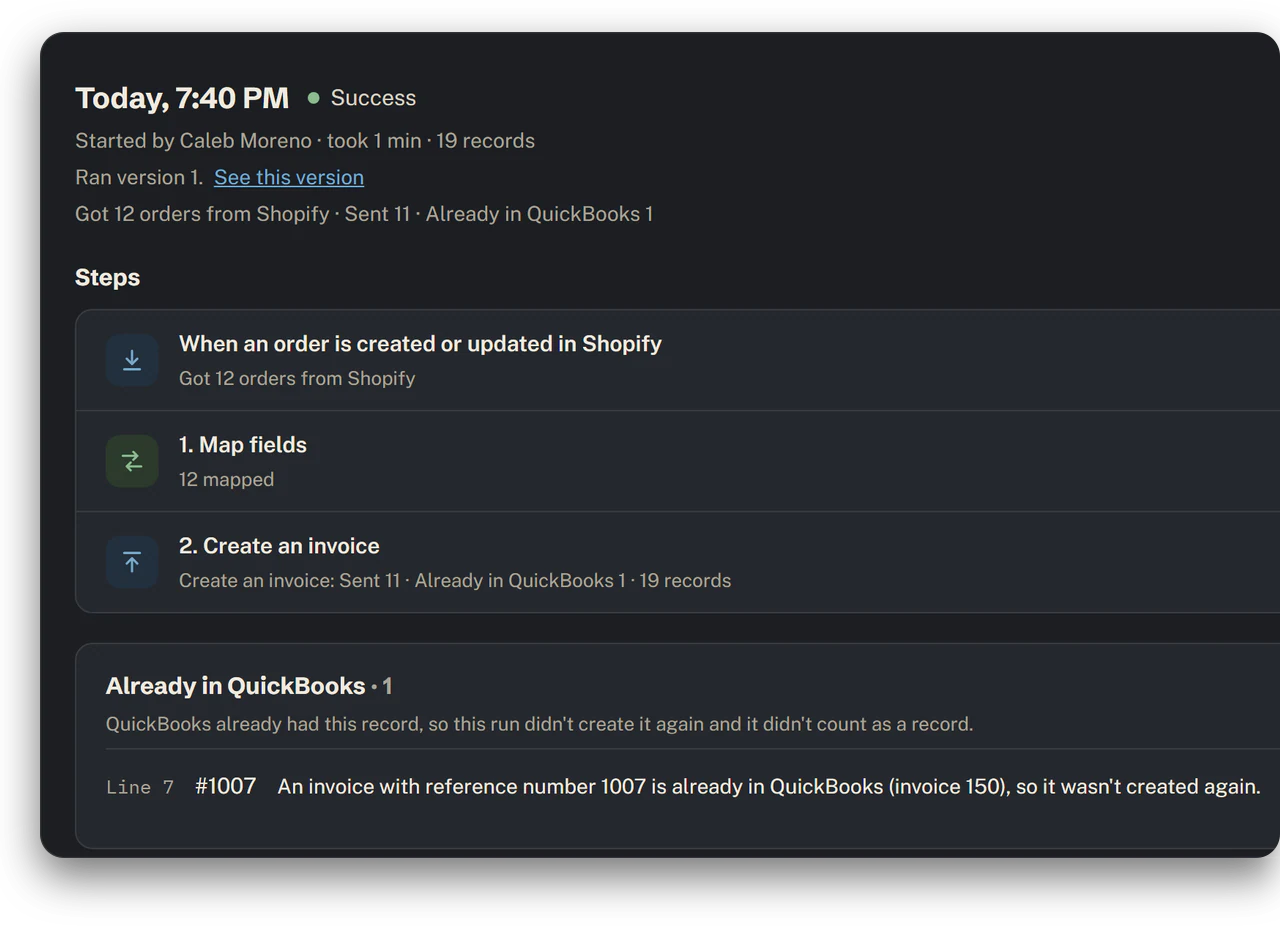
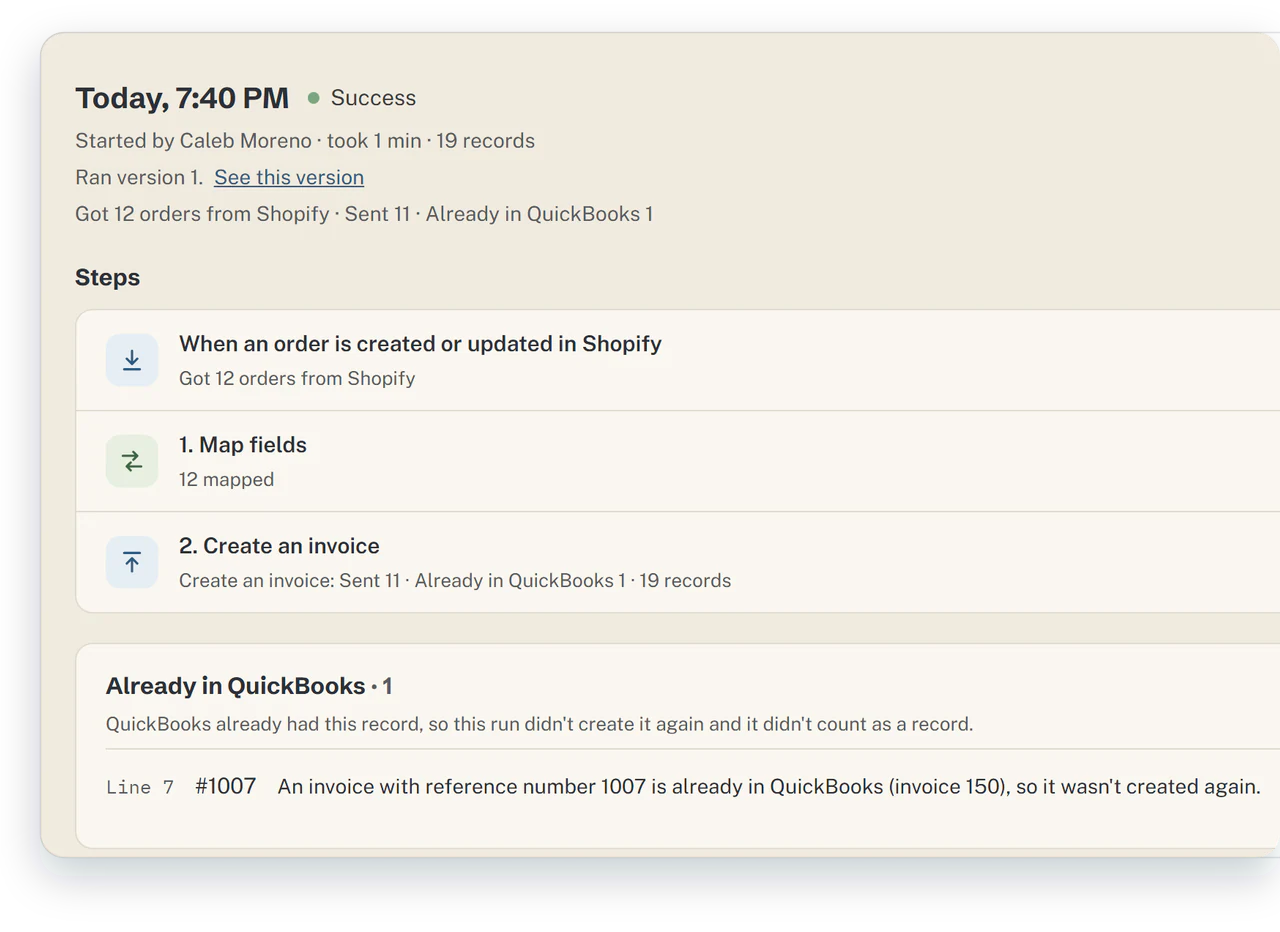
See every order that landed.
Each order shows the receipt or invoice it became. When one needs a look, you see why, fix it, and send just that one again.
Ladeworks emails you when something needs a look, so a missing sale never goes unnoticed until month end.
Sales receipt or invoice?
The two look alike in QuickBooks Online and behave differently in your books. Pick on purpose.
Sales receipt
For orders paid at checkout. The sale and the money arrive together, and accounts receivable is never touched.
Most Shopify stores use this.
Invoice
For orders that are paid later, such as wholesale on terms. The amount sits in accounts receivable until the payment is recorded.
Shows on statements and aging reports.
Built for how Shopify money moves.
Never added twice
The order number becomes the reference number. Orders already sent are skipped, so a rerun doubles nothing.
Edits follow the order
An order edited after it was sent updates its receipt or invoice.
Customers and items matched
Customers are found by email or added. Items are matched by SKU at the price paid.
Tax as Shopify charged it
Shipping, duties, fees, tips and gift cards each land where you choose.
Payouts match your bank feed
Each deposit adds up to what Shopify paid out, with fees booked to your fees account.
Test orders left out
Orders made with Shopify's test gateway never reach your books.
Questions
Can I send orders from before I started?
Yes. On the first run, choose how far back to start, and those orders are sent too.
What happens when an order is refunded?
The refunds template sends each refund as a refund receipt, or as a credit memo when your orders are added as invoices. The original receipt stays as it was sold.
Can I change what goes where?
Yes. Every step and every field can be changed before the first run, and any time after.
Can the same workflow update another system too?
Yes. Add a spreadsheet, a file server or another app to the same workflow.
More integrations:
Shopify QuickBooks Online HubSpot Square Square to QuickBooks Online Shopify to HubSpot All integrationsConnect Shopify and QuickBooks Online.
Free trial, no card needed.